

'%3e%3cpath%20d='M8%200C12.4183%200%2016%203.58172%2016%208C16%2012.4183%2012.4183%2016%208%2016C3.58172%2016%200%2012.4183%200%208C0%203.58172%203.58172%200%208%200ZM11.6162%204.38379C11.2257%203.99337%2010.5927%203.99338%2010.2021%204.38379L8%206.58594L5.79785%204.38379C5.40732%203.99334%204.77429%203.99329%204.38379%204.38379C3.99331%204.77429%203.99335%205.40733%204.38379%205.79785L6.58594%208L4.38379%2010.2021C3.99348%2010.5927%203.99341%2011.2257%204.38379%2011.6162C4.77426%2012.0066%205.40734%2012.0065%205.79785%2011.6162L8%209.41406L10.2021%2011.6162C10.5927%2012.0066%2011.2257%2012.0067%2011.6162%2011.6162C12.0067%2011.2257%2012.0066%2010.5927%2011.6162%2010.2021L9.41406%208L11.6162%205.79785C12.0066%205.40735%2012.0066%204.77429%2011.6162%204.38379Z'%20fill='%23080E17'%20fill-opacity='0.46'/%3e%3c/g%3e%3cdefs%3e%3cclipPath%20id='clip0_3761_713'%3e%3crect%20width='16'%20height='16'%20fill='white'/%3e%3c/clipPath%3e%3c/defs%3e%3c/svg%3e)




'%3e%3cpath%20fill-rule='evenodd'%20clip-rule='evenodd'%20d='M21.4999%2010.9993C21.4999%205.20009%2016.7986%200.498901%2010.9993%200.498901C5.19994%200.498901%200.498657%205.20009%200.498657%2010.9993C0.498657%2016.2404%204.33858%2020.5844%209.35855%2021.3722V14.0346H6.69238V10.9993H9.35855V8.68594C9.35855%206.05427%2010.9262%204.60062%2013.3248%204.60062C14.4736%204.60062%2015.6753%204.80571%2015.6753%204.80571V7.38979H14.3512C13.0468%207.38979%2012.64%208.19921%2012.64%209.0296V10.9993H15.5523L15.0867%2014.0346H12.64V21.3722C17.66%2020.5844%2021.4999%2016.2404%2021.4999%2010.9993Z'%20fill='%231568EA'/%3e%3c/g%3e%3c/svg%3e)


'%3e%3cpath%20d='M2.42045%2022.1876H6.31818V12.7217L0.75%208.54553V20.5171C0.75%2021.4414%201.49892%2022.1876%202.42045%2022.1876Z'%20fill='%234285F4'/%3e%3cpath%20d='M19.682%2022.1876H23.5797C24.5041%2022.1876%2025.2502%2021.4387%2025.2502%2020.5171V8.54553L19.682%2012.7217'%20fill='%2334A853'/%3e%3cpath%20d='M19.682%205.48293V12.7216L25.2502%208.54543V6.31816C25.2502%204.25236%2022.8921%203.07469%2021.2411%204.31361'%20fill='%23FBBC04'/%3e%3cpath%20d='M6.31824%2012.7217V5.48303L13.0001%2010.4944L19.6819%205.48303V12.7217L13.0001%2017.733'%20fill='%23EA4335'/%3e%3cpath%20d='M0.75%206.31816V8.54543L6.31818%2012.7216V5.48293L4.75909%204.31361C3.10534%203.07469%200.75%204.25236%200.75%206.31816Z'%20fill='%23C5221F'/%3e%3c/g%3e%3cdefs%3e%3cclipPath%20id='clip0_2954_7305'%3e%3crect%20width='24.5'%20height='18.375'%20fill='white'%20transform='translate(0.75%203.8125)'/%3e%3c/clipPath%3e%3c/defs%3e%3c/svg%3e)


Best Spreadsheet Apps for iPhone in 2026: A Practical Comparison
Which spreadsheet app you should use on your iPhone comes down to one question: where do your files live? This guide compares the five apps worth considering and shows you how to make and edit spreadsheets on a small screen, including Excel files, for free.


The Short Answer: Which Spreadsheet App Should You Use on iPhone?
Most people searching "spreadsheet on iPhone" fall into one of two camps. Either they want to know which app to install, or they have an Excel file on their phone and need to edit it without paying for Microsoft 365. Here is the quick verdict before the details.
| App | Best for | Free .xlsx editing | Excel compatibility | Collaboration | Offline | Entry price |
|---|---|---|---|---|---|---|
| WPS Office Spreadsheet | Working with Excel files on a budget | Yes | Excellent (native .xlsx/.xls) | Yes (cloud, online) | Yes | Free (Premium from ~$3.99/mo) |
| Apple Numbers | Apple users, simple budgets | Partial | Moderate (formatting can shift) | Yes (iCloud) | Yes | Free (preinstalled) |
| Google Sheets | Teams, real-time collaboration | Yes, after upload | Good | Best-in-class live | Limited | Free (Google account) |
| Microsoft Excel | People already paying for Microsoft 365 | No (locked) | Native | Yes (OneDrive) | Yes | Free to view; editing needs 365 |
| Zoho Sheet | Teams inside the Zoho ecosystem | Yes | Good | Yes | Yes | Free tier; paid from ~$3/user/mo |
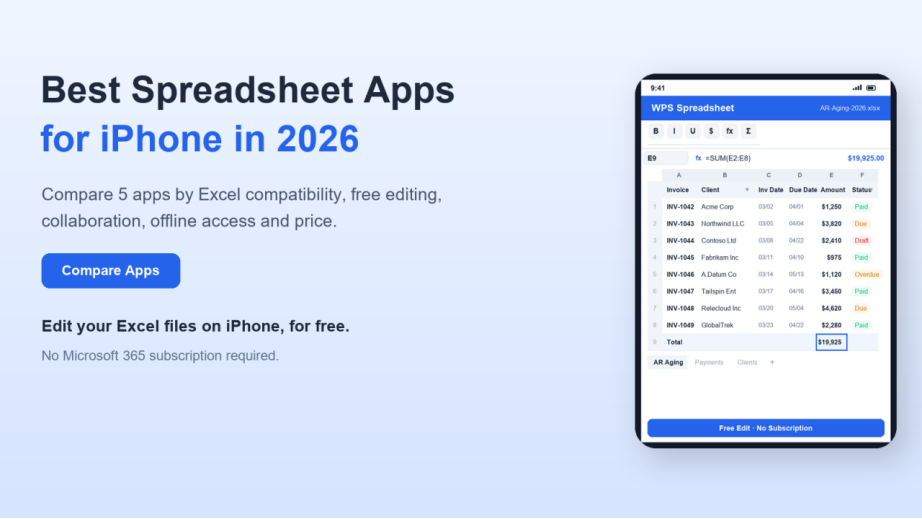
WPS Office Spreadsheet
Who it is for: anyone who receives .xlsx or .xls files, works with Microsoft Office formats, and does not want to pay for Microsoft 365.
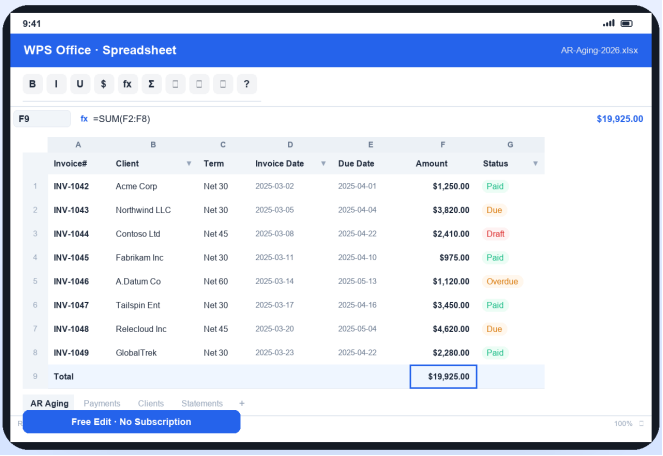
WPS Office Spreadsheet is part of the WPS Office app for iPhone, which also includes documents, slides, and PDF tools in one download. Its main advantage on iPhone is simple: it opens and edits real Excel files natively, including formulas, cell formatting, and multiple sheets, without a Microsoft subscription.
Key capabilities
Opens and edits .xlsx and .xls files directly, with broad formula compatibility.
Familiar ribbon-style interface similar to desktop Office, which shortens the learning curve.
Cloud sync with WPS Cloud, plus support for Google Drive, Dropbox, and OneDrive.
A large template library for budgets, invoices, schedules, and lists.
Works offline; changes sync when you are back online.
Where it is limited: real-time co-editing and the ad-free experience require an internet connection and, for some advanced features, the Premium plan. Pricing for Premium is roughly $3.99 to $6.99 per month depending on plan and region; confirm the current price in the app or on the WPS Office for iOS page.
Verdict: WPS Office is the practical default if your daily reality is Excel files that need to be edited on the go without a recurring Microsoft fee. That is the scenario the other four apps handle worst.
Apple Numbers
Who it is for: people who stay inside the Apple ecosystem, and whose spreadsheet work is personal budgets, class schedules, or simple tables.
Apple Numbers comes preinstalled on every iPhone, which makes it the zero-effort choice. It shines when you want a clean, visual sheet and tight sync with iCloud across your iPhone, iPad, and Mac.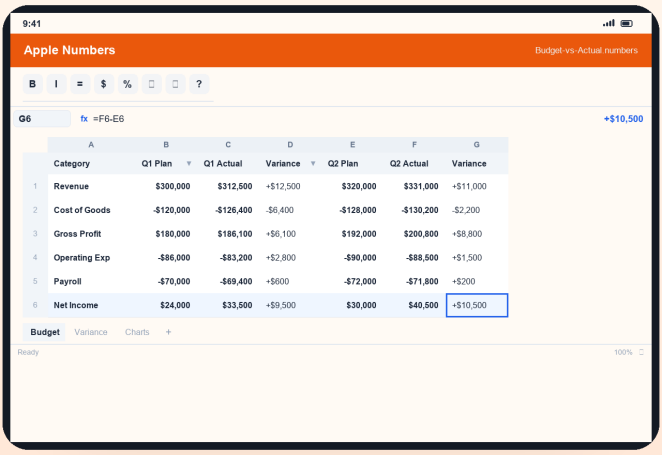
Key capabilities
Preinstalled and free on iPhone, no setup required.
Clean templates for budgets, invoices, and lists that look polished quickly.
Smart Categories help group and summarize rows automatically.
Real-time collaboration through iCloud with other Apple users.
Strong privacy and security as part of the Apple platform.
Where it is limited: Numbers is not a true Excel editor. When you export a Numbers file as Excel, complex formulas, pivot tables, and some formatting can change or break. It also connects less smoothly with non-Apple devices and services.
Google Sheets
Who it is for: teams and anyone who needs multiple people editing the same sheet at the same time.
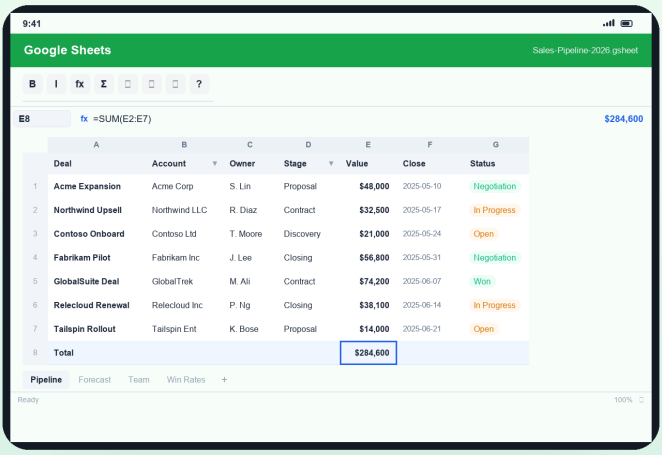
Google Sheets is the collaboration leader. Its strength is live editing with version history, visible cursors, and permissions that are simple to manage, all tied to your Google account and Google Drive.
Key capabilities
Best-in-class real-time co-editing with clear access levels (view, comment, edit).
Auto-saves to Google Drive with full version history.
Imports and exports Excel files; supports most common formulas, pivot tables, and charts.
Free with a Google account; Google Workspace adds storage and admin tools (plans start around $6 per user per month).
Where it is limited: to edit, you first upload your file to Drive, which needs an internet connection. On mobile, very large or heavily formatted Excel workbooks can render with layout shifts. Offline editing is possible but must be set up in advance.
Microsoft Excel
Who it is for: people who already pay for Microsoft 365 and want a familiar, feature-complete mobile experience.
Microsoft Excel is the reference point every other spreadsheet app is compared against, and the iPhone app is free to download and view. The catch is that editing is locked behind a Microsoft 365 subscription on iPhone. You can read a workbook, but to type into cells, you generally need an active subscription.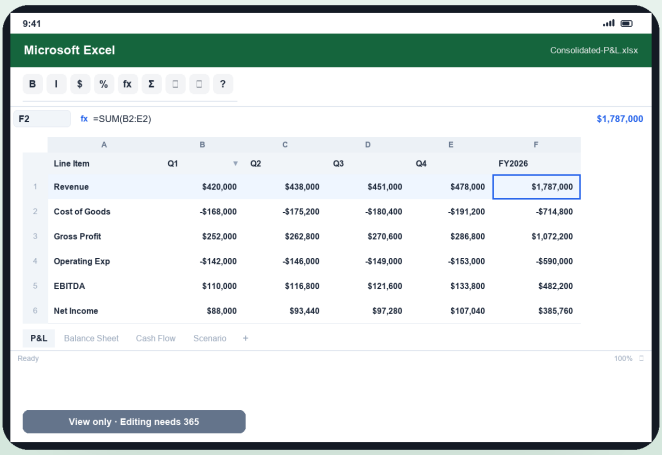
Key capabilities
Full formula library and native compatibility with everything created in desktop Excel.
Pivot tables, charts, and formatting that match the desktop experience.
Sync and collaboration through OneDrive.
Familiar ribbon interface for existing Excel users.
Where it is limited: the free tier does not unlock editing on iPhone. It also pushes files to OneDrive, and heavier workbooks can feel slow on a phone.
Zoho Sheet
Who it is for: small and medium teams already using Zoho's suite of business apps.
Zoho Sheet is a capable web-first spreadsheet that fits naturally next to Zoho CRM, Projects, and other Zoho tools, which makes it a sensible pick for businesses that have standardized on Zoho.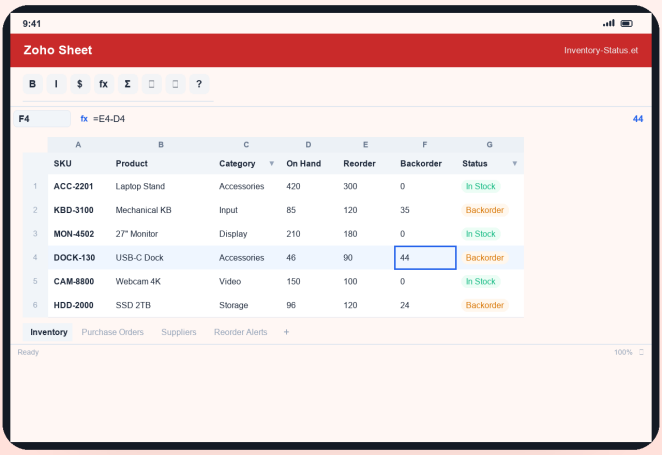
Key capabilities
Real-time collaboration with granular permissions.
Pivot tables, conditional formatting, and a broad set of functions for analysis.
Connects with the wider Zoho business app suite.
Offline editing on mobile, with sync when back online.
Where it is limited: unless your company already uses Zoho, there is little reason to add it to an iPhone over WPS or Google Sheets. Advanced features and extra storage sit behind paid plans (Standard around $3, Professional around $6 per user per month).
How to Choose, in One Place
| If you need this | Choose | Why |
|---|---|---|
| To edit an Excel file on the go without a subscription | WPS Office Spreadsheet | Native .xlsx editing, free, offline-capable |
| A simple sheet that stays inside Apple | Apple Numbers | Preinstalled, clean, syncs via iCloud |
| Multiple people editing the same sheet live | Google Sheets | Best real-time collaboration |
| The most faithful Excel experience, and you already pay for Microsoft 365 | Microsoft Excel | Full feature parity |
| A sheet that connects to your Zoho business apps | Zoho Sheet | Deep Zoho integration |
How to Make and Edit a Spreadsheet on iPhone
Here are the steps for the three apps most iPhone users will actually pick: Numbers, WPS Office, and Google Sheets. The fastest route to edit an existing Excel file is in the WPS section below.
In Apple Numbers
Open Numbers and tap the plus icon (+) at the top of the spreadsheet manager.
Choose a template or tap Blank to start a new sheet.
Tap any cell and start typing; use the keyboard's number and date modes for that type of data.
To format, tap the paintbrush icon, then adjust text, cell fill, borders, and alignment.
For a formula, tap an empty cell, tap the equals sign (=) above the keyboard, then pick a function like SUM and drag across the cells to include.
To share or export, tap the three-dot menu and choose Share or Export as PDF or Excel.
In WPS Office Spreadsheet (including editing an existing Excel file)
For a step-by-step walkthrough, read our guide to building a budget spreadsheet in WPS Office.
Open WPS Office and tap the plus icon (+) to start a new file.
Choose Spreadsheet, then a blank sheet or a template.
Type into any cell, drag to select a range, and use the ribbon to format, insert charts, or apply formulas.
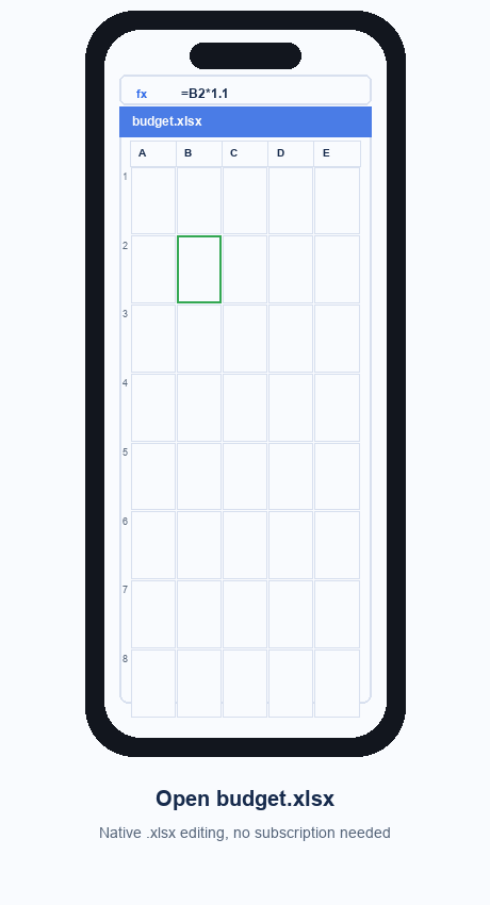
To edit an Excel file you already have, tap Open, select the .xlsx or .xls file from Files, iCloud Drive, or another provider, and it opens directly with formulas and formatting intact.
Tap Save to store it in WPS Cloud, or use Export to send an Excel copy that keeps the .xlsx format.
In Google Sheets
Open Google Sheets and sign in with your Google account.
Tap the plus icon (+) to create a new spreadsheet, or open an uploaded file from Drive.
Tap a cell to type; use the format toolbar to style text and cells.
To add a formula, tap a cell and type an equals sign (=), then select a function from the suggestions.
Tap the share icon to invite people, and set each person to Viewer, Commenter, or Editor.
Tips for working on a small screen
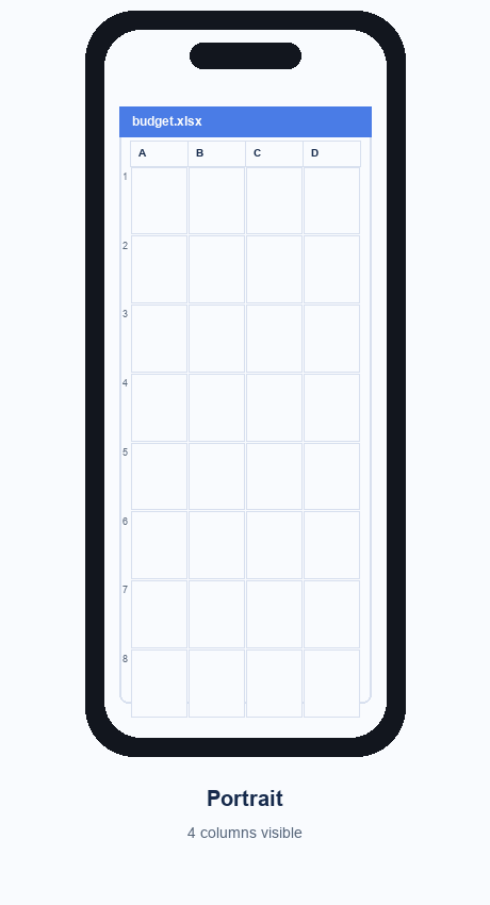
Rotate the iPhone to landscape for a wider view of columns.
Use pinch to zoom in and out.
Start from a template instead of a blank sheet to save layout work.
Keep very large workbooks on a desktop; use the phone for quick entries and edits.
Editing Excel Files on iPhone Without Paying for Microsoft 365
Microsoft Excel for iPhone is free to download and view, but editing cells is tied to a Microsoft 365 subscription. For anyone who does not want that recurring cost, the practical free options are WPS Office Spreadsheet and Google Sheets.
WPS opens .xlsx and .xls files natively on the phone, keeps formulas and formatting intact, and works offline. That is the difference that matters for the most common real-world task: a budget, an invoice, or a timesheet arrives as an Excel file, and you need to update it before sending it back. With WPS you open, edit, and export the same file without a subscription.
FAQs About Spreadsheets on iPhone
Is Apple Numbers free on iPhone?
Yes. Numbers is preinstalled on iPhone and free through the App Store. It also syncs for free through iCloud.
Can I edit an Excel file on iPhone without Microsoft 365?
Yes. WPS Office Spreadsheet and Google Sheets both open and edit .xlsx files. Microsoft Excel for iPhone requires a Microsoft 365 subscription for editing.
What is the difference between Excel and Numbers on iPhone?
Excel is the industry standard with a larger formula library and native Office compatibility, but editing it on iPhone needs Microsoft 365. Numbers is free and preinstalled, with a cleaner interface, but exporting to Excel can alter complex formulas and formatting.
Does Google Sheets work offline on iPhone?
Yes, but offline access must be set up in advance in the app settings, and changes sync when you reconnect. For a quick edit of a file you just received, an app that opens local files directly (like WPS) avoids the upload step.
Is WPS Office free on iPhone?
Yes. WPS Office for iOS is free to download and edit spreadsheets. The Premium plan removes ads and unlocks additional features, with pricing that varies by plan and region.
What is the best spreadsheet app for iPhone for beginners?
For simple personal sheets, Apple Numbers is the most approachable because it is free, preinstalled, and visual. For beginners who also need to open Excel files from work or school, WPS Office Spreadsheet is the more practical free choice.
How We Compared These Apps
We selected the five apps that dominate searches and app-store charts for spreadsheet work on iPhone. We compared them on the criteria that matter for mobile spreadsheet use: whether .xlsx files open and edit natively and free, Excel compatibility, collaboration, offline access, and entry price. Ratings and pricing were gathered from public app-store and review data at the time of writing in 2026; figures can change by region and over time. We did not receive compensation from the apps listed here, and we note each app's limitations alongside its strengths.
Which Spreadsheet App Should You Pick?
The right answer depends on one question: where do your files live?
If your spreadsheets are Excel files that arrive by email and need editing on the go, WPS Office Spreadsheet is the most practical choice because it edits .xlsx natively and free, with offline support.
If you work mostly with simple sheets and live in the Apple ecosystem, Apple Numbers is free, preinstalled, and all you need.
If your team edits the same sheet together in real time, Google Sheets wins on collaboration.
If you already pay for Microsoft 365, Microsoft Excel gives the most faithful mobile experience.
For most people, the deciding trade-off is free Excel editing. That is why WPS Office is the default recommendation here.
Ratings and pricing reflect public data at the time of writing in 2026 and may change by region or over time. Verify current pricing in the app or on the official product pages.



'%3e%3cpath%20d='M19.9911%204.11386V6.471H18.5894C18.0775%206.471%2017.7322%206.57814%2017.5536%206.79243C17.3751%207.00671%2017.2858%207.32814%2017.2858%207.75671V9.44421H19.9019L19.5536%2012.0871H17.2858V18.8639H14.5536V12.0871H12.2769V9.44421H14.5536V7.49779C14.5536%206.39064%2014.8632%205.53201%2015.4822%204.92189C16.1013%204.31177%2016.9257%204.00671%2017.9554%204.00671C18.8304%204.00671%2019.509%204.04243%2019.9911%204.11386Z'%20fill='%23333333'/%3e%3c/g%3e%3cdefs%3e%3cclipPath%20id='clip0_2938_8199'%3e%3crect%20width='16'%20height='16'%20fill='white'%20transform='translate(8%204.00671)'/%3e%3c/clipPath%3e%3c/defs%3e%3c/svg%3e)
'%3e%3cpath%20d='M17.5237%2010.7813L23.4811%204H22.0699L16.8949%209.88693L12.7648%204H8L14.2469%2012.9029L8%2020.0133H9.4112L14.8725%2013.7952L19.2352%2020.0133H24M9.92053%205.04213H12.0885L22.0688%2019.0224H19.9003'%20fill='%23333333'/%3e%3c/g%3e%3cdefs%3e%3cclipPath%20id='clip0_2938_8200'%3e%3crect%20width='16'%20height='16.0134'%20fill='white'%20transform='translate(8%204)'/%3e%3c/clipPath%3e%3c/defs%3e%3c/svg%3e)


