

'%3e%3cpath%20d='M8%200C12.4183%200%2016%203.58172%2016%208C16%2012.4183%2012.4183%2016%208%2016C3.58172%2016%200%2012.4183%200%208C0%203.58172%203.58172%200%208%200ZM11.6162%204.38379C11.2257%203.99337%2010.5927%203.99338%2010.2021%204.38379L8%206.58594L5.79785%204.38379C5.40732%203.99334%204.77429%203.99329%204.38379%204.38379C3.99331%204.77429%203.99335%205.40733%204.38379%205.79785L6.58594%208L4.38379%2010.2021C3.99348%2010.5927%203.99341%2011.2257%204.38379%2011.6162C4.77426%2012.0066%205.40734%2012.0065%205.79785%2011.6162L8%209.41406L10.2021%2011.6162C10.5927%2012.0066%2011.2257%2012.0067%2011.6162%2011.6162C12.0067%2011.2257%2012.0066%2010.5927%2011.6162%2010.2021L9.41406%208L11.6162%205.79785C12.0066%205.40735%2012.0066%204.77429%2011.6162%204.38379Z'%20fill='%23080E17'%20fill-opacity='0.46'/%3e%3c/g%3e%3cdefs%3e%3cclipPath%20id='clip0_3761_713'%3e%3crect%20width='16'%20height='16'%20fill='white'/%3e%3c/clipPath%3e%3c/defs%3e%3c/svg%3e)




'%3e%3cpath%20fill-rule='evenodd'%20clip-rule='evenodd'%20d='M21.4999%2010.9993C21.4999%205.20009%2016.7986%200.498901%2010.9993%200.498901C5.19994%200.498901%200.498657%205.20009%200.498657%2010.9993C0.498657%2016.2404%204.33858%2020.5844%209.35855%2021.3722V14.0346H6.69238V10.9993H9.35855V8.68594C9.35855%206.05427%2010.9262%204.60062%2013.3248%204.60062C14.4736%204.60062%2015.6753%204.80571%2015.6753%204.80571V7.38979H14.3512C13.0468%207.38979%2012.64%208.19921%2012.64%209.0296V10.9993H15.5523L15.0867%2014.0346H12.64V21.3722C17.66%2020.5844%2021.4999%2016.2404%2021.4999%2010.9993Z'%20fill='%231568EA'/%3e%3c/g%3e%3c/svg%3e)


'%3e%3cpath%20d='M2.42045%2022.1876H6.31818V12.7217L0.75%208.54553V20.5171C0.75%2021.4414%201.49892%2022.1876%202.42045%2022.1876Z'%20fill='%234285F4'/%3e%3cpath%20d='M19.682%2022.1876H23.5797C24.5041%2022.1876%2025.2502%2021.4387%2025.2502%2020.5171V8.54553L19.682%2012.7217'%20fill='%2334A853'/%3e%3cpath%20d='M19.682%205.48293V12.7216L25.2502%208.54543V6.31816C25.2502%204.25236%2022.8921%203.07469%2021.2411%204.31361'%20fill='%23FBBC04'/%3e%3cpath%20d='M6.31824%2012.7217V5.48303L13.0001%2010.4944L19.6819%205.48303V12.7217L13.0001%2017.733'%20fill='%23EA4335'/%3e%3cpath%20d='M0.75%206.31816V8.54543L6.31818%2012.7216V5.48293L4.75909%204.31361C3.10534%203.07469%200.75%204.25236%200.75%206.31816Z'%20fill='%23C5221F'/%3e%3c/g%3e%3cdefs%3e%3cclipPath%20id='clip0_2954_7305'%3e%3crect%20width='24.5'%20height='18.375'%20fill='white'%20transform='translate(0.75%203.8125)'/%3e%3c/clipPath%3e%3c/defs%3e%3c/svg%3e)


Weak passwords are still one of the simplest ways for someone to get into your accounts. Reusing the same password across services, or building one from a birthday or a pattern like 123456, means a single leak can expose your email, your bank, and the documents you share at work.
There is a faster fix than trying to invent something clever: let a tool create the password for you. A generator produces long, random strings that are far harder to guess than anything typed by hand, and the strongest options cost nothing at all. A free password generator solves the part people usually get wrong, and then you decide where that password lives.
This guide explains what separates a trustworthy generator from a risky one, reviews the best free password generator options available in 2026, and shows how to use the passwords you create to protect the Word, Excel, PowerPoint, and PDF files you send to other people.
7 Best Free Password Generators in 2026 (And How to Protect Your Files)
What Makes a Free Password Generator Worth Using?
Not every free tool deserves to touch your accounts. Two things separate a generator you can rely on from one you should close immediately: the quality of the passwords it produces, and what it does with them afterwards.
Judge the output, not the interface
Length. Every extra character multiplies the number of guesses an attacker needs. Sixteen characters or more is a sensible target for anything important, and NordPass recommends at least 14 characters as a baseline.
Character variety. Mix uppercase letters, lowercase letters, digits, and symbols. A generator that only produces letters is leaving strength on the table.
Real randomness. Look for a tool that uses a cryptographically secure random number generator, not a predictable pattern or a template with a few slots swapped.
Passphrase mode. Some tools build multi-word passphrases such as four or five unrelated words. These are usually longer and easier to type on a phone than a dense string of symbols.
Check how the tool handles your password
Local generation. The safest generators build the password inside your browser or on your device, so the result is never transmitted.
Zero-knowledge storage. If you save the password in a manager, the provider should not be able to read it. LastPass, for example, describes its vaults as following a zero-knowledge security model.
No forced sign-up. You should be able to generate and copy a password without creating an account first.
Free without an ad wall. A legitimate security vendor does not need to interrupt the tool with pop-ups before it will show you the password.
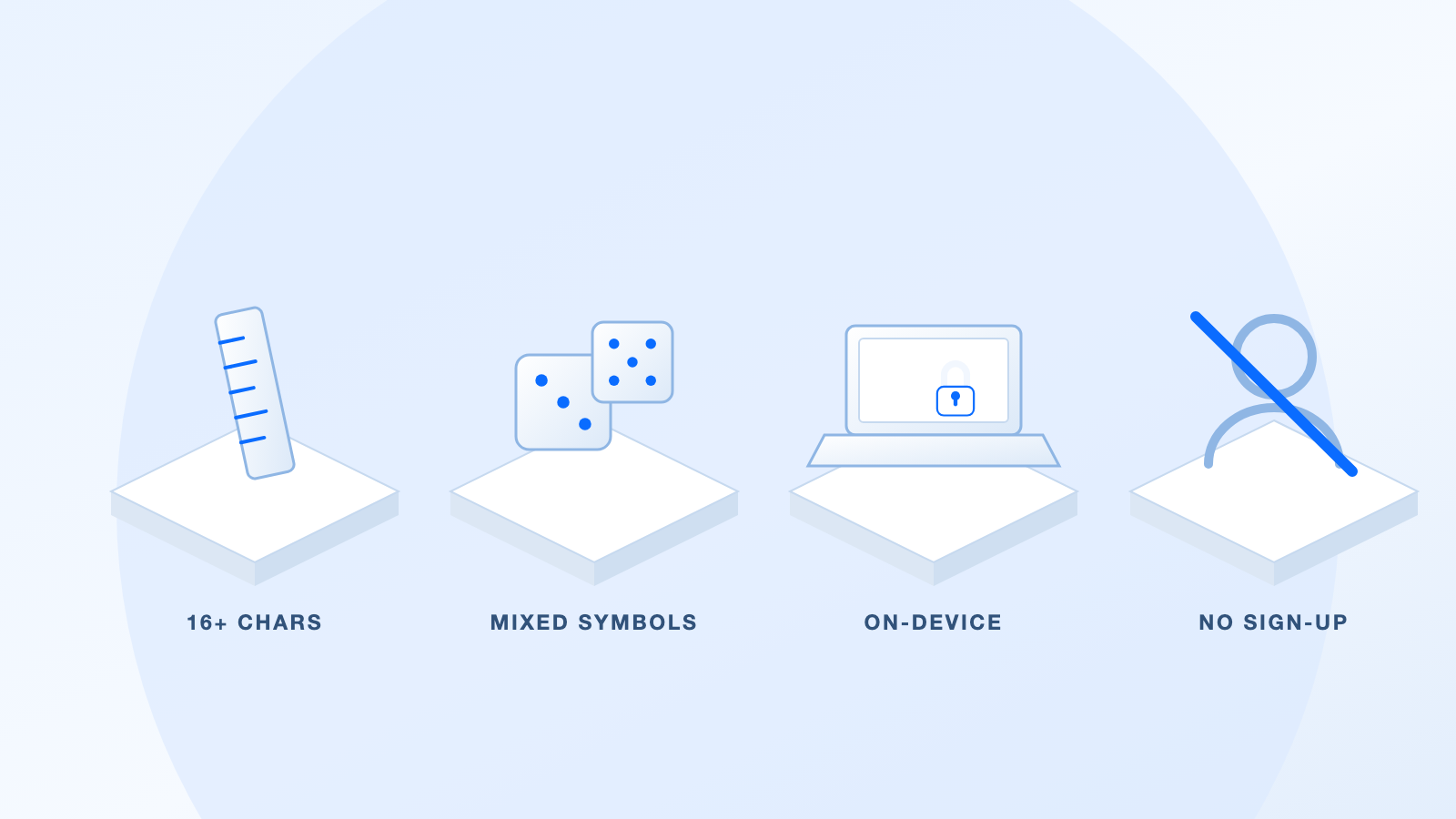
Free password generator selection criteria


The Best Free Password Generators to Try in 2026
The seven tools below all let you create a strong password without paying, and each one suits a slightly different habit. Some are full password managers with a generator built in, while others are single-purpose web pages you can open, use, and close.
| Tool | Best for | What stands out |
|---|---|---|
| Bitwarden Password Generator | Everyday use across devices | Open source, with both password and passphrase modes |
| 1Password Password Generator | Passwords you have to type yourself | Random, memorable, and PIN styles on one free page |
| NordPass Password Generator | Fine-tuning length and characters | Set the length and skip ambiguous characters |
| LastPass Password Generator | Adding to a vault you already use | A free generator backed by a zero-knowledge manager |
| Keeper Password Generator | Turning phrases into passphrases | Separate free tools for passwords and passphrases |
| Avast Random Password Generator | A quick one-off password | No account needed from an established security vendor |
| Microsoft Edge Password Generator | Generating while you browse | Built into Edge, with Password Monitor alongside it |
Bitwarden Password Generator
Bitwarden is one of the few options here that is fully open source, which means anyone can inspect how it builds a password. Its generator runs on the web and inside the free browser extension and mobile apps, so you can create a password at the moment you need it instead of writing one down. Beyond character-based passwords, Bitwarden can also build multi-word passphrases, which is useful for accounts you sign into manually and often.
Best for: anyone who wants one free tool that follows them from browser to phone
1Password Password Generator
The 1Password generator is a free web page that produces three very different styles of secret: Random, Memorable, and PIN. The Memorable mode builds passwords from words, which makes them easier to read back to yourself, while the PIN mode is aimed at devices that accept digits only. The same generator is also built into the 1Password apps, so a password you like can be saved rather than retyped.
Best for: people who want a choice between a random string and something they can actually pronounce
NordPass Password Generator
The NordPass generator is built around fine control. You can drag the length slider, switch uppercase, lowercase, digits, and symbols on or off, and turn on an option that avoids ambiguous characters such as the digit one and a lowercase L. NordPass also publishes its own guidance that a strong password should be at least 14 characters and contain a mix of character types, which makes the tool easy to check against its own advice.
Best for: anyone who keeps running into sites with odd password rules
LastPass Password Generator
LastPass offers a free password generator on its website and inside its browser extension. The generator itself is only half the story: LastPass stores saved passwords in an encrypted vault and describes the architecture as zero-knowledge, meaning the company should not be able to read what it holds. That combination is handy if you want to create a password and file it away in the same place.
Best for: people who already keep their logins in a LastPass vault
Keeper Password Generator
Keeper lists two free tools side by side: a secure password generator and a separate secure passphrase generator. Splitting them is genuinely useful, because the two produce different things. A random string is the better fit for a login you will never type by hand, while a passphrase made of several words is easier to enter on a keyboard or a phone.
Best for: anyone who wants to compare a random password against a passphrase before choosing
Avast Random Password Generator
Avast runs a random password generator as one of its free web tools. There is nothing to install and no account to create, so it works well when you need a single strong password in a hurry and do not want another app on your machine. Avast has been in the security business for decades, which makes it a reasonable no-frills choice for a one-off.
Best for: a fast, single-use password when you do not want to install anything
Microsoft Edge Password Generator
Microsoft builds its password generator directly into the Edge browser, so it appears when you are filling in a sign-up form rather than asking you to visit a separate site. The same feature set includes Password Monitor for breach alerts and Password Health for spotting weak or reused logins, which means the password is created and audited in one place. No extra extension is required.
Best for: people who would rather generate and save a password without leaving the page they are on
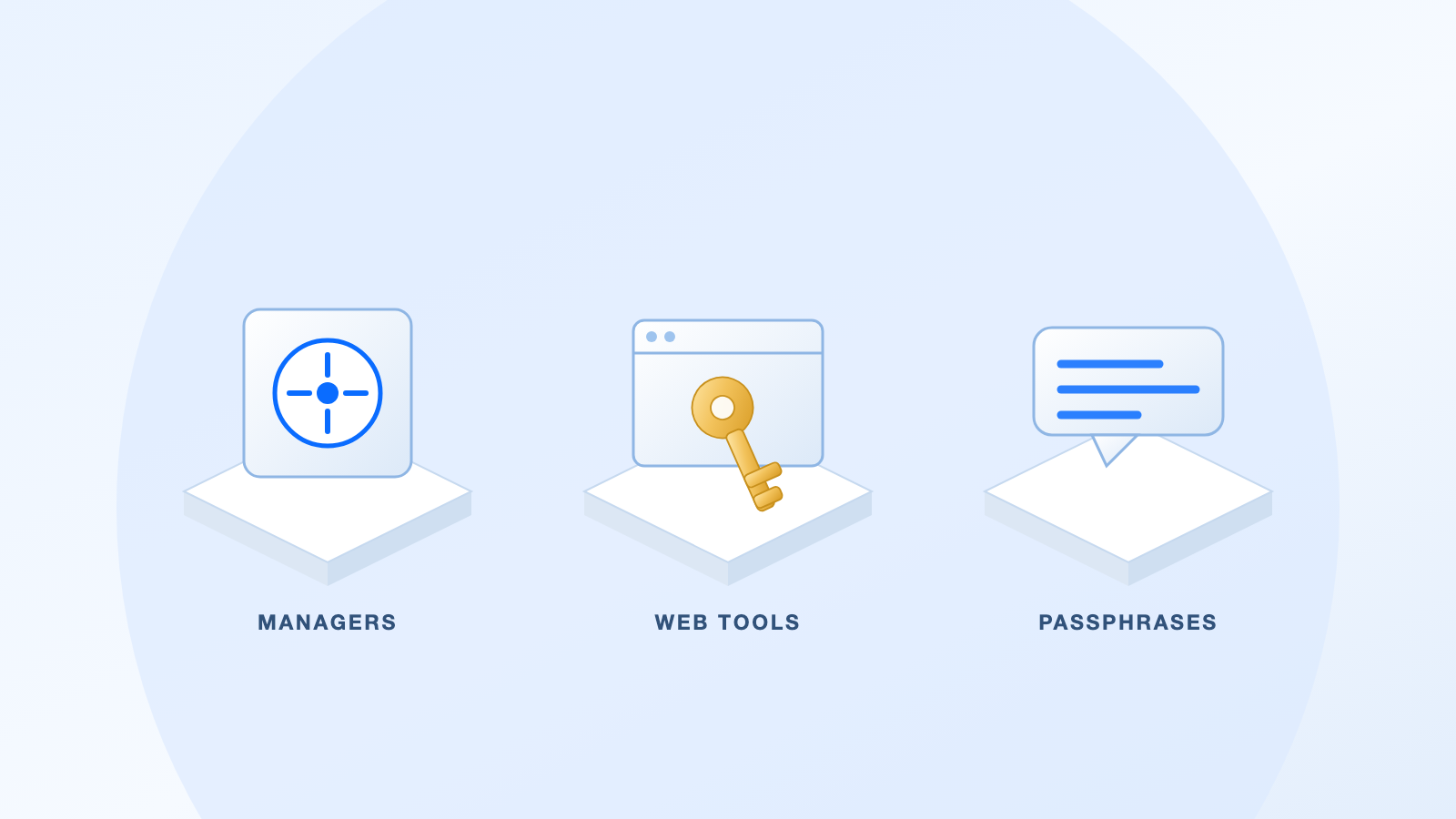
Three free password generator categories compared
The Best Free Way to Protect Your Files: WPS Office
A generated password only helps if it also guards the files you create. WPS Office includes password protection for the documents you write, and the PDF encryption tools are built into the same free application, so you do not need a separate utility to lock a file before you share it.
The workflow below uses a PDF, because that is the format most people send to clients, colleagues, and anyone outside their organization.
Create the password in a generator. Open one of the tools above, set the length to at least 16 characters, and copy the result. Do not retype it by hand.
Open your file in WPS Office and go to the Protect tab. Open the PDF in WPS PDF and select Protect in the tab row, then click Encrypt.
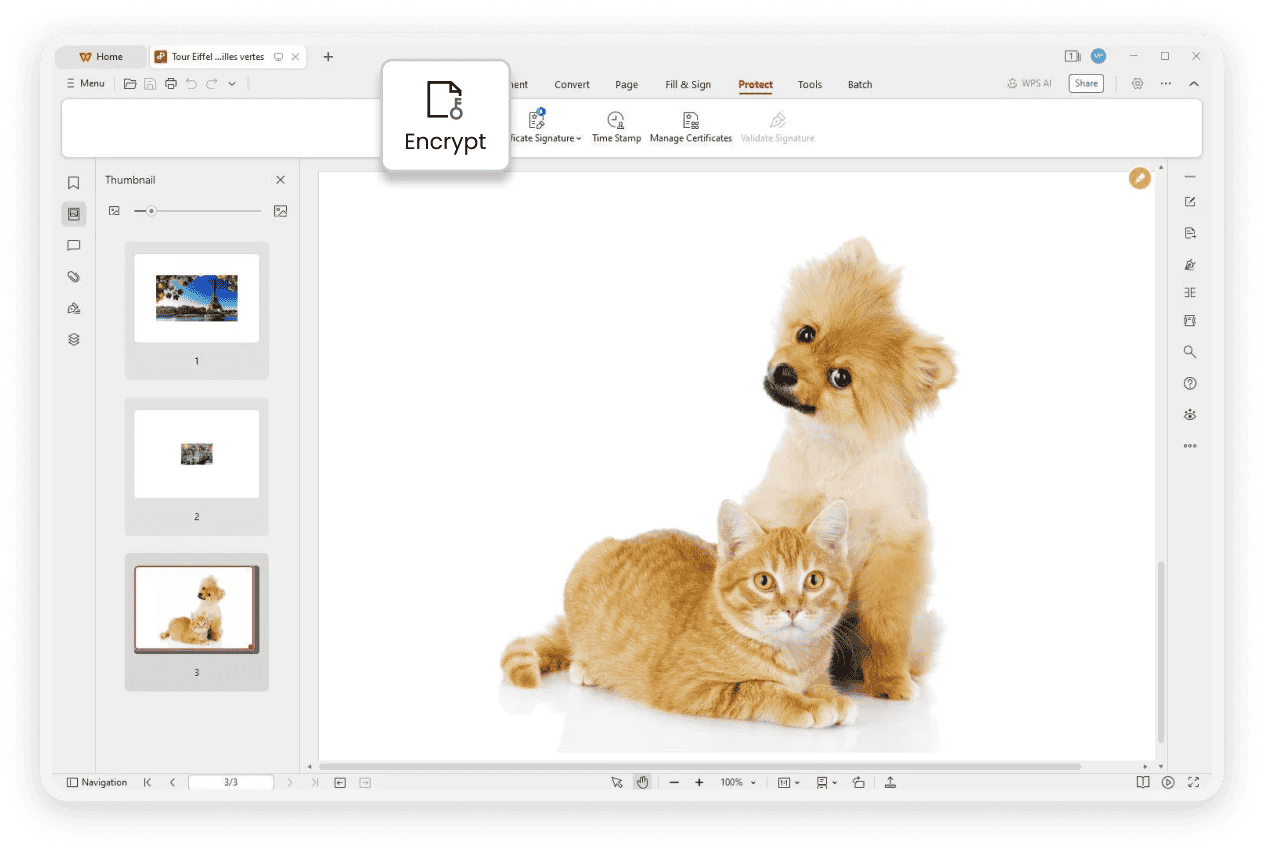
WPS PDF Protect tab and Encrypt button
Set the open password. In the Encryption dialog, tick Set the open password and paste the password you generated into the Password and Confirm Password fields. Anyone opening the file will need this password.
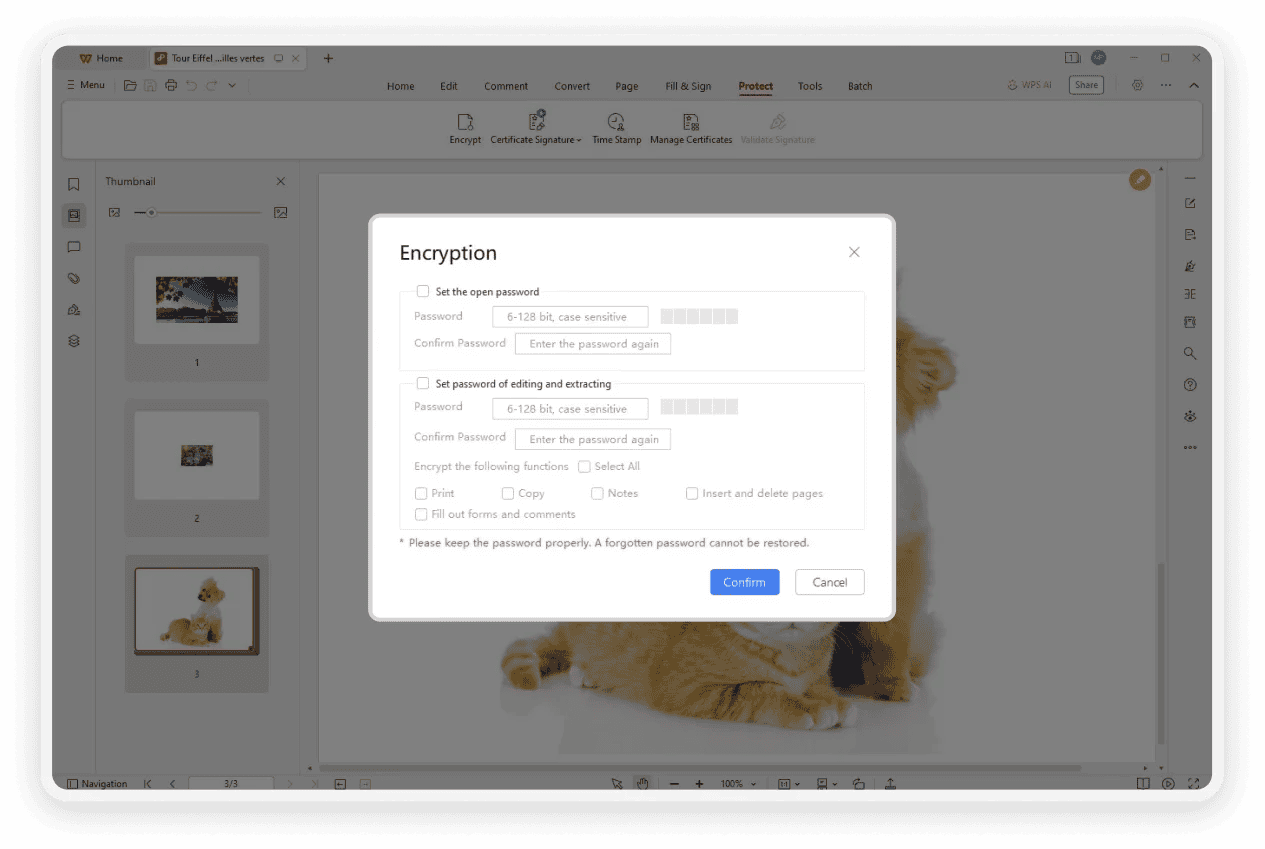
WPS PDF encryption dialog password fields
Set a separate permissions password. Tick Set password of editing and extracting and enter a second, different password. This one controls what a reader is allowed to do rather than whether they can open the file at all.
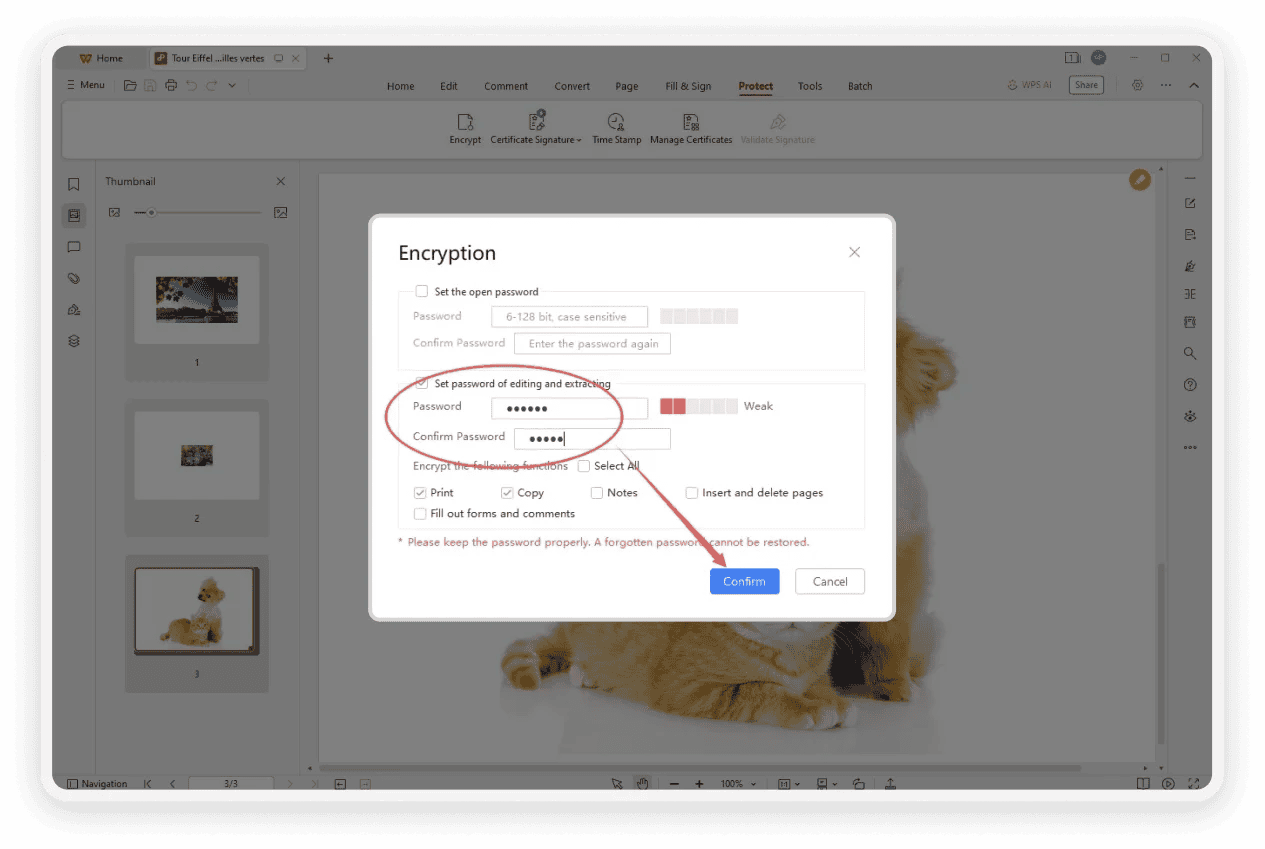
WPS PDF permission password settings
Choose the restrictions you actually need. Use the checkboxes to control printing, copying, notes, filling out forms and comments, and inserting or deleting pages. Leave a permission unticked to block it.
Click Confirm, then save the password in your manager. WPS warns in the dialog that a forgotten password cannot be restored, so store both passwords before you close the file.
How WPS file protection compares with a standalone password generator
A generator solves the problem of creating a strong secret. WPS Office solves the problem of what that secret protects, which is why the two work best together rather than as alternatives.
| Task | How WPS Office handles it | Why it matters |
|---|---|---|
| Lock a PDF so nobody can read it | Protect tab, then Encrypt, then an open password | The file stays unreadable even if it is forwarded by mistake |
| Stop a recipient editing or copying | A separate permissions password with per-function checkboxes | You decide what a reader can do instead of trusting them |
| Protect a Word, Excel, or PowerPoint file | The same Encryption dialog for office documents | One workflow covers every format you create |
| Keep the file off the network | Encryption is built in and works offline | Sensitive documents never have to be uploaded to a website |
| Recover access after a forgotten password | WPS states clearly that a forgotten password cannot be restored | You know in advance to store the password in a vault |
Password protection for PDFs is part of the free WPS Office download, so you are not paying per document.
Open passwords and permission passwords are separate, which means you can share a file that can be read but not altered.
The same application opens WPS PDF files and the Word, Excel, and PowerPoint documents you encrypt in the same session.
If you want the full step-by-step walkthrough on its own, see this guide on how to password protect a PDF, or read more about the PDF password protection feature.
Best Practices for Using Any Free Password Generator
Generating a strong password is the easy half. These habits decide whether it actually protects you over the next few years.
Never reuse a password. Give every account and every encrypted file its own secret. If one service leaks, the rest stay closed.
Save passwords in a manager, not in your head. Generated strings are not meant to be memorized. Store them in a vault and protect the vault with one strong master password you do remember.
Turn on multi-factor authentication. A password plus a second factor such as an authenticator app means a stolen password alone is not enough.
Match the password to the destination. Check the site or file dialog for character limits and banned symbols before you copy the password across.
Keep a recovery route. Save backup codes for important accounts, and remember that an encrypted document with a lost password usually stays locked.
Never paste a password into chat or email. If you must send one to a colleague, read it over a call and store it in the shared vault instead.
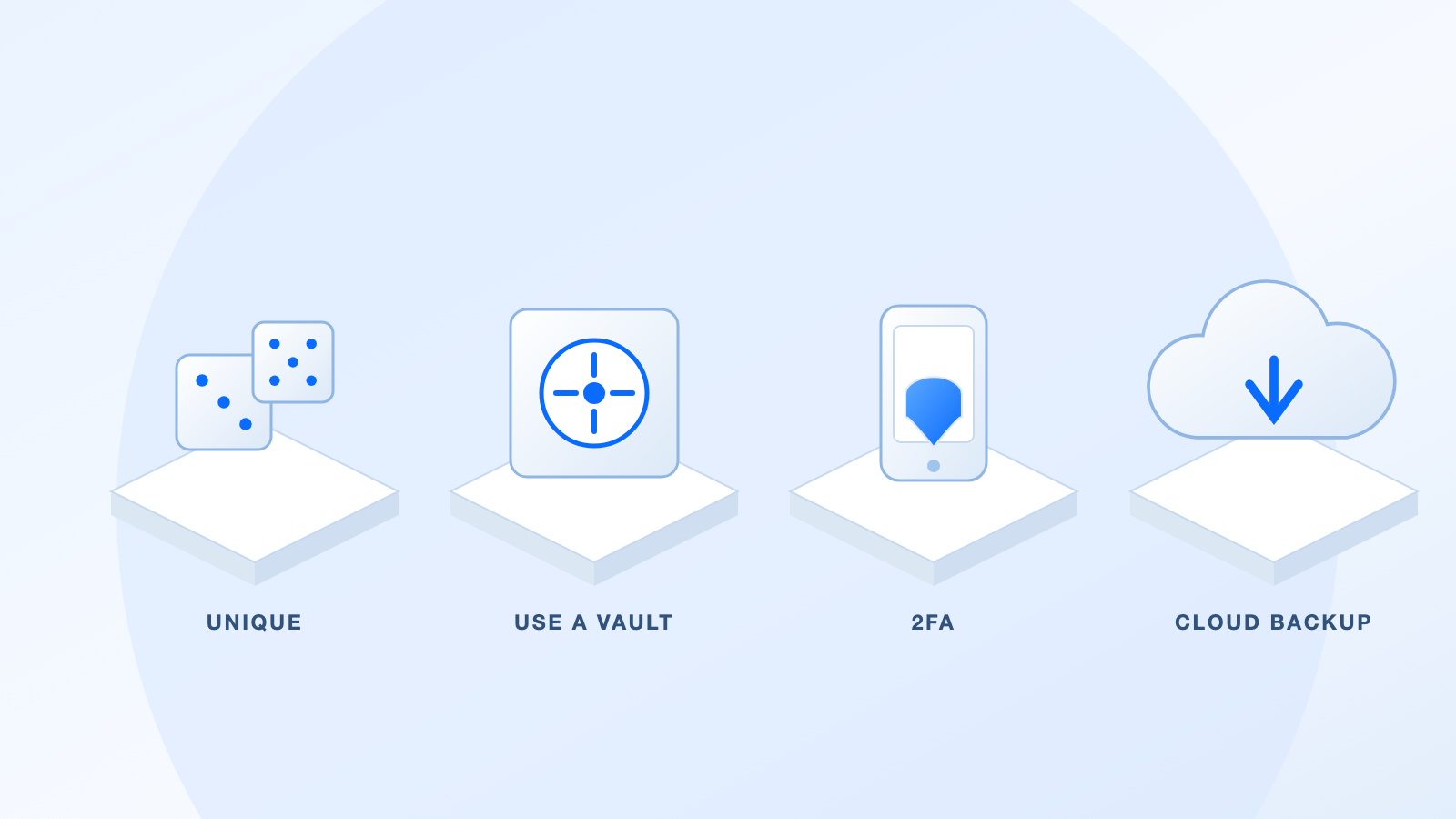
Password security best practices overview
FAQs
Are free password generators safe to use?
Reputable ones are. Look for a generator from an established security company, prefer tools that build the password locally in your browser, and check that the page uses HTTPS. The password itself is only as safe as where you keep it afterwards, so store it in a password manager rather than in a notes app.
How long should a generated password be?
Aim for at least 16 characters for anything important, and go longer for email, banking, and password-manager accounts. Length matters more than complexity, which is why a long passphrase can be stronger than a short string of symbols.
Should I use a password or a passphrase?
Use a random password for logins your manager fills in automatically, because nothing has to be memorized. Use a passphrase of four or five unrelated words when you will be typing the secret by hand, such as on a phone or a smart TV.
Do I need a password manager if I use an online generator?
Yes, in practice. A generator creates the password once and then forgets it, so without a vault you will end up reusing something you can remember, which defeats the purpose.
How do I protect a Word or PDF file after generating a password?
Open the file in WPS Office, set the open password and a separate permissions password in the Encryption dialog, and confirm the change. Store both passwords in your manager first, because WPS states that a forgotten password cannot be restored.


'%3e%3cpath%20d='M19.9911%204.11386V6.471H18.5894C18.0775%206.471%2017.7322%206.57814%2017.5536%206.79243C17.3751%207.00671%2017.2858%207.32814%2017.2858%207.75671V9.44421H19.9019L19.5536%2012.0871H17.2858V18.8639H14.5536V12.0871H12.2769V9.44421H14.5536V7.49779C14.5536%206.39064%2014.8632%205.53201%2015.4822%204.92189C16.1013%204.31177%2016.9257%204.00671%2017.9554%204.00671C18.8304%204.00671%2019.509%204.04243%2019.9911%204.11386Z'%20fill='%23333333'/%3e%3c/g%3e%3cdefs%3e%3cclipPath%20id='clip0_2938_8199'%3e%3crect%20width='16'%20height='16'%20fill='white'%20transform='translate(8%204.00671)'/%3e%3c/clipPath%3e%3c/defs%3e%3c/svg%3e)
'%3e%3cpath%20d='M17.5237%2010.7813L23.4811%204H22.0699L16.8949%209.88693L12.7648%204H8L14.2469%2012.9029L8%2020.0133H9.4112L14.8725%2013.7952L19.2352%2020.0133H24M9.92053%205.04213H12.0885L22.0688%2019.0224H19.9003'%20fill='%23333333'/%3e%3c/g%3e%3cdefs%3e%3cclipPath%20id='clip0_2938_8200'%3e%3crect%20width='16'%20height='16.0134'%20fill='white'%20transform='translate(8%204)'/%3e%3c/clipPath%3e%3c/defs%3e%3c/svg%3e)


