

'%3e%3cpath%20d='M8%200C12.4183%200%2016%203.58172%2016%208C16%2012.4183%2012.4183%2016%208%2016C3.58172%2016%200%2012.4183%200%208C0%203.58172%203.58172%200%208%200ZM11.6162%204.38379C11.2257%203.99337%2010.5927%203.99338%2010.2021%204.38379L8%206.58594L5.79785%204.38379C5.40732%203.99334%204.77429%203.99329%204.38379%204.38379C3.99331%204.77429%203.99335%205.40733%204.38379%205.79785L6.58594%208L4.38379%2010.2021C3.99348%2010.5927%203.99341%2011.2257%204.38379%2011.6162C4.77426%2012.0066%205.40734%2012.0065%205.79785%2011.6162L8%209.41406L10.2021%2011.6162C10.5927%2012.0066%2011.2257%2012.0067%2011.6162%2011.6162C12.0067%2011.2257%2012.0066%2010.5927%2011.6162%2010.2021L9.41406%208L11.6162%205.79785C12.0066%205.40735%2012.0066%204.77429%2011.6162%204.38379Z'%20fill='%23080E17'%20fill-opacity='0.46'/%3e%3c/g%3e%3cdefs%3e%3cclipPath%20id='clip0_3761_713'%3e%3crect%20width='16'%20height='16'%20fill='white'/%3e%3c/clipPath%3e%3c/defs%3e%3c/svg%3e)




'%3e%3cpath%20fill-rule='evenodd'%20clip-rule='evenodd'%20d='M21.4999%2010.9993C21.4999%205.20009%2016.7986%200.498901%2010.9993%200.498901C5.19994%200.498901%200.498657%205.20009%200.498657%2010.9993C0.498657%2016.2404%204.33858%2020.5844%209.35855%2021.3722V14.0346H6.69238V10.9993H9.35855V8.68594C9.35855%206.05427%2010.9262%204.60062%2013.3248%204.60062C14.4736%204.60062%2015.6753%204.80571%2015.6753%204.80571V7.38979H14.3512C13.0468%207.38979%2012.64%208.19921%2012.64%209.0296V10.9993H15.5523L15.0867%2014.0346H12.64V21.3722C17.66%2020.5844%2021.4999%2016.2404%2021.4999%2010.9993Z'%20fill='%231568EA'/%3e%3c/g%3e%3c/svg%3e)


'%3e%3cpath%20d='M2.42045%2022.1876H6.31818V12.7217L0.75%208.54553V20.5171C0.75%2021.4414%201.49892%2022.1876%202.42045%2022.1876Z'%20fill='%234285F4'/%3e%3cpath%20d='M19.682%2022.1876H23.5797C24.5041%2022.1876%2025.2502%2021.4387%2025.2502%2020.5171V8.54553L19.682%2012.7217'%20fill='%2334A853'/%3e%3cpath%20d='M19.682%205.48293V12.7216L25.2502%208.54543V6.31816C25.2502%204.25236%2022.8921%203.07469%2021.2411%204.31361'%20fill='%23FBBC04'/%3e%3cpath%20d='M6.31824%2012.7217V5.48303L13.0001%2010.4944L19.6819%205.48303V12.7217L13.0001%2017.733'%20fill='%23EA4335'/%3e%3cpath%20d='M0.75%206.31816V8.54543L6.31818%2012.7216V5.48293L4.75909%204.31361C3.10534%203.07469%200.75%204.25236%200.75%206.31816Z'%20fill='%23C5221F'/%3e%3c/g%3e%3cdefs%3e%3cclipPath%20id='clip0_2954_7305'%3e%3crect%20width='24.5'%20height='18.375'%20fill='white'%20transform='translate(0.75%203.8125)'/%3e%3c/clipPath%3e%3c/defs%3e%3c/svg%3e)


Preface
If you prepare math-heavy or technical presentations, you may wonder how to insert an equation in Google Slides without breaking formatting or clarity. Many users expect a built-in equation editor, only to find that Google Slides handles formulas differently than word processors.
This guide explains what Google Slides supports, what it does not, and how you can still add clean, readable equations using reliable methods.
Part 1: What Is an Equation in Google Slides
An equation in Google Slides refers to any mathematical expression displayed within a slide, such as fractions, exponents, square roots, symbols, or structured formulas. These equations are often used in academic, scientific, financial, or technical presentations where numbers and relationships need to be shown clearly.
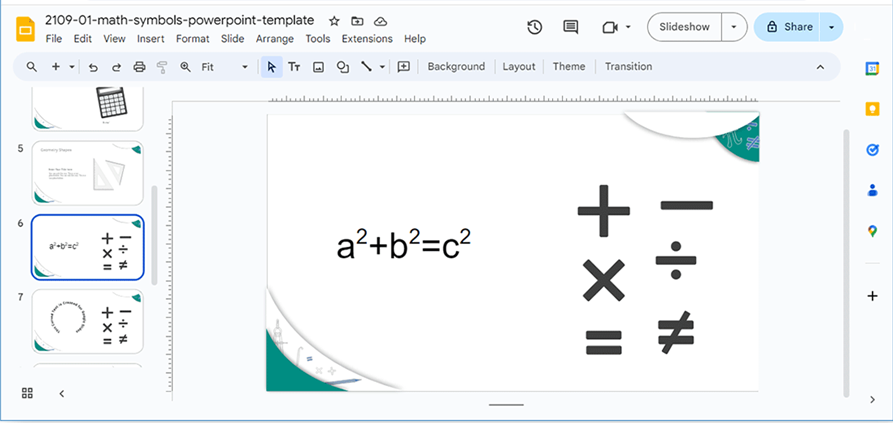
Unlike document editors that offer a full equation toolbar, Google Slides treats equations as formatted text, symbols, images, or embedded objects. This means users must rely on alternative methods to create and insert formulas instead of typing them directly into a dedicated editor.
Key Features of Equation Handling in Google Slides
Google Slides supports equations in a limited but functional way. The platform allows users to:
Insert basic math symbols through Google Slides insert math symbols
Copy and paste equations created in Google Docs
Add equations using third-party add-ons
Display formulas as images for visual accuracy
However, these equations are not truly native objects. This limitation affects editing flexibility, especially when users want to modify a Google Slides math equation after insertion.
What Google Slides Can and Cannot Do
Understanding the scope of equation support helps set realistic expectations.
What Google Slides supports:
Basic symbols such as +, −, ×, ÷, ≤, ≥
Superscripts and subscripts using text formatting
Simple formulas created via copy-paste
Visual display of equations without layout breakage
What Google Slides does not support:
A built-in Google Slides equation editor
Direct LaTeX input
Advanced equation structures like matrices or aligned equations
Easy editing of pasted equations
Because of these limitations, users often search for ways toadd equation formulas in Slides using external tools or integrations.
Part 2: How to Insert an Equation in Google Slides
Google Slides does not include a native advanced equation editor like Google Docs or Microsoft PowerPoint. Still, you can insert equation Google Slides content using several practical methods, depending on how complex your formula is and whether you need it to remain editable.
Below are the most reliable ways to add a Google Slides math equation, explained step by step.
Method 1: Use the Google Docs Equation Tool (Recommended for Accuracy)
This is the most stable method when you need clean formatting for amathematical equation, including fractions and symbols.
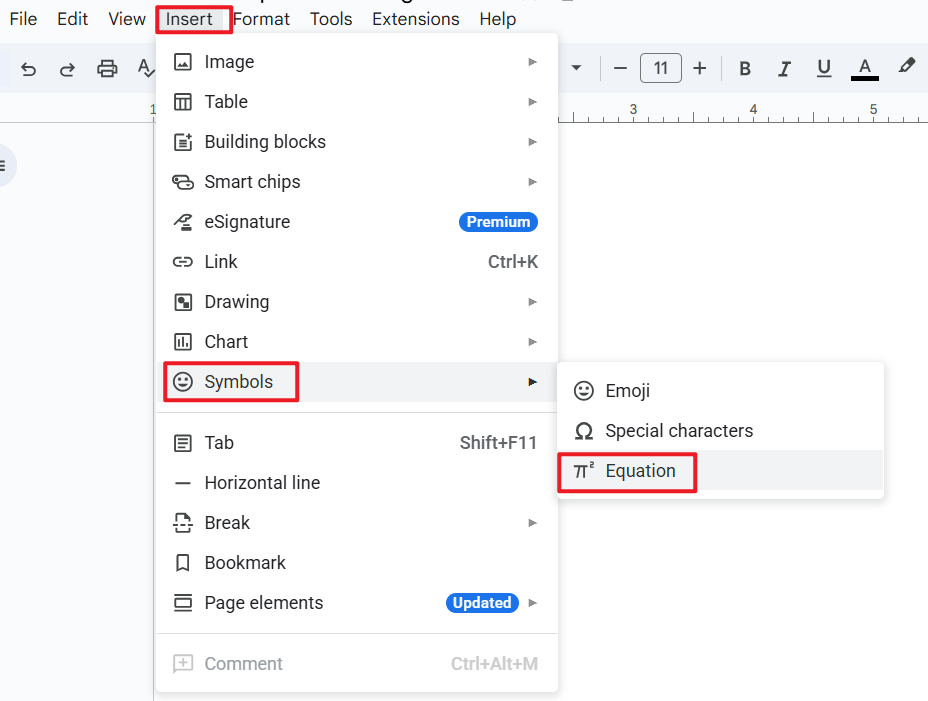
Step 1: Create the equation in Google Docs
Open Google Docs, click Insert → Symbols → Equation, and use the equation toolbar to build your formula.
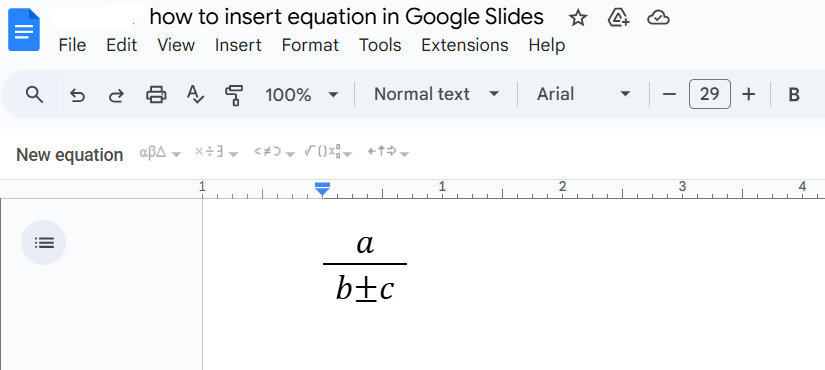
Step 2: Take a screenshot of the equation
Once the equation looks correct, take a screenshot.
Step 3: Paste into Google Slides
Paste the equation directly into your slide. It will appear as a formatted object that keeps its structure.
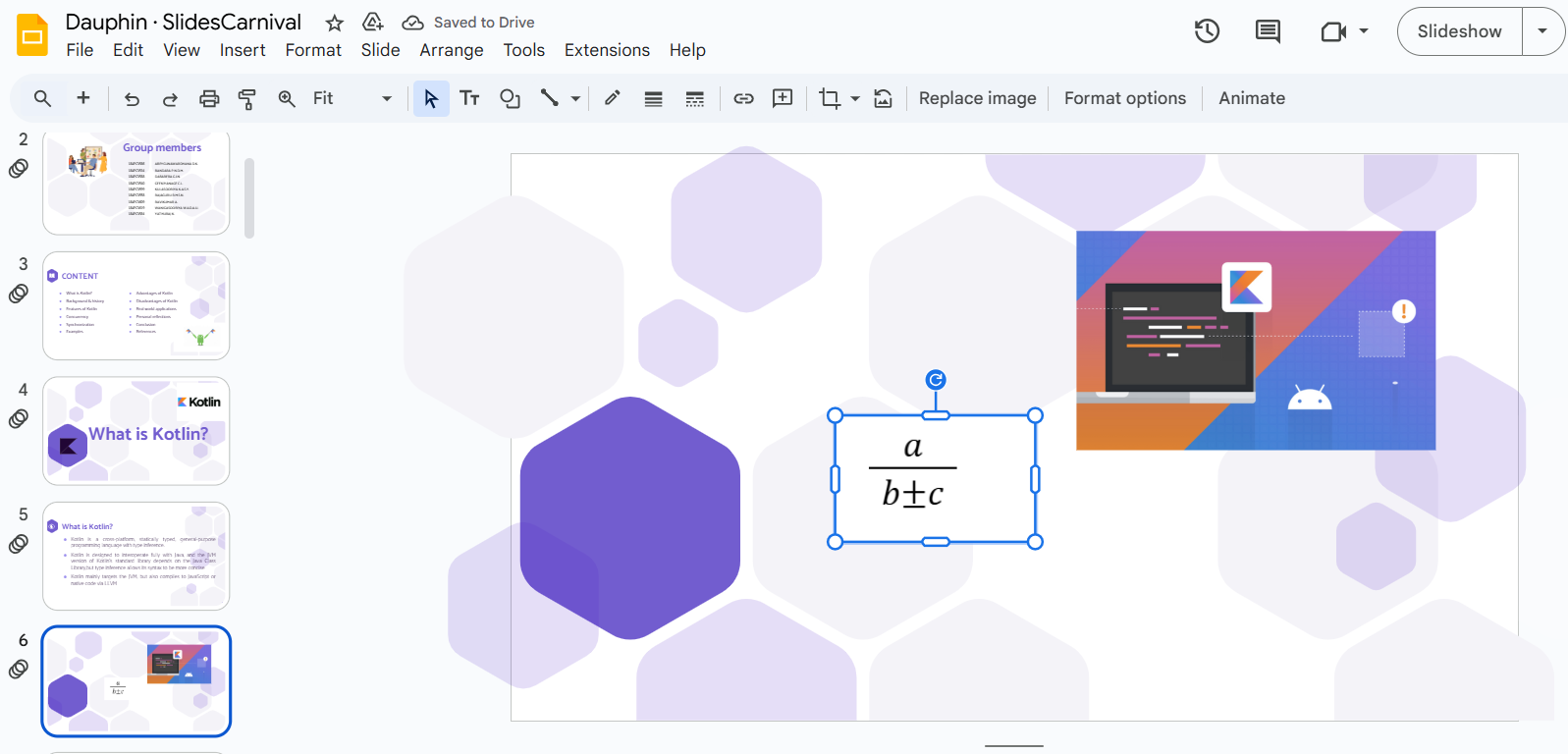
Usage experience:
This method works well when you need a fraction equation or structured math content. The downside is that editing later requires going back to Google Docs.
Method 2: Insert Special Characters Directly
If your equation only requires symbols, this is the quickest approach.
Step 1: Open the Special Characters panel
In Google Slides, go to Insert → Special characters.
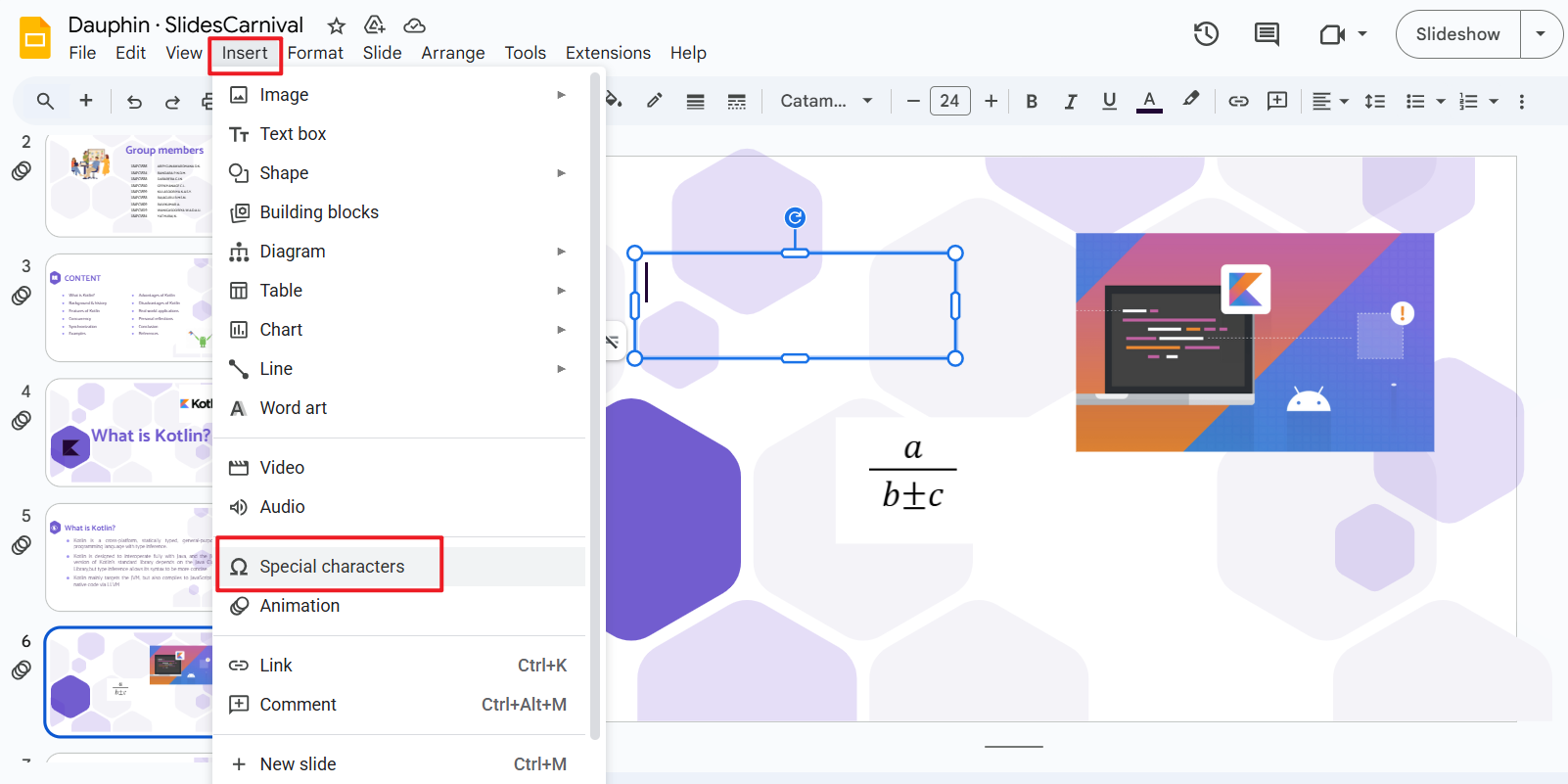
Step 2: Search or browse math symbols
Use keywords like “math,” “symbol,” or “Greek” to locate what you need.
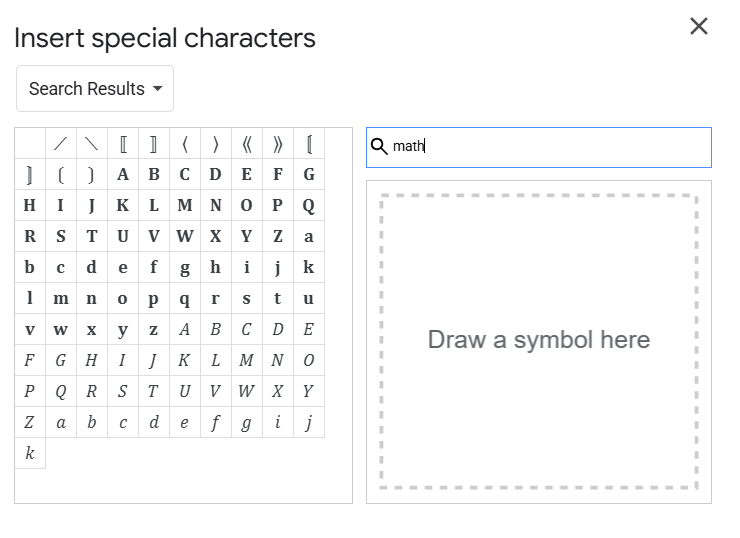
Step 3: Combine symbols manually
Insert symbols into text boxes and format them using superscript or subscript options.
Usage experience:
This method is best for simple expressions and quick edits. It is not ideal for longer formulas or precise alignment.
Method 3: Use Equation Add-Ons
Third-party add-ons provide more flexibility, especially for users familiar with structured input.
Step 1: Open Google Workspace Marketplace
Click Extensions → Add-ons → Get add-ons and search for tools like EquatIO or MathType.

Step 2: Create the equation inside the add-on
Use the add-on interface to build your formula, including symbols and structured notation.
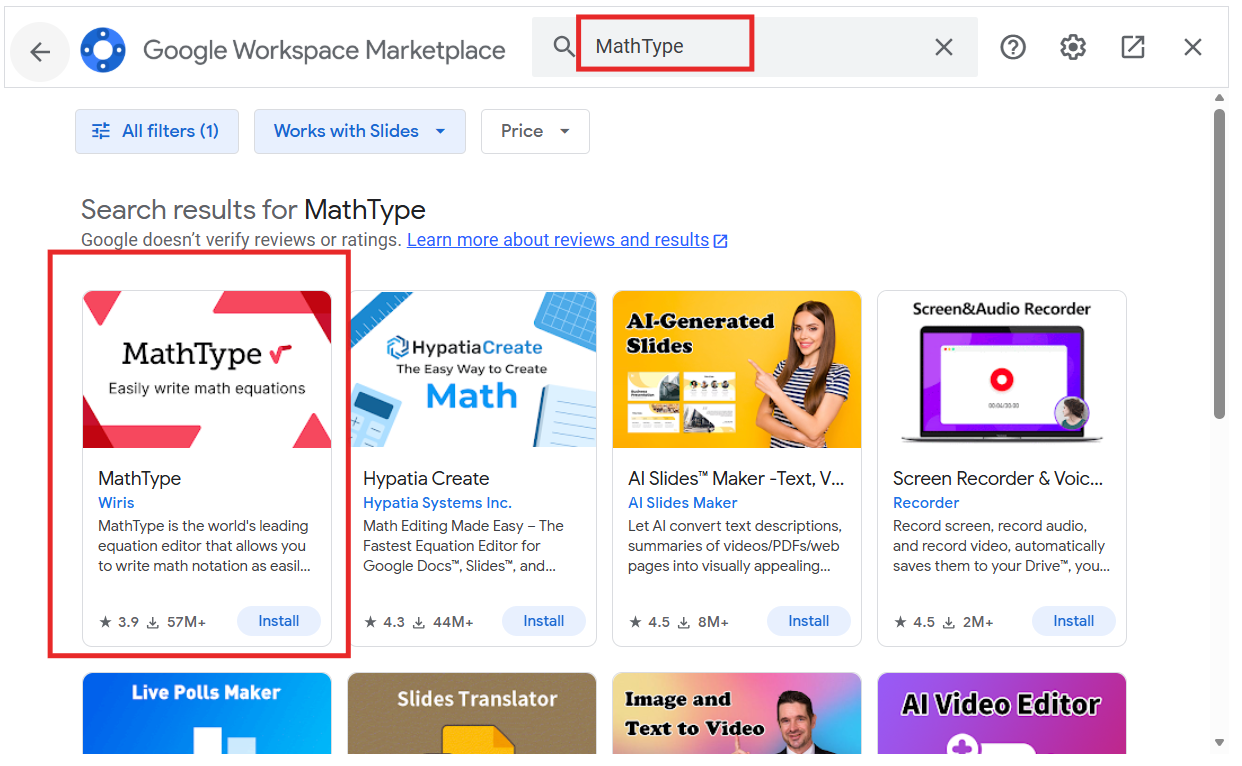
Step 3: Insert into your slide
Insert the generated equation into your presentation.
Usage experience:
Add-ons are helpful if you want something closer to a real editor, including limited LaTeX equation support. However, some add-ons only work on desktop browsers.
Which Method Should You Choose?
For accuracy and structure: Google Docs equation tool
For speed and simplicity: Special characters
For advanced needs: Add-ons
All three methods allow you to add equation formulas in Slides, but each has trade-offs in editability and workflow.
Part 3: Recommended Alternative – WPS AI Slides
If you frequently work with technical or math-heavy presentations, Google Slides may feel limiting over time. While it allows basic ways toinsert equations in Google Slides, editing and formatting complex formulas can become inconvenient, especially when revisions are frequent.

WPS AI Slides is recommended for users who want a smoother workflow, richer formatting control, and AI-assisted slide creation without relying on external add-ons or copy-paste workarounds.
How WPS AI Slides Solves Common Equation Issues
Unlike Google Slides, WPS AI Slides is designed as a full-featured presentation tool with better support for structured content. It allows users to work with formulas and symbols more naturally while keeping slides fully editable.
Key advantages include:
No need to switch between multiple tools to create equations
Better consistency when formatting math-related content
Easier revisions without recreating equations
For users who often search for how to insert a mathematical equation in Google Slides, WPS AI Slides provides a more direct solution.
Features of WPS AI Slides
WPS AI Slides combines presentation tools with AI assistance, making it suitable for both beginners and advanced users.
AI-assisted slide generation using prompts
Editable presentation format compatible with PPT files
Template and theme library for professional layouts
Full editing and formatting control
Supports adding math symbols and formulas using standard text tools
These features reduce the friction commonly experienced when trying to manage a Google Slides equation editorworkaround.
How to Use WPS AI Slides for Equations
Step 1: Create or generate a presentation
Open WPS AI Slides and either start from a template or generate slides using AI prompts.

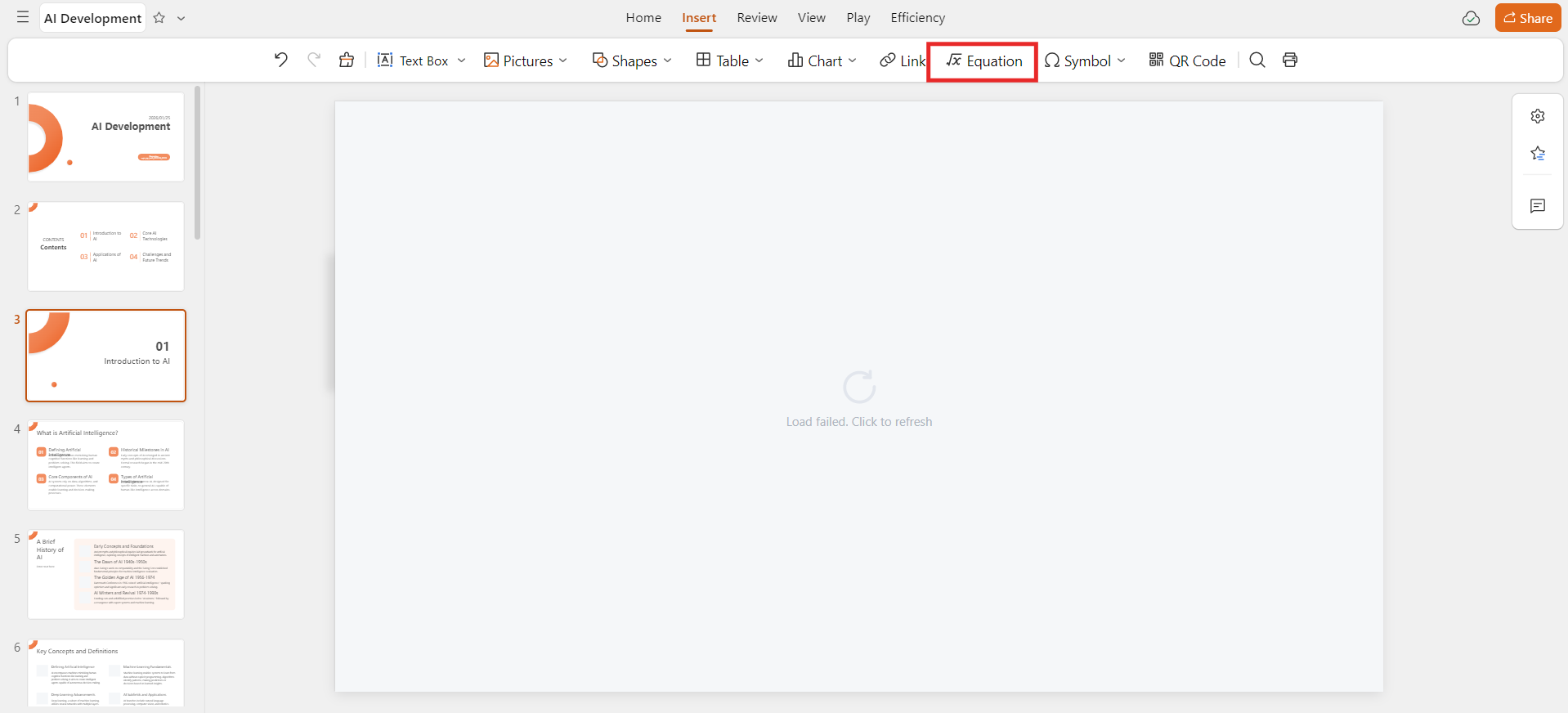
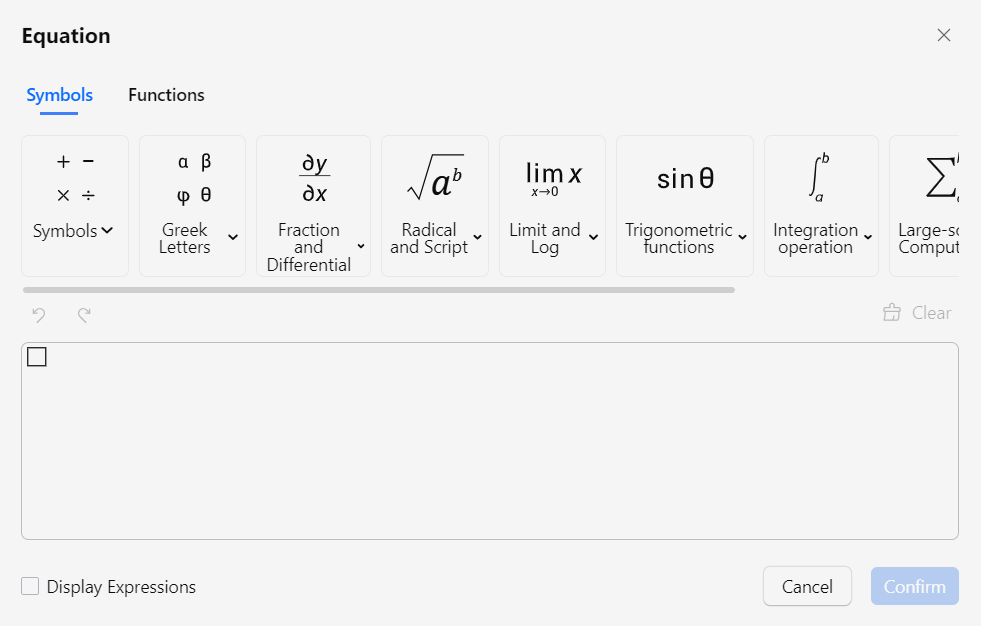
Step 2: Insert equations or math content
Use text tools and symbol options to add formulas, fractions, or structured expressions directly.
Step 3: Edit and refine freely
Unlike copied equations in Google Slides, formulas remain editable within the slide itself.
Usage experience:
For users dealing with frequent updates or advanced notation, WPS AI Slides offers a more efficient alternative than trying to manually insert math symbols into Google Slides.
Part 4: Comparison Between Google Slides and WPS AI Slides
To better understand which tool fits different needs, the table below compares Google Slides and WPS AI Slides from the perspective of equation handling, usability, and flexibility.
| Feature | Google Slides | WPS AI Slides |
|---|---|---|
| Ease of use | Very easy for basic presentations | Easy, with guided AI assistance |
| Built-in equation editor | No native equation editor | No separate editor, but stronger text and symbol control |
| Math symbol support | Basic symbols via special characters | More flexible symbol insertion |
| Fraction and formula handling | Requires workarounds | Easier formatting and adjustment |
| LaTeX support | Limited, via add-ons only | Not LaTeX-based, but fewer workarounds needed |
| Editability after insertion | Limited to copied equations | Fully editable within slides |
| Templates and design | Basic templates | Rich template library |
| Best for | Simple presentations | Technical and professional slides |
For users who often search for how to insert a fraction equation in Google Slides or struggle with formatting consistency, WPS AI Slides provides a more stable long-term solution.
FAQs
Q1: Can you insert equations directly in Google Slides?
Google Slides does not have a built-in advanced equation editor. However, you can still insert equations by copying them from Google Docs, using special characters, or installing third-party add-ons.
Q2: Are math symbols supported in Slides?
Yes. Google Slides allows users to insert math symbols throughInsert → Special characters, which helps with basicGoogle Slides insert math symbols needs.
Q3: Do add-ons work on all devices?
Most equation add-ons work best on desktop browsers. Some may not function properly on mobile devices or within the Google Slides mobile app.
Q4: Are there any add-ons for inserting equations in Google Slides?
Yes. Popular tools like EquatIO and MathType allow users to create formulas and insert them into Slides. These are often used by people searching for how to insert latex equation in Google Slides, although support varies by add-on.
Summary
Knowing how to insert an equation in Google Slides is essential for students, educators, and professionals who work with math or technical content. While Google Slides does not include a native equation editor, users can still add formulas by copying from Google Docs, inserting special characters, or using add-ons.
For simple expressions, built-in tools are usually sufficient. For more complex or frequently edited equations, an alternative like WPS AI Slides offers greater flexibility, cleaner formatting, and a smoother editing experience.

'%3e%3cpath%20d='M19.9911%204.11386V6.471H18.5894C18.0775%206.471%2017.7322%206.57814%2017.5536%206.79243C17.3751%207.00671%2017.2858%207.32814%2017.2858%207.75671V9.44421H19.9019L19.5536%2012.0871H17.2858V18.8639H14.5536V12.0871H12.2769V9.44421H14.5536V7.49779C14.5536%206.39064%2014.8632%205.53201%2015.4822%204.92189C16.1013%204.31177%2016.9257%204.00671%2017.9554%204.00671C18.8304%204.00671%2019.509%204.04243%2019.9911%204.11386Z'%20fill='%23333333'/%3e%3c/g%3e%3cdefs%3e%3cclipPath%20id='clip0_2938_8199'%3e%3crect%20width='16'%20height='16'%20fill='white'%20transform='translate(8%204.00671)'/%3e%3c/clipPath%3e%3c/defs%3e%3c/svg%3e)
'%3e%3cpath%20d='M17.5237%2010.7813L23.4811%204H22.0699L16.8949%209.88693L12.7648%204H8L14.2469%2012.9029L8%2020.0133H9.4112L14.8725%2013.7952L19.2352%2020.0133H24M9.92053%205.04213H12.0885L22.0688%2019.0224H19.9003'%20fill='%23333333'/%3e%3c/g%3e%3cdefs%3e%3cclipPath%20id='clip0_2938_8200'%3e%3crect%20width='16'%20height='16.0134'%20fill='white'%20transform='translate(8%204)'/%3e%3c/clipPath%3e%3c/defs%3e%3c/svg%3e)


