

'%3e%3cpath%20d='M8%200C12.4183%200%2016%203.58172%2016%208C16%2012.4183%2012.4183%2016%208%2016C3.58172%2016%200%2012.4183%200%208C0%203.58172%203.58172%200%208%200ZM11.6162%204.38379C11.2257%203.99337%2010.5927%203.99338%2010.2021%204.38379L8%206.58594L5.79785%204.38379C5.40732%203.99334%204.77429%203.99329%204.38379%204.38379C3.99331%204.77429%203.99335%205.40733%204.38379%205.79785L6.58594%208L4.38379%2010.2021C3.99348%2010.5927%203.99341%2011.2257%204.38379%2011.6162C4.77426%2012.0066%205.40734%2012.0065%205.79785%2011.6162L8%209.41406L10.2021%2011.6162C10.5927%2012.0066%2011.2257%2012.0067%2011.6162%2011.6162C12.0067%2011.2257%2012.0066%2010.5927%2011.6162%2010.2021L9.41406%208L11.6162%205.79785C12.0066%205.40735%2012.0066%204.77429%2011.6162%204.38379Z'%20fill='%23080E17'%20fill-opacity='0.46'/%3e%3c/g%3e%3cdefs%3e%3cclipPath%20id='clip0_3761_713'%3e%3crect%20width='16'%20height='16'%20fill='white'/%3e%3c/clipPath%3e%3c/defs%3e%3c/svg%3e)



'%3e%3cpath%20fill-rule='evenodd'%20clip-rule='evenodd'%20d='M21.4999%2010.9993C21.4999%205.20009%2016.7986%200.498901%2010.9993%200.498901C5.19994%200.498901%200.498657%205.20009%200.498657%2010.9993C0.498657%2016.2404%204.33858%2020.5844%209.35855%2021.3722V14.0346H6.69238V10.9993H9.35855V8.68594C9.35855%206.05427%2010.9262%204.60062%2013.3248%204.60062C14.4736%204.60062%2015.6753%204.80571%2015.6753%204.80571V7.38979H14.3512C13.0468%207.38979%2012.64%208.19921%2012.64%209.0296V10.9993H15.5523L15.0867%2014.0346H12.64V21.3722C17.66%2020.5844%2021.4999%2016.2404%2021.4999%2010.9993Z'%20fill='%231568EA'/%3e%3c/g%3e%3c/svg%3e)


'%3e%3cpath%20d='M2.42045%2022.1876H6.31818V12.7217L0.75%208.54553V20.5171C0.75%2021.4414%201.49892%2022.1876%202.42045%2022.1876Z'%20fill='%234285F4'/%3e%3cpath%20d='M19.682%2022.1876H23.5797C24.5041%2022.1876%2025.2502%2021.4387%2025.2502%2020.5171V8.54553L19.682%2012.7217'%20fill='%2334A853'/%3e%3cpath%20d='M19.682%205.48293V12.7216L25.2502%208.54543V6.31816C25.2502%204.25236%2022.8921%203.07469%2021.2411%204.31361'%20fill='%23FBBC04'/%3e%3cpath%20d='M6.31824%2012.7217V5.48303L13.0001%2010.4944L19.6819%205.48303V12.7217L13.0001%2017.733'%20fill='%23EA4335'/%3e%3cpath%20d='M0.75%206.31816V8.54543L6.31818%2012.7216V5.48293L4.75909%204.31361C3.10534%203.07469%200.75%204.25236%200.75%206.31816Z'%20fill='%23C5221F'/%3e%3c/g%3e%3cdefs%3e%3cclipPath%20id='clip0_2954_7305'%3e%3crect%20width='24.5'%20height='18.375'%20fill='white'%20transform='translate(0.75%203.8125)'/%3e%3c/clipPath%3e%3c/defs%3e%3c/svg%3e)


When a colleague shares a presentation link before a meeting, you can join the presentation in your browser without installing anything. Open the shared link, view every slide, and follow along live — that is what a presentation join really needs, and WPS offers a free online viewer for it. This guide shows you how to join a presentation from a shared link and what to check so you never get stuck on a blank page.
How to Join a Presentation Open a Shared Presentation Link in WPS Office
When you need to join a presentation
You need to join a presentation when someone on your team shares a deck and expects you to follow along — for a sprint review, a client walkthrough, or a training session. Instead of asking for the file and opening it locally, you open the shared link and view the slides exactly as the host presents them.
Two things make a presentation join smooth: the link actually opens in a viewer, and the slides render correctly without missing fonts or layouts. Both work well in WPS, because the online viewer reads the original PPTX structure instead of a flattened copy.
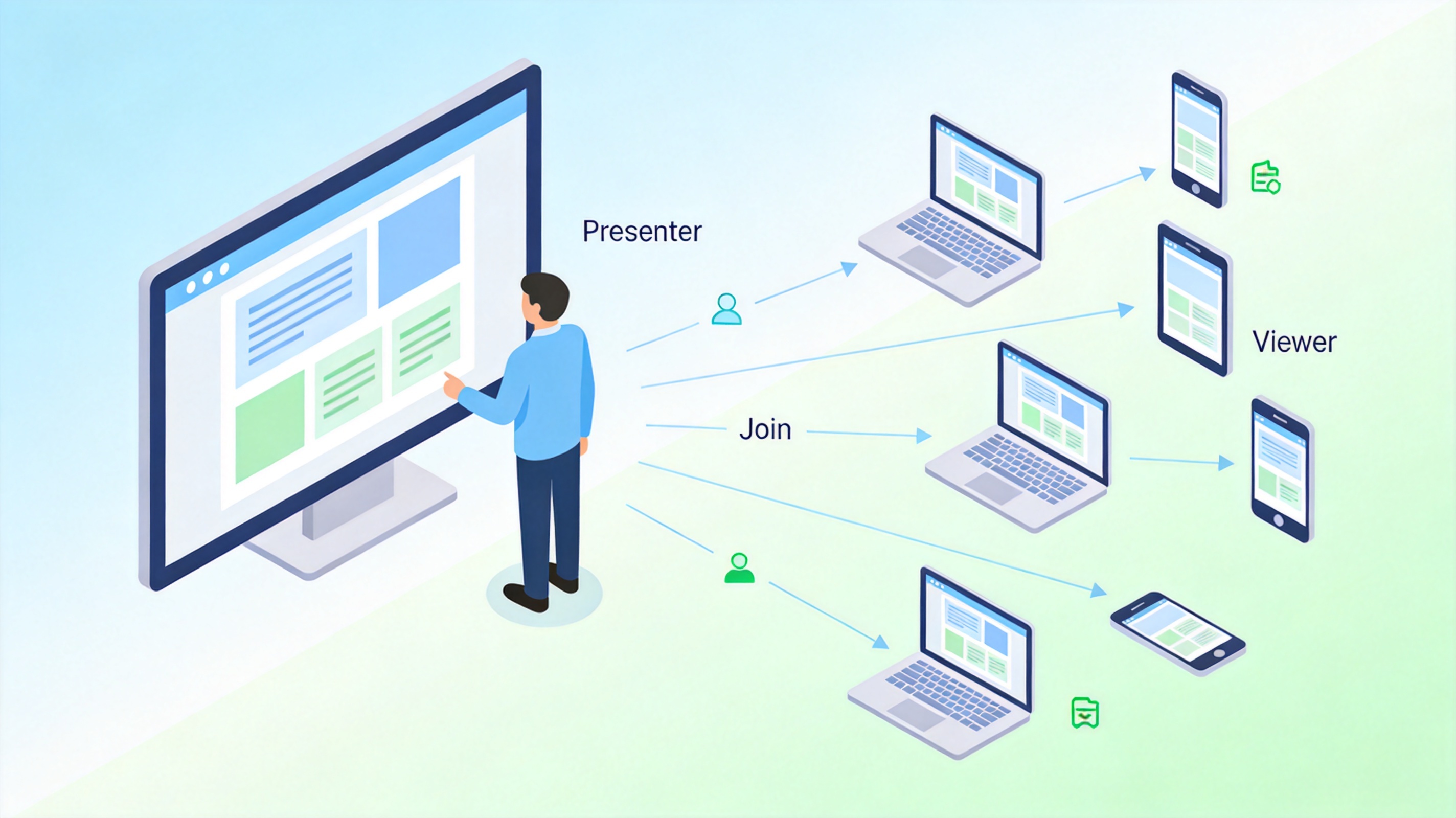
Audience joining a shared presentation remotely


How to join a presentation from a shared link
To join a presentation from a shared link, paste the URL into your browser and open the viewer the host sent you. The exact steps depend on how the deck was shared, but the common flow is:
Copy the presentation link from the email, chat, or meeting invite.
Paste it into the address bar and press Enter, or click the button labeled Join or Open presentation.
Wait for the viewer to load the slides — no file download is needed when it runs in the browser.
Use the arrows or the slide thumbnails to move through the deck and follow the host.
If the link points to a cloud file rather than a live meeting, you join the presentation by opening it in a viewer and advancing the slides yourself. WPS makes this easy because its online PPT viewer opens .pptx and .ppt directly in the browser.
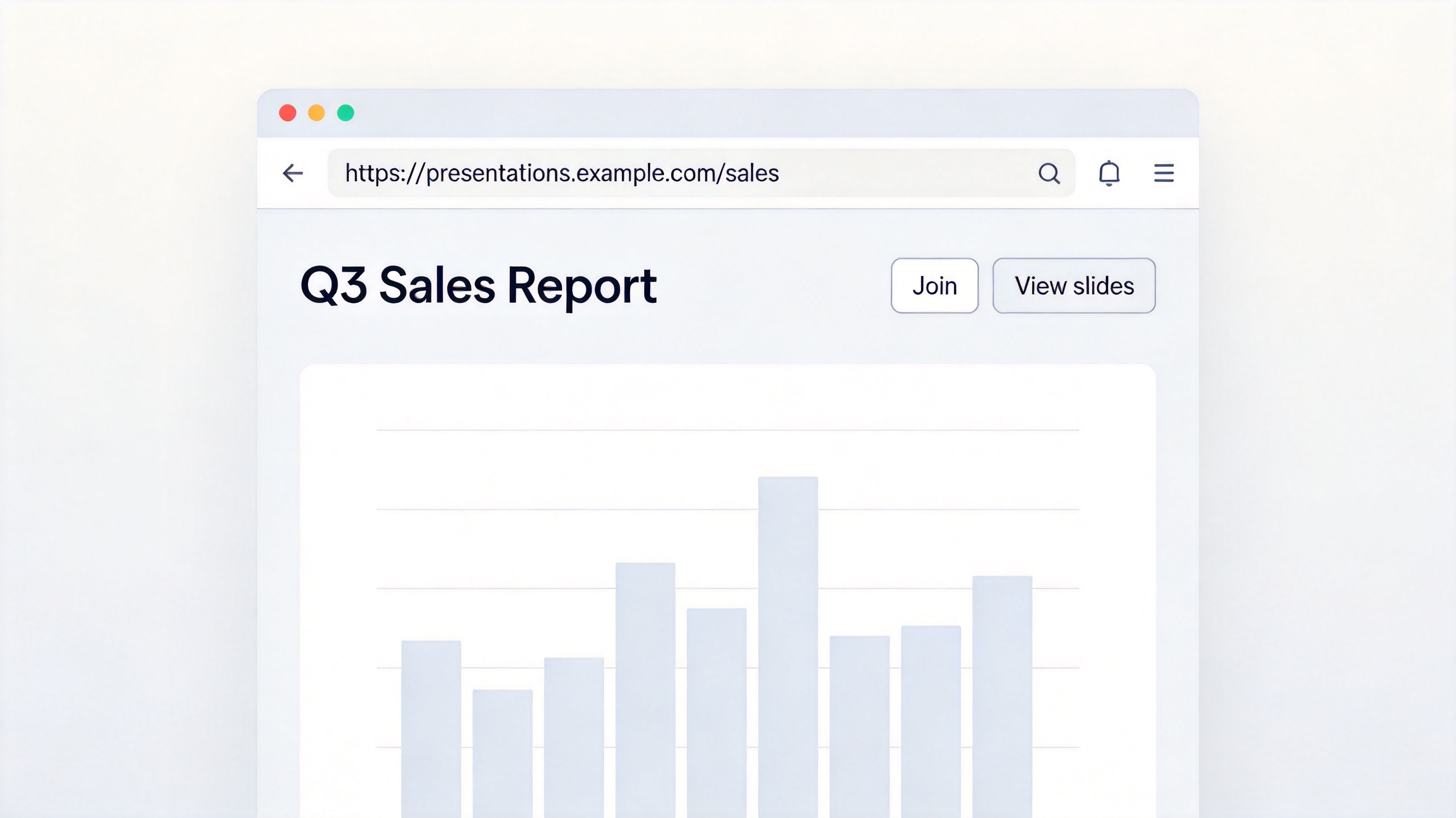
Open a presentation link in a browser viewer
Join a presentation with the WPS online viewer
When a deck is shared through WPS, you can join the presentation right in the browser with no install. The online PPT viewer opens the file, keeps the original layouts and fonts, and lets you present in fullscreen from any device.
To use it: open the shared link, sign in with the access you were given, and the slides load in a clean viewer. Navigate with the arrows or thumbnails, zoom into a slide when you need detail, and use fullscreen mode if you want to present the deck yourself. If you later need to edit rather than just view, open the same file in the free WPS Office desktop app.
For teams that share decks regularly, the viewer removes the "send me the file" delay. Everyone joins the presentation at the same URL and sees the same current version, which is exactly what a presentation join is meant to deliver.
The same convenience applies when you are the one hosting. Share one link instead of attaching the file, and viewers can open it on a laptop, tablet, or phone without extra software. Because the viewer preserves the original slide structure, animations and speaker notes behave as the host designed them, so remote audiences see the deck the way it was meant to look.
Tips for a smooth presentation join
A few habits keep a presentation join trouble-free, whether you are a viewer or the host sharing the deck.
Test the link before the meeting. Open the shared URL once in advance so you are not troubleshooting in front of the audience.
Use a current browser. The online viewer works best in Chrome, Safari, or Edge, and a recent version avoids old rendering quirks.
Check the viewing permission. If the deck asks for sign-in, make sure you have the access the host set up before you try to join.
Keep the file compact. Large embedded videos can slow the viewer; compress the deck before sharing when you can.
When these are handled, joining a presentation takes seconds and the whole team lands on the same deck without version confusion. If a link still fails to open, ask the host to resend it and confirm the file is stored where it is shareable, then retry once before troubleshooting the browser cache.
The Best Free Presentation Alternative: WPS Office
WPS Office covers the full presentation workflow in one free app: open and edit PPTX files with full compatibility, view decks in the browser through the online viewer, and present in fullscreen from desktop or mobile. You never jump between a separate viewer and an editor.
When you join a presentation and later need to make changes, the same file opens in WPS Presentation with the original layout intact. It handles .pptx, .ppt, and other Office formats, and the deck stays consistent whether you review it online or edit it locally.
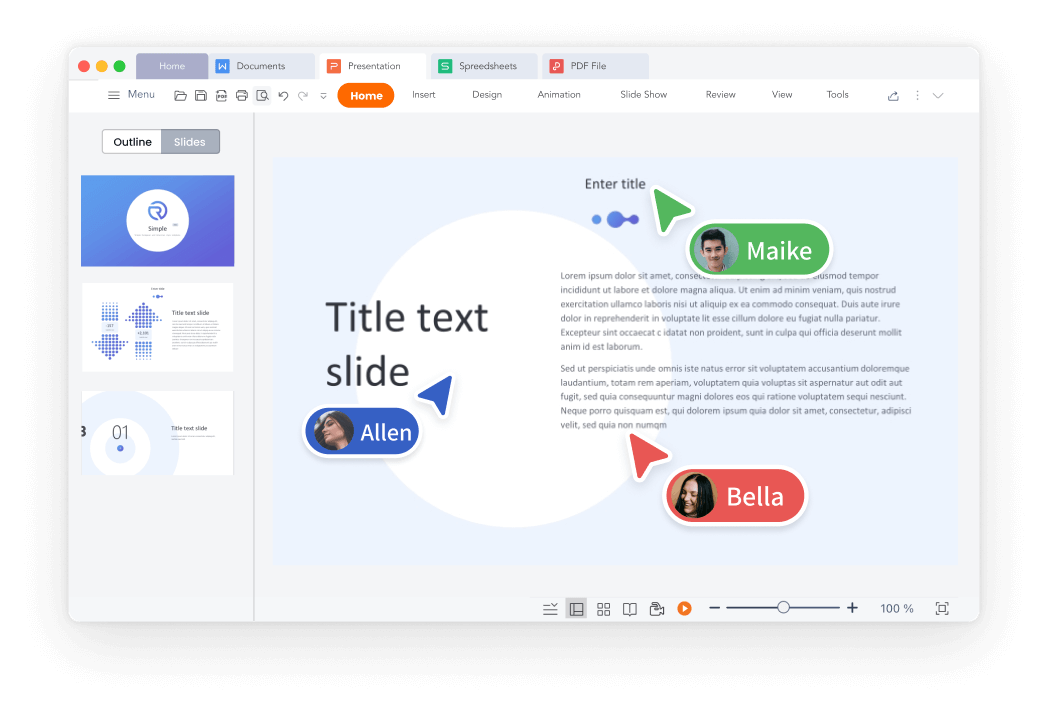
WPS Presentation editor for joining decks
FAQs
How do I join a presentation from a shared link?
Copy the link, paste it into your browser, and open the viewer the host sent you. The slides load online, and you navigate with the arrows or thumbnails.
Can I view a PowerPoint file without installing anything?
Yes. The WPS online PPT viewer opens .pptx and .ppt directly in the browser, so you can view and present the deck without a download.
Do I need an account to join a presentation?
It depends on how the host shared the deck. If the link asks for sign-in, use the access you were given; public links open without an account.
Will my fonts and layouts stay correct when I join?
Yes when the viewer reads the original PPTX structure. WPS keeps the native layout and fonts, unlike a flattened image export.
Can I edit a presentation after joining it?
Yes. Open the same file in WPS Presentation to edit, then share the updated deck. The online viewer is for viewing; the desktop app is for editing.


'%3e%3cpath%20d='M19.9911%204.11386V6.471H18.5894C18.0775%206.471%2017.7322%206.57814%2017.5536%206.79243C17.3751%207.00671%2017.2858%207.32814%2017.2858%207.75671V9.44421H19.9019L19.5536%2012.0871H17.2858V18.8639H14.5536V12.0871H12.2769V9.44421H14.5536V7.49779C14.5536%206.39064%2014.8632%205.53201%2015.4822%204.92189C16.1013%204.31177%2016.9257%204.00671%2017.9554%204.00671C18.8304%204.00671%2019.509%204.04243%2019.9911%204.11386Z'%20fill='%23333333'/%3e%3c/g%3e%3cdefs%3e%3cclipPath%20id='clip0_2938_8199'%3e%3crect%20width='16'%20height='16'%20fill='white'%20transform='translate(8%204.00671)'/%3e%3c/clipPath%3e%3c/defs%3e%3c/svg%3e)
'%3e%3cpath%20d='M17.5237%2010.7813L23.4811%204H22.0699L16.8949%209.88693L12.7648%204H8L14.2469%2012.9029L8%2020.0133H9.4112L14.8725%2013.7952L19.2352%2020.0133H24M9.92053%205.04213H12.0885L22.0688%2019.0224H19.9003'%20fill='%23333333'/%3e%3c/g%3e%3cdefs%3e%3cclipPath%20id='clip0_2938_8200'%3e%3crect%20width='16'%20height='16.0134'%20fill='white'%20transform='translate(8%204)'/%3e%3c/clipPath%3e%3c/defs%3e%3c/svg%3e)


