

'%3e%3cpath%20d='M8%200C12.4183%200%2016%203.58172%2016%208C16%2012.4183%2012.4183%2016%208%2016C3.58172%2016%200%2012.4183%200%208C0%203.58172%203.58172%200%208%200ZM11.6162%204.38379C11.2257%203.99337%2010.5927%203.99338%2010.2021%204.38379L8%206.58594L5.79785%204.38379C5.40732%203.99334%204.77429%203.99329%204.38379%204.38379C3.99331%204.77429%203.99335%205.40733%204.38379%205.79785L6.58594%208L4.38379%2010.2021C3.99348%2010.5927%203.99341%2011.2257%204.38379%2011.6162C4.77426%2012.0066%205.40734%2012.0065%205.79785%2011.6162L8%209.41406L10.2021%2011.6162C10.5927%2012.0066%2011.2257%2012.0067%2011.6162%2011.6162C12.0067%2011.2257%2012.0066%2010.5927%2011.6162%2010.2021L9.41406%208L11.6162%205.79785C12.0066%205.40735%2012.0066%204.77429%2011.6162%204.38379Z'%20fill='%23080E17'%20fill-opacity='0.46'/%3e%3c/g%3e%3cdefs%3e%3cclipPath%20id='clip0_3761_713'%3e%3crect%20width='16'%20height='16'%20fill='white'/%3e%3c/clipPath%3e%3c/defs%3e%3c/svg%3e)



'%3e%3cpath%20fill-rule='evenodd'%20clip-rule='evenodd'%20d='M21.4999%2010.9993C21.4999%205.20009%2016.7986%200.498901%2010.9993%200.498901C5.19994%200.498901%200.498657%205.20009%200.498657%2010.9993C0.498657%2016.2404%204.33858%2020.5844%209.35855%2021.3722V14.0346H6.69238V10.9993H9.35855V8.68594C9.35855%206.05427%2010.9262%204.60062%2013.3248%204.60062C14.4736%204.60062%2015.6753%204.80571%2015.6753%204.80571V7.38979H14.3512C13.0468%207.38979%2012.64%208.19921%2012.64%209.0296V10.9993H15.5523L15.0867%2014.0346H12.64V21.3722C17.66%2020.5844%2021.4999%2016.2404%2021.4999%2010.9993Z'%20fill='%231568EA'/%3e%3c/g%3e%3c/svg%3e)


'%3e%3cpath%20d='M2.42045%2022.1876H6.31818V12.7217L0.75%208.54553V20.5171C0.75%2021.4414%201.49892%2022.1876%202.42045%2022.1876Z'%20fill='%234285F4'/%3e%3cpath%20d='M19.682%2022.1876H23.5797C24.5041%2022.1876%2025.2502%2021.4387%2025.2502%2020.5171V8.54553L19.682%2012.7217'%20fill='%2334A853'/%3e%3cpath%20d='M19.682%205.48293V12.7216L25.2502%208.54543V6.31816C25.2502%204.25236%2022.8921%203.07469%2021.2411%204.31361'%20fill='%23FBBC04'/%3e%3cpath%20d='M6.31824%2012.7217V5.48303L13.0001%2010.4944L19.6819%205.48303V12.7217L13.0001%2017.733'%20fill='%23EA4335'/%3e%3cpath%20d='M0.75%206.31816V8.54543L6.31818%2012.7216V5.48293L4.75909%204.31361C3.10534%203.07469%200.75%204.25236%200.75%206.31816Z'%20fill='%23C5221F'/%3e%3c/g%3e%3cdefs%3e%3cclipPath%20id='clip0_2954_7305'%3e%3crect%20width='24.5'%20height='18.375'%20fill='white'%20transform='translate(0.75%203.8125)'/%3e%3c/clipPath%3e%3c/defs%3e%3c/svg%3e)


A slide with only text feels flat, and the fastest way to make it clear is to drop a picture on it. You can put a picture in PPT in WPS Presentation in a few clicks: select the slide, choose Insert > Picture, pick the image file, and the photo lands on the slide ready to resize. This guide covers that flow and the formatting checks that keep the image sharp.
How to Put a Picture in PPT Insert and Format Images in WPS Presentation
Why a picture matters in a PPT slide
A picture in a PPT slide breaks up text, shows a product or a result, and helps the audience remember the point. Photos and screenshots are the two most common types: a product photo when you pitch an item, and a screen capture when you show software or data. Both insert the same way in WPS Presentation.
Before you insert, check the image quality. A small, pixelated photo looks unprofessional when stretched across a slide. Use the sharpest copy you have and aim for a file that stays crisp at the size it will appear on screen.
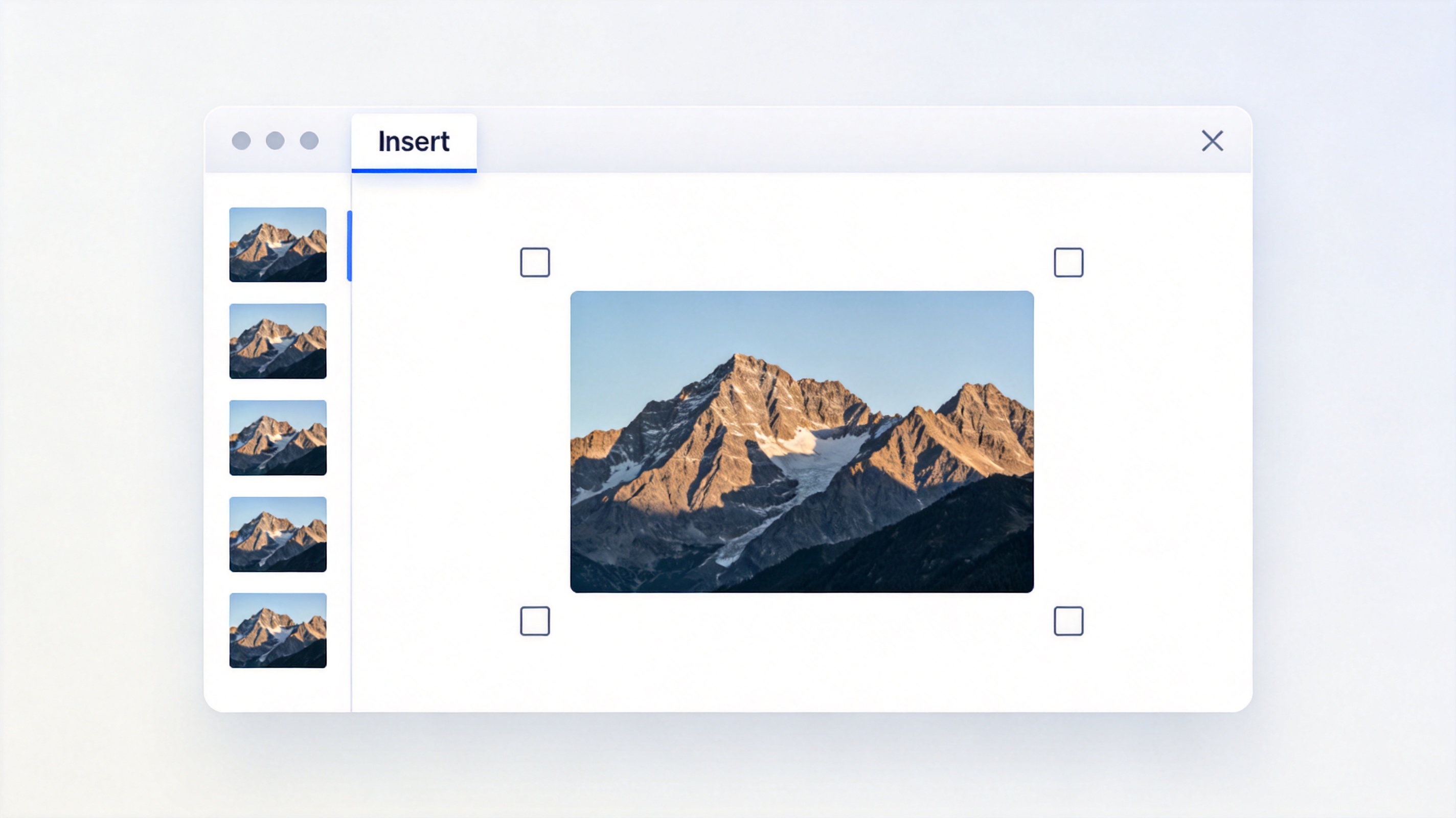
Picture inserted and selected on a PPT slide


How to put a picture in PPT from your computer
WPS Presentation inserts pictures the same way PowerPoint does, with an Insert > Picture menu that lets you browse the file on your device.
Open your deck in WPS Presentation and click the slide where you want the picture.
On the ribbon, open the Insert tab and choose Picture.
Select This Device (or browse on your computer), then choose the image file and click Open or Insert.
The picture appears on the slide selected, with handles around its edge.
Drag a corner handle to resize it while keeping the image's proportions.
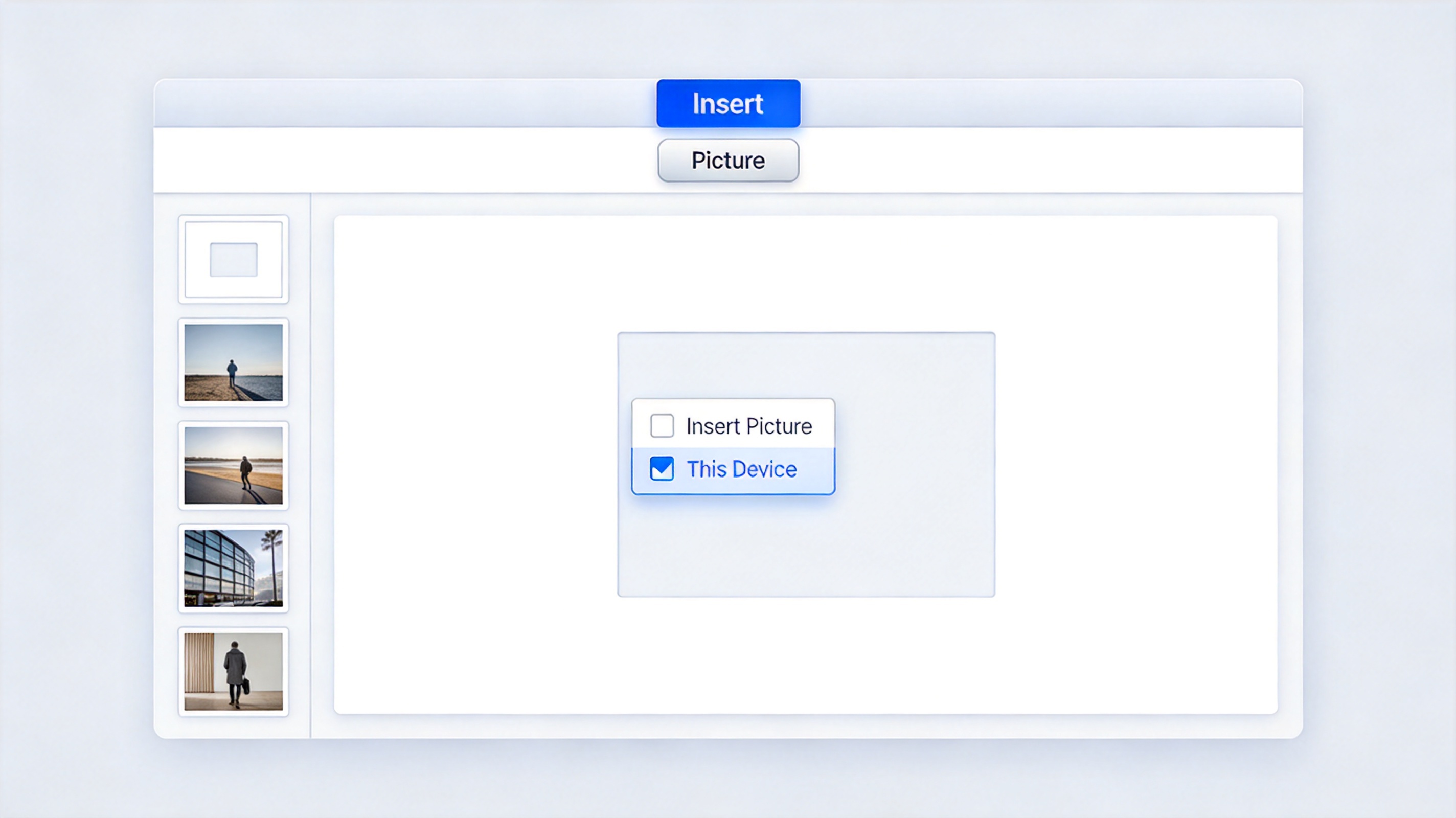
WPS Insert Picture This Device option on a slide
How to put a picture in PPT and keep it sharp
After the picture is in your PPT slide, two settings decide whether it looks clean: the fit and the compression. A picture stretched out of proportion looks wrong, so WPS Presentation lets you lock the aspect ratio while you resize.
To resize without distortion, drag a corner handle instead of a side handle. Corner handles keep the width and height in proportion, while side handles stretch the image. If you hold the image selection and use the corner handle, you avoid the flattened or squashed look that ruins a slide.
When the deck grows large because of big photos, compress the pictures before sharing. In the Picture tools, look for a compression option that reduces file size while keeping enough detail for screen use. This matters when you email the file or upload it with a size limit.
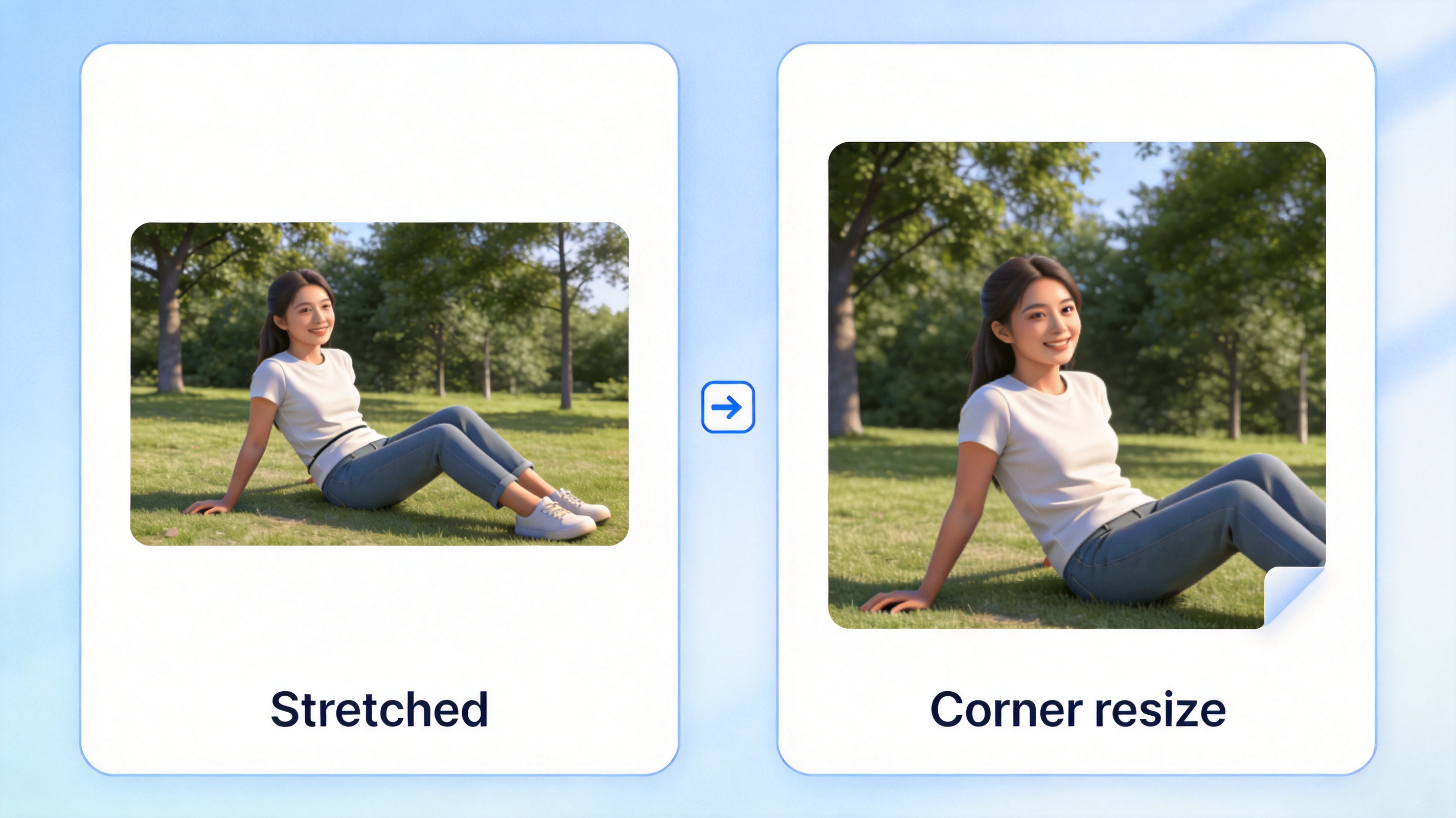
Resize a PPT picture from a corner handle
Format a picture in PPT: alignment, crop, and style
Once the picture is on the slide, a few formatting steps make it look intentional instead of dropped in.
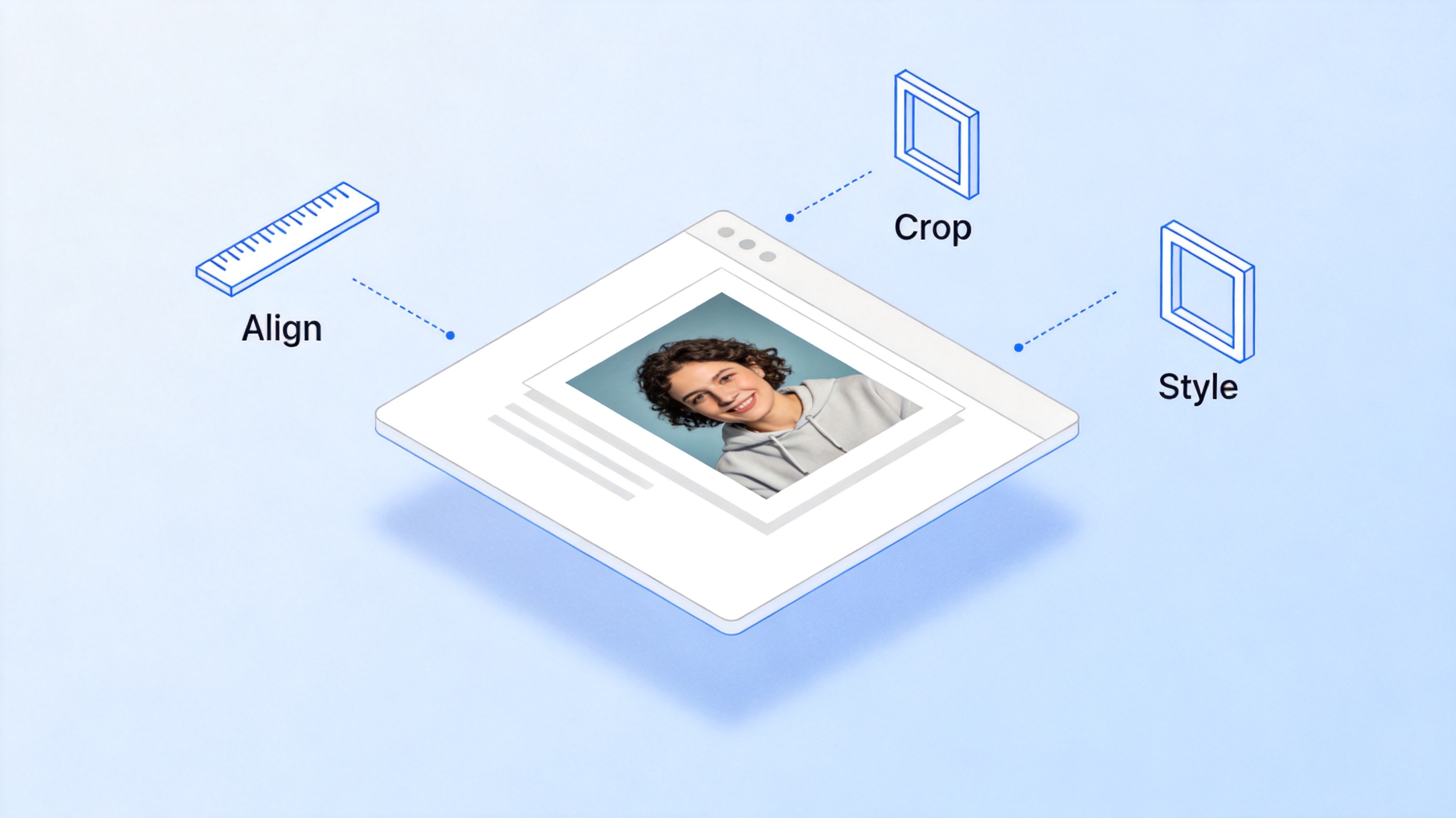
Align crop and style a PPT picture
Align it. Select the picture and use the alignment tools to center it or line it up with the text block, so the layout stays tidy.
Crop it. Use the crop tool to remove empty borders around the subject and focus the image on what matters.
Add a border or style. A thin border or a subtle preset style helps the picture sit cleanly on a white slide and separates it from the background.
Keep the image related to the text on the slide. A photo of the product you are pitching, or a screenshot of the feature you are explaining, reinforces the point instead of distracting from it.
Common mistakes when you put a picture in PPT
Most picture problems in PPT slides come from a few repeated habits, and each has a quick fix.
Stretching the image. Dragging a side handle flattens the photo. Resize from a corner handle to keep the aspect ratio.
Using a low-resolution file. A blurry picture stays blurry no matter how you resize it. Start with the highest-resolution version you have.
Adding unrelated images. A picture that does not match the slide text confuses the audience. Pick images that illustrate the exact point being made.
Covering the text. A large picture can hide the title or body. Send the picture behind the text or size it to leave room for the words.
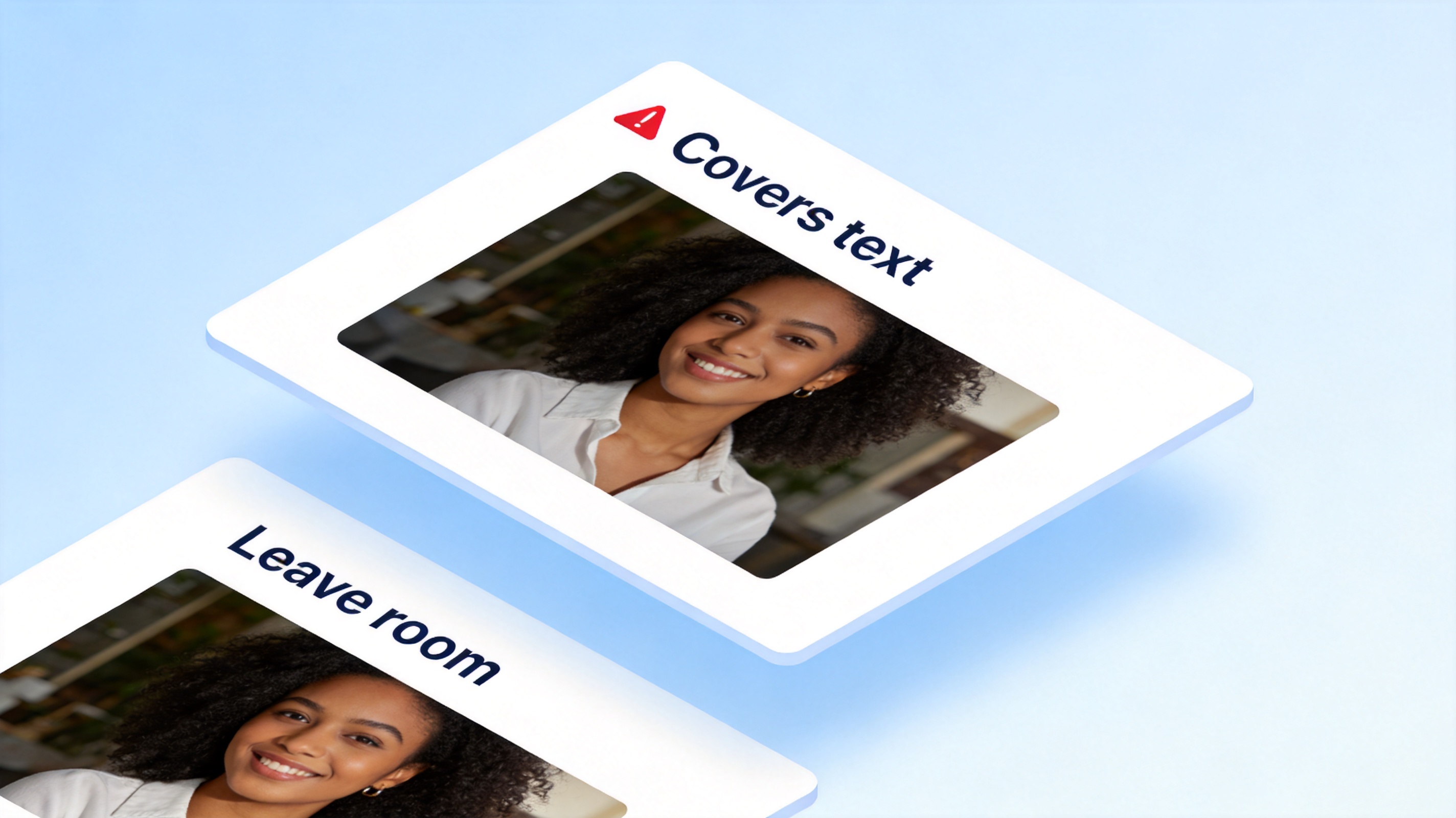
Avoid common mistakes when adding a PPT picture
The Best Free Presentation Alternative: WPS Office
WPS Presentation handles the whole picture workflow in one free app: insert from your device, resize without distortion, crop and style the image, and export the finished deck to PPTX or PDF. You never jump between a separate image editor and your slides.
It opens PowerPoint files with full compatibility, so a deck you started in PPTX keeps its layout when you open it in WPS. The same file works on desktop and mobile when a deadline moves.

WPS Presentation full editor for adding pictures
FAQs
How do I put a picture in PPT on WPS Presentation?
Click the slide, open the Insert tab, choose Picture, select This Device, and pick the image file. The picture appears on the slide ready to resize.
Can I insert a picture in PPT without stretching it?
Yes. Resize from a corner handle, which keeps the image proportions. Side handles stretch the picture and should be avoided.
What image formats work when I put a picture in PPT?
Common formats such as PNG, JPG, and GIF work in WPS Presentation. Use PNG for screenshots and logos, and JPG for photos.
Why is my picture blurry in the slide?
The source file was probably low resolution or the image was enlarged beyond its quality. Start with the sharpest file and avoid scaling it up too far.
How do I remove the background from a picture in PPT?
Select the picture, open the Picture tools, and look for a remove background option. WPS also offers an AI cutout tool for separating a subject from its background.


'%3e%3cpath%20d='M19.9911%204.11386V6.471H18.5894C18.0775%206.471%2017.7322%206.57814%2017.5536%206.79243C17.3751%207.00671%2017.2858%207.32814%2017.2858%207.75671V9.44421H19.9019L19.5536%2012.0871H17.2858V18.8639H14.5536V12.0871H12.2769V9.44421H14.5536V7.49779C14.5536%206.39064%2014.8632%205.53201%2015.4822%204.92189C16.1013%204.31177%2016.9257%204.00671%2017.9554%204.00671C18.8304%204.00671%2019.509%204.04243%2019.9911%204.11386Z'%20fill='%23333333'/%3e%3c/g%3e%3cdefs%3e%3cclipPath%20id='clip0_2938_8199'%3e%3crect%20width='16'%20height='16'%20fill='white'%20transform='translate(8%204.00671)'/%3e%3c/clipPath%3e%3c/defs%3e%3c/svg%3e)
'%3e%3cpath%20d='M17.5237%2010.7813L23.4811%204H22.0699L16.8949%209.88693L12.7648%204H8L14.2469%2012.9029L8%2020.0133H9.4112L14.8725%2013.7952L19.2352%2020.0133H24M9.92053%205.04213H12.0885L22.0688%2019.0224H19.9003'%20fill='%23333333'/%3e%3c/g%3e%3cdefs%3e%3cclipPath%20id='clip0_2938_8200'%3e%3crect%20width='16'%20height='16.0134'%20fill='white'%20transform='translate(8%204)'/%3e%3c/clipPath%3e%3c/defs%3e%3c/svg%3e)


