

'%3e%3cpath%20d='M8%200C12.4183%200%2016%203.58172%2016%208C16%2012.4183%2012.4183%2016%208%2016C3.58172%2016%200%2012.4183%200%208C0%203.58172%203.58172%200%208%200ZM11.6162%204.38379C11.2257%203.99337%2010.5927%203.99338%2010.2021%204.38379L8%206.58594L5.79785%204.38379C5.40732%203.99334%204.77429%203.99329%204.38379%204.38379C3.99331%204.77429%203.99335%205.40733%204.38379%205.79785L6.58594%208L4.38379%2010.2021C3.99348%2010.5927%203.99341%2011.2257%204.38379%2011.6162C4.77426%2012.0066%205.40734%2012.0065%205.79785%2011.6162L8%209.41406L10.2021%2011.6162C10.5927%2012.0066%2011.2257%2012.0067%2011.6162%2011.6162C12.0067%2011.2257%2012.0066%2010.5927%2011.6162%2010.2021L9.41406%208L11.6162%205.79785C12.0066%205.40735%2012.0066%204.77429%2011.6162%204.38379Z'%20fill='%23080E17'%20fill-opacity='0.46'/%3e%3c/g%3e%3cdefs%3e%3cclipPath%20id='clip0_3761_713'%3e%3crect%20width='16'%20height='16'%20fill='white'/%3e%3c/clipPath%3e%3c/defs%3e%3c/svg%3e)



'%3e%3cpath%20fill-rule='evenodd'%20clip-rule='evenodd'%20d='M21.4999%2010.9993C21.4999%205.20009%2016.7986%200.498901%2010.9993%200.498901C5.19994%200.498901%200.498657%205.20009%200.498657%2010.9993C0.498657%2016.2404%204.33858%2020.5844%209.35855%2021.3722V14.0346H6.69238V10.9993H9.35855V8.68594C9.35855%206.05427%2010.9262%204.60062%2013.3248%204.60062C14.4736%204.60062%2015.6753%204.80571%2015.6753%204.80571V7.38979H14.3512C13.0468%207.38979%2012.64%208.19921%2012.64%209.0296V10.9993H15.5523L15.0867%2014.0346H12.64V21.3722C17.66%2020.5844%2021.4999%2016.2404%2021.4999%2010.9993Z'%20fill='%231568EA'/%3e%3c/g%3e%3c/svg%3e)


'%3e%3cpath%20d='M2.42045%2022.1876H6.31818V12.7217L0.75%208.54553V20.5171C0.75%2021.4414%201.49892%2022.1876%202.42045%2022.1876Z'%20fill='%234285F4'/%3e%3cpath%20d='M19.682%2022.1876H23.5797C24.5041%2022.1876%2025.2502%2021.4387%2025.2502%2020.5171V8.54553L19.682%2012.7217'%20fill='%2334A853'/%3e%3cpath%20d='M19.682%205.48293V12.7216L25.2502%208.54543V6.31816C25.2502%204.25236%2022.8921%203.07469%2021.2411%204.31361'%20fill='%23FBBC04'/%3e%3cpath%20d='M6.31824%2012.7217V5.48303L13.0001%2010.4944L19.6819%205.48303V12.7217L13.0001%2017.733'%20fill='%23EA4335'/%3e%3cpath%20d='M0.75%206.31816V8.54543L6.31818%2012.7216V5.48293L4.75909%204.31361C3.10534%203.07469%200.75%204.25236%200.75%206.31816Z'%20fill='%23C5221F'/%3e%3c/g%3e%3cdefs%3e%3cclipPath%20id='clip0_2954_7305'%3e%3crect%20width='24.5'%20height='18.375'%20fill='white'%20transform='translate(0.75%203.8125)'/%3e%3c/clipPath%3e%3c/defs%3e%3c/svg%3e)


Text boxes and shapes use an outline setting; select the object before changing color, weight, or dash style. A border is an object property, so changing paragraph formatting will not change it.
This guide intentionally does not repeat picture-border steps. For a picture, use the separate picture-border guide only after confirming that its page is published; the Picture Format controls are not the same as Shape Outline.
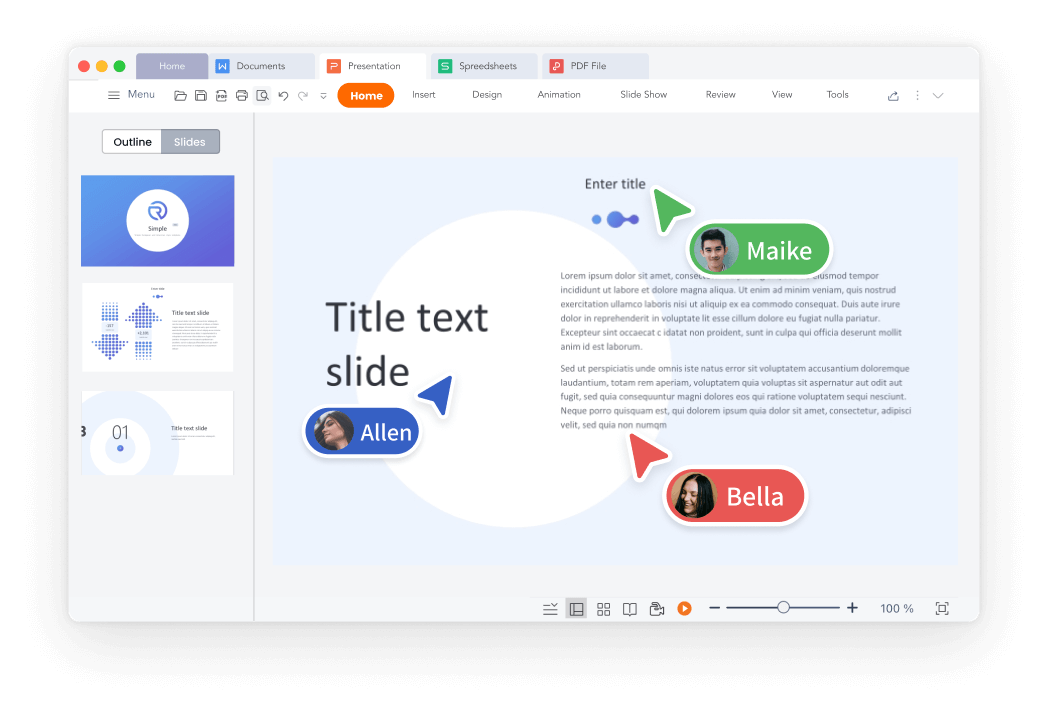
Add or Remove Borders for Text Boxes, Pictures, and Shapes
Quick Answer: Choose the Right Outline for the Object
Before you continue, verify the exact object, file, or command that is selected. Then apply one adjustment and compare the result with the original. This small check prevents a familiar problem: a setting can appear to have changed while it was applied to a different object, a converted copy, or a view that does not match the final export. Keep the original available, save a named revision, and confirm the result again after reopening the document on the platform that will receive it.
Text boxes and shapes use an outline setting; select the object before changing color, weight, or dash style. A border is an object property, so changing paragraph formatting will not change it.
Work on a copy first, make one change at a time, and inspect the result at normal zoom and in the final export. This avoids carrying an incorrect object selection, conversion choice, or visual adjustment through the rest of the document.
- Identify the selected object or file state before opening a format menu.
- Use the available desktop control, then confirm the visible result.
- Save a copy and re-open or export it when the result will be shared.
This guide intentionally does not repeat picture-border steps. For a picture, use the separate picture-border guide only after confirming that its page is published; the Picture Format controls are not the same as Shape Outline.
Picture borders are a separate task. For a published picture-border walkthrough, see how to add a border to a picture.


Add or Remove a Text Box Border
Before you continue, verify the exact object, file, or command that is selected. Then apply one adjustment and compare the result with the original. This small check prevents a familiar problem: a setting can appear to have changed while it was applied to a different object, a converted copy, or a view that does not match the final export. Keep the original available, save a named revision, and confirm the result again after reopening the document on the platform that will receive it.
Text boxes and shapes use an outline setting; select the object before changing color, weight, or dash style. A border is an object property, so changing paragraph formatting will not change it.
Work on a copy first, make one change at a time, and inspect the result at normal zoom and in the final export. This avoids carrying an incorrect object selection, conversion choice, or visual adjustment through the rest of the document.
- Identify the selected object or file state before opening a format menu.
- Use the available desktop control, then confirm the visible result.
- Save a copy and re-open or export it when the result will be shared.
This guide intentionally does not repeat picture-border steps. For a picture, use the separate picture-border guide only after confirming that its page is published; the Picture Format controls are not the same as Shape Outline.
Add or Remove a Shape Outline
Before you continue, verify the exact object, file, or command that is selected. Then apply one adjustment and compare the result with the original. This small check prevents a familiar problem: a setting can appear to have changed while it was applied to a different object, a converted copy, or a view that does not match the final export. Keep the original available, save a named revision, and confirm the result again after reopening the document on the platform that will receive it.
Text boxes and shapes use an outline setting; select the object before changing color, weight, or dash style. A border is an object property, so changing paragraph formatting will not change it.
Work on a copy first, make one change at a time, and inspect the result at normal zoom and in the final export. This avoids carrying an incorrect object selection, conversion choice, or visual adjustment through the rest of the document.
- Identify the selected object or file state before opening a format menu.
- Use the available desktop control, then confirm the visible result.
- Save a copy and re-open or export it when the result will be shared.
This guide intentionally does not repeat picture-border steps. For a picture, use the separate picture-border guide only after confirming that its page is published; the Picture Format controls are not the same as Shape Outline.
WPS Office add or remove borders for text boxes pictures and shapes workflow
Where Picture Borders Fit—and Where This Guide Stops
Before you continue, verify the exact object, file, or command that is selected. Then apply one adjustment and compare the result with the original. This small check prevents a familiar problem: a setting can appear to have changed while it was applied to a different object, a converted copy, or a view that does not match the final export. Keep the original available, save a named revision, and confirm the result again after reopening the document on the platform that will receive it.
Text boxes and shapes use an outline setting; select the object before changing color, weight, or dash style. A border is an object property, so changing paragraph formatting will not change it.
Work on a copy first, make one change at a time, and inspect the result at normal zoom and in the final export. This avoids carrying an incorrect object selection, conversion choice, or visual adjustment through the rest of the document.
- Identify the selected object or file state before opening a format menu.
- Use the available desktop control, then confirm the visible result.
- Save a copy and re-open or export it when the result will be shared.
This guide intentionally does not repeat picture-border steps. For a picture, use the separate picture-border guide only after confirming that its page is published; the Picture Format controls are not the same as Shape Outline.
WPS Office: Keep Borders Consistent Across a Document
Before you continue, verify the exact object, file, or command that is selected. Then apply one adjustment and compare the result with the original. This small check prevents a familiar problem: a setting can appear to have changed while it was applied to a different object, a converted copy, or a view that does not match the final export. Keep the original available, save a named revision, and confirm the result again after reopening the document on the platform that will receive it.
Text boxes and shapes use an outline setting; select the object before changing color, weight, or dash style. A border is an object property, so changing paragraph formatting will not change it.
Work on a copy first, make one change at a time, and inspect the result at normal zoom and in the final export. This avoids carrying an incorrect object selection, conversion choice, or visual adjustment through the rest of the document.
- Identify the selected object or file state before opening a format menu.
- Use the available desktop control, then confirm the visible result.
- Save a copy and re-open or export it when the result will be shared.
This guide intentionally does not repeat picture-border steps. For a picture, use the separate picture-border guide only after confirming that its page is published; the Picture Format controls are not the same as Shape Outline.
Fix Borders That Will Not Change or Disappear
Before you continue, verify the exact object, file, or command that is selected. Then apply one adjustment and compare the result with the original. This small check prevents a familiar problem: a setting can appear to have changed while it was applied to a different object, a converted copy, or a view that does not match the final export. Keep the original available, save a named revision, and confirm the result again after reopening the document on the platform that will receive it.
Text boxes and shapes use an outline setting; select the object before changing color, weight, or dash style. A border is an object property, so changing paragraph formatting will not change it.
Work on a copy first, make one change at a time, and inspect the result at normal zoom and in the final export. This avoids carrying an incorrect object selection, conversion choice, or visual adjustment through the rest of the document.
- Identify the selected object or file state before opening a format menu.
- Use the available desktop control, then confirm the visible result.
- Save a copy and re-open or export it when the result will be shared.
This guide intentionally does not repeat picture-border steps. For a picture, use the separate picture-border guide only after confirming that its page is published; the Picture Format controls are not the same as Shape Outline.
FAQs
How do I remove a text box border without deleting the text?
Select the text box border, then choose the no-outline or equivalent outline setting. Do not delete the text box itself.
Can I use a dashed shape outline?
If the Shape Outline menu offers dash styles, choose one after setting a visible color and weight; availability varies by build.
Is a picture border the same as a shape outline?
No. Pictures use Picture Format controls, while shapes and text boxes use outline controls. Keep those workflows separate.
Why will a border not change?
Check that the object is not locked, grouped, or selected only as text. Select its outer frame before opening the outline controls.
Do borders print and export?
They normally should, but verify a PDF or print preview when line weight, transparency, or contrast is important.

Summary
Add or remove borders for text boxes and shapes in WPS Office, with a separate route for picture-border help. Start with the correct object or file, keep a copy, and verify the result in the version you use.

'%3e%3cpath%20d='M19.9911%204.11386V6.471H18.5894C18.0775%206.471%2017.7322%206.57814%2017.5536%206.79243C17.3751%207.00671%2017.2858%207.32814%2017.2858%207.75671V9.44421H19.9019L19.5536%2012.0871H17.2858V18.8639H14.5536V12.0871H12.2769V9.44421H14.5536V7.49779C14.5536%206.39064%2014.8632%205.53201%2015.4822%204.92189C16.1013%204.31177%2016.9257%204.00671%2017.9554%204.00671C18.8304%204.00671%2019.509%204.04243%2019.9911%204.11386Z'%20fill='%23333333'/%3e%3c/g%3e%3cdefs%3e%3cclipPath%20id='clip0_2938_8199'%3e%3crect%20width='16'%20height='16'%20fill='white'%20transform='translate(8%204.00671)'/%3e%3c/clipPath%3e%3c/defs%3e%3c/svg%3e)
'%3e%3cpath%20d='M17.5237%2010.7813L23.4811%204H22.0699L16.8949%209.88693L12.7648%204H8L14.2469%2012.9029L8%2020.0133H9.4112L14.8725%2013.7952L19.2352%2020.0133H24M9.92053%205.04213H12.0885L22.0688%2019.0224H19.9003'%20fill='%23333333'/%3e%3c/g%3e%3cdefs%3e%3cclipPath%20id='clip0_2938_8200'%3e%3crect%20width='16'%20height='16.0134'%20fill='white'%20transform='translate(8%204)'/%3e%3c/clipPath%3e%3c/defs%3e%3c/svg%3e)


