

'%3e%3cpath%20d='M8%200C12.4183%200%2016%203.58172%2016%208C16%2012.4183%2012.4183%2016%208%2016C3.58172%2016%200%2012.4183%200%208C0%203.58172%203.58172%200%208%200ZM11.6162%204.38379C11.2257%203.99337%2010.5927%203.99338%2010.2021%204.38379L8%206.58594L5.79785%204.38379C5.40732%203.99334%204.77429%203.99329%204.38379%204.38379C3.99331%204.77429%203.99335%205.40733%204.38379%205.79785L6.58594%208L4.38379%2010.2021C3.99348%2010.5927%203.99341%2011.2257%204.38379%2011.6162C4.77426%2012.0066%205.40734%2012.0065%205.79785%2011.6162L8%209.41406L10.2021%2011.6162C10.5927%2012.0066%2011.2257%2012.0067%2011.6162%2011.6162C12.0067%2011.2257%2012.0066%2010.5927%2011.6162%2010.2021L9.41406%208L11.6162%205.79785C12.0066%205.40735%2012.0066%204.77429%2011.6162%204.38379Z'%20fill='%23080E17'%20fill-opacity='0.46'/%3e%3c/g%3e%3cdefs%3e%3cclipPath%20id='clip0_3761_713'%3e%3crect%20width='16'%20height='16'%20fill='white'/%3e%3c/clipPath%3e%3c/defs%3e%3c/svg%3e)



'%3e%3cpath%20fill-rule='evenodd'%20clip-rule='evenodd'%20d='M21.4999%2010.9993C21.4999%205.20009%2016.7986%200.498901%2010.9993%200.498901C5.19994%200.498901%200.498657%205.20009%200.498657%2010.9993C0.498657%2016.2404%204.33858%2020.5844%209.35855%2021.3722V14.0346H6.69238V10.9993H9.35855V8.68594C9.35855%206.05427%2010.9262%204.60062%2013.3248%204.60062C14.4736%204.60062%2015.6753%204.80571%2015.6753%204.80571V7.38979H14.3512C13.0468%207.38979%2012.64%208.19921%2012.64%209.0296V10.9993H15.5523L15.0867%2014.0346H12.64V21.3722C17.66%2020.5844%2021.4999%2016.2404%2021.4999%2010.9993Z'%20fill='%231568EA'/%3e%3c/g%3e%3c/svg%3e)


'%3e%3cpath%20d='M2.42045%2022.1876H6.31818V12.7217L0.75%208.54553V20.5171C0.75%2021.4414%201.49892%2022.1876%202.42045%2022.1876Z'%20fill='%234285F4'/%3e%3cpath%20d='M19.682%2022.1876H23.5797C24.5041%2022.1876%2025.2502%2021.4387%2025.2502%2020.5171V8.54553L19.682%2012.7217'%20fill='%2334A853'/%3e%3cpath%20d='M19.682%205.48293V12.7216L25.2502%208.54543V6.31816C25.2502%204.25236%2022.8921%203.07469%2021.2411%204.31361'%20fill='%23FBBC04'/%3e%3cpath%20d='M6.31824%2012.7217V5.48303L13.0001%2010.4944L19.6819%205.48303V12.7217L13.0001%2017.733'%20fill='%23EA4335'/%3e%3cpath%20d='M0.75%206.31816V8.54543L6.31818%2012.7216V5.48293L4.75909%204.31361C3.10534%203.07469%200.75%204.25236%200.75%206.31816Z'%20fill='%23C5221F'/%3e%3c/g%3e%3cdefs%3e%3cclipPath%20id='clip0_2954_7305'%3e%3crect%20width='24.5'%20height='18.375'%20fill='white'%20transform='translate(0.75%203.8125)'/%3e%3c/clipPath%3e%3c/defs%3e%3c/svg%3e)


Sending a .pptx to someone who does not have PowerPoint is how decks come back with shifted fonts and missing images. Saving the deck as a PDF freezes the layout, so it looks the same everywhere and prints the way you laid it out. Open the file, choose Export or Save As, pick PDF, and you are done - the only real decision is whether you want plain slides, speaker notes or handouts.
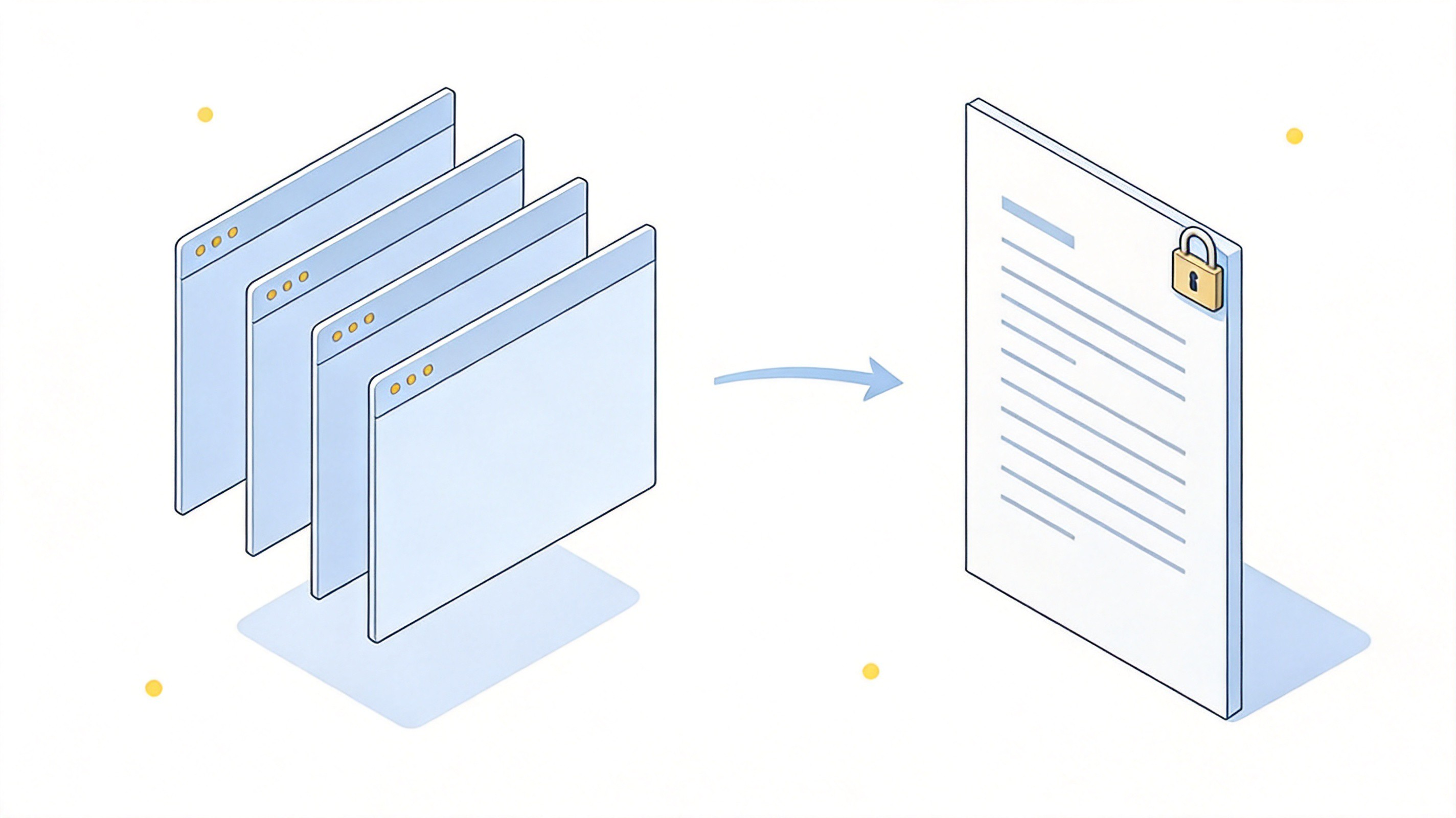
How to Save a PowerPoint as a PDF: Every Device
Save a PowerPoint as a PDF on Windows
Open the presentation and go to File, then Export.
Choose Create PDF/XPS Document, then click the Create PDF/XPS button.
Pick a folder and a file name, and make sure Save as type reads PDF.
Set Optimize for to Standard when the deck will be printed or needs full image quality, and to Minimum size when it is going out as an email attachment.
Click Options if you need only some slides or want notes pages, then press Publish.
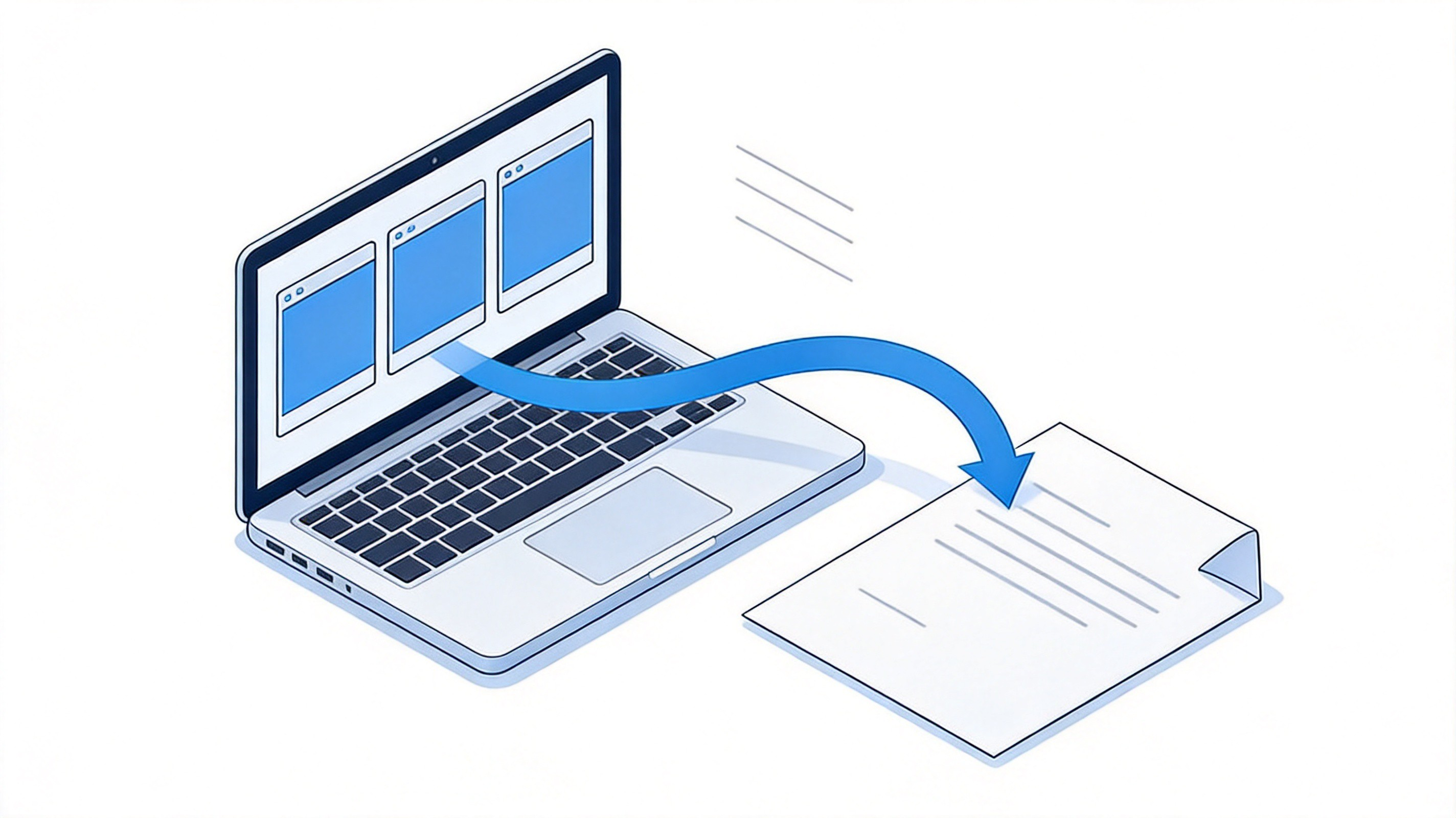
Exporting slides to PDF on Windows
One habit that saves rework: tick Publish after the file opens in your PDF viewer, so you see exactly what the recipient will get before you send it.


Save a PowerPoint as a PDF on Mac and in the Browser
On a Mac there are two routes that produce identical results, so use whichever you remember first.
Mac, Save As: File, then Save As, set File Format to PDF, choose Quality, and save.
Mac, Export: File, then Export, choose PDF as the format and confirm the quality setting.
PowerPoint for the web: open the deck, go to File, then Download as PDF. For handouts, use Export, then choose the PDF handout option before downloading.
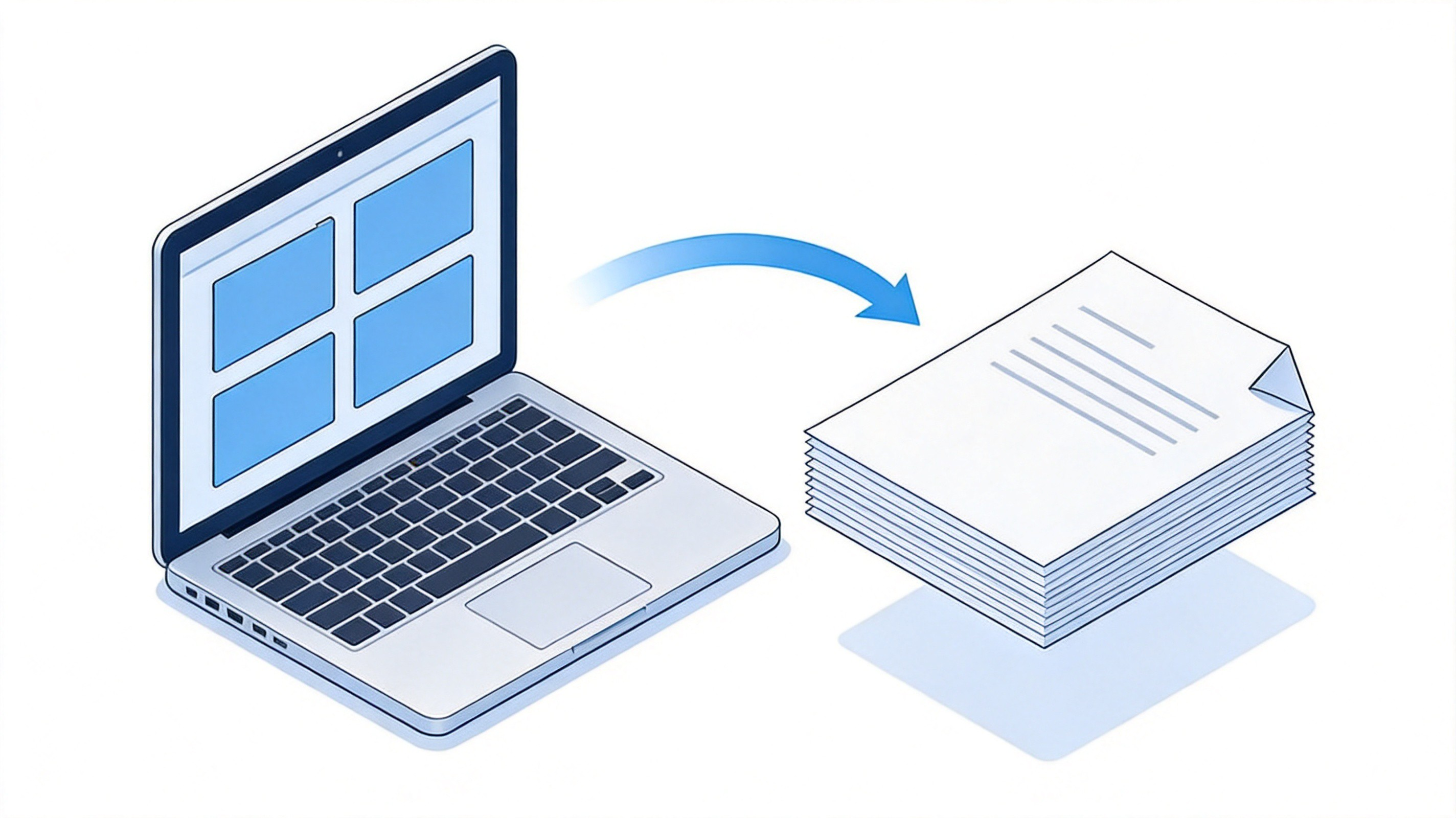
Saving a deck as PDF on a Mac
Both routes embed the fonts you used, which is why the PDF keeps its typography on a computer that never had your fonts installed.
Save a PowerPoint as a PDF on Your Phone
Open the deck in the PowerPoint app on iPhone, iPad or Android.
Tap Share in the top corner.
Choose Save as PDF (the label reads Export or Send a copy on some versions), then pick a folder such as Files or Drive.
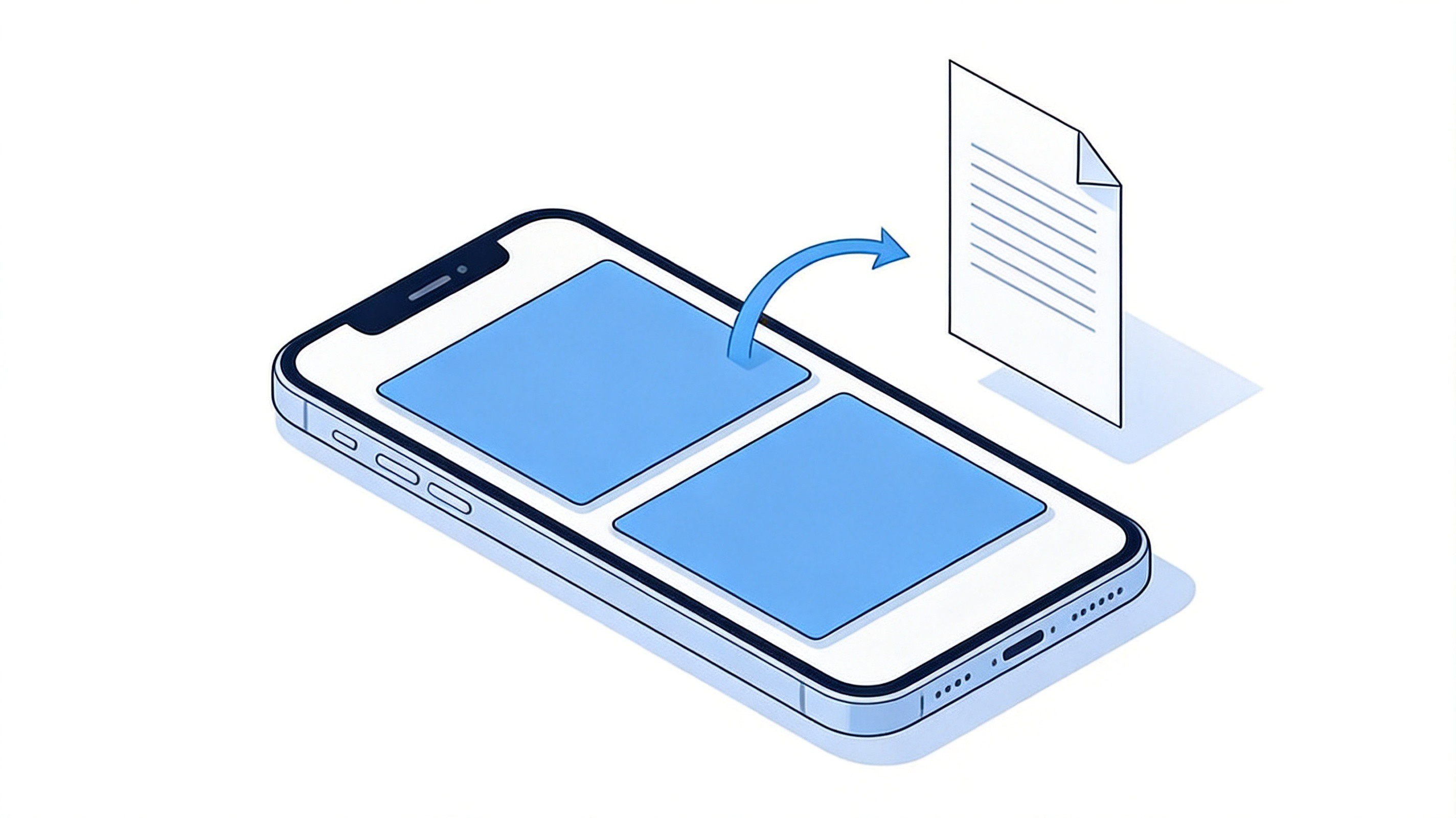
Exporting slides to PDF on mobile
Editing a full deck on a phone screen is painful, but exporting is not - which makes this the fastest way to turn a finished presentation into something you can email from a queue. For anything longer, WPS on iOS opens both the .pptx and the PDF you just made.
Save a PowerPoint as a PDF in WPS Presentation
If the deck is already in WPS Presentation, or you want to skip installing a paid suite, the export path is shorter.
Open the .pptx in WPS Presentation. WPS reads PowerPoint files natively, layout intact.
Go to Menu, then Export as PDF (or Save As and choose PDF from the file type list).
Choose what to include - all slides or a range - and confirm the settings.
Save and the PDF opens ready to share.
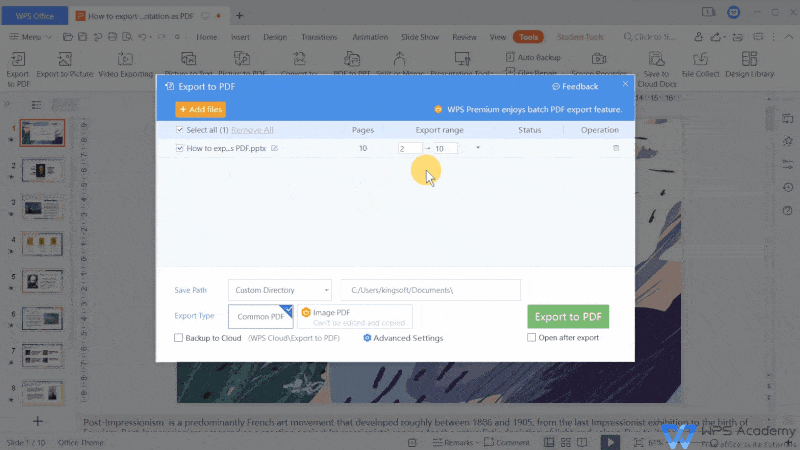
WPS Presentation export to PDF dialog
The same window also converts the other direction when a colleague sends you a PDF and asks for changes: open it in WPS, convert to an editable presentation, and export back to PDF when you are finished. This older walkthrough of converting PowerPoint to PDF in WPS covers the school-workflow version of the same steps.
Choose the Right Options: Slides, Notes, or Handouts
The Options dialog is where most people accidentally export the wrong thing. These are the four choices that matter.
Slides - the default: one slide per page, exactly as designed. Use it for sharing or printing a deck.
Notes pages - each slide with your speaker notes underneath. This is the option to pick when the deck has to make sense without you presenting it.
Handouts - several slides per page, which suits printing for a class or a meeting.
Outline - text only, with the design stripped out, useful for a reading version or for accessibility checks.
Range is the second setting to check: All exports the whole deck, Current slide exports the slide you are on, and the Slides from-to boxes export a specific run. If a colleague asks for three slides out of forty, this is the field that does it without editing the original file.
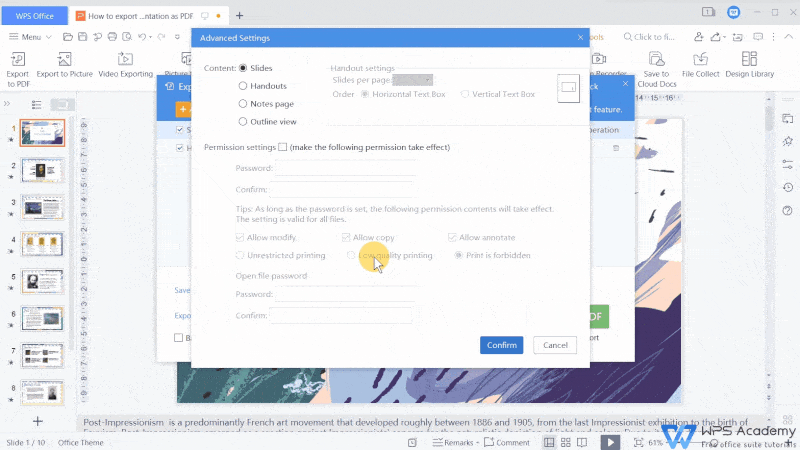
WPS PDF export options: slides, notes, handouts
The Best Free Alternative: WPS Office
WPS Office is free, opens .pptx files without asking you to convert anything first, and exports PDFs from the same window you present from. If you write the deck, add the charts in the spreadsheet and open the reading PDF in the same app, that is one install instead of three - and the exported PDF goes out at print quality either way.
Free to export: slides to PDF with no watermark and no per-file limit.
Compatible: opens and saves PowerPoint, Word and Excel formats without conversion.
Desktop and mobile: export on a laptop, double-check on a phone.
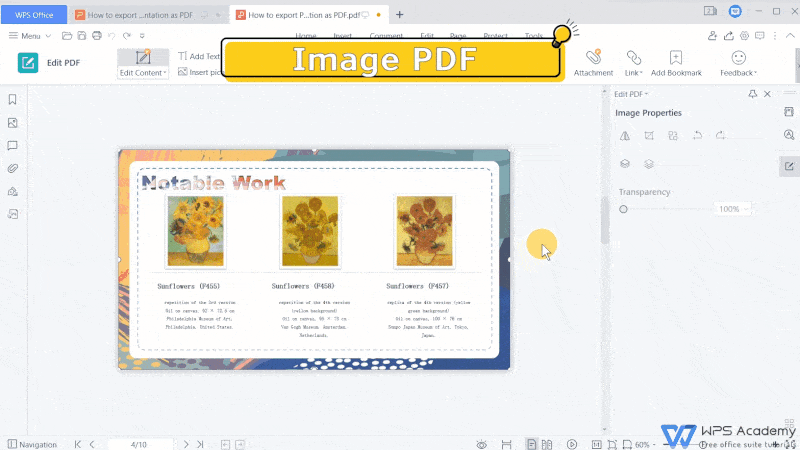
Exported PDF opened in WPS Office
FAQs
1. Does saving a PowerPoint as a PDF keep the animations?
No. Animations, transitions and embedded video are not carried into a static PDF - pages are fixed images of the slides. If motion matters, share the .pptx or export the presentation as a video instead.
2. How do I save only some slides as a PDF?
Open Options before publishing, set Range to Current slide, or type the first and last slide numbers into the Slides from and to boxes. Only that range is exported, and the original file stays untouched.
3. How do I include my speaker notes in the PDF?
In the same Options dialog, change Publish what from Slides to Notes pages. Each page then shows the slide plus the notes below it, which is the usual format for a report or a self-study version.
4. Why is my exported PDF so large?
High-resolution pictures dominate the file size. Set Optimize for to Minimum size for a noticeably smaller PDF, or compress the images in the deck before exporting. Check a couple of pages afterwards to confirm the quality is still acceptable.
5. Will the PDF look the same on another computer?
Yes for layout and typefaces, because the fonts are embedded. Colours and print quality can still vary with the printer and the paper size, so choose Standard quality when the PDF is going to be printed.


'%3e%3cpath%20d='M19.9911%204.11386V6.471H18.5894C18.0775%206.471%2017.7322%206.57814%2017.5536%206.79243C17.3751%207.00671%2017.2858%207.32814%2017.2858%207.75671V9.44421H19.9019L19.5536%2012.0871H17.2858V18.8639H14.5536V12.0871H12.2769V9.44421H14.5536V7.49779C14.5536%206.39064%2014.8632%205.53201%2015.4822%204.92189C16.1013%204.31177%2016.9257%204.00671%2017.9554%204.00671C18.8304%204.00671%2019.509%204.04243%2019.9911%204.11386Z'%20fill='%23333333'/%3e%3c/g%3e%3cdefs%3e%3cclipPath%20id='clip0_2938_8199'%3e%3crect%20width='16'%20height='16'%20fill='white'%20transform='translate(8%204.00671)'/%3e%3c/clipPath%3e%3c/defs%3e%3c/svg%3e)
'%3e%3cpath%20d='M17.5237%2010.7813L23.4811%204H22.0699L16.8949%209.88693L12.7648%204H8L14.2469%2012.9029L8%2020.0133H9.4112L14.8725%2013.7952L19.2352%2020.0133H24M9.92053%205.04213H12.0885L22.0688%2019.0224H19.9003'%20fill='%23333333'/%3e%3c/g%3e%3cdefs%3e%3cclipPath%20id='clip0_2938_8200'%3e%3crect%20width='16'%20height='16.0134'%20fill='white'%20transform='translate(8%204)'/%3e%3c/clipPath%3e%3c/defs%3e%3c/svg%3e)


