



'%3e%3cpath%20fill-rule='evenodd'%20clip-rule='evenodd'%20d='M21.4999%2010.9993C21.4999%205.20009%2016.7986%200.498901%2010.9993%200.498901C5.19994%200.498901%200.498657%205.20009%200.498657%2010.9993C0.498657%2016.2404%204.33858%2020.5844%209.35855%2021.3722V14.0346H6.69238V10.9993H9.35855V8.68594C9.35855%206.05427%2010.9262%204.60062%2013.3248%204.60062C14.4736%204.60062%2015.6753%204.80571%2015.6753%204.80571V7.38979H14.3512C13.0468%207.38979%2012.64%208.19921%2012.64%209.0296V10.9993H15.5523L15.0867%2014.0346H12.64V21.3722C17.66%2020.5844%2021.4999%2016.2404%2021.4999%2010.9993Z'%20fill='%231568EA'/%3e%3c/g%3e%3c/svg%3e)


'%3e%3cpath%20d='M2.42045%2022.1876H6.31818V12.7217L0.75%208.54553V20.5171C0.75%2021.4414%201.49892%2022.1876%202.42045%2022.1876Z'%20fill='%234285F4'/%3e%3cpath%20d='M19.682%2022.1876H23.5797C24.5041%2022.1876%2025.2502%2021.4387%2025.2502%2020.5171V8.54553L19.682%2012.7217'%20fill='%2334A853'/%3e%3cpath%20d='M19.682%205.48293V12.7216L25.2502%208.54543V6.31816C25.2502%204.25236%2022.8921%203.07469%2021.2411%204.31361'%20fill='%23FBBC04'/%3e%3cpath%20d='M6.31824%2012.7217V5.48303L13.0001%2010.4944L19.6819%205.48303V12.7217L13.0001%2017.733'%20fill='%23EA4335'/%3e%3cpath%20d='M0.75%206.31816V8.54543L6.31818%2012.7216V5.48293L4.75909%204.31361C3.10534%203.07469%200.75%204.25236%200.75%206.31816Z'%20fill='%23C5221F'/%3e%3c/g%3e%3cdefs%3e%3cclipPath%20id='clip0_2954_7305'%3e%3crect%20width='24.5'%20height='18.375'%20fill='white'%20transform='translate(0.75%203.8125)'/%3e%3c/clipPath%3e%3c/defs%3e%3c/svg%3e)


To insert a video into Google Slides, open the target slide, choose Insert > Video, select YouTube, By URL, or Google Drive, and then click Select. The steps are quick; the important part is choosing the right source and checking access before you present.
This desktop guide covers YouTube videos, direct video URLs, local files uploaded to Drive, playback behavior, timing controls, sharing permissions, and common fixes.
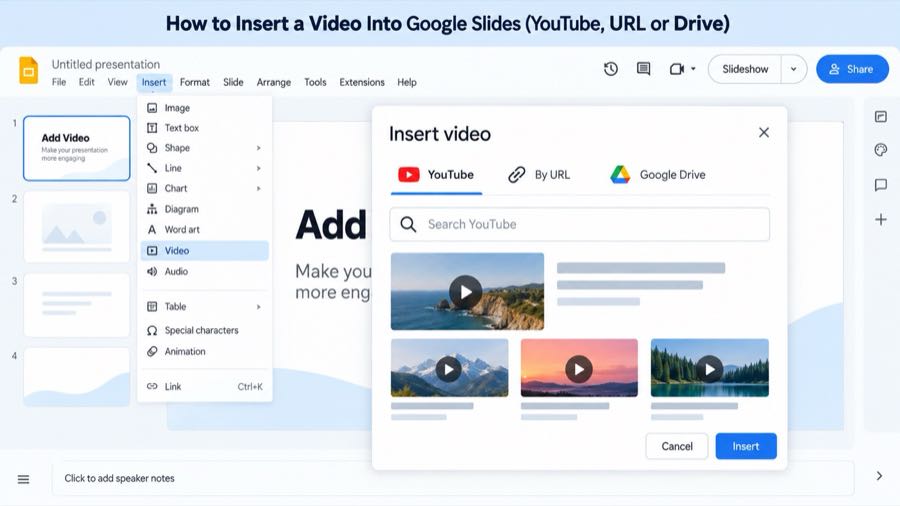
Google Slides video insertion overview
How to Insert a Video Into Google Slides
Before starting, open the presentation in a desktop browser and click the slide where the video should appear. Google Slides accepts videos through three built-in sources: YouTube Search, By URL, and Google Drive.
Insert a YouTube video with Search
Open the presentation and select a slide.
Choose Insert > Video.
In the dialog, keep Search YouTube selected, enter a topic or video title, and press Enter.
Choose the correct result, then click Select.
Insert a YouTube video by URL
Use By URL when you already have the video link. Paste the YouTube watch URL into the field, select the result Google Slides recognizes, and click Select. If the link is a shortened or restricted URL and the dialog does not recognize it, open the video on YouTube and copy its standard share link.
Insert a local video through Google Drive
Google Slides does not use a local file directly from your computer in this dialog. First upload the video to Google Drive, wait until processing finishes, and confirm that you can play it in Drive. Then return to Insert > Video > Google Drive, choose the file, and click Select.

Google Slides video playback options
How to Set Google Slides Video Playback
After insertion, drag a corner to resize the video and drag the frame to position it. Select the video, open Format options, and expand Video playback.
Play (on click): the video starts when you advance the slide. Google currently lists this as the default for presentations.
Play (automatically): the video starts without a separate click after the slide appears.
Play (manually): the video starts when you click the embedded video itself.
The same sidebar can expose start and end time fields. Use them to show only the relevant segment rather than asking viewers to watch the entire clip. Preview the slide in Present mode after changing playback, because editing view does not reproduce every presentation interaction.
How to Share a Google Slides Video Correctly
A video can be inserted correctly and still fail for a collaborator if the source file is private or the viewer is not allowed to access it. Click Share on the presentation, add the intended people or group, choose Viewer, Commenter, or Editor, and confirm any access suggestion Google shows for linked audio or video.
For a Drive video, check the video file's own sharing settings as well as the presentation's settings. Avoid changing a work or school file to “Anyone with the link” unless your organization permits it. For YouTube, the video must remain available to the audience; private videos generally require explicit account access.
Fix Video Problems Before Presenting
Video will not insert: verify that you used Insert > Video, not an image or text box, and try a standard YouTube URL.
Drive video is missing: confirm that the upload finished, the file is in the account you are using, and you have permission to view it.
Video will not play: check playback mode, internet access, browser updates, and the source video's permissions.
Audience sees a permission prompt: share both the presentation and the Drive video with the correct people or group.
Controls look different: Google can update the Slides interface; use the labels currently shown in the Format options sidebar.
Google Vids videos
To insert a Google Vids project into Slides, open it in Google Vids and choose File > Export to Drive. After the MP4 is saved in Drive, insert that exported file through Insert > Video > Google Drive.
Presentation-day checklist
Play every clip from the actual presentation account.
Test the first frame, start/end times, and volume.
Confirm the venue has reliable internet or prepare a non-video backup.
Check that every collaborator and audience member has the required access.
Use only videos you have permission to show and share.
The Best Free Alternative: WPS Presentation
If you need to edit a downloaded presentation offline, WPS Presentation provides a familiar desktop workflow for opening and working with PPTX files. Use it as a practical alternative when your source deck or media workflow begins outside Google Slides, then verify the final file and media behavior in the app you will use for presenting.
To move a deck between tools, save or export it in a supported presentation format and test embedded media after opening the copy. Video behavior can vary across applications and file formats, so treat the exported file as a new presentation to review rather than assuming every playback setting will transfer unchanged.
FAQs
Can I insert a video from my computer directly into Google Slides?
Upload the local video to Google Drive first, then choose it from Insert > Video > Google Drive. Wait for Drive to finish processing before inserting it.
Why is my Google Slides video not playing?
Check the playback mode, internet connection, browser, and source permissions. For Drive videos, the audience must also be allowed to view the video file itself.
Can a Google Slides video play automatically?
Yes. Select the video, open Format options, expand Video playback, and choose Play (automatically).
Can I trim a video in Google Slides?
For supported videos, use the start and end time controls in the Video playback section to show a selected segment during the presentation.
How do I insert a Google Vids video into Slides?
In Google Vids, choose File > Export to Drive. Then insert the resulting Drive video in Google Slides.



'%3e%3cpath%20d='M19.9911%204.11386V6.471H18.5894C18.0775%206.471%2017.7322%206.57814%2017.5536%206.79243C17.3751%207.00671%2017.2858%207.32814%2017.2858%207.75671V9.44421H19.9019L19.5536%2012.0871H17.2858V18.8639H14.5536V12.0871H12.2769V9.44421H14.5536V7.49779C14.5536%206.39064%2014.8632%205.53201%2015.4822%204.92189C16.1013%204.31177%2016.9257%204.00671%2017.9554%204.00671C18.8304%204.00671%2019.509%204.04243%2019.9911%204.11386Z'%20fill='%23333333'/%3e%3c/g%3e%3cdefs%3e%3cclipPath%20id='clip0_2938_8199'%3e%3crect%20width='16'%20height='16'%20fill='white'%20transform='translate(8%204.00671)'/%3e%3c/clipPath%3e%3c/defs%3e%3c/svg%3e)
'%3e%3cpath%20d='M17.5237%2010.7813L23.4811%204H22.0699L16.8949%209.88693L12.7648%204H8L14.2469%2012.9029L8%2020.0133H9.4112L14.8725%2013.7952L19.2352%2020.0133H24M9.92053%205.04213H12.0885L22.0688%2019.0224H19.9003'%20fill='%23333333'/%3e%3c/g%3e%3cdefs%3e%3cclipPath%20id='clip0_2938_8200'%3e%3crect%20width='16'%20height='16.0134'%20fill='white'%20transform='translate(8%204)'/%3e%3c/clipPath%3e%3c/defs%3e%3c/svg%3e)


