


'%3e%3cpath%20fill-rule='evenodd'%20clip-rule='evenodd'%20d='M21.4999%2010.9993C21.4999%205.20009%2016.7986%200.498901%2010.9993%200.498901C5.19994%200.498901%200.498657%205.20009%200.498657%2010.9993C0.498657%2016.2404%204.33858%2020.5844%209.35855%2021.3722V14.0346H6.69238V10.9993H9.35855V8.68594C9.35855%206.05427%2010.9262%204.60062%2013.3248%204.60062C14.4736%204.60062%2015.6753%204.80571%2015.6753%204.80571V7.38979H14.3512C13.0468%207.38979%2012.64%208.19921%2012.64%209.0296V10.9993H15.5523L15.0867%2014.0346H12.64V21.3722C17.66%2020.5844%2021.4999%2016.2404%2021.4999%2010.9993Z'%20fill='%231568EA'/%3e%3c/g%3e%3c/svg%3e)


'%3e%3cpath%20d='M2.42045%2022.1876H6.31818V12.7217L0.75%208.54553V20.5171C0.75%2021.4414%201.49892%2022.1876%202.42045%2022.1876Z'%20fill='%234285F4'/%3e%3cpath%20d='M19.682%2022.1876H23.5797C24.5041%2022.1876%2025.2502%2021.4387%2025.2502%2020.5171V8.54553L19.682%2012.7217'%20fill='%2334A853'/%3e%3cpath%20d='M19.682%205.48293V12.7216L25.2502%208.54543V6.31816C25.2502%204.25236%2022.8921%203.07469%2021.2411%204.31361'%20fill='%23FBBC04'/%3e%3cpath%20d='M6.31824%2012.7217V5.48303L13.0001%2010.4944L19.6819%205.48303V12.7217L13.0001%2017.733'%20fill='%23EA4335'/%3e%3cpath%20d='M0.75%206.31816V8.54543L6.31818%2012.7216V5.48293L4.75909%204.31361C3.10534%203.07469%200.75%204.25236%200.75%206.31816Z'%20fill='%23C5221F'/%3e%3c/g%3e%3cdefs%3e%3cclipPath%20id='clip0_2954_7305'%3e%3crect%20width='24.5'%20height='18.375'%20fill='white'%20transform='translate(0.75%203.8125)'/%3e%3c/clipPath%3e%3c/defs%3e%3c/svg%3e)


A multimedia presentation is a deck that uses video, audio, images, and motion to carry part of the message. Most of them fail for one boring reason: the media is added after the slides are finished, so it decorates the page instead of arguing for it. The audience watches a video, then listens to the same point read aloud, and stops paying attention.
The fix is order of work. Decide what each media element proves, keep the mix small enough that you can still edit it the night before, and time every clip against the slide it sits on. The steps below follow that order, using WPS Presentation for the build.
Multimedia Presentation: How to Build One People Actually Watch
Start with a three-part structure, not a slide count
Three parts is enough. A hook that earns the next thirty seconds, a body of proof, and a recap that lands the ask. Plan each part by what the audience should be able to repeat afterwards, not by how many slides you can fill.
Hook (first 30–45 seconds). One image, one clip, or one number that makes the problem concrete. No agenda slide before it — the agenda is the price of attention, so pay it after the hook.
Body (proof). Each section carries one claim and one piece of evidence: a short screen recording, a chart, a before-and-after pair, or a real quote. If a section has neither, it is an opinion and belongs in the spoken script.
Recap (last 60 seconds). Return to the opening image and state what changed. The recap is where a watched deck becomes a remembered one.
Write the spoken line for each section before you add any media. A sentence that survives being read aloud tells you exactly what the visual has to show — and exposes the sections where you were planning to hide behind an animation.
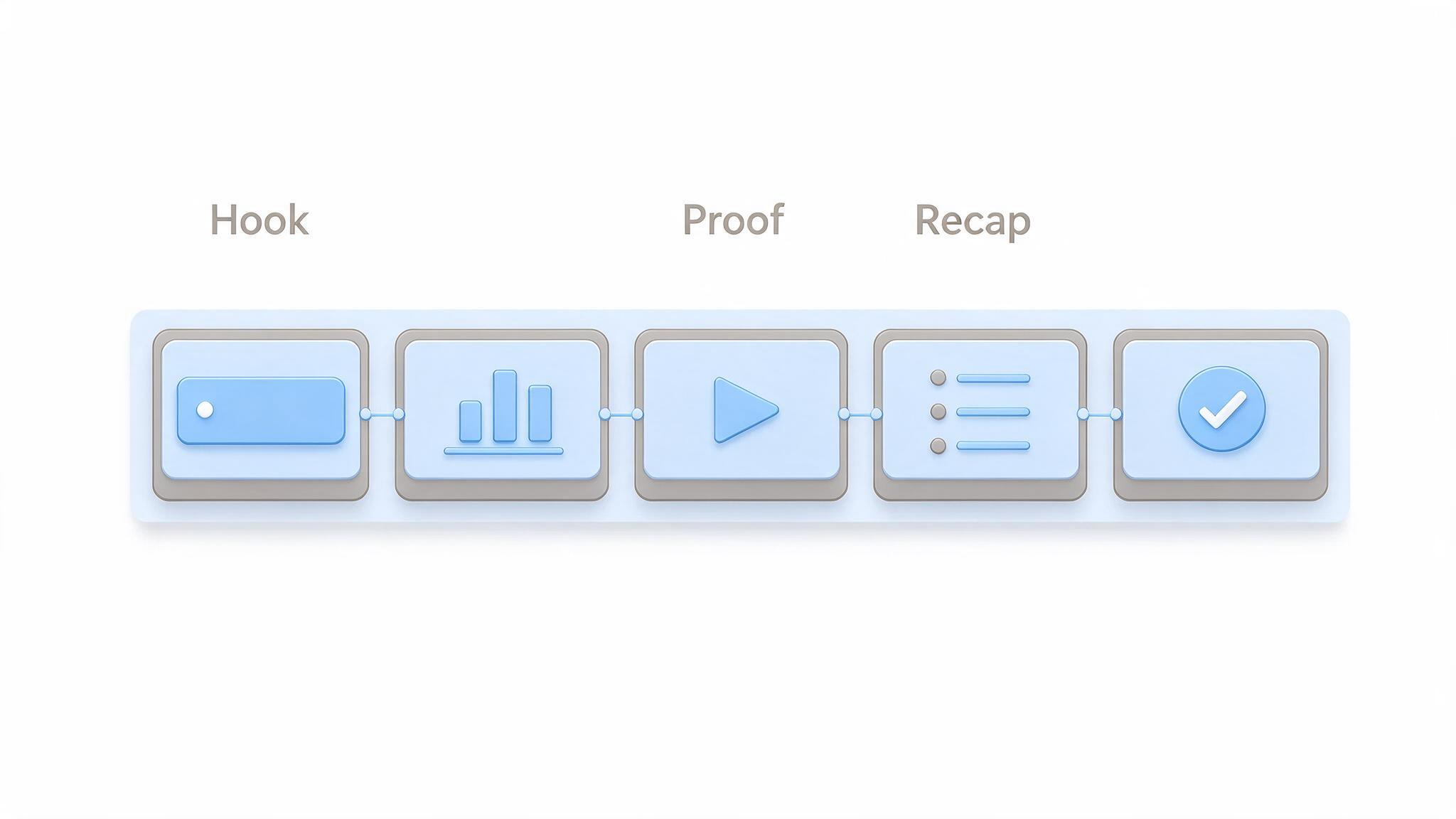
Three-part structure for a multimedia deck


Choose a media mix you can actually edit
Every format you add is something to check on a projector, a laptop, and a phone. Two or three formats is a working deck. Five is a maintenance problem, especially if the file has to be shared with someone else a week later.
Video. Use it where motion is the point: a product in use, a process with steps, a customer speaking in their own words. Trim to the ten or twenty seconds that matter and keep the original file beside the deck in case you need to re-cut.
Audio. A recorded voice or a short sound cue resets attention after a dense slide. Keep clips short and set them to start on click, not automatically, unless the deck plays unattended.
Images and charts. Real screenshots and clean single-series charts beat stock photos. One chart per claim, with the axis labels large enough to read from the back row.
Motion. Use transitions to signal that the section changed, not to introduce every bullet. A single simple entrance per element is more than enough.
Ask one question of every clip before it goes in: what does this show that a sentence cannot? If the answer is “it looks more dynamic”, cut it. That single filter removes most of the media that makes a deck feel padded.
Plan the handout separately from the talk. A deck that works live can still fail as a PDF, because a video turns into a still frame the moment it is exported. Put the still image in the export and write the line the clip was proving underneath it, so the file still makes sense to someone who never saw it play.
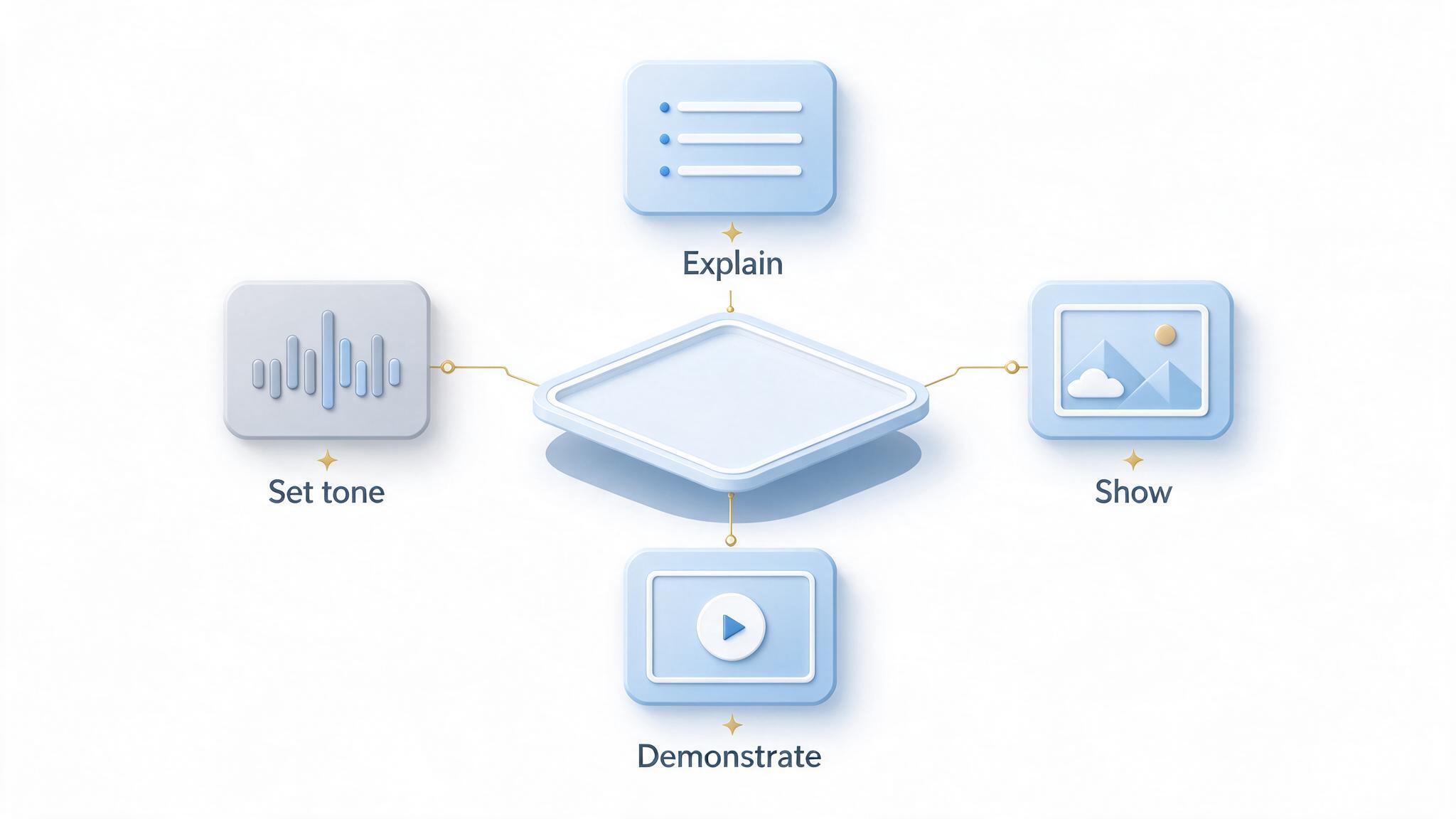
Media mix choices for a presentation
Build and time the slides in WPS Presentation
With the structure and the mix settled, the build is mechanical. Set the slide size first, because changing it later moves every video and text box on every slide.
Open WPS Presentation and set Design → Slide Size to 16:9 before adding anything. Dropping media into a deck that gets resized afterwards is the fastest way to misalign a whole file.
Place video with Insert → Video → Local Video. Put the clip beside the point it proves, not on its own slide, so the audience reads and watches the same idea at once.
Open the Playback panel and set the clip to start On Click for live talks, or Automatically with Loop until Stopped for a kiosk loop. Trim the in and out points here rather than re-exporting the file.
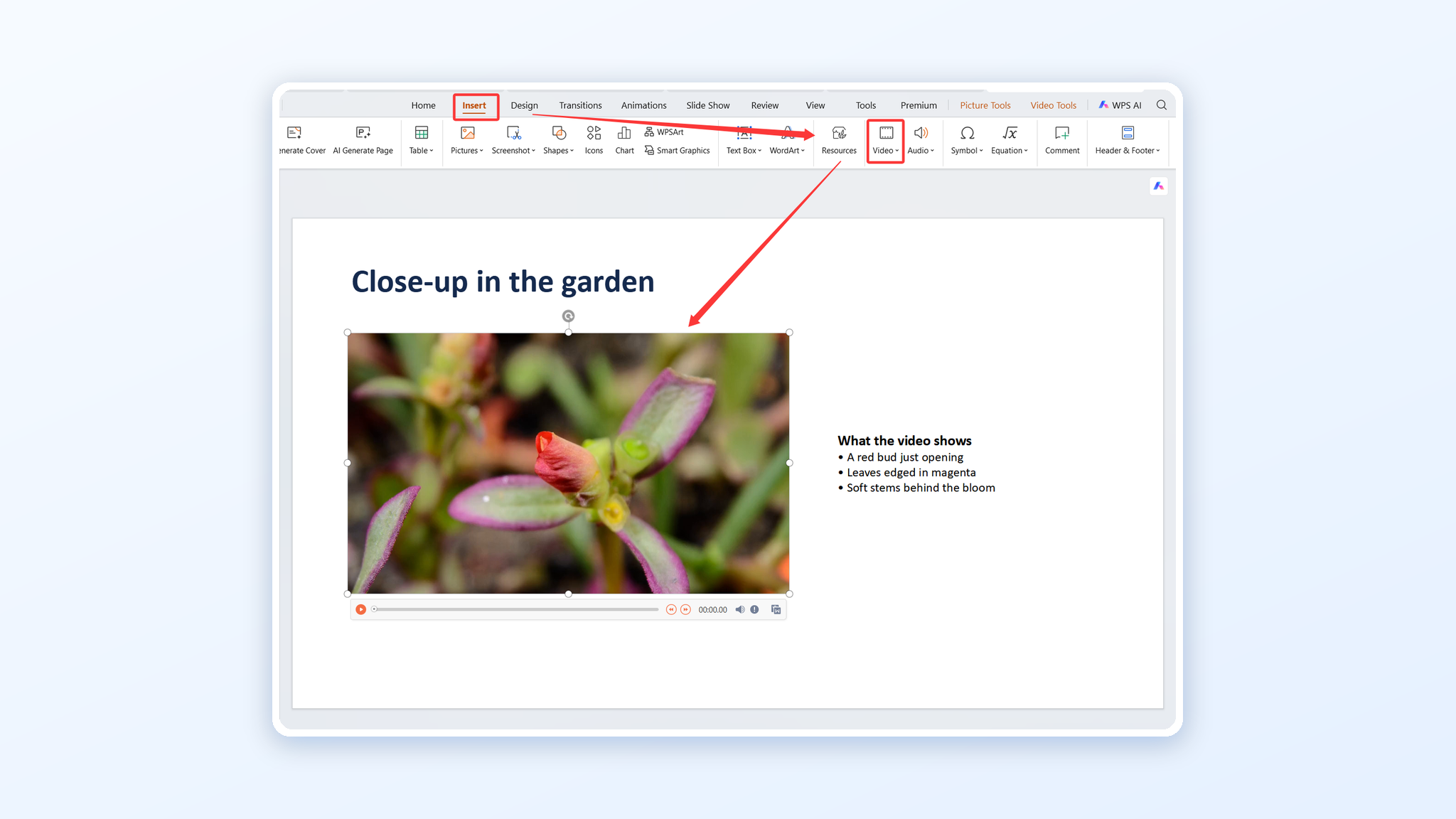
Inserting video and playback settings
Add narration with Insert → Audio, then use Slide Show → Rehearse Timings to record how long each slide really holds. The recorded timing is usually shorter than the plan.
Check the result with Slide Show → From Beginning on the machine you will present from, and export a backup copy with Menu → Export to PDF in case a video codec refuses to play.
If the deck has to run without you, Menu → Video Exporting writes the recorded timings, the narration, and every embedded clip into one video file. That is the right format for a kiosk loop, or for a link sent to people who missed the session — a PDF backup protects the live talk, a video export replaces it.
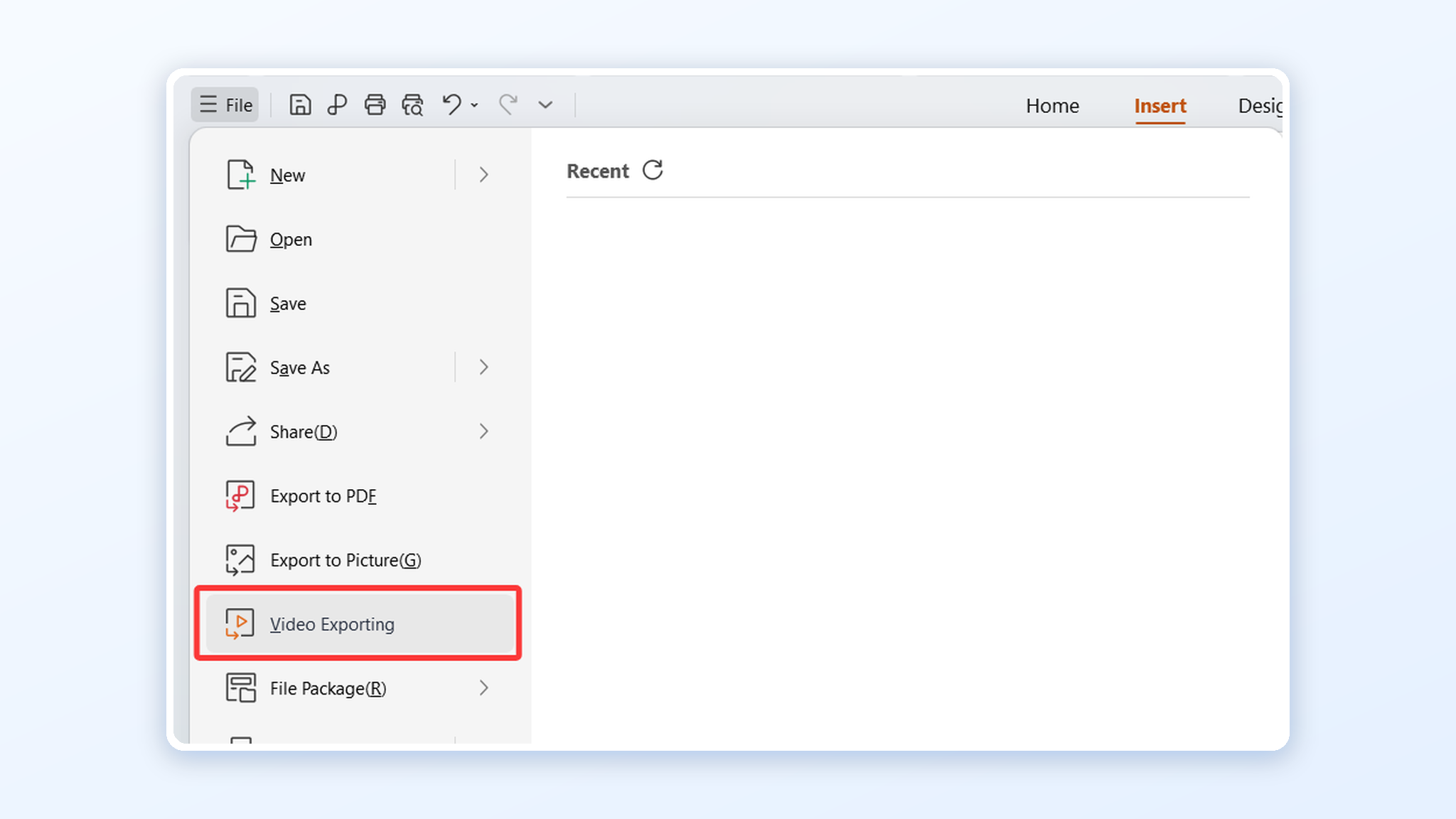
Exporting the deck as a video
Rehearse with the sound on and the wifi off. Embedded media solves most venue problems, and the one time it does not, the PDF backup keeps the talk moving while you fix the clip. When one image has to carry a whole slide, the placement rules in our guide to putting a picture in a slide apply to video stills and charts too.
The Best Free Office Alternative: WPS Office
WPS Office covers the whole build in one free app: Presentation for the deck and embedded media, Writer for the script and handout, PDF tools for the backup export, and a template gallery for the days you would rather start from a layout than a blank slide. Files open and save in the Microsoft formats your colleagues use, so a deck can move between teams without conversion.
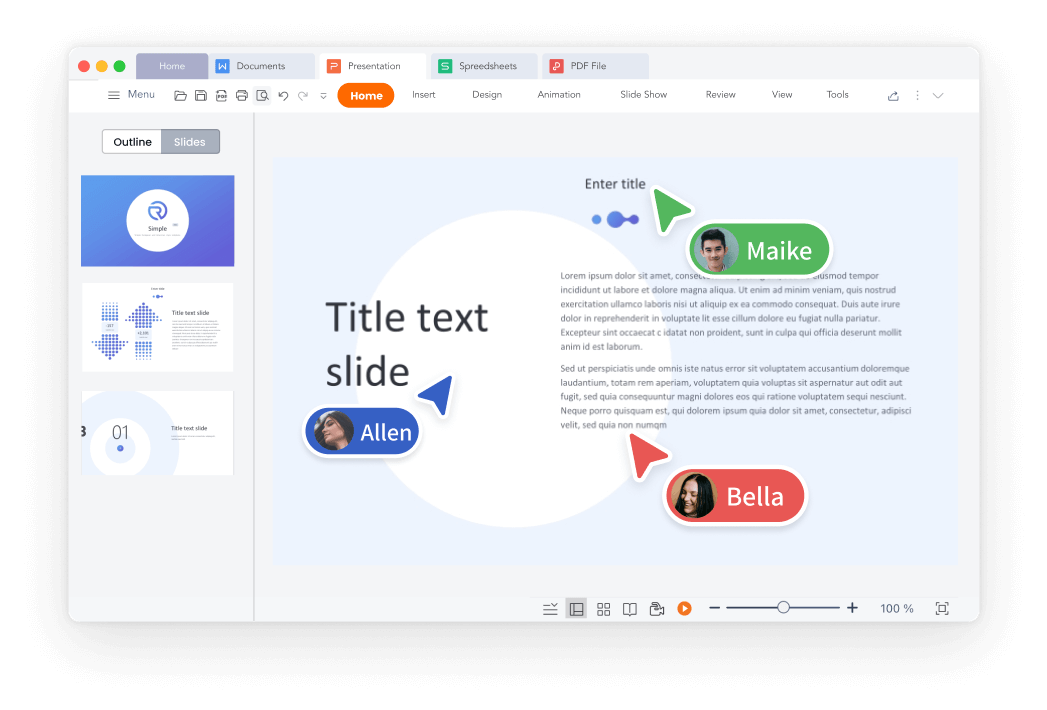
WPS Presentation slide editing interface
FAQs
What counts as a multimedia presentation?
A deck that uses at least two media types — for example video plus charts, or narration plus animation — to carry part of the message rather than to decorate it.
How long should a multimedia presentation be?
Ten to twenty minutes of content is the usual working range. The limit is attention, not file size, so cut sections that have no evidence behind them.
Should video play automatically?
Only when the deck runs unattended. In a live talk, set clips to start on click so you stay in control of the pause and the discussion around them.
How do I keep a presentation file small?
Trim clips to the seconds you need, compress large images before inserting them, and save one media copy rather than several duplicates across slides.
What if the video will not play at the venue?
Embed the file instead of linking it, test on the presentation machine, and keep a PDF export of the slides as a fallback so the talk can continue without the clip.


'%3e%3cpath%20d='M19.9911%204.11386V6.471H18.5894C18.0775%206.471%2017.7322%206.57814%2017.5536%206.79243C17.3751%207.00671%2017.2858%207.32814%2017.2858%207.75671V9.44421H19.9019L19.5536%2012.0871H17.2858V18.8639H14.5536V12.0871H12.2769V9.44421H14.5536V7.49779C14.5536%206.39064%2014.8632%205.53201%2015.4822%204.92189C16.1013%204.31177%2016.9257%204.00671%2017.9554%204.00671C18.8304%204.00671%2019.509%204.04243%2019.9911%204.11386Z'%20fill='%23333333'/%3e%3c/g%3e%3cdefs%3e%3cclipPath%20id='clip0_2938_8199'%3e%3crect%20width='16'%20height='16'%20fill='white'%20transform='translate(8%204.00671)'/%3e%3c/clipPath%3e%3c/defs%3e%3c/svg%3e)
'%3e%3cpath%20d='M17.5237%2010.7813L23.4811%204H22.0699L16.8949%209.88693L12.7648%204H8L14.2469%2012.9029L8%2020.0133H9.4112L14.8725%2013.7952L19.2352%2020.0133H24M9.92053%205.04213H12.0885L22.0688%2019.0224H19.9003'%20fill='%23333333'/%3e%3c/g%3e%3cdefs%3e%3cclipPath%20id='clip0_2938_8200'%3e%3crect%20width='16'%20height='16.0134'%20fill='white'%20transform='translate(8%204)'/%3e%3c/clipPath%3e%3c/defs%3e%3c/svg%3e)


