

'%3e%3cpath%20d='M8%200C12.4183%200%2016%203.58172%2016%208C16%2012.4183%2012.4183%2016%208%2016C3.58172%2016%200%2012.4183%200%208C0%203.58172%203.58172%200%208%200ZM11.6162%204.38379C11.2257%203.99337%2010.5927%203.99338%2010.2021%204.38379L8%206.58594L5.79785%204.38379C5.40732%203.99334%204.77429%203.99329%204.38379%204.38379C3.99331%204.77429%203.99335%205.40733%204.38379%205.79785L6.58594%208L4.38379%2010.2021C3.99348%2010.5927%203.99341%2011.2257%204.38379%2011.6162C4.77426%2012.0066%205.40734%2012.0065%205.79785%2011.6162L8%209.41406L10.2021%2011.6162C10.5927%2012.0066%2011.2257%2012.0067%2011.6162%2011.6162C12.0067%2011.2257%2012.0066%2010.5927%2011.6162%2010.2021L9.41406%208L11.6162%205.79785C12.0066%205.40735%2012.0066%204.77429%2011.6162%204.38379Z'%20fill='%23080E17'%20fill-opacity='0.46'/%3e%3c/g%3e%3cdefs%3e%3cclipPath%20id='clip0_3761_713'%3e%3crect%20width='16'%20height='16'%20fill='white'/%3e%3c/clipPath%3e%3c/defs%3e%3c/svg%3e)



'%3e%3cpath%20fill-rule='evenodd'%20clip-rule='evenodd'%20d='M21.4999%2010.9993C21.4999%205.20009%2016.7986%200.498901%2010.9993%200.498901C5.19994%200.498901%200.498657%205.20009%200.498657%2010.9993C0.498657%2016.2404%204.33858%2020.5844%209.35855%2021.3722V14.0346H6.69238V10.9993H9.35855V8.68594C9.35855%206.05427%2010.9262%204.60062%2013.3248%204.60062C14.4736%204.60062%2015.6753%204.80571%2015.6753%204.80571V7.38979H14.3512C13.0468%207.38979%2012.64%208.19921%2012.64%209.0296V10.9993H15.5523L15.0867%2014.0346H12.64V21.3722C17.66%2020.5844%2021.4999%2016.2404%2021.4999%2010.9993Z'%20fill='%231568EA'/%3e%3c/g%3e%3c/svg%3e)


'%3e%3cpath%20d='M2.42045%2022.1876H6.31818V12.7217L0.75%208.54553V20.5171C0.75%2021.4414%201.49892%2022.1876%202.42045%2022.1876Z'%20fill='%234285F4'/%3e%3cpath%20d='M19.682%2022.1876H23.5797C24.5041%2022.1876%2025.2502%2021.4387%2025.2502%2020.5171V8.54553L19.682%2012.7217'%20fill='%2334A853'/%3e%3cpath%20d='M19.682%205.48293V12.7216L25.2502%208.54543V6.31816C25.2502%204.25236%2022.8921%203.07469%2021.2411%204.31361'%20fill='%23FBBC04'/%3e%3cpath%20d='M6.31824%2012.7217V5.48303L13.0001%2010.4944L19.6819%205.48303V12.7217L13.0001%2017.733'%20fill='%23EA4335'/%3e%3cpath%20d='M0.75%206.31816V8.54543L6.31818%2012.7216V5.48293L4.75909%204.31361C3.10534%203.07469%200.75%204.25236%200.75%206.31816Z'%20fill='%23C5221F'/%3e%3c/g%3e%3cdefs%3e%3cclipPath%20id='clip0_2954_7305'%3e%3crect%20width='24.5'%20height='18.375'%20fill='white'%20transform='translate(0.75%203.8125)'/%3e%3c/clipPath%3e%3c/defs%3e%3c/svg%3e)


Okay, let's be real, you've got this awesome photo in JPG, ready for your site, but nope, it needs a transparent background to look pro. Next thing you know, you're fiddling with some editor that's either too basic or costs an arm and a leg. I've been there, staring at my screen late at night for a simple logo tweak. Sound familiar? The good news is, you don't need fancy skills or big bucks to nail a perfect PNG. Stick with me, and I'll share the easiest ways I've found that actually work.


Part 1. Introduction of PNG Format
PNG, short for Portable Network Graphics, is that go-to format when you want images that stay sharp no matter how many times you tweak them. Its lossless compression keeps every detail intact, no fuzzy surprises like with JPG.
Key Characteristics of PNG
Transparency Support: Lets parts of the image fade out completely, think logos floating on any color.
Color Depth: Handles tons of shades for smooth gradients.
No Patents: Totally free to use anywhere.
When to Use PNG
Grab PNG for web stuff like icons or buttons that need to blend seamlessly. It's a lifesaver for editable graphics or screenshots. But if you're cramming photos for fast loading, JPG might still win on size, PNG's all about quality over squeeze.
Part 2: Top 5 Best PNG Maker
1. Adobe
Adobe Express feels like a pro tool shrunk down for everyday use, with smart AI that zaps backgrounds and spits out clean PNGs fast. It's tied to the big Creative Cloud family, but you can jump in without the full commitment. I've turned to it when deadlines loomed, and it never let me down on quality, though it teases you with limits to nudge toward paid.
Features:
AI "Remove Background" that works in one click.
Easy JPG to PNG switch with custom quality.
Layers for building more intricate stuff.
Price: Free with some caps; Pro around $9.99/month.
How to use:
Step 1: Head to Adobe Express, drop in your image.
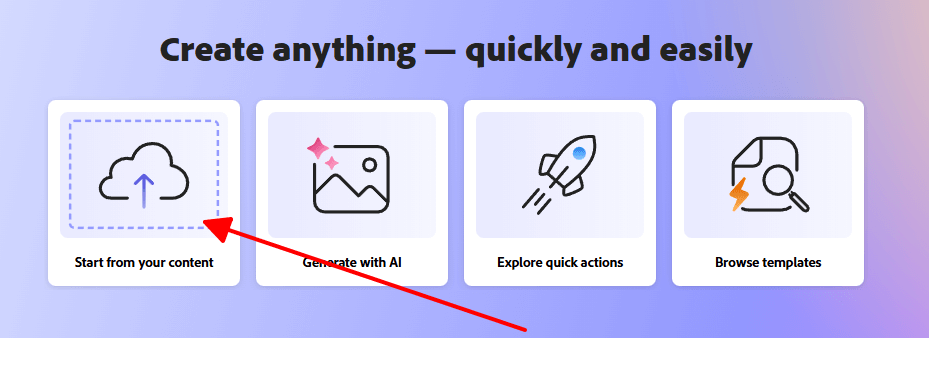
Step 2: Hit "Remove Background" in quick tools.
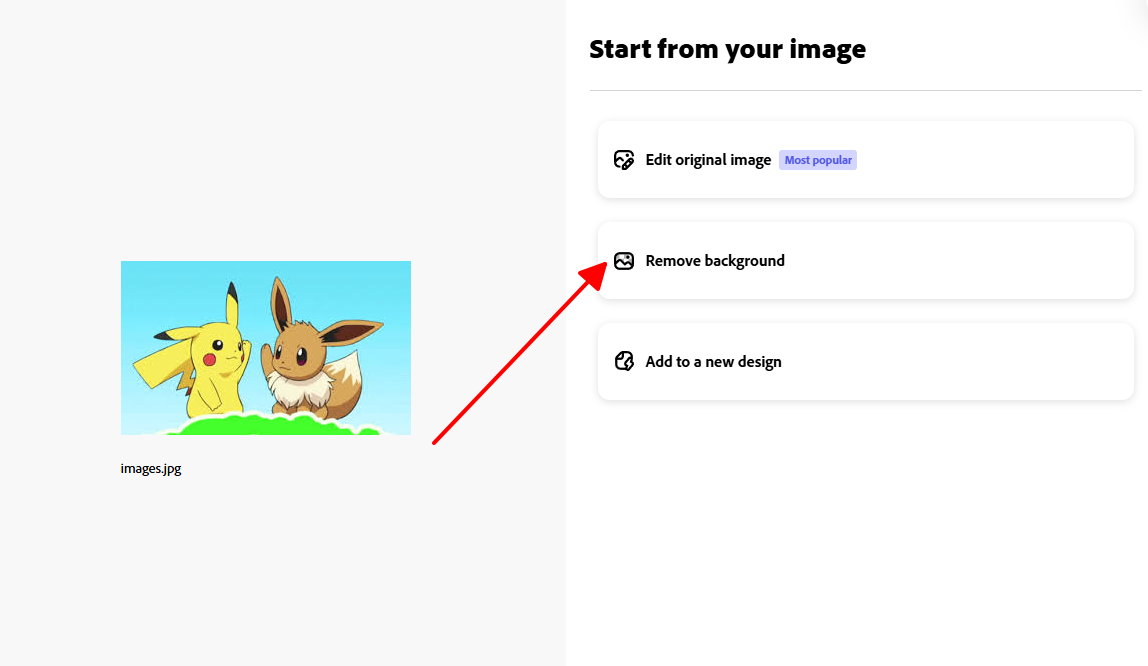
Step 3: Pick PNG for download.
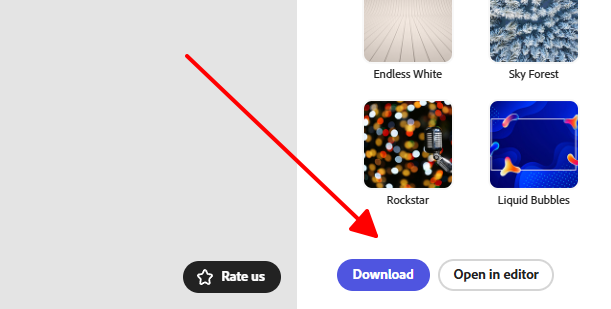
Step 4: Tweak layers if you want extra control.
Pros:
Spots tiny details like stray hairs perfectly.
Hooks right into Photoshop if you go deeper.
Cons:
Watermarks sneak in on free saves.
Gotta sign in to get going.
I remember batching logos for a client, Adobe's AI crushed the tough furry bits others messed up, but yeah, those free limits hit quick and had me coughing up for Pro. Great for serious work, but not if you're just dipping toes.
2. Kapwing
Kapwing's like that all-purpose media hub online, handling PNG conversions and background wipes while letting teams jump in together. It's more than a quick fixer; think full edits with videos too. From my group projects, the real-time collab saved headaches, but for solo PNG rushes, it sometimes felt like bringing a tank to a knife fight.
Features:
Background tool with hand-tweaks if AI misses.
Handle multiple files at once.
High-quality PNG exports that keep transparency.
Price: Free but watermarked; Pro about $16/month.
How to use:
Step 1: Load up Kapwing's converter, upload your file.
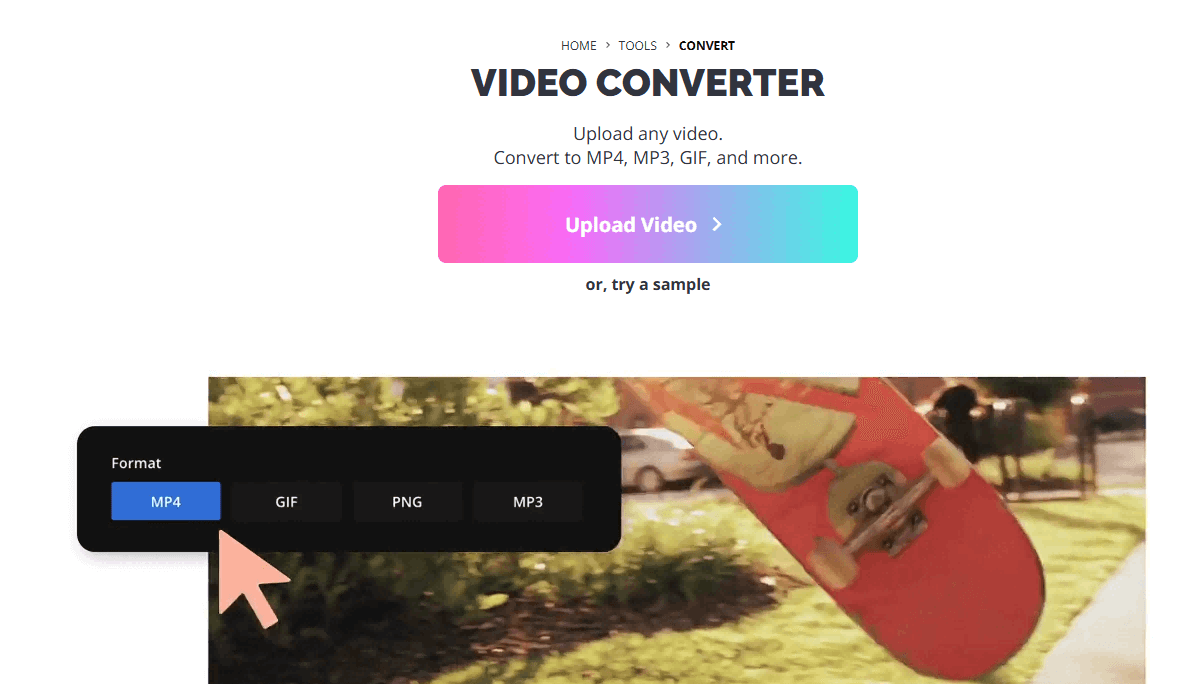
Step 2: Fire up background removal.
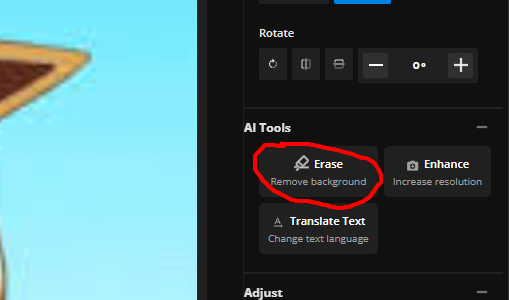
Step 3: Play with layers or extras.
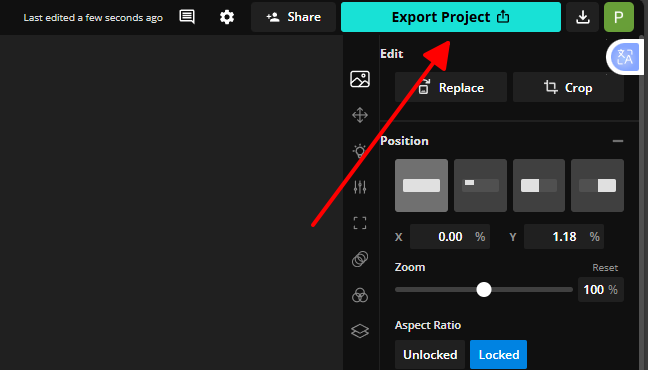
Step 4: Export that PNG.
Pros:
Tons of timeline wiggle room.
Does text, audio, everything in one spot.
Cons:
That watermark bugs you free.
Big files drag on processing.
Merging some PNGs for an animation last week, Kapwing gave me killer control, but the watermark was a buzzkill till I paid. Awesome for collab, a bit much for plain how to make a PNG jobs.
3. Canva
Canva's drag-and-drop magic makes anyone feel like a designer, with AI that strips backgrounds and templates galore for instant PNGs. It's built for folks who hate complexity but want polish. I've whipped up social posts in minutes; it's forgiving and fun, though pros might crave more muscle.
Features:
Magic AI remover for backgrounds.
Huge template stash tailored for PNG.
Straight-to-transparent export.
Price: Free starter; Pro roughly $12.99/month.
How to use:
Step 1: Toss your image into Canva.
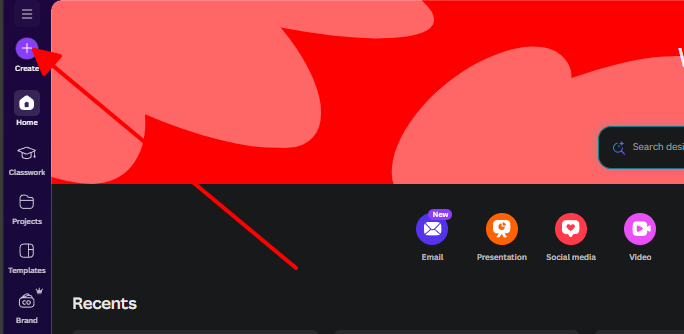
Step 2: Edit image, choose Background Remover.
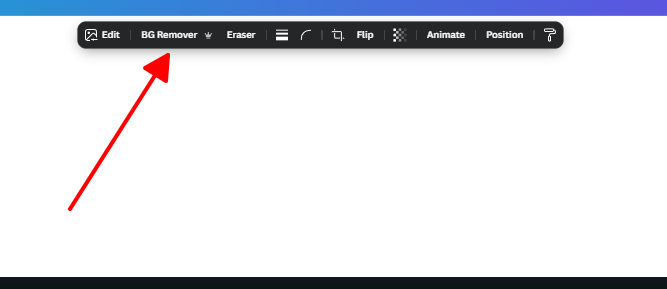
Step 3: Download PNG.
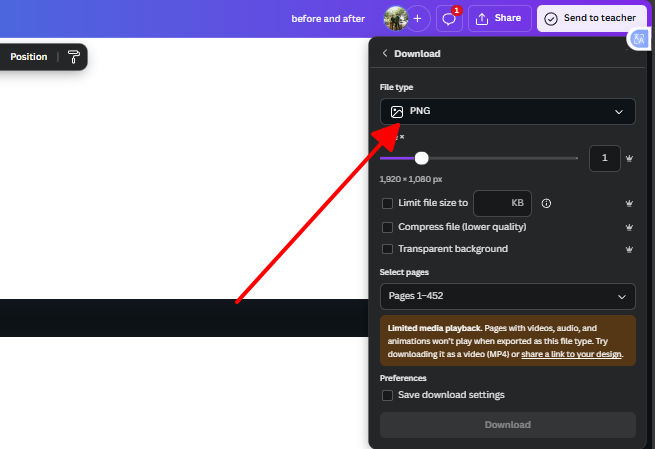
Step 4: Drop into a template for flair.
Pros:
Super easy, no learning wall.
Templates speed everything up.
Cons:
AI trips on tricky edges.
Best stuff behind Pro.
Canva's bailed me out on rushed graphics, the remover aced clean shots, but wispy hair needed nudges. Perfect entry point, smooth and inviting.
4. Fotor

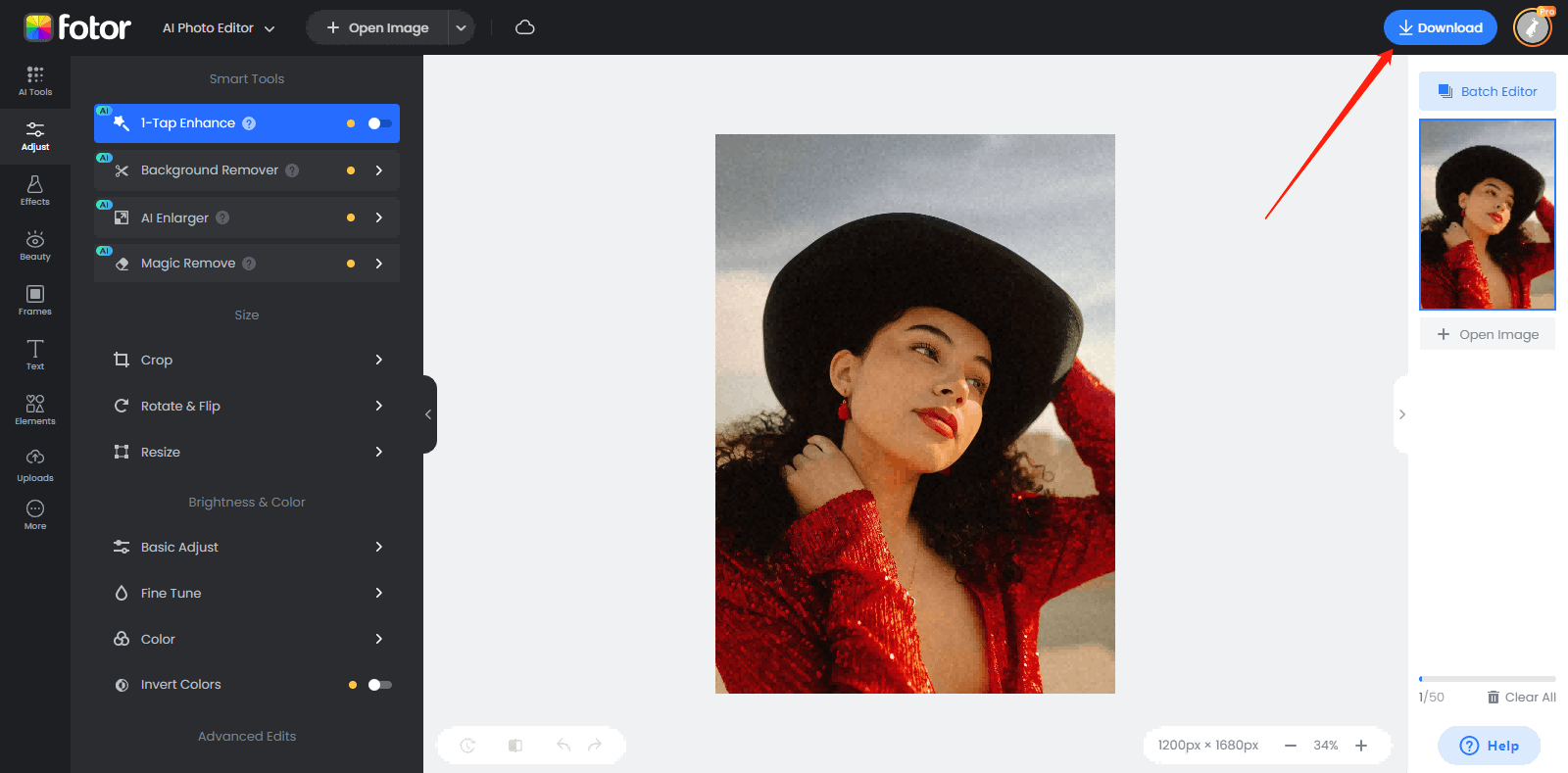
Fotor keeps things snappy with AI photo tweaks, converting to PNG and cutting backgrounds without fuss, plus quick polish options. It's mobile-friendly for edits anywhere. I tested it on product pics during travel; fast and reliable, though ads pop up like uninvited guests in free mode.
Features:
Single-click background zap.
Batch conversions.
Built-in touch-ups.
Price: Free with ads; Pro around $8.99/month.
How to use:
Step 1: Upload to Fotor converter.
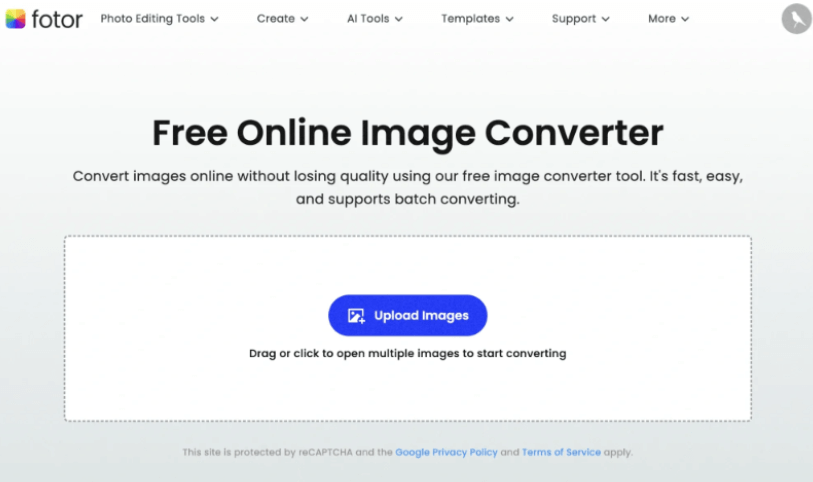
Step 2: Hit Remove BG.
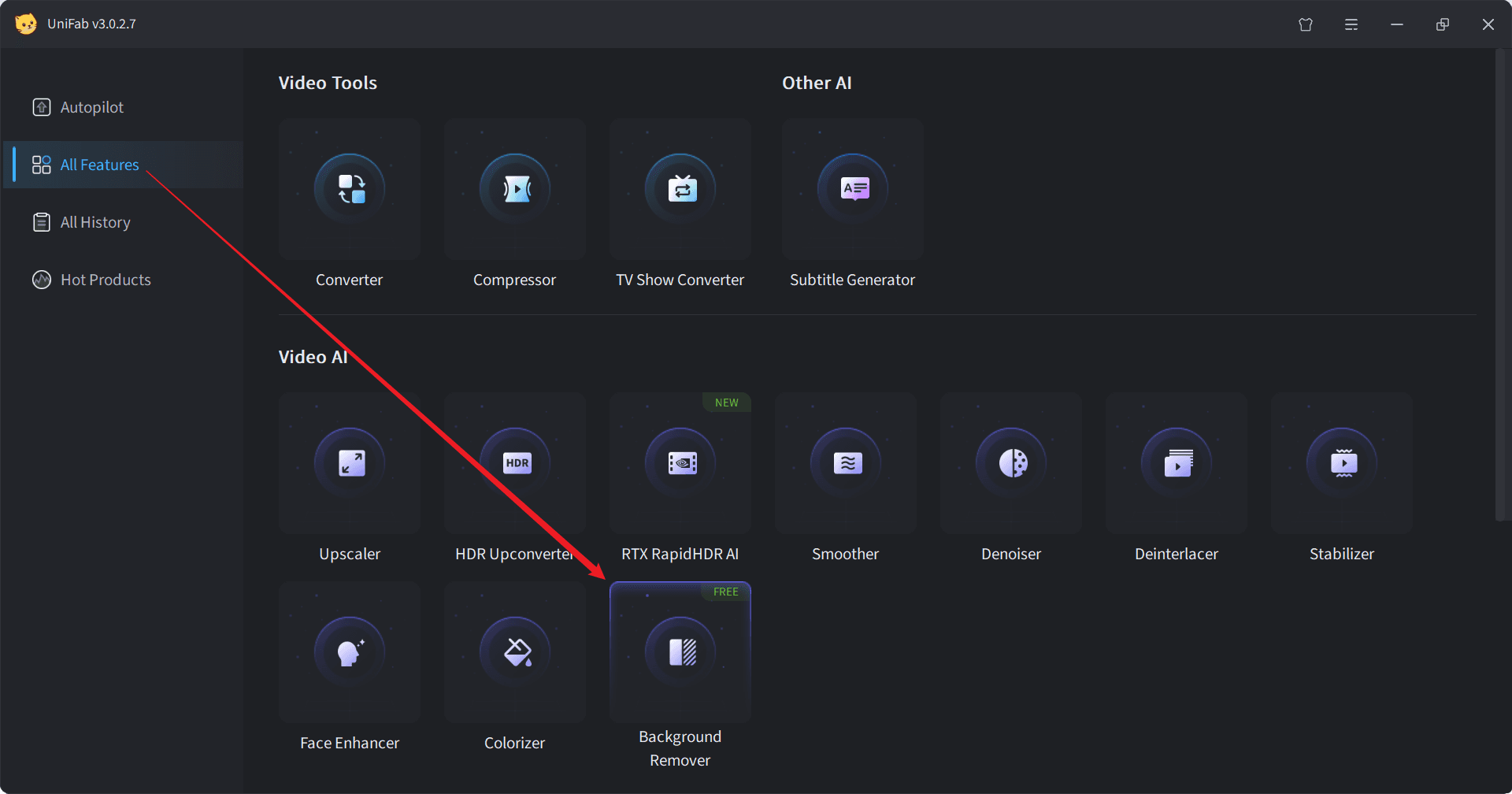
Step 3: Tweak enhancements.
Step 4: Grab your PNG.
Pros:
Cheap upgrade.
Handy on phones.
Cons:
Ads interrupt free use.
Not deep for pros.
Fotor flew through e-commerce shots, but those ads slowed the vibe. Solid basics, budget-friendly without skimping too much.
5. Picsart
Picsart mixes fun social vibes with solid AI for PNGs, removing backgrounds and throwing in stickers or effects. It's app-heavy but works web too, great for creative sparks. I've messed around on my phone for personal stuff; energetic and quick for experiments, if you ignore the extra noise.
Features:
AI remover plus creative add-ons.
Collages and effects.
Shared community ideas.
Price: Free capped; Gold about $4.66/month.
How to use:
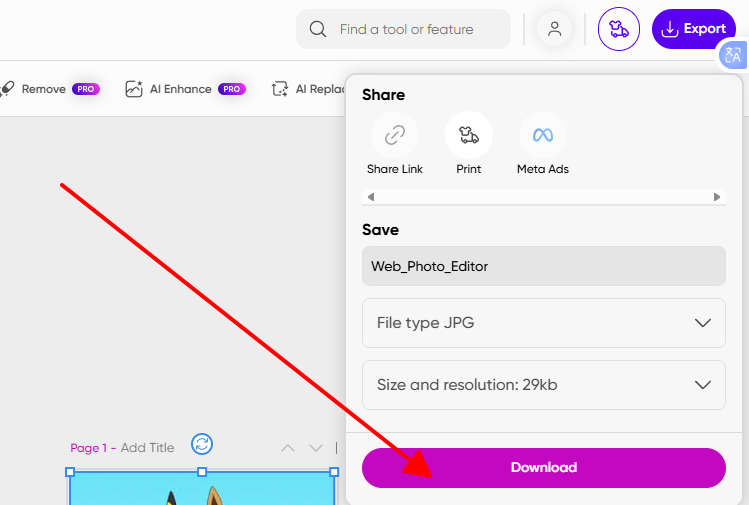
Step 1: Open Picsart, upload pic.
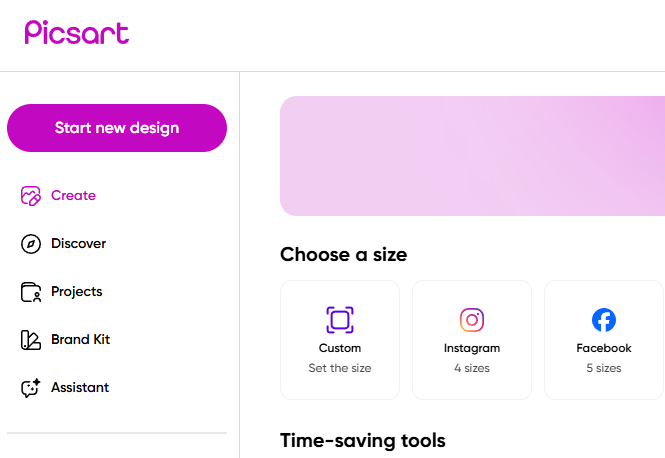
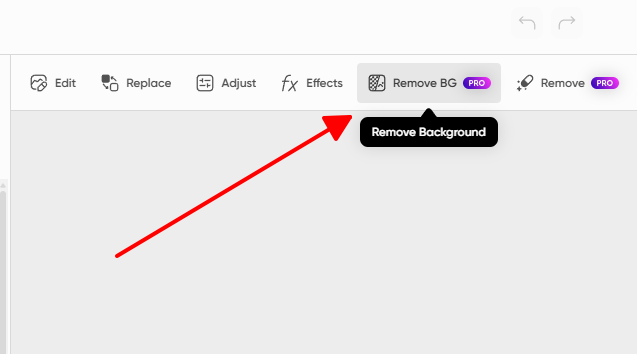
Step 2: Select Remove BG.
Step 3: Layer on fun stuff.
Step 4: Export PNG.
Pros:
Sparks ideas with extras.
Mobile ease.
Cons:
Social bits distract.
Free limits sting.
Picsart turned selfies into stickers in a flash on mobile, but the busy screen threw me for simple tasks. Lively and cheap for playful PNG making AI twists.
Part 3: Comparison of the Five Tools
| Tool | Features | Pros | Cons | Price |
| Adobe | AI BG remove, layers, conversion | Top AI on details, pro ties | Free watermarks, login | Free limited; Pro $9.99/mo |
| Kapwing | Refine BG, batch, res export | Timeline flex, team work | Watermark, slow big files | Free mark; Pro $16/mo |
| Canva | AI magic remove, templates | Easy start, quick templates | AI iffy complex, pro gate | Free basic; Pro $12.99/mo |
| Fotor | Click cutout, batch, retouch | Budget pro, mobile | Free ads, basic controls | Free ads; Pro $8.99/mo |
| Picsart | AI remove + stickers, collages | Fun creative, phone friendly | Distracts, free caps | Free limited; Gold $4.66/mo |
Adobe's precision tops for pros, Canva's ease for newbies. Kapwing teams, Fotor saves cash, Picsart adds spark, but free often means compromises like marks or ads. Pick what fits your vibe.
Part 4. Effortlessly Enhance Your PNGs with WPS Photo
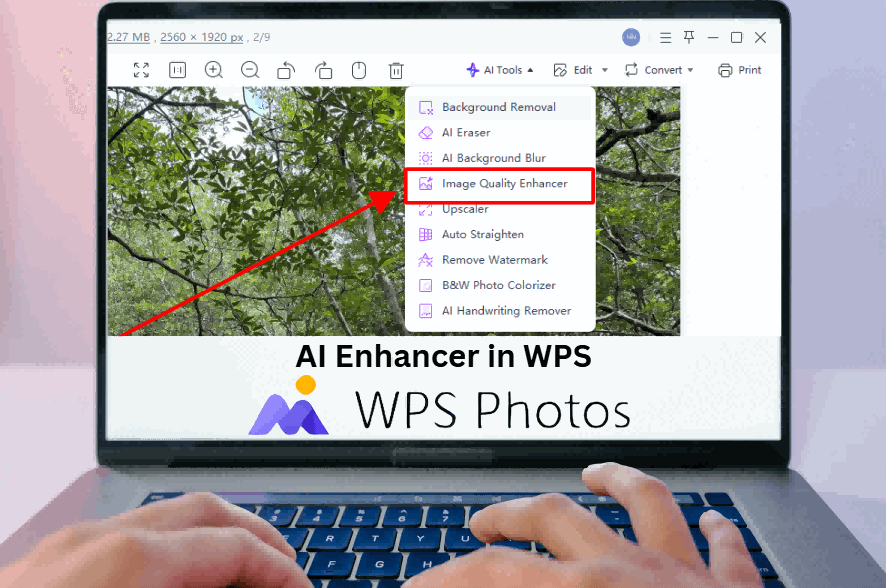
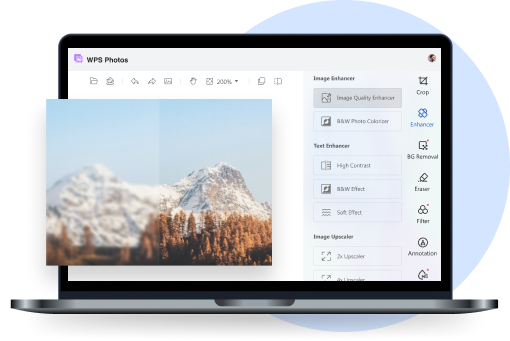
Online quickies and heavy pros have their place, but for that sweet spot of easy and spot-on, WPS Photo's AI nails the method to make a PNG without the hassle. It's smart, fast, and doesn't overwhelm.
Why Use WPS Photo for Creating PNGs?
AI-Powered Precision: Catches fine edges like pros do.
One-Click Simplicity: Done before coffee cools.
Beginner-Friendly Interface: No confusion.
More Than a PNG Maker: Extra AI for fixes and ups.
Step-by-Step: How to Make a PNG with the WPS AI Background Remover
Step 1: Open Your Image in WPS Photo. Launch app, right-click in doc and edit, or straight open.
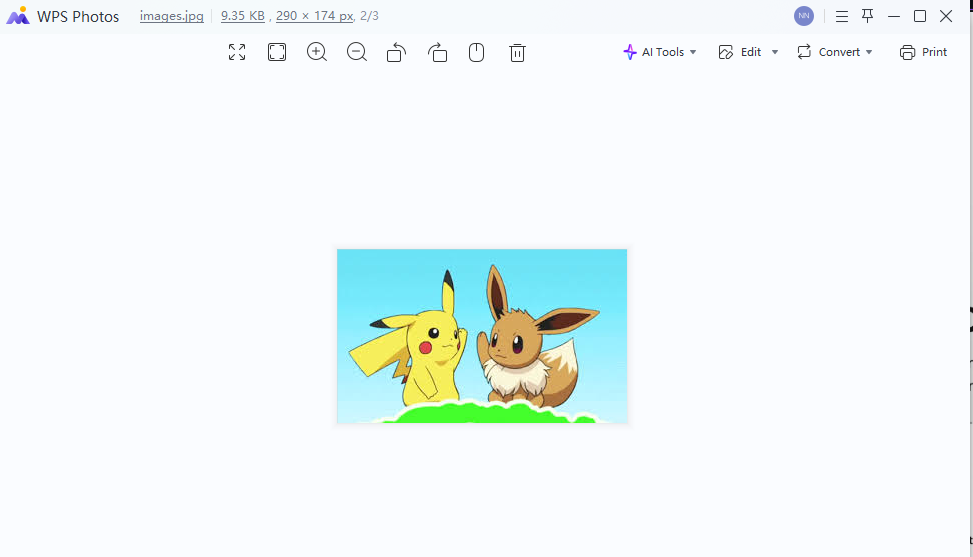
Step 2: Access the AI Editing Tools. Tap Edit for options.
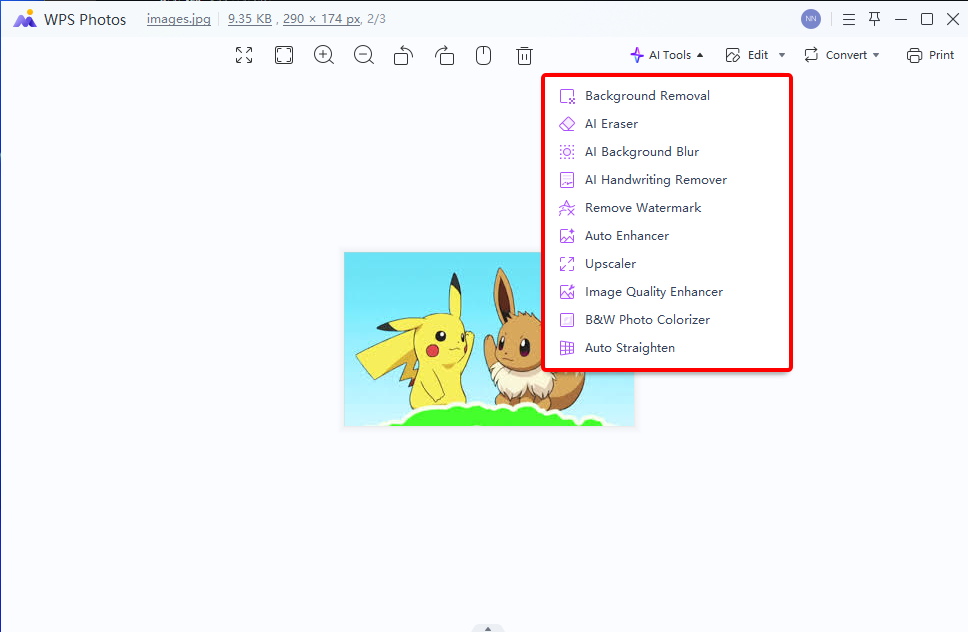
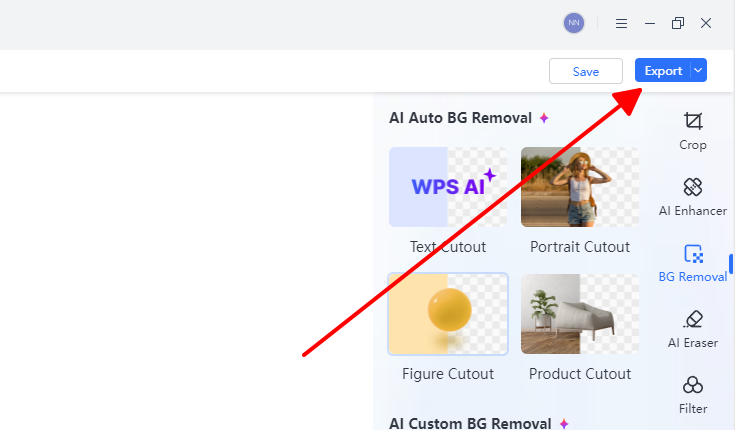
Step 3: Select the "BG Removal" Tool. Pick it; AI scans quick.
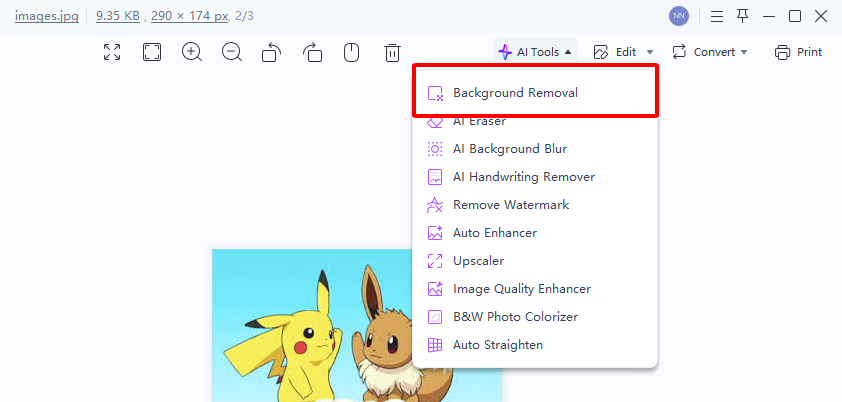
Step 4: Let the AI Automatically Remove the Background. Boom, transparent ready.
Step 5: Save Your New Transparent PNG. Download preserved.
Batch-testing product images in WPS Photo, the AI beat free online ones on fuzzy details, and it slotted right into my daily docs, no switching apps. Feels natural, like it should be.
FAQs
1. Will converting a JPG to a PNG improve its quality?
Nope, it won't fix past JPG damage. But PNG locks in what's left, no more loss on saves.
2. How can I make a PNG with a transparent background for free?
Try WPS AI remover, upload JPG, auto-wipe background, download transparent PNG. Zero cost for basics.
3. Is PNG better than JPG for web images?
Depends, PNG for sharp, transparent stuff like icons; JPG for photo size. Mix 'em right.
4. Can I create animated PNGs with these tools?
Some like Kapwing or Adobe do APNG for basic loops; dig into extras.

'%3e%3cpath%20d='M19.9911%204.11386V6.471H18.5894C18.0775%206.471%2017.7322%206.57814%2017.5536%206.79243C17.3751%207.00671%2017.2858%207.32814%2017.2858%207.75671V9.44421H19.9019L19.5536%2012.0871H17.2858V18.8639H14.5536V12.0871H12.2769V9.44421H14.5536V7.49779C14.5536%206.39064%2014.8632%205.53201%2015.4822%204.92189C16.1013%204.31177%2016.9257%204.00671%2017.9554%204.00671C18.8304%204.00671%2019.509%204.04243%2019.9911%204.11386Z'%20fill='%23333333'/%3e%3c/g%3e%3cdefs%3e%3cclipPath%20id='clip0_2938_8199'%3e%3crect%20width='16'%20height='16'%20fill='white'%20transform='translate(8%204.00671)'/%3e%3c/clipPath%3e%3c/defs%3e%3c/svg%3e)
'%3e%3cpath%20d='M17.5237%2010.7813L23.4811%204H22.0699L16.8949%209.88693L12.7648%204H8L14.2469%2012.9029L8%2020.0133H9.4112L14.8725%2013.7952L19.2352%2020.0133H24M9.92053%205.04213H12.0885L22.0688%2019.0224H19.9003'%20fill='%23333333'/%3e%3c/g%3e%3cdefs%3e%3cclipPath%20id='clip0_2938_8200'%3e%3crect%20width='16'%20height='16.0134'%20fill='white'%20transform='translate(8%204)'/%3e%3c/clipPath%3e%3c/defs%3e%3c/svg%3e)


