

'%3e%3cpath%20d='M8%200C12.4183%200%2016%203.58172%2016%208C16%2012.4183%2012.4183%2016%208%2016C3.58172%2016%200%2012.4183%200%208C0%203.58172%203.58172%200%208%200ZM11.6162%204.38379C11.2257%203.99337%2010.5927%203.99338%2010.2021%204.38379L8%206.58594L5.79785%204.38379C5.40732%203.99334%204.77429%203.99329%204.38379%204.38379C3.99331%204.77429%203.99335%205.40733%204.38379%205.79785L6.58594%208L4.38379%2010.2021C3.99348%2010.5927%203.99341%2011.2257%204.38379%2011.6162C4.77426%2012.0066%205.40734%2012.0065%205.79785%2011.6162L8%209.41406L10.2021%2011.6162C10.5927%2012.0066%2011.2257%2012.0067%2011.6162%2011.6162C12.0067%2011.2257%2012.0066%2010.5927%2011.6162%2010.2021L9.41406%208L11.6162%205.79785C12.0066%205.40735%2012.0066%204.77429%2011.6162%204.38379Z'%20fill='%23080E17'%20fill-opacity='0.46'/%3e%3c/g%3e%3cdefs%3e%3cclipPath%20id='clip0_3761_713'%3e%3crect%20width='16'%20height='16'%20fill='white'/%3e%3c/clipPath%3e%3c/defs%3e%3c/svg%3e)




'%3e%3cpath%20fill-rule='evenodd'%20clip-rule='evenodd'%20d='M21.4999%2010.9993C21.4999%205.20009%2016.7986%200.498901%2010.9993%200.498901C5.19994%200.498901%200.498657%205.20009%200.498657%2010.9993C0.498657%2016.2404%204.33858%2020.5844%209.35855%2021.3722V14.0346H6.69238V10.9993H9.35855V8.68594C9.35855%206.05427%2010.9262%204.60062%2013.3248%204.60062C14.4736%204.60062%2015.6753%204.80571%2015.6753%204.80571V7.38979H14.3512C13.0468%207.38979%2012.64%208.19921%2012.64%209.0296V10.9993H15.5523L15.0867%2014.0346H12.64V21.3722C17.66%2020.5844%2021.4999%2016.2404%2021.4999%2010.9993Z'%20fill='%231568EA'/%3e%3c/g%3e%3c/svg%3e)


'%3e%3cpath%20d='M2.42045%2022.1876H6.31818V12.7217L0.75%208.54553V20.5171C0.75%2021.4414%201.49892%2022.1876%202.42045%2022.1876Z'%20fill='%234285F4'/%3e%3cpath%20d='M19.682%2022.1876H23.5797C24.5041%2022.1876%2025.2502%2021.4387%2025.2502%2020.5171V8.54553L19.682%2012.7217'%20fill='%2334A853'/%3e%3cpath%20d='M19.682%205.48293V12.7216L25.2502%208.54543V6.31816C25.2502%204.25236%2022.8921%203.07469%2021.2411%204.31361'%20fill='%23FBBC04'/%3e%3cpath%20d='M6.31824%2012.7217V5.48303L13.0001%2010.4944L19.6819%205.48303V12.7217L13.0001%2017.733'%20fill='%23EA4335'/%3e%3cpath%20d='M0.75%206.31816V8.54543L6.31818%2012.7216V5.48293L4.75909%204.31361C3.10534%203.07469%200.75%204.25236%200.75%206.31816Z'%20fill='%23C5221F'/%3e%3c/g%3e%3cdefs%3e%3cclipPath%20id='clip0_2954_7305'%3e%3crect%20width='24.5'%20height='18.375'%20fill='white'%20transform='translate(0.75%203.8125)'/%3e%3c/clipPath%3e%3c/defs%3e%3c/svg%3e)


Creating clouds in Photopea can be a great, innovative way to add lighthearted appeal to your projects, making it ideal for users looking for creative, browser-based designs. However, most users struggle to shape natural-looking clouds easily, especially when they’re used to Photoshop tools. So, how can you reliably form clean clouds using just a mouse on Photopea? In this guide, I’ll walk you through how to make clouds in Photopea with a mouse.
How to Make Clouds in Photopea with a Mouse
Figuring out how to make clouds in Photopeawith a mouse free can be a frustrating challenge, especially for beginners who don’t have experience using complicated tools. I’ve been there myself, and I know how stressful it can be. But once you know the exact steps you need to follow, the process is incredibly straightforward. In this section, I’ll be covering some step-by-step methodsto walk you through how to make clouds shape in Photopea with a mouse.
How to Add the Cloud Background
If you’re going for something subtle, using a cloud background will be your best bet for your Photopea project. The steps are incredibly simple, and I’ll be highlighting each one down below.
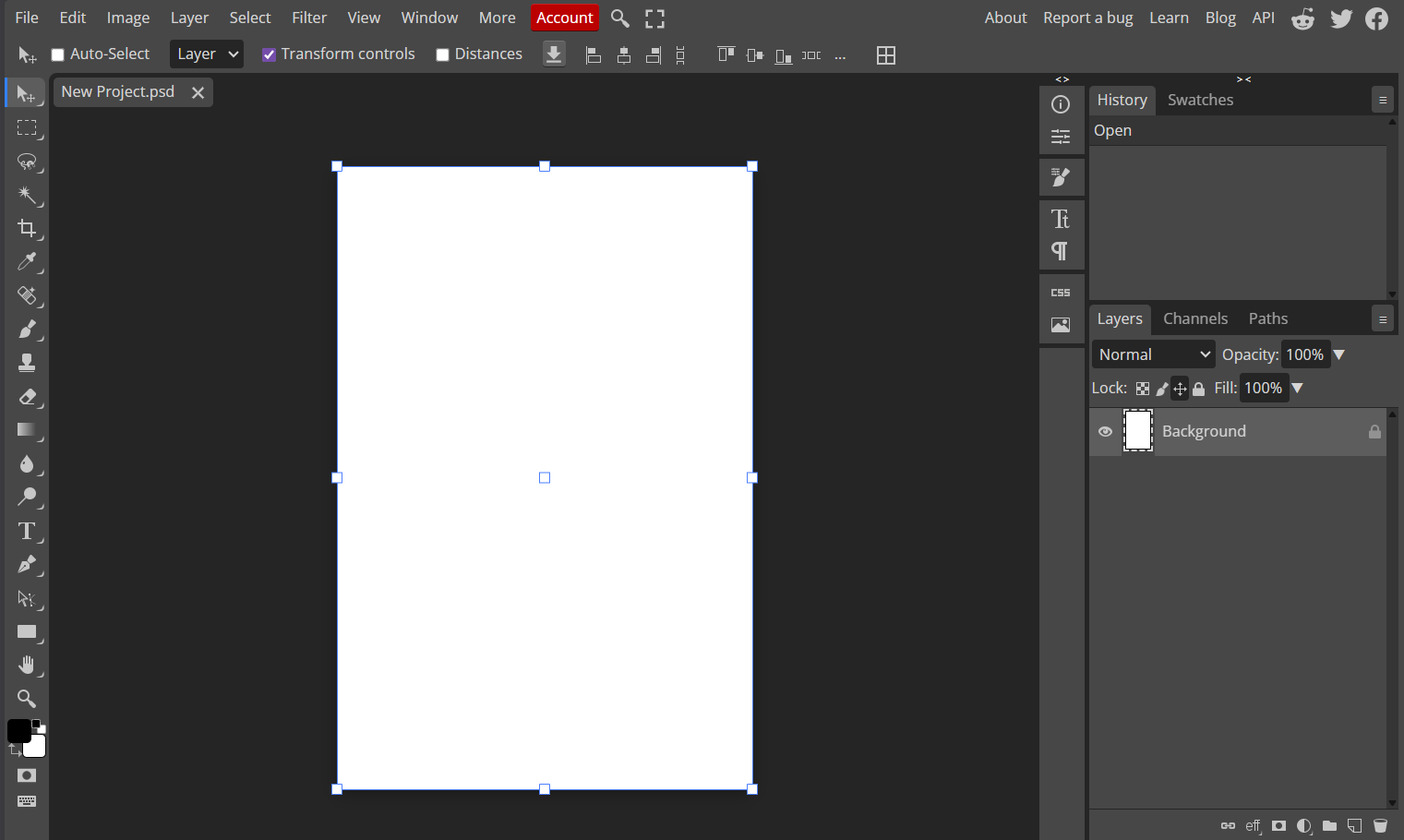
Step 1: Visit Photopea and open the project you want to add the cloud background to.
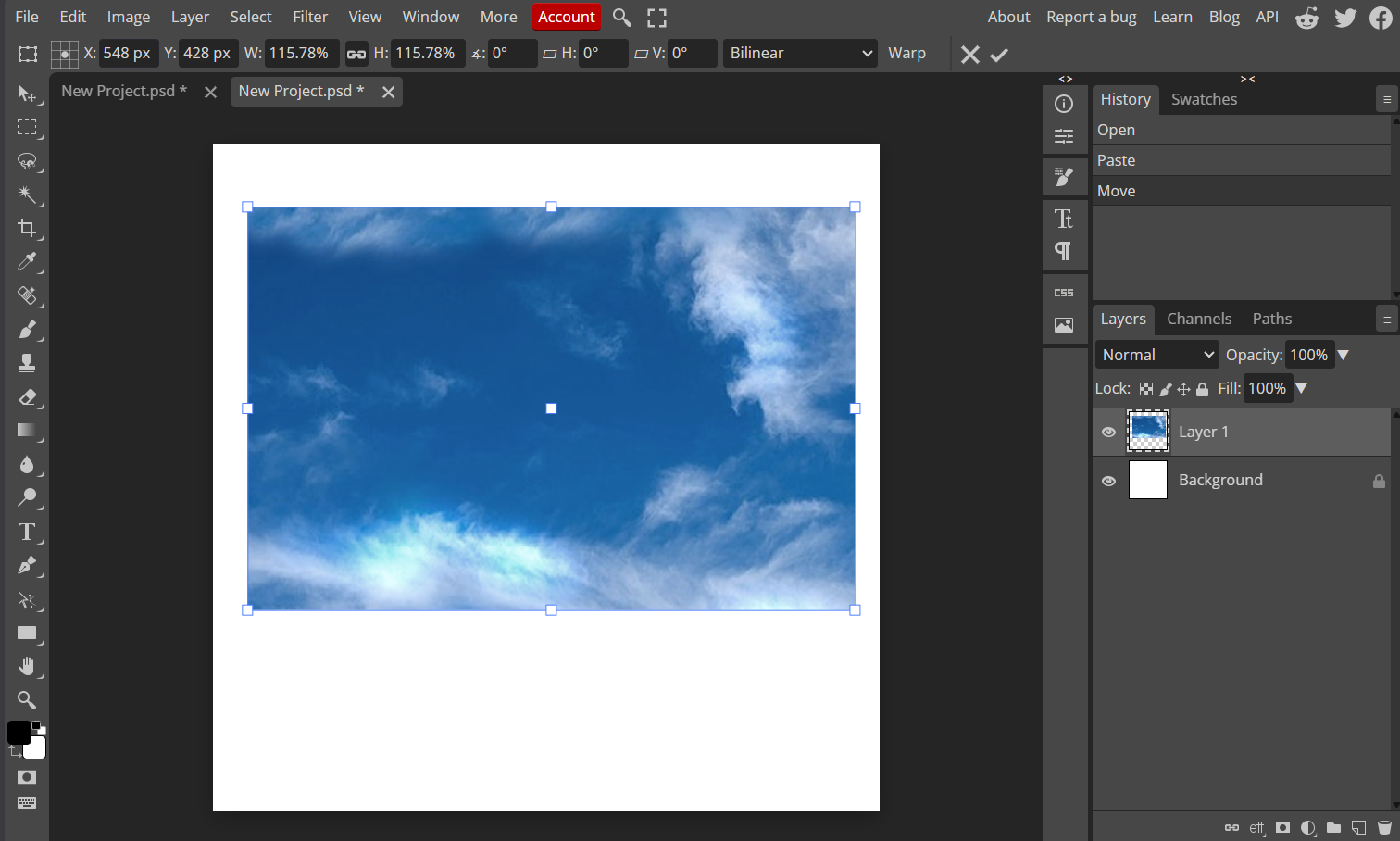
Step 2: Download any stock photo of clouds and drag and drop it into your project. Make sure to adjust it to match the dimensions of your canvas.
How to Make a Cloud Brush
Making a cloud brush is a perfect option for those looking for a unique way to shape their clouds in a completely customizable method. The process is incredibly straightforward, and I’ll walk you through each step of the way.
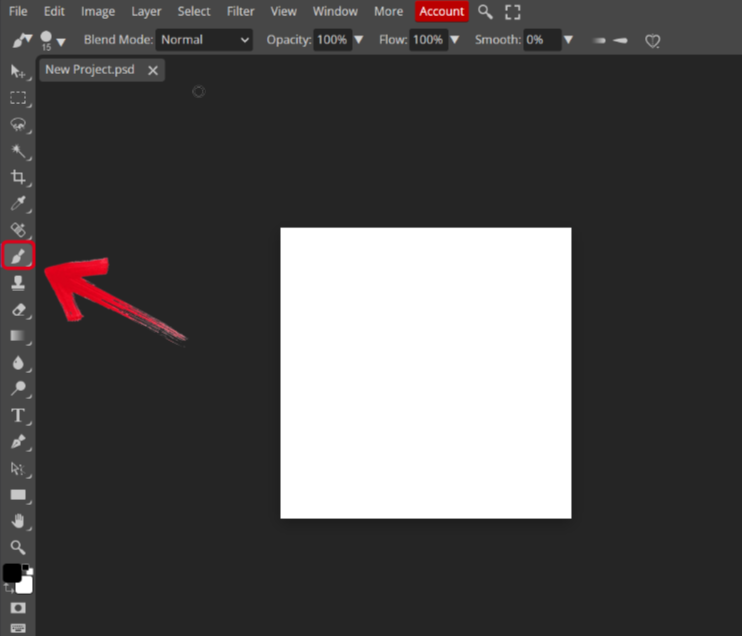
Step 1: Open Photopea and select the Brush Tool to get started.
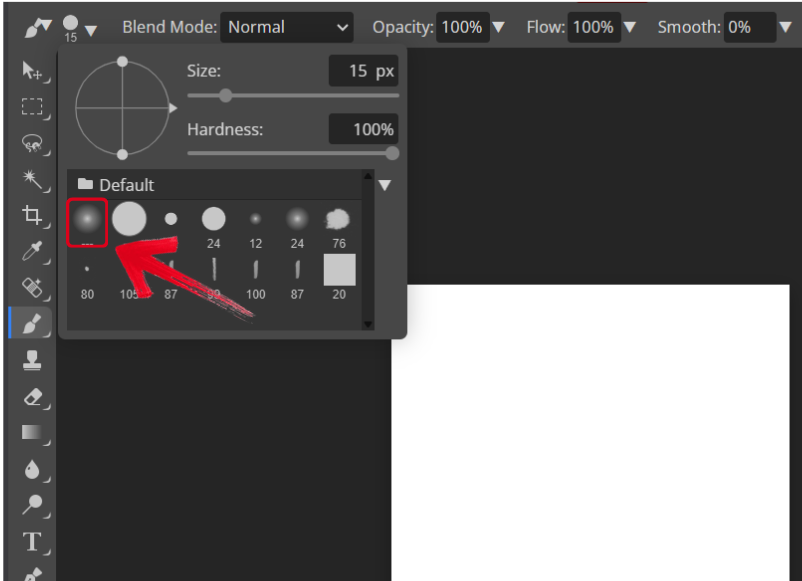
Step 2: In the brush presets window, select theSoft Brush tool.
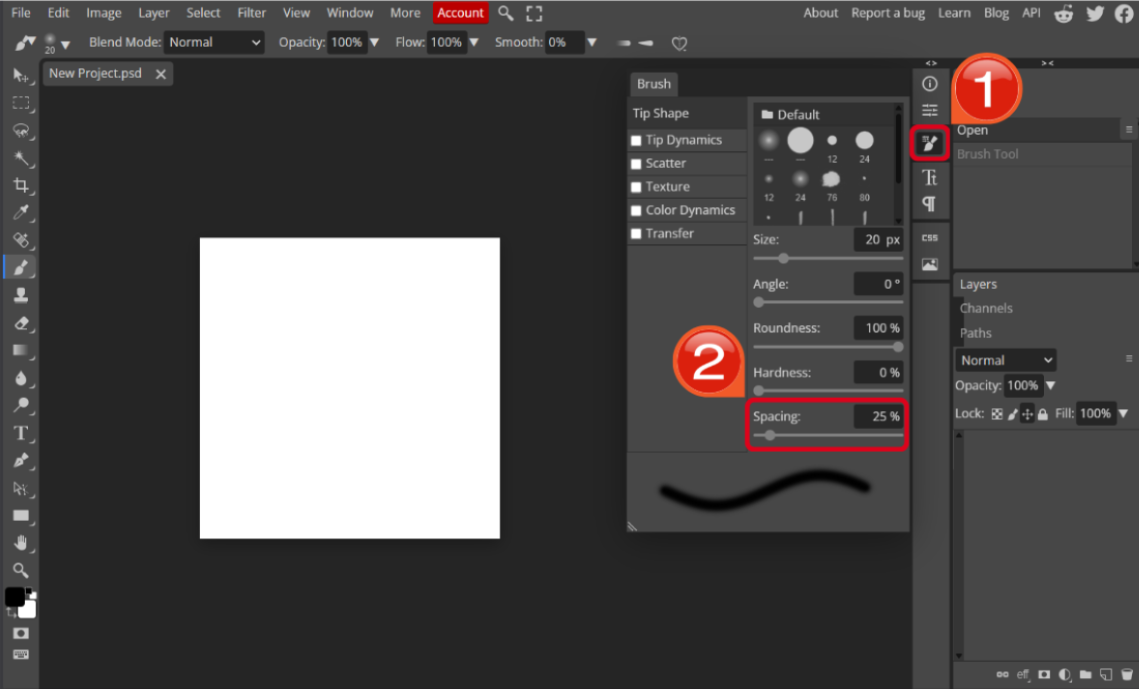
Step 3: Open the Brush Settings and navigate to the Tip Shape section, then adjust theSpacing of your brush to your liking.
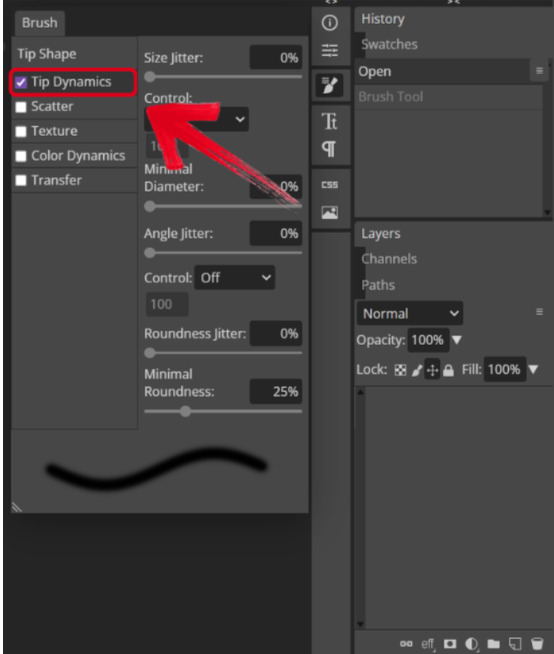
Step 4: Next, navigate to the Tip Dynamics section and adjust the Size Jitter, Angle Jitter, Roundness Jitter, and Minimum Roundness
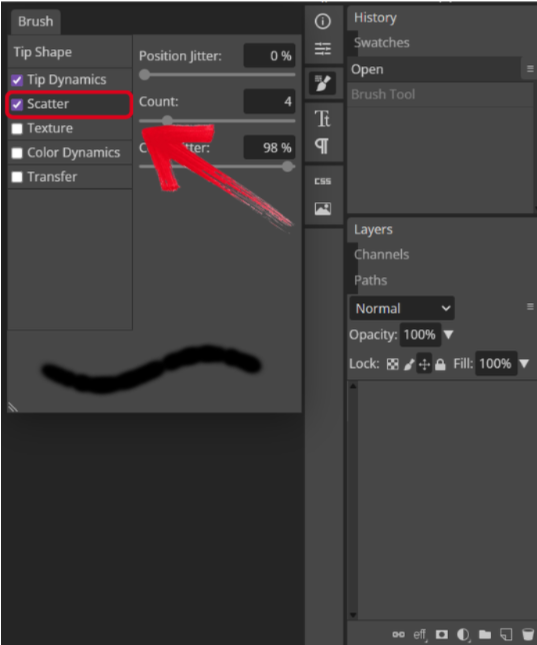
Step 5: Open the Scatter section and set the Position Jitter and Count Jitter to 40%.
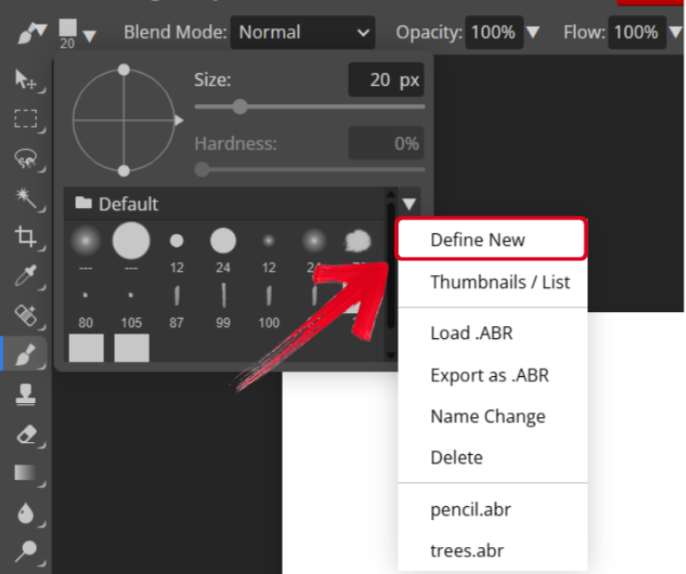
Step 6: To save your brush, go back to theBrush Presets window and in the dropdown menu, pressDefine New.
How to Make Cloud Lettering
If you’re trying to figure out how to make text clouds in Photopea with a mouse, Photopea provides all the necessary features you need to simplify the process. These are the steps you need to follow to ensure a seamless and hassle-free process.
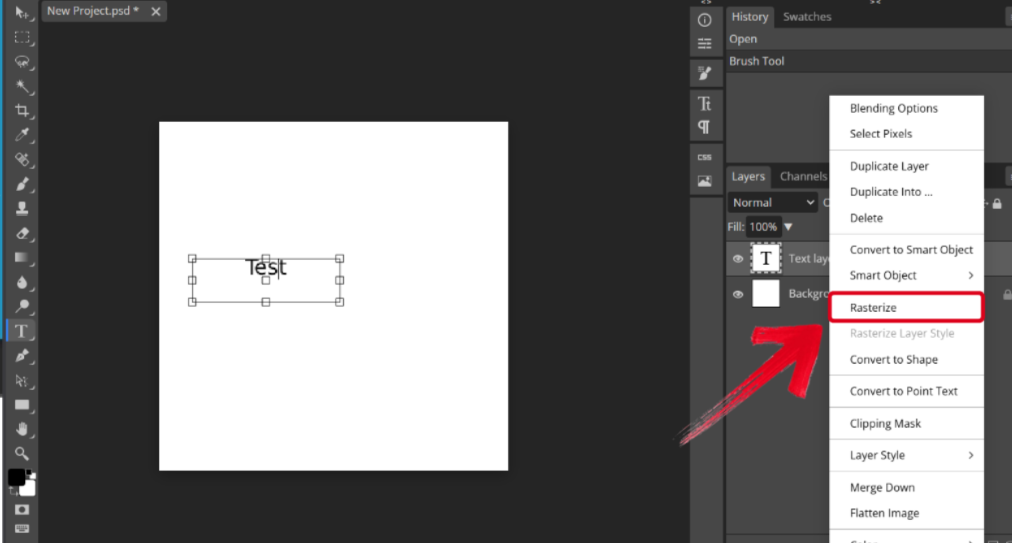
Step 1: Right-click the text layer you want to change and press Rasterize.
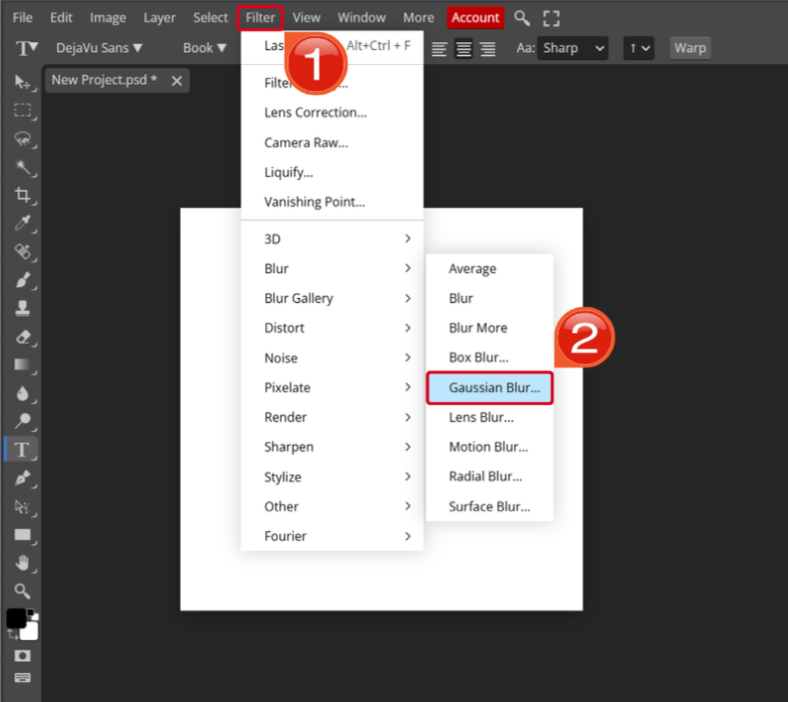
Step 2: In the Filter Menu, navigate to the Blur dropdown menu and selectGaussian Blur.
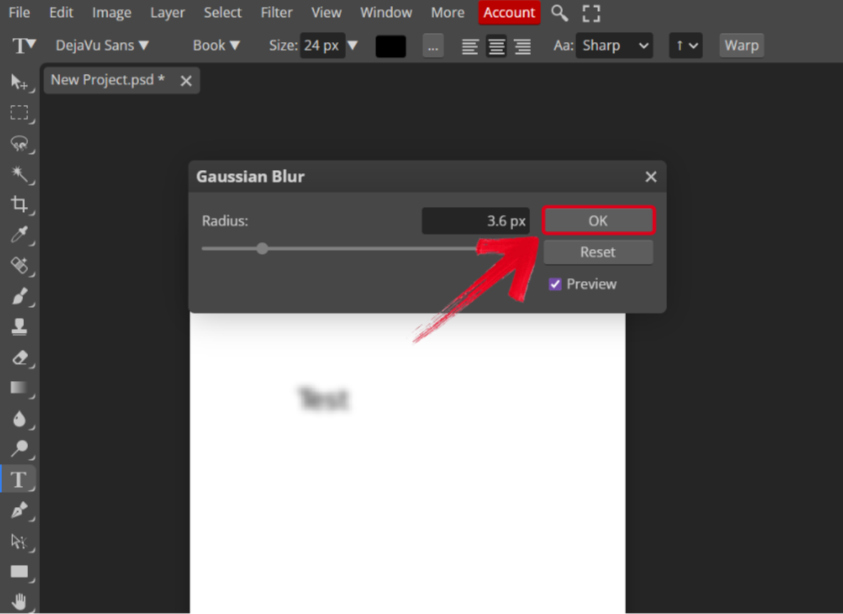
Step 3: In the Gaussian Blur window, adjust the radius to 3.6 px and then pressOK.
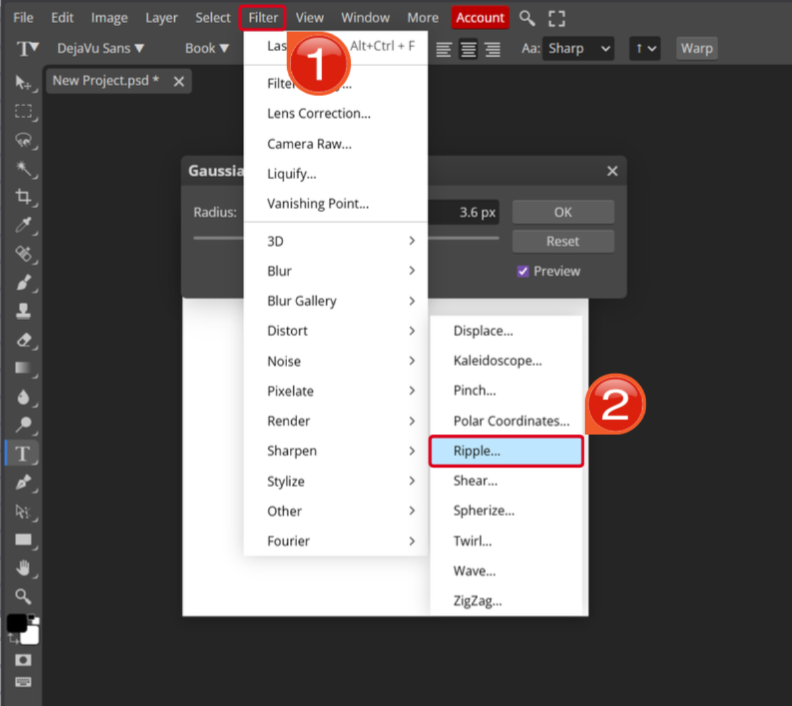
Step 4: In the Filter Menu, navigate to the Distortion options and selectRipple.
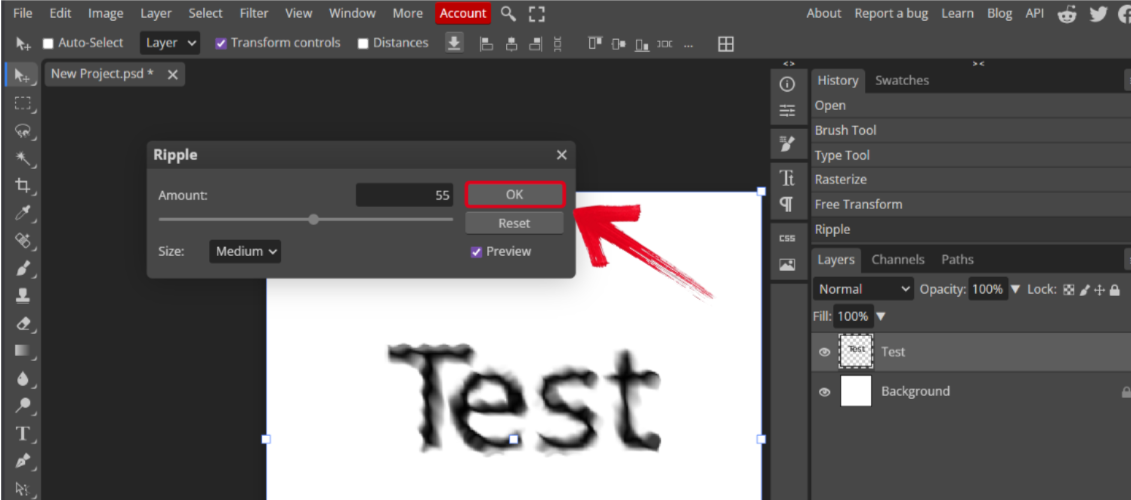
Step 5: In the Ripple Window, set the amount to 55 and press OK.
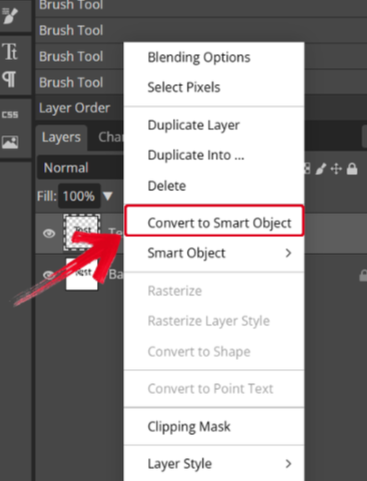
Step 6: You can use the brush tool to enhance the cloudy effect. Once done, right-click the layer and pressConvert to Smart Object.
How to Make a Cloud Texture in Photoshop
If you want to add a cloudy texture to your elements, Photopea has everything you need to help you along the way. I’ll highlight each step of the process to make sure you don’t have any confusion left.
Step 1: Create a new layer in your project and fill it with the color #ffffff. Set the foreground color to#ffffff and the background color to#000000.
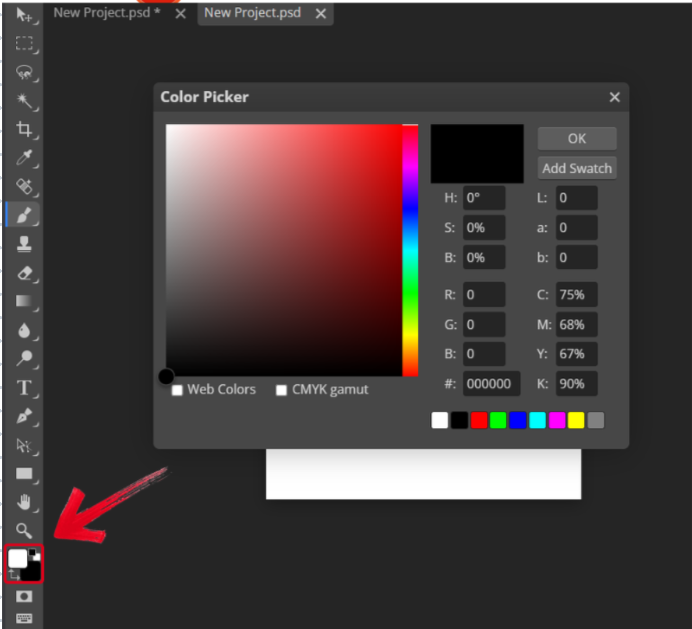
Step 2: To make a cloud texture, go to theFilter Menu and under the Render Options, select Clouds.
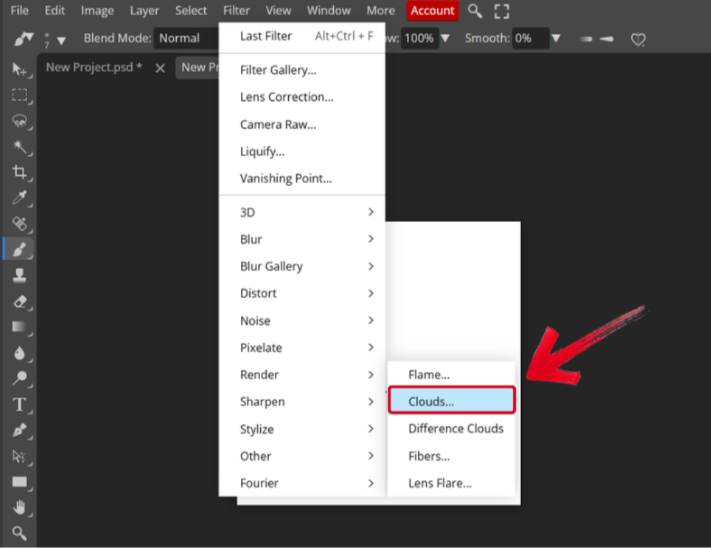
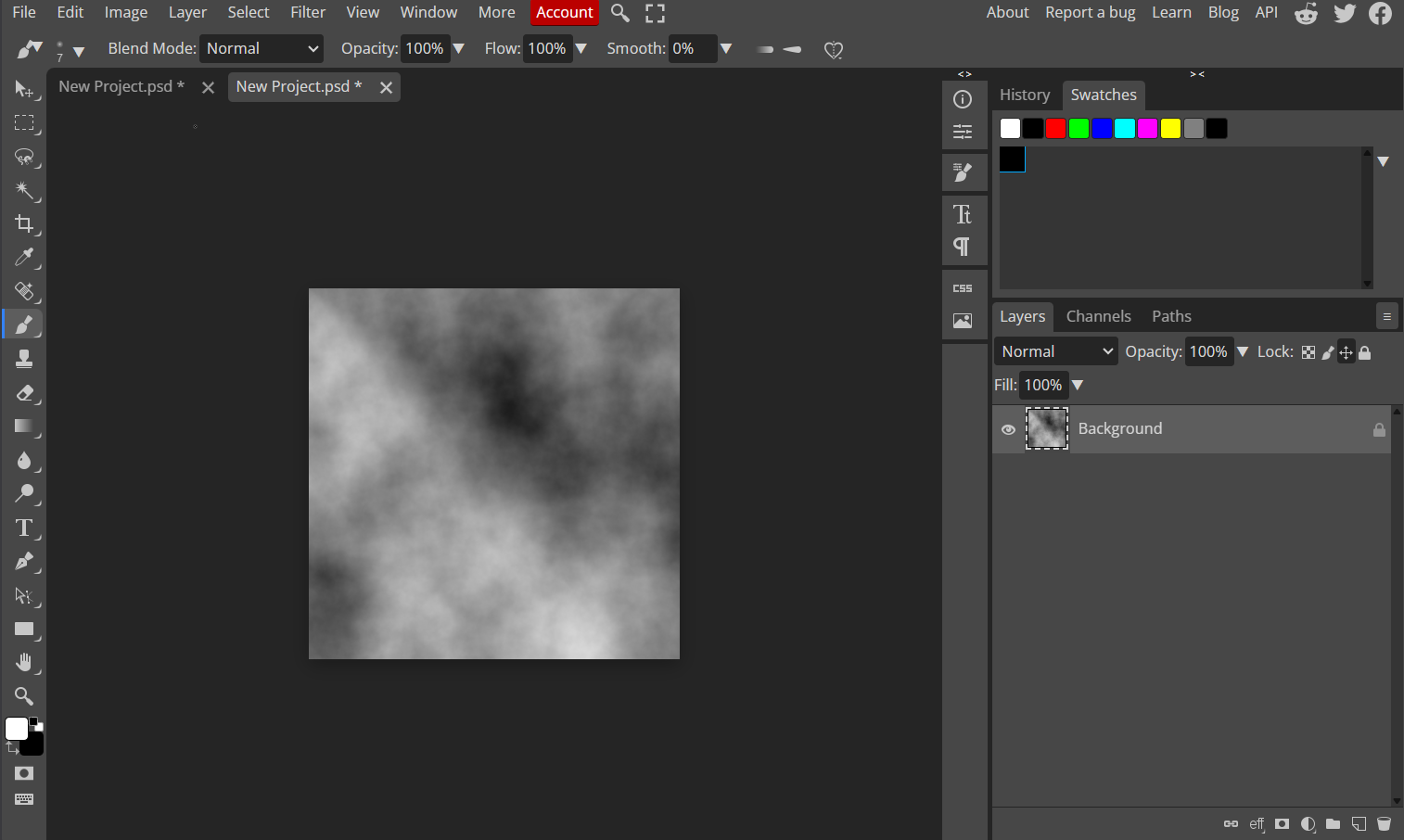
Step 3: Your cloud texture will now be created. You can further edit it by creating a clipping mask and setting your desired blend mode.
Boost Your Photopea Cloud Creations: Enhance the Final Image Instantly With WPS Photo
Once I’m done editing and exporting my images, I’ve found that enhancing them further really improves their overall look and clarity. However, most online enhancement tools I’ve found tend to be incredibly slow and unreliable, which can be incredibly frustrating for a beginner. This is why I only rely on WPS Photofor all my photo boosting needs. It’s free and filled with powerful AI features to help me restore my images to their original clarity.
Features
AI Photo Enhancer: Enhance your image clarity and resolution easily with the AI-powered enhancer.
AI Background Remover: Automatically removes photo backgrounds without any cutoffs or lost details.
Basic Edit Tools: Crop, rotate, adjust colors, add filters, annotations, and watermarks.
Full Privacy & Local Processing: All edits happen directly on your device, keeping your images safe and secure.
Price
Completely Free
Pros
AI-powered assistance for easy editing
Lightweight and quick processing speeds
All-in-one editing tool
Beginner-friendly and easy-to-use
Cons
Limited advanced editing tools
If you feel like WPS Photos is the right tool for your image enhancement needs, then getting started is incredibly simple. I’ll walk you through each step in detail myself to clear out any confusion you might have.
Step 1: Open the image you want to enhance with WPS Photos to get started.
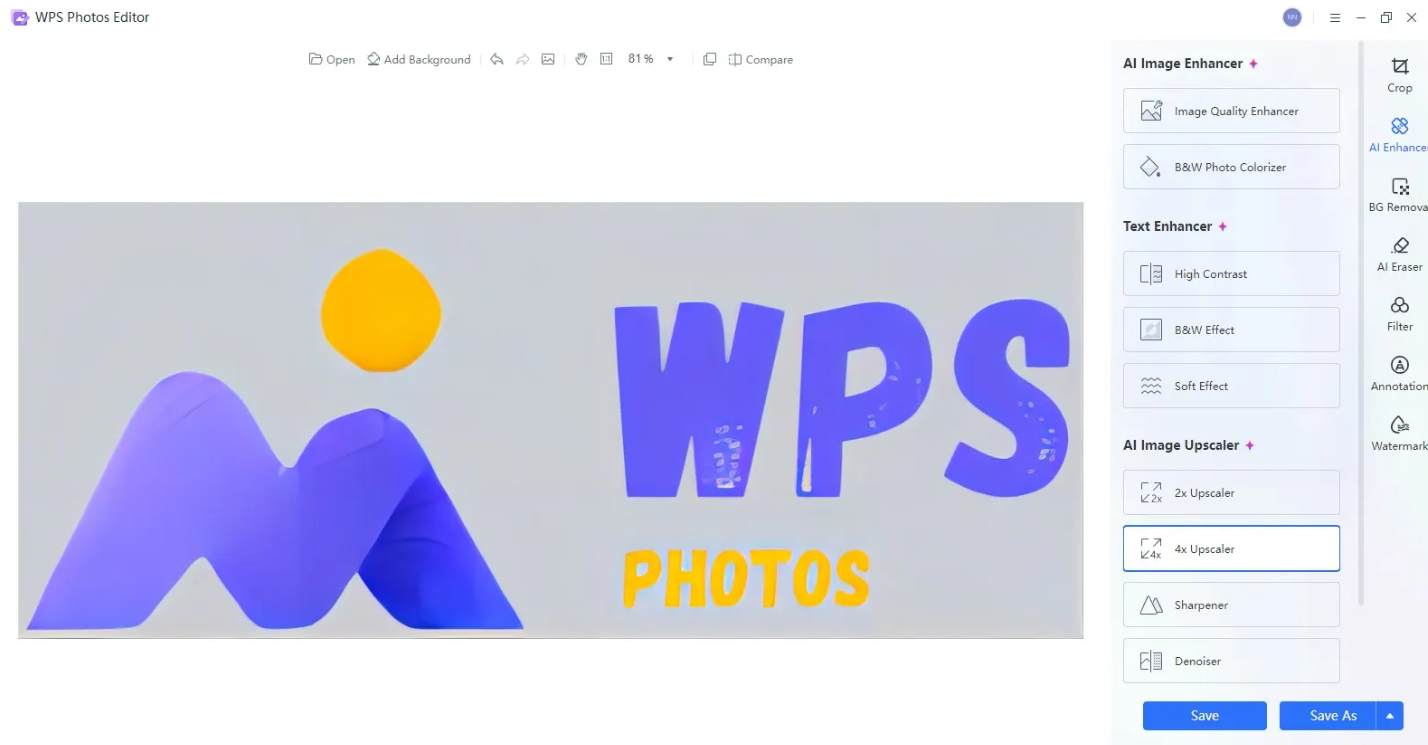
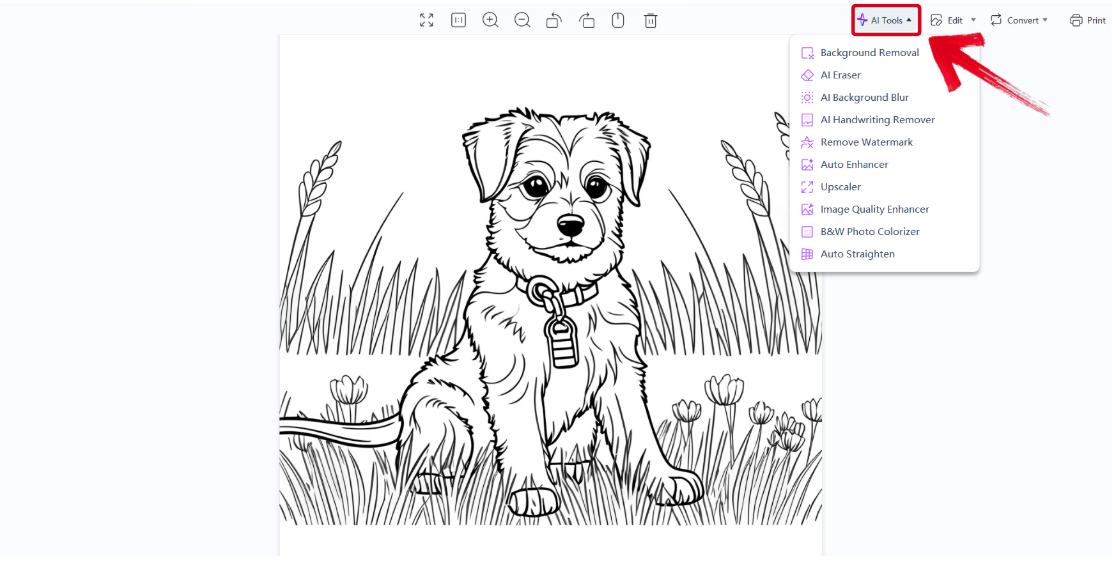
Step 2: In the WPS Photos window, you’ll see a bunch of editing tools given to you, including smart AI Toolsto help you enhance your photos.
AI Image Enhancer: Improve the quality of your image using AI enhancement.
AI Upscaler: Bring life back into old photos by restoring them through the AI upscaler.
AI Watermark Removal: If there are any watermarks on your template, you can elevate the visual appeal with thewatermarkremoval tool.
AI Background Blur: Bring focus to the main objects of your photo by blurring the background.
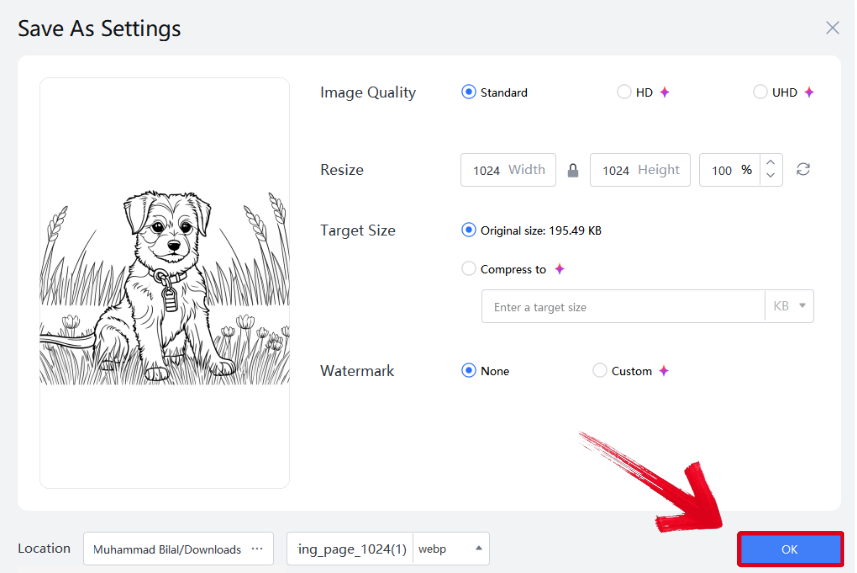
Step 3: Press Ctrl + S to open theSave As window. Adjust the image quality, size, and format, and then press OK to finish.
FAQs
Q1: Can I create realistic clouds in Photopea using only a mouse?
Absolutely! While a stylus may help, using a soft brush tool and layering techniques lets you paint convincing clouds with just a mouse.
Q2: What’s the easiest way to add depth to clouds without complicated effects?
Layering clouds with varied opacity and adding subtle shadows inside the cloud shapes usually does the trick. Thoughtful blur and erasing edges also help.
Q3: Can I reuse my cloud brushes in Photopea?
Yes, you can create custom cloud brushes or use the clouds filter to generate natural textures, which can be saved and reused for faster painting.
Q4. How can WPS AI improve my cloud images?
WPS AI can auto-enhance quality, remove backgrounds, and match tones between photos, helping your cloud images blend naturally when placed together.
Adding Clouds to Your Images
Featuring clouds in your project can be a creative and unique way to add a personal touch to it, but most people don’t know how to make clouds in Photopea with a mouse. In this guide, I’ve covered clear, step-by-step methods to help you simplify the process easily, especially if you’re a beginner. You can further enhance your images with WPS Photo. It’s completely free and equips you with a variety of powerful tools to polish your images in just a few simple steps. It’s the perfect tool for anyone trying to upgrade their photo editing workflow.

'%3e%3cpath%20d='M19.9911%204.11386V6.471H18.5894C18.0775%206.471%2017.7322%206.57814%2017.5536%206.79243C17.3751%207.00671%2017.2858%207.32814%2017.2858%207.75671V9.44421H19.9019L19.5536%2012.0871H17.2858V18.8639H14.5536V12.0871H12.2769V9.44421H14.5536V7.49779C14.5536%206.39064%2014.8632%205.53201%2015.4822%204.92189C16.1013%204.31177%2016.9257%204.00671%2017.9554%204.00671C18.8304%204.00671%2019.509%204.04243%2019.9911%204.11386Z'%20fill='%23333333'/%3e%3c/g%3e%3cdefs%3e%3cclipPath%20id='clip0_2938_8199'%3e%3crect%20width='16'%20height='16'%20fill='white'%20transform='translate(8%204.00671)'/%3e%3c/clipPath%3e%3c/defs%3e%3c/svg%3e)
'%3e%3cpath%20d='M17.5237%2010.7813L23.4811%204H22.0699L16.8949%209.88693L12.7648%204H8L14.2469%2012.9029L8%2020.0133H9.4112L14.8725%2013.7952L19.2352%2020.0133H24M9.92053%205.04213H12.0885L22.0688%2019.0224H19.9003'%20fill='%23333333'/%3e%3c/g%3e%3cdefs%3e%3cclipPath%20id='clip0_2938_8200'%3e%3crect%20width='16'%20height='16.0134'%20fill='white'%20transform='translate(8%204)'/%3e%3c/clipPath%3e%3c/defs%3e%3c/svg%3e)


