PSD, which stands for Photoshop Document, is Adobe Photoshop’s native
file format and the gold standard for image editing. Unlike JPEG or PNG
files, a PSD stores multiple layers complete with masks, effects, and
editable text making it indispensable for designers and photographers.
The only catch is without Photoshop, you’re locked out. You can’t view,
extract, or change anything inside. In this guide, I’ll show you exactly
how to open PSD files the easy way and introduce five reliable editors
you can start using right now to access, view, and manage them.
Use Word, Excel, and PPT for FREE
How to Open PSD Files
Introduction to PSD Files
If you’ve ever been googling “what is PSD files”, here’s a simple
explanation: a PSD file is essentially a digital workspace that stores
all the elements of a Photoshop project in layers. Each layer acts as a
separate piece of the design, allowing you to modify one element without
affecting the others, a feature that gives designers incredible control
and flexibility. These layers can include text, images, adjustment filters,
vector shapes, and blending options, all working together to form the
final composition. This makes PSD files flexible for editing but
difficult to open outside of Adobe’s ecosystem.
PSD File
Sometimes, users confuse “PSD” with “PDS”. While they look similar,
PDS files are an entirely different format with multiple meanings, depending on the context:
Planetary Data System (PDS): Used by NASA and
other space research organizations to archive and share planetary
mission data.
PowerDirector Script (.pds): A project file
created by CyberLink PowerDirector, containing information about video
editing timelines.
Partitioned Data Set (PDS): A file structure
used in IBM mainframe systems to organize datasets.
If you’re dealing with one of these file types, refer to specialized
tools or data management guidelines, such as those available on ESA’s
PDS Standards or Microsoft’s documentation. However, if your file truly
ends with “.PSD”, it’s a Photoshop Document, and the good news is you
don’t need Photoshop to open it.
How to Open
PSD Files – Top 5 Best PSD File Editors
When people receive a PSD file without having Photoshop installed,
they immediately get frustrated as they could see the file sitting there
but had no way to open it. Since PSDs are Adobe’s proprietary format,
not every program can handle their layers, transparency, or effects
correctly. I’ve tested a lot of different programs to figure out which
ones actually worked and which just claimed to. I’ve narrowed it down to
the five best PSD files editors that I’ve personally found reliable.
Adobe Photoshop
When you open a PSD file in Photoshop,
you’re working within the native environment for that format. This means
every layer, mask, effect, and adjustment that the file was originally
built with is fully accessible. According to Adobe, PSD is the “default
file format that supports all Photoshop features”.
Because of that intimate compatibility, Photoshop offers the most
accurate rendering of layered files. Whether the document holds a
complex design with multiple image and vector layers, or a simple
editing project, you’ll see the file exactly as the creator intended,
giving you maximum control when opening, modifying, or exporting the
content.
Adobe Photoshop Logo
Features:
Photoshop supports the PSD file format in full, meaning you can open a .PSD and access all layers, masks, adjustment filters, text objects and blending modes.
It offers comprehensive layer-based editing: you can work non‑destructively with adjustment layers, layer masks, blending modes and smart objects.
Photoshop supports large document formats that allow extremely high resolution and massive canvas sizes while retaining layer information.
The application also includes advanced image‑adjustment capabilities from curves, levels and color corrections to AI‑powered tools in recent versions.
Pros:
Offers one of the most extensive toolsets in image editing.
Deep layer, mask, and effect support ensures PSD files are handled with ideal fidelity.
Strong file‑format support and integration with other Adobe tools
Cons:
The subscription cost and ongoing payments make it expensive.
Has a steep learning curve due to its depth and complexity.
Requires significant system resources for large PSD files.
Now that you understand what makes Photoshop the standard for PSD
editing, let’s see how to actually open a PSD file. The process is easy,
and once you see the layers and masks in action, you’ll appreciate why
this tool is so widely used.
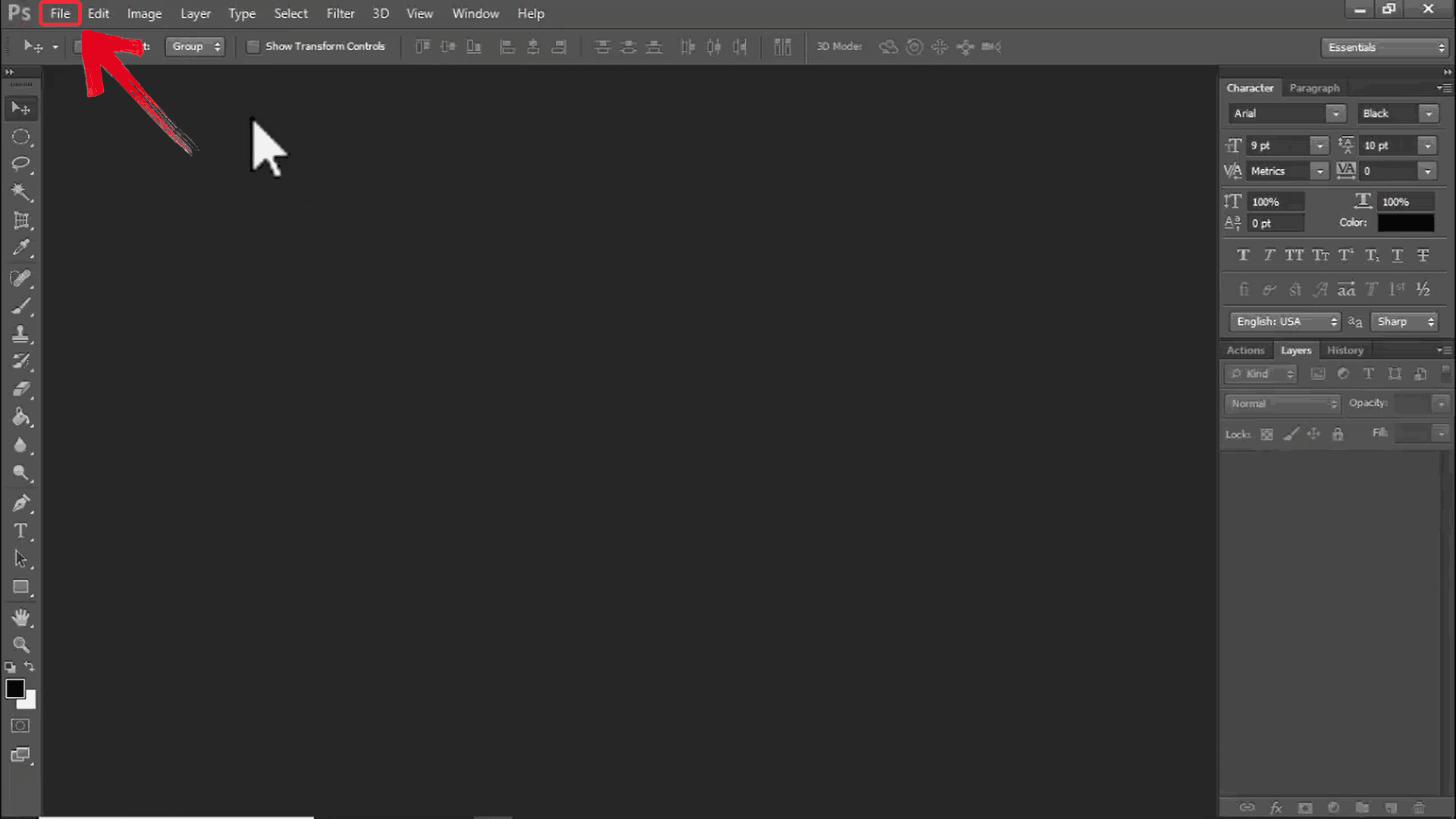
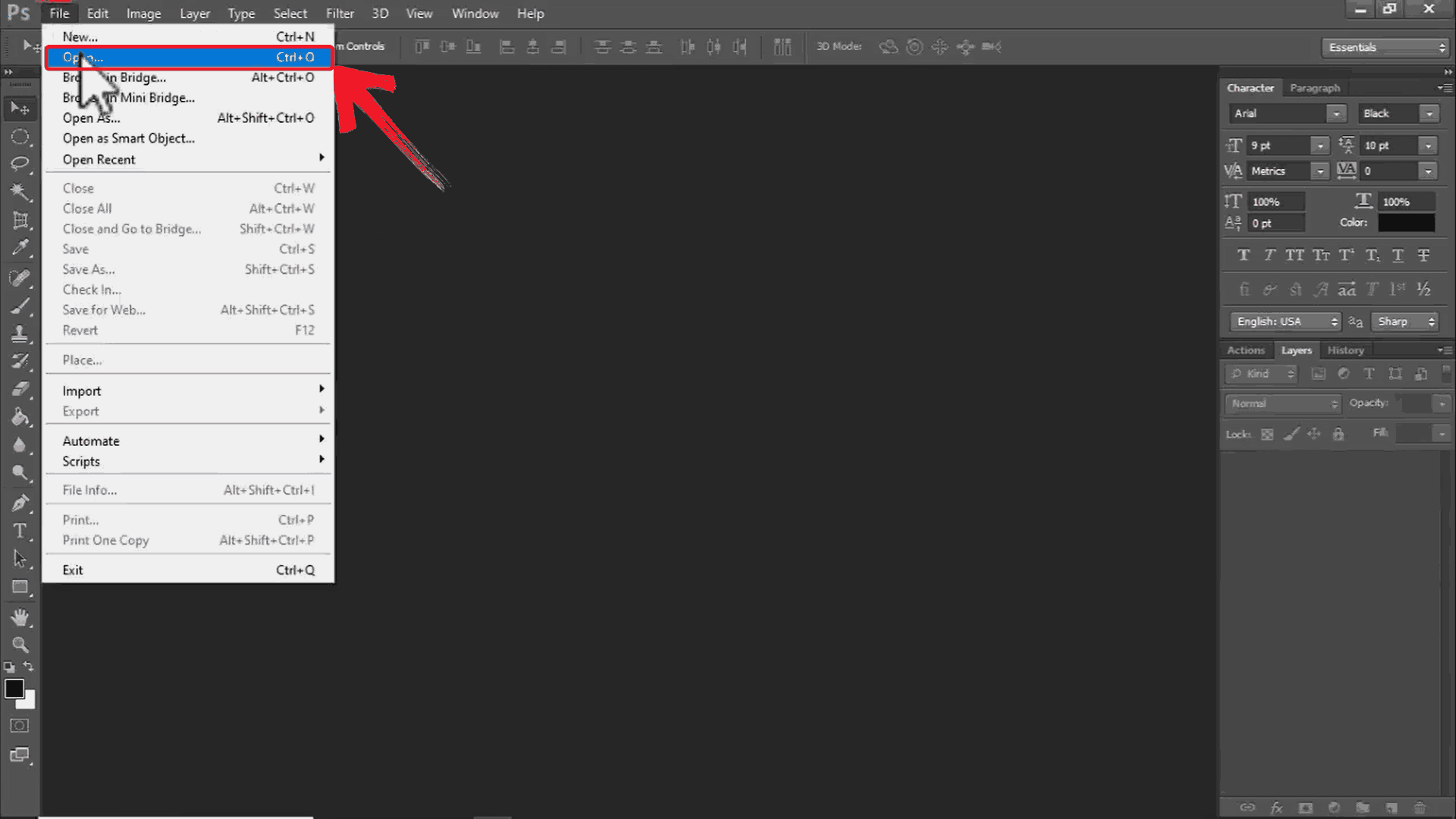
Step 1: Start by opening Adobe Photoshop on your
computer then on the top menu, click “File” to open the
dropdown options.
Click File
Step 2: From the dropdown, choose “Open” which will open a file explorer window.
Click Open
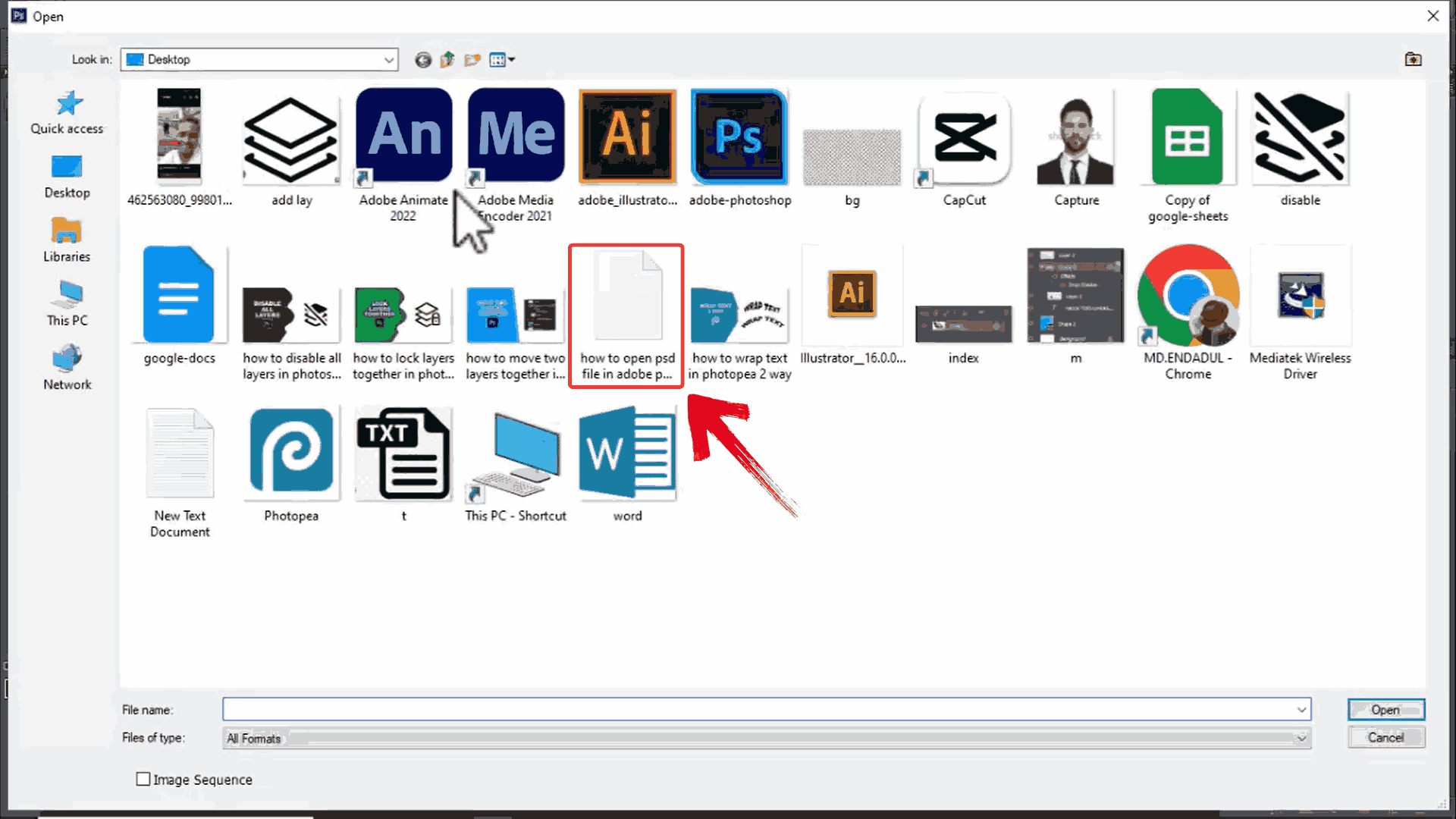
Step 3: In the window that appears, select the PSD
file you want to edit.
Select File
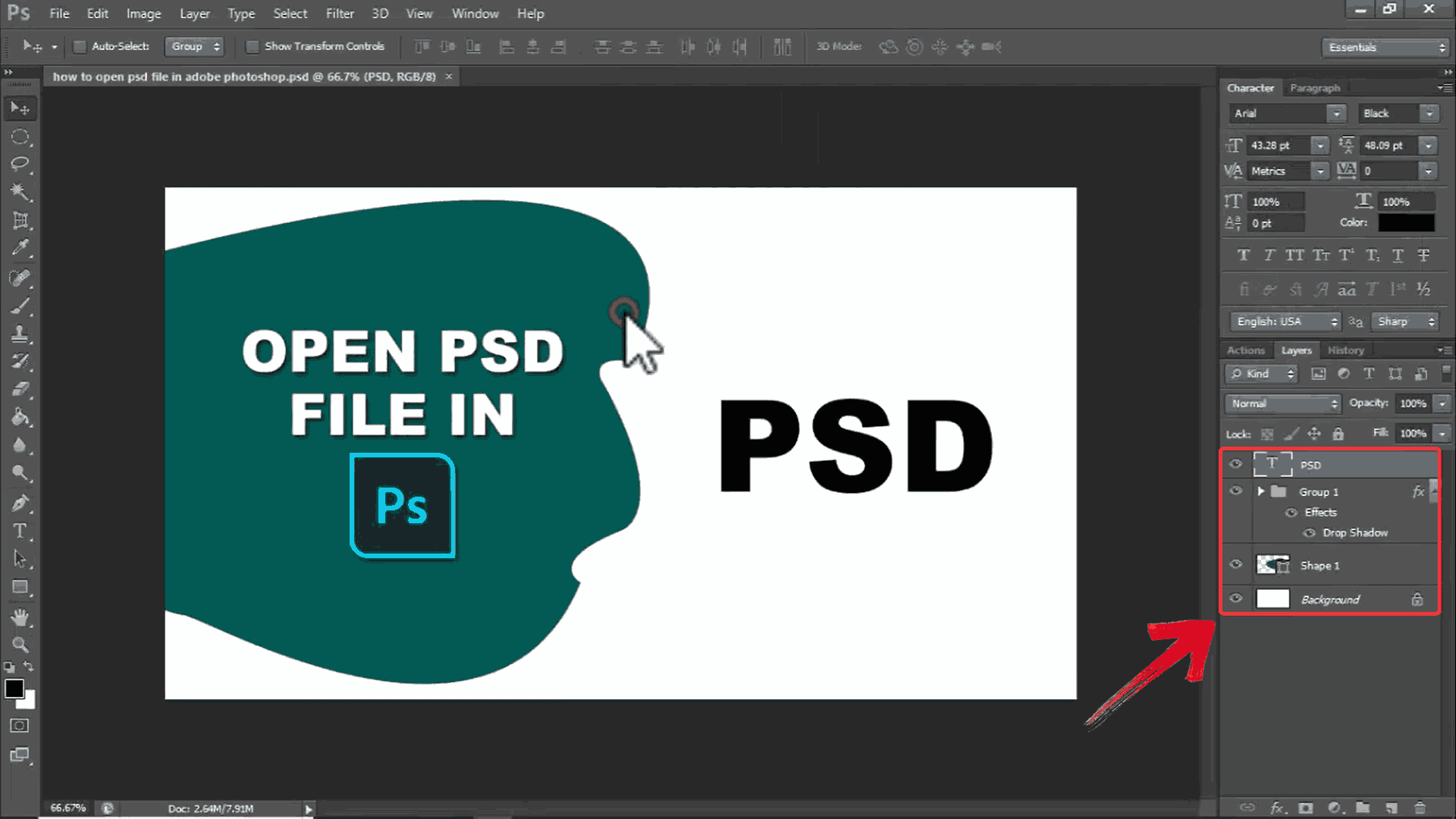
Step 4: Once your image is imported, you can start
making changes like adding a Layer Mask or using the Quick Selection
Tool.
Make Changes
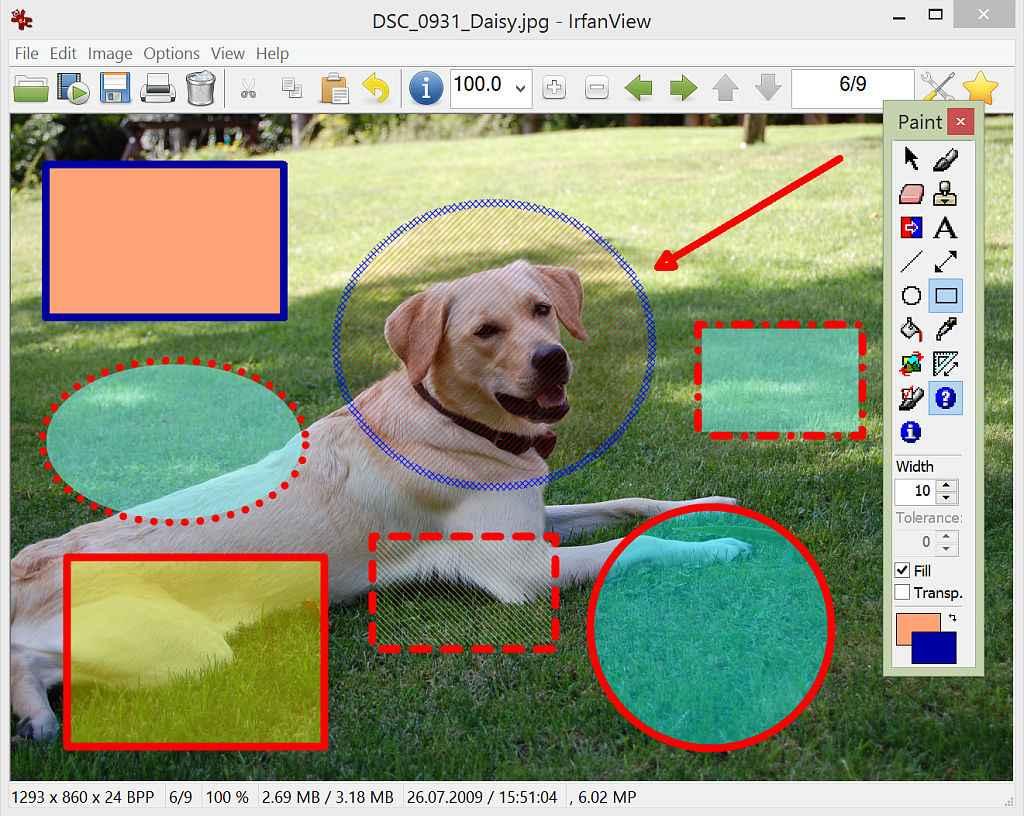
IrfanView
IrfanView is a
compact image viewer for Windows that supports the PSD format among many
others. With minimal overhead and easy installation, you can open PSD
files almost instantly which is ideal for reviewing content, extracting
an image, or converting it into another format. You’ll still see the
flattened version of the PSD’s layers, which means you’ll get a clear
view of the overall image without entering into full editing mode. This
makes IrfanView helpful when you just need to look inside a PSD.
IrfanView Interface
Features:
It can be extended via a plugins pack to support additional formats and filters, which means its compatibility with PSDs improves with the correct plugin setup.
The 64‑bit version of IrfanView is optimized to handle very large images more efficiently, which is helpful when previewing large PSD files.
It supports batch processing, conversion, thumbnail preview and quick browsing, making it practical when you need to open many PSD files just to preview or convert them.
Pros:
Extremely lightweight and fast, making it great for quickly viewing PSD files.
Supports batch conversion, resizing and a wide range of file formats.
Free for personal use, making it accessible and low‑risk.
Cons:
The interface looks dated and lacks modern polish.
Doesn’t offer full PSD layer editing.
With IrfanView, viewing PSD files becomes a quick and efficient
process. Here’s how to go about it.
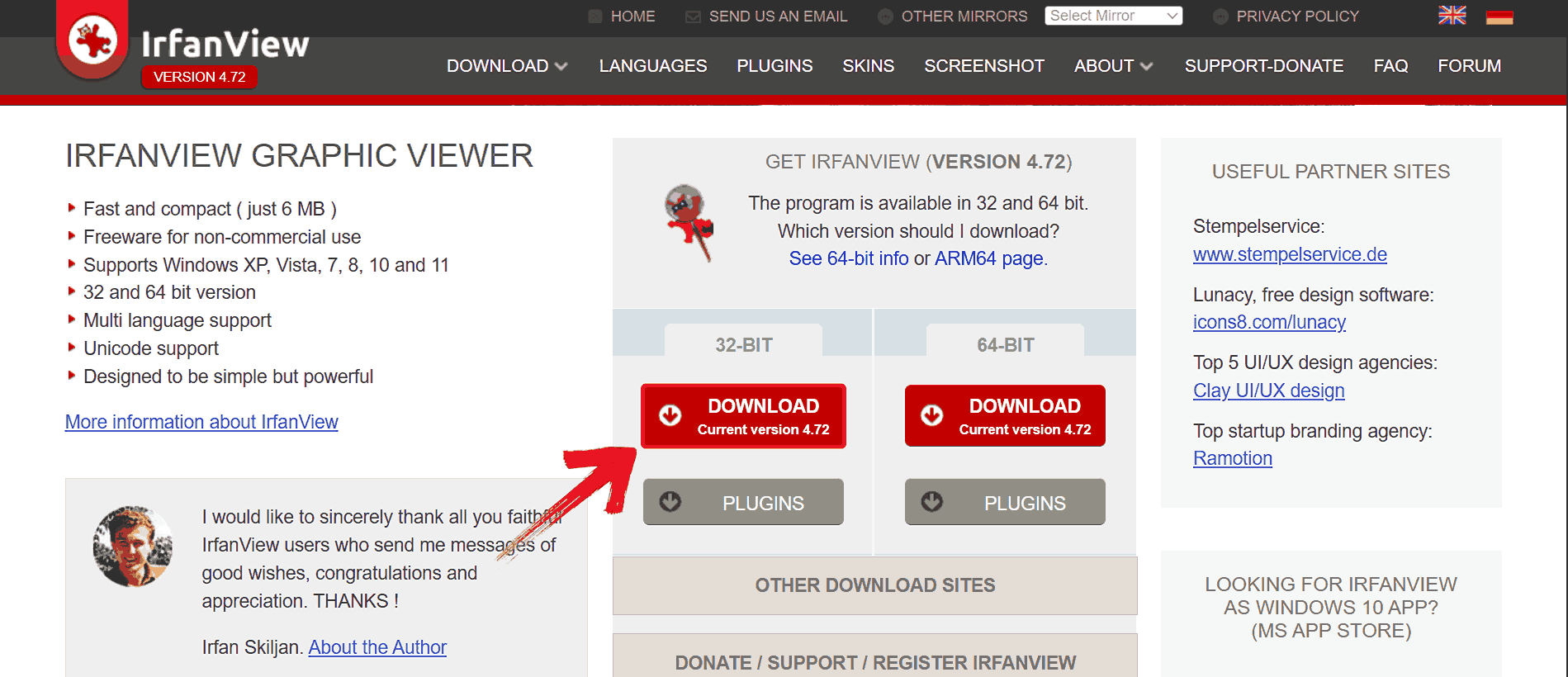
Step 1: Head over to the IrfanView website and click
the red “Download” button for the version that matches
your system such as 32-bit or 64-bit.
Download File
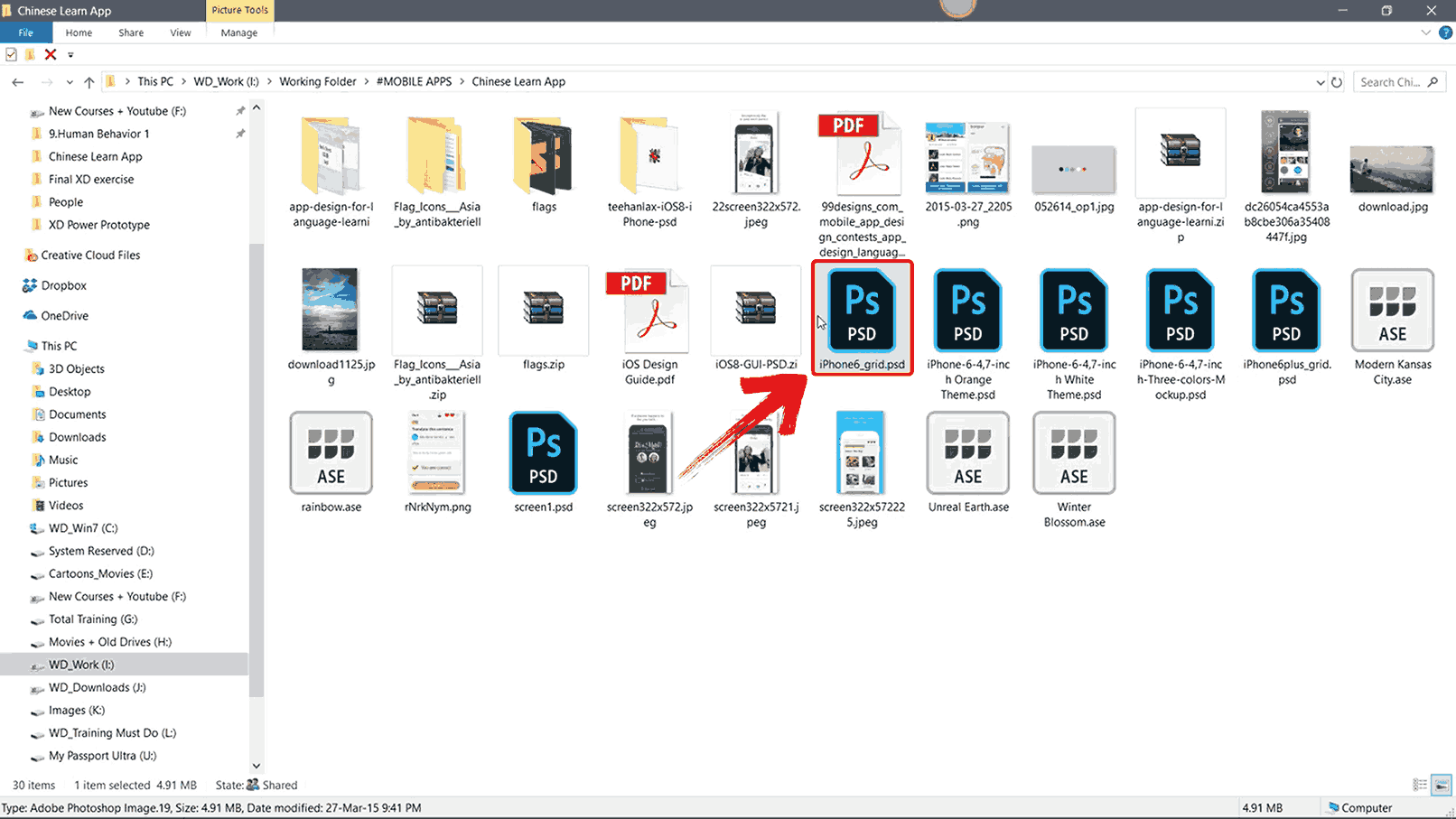
Step 2: Once installed, right-click on the PSD file
you want to open.
Right-Click File
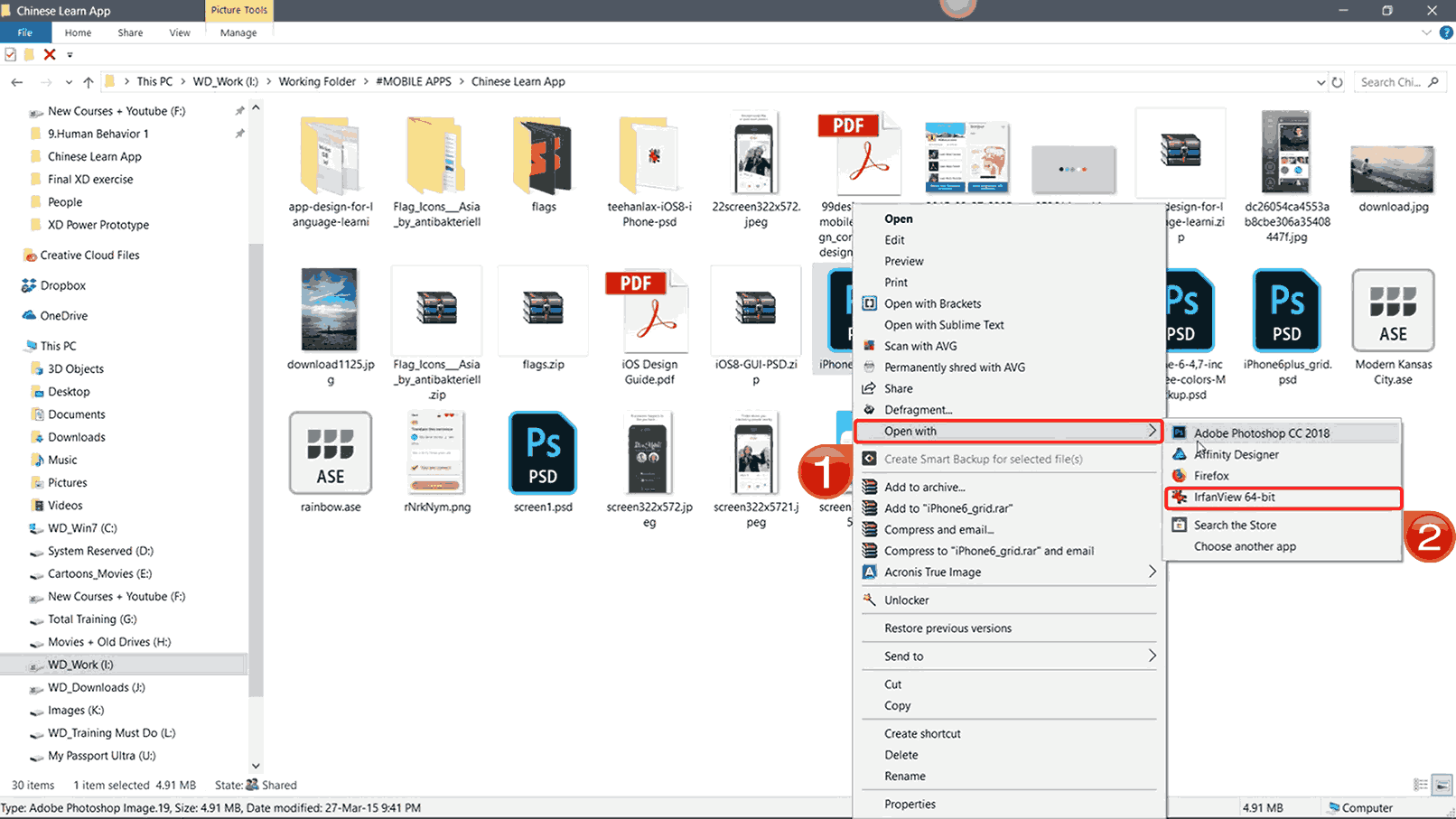
Step 3: From the options that appear, select “Open with” then “IrfanView” to launch
the file with IrfanView.
Open File with IrfanView
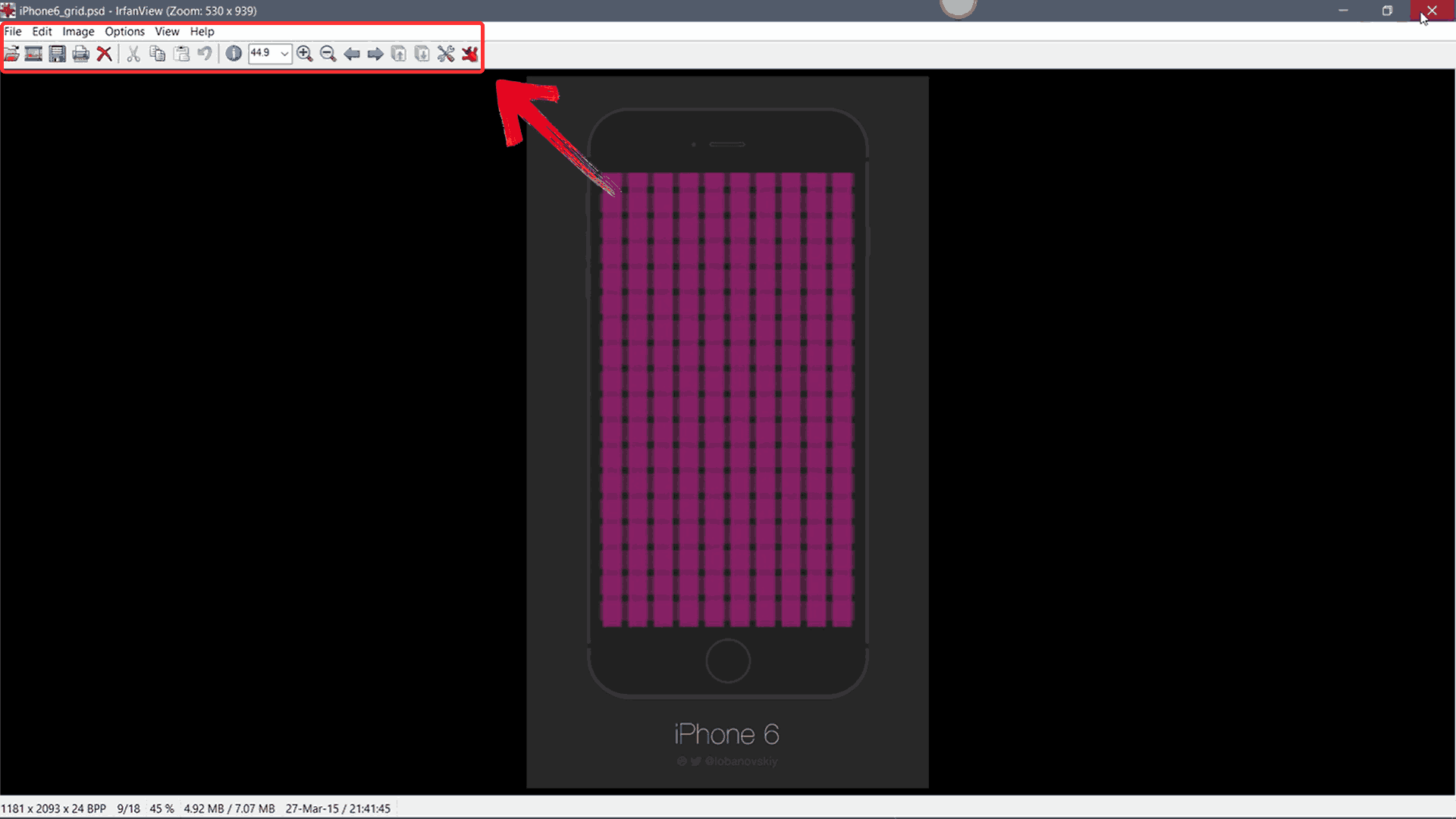
Step 4: When your PSD file opens, begin editing
using the tools available in the top menu bar so you can adjust colors,
crop, or make quick touch-ups as needed.
Make Edits
GIMP (GNU Image
Manipulation Program)
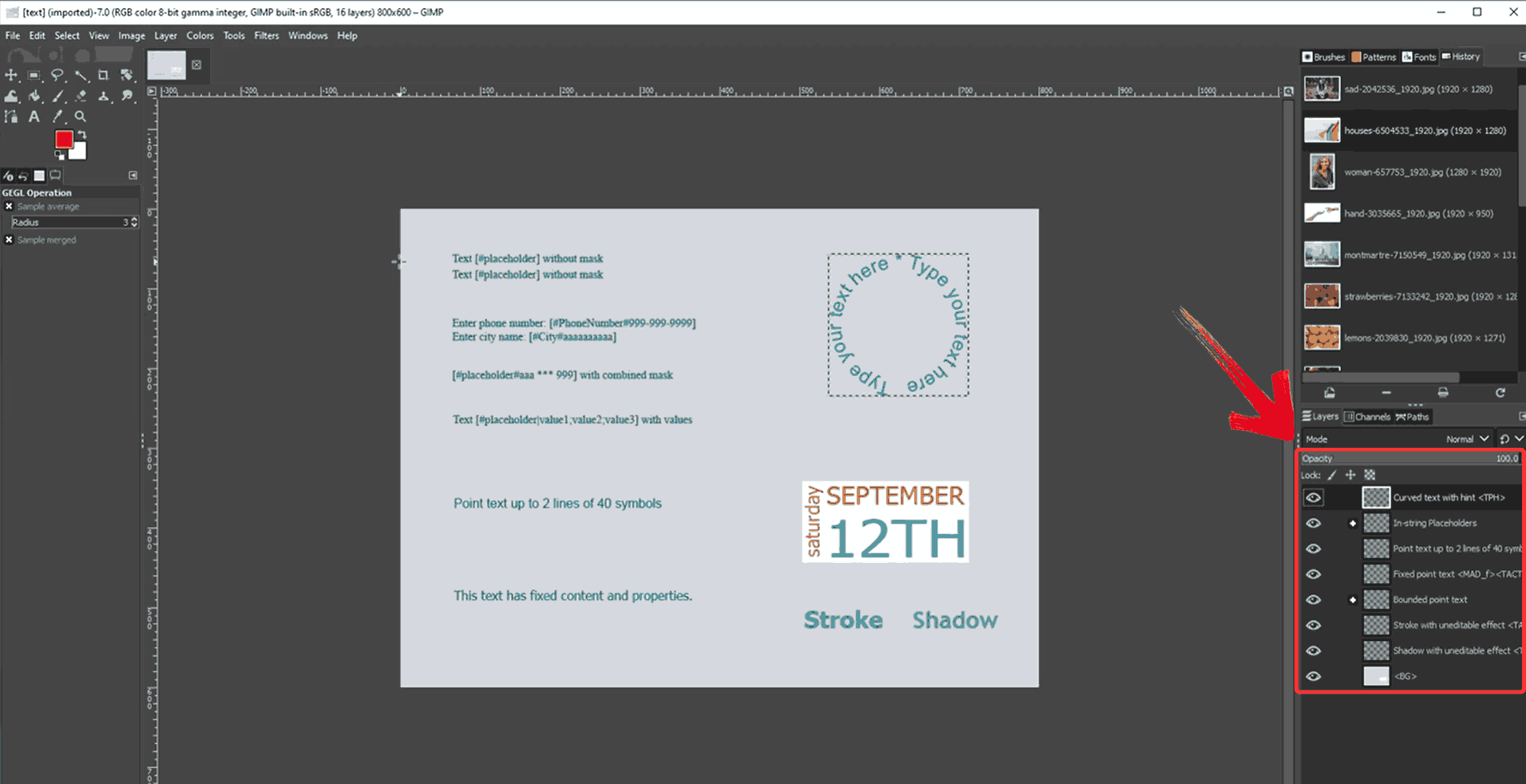
GIMP is a free,
open-source alternative that has steadily improved its support for PSD
files over the years. If you open a PSD with GIMP, you’ll gain access to
most layers, masks, and design elements making it a solid choice when
you don’t have Photoshop but still want to dig into the composition.
Because it’s cross-platform and community-driven, GIMP gives you editing
flexibility without the cost of a subscription. It’s useful for
students, hobbyists, or anyone who needs to open and change PSD files
without full commercial software.
GIMP Interface
Features:
It allows you to manipulate layers, channels and paths within an image, giving you meaningful control when editing a PSD file in a non‑Adobe environment.
GIMP supports import of a broad range of file formats including Photoshop’s native format making it flexible when you need to open or convert PSDs outside the Adobe ecosystem.
The application includes standard editing tools such as filters, brushes, selection and transformation capabilities.
Pros:
Fully free and open‑source, making it a strong choice when you don’t want to pay.
Cross‑platform and supports layers, masks and many formats.
Supported by a large community of users with plugins and tutorials.
Cons:
The user interface and workflow can feel less fancy compared to commercial tools.
Some advanced features may be less reliable or missing.
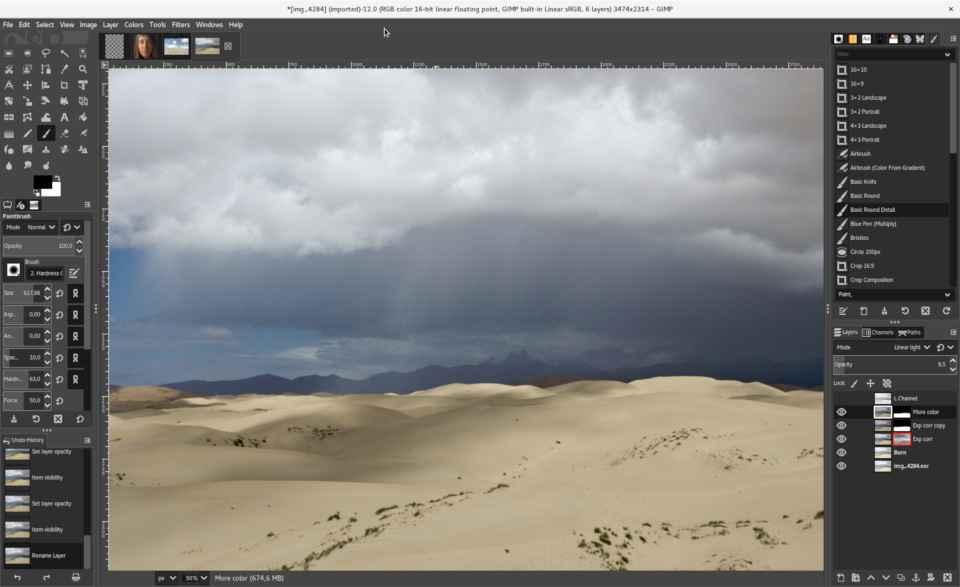
Having seen GIMP’s capabilities for handling PSD layers, it’s time to
dive in and open a file yourself.
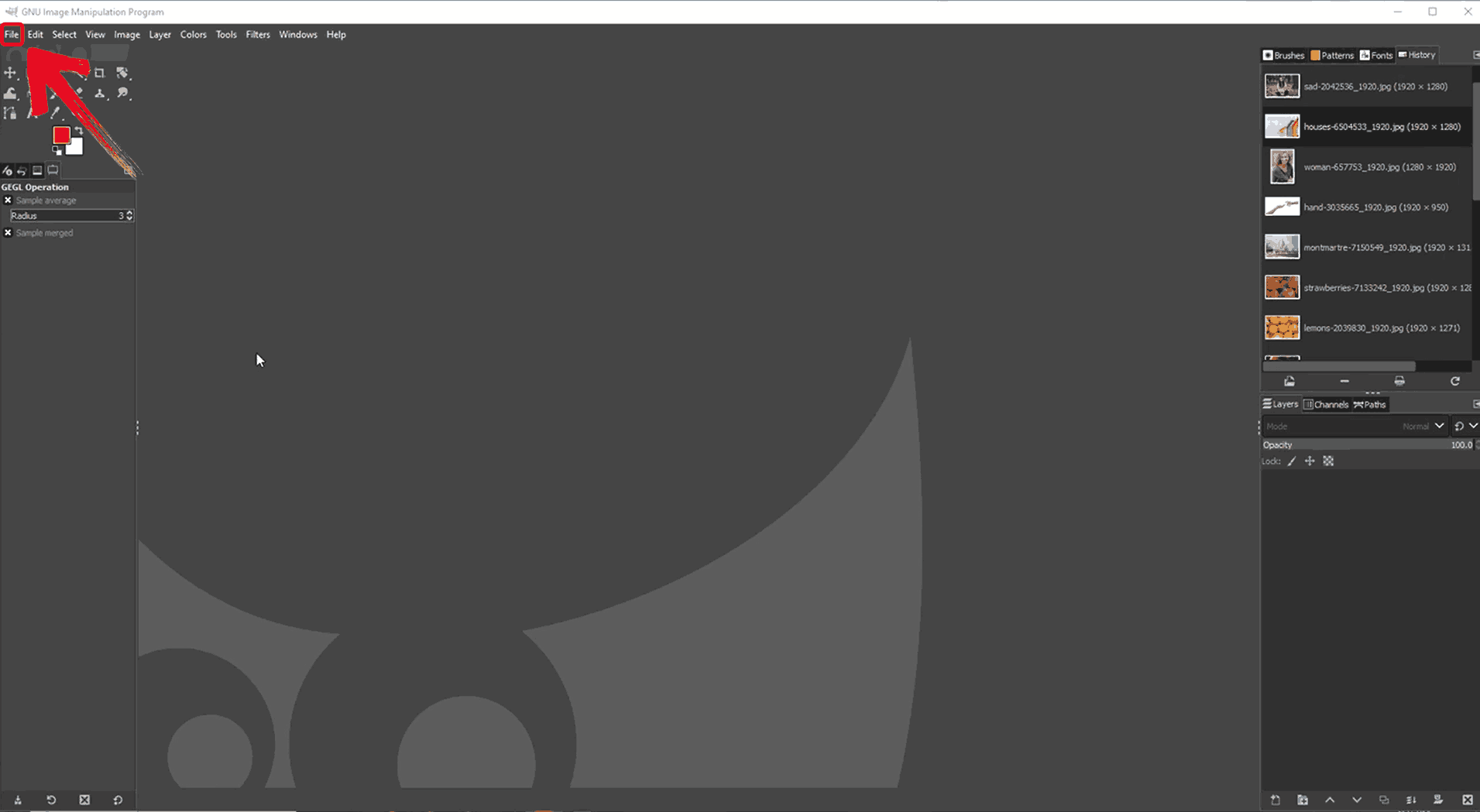
Step 1: Start by launching GIMP on your computer and
click “File” on the top menu to open the dropdown
options.
Select Option
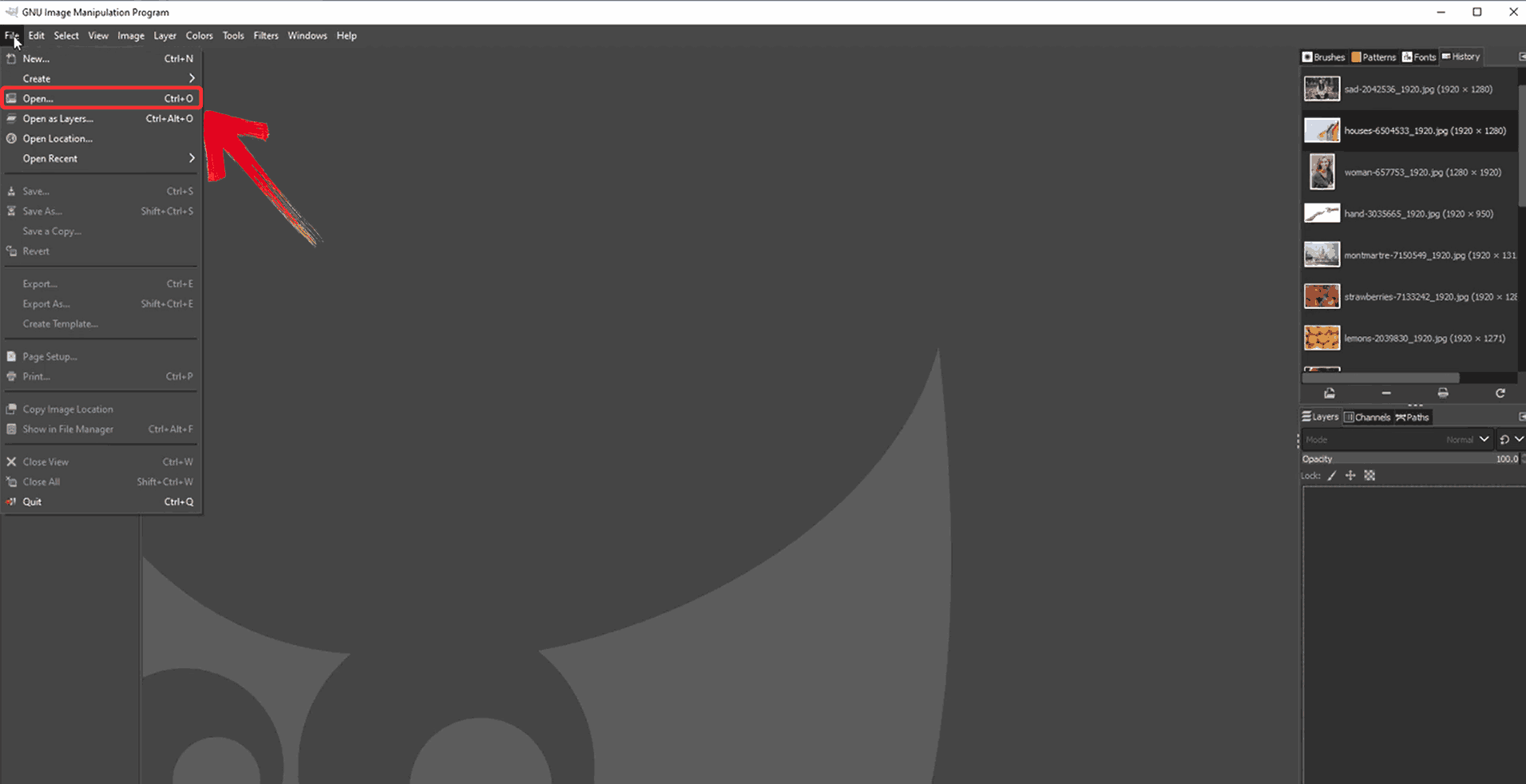
Step 2: From the dropdown, select “Open” which will open a file explorer window.
Select Open
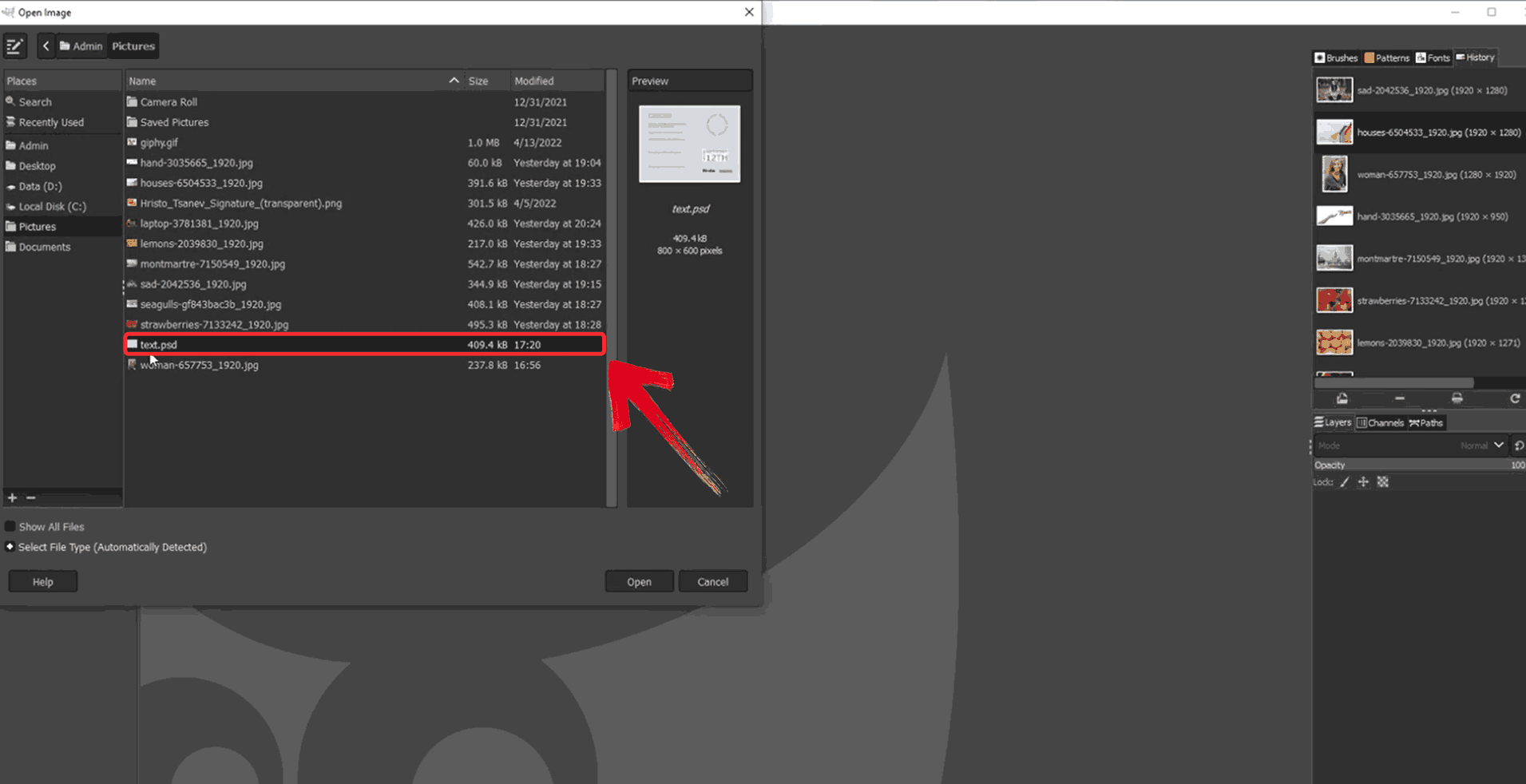
Step 3: In the window that appears, double-click the
PSD file you want to edit.
Double-Click File
Step 4: When your PSD file is done importing, you
can start making changes using the menu on the right.
Adjust Tools
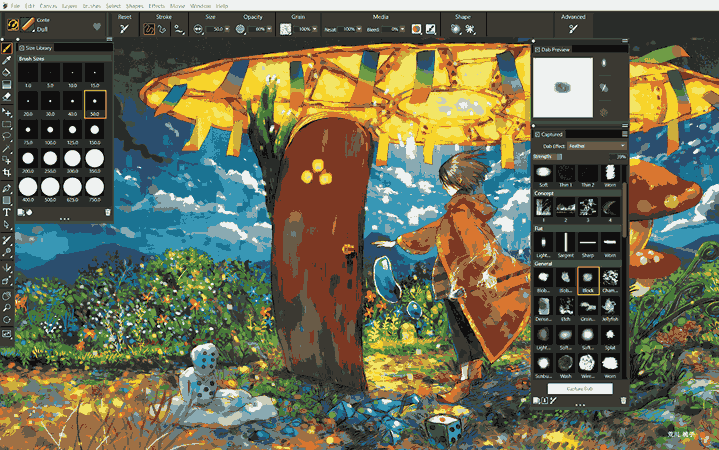
Corel Painter
If your PSD contains artistic or painterly elements, Corel
Painter is built for that kind of creative work and welcomes PSD
files into its environment. According to Corel’s documentation, Painter
preserves layers, layer masks, and alpha channels when you open a
Photoshop file. That makes it a strong option when the PSD isn’t just a
static design but a dynamic, texture-rich artwork. You’ll be able to
open the file, continue working on brush-based effects or stylised
elements, and then save back out, bridging the gap between static design
and expressive artistry.
Core Painter User Interface
Features:
Corel Painter allows you to open Photoshop files in RGB, CMYK or grayscale modes, while preserving pixel‑based layers, mask channels and many details.
The software is optimized for brush‑based, painterly workflows but still supports import of PSD files into its environment.
Painter supports layer masks and alpha channels from PSD files, enabling you to continue working on images that include transparency or complex layer structures.
Pros:
Designed with artists in mind: strong support for brush‑based, painterly workflows.
Excellent at mimicking traditional media which adds value
Cons:
Less suited for pure photo‑editing or commercial layout work compared to other editors.
Some users note quirks with certain brushes or compatibility issues in workflows.
Corel Painter is particularly strong when working with artistic PSDs,
and opening a file is just the first step. Here’s how to bring your PSD
into Painter and start exploring its layers and textures.
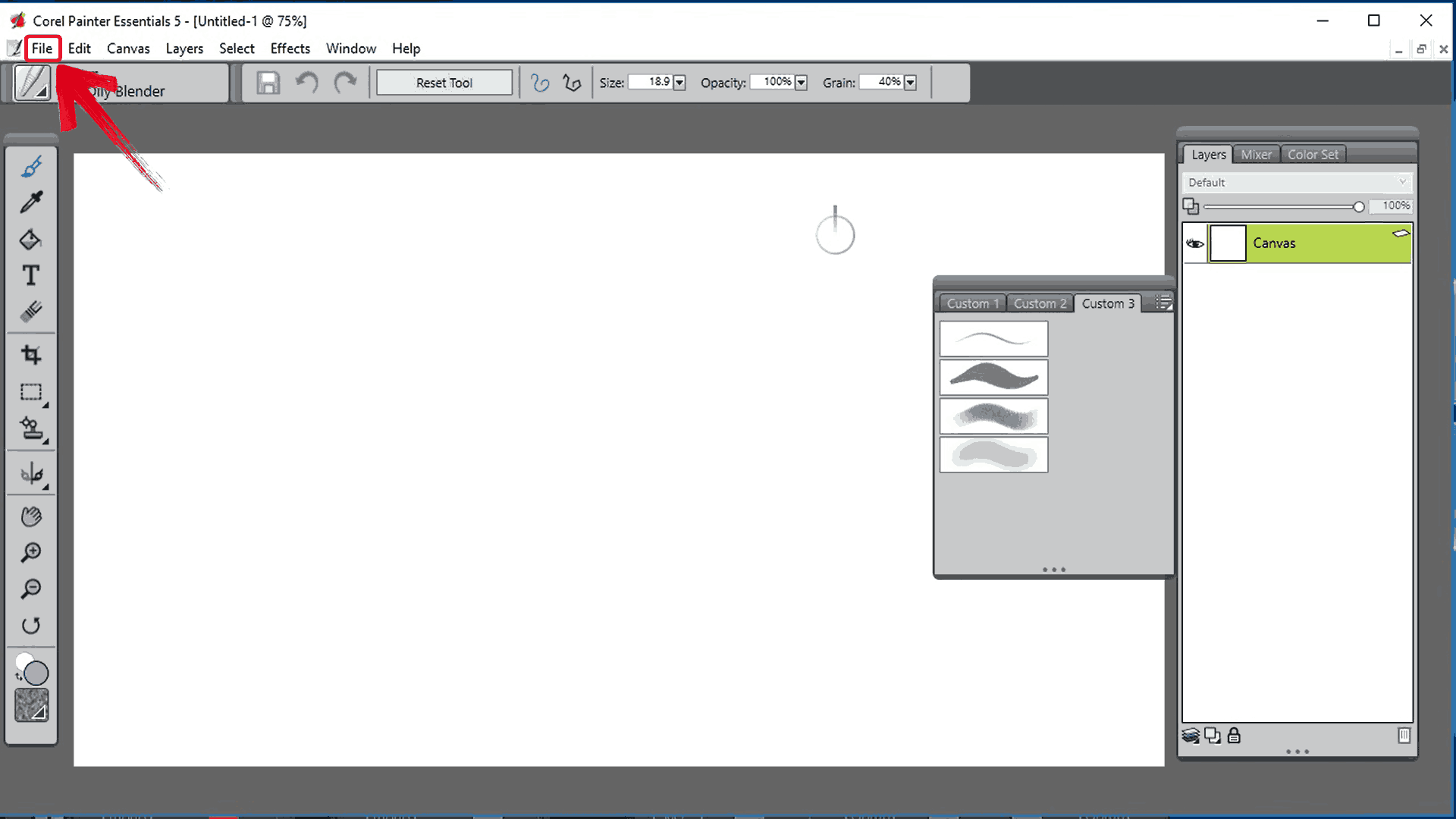
Step 1: Launch Corel Painter on your computer and
click “File” in the top-left corner of the screen.
Click File
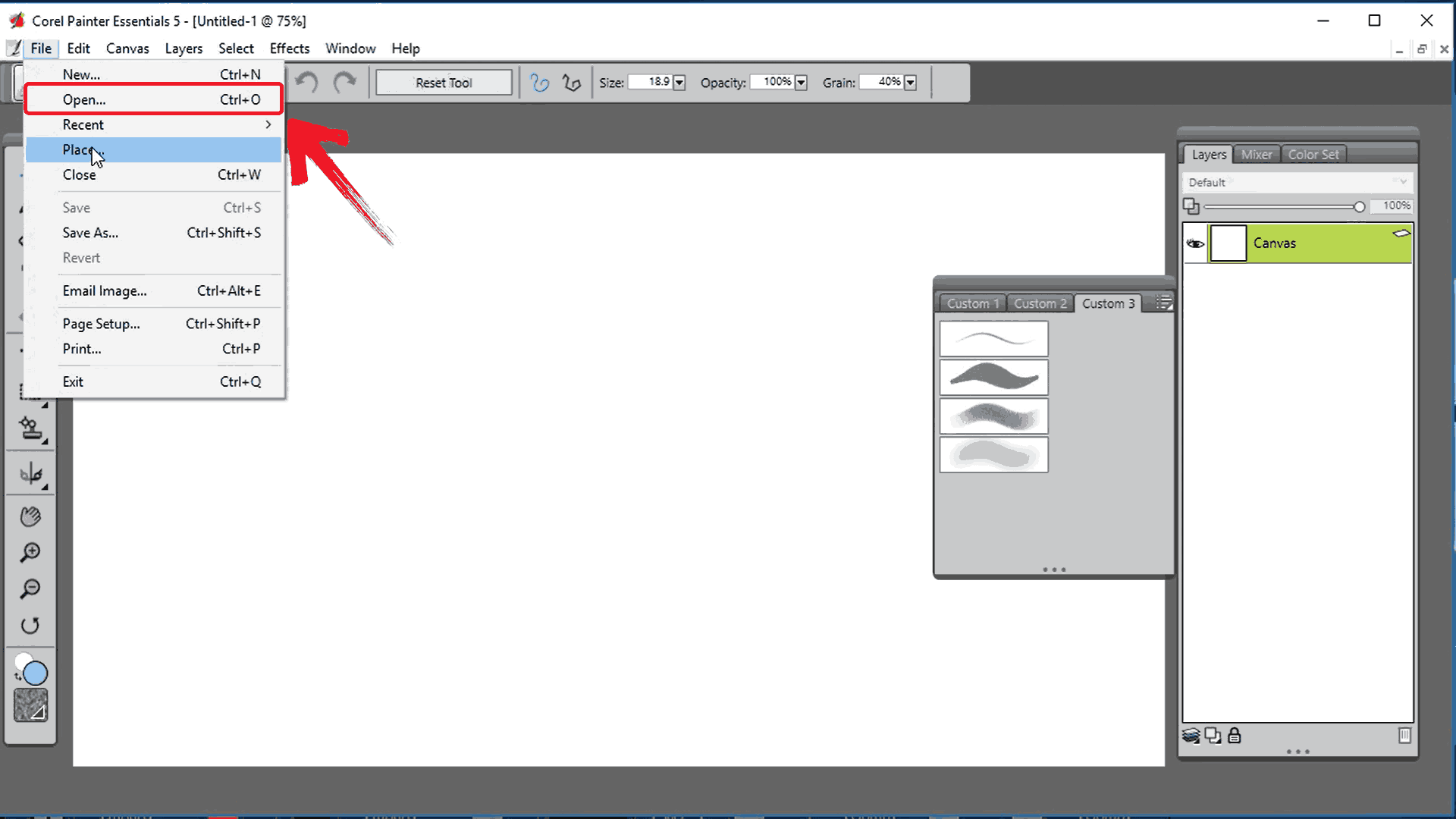
Step 2: From the dropdown menu, select “Open” to bring up the file explorer window.
Open File
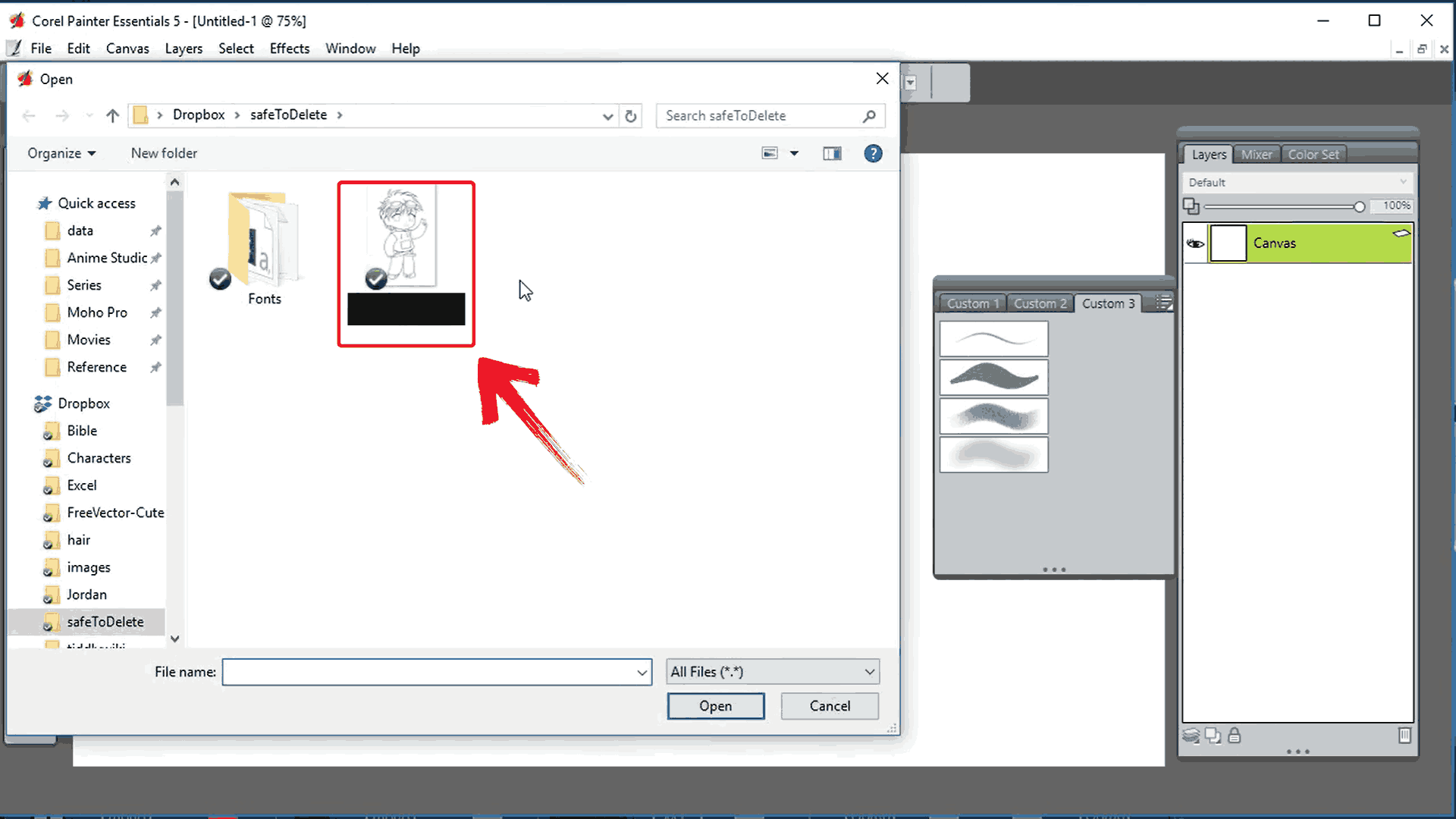
Step 3: In the window that appears, right-click the
PSD file you want to work on.
Double-Click PSD
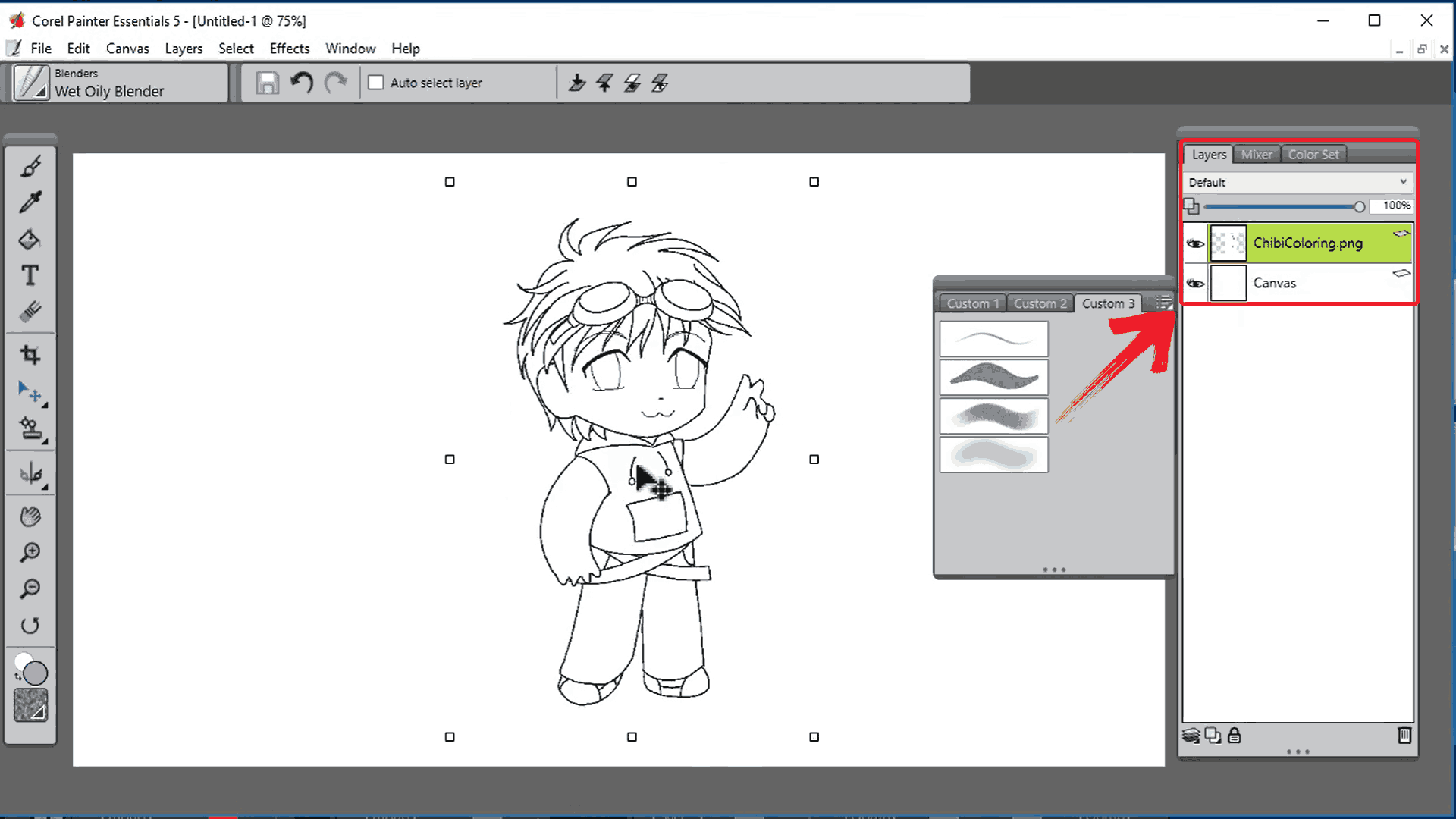
Step 4: Once your PSD file loads, use the Brush
Selector, Layers panel, and Color Wheel on the right side to start
painting, blending, or refining your artwork as needed.
Use Tools
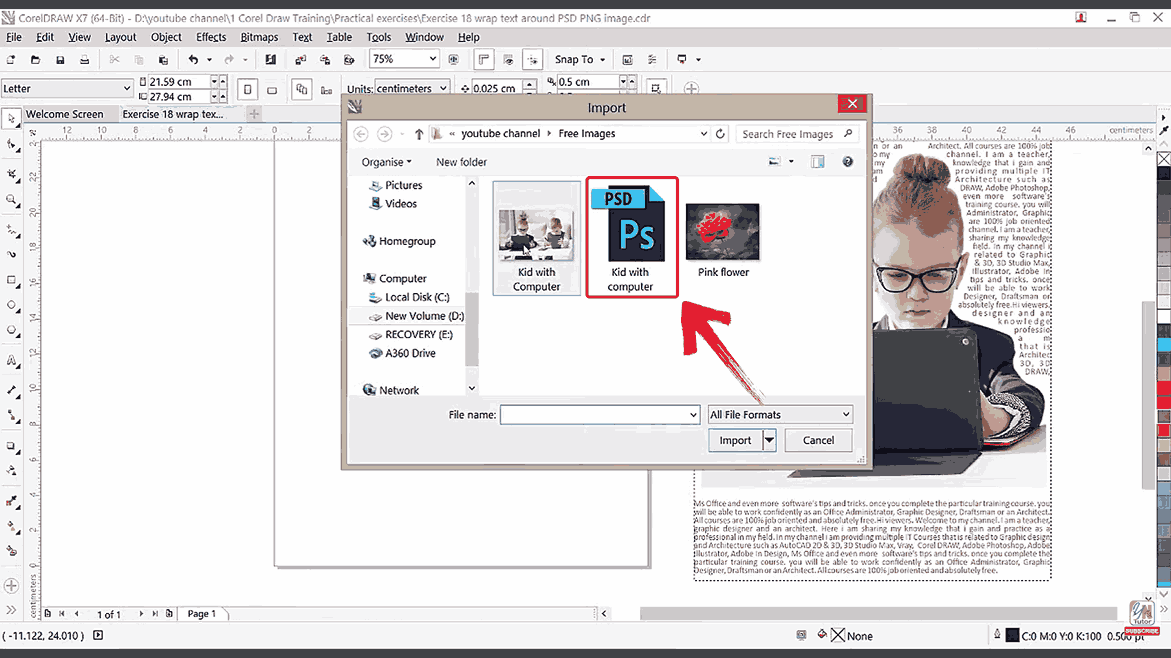
CorelDRAW
When your PSD file is destined for print, layout, or vector/ raster
hybrid work, CorelDRAW offers a unique entry point. The software supports importing PSD files
via its File workflow. Once imported, you can position the image,
combine it with vectors or text, and integrate it into a broader
publication or layout project. Because this tool sits at the
intersection of raster and vector design, it’s useful when your PSD
functions as one component within a larger design ecosystem such as
brochures, banners, or multi-page print layouts.
CorelDRAW Logo
Features:
It supports the import of PSD files, and will recognize transparent backgrounds and layered content when bringing in a Photoshop file.
The application treats PSD files as part of a mixed workflow so you can bring a layered Photoshop document into a broader design such as a layout or mixed‑media project.
It offers compatibility for Photoshop’s native format among many supported formats, meaning you can integrate PSD files without losing core image data.
Pros:
Strong for mixed raster and vector work.
Has a user‑friendly interface and wide support for many file types.
Cons:
Some users find it slower or less responsive when handling large layered PSDs.
It may lack some advanced raster‑editing features compared to Photoshop.
CorelDRAW can integrate PSD files into larger vector or layout
projects seamlessly. Let’s go through the process of opening a PSD so
you can start using it in your designs right away.
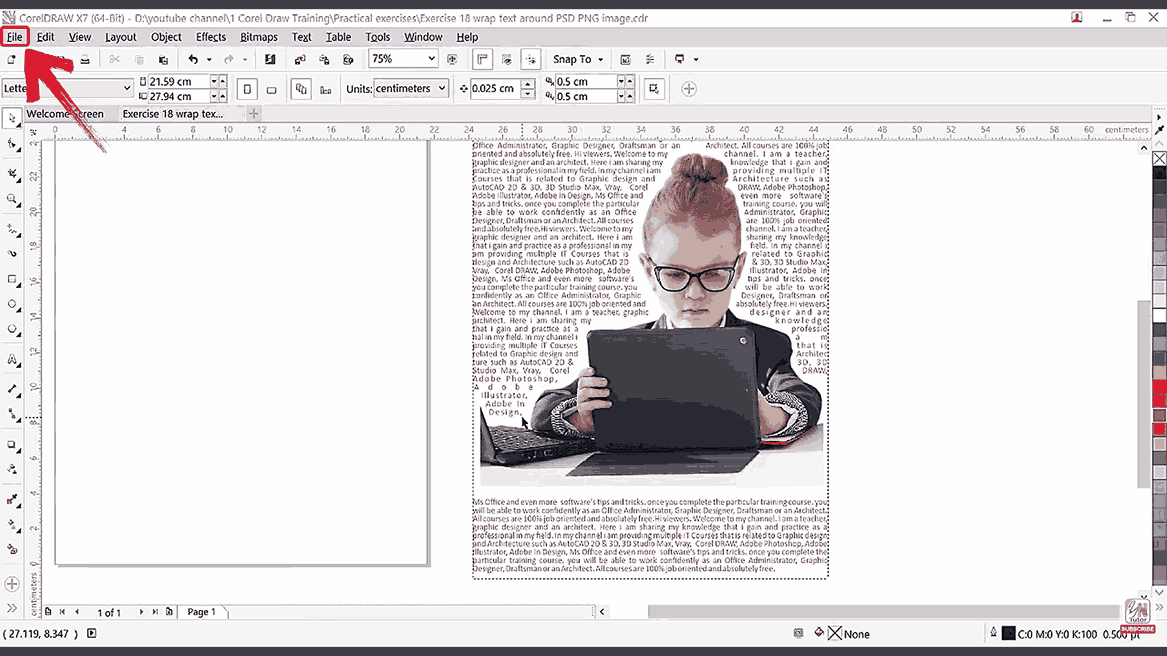
Step 1: Launch CorelDRAW on your computer and click “File” from the top-left corner of the screen to open
the dropdown menu.
Open File Menu
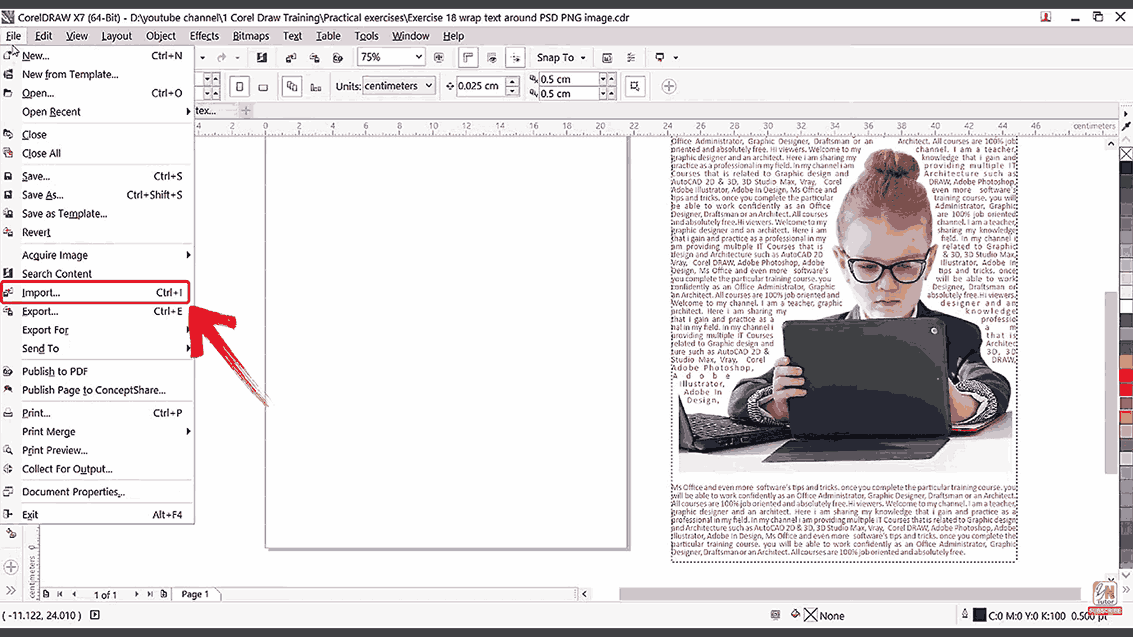
Step 2: From the dropdown, select “Open” to bring up the file explorer window.
Open File Window
Step 3: In the window that appears, select the PSD
file you want to work on to import it.
Select PSD File
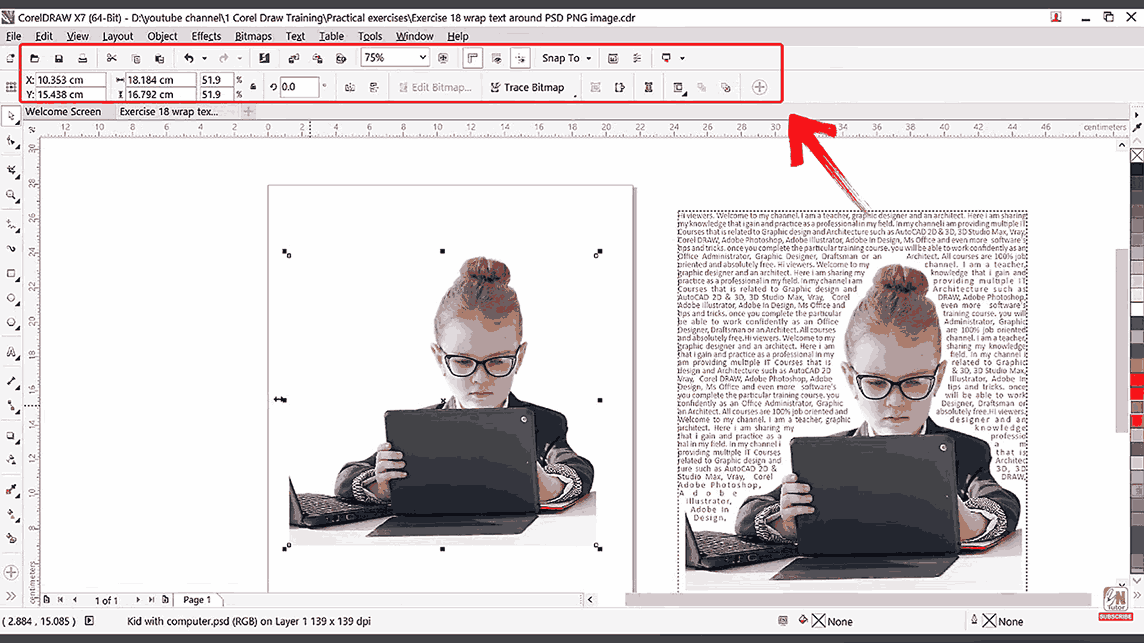
Step 4: Once your PSD file imports into the
workspace, you can begin editing using tools from the top menu.
Edit Using Toolbox
Quick
Comparison Table of the 5 PSD File Editors
The differences aren’t always obvious at first glance. Some editors,
like Photoshop and Corel Painter, preserve nearly every detail of a
complex PSD, while others, like IrfanView, are better for quick previews or conversions. To help you quickly identify which tool suits your
needs, whether it’s detailed editing, fast viewing, or integrating PSDs
into other projects, I’ve compiled a comparison table that highlights
the most important factors for anyone working with PSD files today.
Editor
Free/Paid
Layer Support
Best For
My Experience
Adobe Photoshop
Paid (Trial)
Full
Professional Designers
The most precise and reliable with no
quality loss, but costly.
IrfanView
Free
No
Quick Viewing
Lightweight, fast, perfect for checking
designs quickly.
GIMP
Free
Partial
Beginners & Hobbyists
Solid free choice; slight formatting
issues on complex PSDs.
Corel Painter
Paid (Trial)
Yes
Digital Artists
Fantastic for brushwork; less suited for
text-based edits.
CorelDRAW
Paid (Trial)
Yes
Marketing & Print
Great all-rounder for mixed vector and
raster projects.
Even after opening a PSD file and accessing all its layers, the work
isn’t always finished. Many images need refinement, enhancement,
or a bit of creative changes to reach their full potential.
Effortlessly
Enhance Your PSD Files with WPS Photo
Once you’ve opened a PSD file and exported the layers or images you
need, the next step is often refining or enhancing them for final use.
Even with full access to layers, tasks like background removal, color
correction, or detail enhancement can be time-consuming in traditional
editors. WPS
Photo offers a simple approach for these tasks, providing
AI-powered tools that let you clean up, adjust, and refine images
efficiently. It’s designed to complement your work by handling
repetitive or technical edits quickly, so you can focus on the creative
decisions that matter most.
WPS Photo
Features:
AI-Powered Precision: WPS Photo uses advanced AI to automatically detect and remove backgrounds with incredible accuracy.
Zero Learning Curve: The interface is designed for everyday users, not graphic designers. There are no complex panels, anchor points, or path settings to learn.
Beginner-Friendly Interface: The platform is intuitive and easy to navigate, making professional-level editing accessible to everyone, regardless of experience.
Speed and Efficiency: It turns what could be a 30-minute manual tracing job into a 30-second, one-click process.
With these features in mind, using WPS Photo to refine your PSD
images becomes a straightforward process. The tools are designed to
guide you through each task quickly and intuitively, so you can move
from opening an exported PSD to achieving a polished final image without
unnecessary complexity.
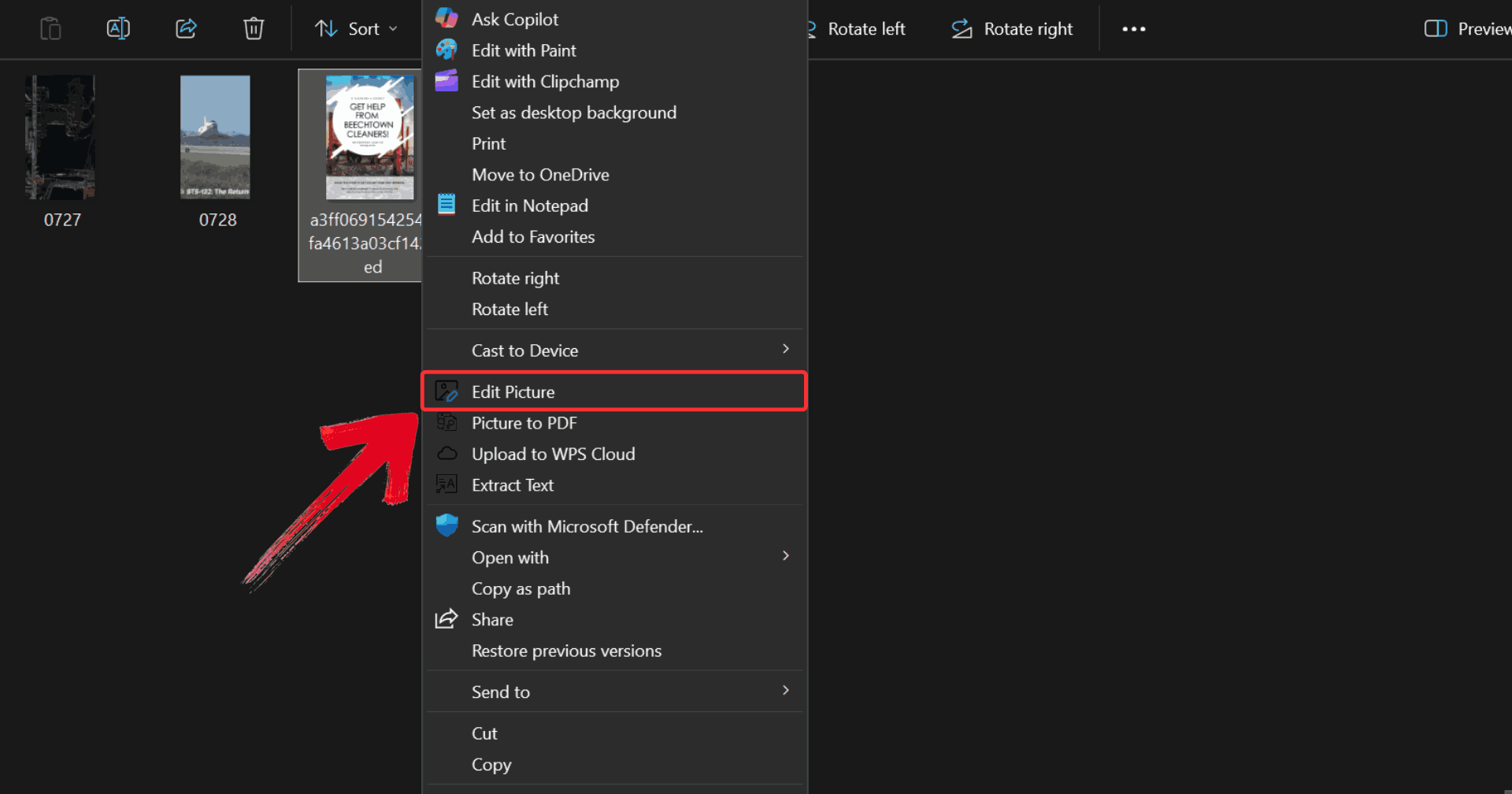
Step 1: Right-click on the exported image file, then
select “Edit Photo” to open it in WPS Photo Editor.
Click Edit Picture
Note: Before you begin, make sure you’ve exported
your PSD file as a JPG or PNG to ensure compatibility with WPS
Photo.
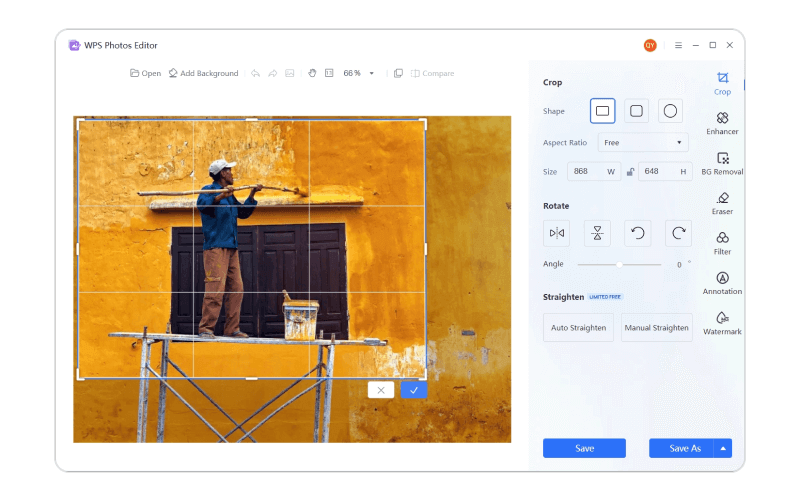
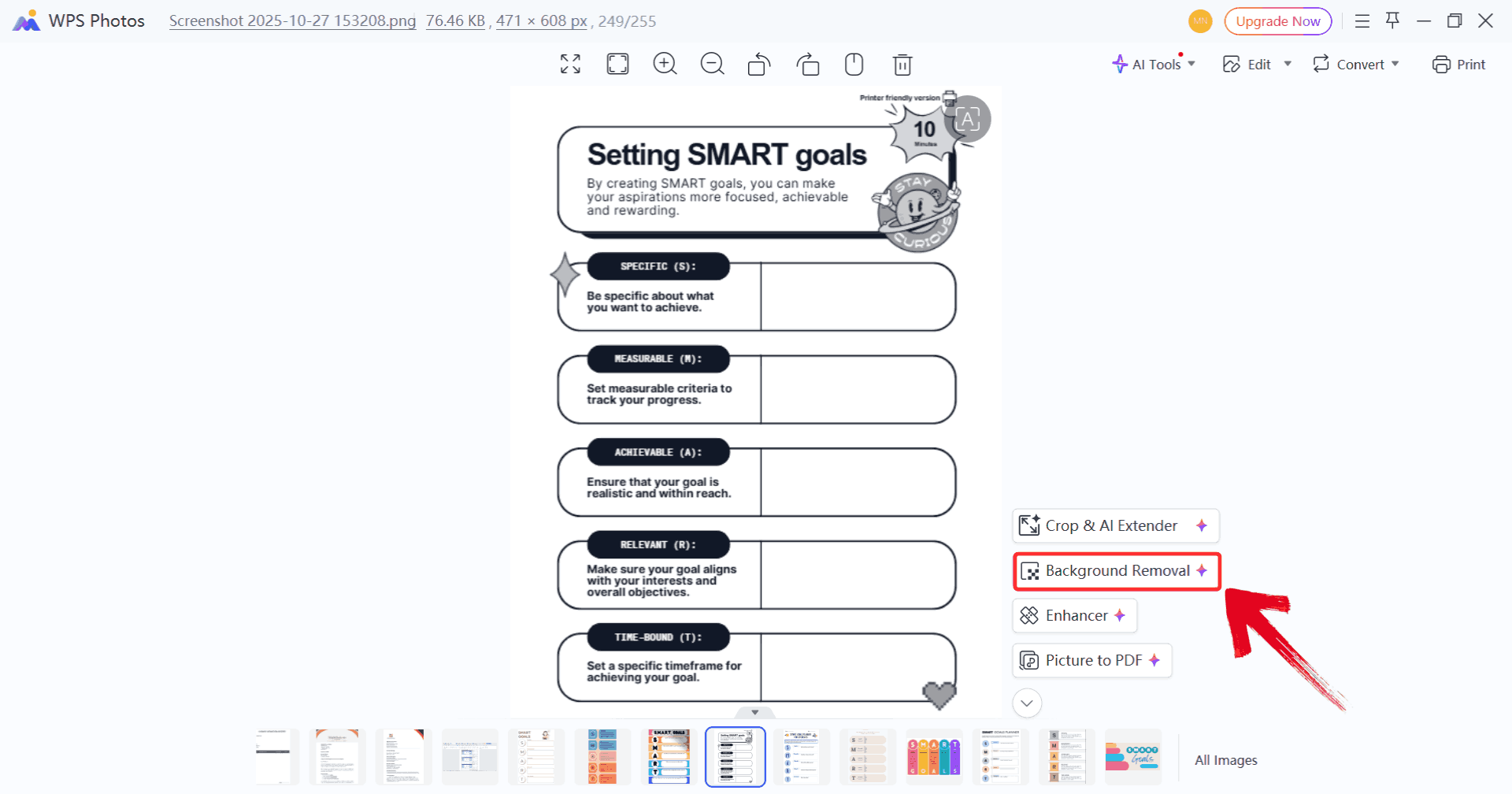
Step 2: Use tools like “Background
Removal” to fine-tune your image which is perfect for refining
layers or enhancing colors after export.
Select Background Removal
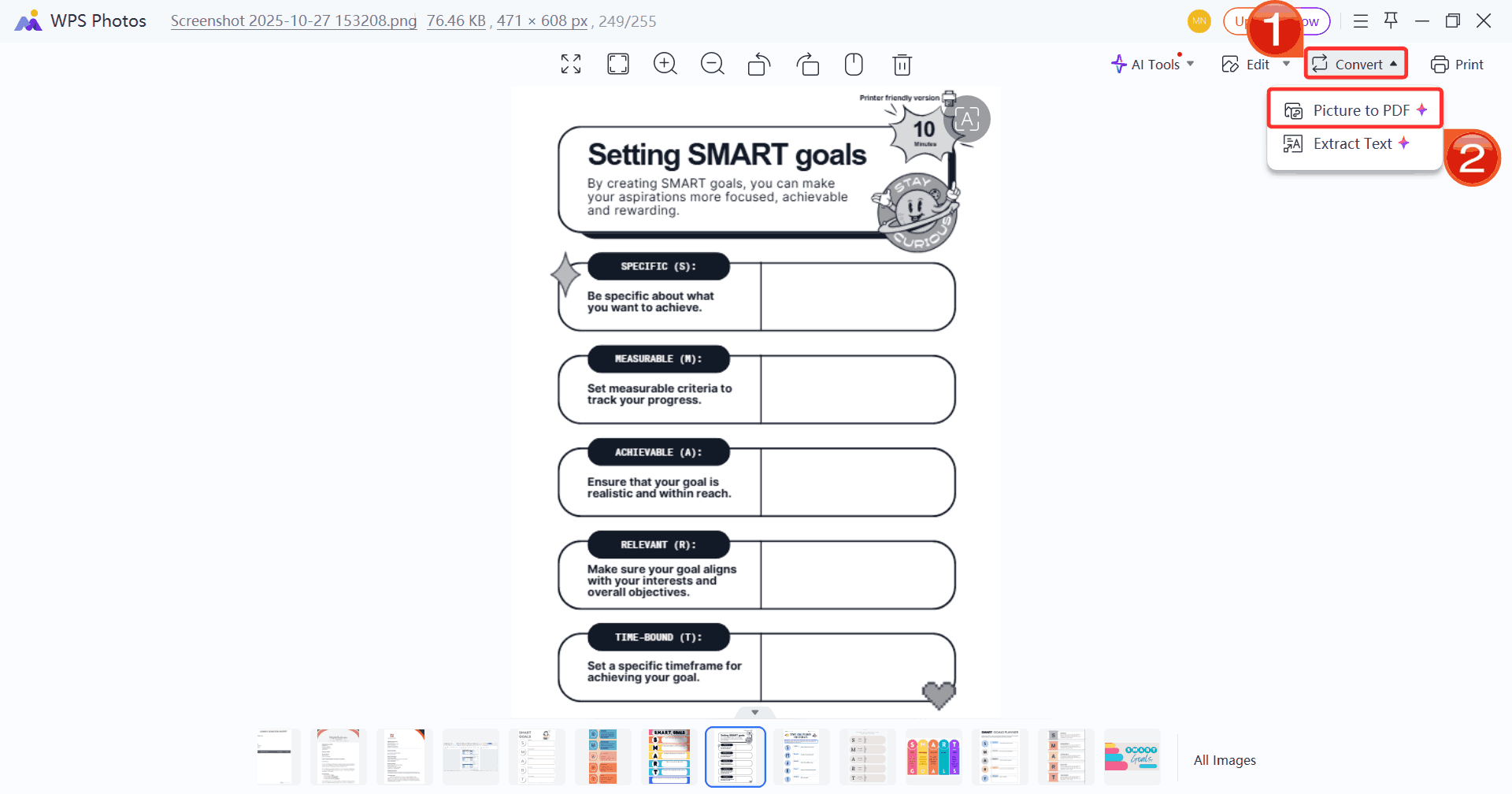
Step 3: Once you’re done editing, click “Convert”, then choose “Print to PDF” to save and share your edited design.
Print Photo
100% secure
FAQs
1.
How can I just quickly view a PSD file without editing it?
You can use IrfanView or the built-in Preview app on macOS. Both
display a flattened version of your PSD.
2. How do I convert a
PSD file to JPG or PNG?
Open the file in GIMP, IrfanView, or Photoshop. Then go to File and
Export As and choose the desired format.
3. How to open PSD files on
my phone?
You can use Photopea.com, a free browser-based Photoshop alternative
that works even on mobile.
4. Why does my
PSD look different in non-Adobe apps?
Some editors may not fully support Photoshop’s proprietary layer
effects or blending modes, resulting in minor differences.
Unlocking PSD Freedom with WPS
For anyone learning how to open PSD files in 2025, they don’t have to worry anymore as you don’t need to have an expensive Photoshop license. From lightweight viewers like IrfanView to full-featured editors like GIMP and CorelDRAW, there’s a tool for every need. Each program has its pros and cons. For example, Photoshop leads in precision, while GIMP and Painter cater to creativity and budget-friendliness. Once you’ve opened or edited your PSD, enhance your final images effortlessly with WPS Photo. Its AI-powered tools bring professional-grade quality to your visuals in seconds, making it the perfect finishing touch to your designs. With these tools, you’ll never feel locked out of a PSD file again.
7+ years in productivity tech. I test and review the latest tools to simplify your workflow. Follow for honest app comparisons, practical guides, and curated tech picks to boost efficiency.


'%3e%3cpath%20d='M8%200C12.4183%200%2016%203.58172%2016%208C16%2012.4183%2012.4183%2016%208%2016C3.58172%2016%200%2012.4183%200%208C0%203.58172%203.58172%200%208%200ZM11.6162%204.38379C11.2257%203.99337%2010.5927%203.99338%2010.2021%204.38379L8%206.58594L5.79785%204.38379C5.40732%203.99334%204.77429%203.99329%204.38379%204.38379C3.99331%204.77429%203.99335%205.40733%204.38379%205.79785L6.58594%208L4.38379%2010.2021C3.99348%2010.5927%203.99341%2011.2257%204.38379%2011.6162C4.77426%2012.0066%205.40734%2012.0065%205.79785%2011.6162L8%209.41406L10.2021%2011.6162C10.5927%2012.0066%2011.2257%2012.0067%2011.6162%2011.6162C12.0067%2011.2257%2012.0066%2010.5927%2011.6162%2010.2021L9.41406%208L11.6162%205.79785C12.0066%205.40735%2012.0066%204.77429%2011.6162%204.38379Z'%20fill='%23080E17'%20fill-opacity='0.46'/%3e%3c/g%3e%3cdefs%3e%3cclipPath%20id='clip0_3761_713'%3e%3crect%20width='16'%20height='16'%20fill='white'/%3e%3c/clipPath%3e%3c/defs%3e%3c/svg%3e)



'%3e%3cpath%20fill-rule='evenodd'%20clip-rule='evenodd'%20d='M21.4999%2010.9993C21.4999%205.20009%2016.7986%200.498901%2010.9993%200.498901C5.19994%200.498901%200.498657%205.20009%200.498657%2010.9993C0.498657%2016.2404%204.33858%2020.5844%209.35855%2021.3722V14.0346H6.69238V10.9993H9.35855V8.68594C9.35855%206.05427%2010.9262%204.60062%2013.3248%204.60062C14.4736%204.60062%2015.6753%204.80571%2015.6753%204.80571V7.38979H14.3512C13.0468%207.38979%2012.64%208.19921%2012.64%209.0296V10.9993H15.5523L15.0867%2014.0346H12.64V21.3722C17.66%2020.5844%2021.4999%2016.2404%2021.4999%2010.9993Z'%20fill='%231568EA'/%3e%3c/g%3e%3c/svg%3e)


'%3e%3cpath%20d='M2.42045%2022.1876H6.31818V12.7217L0.75%208.54553V20.5171C0.75%2021.4414%201.49892%2022.1876%202.42045%2022.1876Z'%20fill='%234285F4'/%3e%3cpath%20d='M19.682%2022.1876H23.5797C24.5041%2022.1876%2025.2502%2021.4387%2025.2502%2020.5171V8.54553L19.682%2012.7217'%20fill='%2334A853'/%3e%3cpath%20d='M19.682%205.48293V12.7216L25.2502%208.54543V6.31816C25.2502%204.25236%2022.8921%203.07469%2021.2411%204.31361'%20fill='%23FBBC04'/%3e%3cpath%20d='M6.31824%2012.7217V5.48303L13.0001%2010.4944L19.6819%205.48303V12.7217L13.0001%2017.733'%20fill='%23EA4335'/%3e%3cpath%20d='M0.75%206.31816V8.54543L6.31818%2012.7216V5.48293L4.75909%204.31361C3.10534%203.07469%200.75%204.25236%200.75%206.31816Z'%20fill='%23C5221F'/%3e%3c/g%3e%3cdefs%3e%3cclipPath%20id='clip0_2954_7305'%3e%3crect%20width='24.5'%20height='18.375'%20fill='white'%20transform='translate(0.75%203.8125)'/%3e%3c/clipPath%3e%3c/defs%3e%3c/svg%3e)





'%3e%3cpath%20d='M19.9911%204.11386V6.471H18.5894C18.0775%206.471%2017.7322%206.57814%2017.5536%206.79243C17.3751%207.00671%2017.2858%207.32814%2017.2858%207.75671V9.44421H19.9019L19.5536%2012.0871H17.2858V18.8639H14.5536V12.0871H12.2769V9.44421H14.5536V7.49779C14.5536%206.39064%2014.8632%205.53201%2015.4822%204.92189C16.1013%204.31177%2016.9257%204.00671%2017.9554%204.00671C18.8304%204.00671%2019.509%204.04243%2019.9911%204.11386Z'%20fill='%23333333'/%3e%3c/g%3e%3cdefs%3e%3cclipPath%20id='clip0_2938_8199'%3e%3crect%20width='16'%20height='16'%20fill='white'%20transform='translate(8%204.00671)'/%3e%3c/clipPath%3e%3c/defs%3e%3c/svg%3e)
'%3e%3cpath%20d='M17.5237%2010.7813L23.4811%204H22.0699L16.8949%209.88693L12.7648%204H8L14.2469%2012.9029L8%2020.0133H9.4112L14.8725%2013.7952L19.2352%2020.0133H24M9.92053%205.04213H12.0885L22.0688%2019.0224H19.9003'%20fill='%23333333'/%3e%3c/g%3e%3cdefs%3e%3cclipPath%20id='clip0_2938_8200'%3e%3crect%20width='16'%20height='16.0134'%20fill='white'%20transform='translate(8%204)'/%3e%3c/clipPath%3e%3c/defs%3e%3c/svg%3e)


