



'%3e%3cpath%20fill-rule='evenodd'%20clip-rule='evenodd'%20d='M21.4999%2010.9993C21.4999%205.20009%2016.7986%200.498901%2010.9993%200.498901C5.19994%200.498901%200.498657%205.20009%200.498657%2010.9993C0.498657%2016.2404%204.33858%2020.5844%209.35855%2021.3722V14.0346H6.69238V10.9993H9.35855V8.68594C9.35855%206.05427%2010.9262%204.60062%2013.3248%204.60062C14.4736%204.60062%2015.6753%204.80571%2015.6753%204.80571V7.38979H14.3512C13.0468%207.38979%2012.64%208.19921%2012.64%209.0296V10.9993H15.5523L15.0867%2014.0346H12.64V21.3722C17.66%2020.5844%2021.4999%2016.2404%2021.4999%2010.9993Z'%20fill='%231568EA'/%3e%3c/g%3e%3c/svg%3e)


'%3e%3cpath%20d='M2.42045%2022.1876H6.31818V12.7217L0.75%208.54553V20.5171C0.75%2021.4414%201.49892%2022.1876%202.42045%2022.1876Z'%20fill='%234285F4'/%3e%3cpath%20d='M19.682%2022.1876H23.5797C24.5041%2022.1876%2025.2502%2021.4387%2025.2502%2020.5171V8.54553L19.682%2012.7217'%20fill='%2334A853'/%3e%3cpath%20d='M19.682%205.48293V12.7216L25.2502%208.54543V6.31816C25.2502%204.25236%2022.8921%203.07469%2021.2411%204.31361'%20fill='%23FBBC04'/%3e%3cpath%20d='M6.31824%2012.7217V5.48303L13.0001%2010.4944L19.6819%205.48303V12.7217L13.0001%2017.733'%20fill='%23EA4335'/%3e%3cpath%20d='M0.75%206.31816V8.54543L6.31818%2012.7216V5.48293L4.75909%204.31361C3.10534%203.07469%200.75%204.25236%200.75%206.31816Z'%20fill='%23C5221F'/%3e%3c/g%3e%3cdefs%3e%3cclipPath%20id='clip0_2954_7305'%3e%3crect%20width='24.5'%20height='18.375'%20fill='white'%20transform='translate(0.75%203.8125)'/%3e%3c/clipPath%3e%3c/defs%3e%3c/svg%3e)


You merged your resume, cover letter, and portfolio into one PDF—then the upload failed. "File size must be under 500KB." Your combined file is 2MB. Sound familiar?
Whether you are applying through Workday or Greenhouse, submitting a Common App packet to a university portal, uploading documents to USCIS or the UK Home Office, or attaching files in Outlook or Gmail, strict size limits turn a simple pdf merge 500kb task into a real headache. The good news: you do not need to sacrifice pages or upload sensitive files to a random website. WPS Office lets you merge PDF files and compress them locally on your desktop.
Popular PDF Compression Tools: Smallpdf vs Adobe Acrobat Pro
PDF compression tools on the market each serve different users. The two most representative options are Smallpdf and Adobe Acrobat Pro—and they sit at opposite ends of the spectrum.
Smallpdf is the go-to for quick, occasional use. It runs in your browser with no installation—just drag, drop, and compress. The free tier offers two compressions per day with a 10MB file cap, enough for a resume or invoice now and then. Files upload to servers in Switzerland and are automatically deleted after one hour. For light, one-off jobs, Smallpdf is hard to beat. But if you compress PDFs several times a week, the daily limit and size cap quickly become frustrating—and stronger compression modes sit behind a $15/month Pro subscription.
How to merge and compress with Smallpdf:
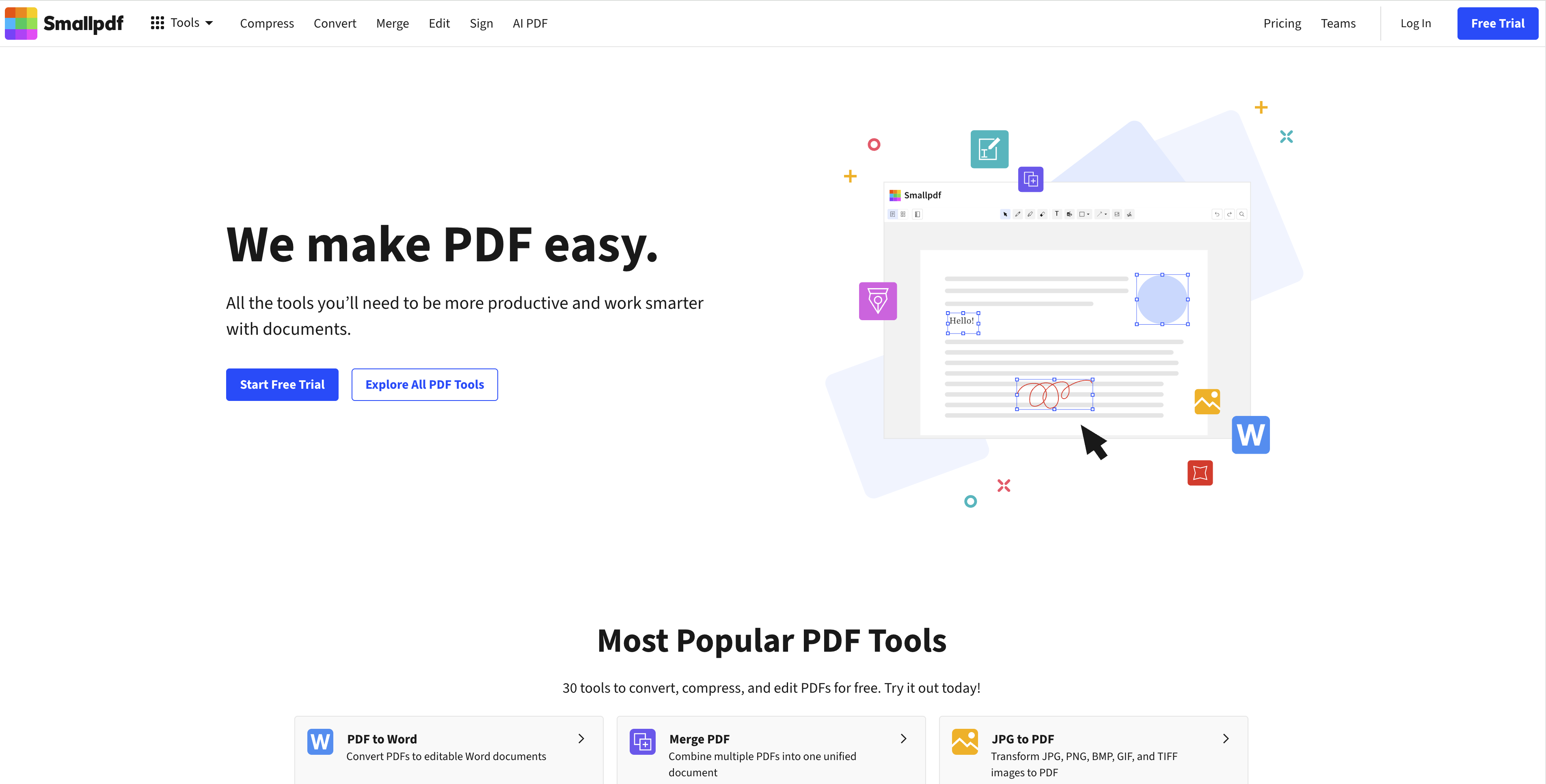
Go to smallpdf.com and open Merge PDF.
Drag your PDFs into the browser window (or click to upload) and arrange them in the correct order.
Click Merge, then Download the combined file.
Return to the Smallpdf homepage and open Compress PDF.
Upload the merged file, choose a compression level (Basic on free tier; Strong requires Pro), and click Compress.
Download the result and check the file size before uploading to your portal.
Adobe Acrobat Pro stands at the other extreme: the gold standard for professional PDF work. Its Optimize PDF tool gives you precise control over every aspect of a file—you can downsample images to a specific DPI, embed only the font characters actually used in the document, and strip hidden layers and metadata. That level of control makes it one of the best tools for hitting an exact target size, such as pdf merge 500kb or pdf merge 200kb. Acrobat Pro handles files up to 2GB and runs offline on Windows and Mac. The trade-off is price: at $14.99/month, it is reasonable for professionals but hard to justify for everyday users.
How to merge and compress with Adobe Acrobat Pro:
Open Adobe Acrobat Pro and go to Tools > Combine Files.
Click Add Files, select every PDF in the correct order, then click Combine.
Save the merged file (File > Save As).
With the merged PDF open, go to Tools > Optimize PDF.
Click Advanced Optimization, then adjust settings: set image downsampling to your target DPI (e.g., 150 DPI for 500KB, 72 DPI for 200KB), enable font subsetting, and discard hidden layers and metadata.
Click OK, then Audit space usage to preview savings before saving the optimized file.
Between these two extremes lies a gap—something powerful enough for daily use, affordable for everyone, cross-platform, and processed locally without uploading sensitive files. That is exactly where WPS Office fits.
WPS Office Two-Step Solution: Merge Then Compress
WPS Office handles the full merge PDF compress workflow in two clear steps—all on your computer, with no server upload and full privacy for sensitive documents like visa forms or employment records.
Step 1 — Merge your PDFs:
Open WPS Office and go to PDF Tools > Merge PDF.
Click Add files and select every PDF you need in the correct order.
Click Merge & Save to create one combined file.
Step 2 — Compress the merged file:
Open the merged PDF in WPS Office.
Go to PDF Tools > Compress PDF.
Choose a compression level and click Compress & Save.
Everything runs locally on your desktop—no uploading to third-party servers. For a quick start on combining files, visit the merge PDF feature page and download WPS Office.
How to Hit 500KB After PDF Merge (Practical Example)
Here is a realistic scenario for hitting a pdf merge 500kb target:
Example: You have three scanned documents—a resume, a cover letter, and a reference letter—each roughly 200–300KB before merge. After merging, the combined file lands around 750KB.
Merge first using WPS Office Merge PDF.
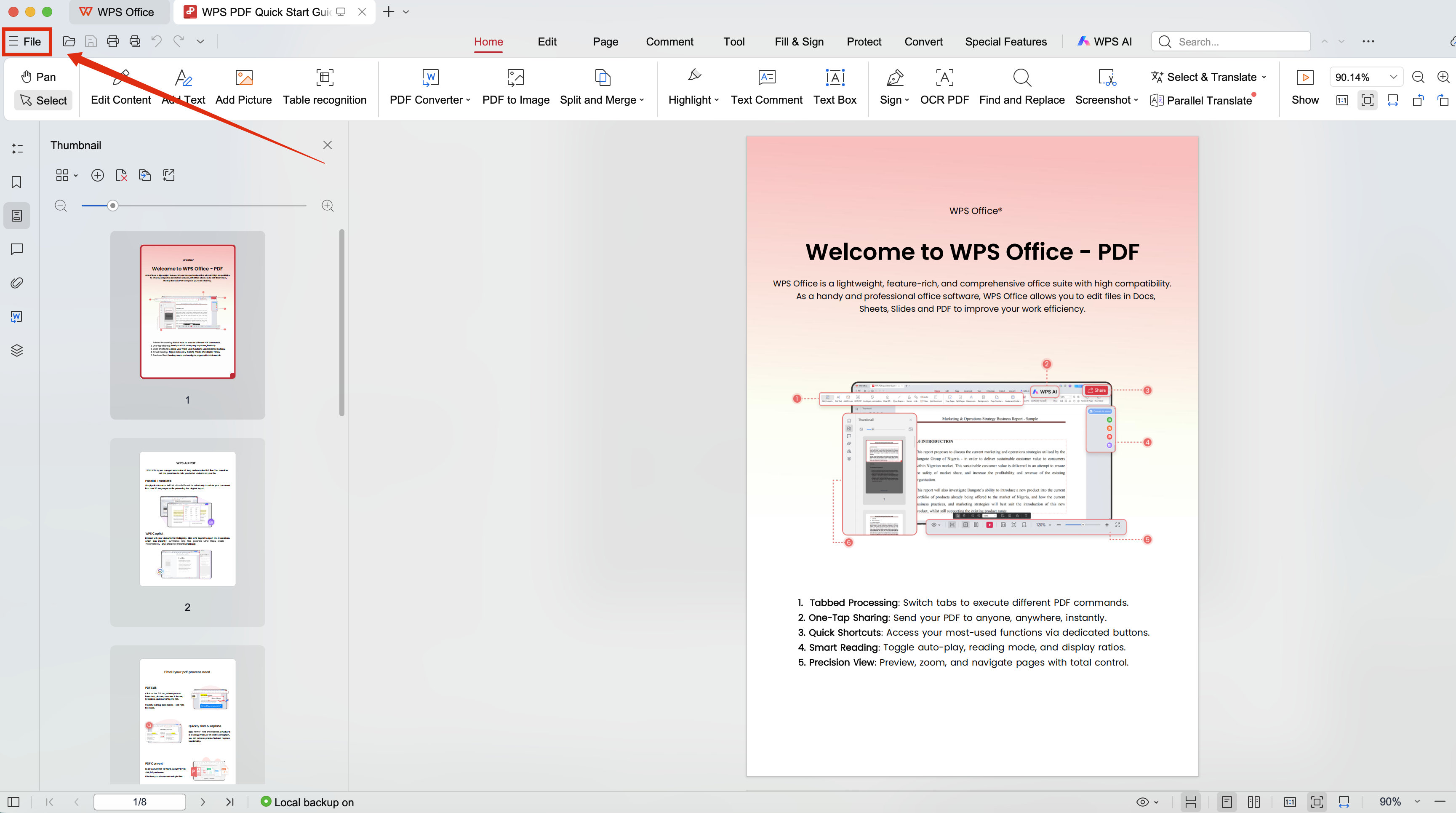
Merge PDF Open the merged file and run Compress PDF at the Standard level.
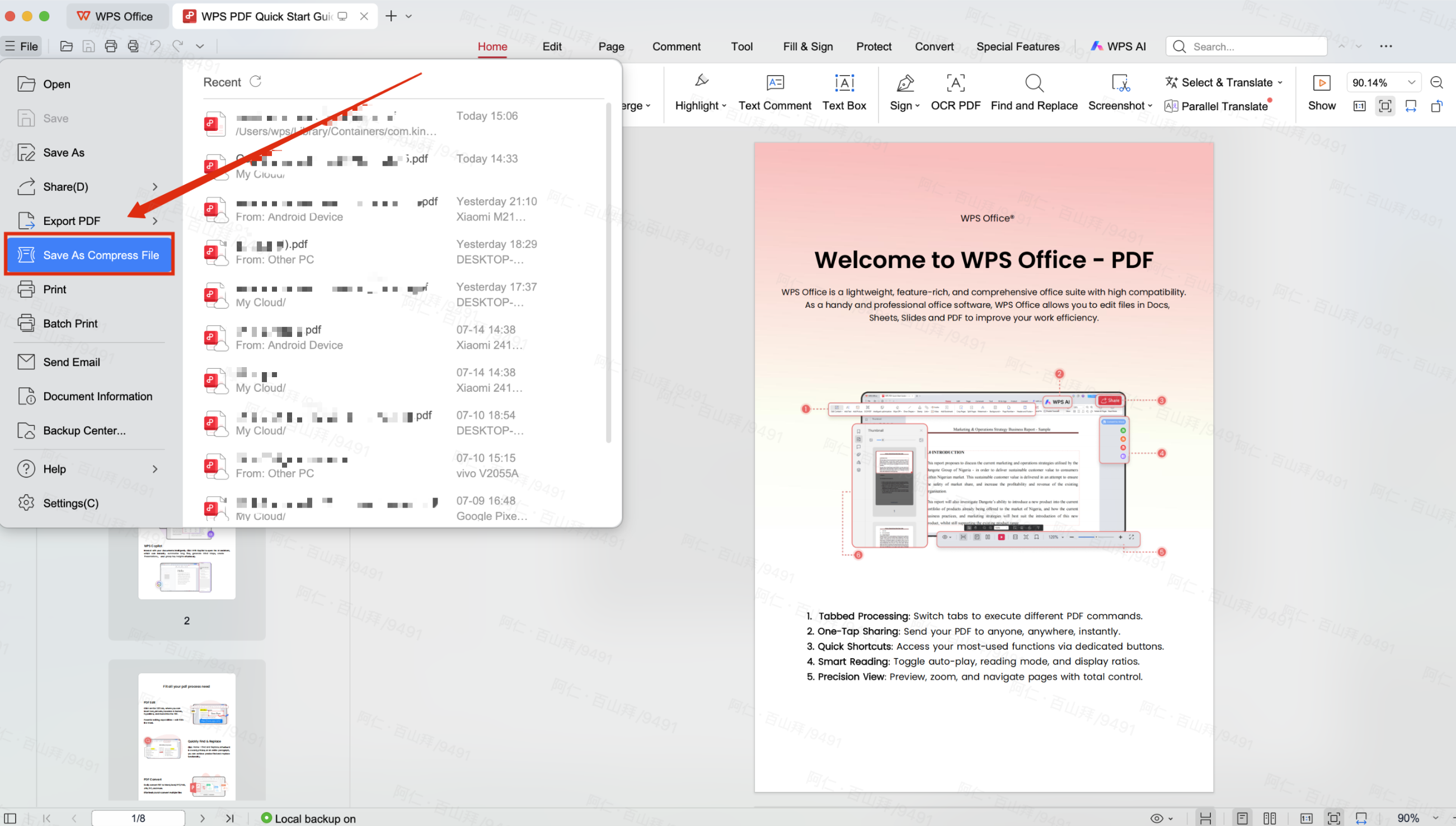
Save As Compress File Check the output file size in your file explorer.
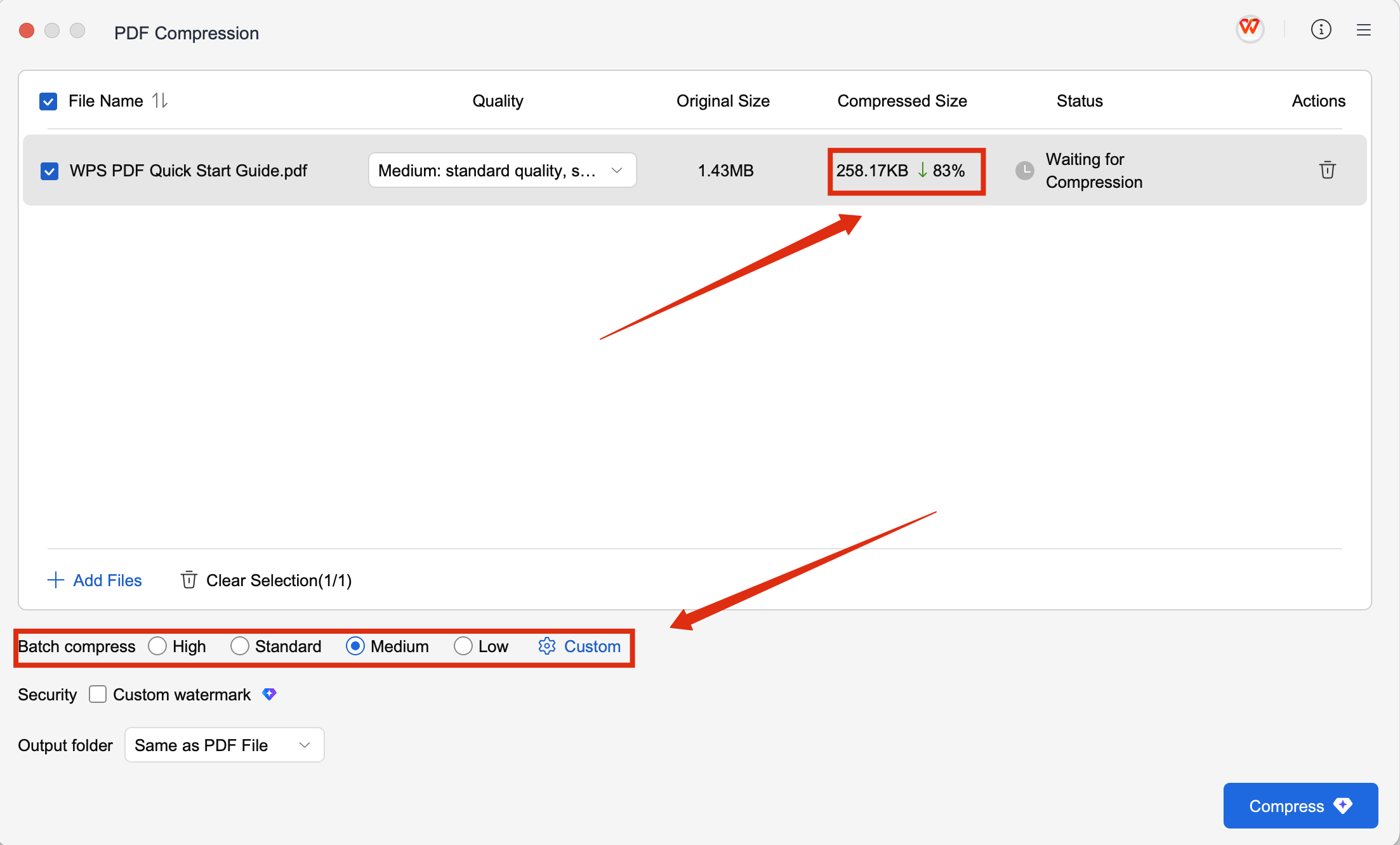
Check the output file size If still over 500KB, re-open and apply High compression.
What to expect: Text-heavy PDFs (typed resumes, forms, transcripts) compress dramatically. Image-heavy files (scanned certificates, portfolio screenshots) need a clarity tradeoff—Standard or High compression usually hits 500KB while keeping text readable.
How to Hit 200KB After PDF Merge (Stricter Limit)
A pdf merge 200kb limit is very tight. A single high-resolution scan can exceed 200KB on its own, so you need a more aggressive strategy:
Compress each source file BEFORE merging. Open every individual PDF and run Compress PDF on each one first.
Merge the pre-compressed files in WPS Office.
After merge, apply Maximum compression to the combined file.
Check size again. If still over 200KB, remove non-essential pages before re-merging.
Important warning: At 200KB, image clarity will suffer—fine print on scanned documents may become hard to read. This approach works best for text-only packets (typed resume + cover letter + form). Always open the final file and verify every page is legible before uploading.
Quick Tips for Job, School, and Government Uploads
Check the portal limit first — Some systems require 500KB; others demand 200KB or even 100KB. Read the error message carefully.
Remove unnecessary pages before merge — Drop blank pages, duplicate copies, and cover sheets you do not need.
Prefer text PDFs over scans when possible — A typed resume exports to a fraction of the size of a scanned image.
Always verify the final file — Open the compressed PDF, zoom into small text, and confirm every page looks correct before submitting.
Keep an uncompressed backup — Save the original merged file separately in case a portal rejects over-compressed uploads.
FAQs
Can I merge and compress PDFs for free in WPS?
Yes. WPS Office includes Merge PDF and Compress PDF tools on desktop. You can combine multiple files and reduce file size without paying for a separate online service.
Will compression ruin my resume scans?
It depends on the compression level and your source quality. Standard compression usually preserves readable text on scans. Maximum compression may blur fine details—always preview before uploading.
Merge first or compress first for 200KB?
For a 500KB target, merge first then compress. For a 200KB target, compress each source file first, merge, then apply Maximum compression on the combined file.
Does WPS work offline for pdf merge 500kb workflows?
Yes. Once WPS Office is installed, Merge PDF and Compress PDF run entirely on your local machine—no internet connection required. Your documents never leave your computer.

'%3e%3cpath%20d='M19.9911%204.11386V6.471H18.5894C18.0775%206.471%2017.7322%206.57814%2017.5536%206.79243C17.3751%207.00671%2017.2858%207.32814%2017.2858%207.75671V9.44421H19.9019L19.5536%2012.0871H17.2858V18.8639H14.5536V12.0871H12.2769V9.44421H14.5536V7.49779C14.5536%206.39064%2014.8632%205.53201%2015.4822%204.92189C16.1013%204.31177%2016.9257%204.00671%2017.9554%204.00671C18.8304%204.00671%2019.509%204.04243%2019.9911%204.11386Z'%20fill='%23333333'/%3e%3c/g%3e%3cdefs%3e%3cclipPath%20id='clip0_2938_8199'%3e%3crect%20width='16'%20height='16'%20fill='white'%20transform='translate(8%204.00671)'/%3e%3c/clipPath%3e%3c/defs%3e%3c/svg%3e)
'%3e%3cpath%20d='M17.5237%2010.7813L23.4811%204H22.0699L16.8949%209.88693L12.7648%204H8L14.2469%2012.9029L8%2020.0133H9.4112L14.8725%2013.7952L19.2352%2020.0133H24M9.92053%205.04213H12.0885L22.0688%2019.0224H19.9003'%20fill='%23333333'/%3e%3c/g%3e%3cdefs%3e%3cclipPath%20id='clip0_2938_8200'%3e%3crect%20width='16'%20height='16.0134'%20fill='white'%20transform='translate(8%204)'/%3e%3c/clipPath%3e%3c/defs%3e%3c/svg%3e)


