

'%3e%3cpath%20d='M8%200C12.4183%200%2016%203.58172%2016%208C16%2012.4183%2012.4183%2016%208%2016C3.58172%2016%200%2012.4183%200%208C0%203.58172%203.58172%200%208%200ZM11.6162%204.38379C11.2257%203.99337%2010.5927%203.99338%2010.2021%204.38379L8%206.58594L5.79785%204.38379C5.40732%203.99334%204.77429%203.99329%204.38379%204.38379C3.99331%204.77429%203.99335%205.40733%204.38379%205.79785L6.58594%208L4.38379%2010.2021C3.99348%2010.5927%203.99341%2011.2257%204.38379%2011.6162C4.77426%2012.0066%205.40734%2012.0065%205.79785%2011.6162L8%209.41406L10.2021%2011.6162C10.5927%2012.0066%2011.2257%2012.0067%2011.6162%2011.6162C12.0067%2011.2257%2012.0066%2010.5927%2011.6162%2010.2021L9.41406%208L11.6162%205.79785C12.0066%205.40735%2012.0066%204.77429%2011.6162%204.38379Z'%20fill='%23080E17'%20fill-opacity='0.46'/%3e%3c/g%3e%3cdefs%3e%3cclipPath%20id='clip0_3761_713'%3e%3crect%20width='16'%20height='16'%20fill='white'/%3e%3c/clipPath%3e%3c/defs%3e%3c/svg%3e)




'%3e%3cpath%20fill-rule='evenodd'%20clip-rule='evenodd'%20d='M21.4999%2010.9993C21.4999%205.20009%2016.7986%200.498901%2010.9993%200.498901C5.19994%200.498901%200.498657%205.20009%200.498657%2010.9993C0.498657%2016.2404%204.33858%2020.5844%209.35855%2021.3722V14.0346H6.69238V10.9993H9.35855V8.68594C9.35855%206.05427%2010.9262%204.60062%2013.3248%204.60062C14.4736%204.60062%2015.6753%204.80571%2015.6753%204.80571V7.38979H14.3512C13.0468%207.38979%2012.64%208.19921%2012.64%209.0296V10.9993H15.5523L15.0867%2014.0346H12.64V21.3722C17.66%2020.5844%2021.4999%2016.2404%2021.4999%2010.9993Z'%20fill='%231568EA'/%3e%3c/g%3e%3c/svg%3e)


'%3e%3cpath%20d='M2.42045%2022.1876H6.31818V12.7217L0.75%208.54553V20.5171C0.75%2021.4414%201.49892%2022.1876%202.42045%2022.1876Z'%20fill='%234285F4'/%3e%3cpath%20d='M19.682%2022.1876H23.5797C24.5041%2022.1876%2025.2502%2021.4387%2025.2502%2020.5171V8.54553L19.682%2012.7217'%20fill='%2334A853'/%3e%3cpath%20d='M19.682%205.48293V12.7216L25.2502%208.54543V6.31816C25.2502%204.25236%2022.8921%203.07469%2021.2411%204.31361'%20fill='%23FBBC04'/%3e%3cpath%20d='M6.31824%2012.7217V5.48303L13.0001%2010.4944L19.6819%205.48303V12.7217L13.0001%2017.733'%20fill='%23EA4335'/%3e%3cpath%20d='M0.75%206.31816V8.54543L6.31818%2012.7216V5.48293L4.75909%204.31361C3.10534%203.07469%200.75%204.25236%200.75%206.31816Z'%20fill='%23C5221F'/%3e%3c/g%3e%3cdefs%3e%3cclipPath%20id='clip0_2954_7305'%3e%3crect%20width='24.5'%20height='18.375'%20fill='white'%20transform='translate(0.75%203.8125)'/%3e%3c/clipPath%3e%3c/defs%3e%3c/svg%3e)


Extra white margins, scanned borders, or oversized PDF pages can make documents look unfinished and harder to share. That is why many people search for sejda pdf crop when they need a quick way to trim PDF margins online.
Sejda's Crop PDF tool is part of the broader sejda pdf editor toolkit that lets you remove unused space, resize pages, and tidy layouts in a browser. In this guide, youâll learn how to crop a PDF with Sejda, understand free-plan limits, then compare Sejda with WPS Office if you need stronger privacy, finer crop control, or browser-based PDF editing without installing software.
1. What Is Sejda PDF Crop?
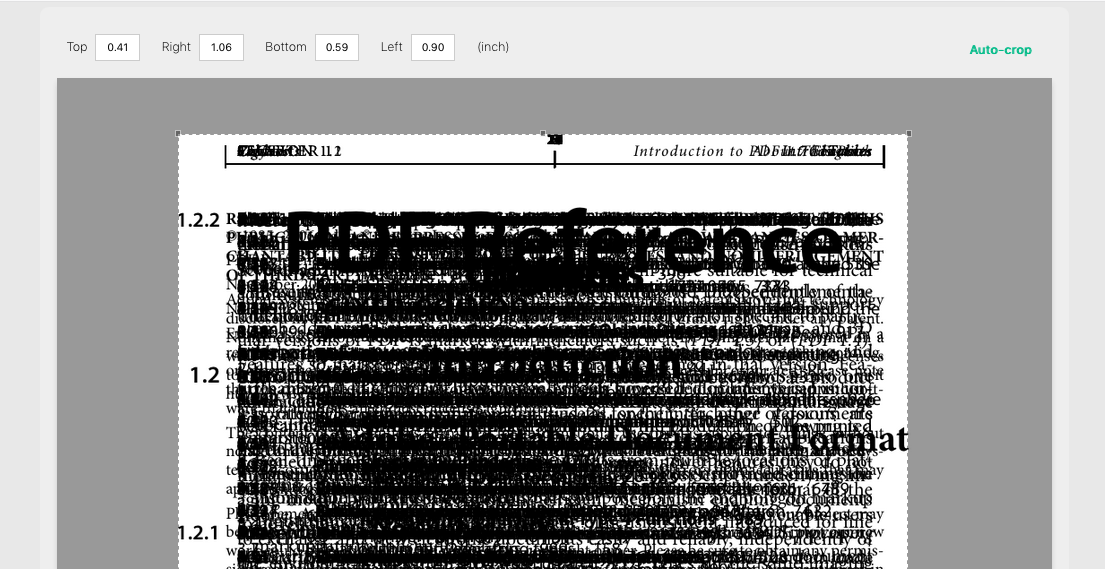
Sejda PDF Crop blended page preview used to trim white margins
Sejda pdf crop is Sejda's online Crop PDF feature for trimming margins and adjusting page size. You can auto-crop white margins, apply one crop size across all pages, or preview pages and choose crop areas yourself.
According to Sejdaâs crop tool page, free online use typically covers documents up to 200 pages or 50 MB with up to 3 tasks per hour. Files are processed privately and automatically deleted after 2 hours.


2. How to Crop a PDF with Sejda Online
Here is a practical sejda pdf crop walkthrough based on the official Crop PDF Online flow:

Sejda crop PDF animated walkthrough showing select crop area and crop button
Step 1: Open the Crop PDF tool and upload your file
Go to Sejdaâs Crop PDF Online page and click Upload PDF files (or drag and drop). You can also import from Google Drive or Dropbox. For sensitive files, Sejda Desktop keeps processing local.
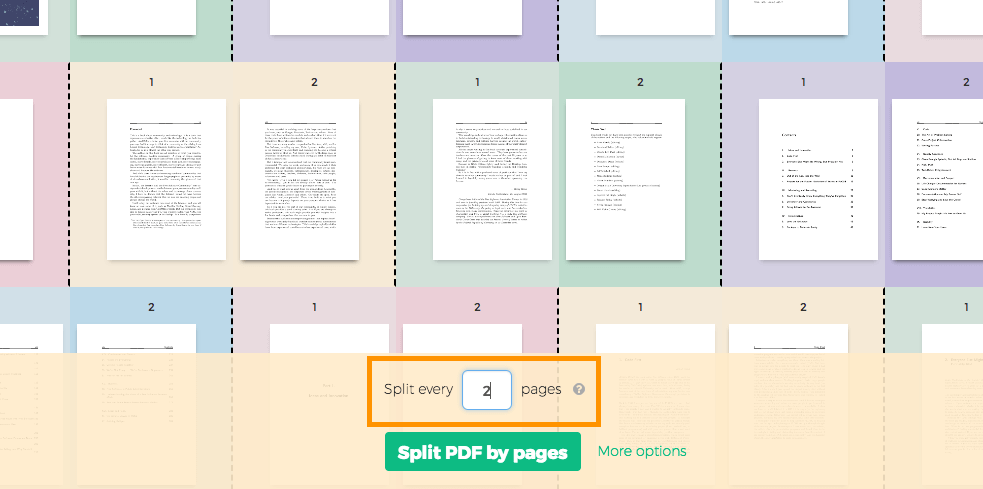
Sejda online PDF tool upload and option selection screen after choosing a file
Step 2: Choose how you want to crop
Sejda usually offers clear crop modes, such as:
Same crop size across all pages â apply one crop box to the whole document
Automatic â let Sejda estimate a fitting crop
Automatic maximum crop â trim each page as much as possible
Preview pages & select â review pages and set crop areas manually
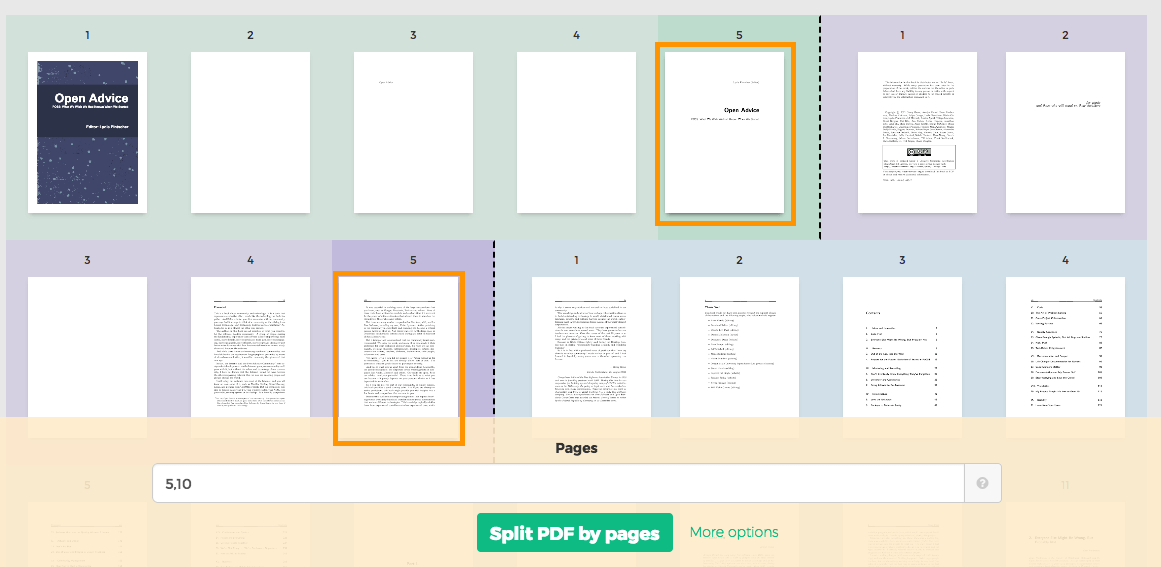
Sejda PDF crop mode options to apply the same crop or split by selected pages
Step 3: Refine margins if needed
If you need finer control, switch into preview and adjust crop edges. Sejda also supports precise margin values (for example top / left / bottom / right in inches or centimeters).
Sejda PDF crop preview with blended pages for adjusting crop margins precisely
Step 4: Continue / Crop and download
Confirm the crop, wait for processing, then download the trimmed PDF. Keep free-plan limits in mind: about 3 tasks per hour and files up to 200 pages or 50 MB.
Sejda Crop PDF result workflow from adjust crop box to download the cropped PDF
Tip: Content outside the crop area may be hidden rather than deleted from the PDF structure. If you need a more permanent removal workflow and local editing, a desktop PDF suite can be a better fit.
3. Sejda vs WPS: Core Differences for PDF Cropping

After trying sejda pdf crop, many users compare it with WPS PDF cropping especially when privacy and selection precision matter. Here is a clear comparison:
| Comparison | Sejda (PDF Crop) | WPS Office (PDF Crop) |
|---|---|---|
| Product form | Primarily web-based in the browser; Desktop optional | Desktop client plus WPS PDF online tools in supported regions |
| Core strengths | Strong auto-crop for clearing white margins quickly | Selection-based cropping plus precise manual margin control |
| Cropping method | Often uses âhidden cropâ (CropBox); content may still remain underneath | Supports hidden crop and more complete content removal options |
| Free limits | Limited free use (e.g., 3 tasks/hour; up to about 200 pages or 50 MB) | Advanced PDF crop/export options may require WPS membership depending on plan/feature |
| Privacy & security | Online crop needs upload; files auto-deleted after processing window | Local offline processing keeps sensitive PDFs on your device â stronger privacy for private documents |
If you only need a quick online trim, Sejda is convenient. If you care more about security and finer crop selection, WPS Office becomes the more practical alternative.
4. Best Alternative to Sejda PDF Crop: WPS Office
WPS PDF Editor
For users who outgrow sejda pdf crop free limits â or who prefer not to upload confidential PDFs â WPS Office stands out in two areas:
Stronger privacy: Crop and edit locally on your computer without sending files to a third-party crop website.
More precise selection cropping: Draw or refine crop regions carefully, adjust margins with higher control, and clean pages before export.
WPS PDF Online Tools (No Install Required)
WPS also provides a dedicated WPS PDF online tools platform (available in overseas and selected regions). You can work directly in the browser without downloading desktop software:
Content editing: Add text online, modify existing wording, and insert images into your PDF.
Format conversion: Convert between PDF and Word, Excel, PPT, as well as images such as JPG.
Sign & organize: Fill PDF forms, draw or upload a handwritten signature, and merge, split, or reorder pages.
This browser workflow is useful when you need quick edits, conversions, or signatures on the go â while WPS desktop remains ideal for privacy-first cropping of sensitive documents. Learn more on the WPS PDF product page.
How to Crop a PDF More Precisely with WPS Office
Step 1: Download and open WPS Office, then open your PDF in WPS PDF.
Step 2: Go to the crop / page tools area and choose the crop feature.
Step 3: Select the exact area you want to keep, or enter precise margin values for fine adjustment.
Step 4: Apply the crop and save/export the cleaned PDF locally.
This local workflow is especially useful for contracts, IDs, scanned forms, and other sensitive files where online upload is not ideal.
Frequently Asked Questions (FAQs)
Q: Is sejda pdf crop free?
A: Yes, with free-plan limits. Sejdaâs crop tool typically allows free processing for documents up to about 200 pages or 50 MB and up to 3 tasks per hour.
Q: Does Sejda permanently delete cropped PDF content?
A: Not always. In many cases Sejda hides content outside the crop area. If you need more complete removal and offline control, use a desktop PDF editor such as WPS Office.
Q: Is Sejda Desktop better for privacy than Sejda online?
A: Yes. Online crop uploads files for processing. Sejda Desktop keeps files on your computer. WPS Office also supports local PDF crop workflows for sensitive documents.
Q: When should I switch from Sejda to WPS for PDF crop?
A: Switch when you need tighter selection accuracy, repeated fine margin adjustments, maximum privacy through local editing, or when you also want WPS PDF online tools for editing, converting, and signing without installing software.

'%3e%3cpath%20d='M19.9911%204.11386V6.471H18.5894C18.0775%206.471%2017.7322%206.57814%2017.5536%206.79243C17.3751%207.00671%2017.2858%207.32814%2017.2858%207.75671V9.44421H19.9019L19.5536%2012.0871H17.2858V18.8639H14.5536V12.0871H12.2769V9.44421H14.5536V7.49779C14.5536%206.39064%2014.8632%205.53201%2015.4822%204.92189C16.1013%204.31177%2016.9257%204.00671%2017.9554%204.00671C18.8304%204.00671%2019.509%204.04243%2019.9911%204.11386Z'%20fill='%23333333'/%3e%3c/g%3e%3cdefs%3e%3cclipPath%20id='clip0_2938_8199'%3e%3crect%20width='16'%20height='16'%20fill='white'%20transform='translate(8%204.00671)'/%3e%3c/clipPath%3e%3c/defs%3e%3c/svg%3e)
'%3e%3cpath%20d='M17.5237%2010.7813L23.4811%204H22.0699L16.8949%209.88693L12.7648%204H8L14.2469%2012.9029L8%2020.0133H9.4112L14.8725%2013.7952L19.2352%2020.0133H24M9.92053%205.04213H12.0885L22.0688%2019.0224H19.9003'%20fill='%23333333'/%3e%3c/g%3e%3cdefs%3e%3cclipPath%20id='clip0_2938_8200'%3e%3crect%20width='16'%20height='16.0134'%20fill='white'%20transform='translate(8%204)'/%3e%3c/clipPath%3e%3c/defs%3e%3c/svg%3e)


