

'%3e%3cpath%20d='M8%200C12.4183%200%2016%203.58172%2016%208C16%2012.4183%2012.4183%2016%208%2016C3.58172%2016%200%2012.4183%200%208C0%203.58172%203.58172%200%208%200ZM11.6162%204.38379C11.2257%203.99337%2010.5927%203.99338%2010.2021%204.38379L8%206.58594L5.79785%204.38379C5.40732%203.99334%204.77429%203.99329%204.38379%204.38379C3.99331%204.77429%203.99335%205.40733%204.38379%205.79785L6.58594%208L4.38379%2010.2021C3.99348%2010.5927%203.99341%2011.2257%204.38379%2011.6162C4.77426%2012.0066%205.40734%2012.0065%205.79785%2011.6162L8%209.41406L10.2021%2011.6162C10.5927%2012.0066%2011.2257%2012.0067%2011.6162%2011.6162C12.0067%2011.2257%2012.0066%2010.5927%2011.6162%2010.2021L9.41406%208L11.6162%205.79785C12.0066%205.40735%2012.0066%204.77429%2011.6162%204.38379Z'%20fill='%23080E17'%20fill-opacity='0.46'/%3e%3c/g%3e%3cdefs%3e%3cclipPath%20id='clip0_3761_713'%3e%3crect%20width='16'%20height='16'%20fill='white'/%3e%3c/clipPath%3e%3c/defs%3e%3c/svg%3e)




'%3e%3cpath%20fill-rule='evenodd'%20clip-rule='evenodd'%20d='M21.4999%2010.9993C21.4999%205.20009%2016.7986%200.498901%2010.9993%200.498901C5.19994%200.498901%200.498657%205.20009%200.498657%2010.9993C0.498657%2016.2404%204.33858%2020.5844%209.35855%2021.3722V14.0346H6.69238V10.9993H9.35855V8.68594C9.35855%206.05427%2010.9262%204.60062%2013.3248%204.60062C14.4736%204.60062%2015.6753%204.80571%2015.6753%204.80571V7.38979H14.3512C13.0468%207.38979%2012.64%208.19921%2012.64%209.0296V10.9993H15.5523L15.0867%2014.0346H12.64V21.3722C17.66%2020.5844%2021.4999%2016.2404%2021.4999%2010.9993Z'%20fill='%231568EA'/%3e%3c/g%3e%3c/svg%3e)


'%3e%3cpath%20d='M2.42045%2022.1876H6.31818V12.7217L0.75%208.54553V20.5171C0.75%2021.4414%201.49892%2022.1876%202.42045%2022.1876Z'%20fill='%234285F4'/%3e%3cpath%20d='M19.682%2022.1876H23.5797C24.5041%2022.1876%2025.2502%2021.4387%2025.2502%2020.5171V8.54553L19.682%2012.7217'%20fill='%2334A853'/%3e%3cpath%20d='M19.682%205.48293V12.7216L25.2502%208.54543V6.31816C25.2502%204.25236%2022.8921%203.07469%2021.2411%204.31361'%20fill='%23FBBC04'/%3e%3cpath%20d='M6.31824%2012.7217V5.48303L13.0001%2010.4944L19.6819%205.48303V12.7217L13.0001%2017.733'%20fill='%23EA4335'/%3e%3cpath%20d='M0.75%206.31816V8.54543L6.31818%2012.7216V5.48293L4.75909%204.31361C3.10534%203.07469%200.75%204.25236%200.75%206.31816Z'%20fill='%23C5221F'/%3e%3c/g%3e%3cdefs%3e%3cclipPath%20id='clip0_2954_7305'%3e%3crect%20width='24.5'%20height='18.375'%20fill='white'%20transform='translate(0.75%203.8125)'/%3e%3c/clipPath%3e%3c/defs%3e%3c/svg%3e)


A loan application asks for the same core facts no matter which lender you use, and a missing signature or a wrong figure can pause the whole process. Here is what to fill, what each field means, and how to turn the completed form into a clean PDF you can send or upload.
Loan Application Form: What to Fill and How to Submit It as a PDF
Loan Application Form: The Fields Every Lender Checks
Loan application forms repeat the same blocks: personal identity, income and employment, the amount you are requesting, and how you plan to repay. Lenders scan these four areas first, so fill them completely and truthfully.
Fill your legal name, date of birth, and address exactly as on your ID.
Give current income and employer details, and the loan amount and term.
Review every field once more before you sign or submit.
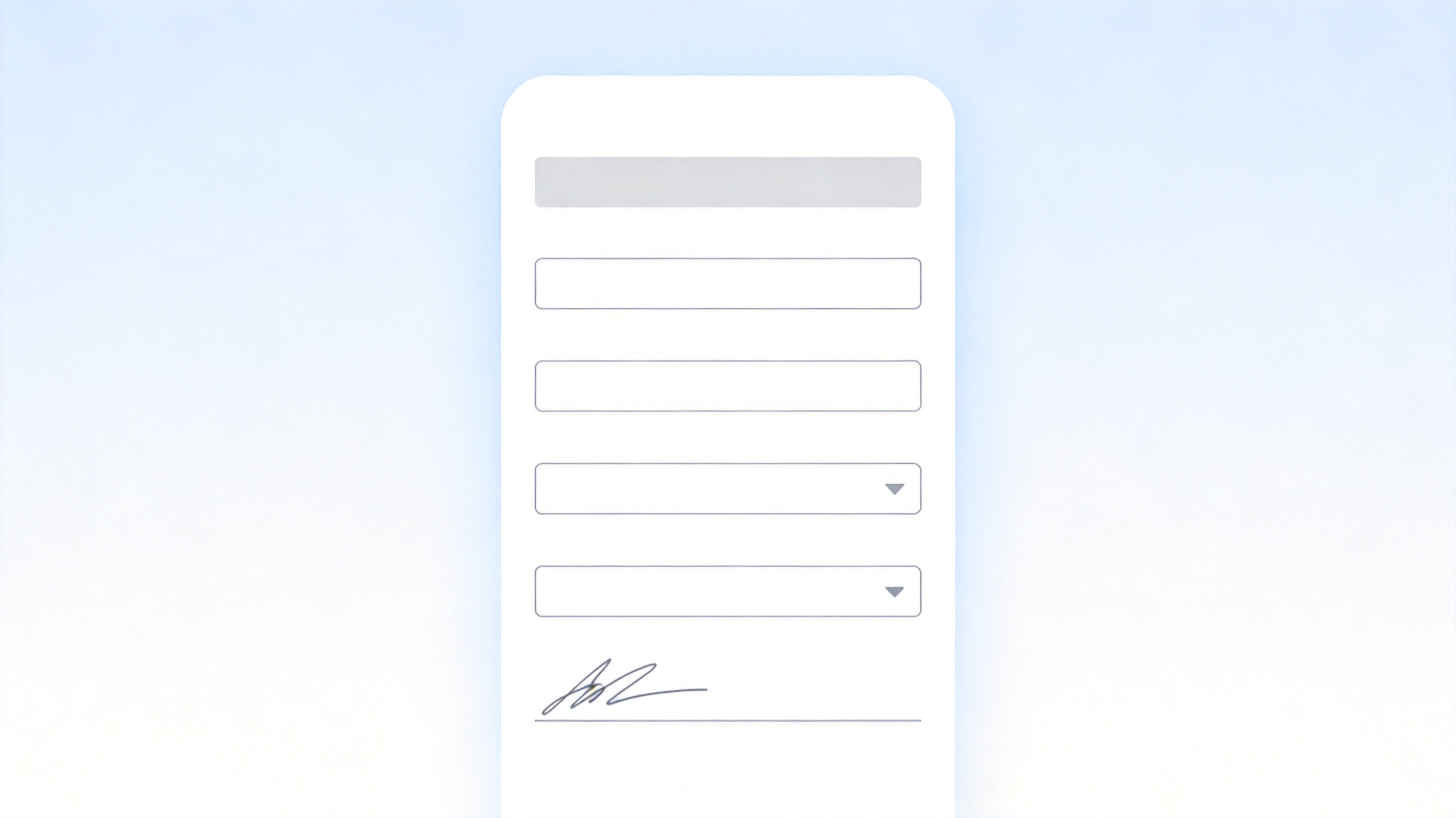
Loan application form fields to complete


How to Fill the Loan Application Accurately
Accuracy matters more than speed. Round figures can trigger a manual review, and a typo in your Social Security number, account number, or income is the fastest way to stall approval.
Enter income as it appears on your paystub or tax return, not a rough guess.
Double-check the bank account number and the routing number before submitting.
Keep a copy of the filled form and the date you submitted it.
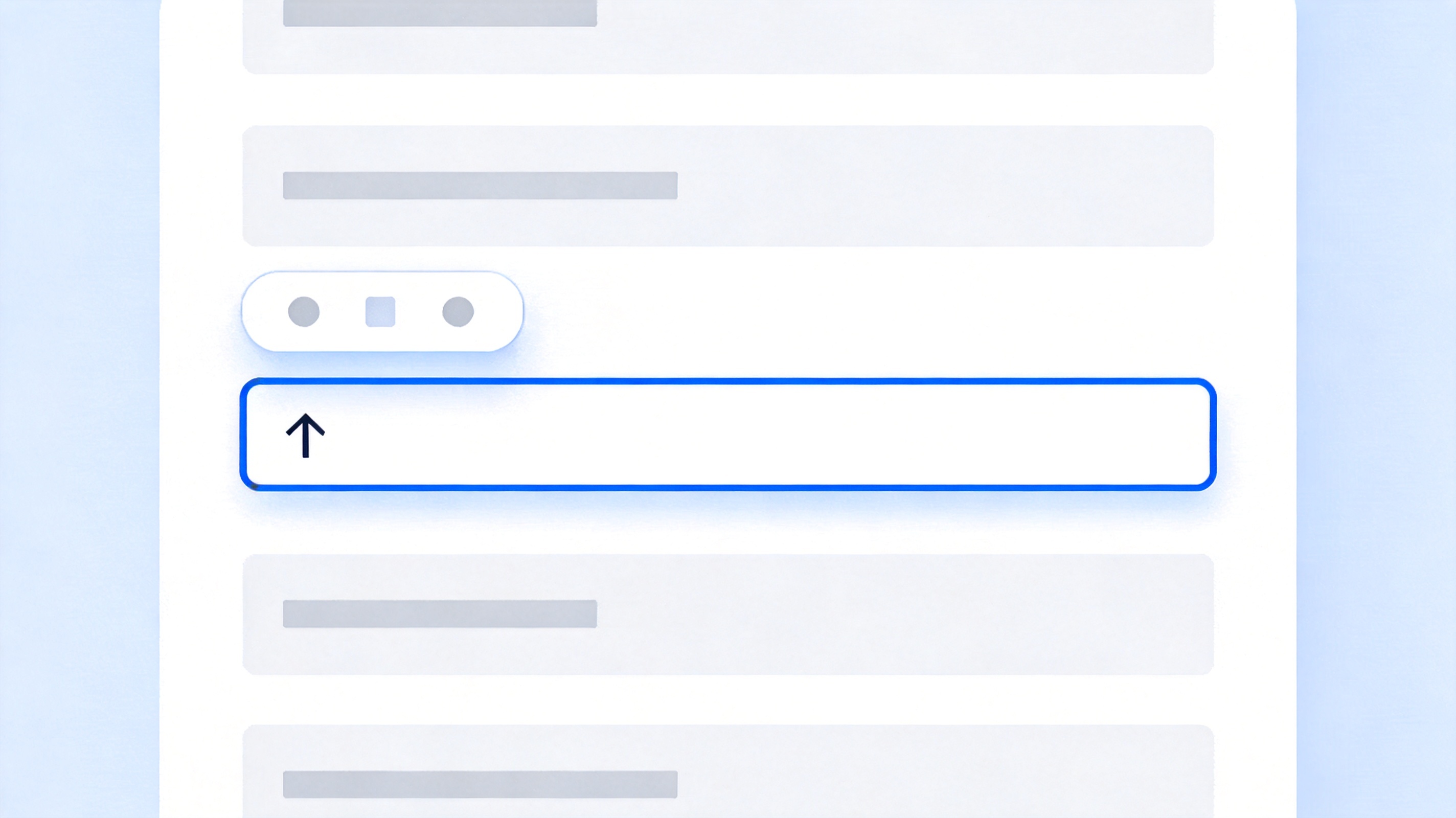
Filling loan application fields accurately
Turn the Completed Loan Application into a PDF
Most lenders accept a PDF, which keeps your form readable on any device and prevents accidental edits. If the form is a printed sheet, type into it, save as PDF, and keep the file before uploading.
Open the loan application form in a PDF editor and type into each field.
Add your signature and the date where the lender requires it.
Save as a fixed PDF and upload or email the finished file.
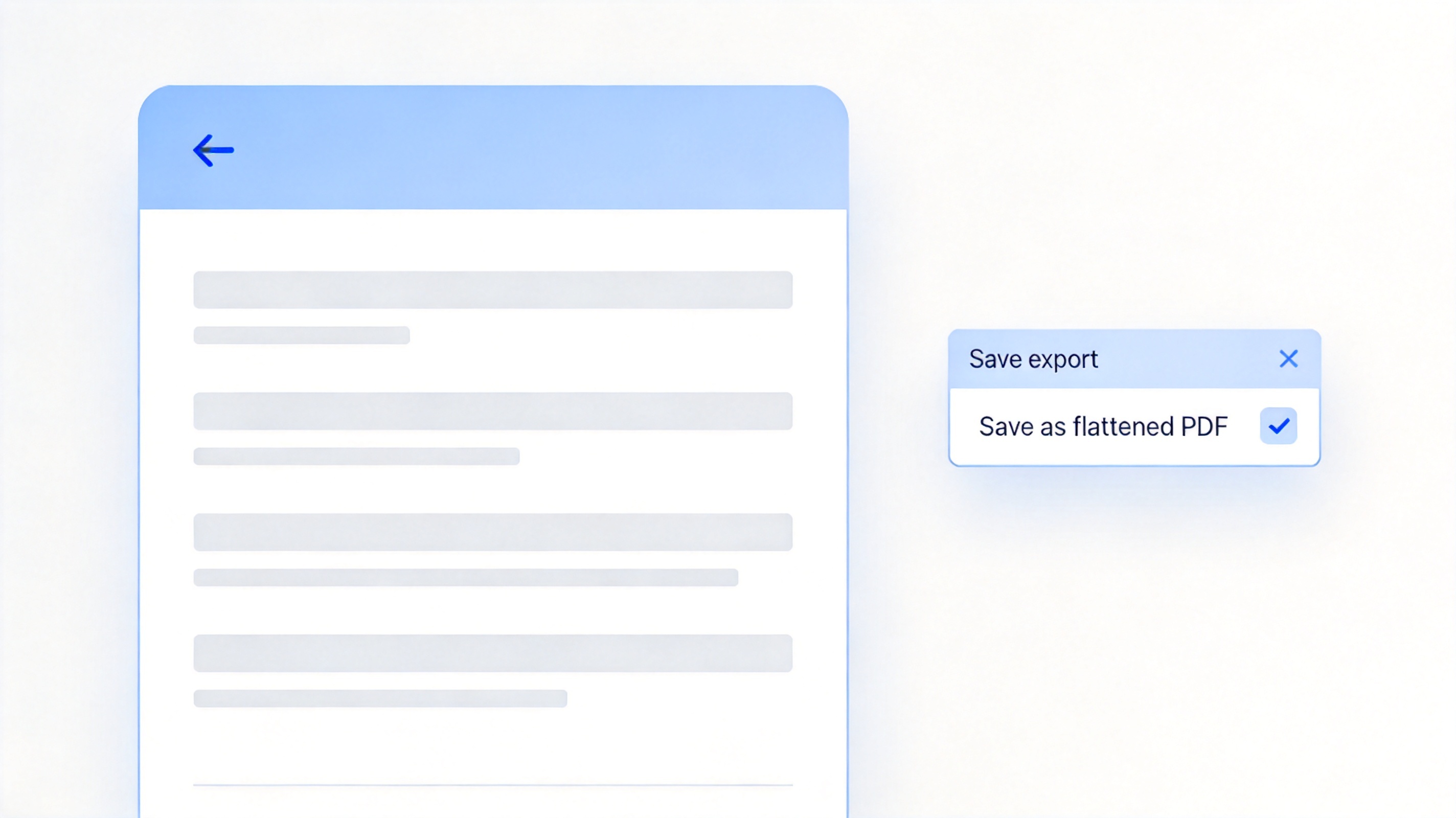
Loan application submitted as PDF file
Fill and Submit Loan Application PDFs Free in WPS Office
WPS PDF Editor lets you type into the loan application form, add your signature, and export a clean PDF — free, on desktop and mobile. When a lender asks for supporting documents, the same PDF toolkit turns your paperwork into one tidy file.
| What you need | WPS PDF Editor | Print-and-scan route |
|---|---|---|
| Fill PDF form fields | Type directly into the form | Handwrite, then scan |
| Add your signature | Built in | Print and sign by hand |
| Submit as one PDF | Export and combine files | Scan each page |
| Works on phone | Yes, mobile app | Needs printer and scanner |
No printing: type and sign the form in the PDF itself and submit the same file.
Clean and fixed: a PDF keeps your layout and prevents accidental edits after you finish.
Any device: finish the form on your phone if the lender asks for it on the spot. See the free PDF toolkit.
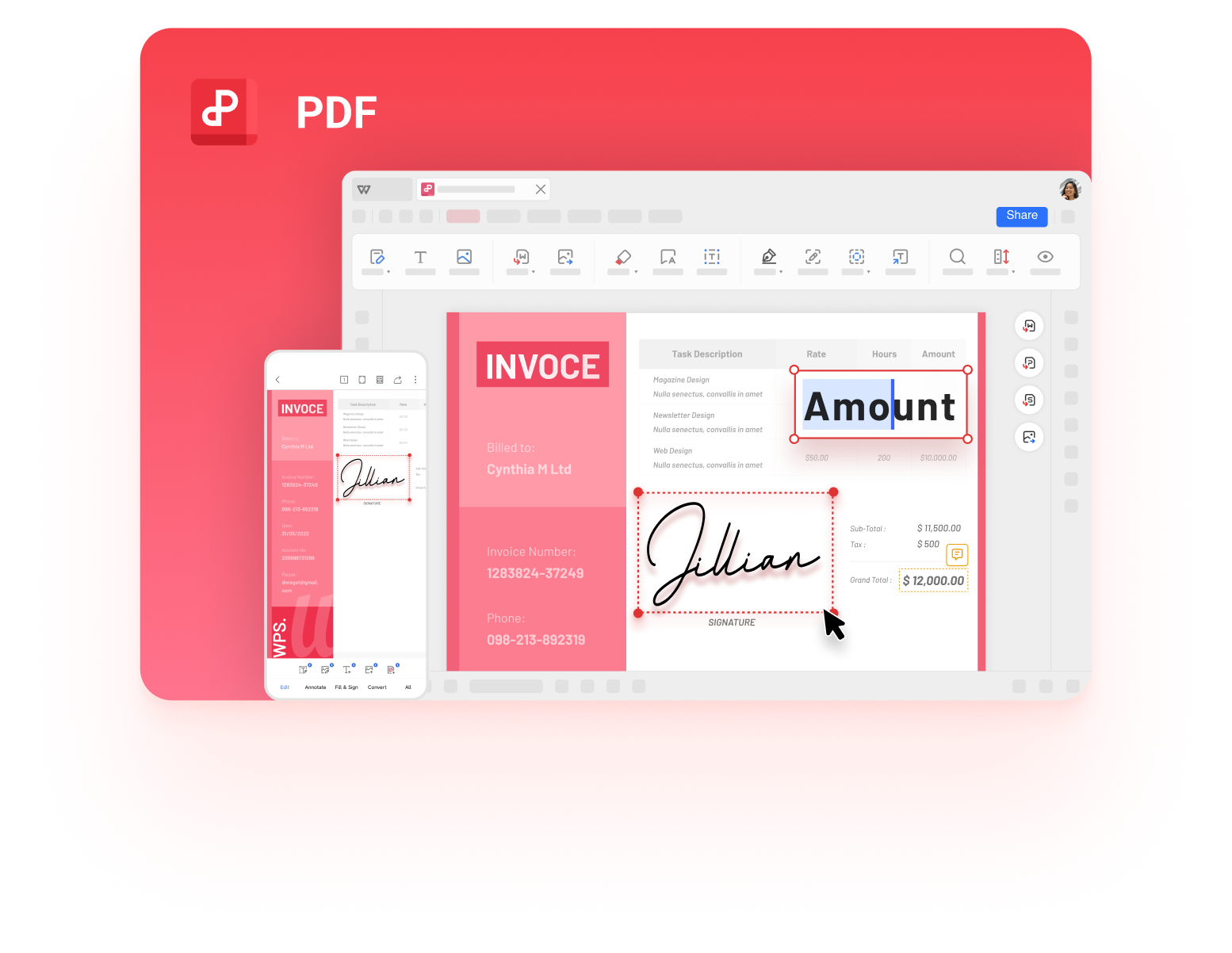
WPS PDF editor fills and signs loan forms
FAQs
What do I need to apply for a loan?
Your legal name and ID, proof of income and employment, the amount and term you want, and your bank account details for the funds.
Can I fill out a loan application on my phone?
Yes. Open the PDF form in a mobile PDF editor such as WPS Office, type into the fields, sign it, and save the file to submit.
What happens if I make a mistake on a loan application?
A wrong figure or account number can slow approval or cause a manual review. Double-check the form and correct any error before you submit.
How do I submit a loan application as a PDF?
Fill and sign the form in a PDF editor, export the completed file as a fixed PDF, and upload it through the lender’s portal or email.
Do I need to print and sign a loan application?
Not always. Most lenders accept a typed signature in the PDF, but confirm their rule; some forms still require a handwritten signature.


'%3e%3cpath%20d='M19.9911%204.11386V6.471H18.5894C18.0775%206.471%2017.7322%206.57814%2017.5536%206.79243C17.3751%207.00671%2017.2858%207.32814%2017.2858%207.75671V9.44421H19.9019L19.5536%2012.0871H17.2858V18.8639H14.5536V12.0871H12.2769V9.44421H14.5536V7.49779C14.5536%206.39064%2014.8632%205.53201%2015.4822%204.92189C16.1013%204.31177%2016.9257%204.00671%2017.9554%204.00671C18.8304%204.00671%2019.509%204.04243%2019.9911%204.11386Z'%20fill='%23333333'/%3e%3c/g%3e%3cdefs%3e%3cclipPath%20id='clip0_2938_8199'%3e%3crect%20width='16'%20height='16'%20fill='white'%20transform='translate(8%204.00671)'/%3e%3c/clipPath%3e%3c/defs%3e%3c/svg%3e)
'%3e%3cpath%20d='M17.5237%2010.7813L23.4811%204H22.0699L16.8949%209.88693L12.7648%204H8L14.2469%2012.9029L8%2020.0133H9.4112L14.8725%2013.7952L19.2352%2020.0133H24M9.92053%205.04213H12.0885L22.0688%2019.0224H19.9003'%20fill='%23333333'/%3e%3c/g%3e%3cdefs%3e%3cclipPath%20id='clip0_2938_8200'%3e%3crect%20width='16'%20height='16.0134'%20fill='white'%20transform='translate(8%204)'/%3e%3c/clipPath%3e%3c/defs%3e%3c/svg%3e)


