



'%3e%3cpath%20fill-rule='evenodd'%20clip-rule='evenodd'%20d='M21.4999%2010.9993C21.4999%205.20009%2016.7986%200.498901%2010.9993%200.498901C5.19994%200.498901%200.498657%205.20009%200.498657%2010.9993C0.498657%2016.2404%204.33858%2020.5844%209.35855%2021.3722V14.0346H6.69238V10.9993H9.35855V8.68594C9.35855%206.05427%2010.9262%204.60062%2013.3248%204.60062C14.4736%204.60062%2015.6753%204.80571%2015.6753%204.80571V7.38979H14.3512C13.0468%207.38979%2012.64%208.19921%2012.64%209.0296V10.9993H15.5523L15.0867%2014.0346H12.64V21.3722C17.66%2020.5844%2021.4999%2016.2404%2021.4999%2010.9993Z'%20fill='%231568EA'/%3e%3c/g%3e%3c/svg%3e)


'%3e%3cpath%20d='M2.42045%2022.1876H6.31818V12.7217L0.75%208.54553V20.5171C0.75%2021.4414%201.49892%2022.1876%202.42045%2022.1876Z'%20fill='%234285F4'/%3e%3cpath%20d='M19.682%2022.1876H23.5797C24.5041%2022.1876%2025.2502%2021.4387%2025.2502%2020.5171V8.54553L19.682%2012.7217'%20fill='%2334A853'/%3e%3cpath%20d='M19.682%205.48293V12.7216L25.2502%208.54543V6.31816C25.2502%204.25236%2022.8921%203.07469%2021.2411%204.31361'%20fill='%23FBBC04'/%3e%3cpath%20d='M6.31824%2012.7217V5.48303L13.0001%2010.4944L19.6819%205.48303V12.7217L13.0001%2017.733'%20fill='%23EA4335'/%3e%3cpath%20d='M0.75%206.31816V8.54543L6.31818%2012.7216V5.48293L4.75909%204.31361C3.10534%203.07469%200.75%204.25236%200.75%206.31816Z'%20fill='%23C5221F'/%3e%3c/g%3e%3cdefs%3e%3cclipPath%20id='clip0_2954_7305'%3e%3crect%20width='24.5'%20height='18.375'%20fill='white'%20transform='translate(0.75%203.8125)'/%3e%3c/clipPath%3e%3c/defs%3e%3c/svg%3e)


Searching for a 24 pdf merge option or a reliable PDF24 merge workflow often leads people to PDF24—and then to alternatives. If you want to merge PDF free without watermarks, daily caps, or awkward cross-platform limits, WPS Office is a strong PDF24 alternative for everyday users who need to merge PDFs quickly and privately.
What Is PDF24 and Why Users Look for Alternatives
PDF24 is a well-known German free PDF toolkit available as a desktop app and a web-based suite. It covers common tasks such as merging, splitting, compressing, and converting PDFs, which is why many people start with it when they need a free way to combine files.
PDF24 does have real strengths. It is free, typically unlimited for core tools, and the desktop version can keep work local—appealing if privacy matters. For basic PDF-only jobs, it can get the job done.
Still, many users eventually look for alternatives. The interface often feels cluttered and dated, so finding the right tool takes longer than it should. Because parts of the service rely on Germany-based infrastructure, access can feel slow from some regions. The full desktop experience is largely Windows-focused; Mac and Linux users are more likely to end up on the web tools, which can feel slower. Localized Chinese UI and document layout sometimes look machine-translated or uneven. PDF24 is also PDF-centric: if you need to edit Word, Excel, or PowerPoint files alongside PDFs, you usually need other apps. Advanced editing depth is limited compared with a full office suite.
That is why people searching for 24 pdf merge increasingly compare PDF24 with WPS Office—a free suite that merges PDFs and handles the rest of your documents in one place.
How to Merge PDFs with PDF24 (24 pdf merge)
If you searched for 24 pdf merge, you are likely looking for PDF24's free merge tool. PDF24 offers two main ways to combine files: the online web tool (works in any browser, on any OS) and the PDF24 Creator desktop app (Windows only, fully offline). Here is how each method works step by step.
Method 1 — Merge PDFs online with PDF24 (browser)
This is the most common PDF24 merge workflow, especially for Mac, Linux, and Chromebook users who cannot install the Windows desktop app.
Open your browser and go to tools.pdf24.org (or pdf24.org and select Merge PDF from the tool list).
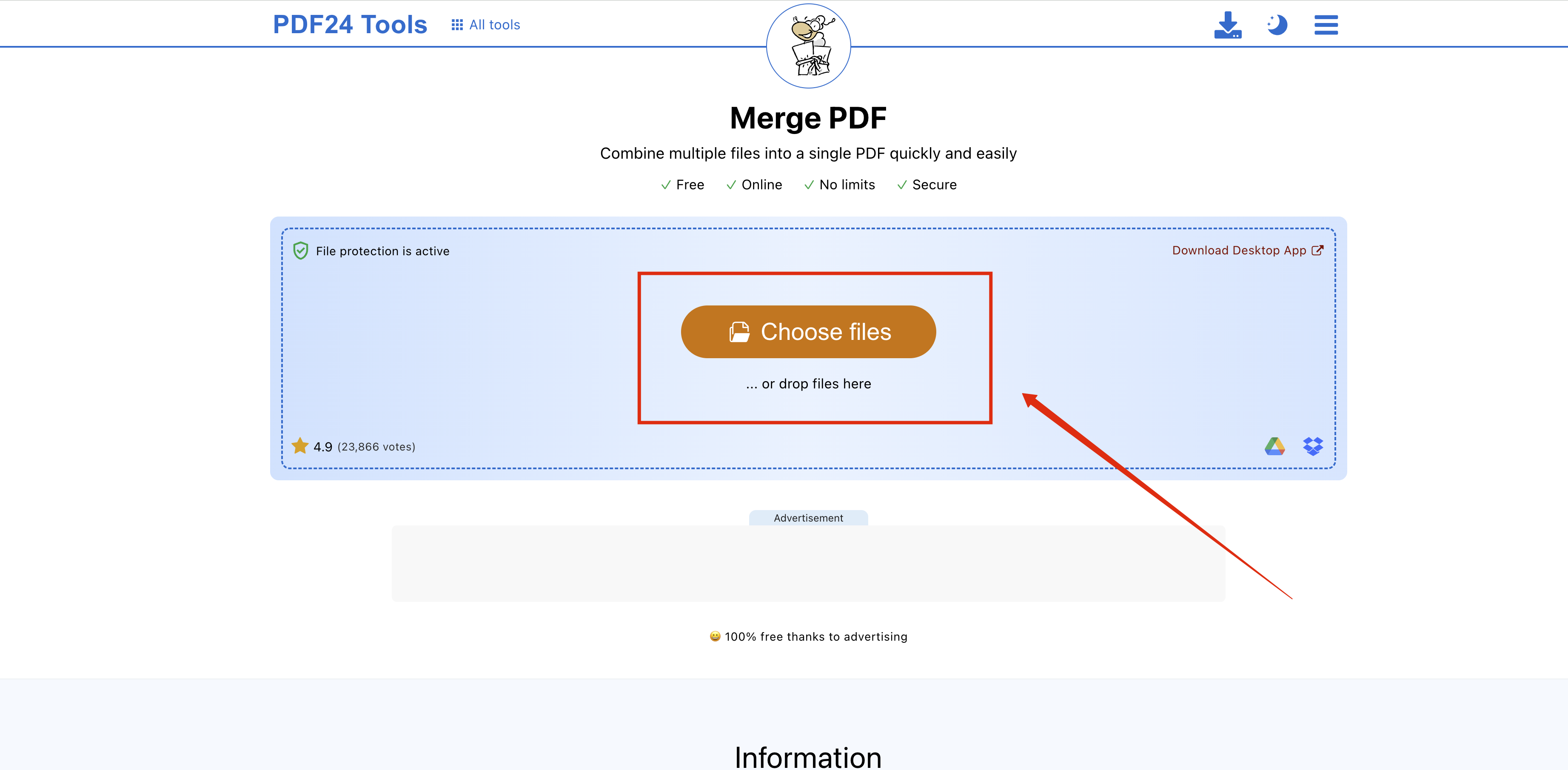
Choose Files On the Merge PDF page, click Choose files or drag your PDFs directly into the upload area.
Add every PDF you want to combine. PDF24 accepts multiple files at once—select them all or add them one by one.
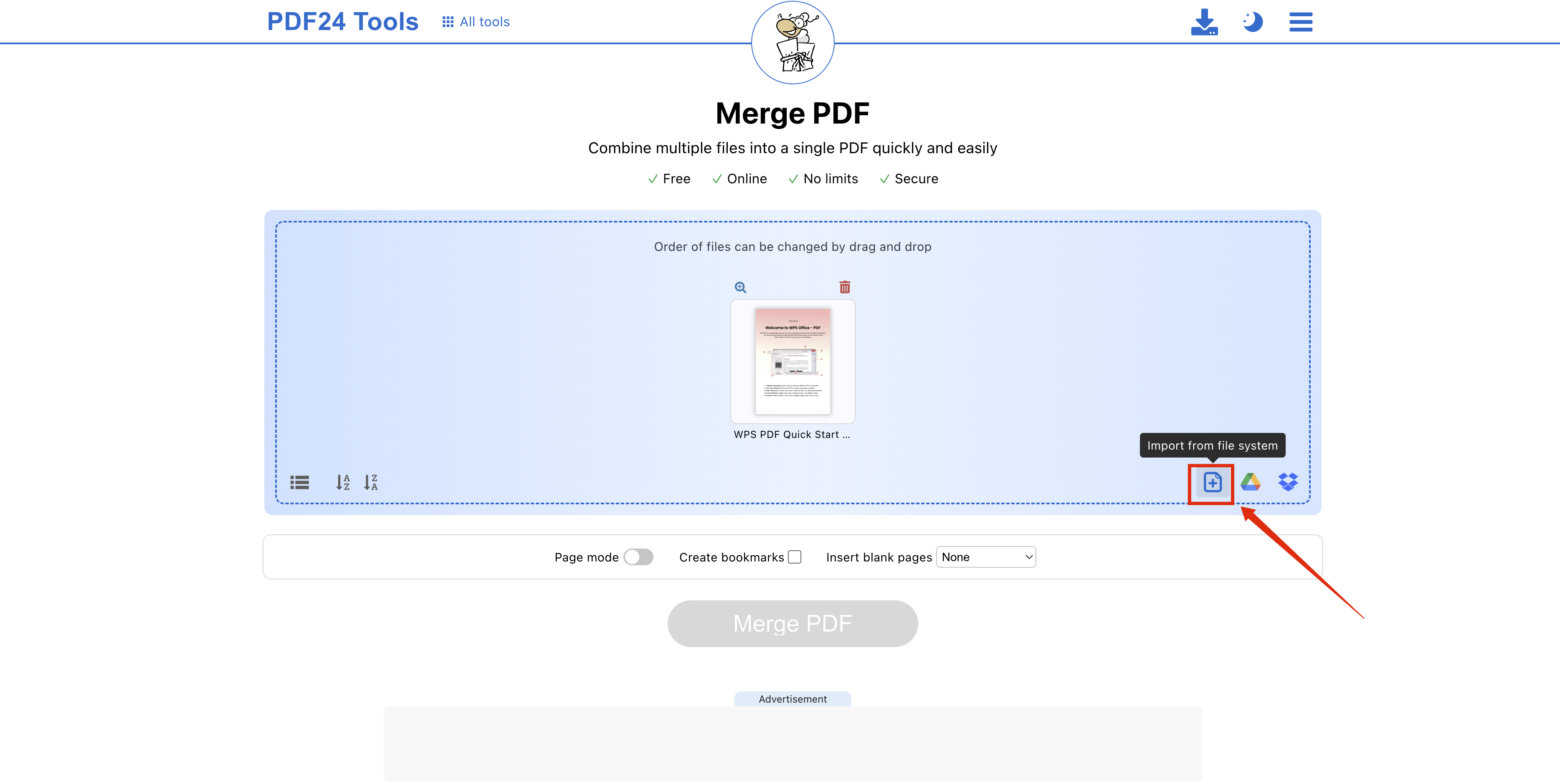
Add the other file Once uploaded, drag the file thumbnails to reorder them. The top file becomes the first pages in the merged output.
Click Merge. PDF24 processes the files on its server and builds one combined PDF.
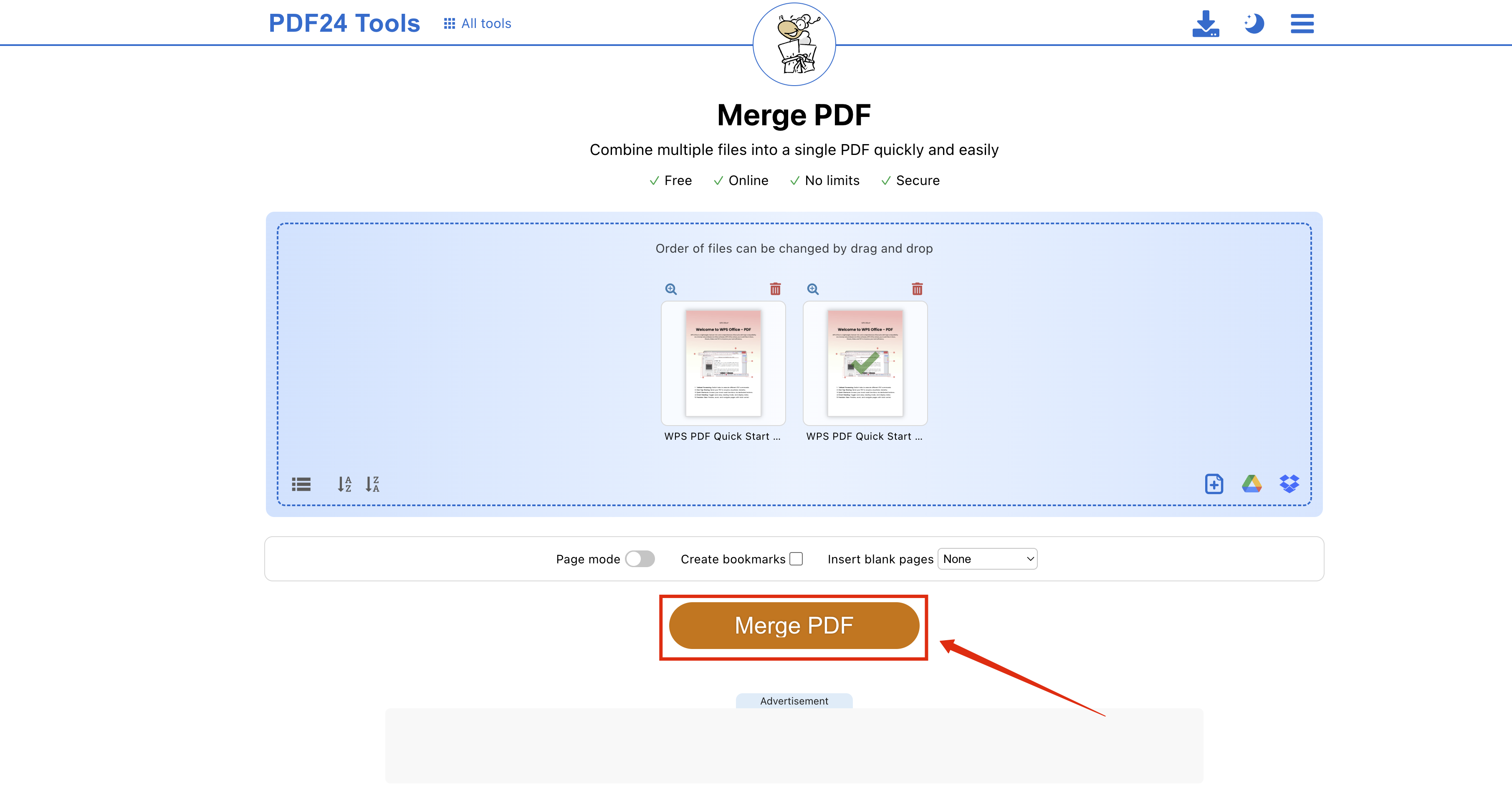
Start merge PDF When processing finishes, click Download to save the merged file to your computer.
What to know about the web tool: Files are uploaded to PDF24's Germany-based servers for processing. According to PDF24, uploaded files are automatically deleted after a short period. The web merge is free with no watermark and no daily task limit for basic use, but processing speed can vary depending on your region and connection. Mac and mobile users typically rely on this browser workflow.
Method 2 — Merge PDFs with PDF24 Creator (Windows desktop)
If you are on Windows and prefer local, offline merging without uploading files, use the free PDF24 Creator desktop application.
Download PDF24 Creator from pdf24.org and install it on your Windows PC.
Open the app. From the main screen or the PDF24 Toolbox, select Merge PDF (sometimes labeled Combine PDF files).
Click Add files and select the PDFs you want to combine.
Drag files in the list to set the correct page order.
Click Merge or Save, choose an output location, and save the combined PDF.
What to know about the desktop app: Merging runs entirely on your local machine—no upload, no internet required after install. This is the preferred 24 pdf merge path for Windows users who handle sensitive documents. The trade-off is that the desktop UI can feel dated and cluttered compared with newer tools, and there is no native Mac or Linux desktop version.
Once you know how PDF24 merge works, it is easier to see where it fits—and where a tool like WPS Office may serve you better for daily document work.
WPS Office – A Better Free PDF Merger
WPS Office is a free productivity suite used by more than 500 million people worldwide. Beyond Writer, Spreadsheets, and Presentation, it includes practical PDF tools—so you can merge files without installing a separate PDF-only utility.
With WPS, you can merge PDFs for free: no watermark on merged output, and no file-size or daily merge limits that interrupt a normal workday. It is built for people who want a clean PDF24 merge alternative without sacrificing speed or flexibility.
Mapped against common PDF24 pain points, WPS offers clearer advantages:
Cluttered UI → WPS uses a modern, clearer layout so merge and PDF tools are easier to find.
Regional / web slowdowns → Desktop merge runs locally, so you are less dependent on remote Germany-based uploads.
Windows-only desktop feel → WPS desktop covers Windows, Mac, and Linux; mobile apps are available on iOS and Android.
Chinese UI / layout issues → WPS provides native, polished localization and stronger support for Chinese documents.
PDF-only workflow → WPS merges PDFs and also opens Word, Excel, PPT, and images in the same suite.
Limited advanced editing → Edit, convert, compress, OCR, and sign PDFs without leaving WPS Office.
How to Merge PDF Files in WPS Office
You can merge PDF files in WPS Office in a few steps—entirely on your desktop, with no upload required:
Open WPS Office, go to PDF Tools, and choose Merge PDF (or Combine).
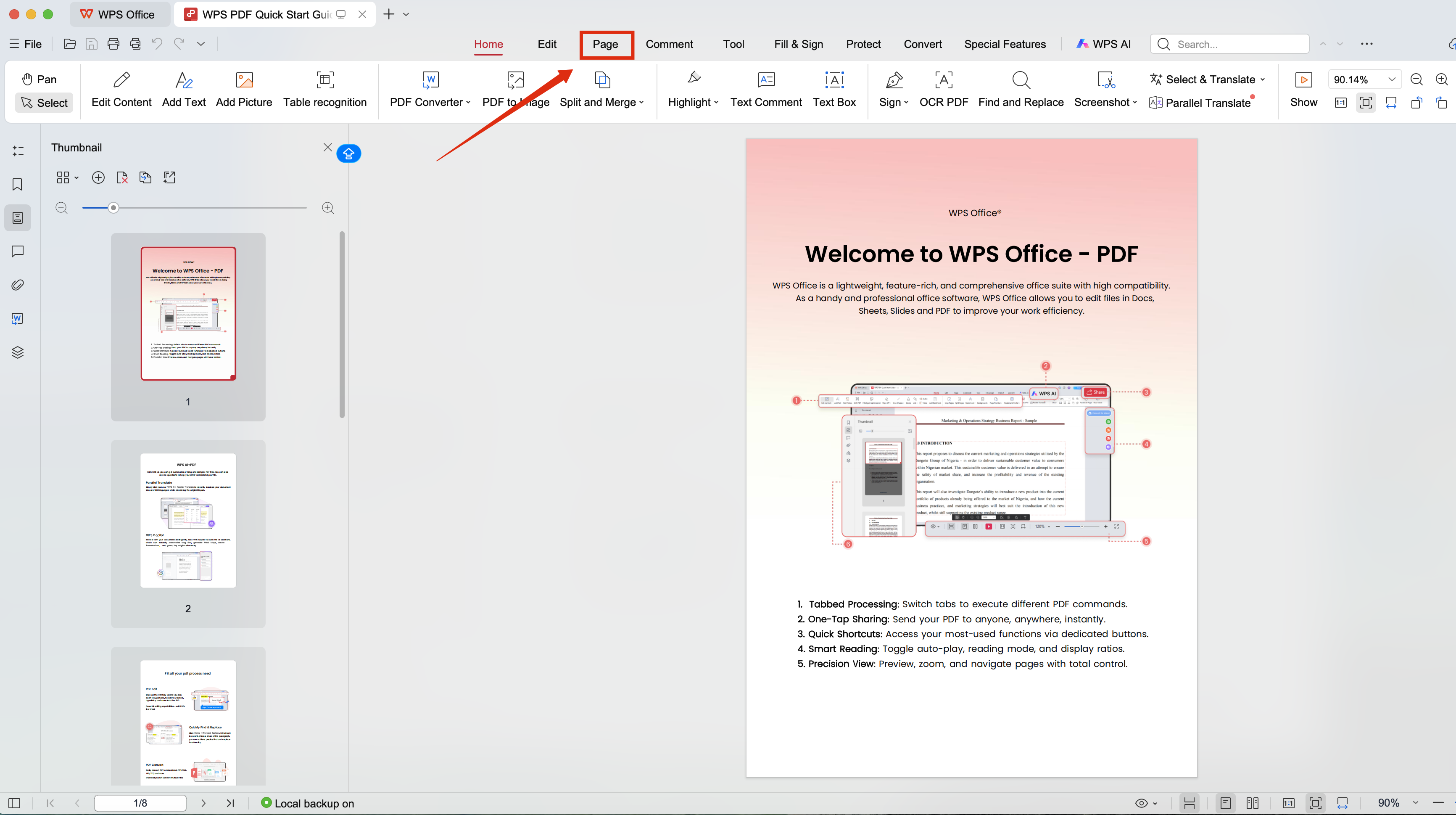
Open the file Add the files you want to combine—PDF, Word, Excel, PowerPoint, or images.
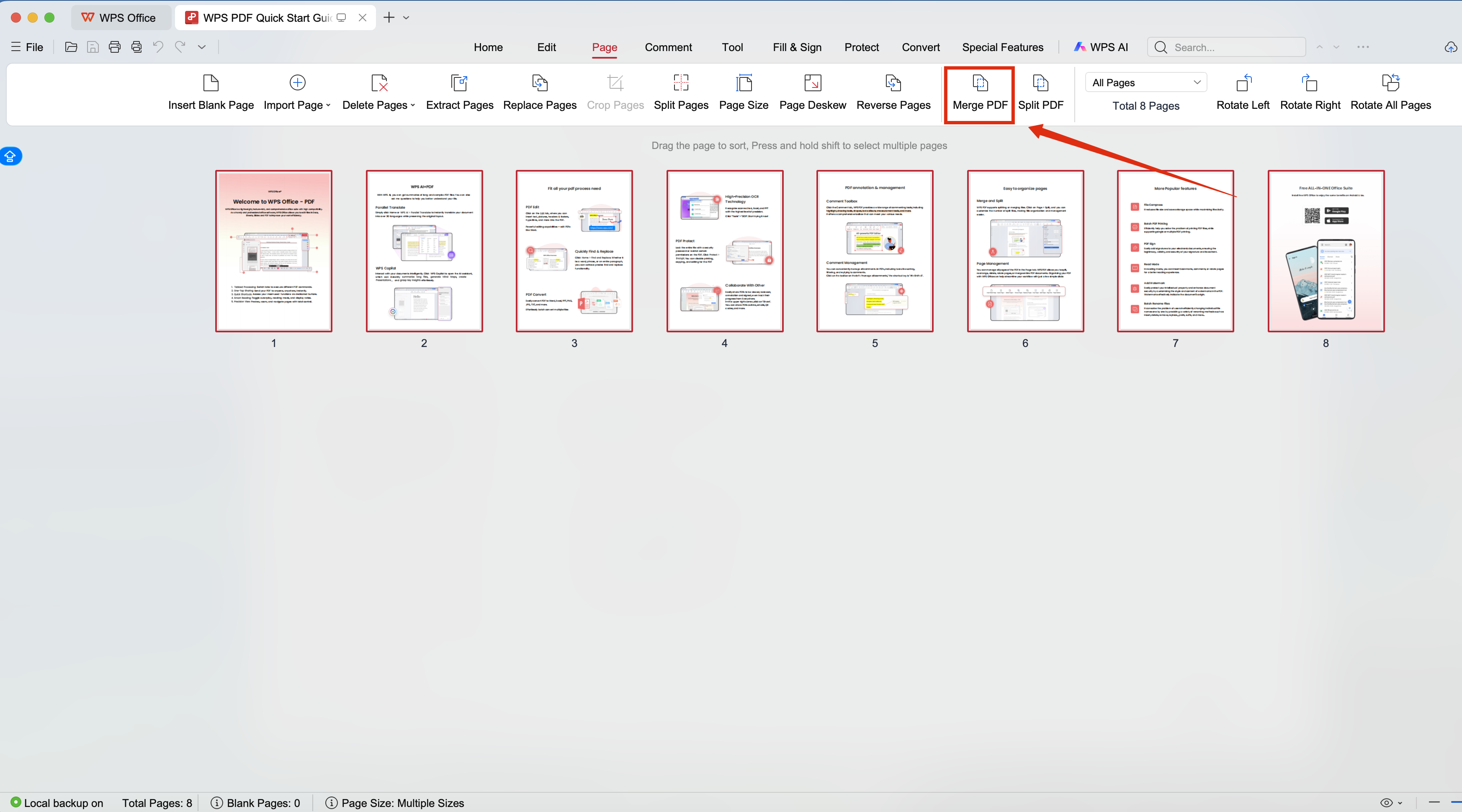
Choose the"Merge PDF" Drag to reorder the pages or documents, click Merge, then save the result.
Because merging happens locally on your computer, the process stays fast and private. You do not need to wait on a remote server or worry about uploading sensitive contracts, homework, or internal reports just to combine them.
WPS Office vs PDF24 – Which Free PDF Merger is Better?
Here is a side-by-side look at how WPS Office and PDF24 compare when you want to merge PDF free and keep a smoother daily workflow:
| Feature | WPS Office (Free) | PDF24 (Free) |
|---|---|---|
| Merge limits | Unlimited | Unlimited |
| Output watermark | None | None |
| Desktop | Win/Mac/Linux | Windows only |
| Mobile | iOS/Android | None |
| Servers / regional speed | Optimized for more regions / local desktop avoids DE upload | Germany-based web often slower remotely |
| Chinese UI | Native / polished localization | Machine-translated feel |
| UI design | Modern, clear | Outdated, cluttered |
| Merge non-PDF | Word/Excel/PPT/images | PDF only |
| Built-in office suite | Writer/Spreadsheet/Presentation/PDF | PDF tools only |
| Offline | Yes on desktop | Desktop yes / web needs connection |
If you only need occasional PDF merges on Windows, PDF24 can still work. If you want a modern UI, multi-platform desktop support, better localization, and one suite for documents plus PDFs, WPS Office is usually the better free choice.
Why Users Are Switching from PDF24 to WPS Office
People who leave PDF24 for WPS often describe the same frustrations:
"The UI feels cluttered—I spend too long hunting for the merge tool."
"I'm on a Mac, so I'm stuck with the slower PDF24 web tools."
"Chinese documents sometimes break layout or look poorly localized."
"I already use WPS Office—I don't want another single-purpose PDF app."
"I need to edit, convert, and merge in one suite, not jump between tools."
More Than Just PDF Merge – WPS Office All-in-One Solution
Merging is only one part of a real PDF workflow. With WPS Office you can also edit PDFs, compress large files, convert PDF to Word, Excel, or PowerPoint, run OCR on scanned pages, and add PDF signatures—without installing a stack of separate utilities. That all-in-one approach is what makes WPS a practical long-term PDF24 alternative, not just another free merge button.
Frequently Asked Questions
How do I merge PDFs with PDF24 for free?
Go to tools.pdf24.org, open Merge PDF, upload your files, drag to reorder, click Merge, then Download. On Windows, you can also use the free PDF24 Creator desktop app for offline merging.
Is merging PDFs free in WPS Office?
Yes. You can merge PDFs for free in WPS Office with no watermark and no daily merge limits for normal use.
Can I merge PDFs offline with WPS Office?
Yes. On the desktop app, merging runs locally on your device, so you do not need to upload files to a remote server.
Does WPS Office work on Mac for PDF merge?
Yes. WPS Office supports Windows, Mac, and Linux on desktop, plus iOS and Android on mobile—unlike PDF24's Windows-focused desktop experience.
Is WPS Office better than PDF24 for merging PDFs?
For many users, yes. Both can merge without watermarks, but WPS adds a modern UI, broader platform support, stronger Chinese localization, and a full office suite around PDF tools.
Can I merge Word and PDF files together in WPS Office?
Yes. WPS lets you combine PDFs with Word, Excel, PowerPoint, and image files in the same merge flow—something PDF-only tools typically cannot do.

'%3e%3cpath%20d='M19.9911%204.11386V6.471H18.5894C18.0775%206.471%2017.7322%206.57814%2017.5536%206.79243C17.3751%207.00671%2017.2858%207.32814%2017.2858%207.75671V9.44421H19.9019L19.5536%2012.0871H17.2858V18.8639H14.5536V12.0871H12.2769V9.44421H14.5536V7.49779C14.5536%206.39064%2014.8632%205.53201%2015.4822%204.92189C16.1013%204.31177%2016.9257%204.00671%2017.9554%204.00671C18.8304%204.00671%2019.509%204.04243%2019.9911%204.11386Z'%20fill='%23333333'/%3e%3c/g%3e%3cdefs%3e%3cclipPath%20id='clip0_2938_8199'%3e%3crect%20width='16'%20height='16'%20fill='white'%20transform='translate(8%204.00671)'/%3e%3c/clipPath%3e%3c/defs%3e%3c/svg%3e)
'%3e%3cpath%20d='M17.5237%2010.7813L23.4811%204H22.0699L16.8949%209.88693L12.7648%204H8L14.2469%2012.9029L8%2020.0133H9.4112L14.8725%2013.7952L19.2352%2020.0133H24M9.92053%205.04213H12.0885L22.0688%2019.0224H19.9003'%20fill='%23333333'/%3e%3c/g%3e%3cdefs%3e%3cclipPath%20id='clip0_2938_8200'%3e%3crect%20width='16'%20height='16.0134'%20fill='white'%20transform='translate(8%204)'/%3e%3c/clipPath%3e%3c/defs%3e%3c/svg%3e)


