

'%3e%3cpath%20d='M8%200C12.4183%200%2016%203.58172%2016%208C16%2012.4183%2012.4183%2016%208%2016C3.58172%2016%200%2012.4183%200%208C0%203.58172%203.58172%200%208%200ZM11.6162%204.38379C11.2257%203.99337%2010.5927%203.99338%2010.2021%204.38379L8%206.58594L5.79785%204.38379C5.40732%203.99334%204.77429%203.99329%204.38379%204.38379C3.99331%204.77429%203.99335%205.40733%204.38379%205.79785L6.58594%208L4.38379%2010.2021C3.99348%2010.5927%203.99341%2011.2257%204.38379%2011.6162C4.77426%2012.0066%205.40734%2012.0065%205.79785%2011.6162L8%209.41406L10.2021%2011.6162C10.5927%2012.0066%2011.2257%2012.0067%2011.6162%2011.6162C12.0067%2011.2257%2012.0066%2010.5927%2011.6162%2010.2021L9.41406%208L11.6162%205.79785C12.0066%205.40735%2012.0066%204.77429%2011.6162%204.38379Z'%20fill='%23080E17'%20fill-opacity='0.46'/%3e%3c/g%3e%3cdefs%3e%3cclipPath%20id='clip0_3761_713'%3e%3crect%20width='16'%20height='16'%20fill='white'/%3e%3c/clipPath%3e%3c/defs%3e%3c/svg%3e)




'%3e%3cpath%20fill-rule='evenodd'%20clip-rule='evenodd'%20d='M21.4999%2010.9993C21.4999%205.20009%2016.7986%200.498901%2010.9993%200.498901C5.19994%200.498901%200.498657%205.20009%200.498657%2010.9993C0.498657%2016.2404%204.33858%2020.5844%209.35855%2021.3722V14.0346H6.69238V10.9993H9.35855V8.68594C9.35855%206.05427%2010.9262%204.60062%2013.3248%204.60062C14.4736%204.60062%2015.6753%204.80571%2015.6753%204.80571V7.38979H14.3512C13.0468%207.38979%2012.64%208.19921%2012.64%209.0296V10.9993H15.5523L15.0867%2014.0346H12.64V21.3722C17.66%2020.5844%2021.4999%2016.2404%2021.4999%2010.9993Z'%20fill='%231568EA'/%3e%3c/g%3e%3c/svg%3e)


'%3e%3cpath%20d='M2.42045%2022.1876H6.31818V12.7217L0.75%208.54553V20.5171C0.75%2021.4414%201.49892%2022.1876%202.42045%2022.1876Z'%20fill='%234285F4'/%3e%3cpath%20d='M19.682%2022.1876H23.5797C24.5041%2022.1876%2025.2502%2021.4387%2025.2502%2020.5171V8.54553L19.682%2012.7217'%20fill='%2334A853'/%3e%3cpath%20d='M19.682%205.48293V12.7216L25.2502%208.54543V6.31816C25.2502%204.25236%2022.8921%203.07469%2021.2411%204.31361'%20fill='%23FBBC04'/%3e%3cpath%20d='M6.31824%2012.7217V5.48303L13.0001%2010.4944L19.6819%205.48303V12.7217L13.0001%2017.733'%20fill='%23EA4335'/%3e%3cpath%20d='M0.75%206.31816V8.54543L6.31818%2012.7216V5.48293L4.75909%204.31361C3.10534%203.07469%200.75%204.25236%200.75%206.31816Z'%20fill='%23C5221F'/%3e%3c/g%3e%3cdefs%3e%3cclipPath%20id='clip0_2954_7305'%3e%3crect%20width='24.5'%20height='18.375'%20fill='white'%20transform='translate(0.75%203.8125)'/%3e%3c/clipPath%3e%3c/defs%3e%3c/svg%3e)


Working with a PDF file is often a nightmare.
Direct editing of a PDF file is usually inconvenient; hence, PDF to Word conversion is essential when you need to rewrite text, fix formatting, or reuse content.
Looking for a quick sejda pdf to word workflow? Sejda is one of the most visible online converters for this job — and this guide covers online first, then offline Desktop, Windows differences, and a freer alternative.
Below you’ll learn how to convert PDF to Word with Sejda online (including which versions/devices the online tool supports), how to convert offline on Desktop, how Windows Web vs Desktop compares, and why WPS Office Online is a strong free alternative when Sejda’s limits get in the way.
1. Convert PDF to Word With Sejda
Sejda pdf to word conversion stays simple because Sejda isolates each PDF task. Instead of an overcrowded editor, the PDF to Word tool mainly shows settings that matter — such as Keep layout or Optimize for legibility.
Sejda offers two product versions for the same goal:
Sejda Web (online): Works in a browser — Windows PC, Mac browser, Linux browser, and mobile browsers on iPhone/Android.
Sejda Desktop (offline): Installed app for local processing without uploading files to Sejda’s servers.
Beyond conversion, Sejda also supports merge, compress, split, edit, watermark, organize, unlock, and protect tools.
Sejda PDF to Word conversion banner with PDF document icon on green background
Pros:
Free basic sejda pdf to word conversion
Simple, beginner-friendly layout
Online in any modern browser — including mobile browsers
Desktop version available for offline/local work
Cloud imports supported on Web (Google Drive / Dropbox)
Files auto-deleted after 2 hours on Sejda Web
Cons:
Web conversion depends on a third-party online service
Free plan limits: 3 tasks per hour, up to 50 pages or 50 MB
OCR and batch processing are limited or paid on the free tier — users who need more capacity often look into a sejda license key or Premium upgrade
Complex layouts may still need cleanup after conversion
In short, Sejda is a convenient starting point for quick sejda pdf to word tasks — especially online — if you stay within the free limits.


2. How to Convert PDF to Word Online With Sejda?
For most searches around sejda pdf to word, the online converter is the primary solution. Sejda Web runs in your browser — no Desktop install required.
There is no separate full native mobile app required for basic online conversion — mobile users use the same Sejda Web tool in the browser.
Steps: Convert PDF to Word Free online (PC or mobile browser)
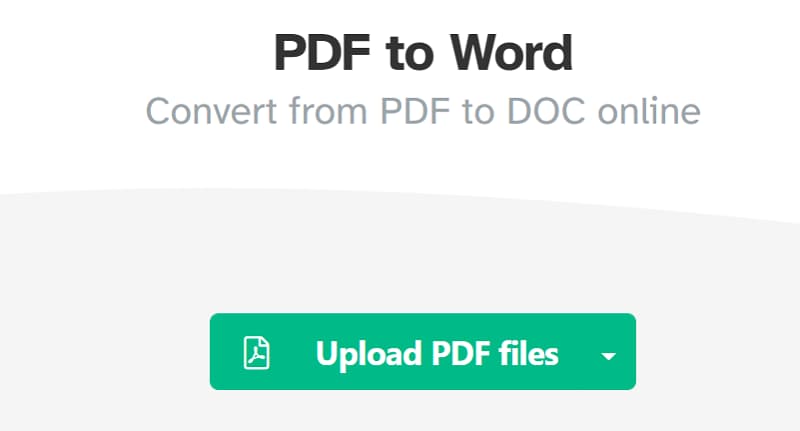
Step 1: Open Sejda’s PDF to Word tool. On PC, click Upload PDF files (or drag and drop). On iPhone/Android, tap Upload PDF files and pick a file from storage, Files, Google Drive, or Dropbox.
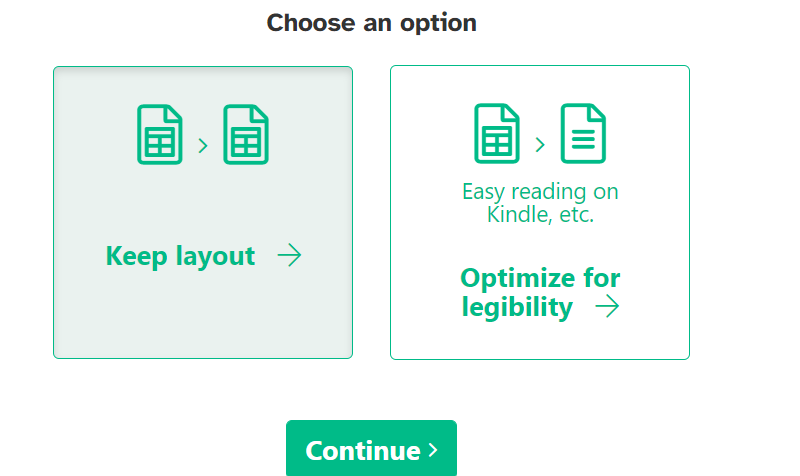
Step 2: Choose Keep layout to preserve page structure, or Optimize for legibility for cleaner text reading. Then continue.
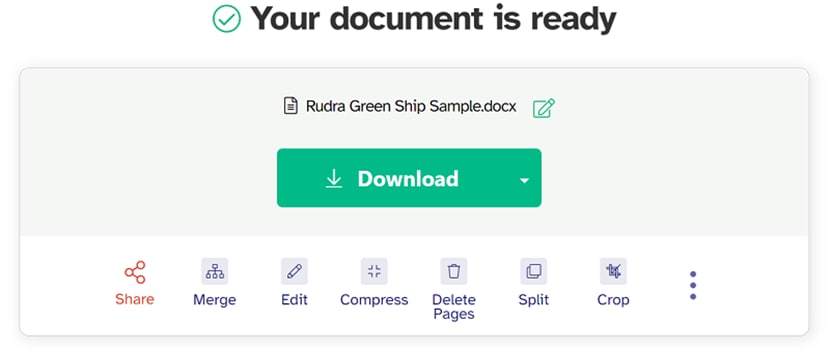
Step 3: Wait until you see “Your document is ready,” then click or tap Download to save the Word (.docx) file. On mobile, open it in WPS Office, Microsoft Word, or Google Docs if you need to edit.
Note: Free Sejda Web users can process documents up to 50 pages or 50 MB and up to 3 tasks per hour. Files are encrypted in transit and automatically deleted after 2 hours — if you still wonder is sejda safe for cloud conversion, that auto-delete policy is one of the main reasons people choose the Web tool for non-sensitive files.
3. How to Convert PDF to Word Offline With Sejda?
Prefer not to upload documents? Use Sejda Desktop for offline sejda pdf to word conversion. Files stay on your computer — useful for sensitive PDFs or repeated local work.
Plus, a free trial with daily limits is available so you can try it out hassle-free.
Step 1: Download Sejda Desktop for Windows from the Sejda website and install it.
Step 2: Open Sejda Desktop and choose the PDF to Word tool.
Step 3: Click Choose PDF files (or drop the PDF into the app).
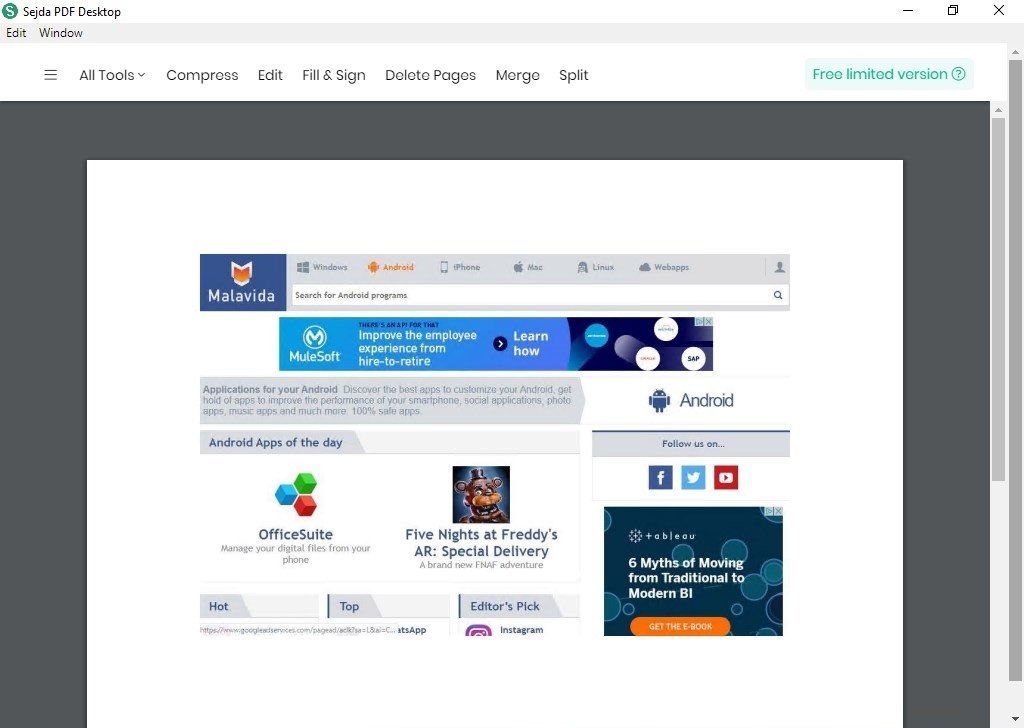
Step 4: Click Convert to Word and wait for processing.
Step 5: Open the output folder to access your converted Word file.
4. Sejda Web vs Sejda Desktop
On Windows, you can use either Sejda Web or Sejda Desktop. Desktop is better when you care about privacy or convert larger files repeatedly.
| Feature | Sejda Web (Online) | Sejda Desktop (Offline) |
|---|---|---|
| Installation | No install required | Requires download & install |
| File security | Processed on Sejda servers; auto-deleted after 2 hours | Files stay on your device |
| Platforms | Any browser on Windows | Windows Desktop app |
| Best for | Quick one-off tasks | Sensitive files & recurring work |
Quick tip on Windows: Use Sejda Web for fast online jobs within free limits. Switch to Sejda Desktop when privacy or offline access matters more.
5. Best Alternative to Sejda pdf to word: WPS Office
If Sejda’s free limits interrupt your work, WPS Office is a strong alternative to sejda pdf editor — especially with its online free PDF tools plus free Word editing afterward.
Here is how WPS Online free advantages map against Sejda’s limitations:
No Sejda-style free-plan task/page cap: Sejda Free limits you to 3 tasks per hour and 50 pages or 50 MB. WPS PDF Tools Online is built for everyday free conversion without that same hourly and page/size free-plan bottleneck.
Free editing after conversion: After you convert PDF to Word, open the .docx in WPS Writer and edit text, layout, and formatting for free — Sejda’s converter alone does not replace a full free Word editor.
Online free convenience: Convert in the browser without installing Sejda Desktop first.
All-in-one follow-up: Stay in WPS to continue writing, formatting, and exporting — instead of bouncing between a converter and another editor.
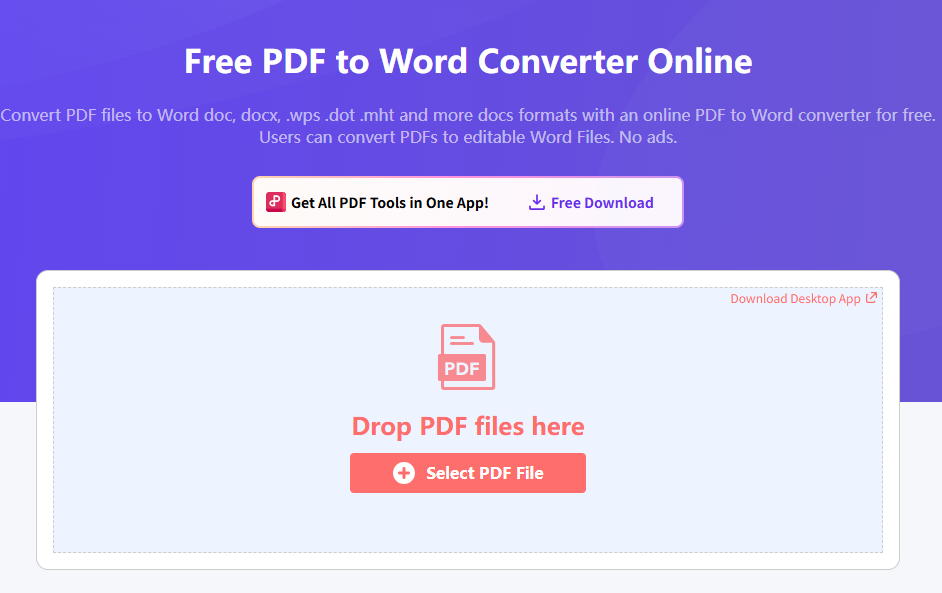
How to Convert PDF to Word Online Free With WPS
Step 1: Open WPS PDF Tools Online (PDF to Word) in your browser.
Step 2: Click upload / Select File and choose your PDF.
Step 3: Start conversion and download the Word file when ready.
Step 4: Open the Word file in WPS Writer to edit for free.
Frequently Asked Questions (FAQs)
Q: Are there any limitations when converting PDFs to Word with Sejda?
A: Yes. Sejda’s free plan typically limits you to 3 tasks per hour and documents up to 50 pages or 50 MB. For freer everyday conversion plus free Word editing afterward, use WPS PDF Tools Online and WPS Writer.
Q: Does sejda pdf to word online work on iPhone and Android?
A: Yes. Sejda online works in mobile browsers. Use Safari/Chrome, upload your PDF, convert, then download. For deeper mobile editing, open the Word result in WPS Office.
Q: How do you retain PDF formatting when converting it to Word?
A: In Sejda, choose Keep layout before conversion. After downloading, check headings, tables, and spacing — then clean up in WPS Writer if needed.
Q: When should I use Sejda Desktop instead of Sejda Web on Windows?
A: Use Desktop when files are sensitive, when you need offline processing, or when you convert repeatedly on the same PC. Use Web for quick online jobs.
Q: Is Sejda free for sejda pdf to word?
A: Yes, with free-plan limits. If those limits block you, WPS Office Online free conversion plus free editing after conversion is usually the more complete workflow.

'%3e%3cpath%20d='M19.9911%204.11386V6.471H18.5894C18.0775%206.471%2017.7322%206.57814%2017.5536%206.79243C17.3751%207.00671%2017.2858%207.32814%2017.2858%207.75671V9.44421H19.9019L19.5536%2012.0871H17.2858V18.8639H14.5536V12.0871H12.2769V9.44421H14.5536V7.49779C14.5536%206.39064%2014.8632%205.53201%2015.4822%204.92189C16.1013%204.31177%2016.9257%204.00671%2017.9554%204.00671C18.8304%204.00671%2019.509%204.04243%2019.9911%204.11386Z'%20fill='%23333333'/%3e%3c/g%3e%3cdefs%3e%3cclipPath%20id='clip0_2938_8199'%3e%3crect%20width='16'%20height='16'%20fill='white'%20transform='translate(8%204.00671)'/%3e%3c/clipPath%3e%3c/defs%3e%3c/svg%3e)
'%3e%3cpath%20d='M17.5237%2010.7813L23.4811%204H22.0699L16.8949%209.88693L12.7648%204H8L14.2469%2012.9029L8%2020.0133H9.4112L14.8725%2013.7952L19.2352%2020.0133H24M9.92053%205.04213H12.0885L22.0688%2019.0224H19.9003'%20fill='%23333333'/%3e%3c/g%3e%3cdefs%3e%3cclipPath%20id='clip0_2938_8200'%3e%3crect%20width='16'%20height='16.0134'%20fill='white'%20transform='translate(8%204)'/%3e%3c/clipPath%3e%3c/defs%3e%3c/svg%3e)


