

'%3e%3cpath%20d='M8%200C12.4183%200%2016%203.58172%2016%208C16%2012.4183%2012.4183%2016%208%2016C3.58172%2016%200%2012.4183%200%208C0%203.58172%203.58172%200%208%200ZM11.6162%204.38379C11.2257%203.99337%2010.5927%203.99338%2010.2021%204.38379L8%206.58594L5.79785%204.38379C5.40732%203.99334%204.77429%203.99329%204.38379%204.38379C3.99331%204.77429%203.99335%205.40733%204.38379%205.79785L6.58594%208L4.38379%2010.2021C3.99348%2010.5927%203.99341%2011.2257%204.38379%2011.6162C4.77426%2012.0066%205.40734%2012.0065%205.79785%2011.6162L8%209.41406L10.2021%2011.6162C10.5927%2012.0066%2011.2257%2012.0067%2011.6162%2011.6162C12.0067%2011.2257%2012.0066%2010.5927%2011.6162%2010.2021L9.41406%208L11.6162%205.79785C12.0066%205.40735%2012.0066%204.77429%2011.6162%204.38379Z'%20fill='%23080E17'%20fill-opacity='0.46'/%3e%3c/g%3e%3cdefs%3e%3cclipPath%20id='clip0_3761_713'%3e%3crect%20width='16'%20height='16'%20fill='white'/%3e%3c/clipPath%3e%3c/defs%3e%3c/svg%3e)




'%3e%3cpath%20fill-rule='evenodd'%20clip-rule='evenodd'%20d='M21.4999%2010.9993C21.4999%205.20009%2016.7986%200.498901%2010.9993%200.498901C5.19994%200.498901%200.498657%205.20009%200.498657%2010.9993C0.498657%2016.2404%204.33858%2020.5844%209.35855%2021.3722V14.0346H6.69238V10.9993H9.35855V8.68594C9.35855%206.05427%2010.9262%204.60062%2013.3248%204.60062C14.4736%204.60062%2015.6753%204.80571%2015.6753%204.80571V7.38979H14.3512C13.0468%207.38979%2012.64%208.19921%2012.64%209.0296V10.9993H15.5523L15.0867%2014.0346H12.64V21.3722C17.66%2020.5844%2021.4999%2016.2404%2021.4999%2010.9993Z'%20fill='%231568EA'/%3e%3c/g%3e%3c/svg%3e)


'%3e%3cpath%20d='M2.42045%2022.1876H6.31818V12.7217L0.75%208.54553V20.5171C0.75%2021.4414%201.49892%2022.1876%202.42045%2022.1876Z'%20fill='%234285F4'/%3e%3cpath%20d='M19.682%2022.1876H23.5797C24.5041%2022.1876%2025.2502%2021.4387%2025.2502%2020.5171V8.54553L19.682%2012.7217'%20fill='%2334A853'/%3e%3cpath%20d='M19.682%205.48293V12.7216L25.2502%208.54543V6.31816C25.2502%204.25236%2022.8921%203.07469%2021.2411%204.31361'%20fill='%23FBBC04'/%3e%3cpath%20d='M6.31824%2012.7217V5.48303L13.0001%2010.4944L19.6819%205.48303V12.7217L13.0001%2017.733'%20fill='%23EA4335'/%3e%3cpath%20d='M0.75%206.31816V8.54543L6.31818%2012.7216V5.48293L4.75909%204.31361C3.10534%203.07469%200.75%204.25236%200.75%206.31816Z'%20fill='%23C5221F'/%3e%3c/g%3e%3cdefs%3e%3cclipPath%20id='clip0_2954_7305'%3e%3crect%20width='24.5'%20height='18.375'%20fill='white'%20transform='translate(0.75%203.8125)'/%3e%3c/clipPath%3e%3c/defs%3e%3c/svg%3e)


Someone sends you a photo of a whiteboard, a scanned form, or a receipt, and the information you need is trapped in pixels. Retyping it by hand wastes time and invites typos, and blurry phone shots make it worse. Pic to text conversion—running a picture through OCR (optical character recognition, which turns letter shapes in an image into editable characters)—solves this, and you can do it without leaving WPS Office.
This guide covers when pic to text conversion is worth it, a desktop walkthrough in WPS Writer, a free online route, and the habits that decide whether your extraction comes out clean or garbled.
Pic to Text: How to Convert Pictures to Editable Text
When You Need Pic to Text Conversion
Pic to text conversion earns its keep whenever text exists only as an image. A few common cases:
Receipts and invoices you need to log into a spreadsheet or expense report.
Whiteboard photos from meetings that should become action items in a document.
Printed pages from books or handouts you want to quote or annotate in Writer.
Screenshots of error messages, chats, or web forms that you need to search, translate, or paste into a ticket.
In all of these, the alternative is manual retyping, which gets slower and error-prone as the page fills up. OCR handles the first pass in seconds, and you spend your time fixing the few characters it gets wrong instead of typing the whole thing. For a broader comparison of OCR routes, see our image to text conversion guide and the roundup of free image to text converters.
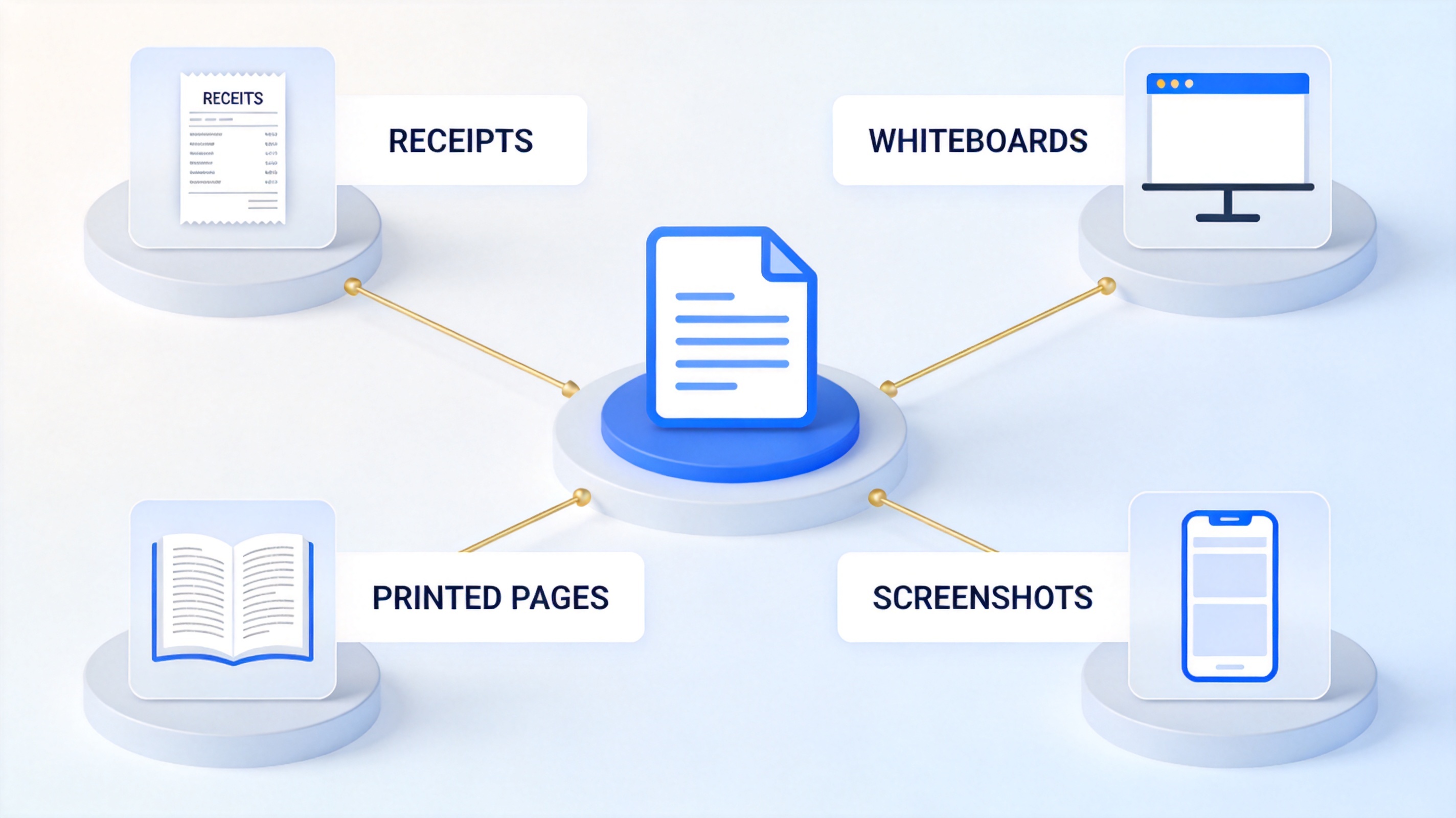
Scenes that need pic to text conversion


How to Convert a Pic to Text in WPS Writer (Desktop)
WPS Writer includes a built-in Extract Text OCR tool that works on any picture you place in a document, and drops the result straight into your file where you can edit it immediately.
Open WPS Writer and place the image in a document with Insert > Picture.
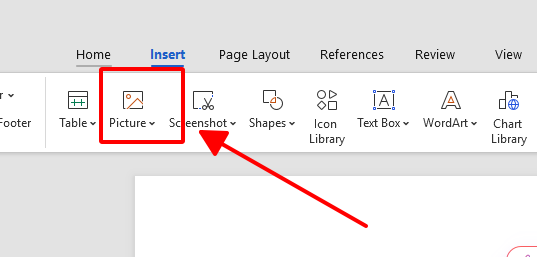
Insert picture in WPS Writer
Select the picture, then choose Extract Text from the floating image toolbar—the tool that extracts text from PDFs or images.
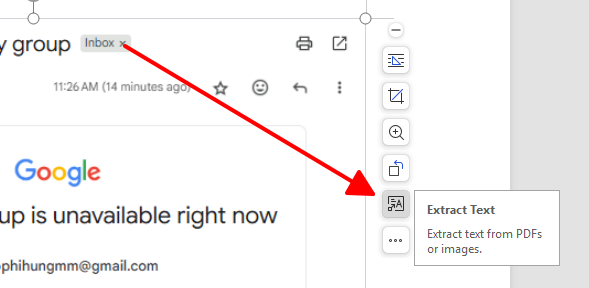
Extract text button in WPS Writer
In the Extract Text window, confirm the image is selected and pick a Conversion type: Plain text for clean text, Formatted document to keep paragraph structure, or Formatted table when the source is a table.
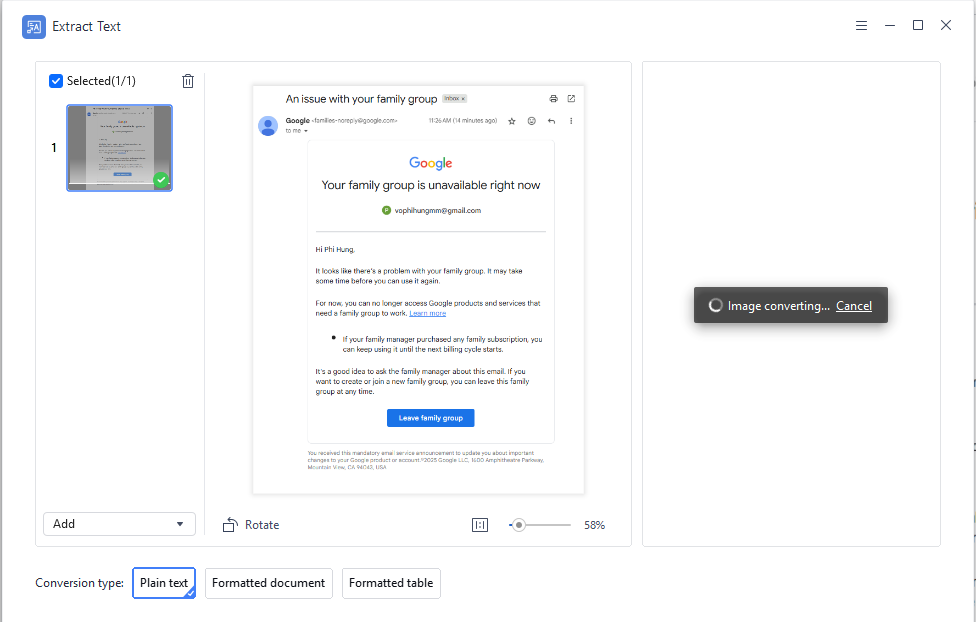
WPS Extract Text conversion options
Wait for the conversion to finish, then proofread the extracted text against the picture. Names, numbers, and small characters are where OCR slips most, and your original image stays in the document for comparison.
Delete the picture if you only needed its text, and save the document as .docx or copy the text wherever it belongs.
Convert a Pic to Text Online for Free
If the picture is on another computer or you are away from your desktop, WPS PDF Tools online converts JPG images to editable Word documents with OCR in the browser.
Open pdf.wps.com and choose JPG to Word under the conversion tools.
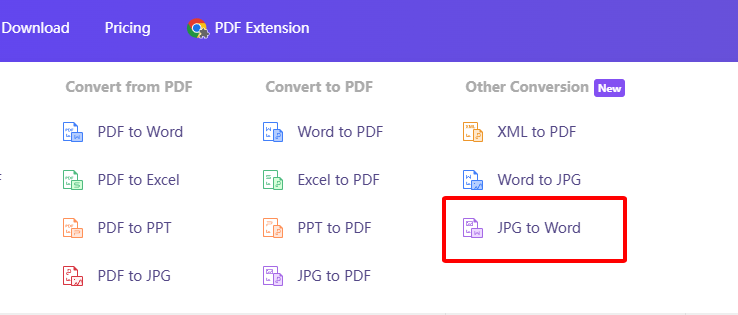
JPG to Word online converter entry
Upload your picture with Select Image—JPG, PNG, and scanned files are supported—then press Convert.
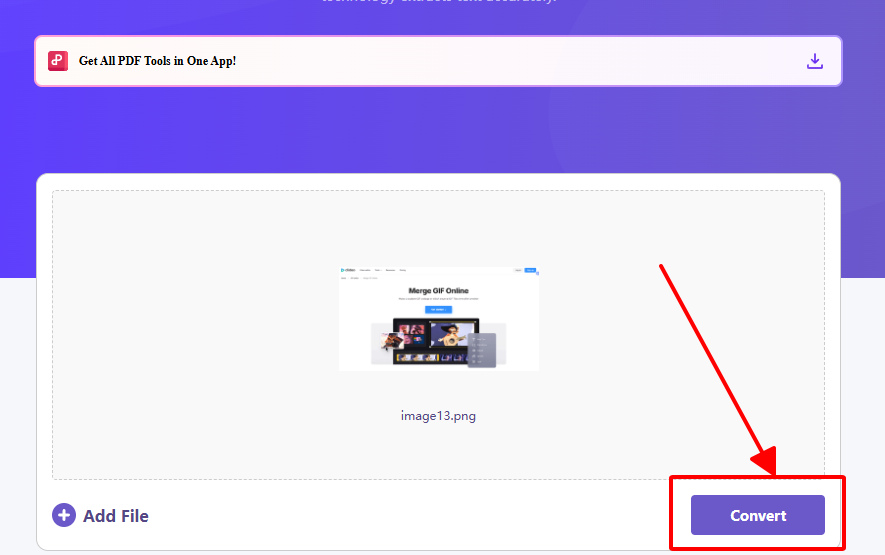
Convert uploaded image to Word
Download the resulting Word file or copy the text directly. The online route is free for occasional use; heavier batch work runs better in the desktop app.
How to Get Better Results from Any Pic to Text Tool
OCR accuracy is decided before the tool runs. Three conditions separate a clean extraction from a garbled one:
Shoot in good light. Shadows across a page read as smudges, and dim scenes blur letter edges. Even, indirect light gives the engine the sharpest strokes to work with.
Keep the angle flat. Text shot at a slant gets reflowed incorrectly. Hold the camera parallel to the page and crop out borders and fingers before converting.
Maximize contrast. Dark text on a light background is the easiest case. If the source is faint—old faxes, pencil notes—raise contrast in an image editor first, then convert.
After extraction, always proofread numbers, currency amounts, and proper nouns against the original image. Those short strings carry the most consequence in receipts, forms, and citations, and they are exactly the characters OCR confuses most.
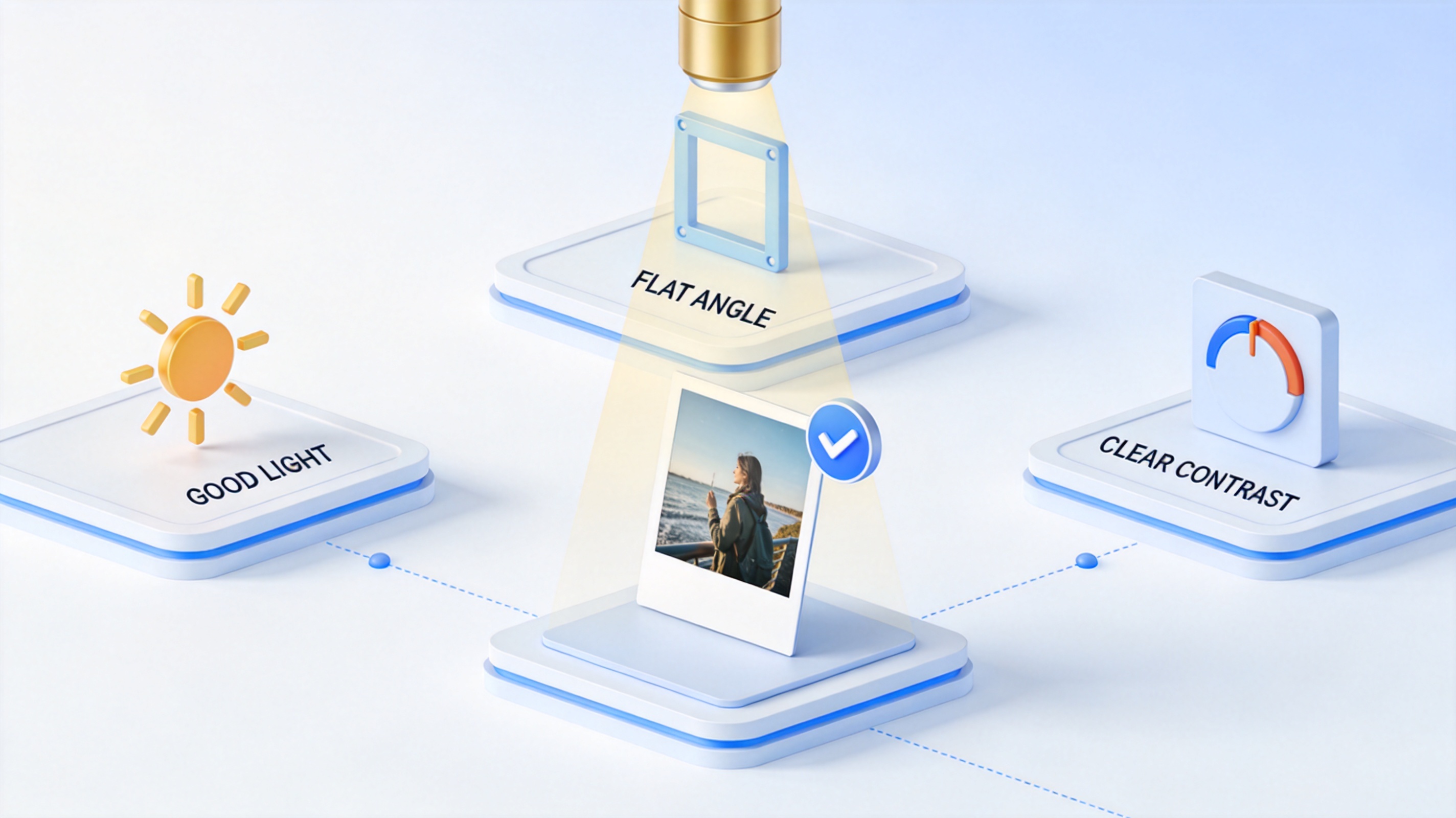
Tips for accurate pic to text OCR
The Best Free Alternative: WPS Office
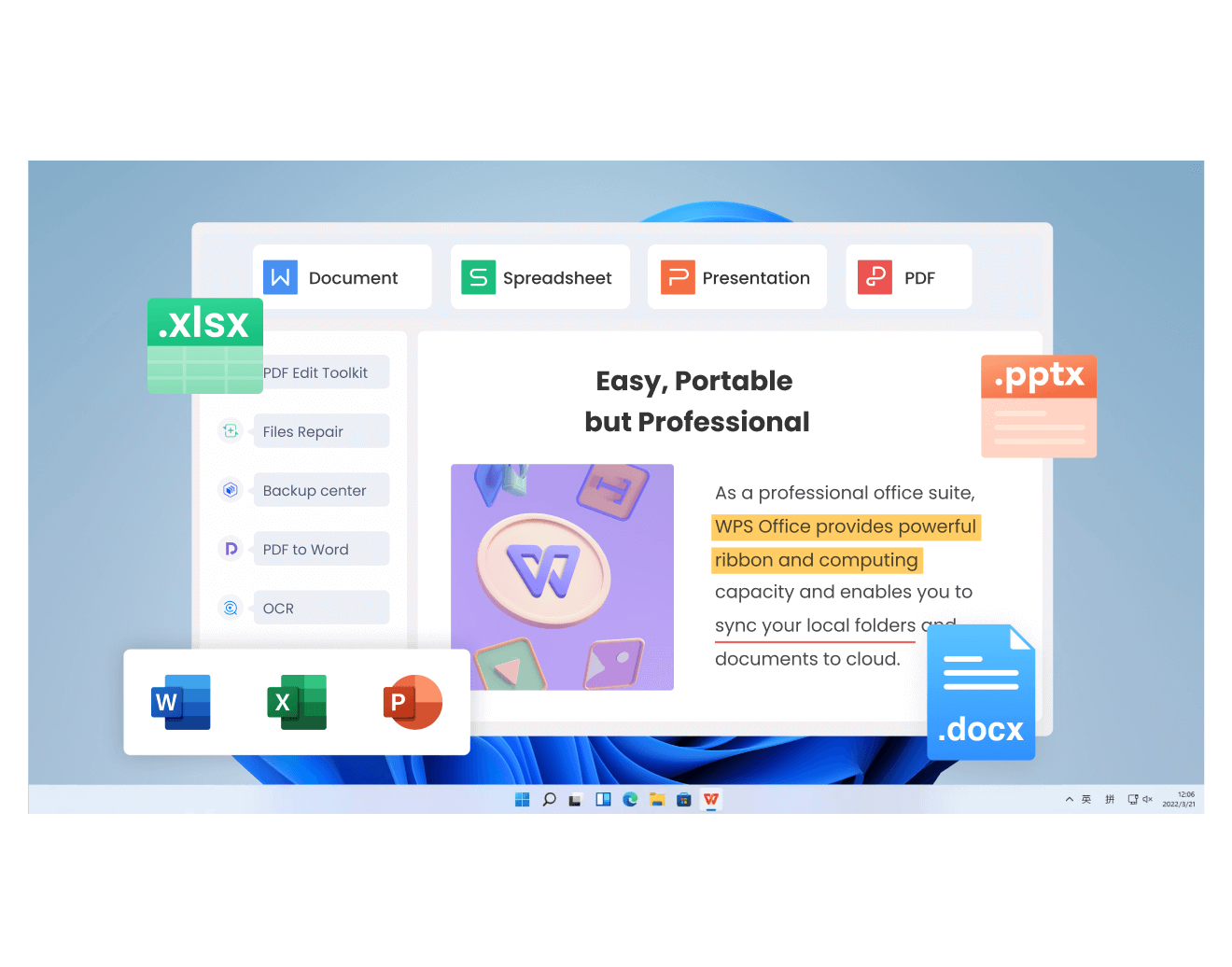
Many pic to text workflows break because the tools live in different places: one app to shoot, one site to convert, another to edit. WPS Office keeps the whole chain in one suite—Writer's Extract Text OCR, the PDF toolkit's converters, and the editor where the text ends up—on Windows, macOS, Linux, web, and mobile.
WPS Office is free to download and covers Word, Excel, PPT, and PDF in one install, so a picture you extract on desktop can be edited, exported, and shared without switching apps. Some AI and OCR features depend on your plan, and the app shows what your allowance includes.
WPS Office all products overview
FAQs
Is pic to text conversion accurate?
For clear printed text, modern OCR is highly accurate; problems concentrate in cursive handwriting, low-resolution photos, and stylized fonts. Follow the light, angle, and contrast tips above, and proofread numbers and names afterward.
Can I convert a pic to text without installing anything?
Yes. WPS PDF Tools online runs JPG to Word conversion in your browser with OCR, no install required. For frequent or batch conversions, the desktop app is faster and keeps everything offline.
Does pic to text work with handwriting?
Partly. Neat block printing converts reliably; connected cursive is much harder and usually needs manual correction. Treat handwriting output as a draft, not a finished transcription.
What file formats can I convert?
JPG and PNG photos are the standard inputs, and scanned PDFs are supported by the desktop OCR tool. If your source is another format, converting it to one of these first improves compatibility.
Is WPS Extract Text free?
WPS Office is free to download, and OCR availability can depend on your plan; the app shows your current allowance. The online JPG to Word converter is free for occasional use.


'%3e%3cpath%20d='M19.9911%204.11386V6.471H18.5894C18.0775%206.471%2017.7322%206.57814%2017.5536%206.79243C17.3751%207.00671%2017.2858%207.32814%2017.2858%207.75671V9.44421H19.9019L19.5536%2012.0871H17.2858V18.8639H14.5536V12.0871H12.2769V9.44421H14.5536V7.49779C14.5536%206.39064%2014.8632%205.53201%2015.4822%204.92189C16.1013%204.31177%2016.9257%204.00671%2017.9554%204.00671C18.8304%204.00671%2019.509%204.04243%2019.9911%204.11386Z'%20fill='%23333333'/%3e%3c/g%3e%3cdefs%3e%3cclipPath%20id='clip0_2938_8199'%3e%3crect%20width='16'%20height='16'%20fill='white'%20transform='translate(8%204.00671)'/%3e%3c/clipPath%3e%3c/defs%3e%3c/svg%3e)
'%3e%3cpath%20d='M17.5237%2010.7813L23.4811%204H22.0699L16.8949%209.88693L12.7648%204H8L14.2469%2012.9029L8%2020.0133H9.4112L14.8725%2013.7952L19.2352%2020.0133H24M9.92053%205.04213H12.0885L22.0688%2019.0224H19.9003'%20fill='%23333333'/%3e%3c/g%3e%3cdefs%3e%3cclipPath%20id='clip0_2938_8200'%3e%3crect%20width='16'%20height='16.0134'%20fill='white'%20transform='translate(8%204)'/%3e%3c/clipPath%3e%3c/defs%3e%3c/svg%3e)


