

'%3e%3cpath%20d='M8%200C12.4183%200%2016%203.58172%2016%208C16%2012.4183%2012.4183%2016%208%2016C3.58172%2016%200%2012.4183%200%208C0%203.58172%203.58172%200%208%200ZM11.6162%204.38379C11.2257%203.99337%2010.5927%203.99338%2010.2021%204.38379L8%206.58594L5.79785%204.38379C5.40732%203.99334%204.77429%203.99329%204.38379%204.38379C3.99331%204.77429%203.99335%205.40733%204.38379%205.79785L6.58594%208L4.38379%2010.2021C3.99348%2010.5927%203.99341%2011.2257%204.38379%2011.6162C4.77426%2012.0066%205.40734%2012.0065%205.79785%2011.6162L8%209.41406L10.2021%2011.6162C10.5927%2012.0066%2011.2257%2012.0067%2011.6162%2011.6162C12.0067%2011.2257%2012.0066%2010.5927%2011.6162%2010.2021L9.41406%208L11.6162%205.79785C12.0066%205.40735%2012.0066%204.77429%2011.6162%204.38379Z'%20fill='%23080E17'%20fill-opacity='0.46'/%3e%3c/g%3e%3cdefs%3e%3cclipPath%20id='clip0_3761_713'%3e%3crect%20width='16'%20height='16'%20fill='white'/%3e%3c/clipPath%3e%3c/defs%3e%3c/svg%3e)




'%3e%3cpath%20fill-rule='evenodd'%20clip-rule='evenodd'%20d='M21.4999%2010.9993C21.4999%205.20009%2016.7986%200.498901%2010.9993%200.498901C5.19994%200.498901%200.498657%205.20009%200.498657%2010.9993C0.498657%2016.2404%204.33858%2020.5844%209.35855%2021.3722V14.0346H6.69238V10.9993H9.35855V8.68594C9.35855%206.05427%2010.9262%204.60062%2013.3248%204.60062C14.4736%204.60062%2015.6753%204.80571%2015.6753%204.80571V7.38979H14.3512C13.0468%207.38979%2012.64%208.19921%2012.64%209.0296V10.9993H15.5523L15.0867%2014.0346H12.64V21.3722C17.66%2020.5844%2021.4999%2016.2404%2021.4999%2010.9993Z'%20fill='%231568EA'/%3e%3c/g%3e%3c/svg%3e)


'%3e%3cpath%20d='M2.42045%2022.1876H6.31818V12.7217L0.75%208.54553V20.5171C0.75%2021.4414%201.49892%2022.1876%202.42045%2022.1876Z'%20fill='%234285F4'/%3e%3cpath%20d='M19.682%2022.1876H23.5797C24.5041%2022.1876%2025.2502%2021.4387%2025.2502%2020.5171V8.54553L19.682%2012.7217'%20fill='%2334A853'/%3e%3cpath%20d='M19.682%205.48293V12.7216L25.2502%208.54543V6.31816C25.2502%204.25236%2022.8921%203.07469%2021.2411%204.31361'%20fill='%23FBBC04'/%3e%3cpath%20d='M6.31824%2012.7217V5.48303L13.0001%2010.4944L19.6819%205.48303V12.7217L13.0001%2017.733'%20fill='%23EA4335'/%3e%3cpath%20d='M0.75%206.31816V8.54543L6.31818%2012.7216V5.48293L4.75909%204.31361C3.10534%203.07469%200.75%204.25236%200.75%206.31816Z'%20fill='%23C5221F'/%3e%3c/g%3e%3cdefs%3e%3cclipPath%20id='clip0_2954_7305'%3e%3crect%20width='24.5'%20height='18.375'%20fill='white'%20transform='translate(0.75%203.8125)'/%3e%3c/clipPath%3e%3c/defs%3e%3c/svg%3e)


A contractor asks for a PDF and your drawing is a DXF - or the client's laptop has no CAD software at all. You can convert a DXF to PDF for free in three ways: use a browser-based converter that needs no install, open the file in a free CAD viewer and print it to PDF, or open it in WPS Office and export it from the print dialog. All three keep the drawing shareable, and the right one depends on file size and whether the drawing must stay on your machine.
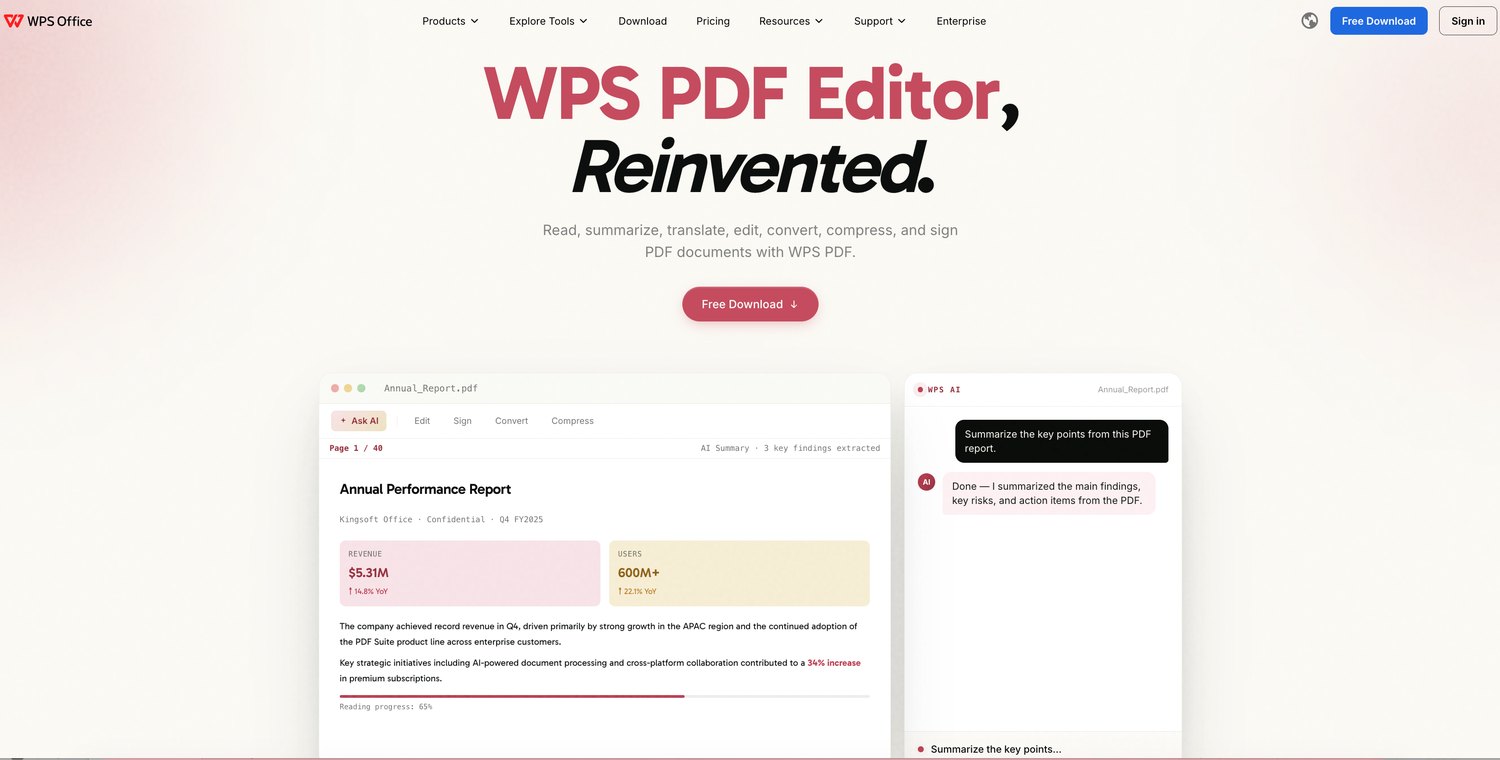
How to Convert a DXF to PDF: Free Methods Without AutoCAD
Convert a DXF to PDF with a Free Online Converter
Online converters are the fastest route when the drawing is small and the computer has no CAD tools. Most of them now process the file locally in your browser instead of uploading it, which matters when the drawing is a client design or an unpublished project.
Open a converter such as PDF24 Tools, CADdillo or DXFTools in your browser - no account is required on any of them.
Drop the .dxf file onto the page, or click to browse for it. Tools that accept DWG as well let you reuse the same workflow for both formats.
Set the output options before converting: page size (A4, A3 or Letter), portrait or landscape, and fit-to-page or true 1:1 scale. This is the step that decides whether measurements on the printed sheet are accurate.
Convert and download the PDF. Open it once and check the page corners before you send it - converters occasionally clip the outermost linework.
Converting a DXF to PDF right in the browser
Browser-local processing is the trend worth looking for in 2026: the best free tools keep the DXF on your device, render the PDF in the browser, and delete nothing to a server. For large or confidential drawings, prefer a tool that states this explicitly, or skip the browser and use the desktop route below.
Convert a DXF to PDF with a Free Desktop CAD Viewer
When the file is large, you work offline, or you convert drawings every day, a free desktop viewer is the more reliable DXF to PDF route. It plots the drawing through a real print engine, so lineweights and layers come out closer to a CAD plot than a browser preview does.
Install a free viewer: LibreCAD opens DXF files directly, FreeCAD handles both DXF and DWG projects, and Inkscape imports DXF and exports clean vector PDFs.
Open the DXF and confirm the drawing looks right on screen - this is also your chance to switch layers off before exporting.
Choose Print or Export as PDF. In LibreCAD and FreeCAD, pick Print and select a PDF printer; set the paper size and a scale of 1:1 when the drawing must keep real measurements.
Save the PDF and open it to confirm the linework, text and page size survived the conversion.
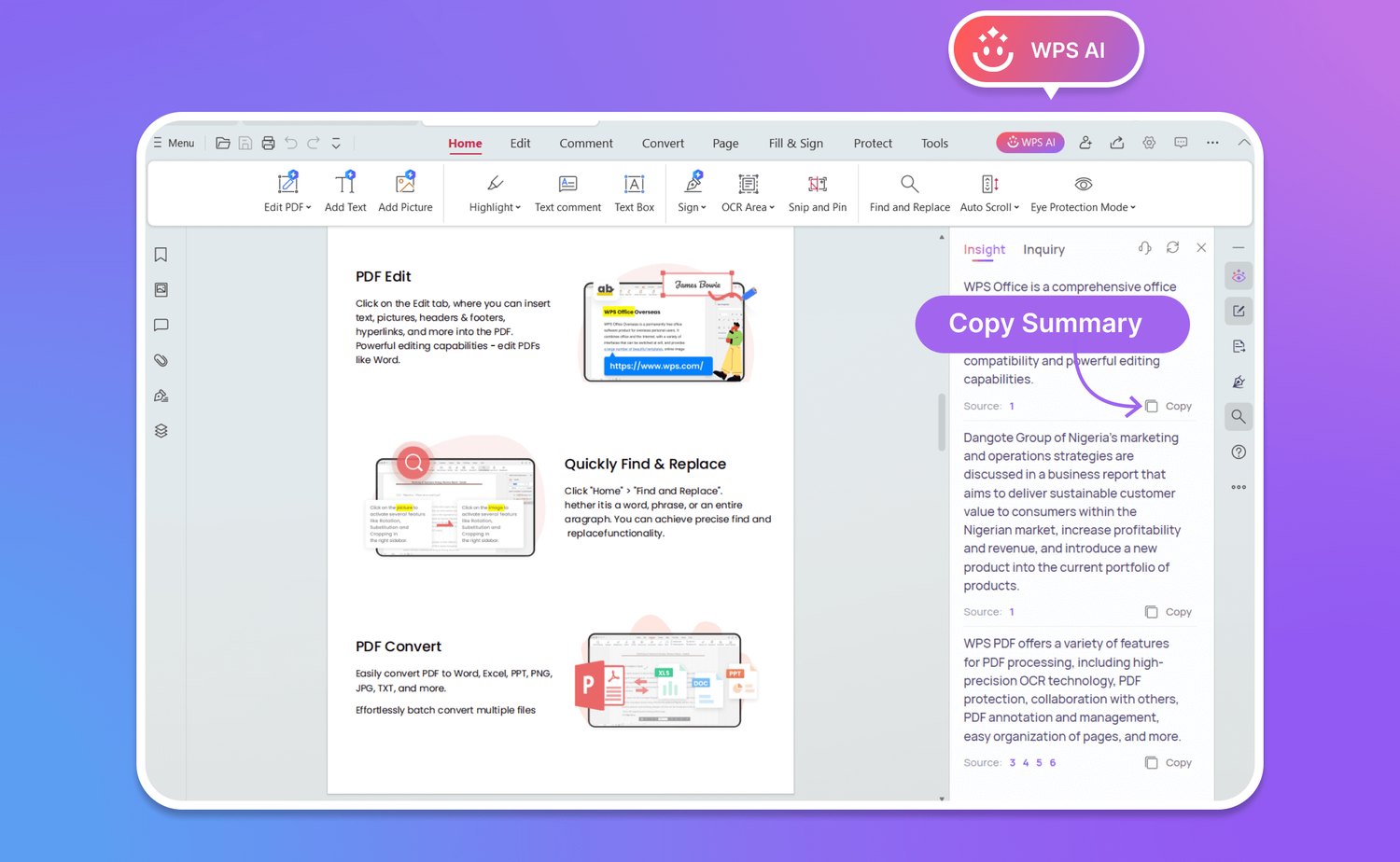
Opening the converted PDF in WPS Office
Desktop viewers also handle what online tools refuse: multi-sheet drawings, missing fonts, and XREFs that never made it into the saved file. If the DXF opens with question marks or misplaced text, the missing font never left the original CAD machine - ask the sender to export a PDF themselves or provide the font files.
Open the DXF in WPS Office and Print It as a PDF
WPS Office bundles a free CAD tool, so one app covers opening the drawing and producing the PDF without AutoCAD. Recent WPS builds can open DWG and DXF files directly from the home screen search, then print them through the regular PDF printer.
Open WPS Office and search for the CAD app on the home screen, or right-click the DXF file and open it with WPS.
Let the CAD tool open the drawing. You can view layers, measure distances and make small edits before converting - handy when the sender forgot a note.
Choose Print, select a PDF printer or Save as PDF, and set the paper size to match the sheet.
Keep "Fit for printing margins" on so no dimension line falls off the page edge, then save the PDF.
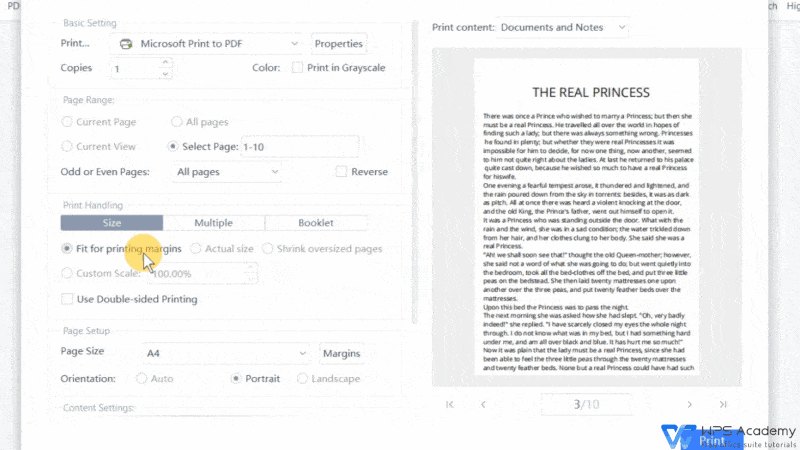
WPS print dialog with PDF output
Because the PDF lands in WPS after printing, you can continue in the same app: add page numbers, merge the sheet with a cover page, or redact a dimension before sending. A related guide covers the same workflow for DWG files in converting a DWG file to PDF without AutoCAD.
Get a Print-Ready DXF to PDF Sheet: Scale, Paper Size, and Lineweights
The difference between a usable drawing and a re-export is made in three settings. Better converters now market themselves as "plot, not screenshot" tools, because a PDF that merely captures the on-screen view keeps yellow and cyan model colors that print unreadably.
Paper size and orientation: pick the sheet the drawing was made for. A3 landscape is standard for site drawings; forcing it onto A4 shrinks text below readable size.
Scale: true 1:1 keeps real-world measurements on the paper, and is the right choice for anything someone will mark up with a scale rule. Fit-to-page is fine when the PDF is only for review.
Lineweights and colors: prefer a plot-style output - black geometry on white with the drawing's own lineweights. It is what printers, reviewers and e-signature tools expect.
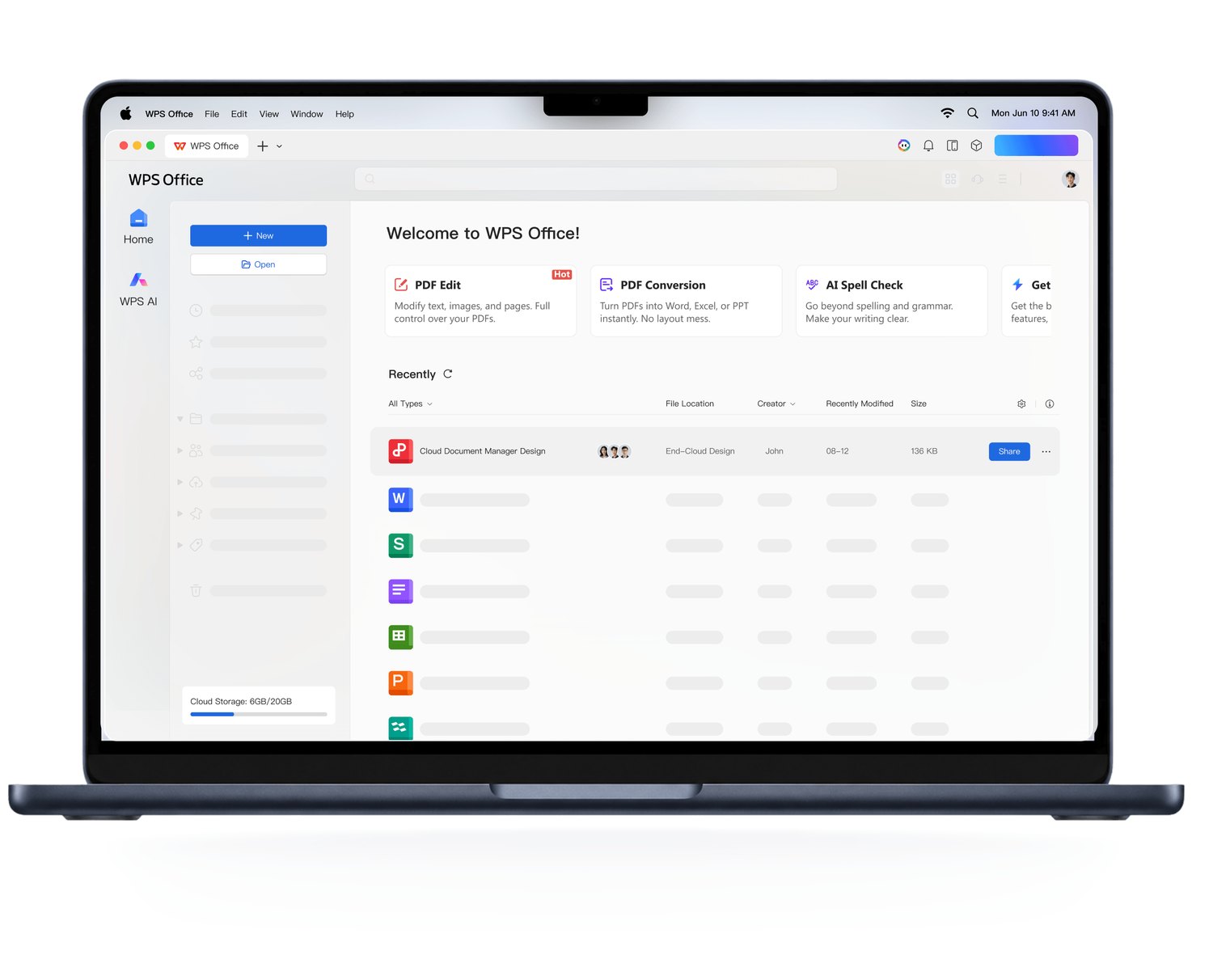
WPS Office interface for page size and layout
If the drawing is larger than one sheet, true-scale export will clip the edges unless the tool tiles it across pages. Check for a warning about clipping before you download, or switch to fit-to-page for a quick review copy.
Check Your DXF to PDF File Before You Send It
Two minutes of checking catches the failures that annoy recipients: missing dimensions, clipped borders, and text that turned into boxes.
Open the PDF at 100% zoom and look at all four corners of every page - clipped borders and lost dimension lines show up there first.
Count the pages. One drawing becoming two sheets usually means the content is larger than the paper; re-export with fit-to-page or a larger paper size.
Test the text. Select a title block line with your cursor. Selectable text means the PDF kept a text layer; unselectable text means the drawing was rasterised, which is fine for viewing but not for searching.
Print one test page when the PDF will be physically plotted. Lineweights that look fine on screen can vanish on paper if the plot style was dropped during conversion.
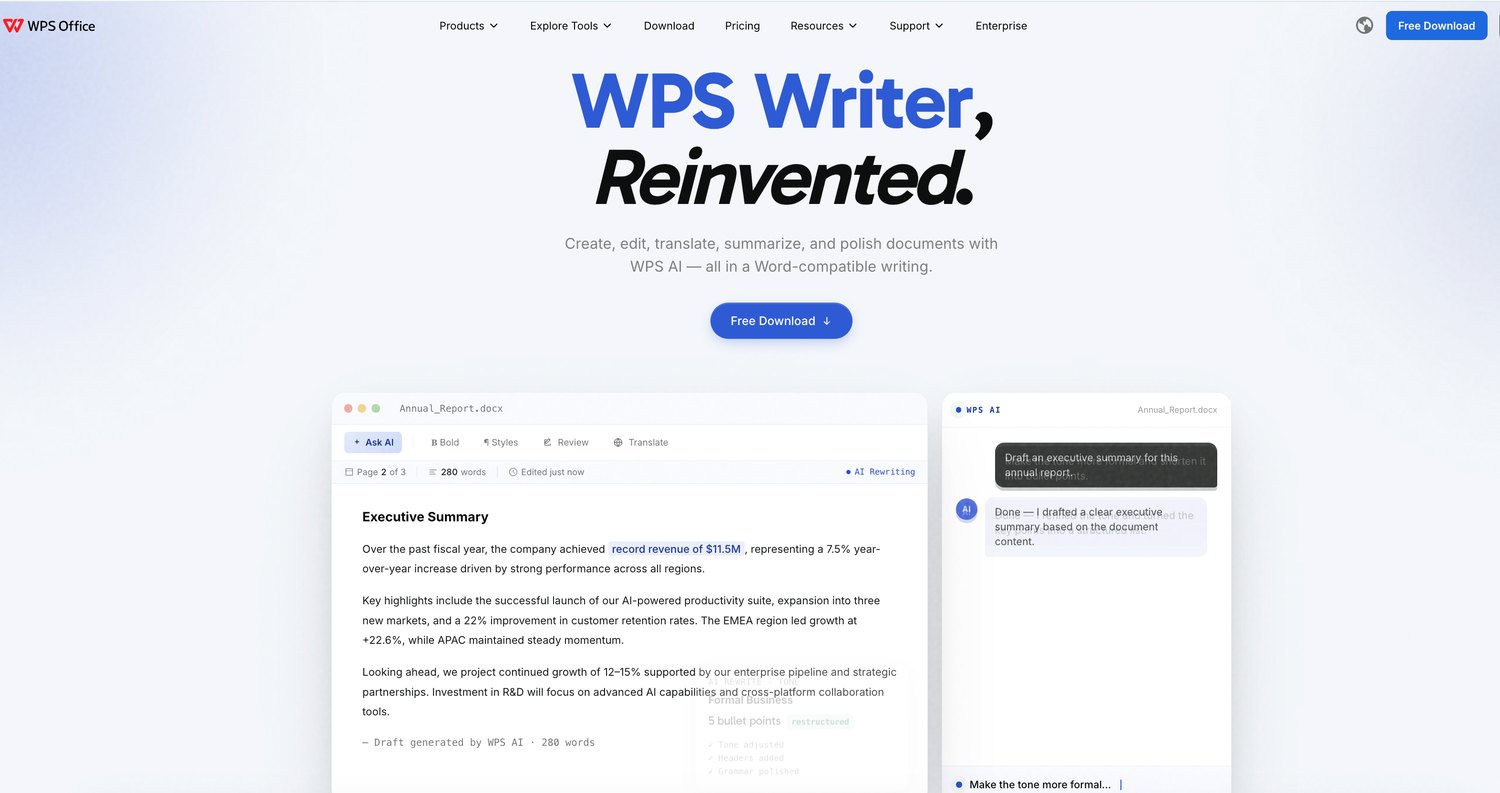
WPS Writer website for checking and editing documents
The Best Free Alternative: WPS Office
WPS Office covers the whole document side of a drawing handover: it opens DXF and DWG files with the built-in CAD tool, prints them to PDF, and then edits, merges and signs the PDF in the same free app. There is no CAD license to buy and no upload to a third-party server for the conversion itself.
Open and convert without AutoCAD: the CAD tool reads DWG and DXF, and the print dialog exports a standard PDF in seconds.
Finish the PDF in one place: rotate or reorder pages, add a title block, insert page numbers, or combine several drawings into one submission file.
Free and lightweight: WPS Office is free for personal use with no ads in documents, and runs on Windows, Mac, Linux, Android and iOS - so the site crew can open the converted PDF on a phone.
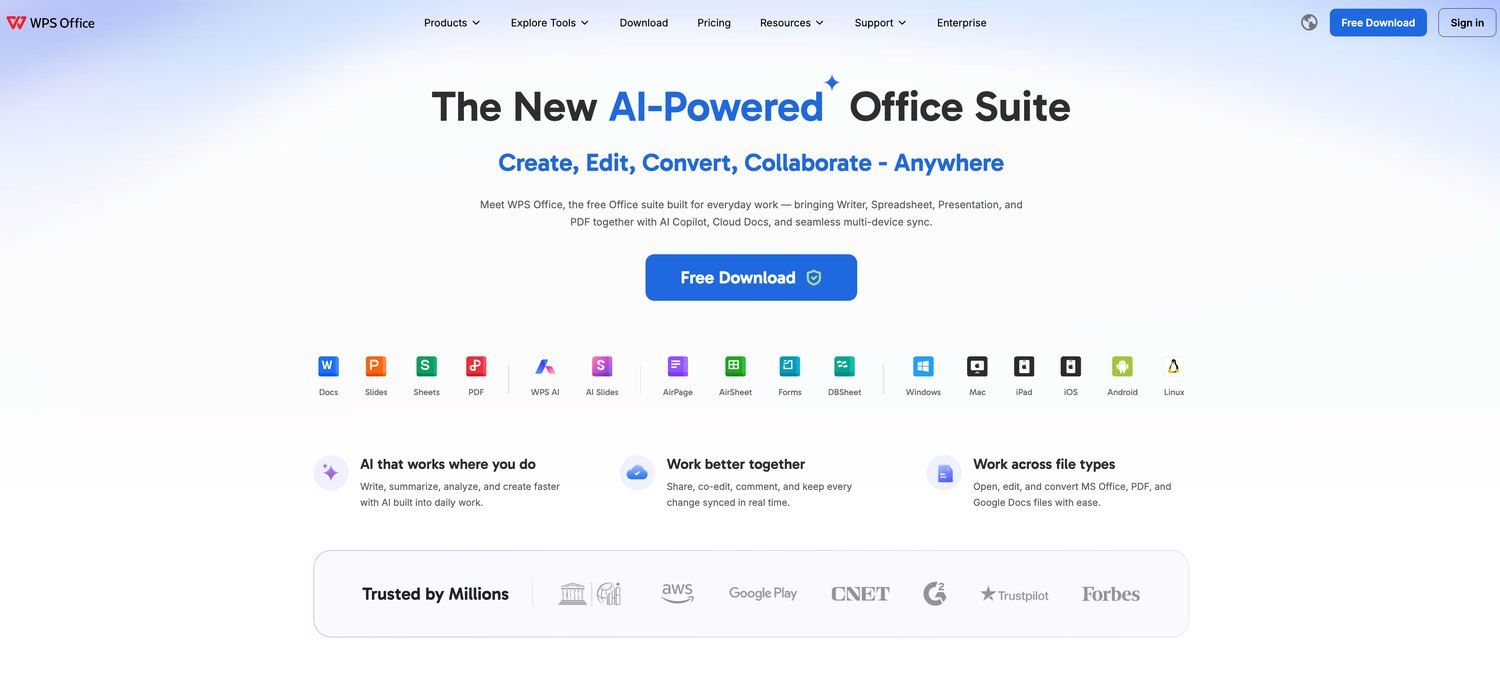
WPS Office official website
FAQs
1. How do I convert a DXF to PDF for free?
Use a browser-based converter such as PDF24 Tools, CADdillo or DXFTools, or open the DXF in a free viewer and print it to PDF. WPS Office also opens DXF files with its built-in CAD tool and exports PDF from the print dialog.
2. Can I convert a DXF to PDF without AutoCAD?
Yes. AutoCAD is never required: online converters, LibreCAD, FreeCAD, Inkscape and WPS Office all produce a PDF from a DXF with no CAD license. The only exception is drawings with XREFs or fonts that exist only on the original author's machine.
3. Is the PDF from a DXF conversion still vector?
Usually yes, when you use a converter that plots rather than screenshots. Vector PDFs keep lines sharp at any zoom and text selectable; a raster PDF is a flattened image and looks blurry when magnified or printed large.
4. How do I convert a DXF to PDF on a Mac?
On a Mac you can use any browser-based converter, install LibreCAD or Inkscape and print to the macOS PDF printer, or open the file in WPS Office for Mac and export it as a PDF from the print dialog.
5. Why is my converted PDF missing part of the drawing?
The drawing is probably larger than the selected paper size and the exporter clipped the edges instead of scaling. Re-export with fit-to-page enabled, choose a larger sheet such as A3, or use a converter that tiles the drawing across pages.

'%3e%3cpath%20d='M19.9911%204.11386V6.471H18.5894C18.0775%206.471%2017.7322%206.57814%2017.5536%206.79243C17.3751%207.00671%2017.2858%207.32814%2017.2858%207.75671V9.44421H19.9019L19.5536%2012.0871H17.2858V18.8639H14.5536V12.0871H12.2769V9.44421H14.5536V7.49779C14.5536%206.39064%2014.8632%205.53201%2015.4822%204.92189C16.1013%204.31177%2016.9257%204.00671%2017.9554%204.00671C18.8304%204.00671%2019.509%204.04243%2019.9911%204.11386Z'%20fill='%23333333'/%3e%3c/g%3e%3cdefs%3e%3cclipPath%20id='clip0_2938_8199'%3e%3crect%20width='16'%20height='16'%20fill='white'%20transform='translate(8%204.00671)'/%3e%3c/clipPath%3e%3c/defs%3e%3c/svg%3e)
'%3e%3cpath%20d='M17.5237%2010.7813L23.4811%204H22.0699L16.8949%209.88693L12.7648%204H8L14.2469%2012.9029L8%2020.0133H9.4112L14.8725%2013.7952L19.2352%2020.0133H24M9.92053%205.04213H12.0885L22.0688%2019.0224H19.9003'%20fill='%23333333'/%3e%3c/g%3e%3cdefs%3e%3cclipPath%20id='clip0_2938_8200'%3e%3crect%20width='16'%20height='16.0134'%20fill='white'%20transform='translate(8%204)'/%3e%3c/clipPath%3e%3c/defs%3e%3c/svg%3e)


