

'%3e%3cpath%20d='M8%200C12.4183%200%2016%203.58172%2016%208C16%2012.4183%2012.4183%2016%208%2016C3.58172%2016%200%2012.4183%200%208C0%203.58172%203.58172%200%208%200ZM11.6162%204.38379C11.2257%203.99337%2010.5927%203.99338%2010.2021%204.38379L8%206.58594L5.79785%204.38379C5.40732%203.99334%204.77429%203.99329%204.38379%204.38379C3.99331%204.77429%203.99335%205.40733%204.38379%205.79785L6.58594%208L4.38379%2010.2021C3.99348%2010.5927%203.99341%2011.2257%204.38379%2011.6162C4.77426%2012.0066%205.40734%2012.0065%205.79785%2011.6162L8%209.41406L10.2021%2011.6162C10.5927%2012.0066%2011.2257%2012.0067%2011.6162%2011.6162C12.0067%2011.2257%2012.0066%2010.5927%2011.6162%2010.2021L9.41406%208L11.6162%205.79785C12.0066%205.40735%2012.0066%204.77429%2011.6162%204.38379Z'%20fill='%23080E17'%20fill-opacity='0.46'/%3e%3c/g%3e%3cdefs%3e%3cclipPath%20id='clip0_3761_713'%3e%3crect%20width='16'%20height='16'%20fill='white'/%3e%3c/clipPath%3e%3c/defs%3e%3c/svg%3e)




'%3e%3cpath%20fill-rule='evenodd'%20clip-rule='evenodd'%20d='M21.4999%2010.9993C21.4999%205.20009%2016.7986%200.498901%2010.9993%200.498901C5.19994%200.498901%200.498657%205.20009%200.498657%2010.9993C0.498657%2016.2404%204.33858%2020.5844%209.35855%2021.3722V14.0346H6.69238V10.9993H9.35855V8.68594C9.35855%206.05427%2010.9262%204.60062%2013.3248%204.60062C14.4736%204.60062%2015.6753%204.80571%2015.6753%204.80571V7.38979H14.3512C13.0468%207.38979%2012.64%208.19921%2012.64%209.0296V10.9993H15.5523L15.0867%2014.0346H12.64V21.3722C17.66%2020.5844%2021.4999%2016.2404%2021.4999%2010.9993Z'%20fill='%231568EA'/%3e%3c/g%3e%3c/svg%3e)


'%3e%3cpath%20d='M2.42045%2022.1876H6.31818V12.7217L0.75%208.54553V20.5171C0.75%2021.4414%201.49892%2022.1876%202.42045%2022.1876Z'%20fill='%234285F4'/%3e%3cpath%20d='M19.682%2022.1876H23.5797C24.5041%2022.1876%2025.2502%2021.4387%2025.2502%2020.5171V8.54553L19.682%2012.7217'%20fill='%2334A853'/%3e%3cpath%20d='M19.682%205.48293V12.7216L25.2502%208.54543V6.31816C25.2502%204.25236%2022.8921%203.07469%2021.2411%204.31361'%20fill='%23FBBC04'/%3e%3cpath%20d='M6.31824%2012.7217V5.48303L13.0001%2010.4944L19.6819%205.48303V12.7217L13.0001%2017.733'%20fill='%23EA4335'/%3e%3cpath%20d='M0.75%206.31816V8.54543L6.31818%2012.7216V5.48293L4.75909%204.31361C3.10534%203.07469%200.75%204.25236%200.75%206.31816Z'%20fill='%23C5221F'/%3e%3c/g%3e%3cdefs%3e%3cclipPath%20id='clip0_2954_7305'%3e%3crect%20width='24.5'%20height='18.375'%20fill='white'%20transform='translate(0.75%203.8125)'/%3e%3c/clipPath%3e%3c/defs%3e%3c/svg%3e)


Telugu is spoken by more than 80 million people, mainly in the Indian states of Andhra Pradesh and Telangana. If you receive an English PDF — a contract, a report, a circular, or study material — reading it in Telugu is far easier than switching between dictionaries. This guide shows how to translate an English PDF to Telugu step by step, and how to keep tables, columns, and the Telugu script intact while you do it.
How to Translate English PDF to Telugu Without Breaking the Layout
Why English to Telugu PDF Translation Breaks the Layout
An English PDF stores text as fixed positions on a page. When you translate it into Telugu, three things tend to go wrong: sentences get longer or shorter so lines overlap, tables collapse, and the Telugu script disappears if the target file has no Unicode Telugu font. The result is a document that is technically translated but impossible to read.
English to Telugu PDF translation also differs from translating a Word file, because PDFs are not meant to be edited. Any method that simply pastes text into a translator loses the original structure, so the tool you choose matters more than for most language jobs.
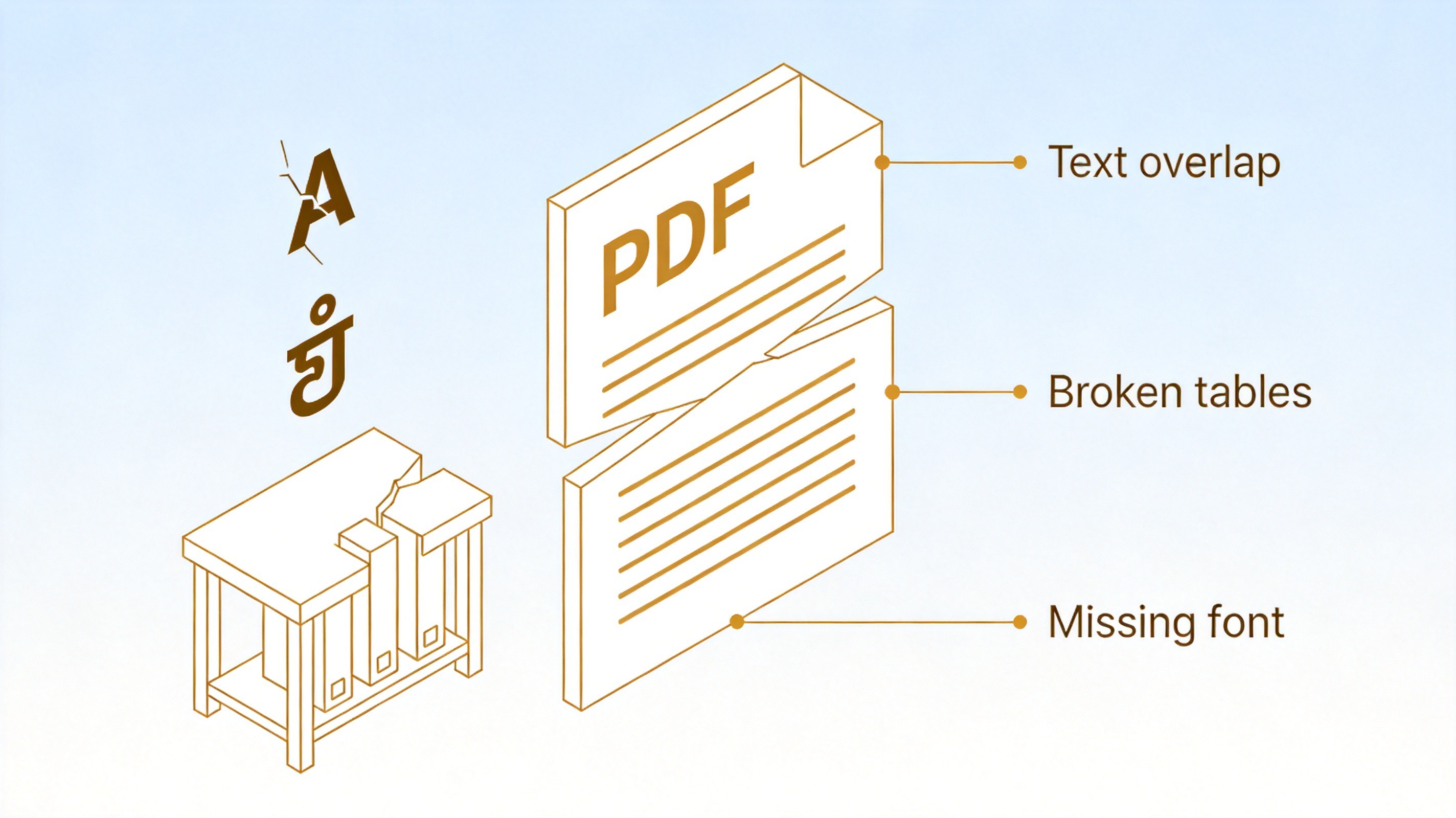
Broken Telugu PDF translation layout


How to Translate an English PDF to Telugu in WPS Office
For a full multi-page document, the most reliable path is WPS Office. It opens the PDF directly, offers AI-powered translation, and lets you export the result without rebuilding the file.
Open the English PDF in WPS PDF — right-click the file and choose Open with → WPS Office.
Open the translation tool — go to the AI or Review menu and start Sync Translate (or Parallel Translate).
Set English as the source and Telugu as the target — the translation panel lists Telugu among the supported languages.
Run the translation — check a few paragraphs against the English side for names, dates, and numbers.
Export as a new PDF — use File → Export to PDF so the Telugu text keeps the original columns and images.
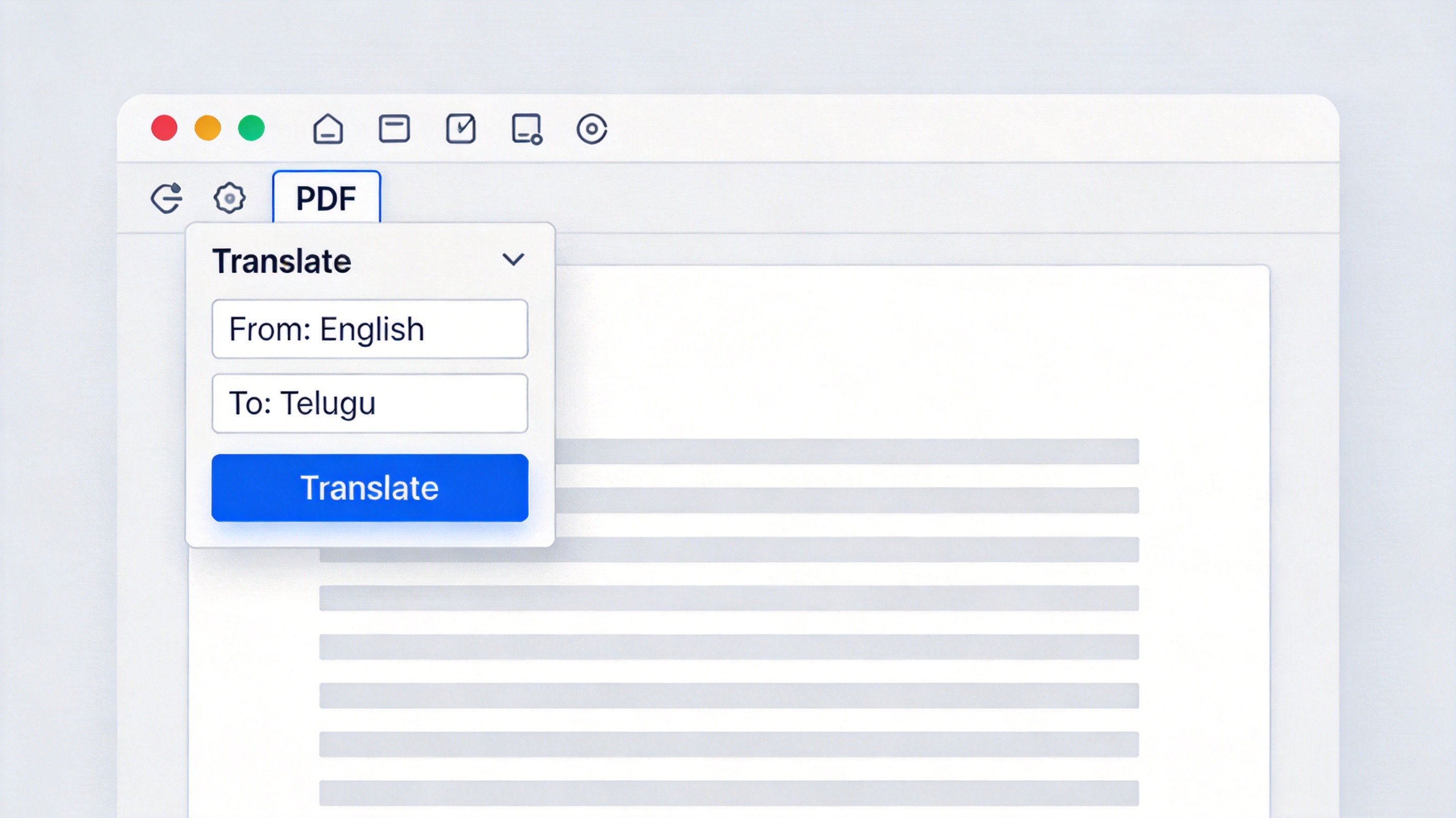
WPS PDF English to Telugu translation panel
The same workflow works if you convert the PDF to Word first — see our guide on how to translate PDF to Word and keep formatting. If you also work with other Indian languages, the method for translating English PDF to Malayalam is nearly identical.
How to Translate an English PDF to Telugu with Google Tools
If you do not want to install anything, Google's free tools can translate English PDF to Telugu in a browser. They are best for short or moderately formatted files.
Upload the PDF to Google Drive and right-click it, then choose Open with → Google Docs.
Translate the document — in Google Docs go to Tools → Translate document, set the target language to Telugu, and click Translate.
Download the result — use File → Download → PDF Document (.pdf) to get a Telugu PDF back.
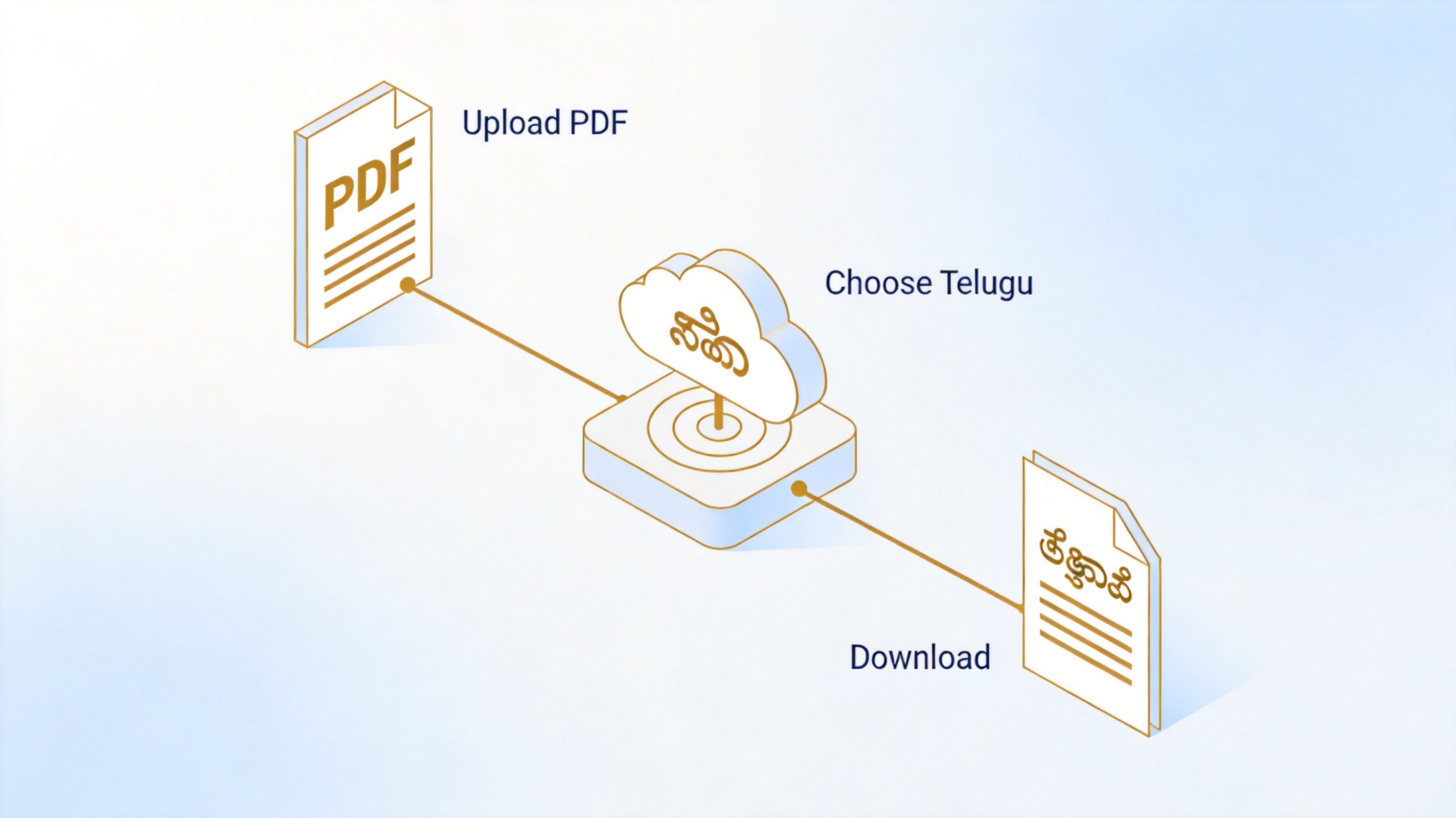
Google Docs English to Telugu translation
Google's conversion flattens complex layouts, so expect to fix tables and spacing in a desktop editor afterwards. The same limitation applies to other scripts, as we found when translating English PDF to Khmer.
Fix Telugu Fonts and Scanned PDFs in English to Telugu PDF Translation
Two issues decide whether the final Telugu PDF is usable: whether the text is real text, and whether the Telugu font survives the export.
Scanned pages need OCR first — an image-only PDF has no selectable text, so run OCR before translating, or the translator returns nothing.
Use a Unicode Telugu font — fonts such as Noto Sans Telugu render the script correctly; non-Unicode fonts show empty boxes.
Check the export — open the final PDF and confirm the Telugu characters display on another computer too.
OCR scan Noto Telugu font
The Best Free Alternative: WPS Office for English to Telugu PDF Translation
A real goal here is not just reading the Telugu text once — it is being able to reply, sign, or edit the same document afterwards. An English PDF on its own cannot do that, so it helps to pair the translation with a full office suite.
WPS Office is a free-to-start office suite that brings Writer, Spreadsheet, Presentation, and PDF tools into one program. That makes it a practical companion for English to Telugu PDF translation, because you can open the translated file, adjust the Telugu text, and export it without switching between separate apps for every step.
Why WPS Office helps after the translation is done:
All-in-one document workflow: open Word, Excel, PowerPoint, and PDF files from one app, in one window.
Microsoft format support: work with common DOCX, XLSX, and PPTX files when colleagues send the English original back.
PDF tools to read, annotate, convert, and manage PDFs: fix a translated table, add a Telugu comment, or split pages from the same workspace.
Lightweight access: keep WPS on your desktop for fast file handling, even on older Windows PCs.
WPS Office
FAQs
Can I translate a scanned English PDF to Telugu?
Yes, but run OCR first. A scanned page is an image, so OCR turns it into selectable text before the Telugu translation step.
Does Google Translate support Telugu PDF documents?
Google's document translation covers Telugu, but the PDF is first converted to a document, so complex tables and columns usually need fixing afterwards.
Why do Telugu characters show as boxes in my PDF?
The file is using a font without Telugu glyphs. Switch the translated text to a Unicode font such as Noto Sans Telugu and export again.
Will the translation keep my tables and images?
A desktop AI translator such as WPS keeps the original layout far better than copy-paste tools, though you should still proofread long tables.
Is machine translation accurate enough for official Telugu documents?
It is good for general meaning, but check names, dates, amounts, and legal terms before submitting the document anywhere official.


'%3e%3cpath%20d='M19.9911%204.11386V6.471H18.5894C18.0775%206.471%2017.7322%206.57814%2017.5536%206.79243C17.3751%207.00671%2017.2858%207.32814%2017.2858%207.75671V9.44421H19.9019L19.5536%2012.0871H17.2858V18.8639H14.5536V12.0871H12.2769V9.44421H14.5536V7.49779C14.5536%206.39064%2014.8632%205.53201%2015.4822%204.92189C16.1013%204.31177%2016.9257%204.00671%2017.9554%204.00671C18.8304%204.00671%2019.509%204.04243%2019.9911%204.11386Z'%20fill='%23333333'/%3e%3c/g%3e%3cdefs%3e%3cclipPath%20id='clip0_2938_8199'%3e%3crect%20width='16'%20height='16'%20fill='white'%20transform='translate(8%204.00671)'/%3e%3c/clipPath%3e%3c/defs%3e%3c/svg%3e)
'%3e%3cpath%20d='M17.5237%2010.7813L23.4811%204H22.0699L16.8949%209.88693L12.7648%204H8L14.2469%2012.9029L8%2020.0133H9.4112L14.8725%2013.7952L19.2352%2020.0133H24M9.92053%205.04213H12.0885L22.0688%2019.0224H19.9003'%20fill='%23333333'/%3e%3c/g%3e%3cdefs%3e%3cclipPath%20id='clip0_2938_8200'%3e%3crect%20width='16'%20height='16.0134'%20fill='white'%20transform='translate(8%204)'/%3e%3c/clipPath%3e%3c/defs%3e%3c/svg%3e)


