

'%3e%3cpath%20d='M8%200C12.4183%200%2016%203.58172%2016%208C16%2012.4183%2012.4183%2016%208%2016C3.58172%2016%200%2012.4183%200%208C0%203.58172%203.58172%200%208%200ZM11.6162%204.38379C11.2257%203.99337%2010.5927%203.99338%2010.2021%204.38379L8%206.58594L5.79785%204.38379C5.40732%203.99334%204.77429%203.99329%204.38379%204.38379C3.99331%204.77429%203.99335%205.40733%204.38379%205.79785L6.58594%208L4.38379%2010.2021C3.99348%2010.5927%203.99341%2011.2257%204.38379%2011.6162C4.77426%2012.0066%205.40734%2012.0065%205.79785%2011.6162L8%209.41406L10.2021%2011.6162C10.5927%2012.0066%2011.2257%2012.0067%2011.6162%2011.6162C12.0067%2011.2257%2012.0066%2010.5927%2011.6162%2010.2021L9.41406%208L11.6162%205.79785C12.0066%205.40735%2012.0066%204.77429%2011.6162%204.38379Z'%20fill='%23080E17'%20fill-opacity='0.46'/%3e%3c/g%3e%3cdefs%3e%3cclipPath%20id='clip0_3761_713'%3e%3crect%20width='16'%20height='16'%20fill='white'/%3e%3c/clipPath%3e%3c/defs%3e%3c/svg%3e)




'%3e%3cpath%20fill-rule='evenodd'%20clip-rule='evenodd'%20d='M21.4999%2010.9993C21.4999%205.20009%2016.7986%200.498901%2010.9993%200.498901C5.19994%200.498901%200.498657%205.20009%200.498657%2010.9993C0.498657%2016.2404%204.33858%2020.5844%209.35855%2021.3722V14.0346H6.69238V10.9993H9.35855V8.68594C9.35855%206.05427%2010.9262%204.60062%2013.3248%204.60062C14.4736%204.60062%2015.6753%204.80571%2015.6753%204.80571V7.38979H14.3512C13.0468%207.38979%2012.64%208.19921%2012.64%209.0296V10.9993H15.5523L15.0867%2014.0346H12.64V21.3722C17.66%2020.5844%2021.4999%2016.2404%2021.4999%2010.9993Z'%20fill='%231568EA'/%3e%3c/g%3e%3c/svg%3e)


'%3e%3cpath%20d='M2.42045%2022.1876H6.31818V12.7217L0.75%208.54553V20.5171C0.75%2021.4414%201.49892%2022.1876%202.42045%2022.1876Z'%20fill='%234285F4'/%3e%3cpath%20d='M19.682%2022.1876H23.5797C24.5041%2022.1876%2025.2502%2021.4387%2025.2502%2020.5171V8.54553L19.682%2012.7217'%20fill='%2334A853'/%3e%3cpath%20d='M19.682%205.48293V12.7216L25.2502%208.54543V6.31816C25.2502%204.25236%2022.8921%203.07469%2021.2411%204.31361'%20fill='%23FBBC04'/%3e%3cpath%20d='M6.31824%2012.7217V5.48303L13.0001%2010.4944L19.6819%205.48303V12.7217L13.0001%2017.733'%20fill='%23EA4335'/%3e%3cpath%20d='M0.75%206.31816V8.54543L6.31818%2012.7216V5.48293L4.75909%204.31361C3.10534%203.07469%200.75%204.25236%200.75%206.31816Z'%20fill='%23C5221F'/%3e%3c/g%3e%3cdefs%3e%3cclipPath%20id='clip0_2954_7305'%3e%3crect%20width='24.5'%20height='18.375'%20fill='white'%20transform='translate(0.75%203.8125)'/%3e%3c/clipPath%3e%3c/defs%3e%3c/svg%3e)


The upload form asks for a JPG below 50 KB. Your PDF looks sharp, but the first conversion is too large; the next is small enough and impossible to read. The useful question is which detail you can remove without losing the information the recipient needs.
This workflow uses WPS to prepare and convert the document, then checks the actual JPG against the upload rules. There is no universal quality setting that makes every page 50 KB. The goal is a readable, accepted file, with the original kept intact.
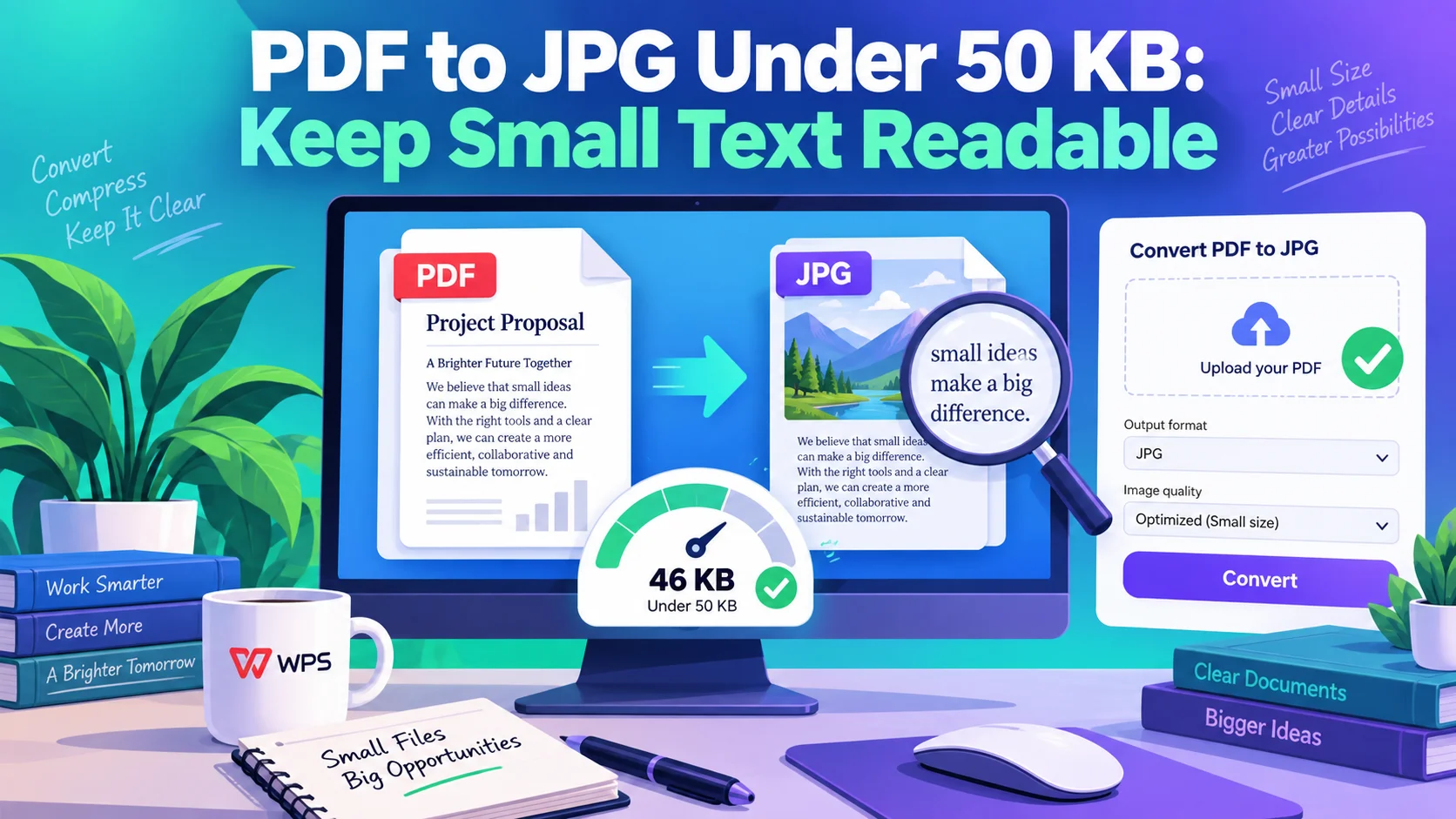
PDF to JPG Under 50 KB: Keep Small Text Readable
PDF to JPG at 50 KB: Choose What Must Stay Readable
Before exporting, copy the upload requirements into a short checklist: maximum bytes, accepted extension, minimum pixel dimensions, required page, and whether color or a full uncropped page is mandatory. A file can pass the size limit and still fail the document check.
| Your source | Preserve first | Try before heavy compression |
|---|---|---|
| A digital form with small text | Names, dates, numbers, and fine strokes | Export directly from the PDF; avoid a screenshot of a zoomed-out page. |
| A scanned certificate | Document edges, stamps, and signatures | Find the clean original scan. Background noise makes a tiny JPG harder to achieve. |
| A photograph inside a PDF | The required subject and any mandated background | Check whether the portal wants that photograph or the entire document page. |
| A multipage document | The specific page requested by the portal | Use separate page images if permitted. Do not make a tall collage merely to create one JPG. |
Set a stopping rule: if the smallest required text cannot be read at the final dimensions, stop reducing quality. A smaller file that changes an identifier or makes a seal illegible is not a successful conversion.
For a “maximum 50 KB” rule, a practical target is roughly 45–48 KB rather than exactly 50. This is a suggested margin, not a measured WPS output guarantee. Check the exact byte count when the portal defines one. For a decimal 50 KB ceiling, stay below 50,000 bytes.
Do not crop a certificate, remove required details, or turn a color document gray unless the receiving service allows it. When strict dimensions and a 50 KB limit conflict with legibility, ask the recipient for an alternative submission route.
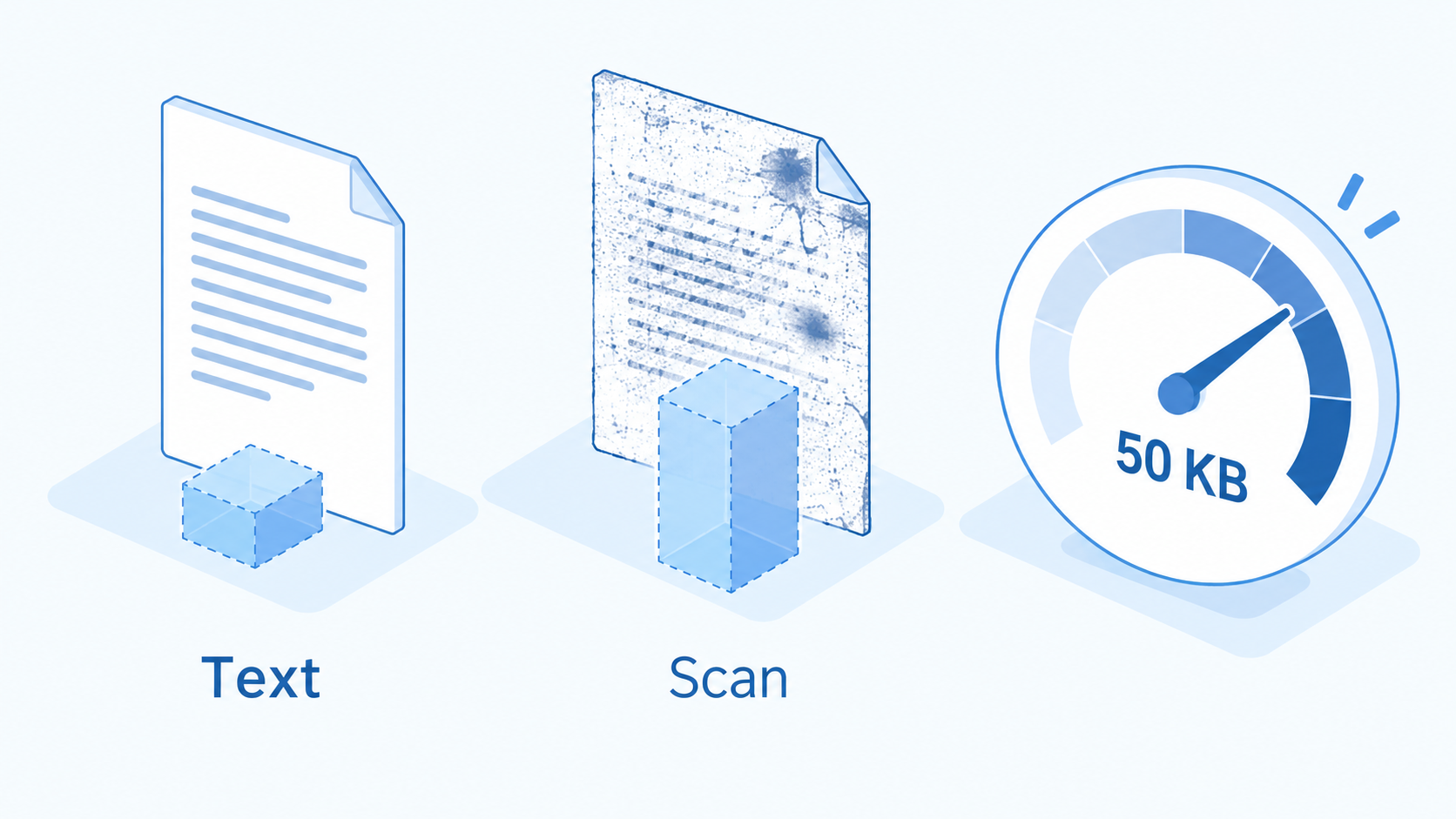
PDF text and scan compression budgets


The Practical PDF Workspace: WPS Office
WPS PDF is useful when the upload image is only one deliverable in a larger job. You can review the PDF in the same suite used for the source document, spreadsheet, or presentation, instead of managing the original in one place and every conversion in another.
Use the Windows conversion route: open your PDF, choose Convert > PDF to Picture, select JPG under output format, choose the output quality and folder, and start conversion. Review the settings available in your installed version. The current Windows guide marks this conversion workflow as requiring WPS Premium; a free suite download does not make this specific workflow universally free.
Export one representative page first. For a batch, choose a page with small text or a detailed stamp, not the easiest blank page. Keep the source PDF and name the trial output clearly, such as application-page-2-trial.jpg.
If the JPG exceeds the limit, return to the source and adjust one setting at a time. First try a lower output quality and inspect the result. If your version does not offer the pixel or byte controls you need, use a trusted image editor to resize or recompress the exported copy. WPS conversion is the starting point; the saved JPG is what must pass the final check.
When resizing, respect the portal’s minimum dimensions. A suggested first trial is a modest reduction in width and height while preserving the aspect ratio. Do not assign a universal pixel size to every document: a portrait photo and a full page of fine print have different needs.
Where WPS earns its place in this task:
Source-to-output continuity: if you own the original editable document, correct a layout problem there before creating another PDF and JPG. Avoid trying to repair text after it has become pixels.
A reusable working copy: keep the full-quality document for printing and archiving, with a separate small image for the upload field.
One office workspace: the same suite covers documents, spreadsheets, slides, and PDF work, useful when an application requires several kinds of attachment.
The product image below shows the English WPS suite overview, not a screenshot of the conversion dialog. Menu availability and paid features vary by version and platform.
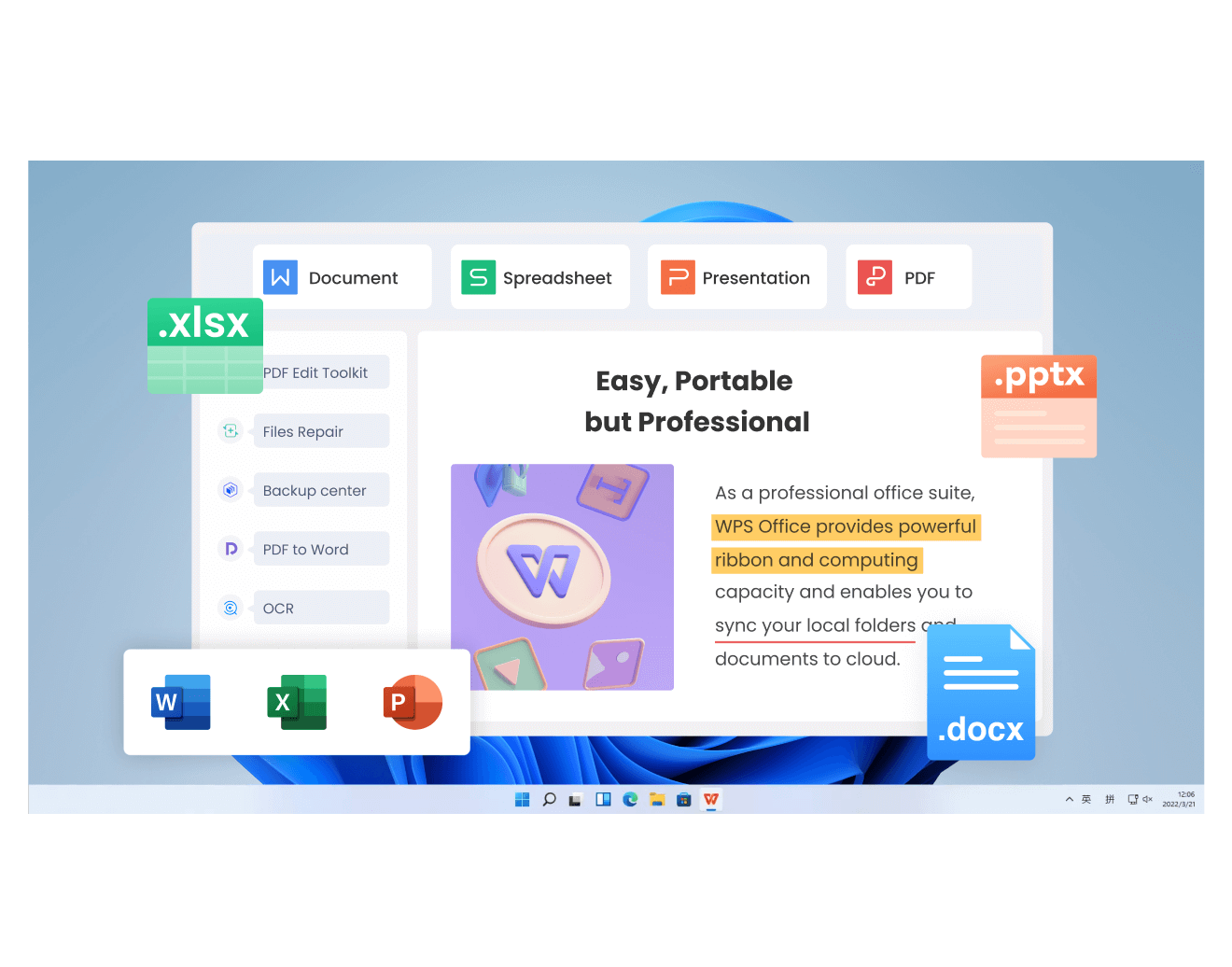
WPS workspace for documents and PDFs
Check Your 50 KB JPG Before Uploading
Aim to finish with three independent passes: size, dimensions, and readability. Do not rely on a converter’s “compressed successfully” message.
Check the saved file. In Windows, open the file’s Properties and inspect Size, not Size on disk. On Mac, use Finder’s Get Info. Check the exact number of bytes where available, not just a rounded label.
Check dimensions and format. Confirm width and height meet the portal’s rules. Renaming a PNG or PDF to .jpg does not convert it.
Read the difficult parts. Open the JPG at 100% and compare names, decimal points, dates, stamps, and barcodes with the PDF. Then inspect the portal preview: some sites crop or recompress the upload.
Submit the final copy. Use a distinctive filename and reselect it in the upload field. A browser may still be holding an earlier rejected version.
| Failure | Next useful action |
|---|---|
| It says 50 KB but the portal rejects it | Inspect exact bytes and lower the size slightly. Check whether the limit applies to each file or the whole submission. |
| It is small enough but the text is blurred | Return to a sharper source, keep more pixels, and try a less aggressive quality setting. |
| One page passes but another does not | Tune the detailed page separately; identical settings do not produce identical file sizes. |
| The local image looks right but the portal preview is wrong | Check aspect ratio, orientation, and the portal’s crop. Do not keep compressing a size-compliant file. |
For repeated submissions, keep a small log with source page, dimensions, bytes, and a readability pass/fail. It gives you a usable starting point next time without pretending that one preset fits every PDF.
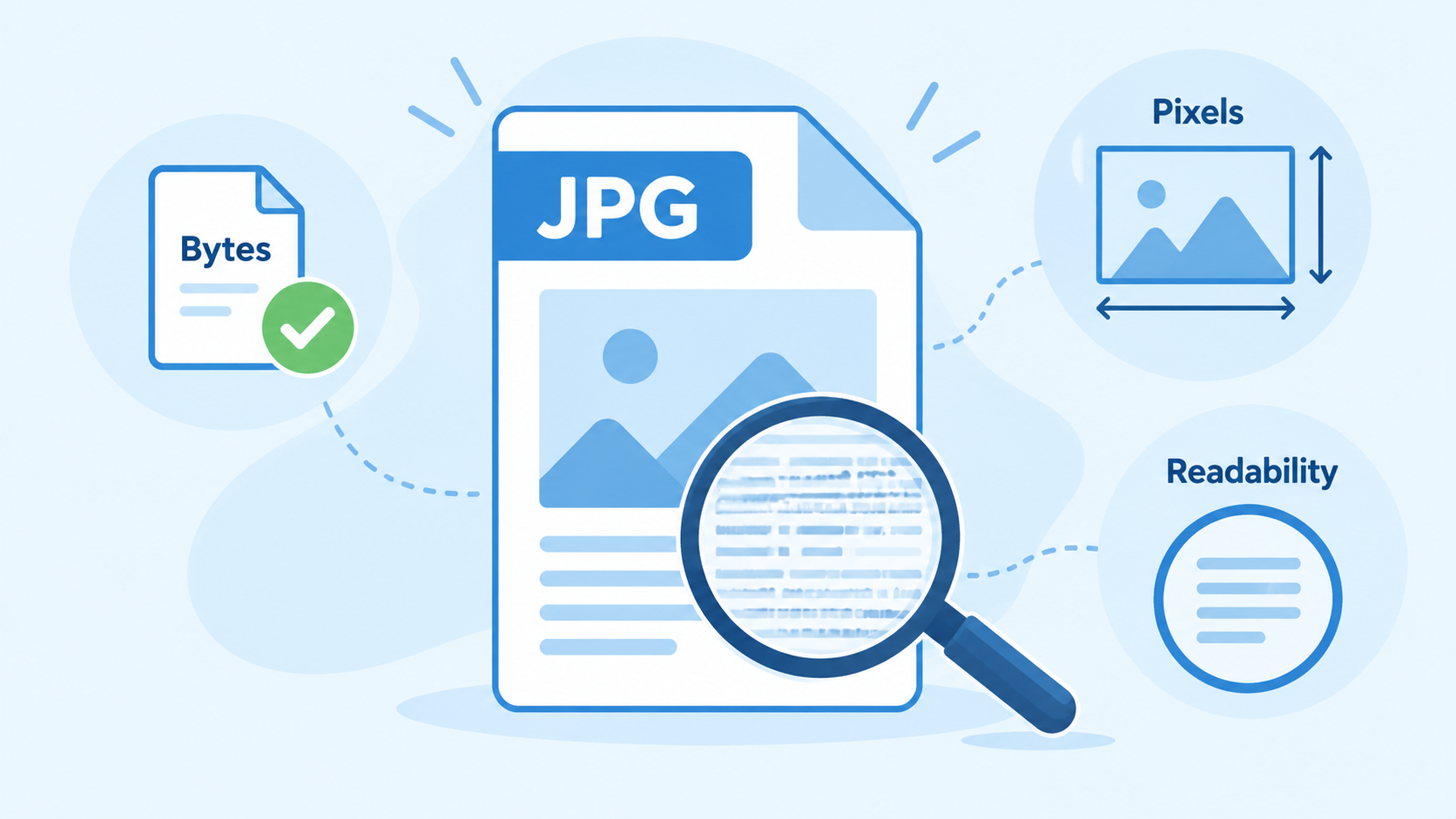
Verify JPG bytes dimensions and readability
FAQs
Can WPS convert every PDF to exactly 50 KB?
No exact-byte guarantee is established for this workflow. Convert to JPG, then adjust and verify the saved output. A maximum-size rule normally does not require an exact 50 KB file.
Is PDF to JPG conversion free in WPS?
WPS offers a free suite download, but the current Windows PDF-to-picture guide lists Premium as required. Check the entitlement shown in your installed version before relying on the feature.
Will compressing the PDF first guarantee a smaller JPG?
No. The JPG is a rendered image; its dimensions, content, and image-compression settings determine its size. Measure the actual exported image.
Should I use 72 DPI to meet the limit?
Do not use a DPI label as a file-size shortcut. The actual pixel dimensions and compression matter. Follow any resolution requirement the receiving service explicitly gives.
What if the document becomes unreadable below 50 KB?
Try a cleaner source and only permitted cropping or resizing. If required details still fail, request another submission method rather than uploading an unreadable document.


'%3e%3cpath%20d='M19.9911%204.11386V6.471H18.5894C18.0775%206.471%2017.7322%206.57814%2017.5536%206.79243C17.3751%207.00671%2017.2858%207.32814%2017.2858%207.75671V9.44421H19.9019L19.5536%2012.0871H17.2858V18.8639H14.5536V12.0871H12.2769V9.44421H14.5536V7.49779C14.5536%206.39064%2014.8632%205.53201%2015.4822%204.92189C16.1013%204.31177%2016.9257%204.00671%2017.9554%204.00671C18.8304%204.00671%2019.509%204.04243%2019.9911%204.11386Z'%20fill='%23333333'/%3e%3c/g%3e%3cdefs%3e%3cclipPath%20id='clip0_2938_8199'%3e%3crect%20width='16'%20height='16'%20fill='white'%20transform='translate(8%204.00671)'/%3e%3c/clipPath%3e%3c/defs%3e%3c/svg%3e)
'%3e%3cpath%20d='M17.5237%2010.7813L23.4811%204H22.0699L16.8949%209.88693L12.7648%204H8L14.2469%2012.9029L8%2020.0133H9.4112L14.8725%2013.7952L19.2352%2020.0133H24M9.92053%205.04213H12.0885L22.0688%2019.0224H19.9003'%20fill='%23333333'/%3e%3c/g%3e%3cdefs%3e%3cclipPath%20id='clip0_2938_8200'%3e%3crect%20width='16'%20height='16.0134'%20fill='white'%20transform='translate(8%204)'/%3e%3c/clipPath%3e%3c/defs%3e%3c/svg%3e)


