

'%3e%3cpath%20d='M8%200C12.4183%200%2016%203.58172%2016%208C16%2012.4183%2012.4183%2016%208%2016C3.58172%2016%200%2012.4183%200%208C0%203.58172%203.58172%200%208%200ZM11.6162%204.38379C11.2257%203.99337%2010.5927%203.99338%2010.2021%204.38379L8%206.58594L5.79785%204.38379C5.40732%203.99334%204.77429%203.99329%204.38379%204.38379C3.99331%204.77429%203.99335%205.40733%204.38379%205.79785L6.58594%208L4.38379%2010.2021C3.99348%2010.5927%203.99341%2011.2257%204.38379%2011.6162C4.77426%2012.0066%205.40734%2012.0065%205.79785%2011.6162L8%209.41406L10.2021%2011.6162C10.5927%2012.0066%2011.2257%2012.0067%2011.6162%2011.6162C12.0067%2011.2257%2012.0066%2010.5927%2011.6162%2010.2021L9.41406%208L11.6162%205.79785C12.0066%205.40735%2012.0066%204.77429%2011.6162%204.38379Z'%20fill='%23080E17'%20fill-opacity='0.46'/%3e%3c/g%3e%3cdefs%3e%3cclipPath%20id='clip0_3761_713'%3e%3crect%20width='16'%20height='16'%20fill='white'/%3e%3c/clipPath%3e%3c/defs%3e%3c/svg%3e)




'%3e%3cpath%20fill-rule='evenodd'%20clip-rule='evenodd'%20d='M21.4999%2010.9993C21.4999%205.20009%2016.7986%200.498901%2010.9993%200.498901C5.19994%200.498901%200.498657%205.20009%200.498657%2010.9993C0.498657%2016.2404%204.33858%2020.5844%209.35855%2021.3722V14.0346H6.69238V10.9993H9.35855V8.68594C9.35855%206.05427%2010.9262%204.60062%2013.3248%204.60062C14.4736%204.60062%2015.6753%204.80571%2015.6753%204.80571V7.38979H14.3512C13.0468%207.38979%2012.64%208.19921%2012.64%209.0296V10.9993H15.5523L15.0867%2014.0346H12.64V21.3722C17.66%2020.5844%2021.4999%2016.2404%2021.4999%2010.9993Z'%20fill='%231568EA'/%3e%3c/g%3e%3c/svg%3e)


'%3e%3cpath%20d='M2.42045%2022.1876H6.31818V12.7217L0.75%208.54553V20.5171C0.75%2021.4414%201.49892%2022.1876%202.42045%2022.1876Z'%20fill='%234285F4'/%3e%3cpath%20d='M19.682%2022.1876H23.5797C24.5041%2022.1876%2025.2502%2021.4387%2025.2502%2020.5171V8.54553L19.682%2012.7217'%20fill='%2334A853'/%3e%3cpath%20d='M19.682%205.48293V12.7216L25.2502%208.54543V6.31816C25.2502%204.25236%2022.8921%203.07469%2021.2411%204.31361'%20fill='%23FBBC04'/%3e%3cpath%20d='M6.31824%2012.7217V5.48303L13.0001%2010.4944L19.6819%205.48303V12.7217L13.0001%2017.733'%20fill='%23EA4335'/%3e%3cpath%20d='M0.75%206.31816V8.54543L6.31818%2012.7216V5.48293L4.75909%204.31361C3.10534%203.07469%200.75%204.25236%200.75%206.31816Z'%20fill='%23C5221F'/%3e%3c/g%3e%3cdefs%3e%3cclipPath%20id='clip0_2954_7305'%3e%3crect%20width='24.5'%20height='18.375'%20fill='white'%20transform='translate(0.75%203.8125)'/%3e%3c/clipPath%3e%3c/defs%3e%3c/svg%3e)


Sharing a PDF is easy, but keeping its contents exactly as you wrote them is not. A colleague can tweak a clause, a client can change a number, and suddenly the file everyone quotes is not the file you approved. This guide explains how to protect PDF from editing using passwords and permissions, so your document stays read-only for everyone except you.
How to Protect PDF from Editing: A Simple Guide
Why Protect PDF from Editing?
PDF is the standard format for contracts, reports, invoices, resumes, and official forms precisely because it should look the same everywhere. Once a file leaves your hands, though, any standard PDF editor can rewrite its text, move its images, or delete entire pages without leaving a trace.
Protecting a PDF from editing keeps the approved version intact: reviewers can still open, read, and print the file, but they cannot silently change it. It also protects you in legal and compliance situations, where an unaltered document is the one that counts. If your main concern is stopping people from copying text rather than editing it, see this guide on how to protect PDF from copying.
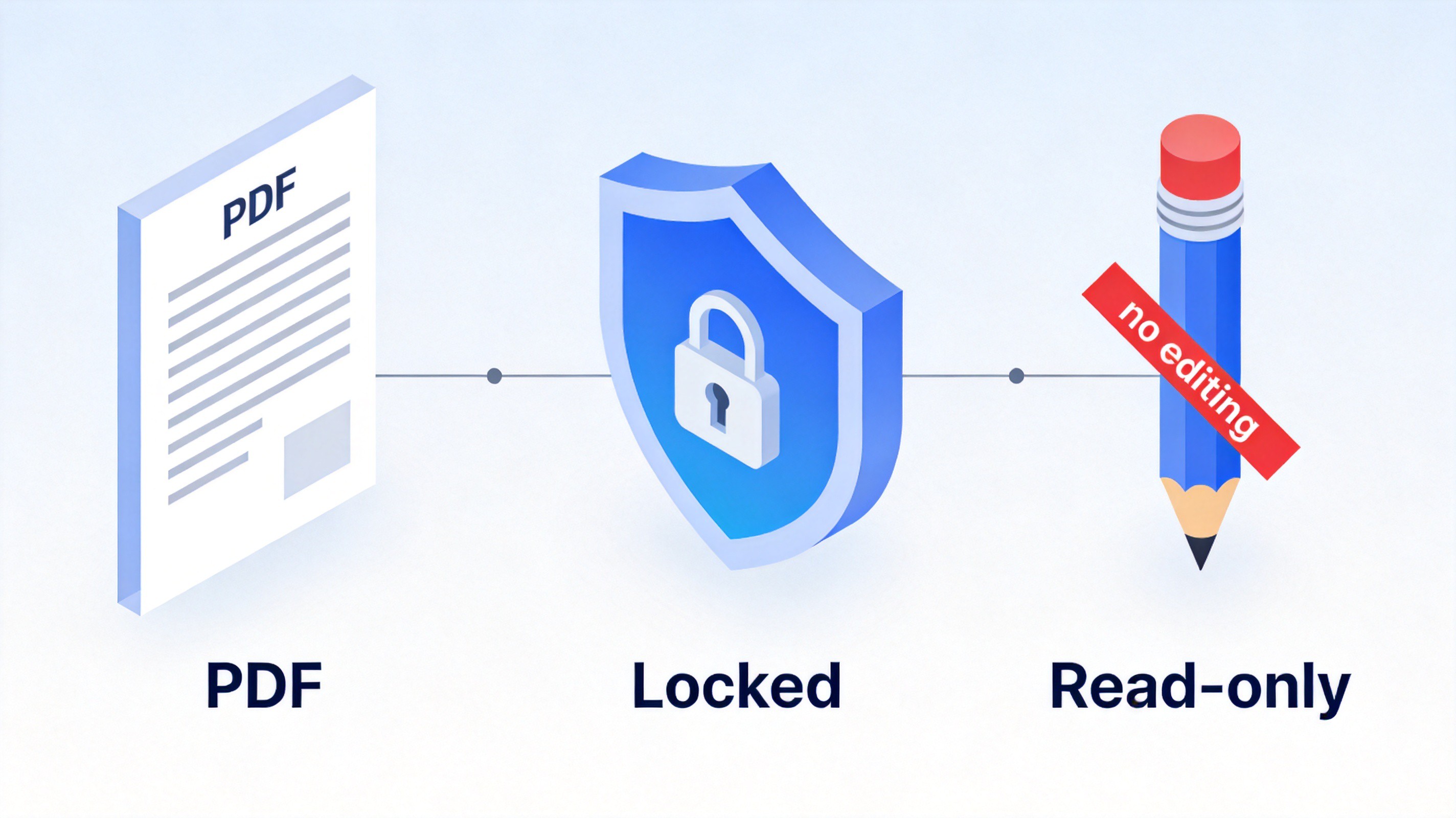
Why protect PDF files from editing


How to Protect PDF from Editing with WPS Office
The fastest way to lock a PDF is to add a permission password. Anyone can still open and read the document, but editing, and optionally printing or copying, requires the password only you know. Here is how to protect PDF from editing in WPS Office on your desktop.
Open your PDF in WPS Office. Launch WPS Office, click Open, and select the PDF you want to lock.
Go to the Protect tools. Switch to the Protect tab on the ribbon and click Password Encryption to open the security settings.
Set a permission password. In the dialog, check Permission Password, enter a strong password, and select the Restrict editing option so readers cannot modify the content. You can also block printing and copying here if needed.
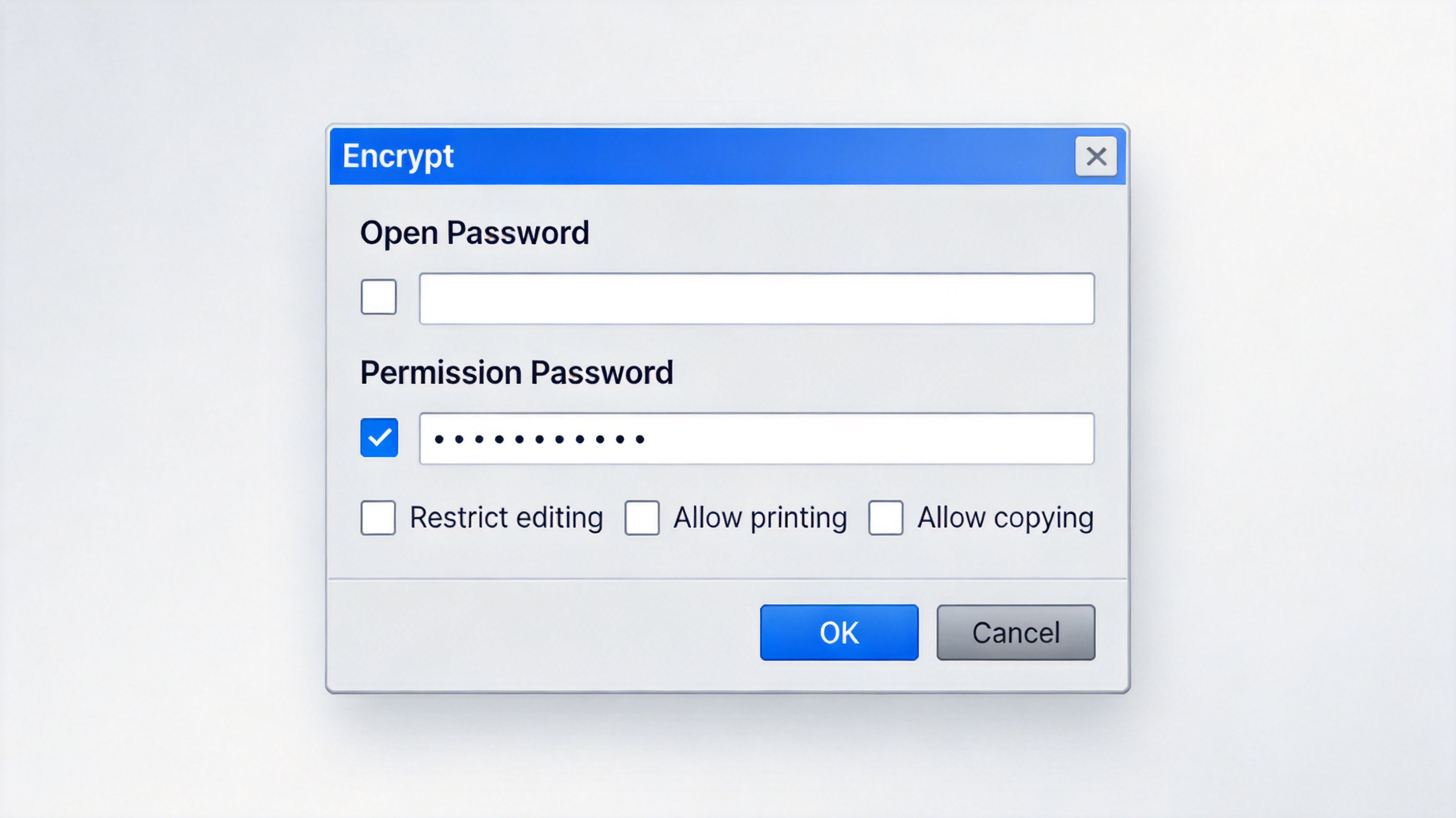
Set permission password restrict PDF editing
Save the protected file. Click OK, confirm your password, and save the PDF. From now on, opening the file is free, but any edit requires the permission password.
Keep the password in a safe place: without it, the only way back in is to remove the protection, which you can do on your own machine following this guide on how to remove a PDF password in 3 steps.
Other Ways to Protect a PDF from Editing
A permission password is the strongest option, but two other tricks can make casual changes harder:
Flatten the PDF. Flattening merges form fields, annotations, and layers into the page itself, so there are no editable objects left to modify. Most PDF tools, including WPS PDF, offer a flatten or print-to-PDF option that bakes everything into a static page.
Convert the pages to images. Exporting each page as a picture and rebuilding a PDF from those images produces a file that looks identical but contains no selectable, editable text. This is useful for visual approvals, though it makes the text unsearchable, so it is a trade-off.
Keep in mind that permission-based restrictions in PDF are a strong deterrent, not unbreakable encryption: dedicated tools can strip permissions from files the reader can already open. For contracts and anything sensitive, combine the permission password with an open password so only intended recipients can view the file at all.
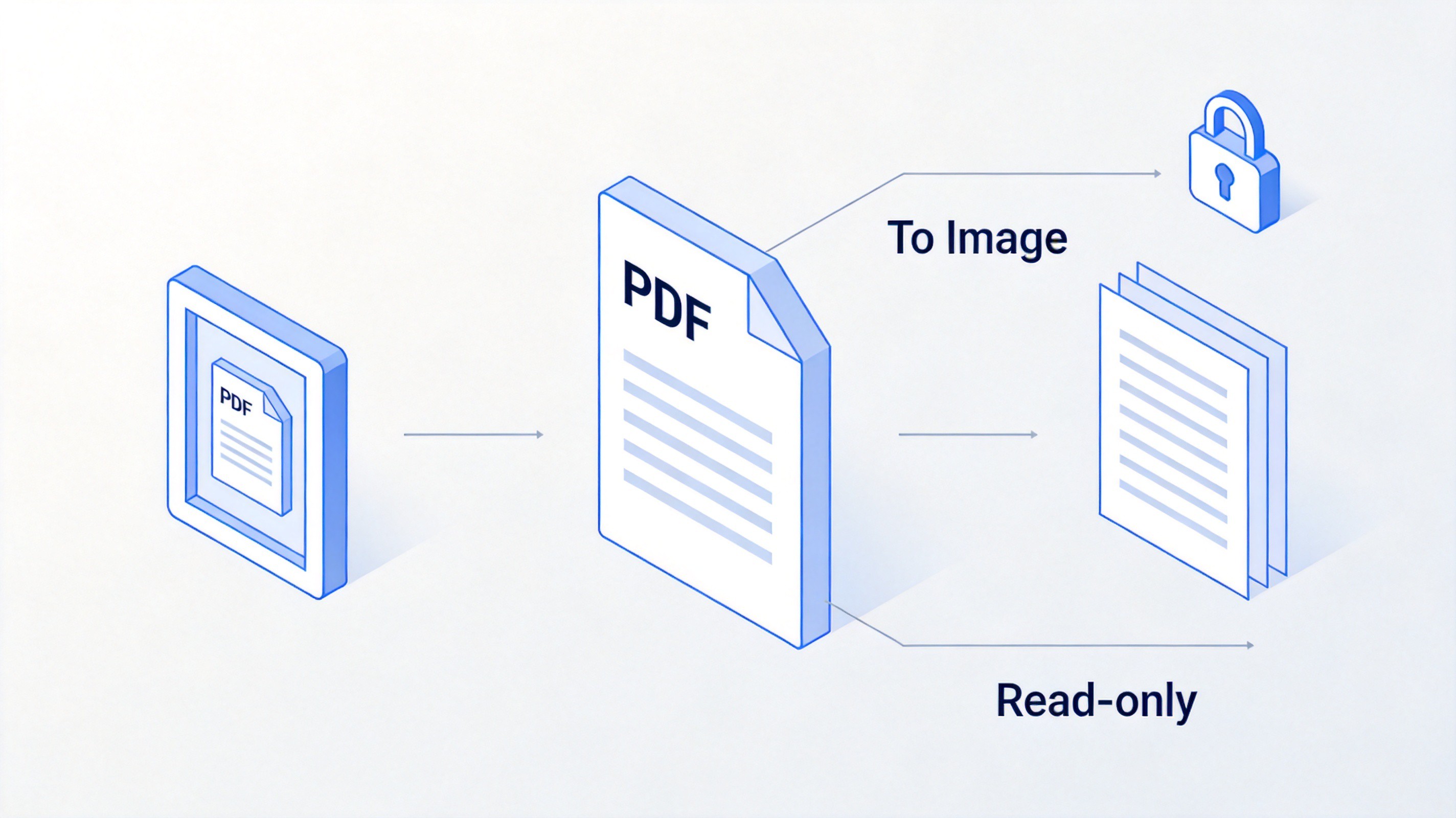
Other ways to make PDF read-only
The Best Free Alternative: WPS Office for PDF Protection
Many PDF security features sit behind expensive subscriptions, but WPS PDF includes password encryption and editing restrictions in its free toolkit. Beyond protection, you also get conversion, merging, compression, and full document editing for Word, Excel, and PowerPoint in one lightweight app, on Windows, macOS, Android, and iOS.
If you regularly share contracts, reports, or forms, WPS Office lets you encrypt, lock, and sign documents without paying for a separate PDF editor, and its Microsoft-compatible interface means there is almost no learning curve.
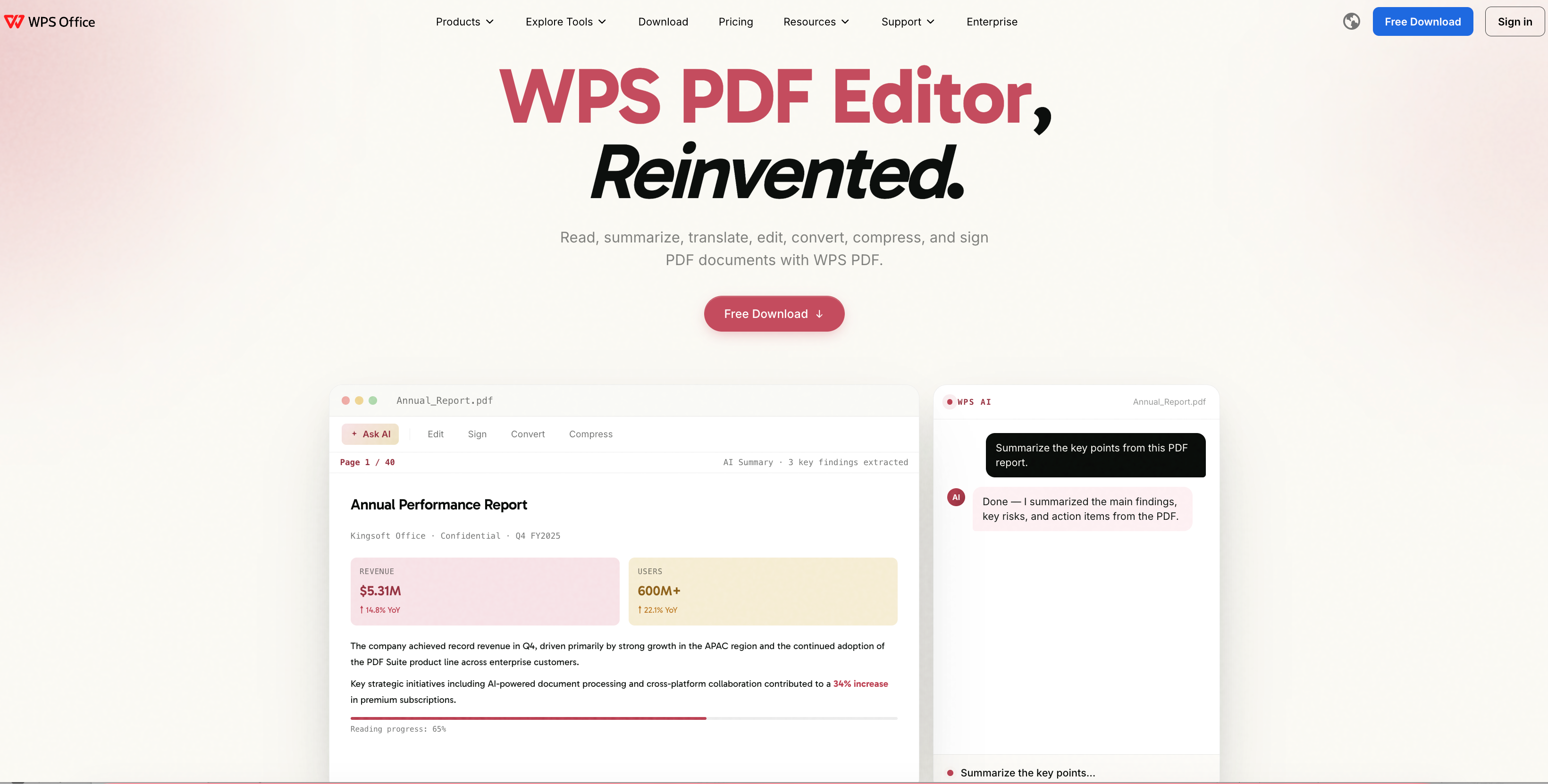
WPS PDF editor
FAQs
Q: Can I protect a PDF from editing for free?
A: Yes. WPS Office lets you add a permission password that restricts editing at no cost, and free online tools offer similar protection if you do not want to install software.
Q: What is the difference between an open password and a permission password?
A: An open password is required to view the file at all; a permission password only blocks actions such as editing, printing, or copying after the file is opened.
Q: Can someone still edit my protected PDF?
A: Readers cannot edit it without the permission password, but determined users with specialized tools can sometimes strip permissions. For maximum safety, combine editing restrictions with an open password.
Q: How do I make a PDF read-only without a password?
A: Flatten the PDF or convert its pages to images so there is no editable text left. This deters casual changes but is not as secure as a permission password.
Q: How do I remove editing restrictions from my own PDF?
A: Open the file in WPS Office, go to the Protect tools, and enter your permission password to unlock editing, then save a new copy.


'%3e%3cpath%20d='M19.9911%204.11386V6.471H18.5894C18.0775%206.471%2017.7322%206.57814%2017.5536%206.79243C17.3751%207.00671%2017.2858%207.32814%2017.2858%207.75671V9.44421H19.9019L19.5536%2012.0871H17.2858V18.8639H14.5536V12.0871H12.2769V9.44421H14.5536V7.49779C14.5536%206.39064%2014.8632%205.53201%2015.4822%204.92189C16.1013%204.31177%2016.9257%204.00671%2017.9554%204.00671C18.8304%204.00671%2019.509%204.04243%2019.9911%204.11386Z'%20fill='%23333333'/%3e%3c/g%3e%3cdefs%3e%3cclipPath%20id='clip0_2938_8199'%3e%3crect%20width='16'%20height='16'%20fill='white'%20transform='translate(8%204.00671)'/%3e%3c/clipPath%3e%3c/defs%3e%3c/svg%3e)
'%3e%3cpath%20d='M17.5237%2010.7813L23.4811%204H22.0699L16.8949%209.88693L12.7648%204H8L14.2469%2012.9029L8%2020.0133H9.4112L14.8725%2013.7952L19.2352%2020.0133H24M9.92053%205.04213H12.0885L22.0688%2019.0224H19.9003'%20fill='%23333333'/%3e%3c/g%3e%3cdefs%3e%3cclipPath%20id='clip0_2938_8200'%3e%3crect%20width='16'%20height='16.0134'%20fill='white'%20transform='translate(8%204)'/%3e%3c/clipPath%3e%3c/defs%3e%3c/svg%3e)


