

'%3e%3cpath%20d='M8%200C12.4183%200%2016%203.58172%2016%208C16%2012.4183%2012.4183%2016%208%2016C3.58172%2016%200%2012.4183%200%208C0%203.58172%203.58172%200%208%200ZM11.6162%204.38379C11.2257%203.99337%2010.5927%203.99338%2010.2021%204.38379L8%206.58594L5.79785%204.38379C5.40732%203.99334%204.77429%203.99329%204.38379%204.38379C3.99331%204.77429%203.99335%205.40733%204.38379%205.79785L6.58594%208L4.38379%2010.2021C3.99348%2010.5927%203.99341%2011.2257%204.38379%2011.6162C4.77426%2012.0066%205.40734%2012.0065%205.79785%2011.6162L8%209.41406L10.2021%2011.6162C10.5927%2012.0066%2011.2257%2012.0067%2011.6162%2011.6162C12.0067%2011.2257%2012.0066%2010.5927%2011.6162%2010.2021L9.41406%208L11.6162%205.79785C12.0066%205.40735%2012.0066%204.77429%2011.6162%204.38379Z'%20fill='%23080E17'%20fill-opacity='0.46'/%3e%3c/g%3e%3cdefs%3e%3cclipPath%20id='clip0_3761_713'%3e%3crect%20width='16'%20height='16'%20fill='white'/%3e%3c/clipPath%3e%3c/defs%3e%3c/svg%3e)




'%3e%3cpath%20fill-rule='evenodd'%20clip-rule='evenodd'%20d='M21.4999%2010.9993C21.4999%205.20009%2016.7986%200.498901%2010.9993%200.498901C5.19994%200.498901%200.498657%205.20009%200.498657%2010.9993C0.498657%2016.2404%204.33858%2020.5844%209.35855%2021.3722V14.0346H6.69238V10.9993H9.35855V8.68594C9.35855%206.05427%2010.9262%204.60062%2013.3248%204.60062C14.4736%204.60062%2015.6753%204.80571%2015.6753%204.80571V7.38979H14.3512C13.0468%207.38979%2012.64%208.19921%2012.64%209.0296V10.9993H15.5523L15.0867%2014.0346H12.64V21.3722C17.66%2020.5844%2021.4999%2016.2404%2021.4999%2010.9993Z'%20fill='%231568EA'/%3e%3c/g%3e%3c/svg%3e)


'%3e%3cpath%20d='M2.42045%2022.1876H6.31818V12.7217L0.75%208.54553V20.5171C0.75%2021.4414%201.49892%2022.1876%202.42045%2022.1876Z'%20fill='%234285F4'/%3e%3cpath%20d='M19.682%2022.1876H23.5797C24.5041%2022.1876%2025.2502%2021.4387%2025.2502%2020.5171V8.54553L19.682%2012.7217'%20fill='%2334A853'/%3e%3cpath%20d='M19.682%205.48293V12.7216L25.2502%208.54543V6.31816C25.2502%204.25236%2022.8921%203.07469%2021.2411%204.31361'%20fill='%23FBBC04'/%3e%3cpath%20d='M6.31824%2012.7217V5.48303L13.0001%2010.4944L19.6819%205.48303V12.7217L13.0001%2017.733'%20fill='%23EA4335'/%3e%3cpath%20d='M0.75%206.31816V8.54543L6.31818%2012.7216V5.48293L4.75909%204.31361C3.10534%203.07469%200.75%204.25236%200.75%206.31816Z'%20fill='%23C5221F'/%3e%3c/g%3e%3cdefs%3e%3cclipPath%20id='clip0_2954_7305'%3e%3crect%20width='24.5'%20height='18.375'%20fill='white'%20transform='translate(0.75%203.8125)'/%3e%3c/clipPath%3e%3c/defs%3e%3c/svg%3e)


If you need a PDF to XML converter, first check what the receiving system expects. A converter can export document content into XML, but an invoice importer may require specific field names and a prescribed structure. A file ending in .xml is not automatically ready for that importer.
Adobe Acrobat documents a direct XML 1.0 export workflow. WPS Office can help you inspect the PDF, recognize scanned text, and review extracted content before a separate XML conversion or mapping step. This guide does not assume that WPS has a native PDF-to-XML export command.
PDF to XML Converter: Export and Validate Your Data
Use a PDF to XML Converter for Direct Document Export
Use direct export when you need the content and structure of a document in XML and can inspect the resulting tags. For a business system that requires a particular schema, ask for its sample XML file or import specification before choosing the converter.
| Your required result | Suitable starting point | Additional work |
|---|---|---|
| General document XML | A converter with an explicit XML export option | Check text order, tags, and linked images |
| Fields for a specific importer | The receiving system's schema and sample file | Map fields and validate against its rules |
| Text from an image-only PDF | OCR on a readable scan | Proofread before generating XML |
| Table values for review | A PDF-to-spreadsheet or extraction workflow | Check rows, data types, and field mapping |
Step 1: Check the input
Open the PDF and try selecting a paragraph or table value. Copy a small sample and check the reading order. If the page is an image, recognize its text first. If the text is selectable but copies into the wrong sequence, plan a review of columns, headings, and tables after export.
Step 2: Export XML in Acrobat
In a desktop Acrobat installation with the export feature available, open Convert, choose Other format, and select XML 1.0. Review Settings, including encoding, structure-tag options, and whether to export images. Select Convert to XML, then choose a destination and save. These steps follow Adobe's official PDF-to-XML instructions; do not assume the same command is available in every PDF reader.
Step 3: Keep related output files together
If the export creates a separate folder of images, preserve it with the XML file. Moving only the XML may break image references. Keep the original PDF as the visual reference, because the XML output is intended for structured processing and may not reproduce the page appearance.
Start with one representative document rather than a whole archive. A file with a heading, paragraph, table, and image is more useful for evaluating your workflow than an unusually simple first page. Check the exported content before applying the same settings to more files.
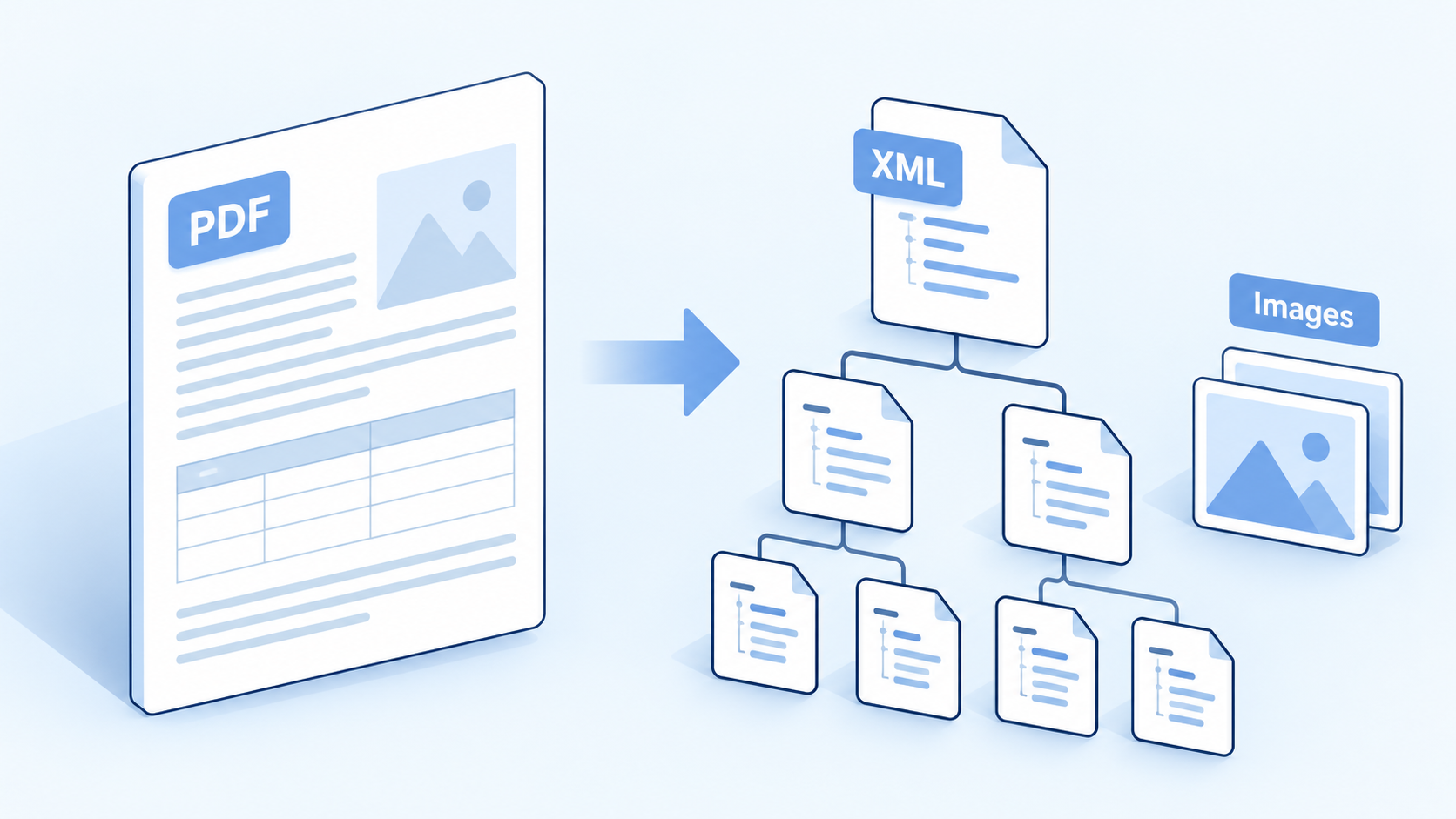
PDF content exported into XML structure


Validate PDF to XML Converter Output Before Importing
There are two separate checks: whether the XML is structurally valid for the intended rules, and whether its values accurately reflect the source. A file can pass one check and fail the other. W3C's XML Schema documentation explains how schemas constrain document structure and content; your receiving application determines which schema and business rules you actually need.
Step 1: Match the required field names
Ask the destination owner for the accepted root element, element names, namespaces, and required fields. General document tags do not automatically become meaningful fields such as an invoice number or delivery date. A mapping step may be needed to turn extracted content into the required layout.
For example, an importer might require one identifier, one date, and a list of line items. A document export that puts those values inside several paragraph tags is still useful extraction output, but it is not yet the importer's finished input. Map the fields explicitly instead of renaming the file.
Step 2: Compare values with the PDF
Identifiers: preserve leading zeros and check letters that resemble numbers.
Dates: resolve ambiguous day/month order using the source and destination specification.
Amounts: verify decimal separators, negative signs, currencies, and totals.
Tables: check that one logical record did not split across two rows or pages.
Text: inspect accented characters, punctuation, and line breaks in long descriptions.
Do not treat a successful OCR or export notification as evidence that every value is correct. In a long table, review records around page breaks as well as the first and last row. Repeated headers can be mistaken for data during extraction.
Step 3: Run structure and import checks
Use your XML editor or destination's validation tool to check the document, then validate against the supplied schema when one is required. Confirm that required elements are present and values use the expected types. Finally, test a small import in the receiving system and compare its resulting records with the PDF.
Keep an error log that distinguishes recognition errors, mapping errors, and destination-rule errors. Fixing the right stage is faster than repeatedly exporting the same PDF. If the original source system can provide accepted XML directly, that export may remove the need to reconstruct data from a PDF at all.
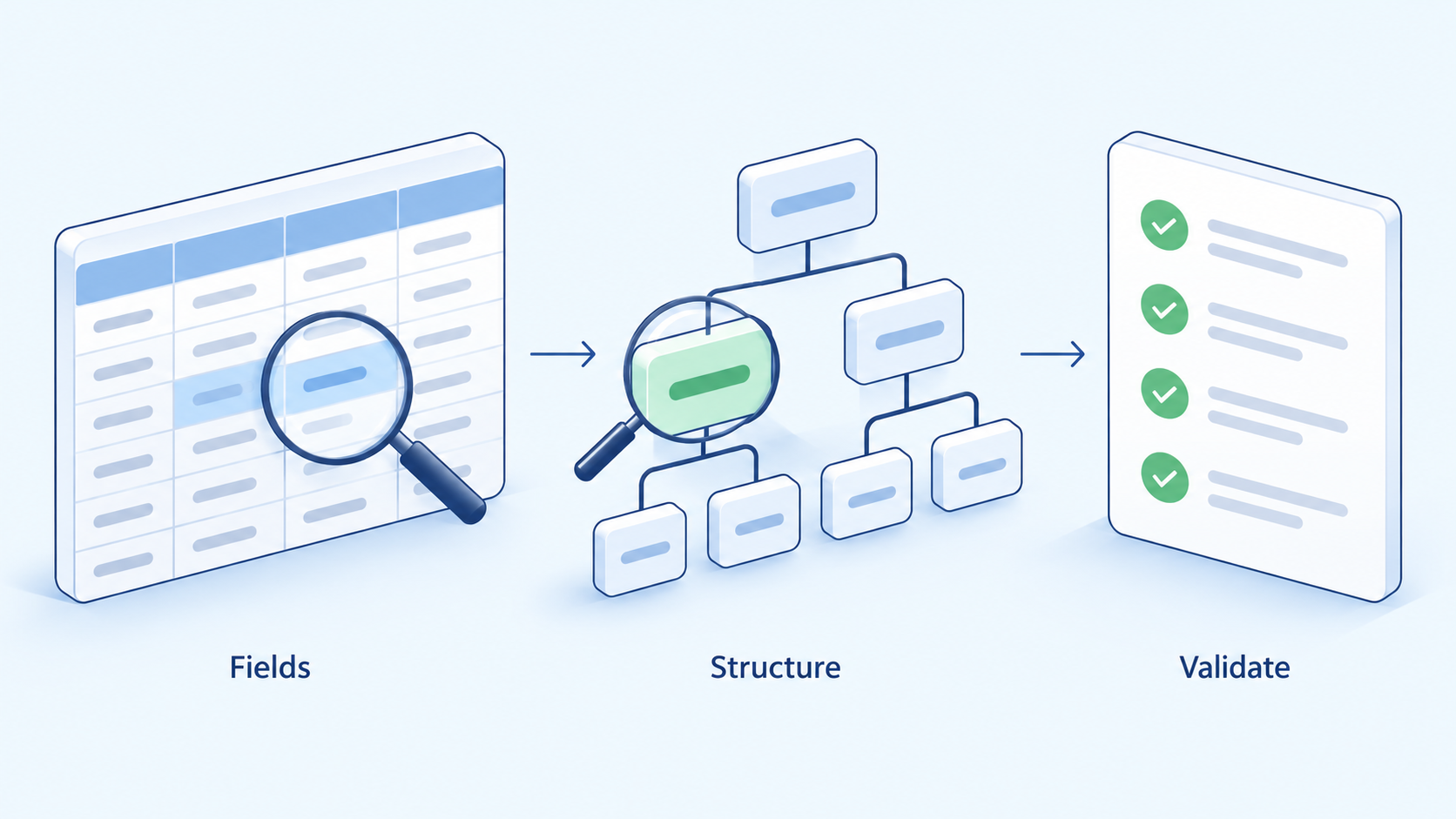
Validate extracted fields against XML structure
WPS Office: Prepare and Review Data Before XML Conversion
WPS PDF is useful on the preparation side of this workflow. The WPS suite brings PDF tools together with Writer and Spreadsheet, giving you places to inspect the source, review recognized text, and organize extracted values. A dedicated XML exporter, mapper, or integration tool still handles the XML-specific output.
Inspect the PDF and recognize scanned text
Begin by opening the PDF in WPS and checking whether its text is selectable. If you are working from a scan, use the available OCR feature on a copy. WPS documents an OCR PDF entry under Convert in supported desktop interfaces, followed by Perform OCR. Availability and menu placement depend on the installed build and plan.
Proofread the recognized output against the visible scan. Focus on the fields your destination will consume: identifiers, dates, quantities, and amounts. A polished paragraph elsewhere in the document does not establish that a small number in a table was read correctly. If the scan is illegible, obtain a better source before converting it repeatedly.
Review prose in Writer and tables in Spreadsheet
When an available WPS conversion tool produces a Word document, Writer can help you inspect paragraph order and correct extraction issues in a working copy. Keep this as an intermediate review file. Saving a document with an .xml extension is not a substitute for a converter that creates the required XML structure.
For tabular material, a PDF-to-Excel workflow can provide an intermediate workbook for checking rows and columns. In Spreadsheet, compare record counts, look for repeated headers, and verify totals against the PDF. Treat identifiers as identifiers: a code such as 00127 should not silently become 127 if the receiving system expects all five characters. Make intentional decisions about dates and numeric values before mapping them.
The review workbook is especially helpful when a team needs to resolve ambiguous fields. Add a review column or a separate notes sheet in the working copy, then pass only the approved data to the mapping step. Keep reviewer notes separate from the final import fields so they do not accidentally enter the destination system.
Keep the handoff between WPS and XML tools explicit
Use a simple sequence: preserve the original PDF, prepare or extract content in WPS, verify the intermediate file, map the approved values into the required XML format, and test the import. Name each output clearly so a reviewer can trace an XML value back to its source page.
WPS does not replace schema validation in this sequence. Nor should PDF-to-Word or PDF-to-Excel be described as direct PDF-to-XML conversion. Their role is to make the source content easier to inspect and correct before the XML-specific stage. If you already have a reliable direct exporter and clean source text, you may not need an intermediate Office conversion.
Check access before committing to a batch
A free WPS Office download does not guarantee free access to every OCR or conversion option. Check the feature prompt and your plan, then process one representative sample. Download the suite through the official WPS site if its PDF and Office review tools fit your preparation work; choose the XML tool according to the receiving system's requirements.
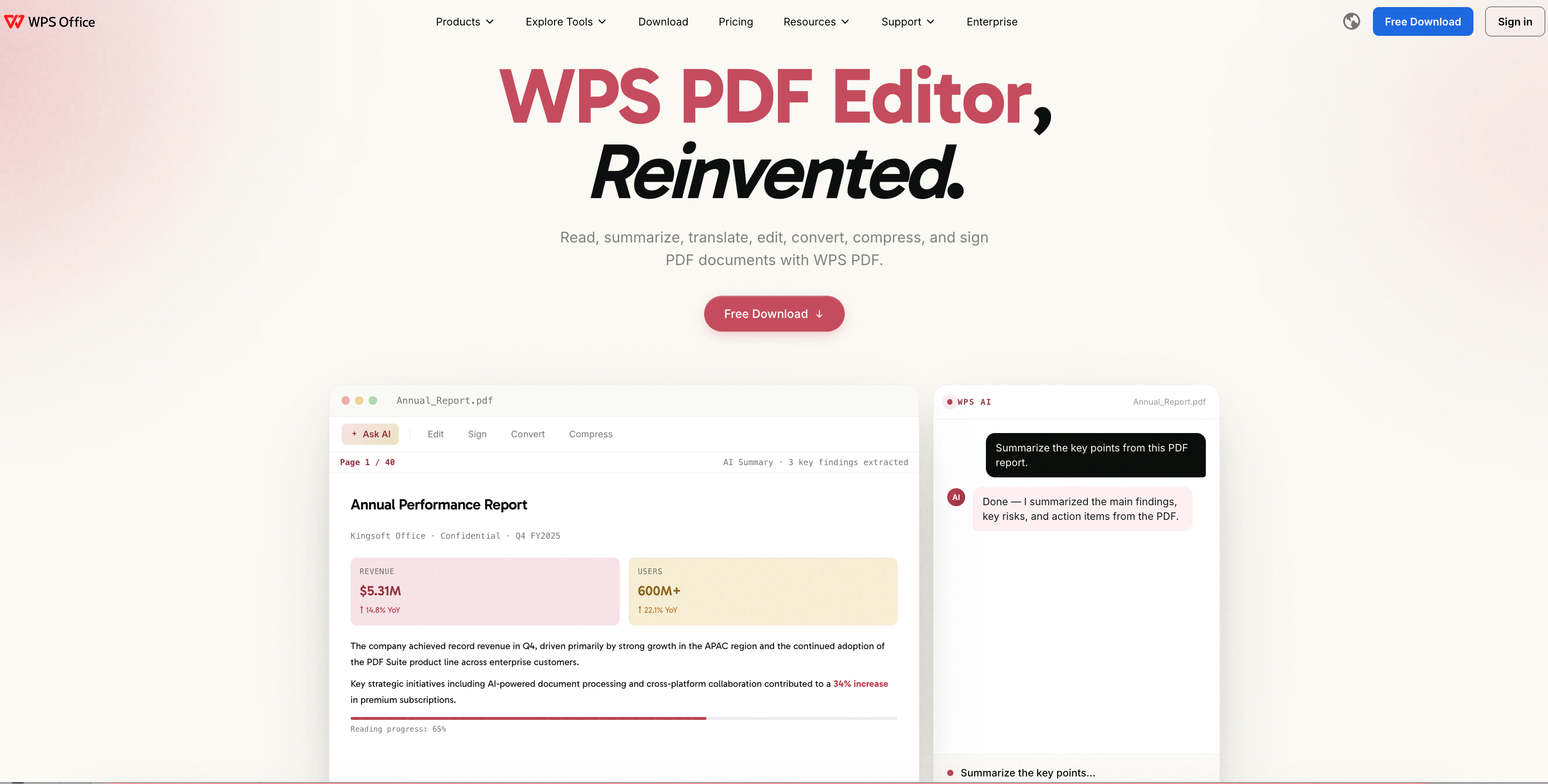
WPS PDF Editor official product overview
FAQs
Can WPS directly convert a PDF to XML?
A native WPS PDF-to-XML export command was not verified for this guide. Use WPS for preparation and content review, and use a tool with documented XML export or mapping support for the final conversion.
Can I convert a scanned PDF to XML?
Yes, a workflow can recognize the scanned text and then create XML from it. Proofread the recognized values and validate the final structure; OCR alone does not produce the destination's required schema.
Can I just rename .pdf to .xml?
No. Renaming changes the filename, not the document's internal format. You need an actual export or data-mapping process.
Will any XML export work with my invoice system?
No. The receiving system may require particular elements, namespaces, data types, and business rules. Compare the export with its specification and test a sample import.
Why did the converter split my table incorrectly?
PDF page layout may not preserve the logical rows and columns an importer needs. Page breaks, merged cells, repeated headers, and recognition errors can all require correction before mapping and validation.


'%3e%3cpath%20d='M19.9911%204.11386V6.471H18.5894C18.0775%206.471%2017.7322%206.57814%2017.5536%206.79243C17.3751%207.00671%2017.2858%207.32814%2017.2858%207.75671V9.44421H19.9019L19.5536%2012.0871H17.2858V18.8639H14.5536V12.0871H12.2769V9.44421H14.5536V7.49779C14.5536%206.39064%2014.8632%205.53201%2015.4822%204.92189C16.1013%204.31177%2016.9257%204.00671%2017.9554%204.00671C18.8304%204.00671%2019.509%204.04243%2019.9911%204.11386Z'%20fill='%23333333'/%3e%3c/g%3e%3cdefs%3e%3cclipPath%20id='clip0_2938_8199'%3e%3crect%20width='16'%20height='16'%20fill='white'%20transform='translate(8%204.00671)'/%3e%3c/clipPath%3e%3c/defs%3e%3c/svg%3e)
'%3e%3cpath%20d='M17.5237%2010.7813L23.4811%204H22.0699L16.8949%209.88693L12.7648%204H8L14.2469%2012.9029L8%2020.0133H9.4112L14.8725%2013.7952L19.2352%2020.0133H24M9.92053%205.04213H12.0885L22.0688%2019.0224H19.9003'%20fill='%23333333'/%3e%3c/g%3e%3cdefs%3e%3cclipPath%20id='clip0_2938_8200'%3e%3crect%20width='16'%20height='16.0134'%20fill='white'%20transform='translate(8%204)'/%3e%3c/clipPath%3e%3c/defs%3e%3c/svg%3e)


