

'%3e%3cpath%20d='M8%200C12.4183%200%2016%203.58172%2016%208C16%2012.4183%2012.4183%2016%208%2016C3.58172%2016%200%2012.4183%200%208C0%203.58172%203.58172%200%208%200ZM11.6162%204.38379C11.2257%203.99337%2010.5927%203.99338%2010.2021%204.38379L8%206.58594L5.79785%204.38379C5.40732%203.99334%204.77429%203.99329%204.38379%204.38379C3.99331%204.77429%203.99335%205.40733%204.38379%205.79785L6.58594%208L4.38379%2010.2021C3.99348%2010.5927%203.99341%2011.2257%204.38379%2011.6162C4.77426%2012.0066%205.40734%2012.0065%205.79785%2011.6162L8%209.41406L10.2021%2011.6162C10.5927%2012.0066%2011.2257%2012.0067%2011.6162%2011.6162C12.0067%2011.2257%2012.0066%2010.5927%2011.6162%2010.2021L9.41406%208L11.6162%205.79785C12.0066%205.40735%2012.0066%204.77429%2011.6162%204.38379Z'%20fill='%23080E17'%20fill-opacity='0.46'/%3e%3c/g%3e%3cdefs%3e%3cclipPath%20id='clip0_3761_713'%3e%3crect%20width='16'%20height='16'%20fill='white'/%3e%3c/clipPath%3e%3c/defs%3e%3c/svg%3e)




'%3e%3cpath%20fill-rule='evenodd'%20clip-rule='evenodd'%20d='M21.4999%2010.9993C21.4999%205.20009%2016.7986%200.498901%2010.9993%200.498901C5.19994%200.498901%200.498657%205.20009%200.498657%2010.9993C0.498657%2016.2404%204.33858%2020.5844%209.35855%2021.3722V14.0346H6.69238V10.9993H9.35855V8.68594C9.35855%206.05427%2010.9262%204.60062%2013.3248%204.60062C14.4736%204.60062%2015.6753%204.80571%2015.6753%204.80571V7.38979H14.3512C13.0468%207.38979%2012.64%208.19921%2012.64%209.0296V10.9993H15.5523L15.0867%2014.0346H12.64V21.3722C17.66%2020.5844%2021.4999%2016.2404%2021.4999%2010.9993Z'%20fill='%231568EA'/%3e%3c/g%3e%3c/svg%3e)


'%3e%3cpath%20d='M2.42045%2022.1876H6.31818V12.7217L0.75%208.54553V20.5171C0.75%2021.4414%201.49892%2022.1876%202.42045%2022.1876Z'%20fill='%234285F4'/%3e%3cpath%20d='M19.682%2022.1876H23.5797C24.5041%2022.1876%2025.2502%2021.4387%2025.2502%2020.5171V8.54553L19.682%2012.7217'%20fill='%2334A853'/%3e%3cpath%20d='M19.682%205.48293V12.7216L25.2502%208.54543V6.31816C25.2502%204.25236%2022.8921%203.07469%2021.2411%204.31361'%20fill='%23FBBC04'/%3e%3cpath%20d='M6.31824%2012.7217V5.48303L13.0001%2010.4944L19.6819%205.48303V12.7217L13.0001%2017.733'%20fill='%23EA4335'/%3e%3cpath%20d='M0.75%206.31816V8.54543L6.31818%2012.7216V5.48293L4.75909%204.31361C3.10534%203.07469%200.75%204.25236%200.75%206.31816Z'%20fill='%23C5221F'/%3e%3c/g%3e%3cdefs%3e%3cclipPath%20id='clip0_2954_7305'%3e%3crect%20width='24.5'%20height='18.375'%20fill='white'%20transform='translate(0.75%203.8125)'/%3e%3c/clipPath%3e%3c/defs%3e%3c/svg%3e)


To bring a PDF to Canva, upload the file, open the imported design, and check its text and page layout before making changes. This works well for redesigning a flyer or handout, but a scanned page may remain a single image instead of editable text.
This guide walks through importing, checking, and downloading your document. It also explains when WPS Office is a better choice for updating the PDF itself or preparing a cleaner file before you import it.
PDF to Canva: Import, Edit, and Fix Formatting
How to Import a PDF to Canva
Start with a copy of the original PDF. Keep that original open in a separate viewer so you can compare the imported pages against it. For a long document, test a representative page with text, images, and a table before committing to a full redesign.
Upload and open your PDF
Sign in to Canva. Open the Canva PDF editor and choose the PDF upload option. You can also drag a PDF onto the Canva homepage.
Select your file. Allow the upload and import to finish, then open the resulting design. Do not rename another file extension to .pdf; use a PDF that opens normally in a PDF reader.
Inspect the imported pages. Confirm that the expected pages appear and that text, pictures, and diagrams are in the right places.
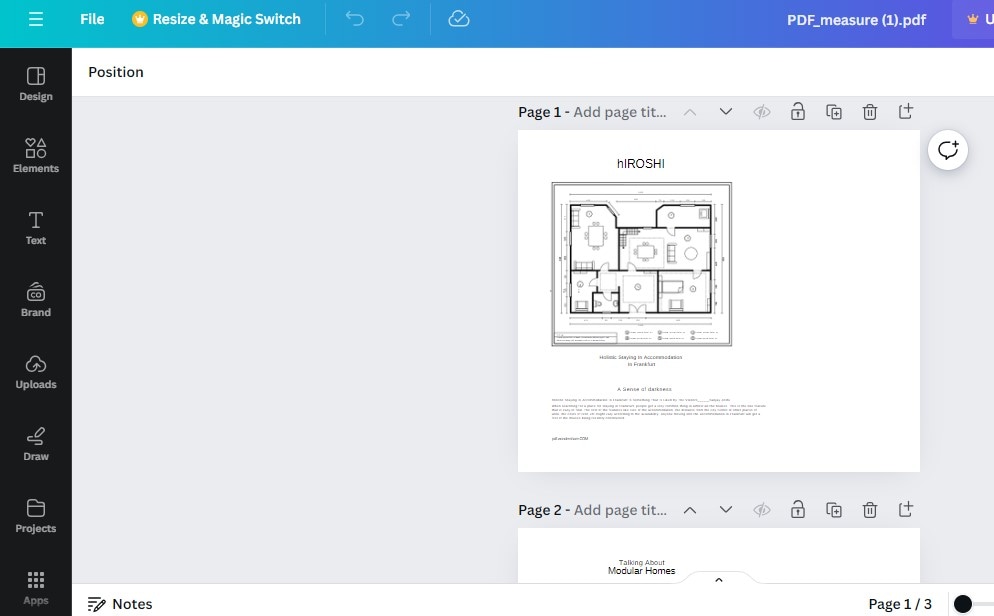
Imported PDF pages inside Canva editor
Test editability. Click a sentence you need to change. If the entire page is selected as one picture, the words are not available as individual text objects.
The screenshot shows an example imported document; labels and layout can vary by Canva version. The useful checkpoint is whether your own file contains editable elements, not whether every icon matches the illustration.
Check the file before a larger import
Canva currently documents a maximum of 300 MB and 500 pages for PDF imports, with an additional complexity limit of 1,400 elements and images. A file below the size limit can still be complicated enough to import poorly. See Canva's PDF import guidance for current requirements.
For practical testing, choose a page with your smallest text and most detailed diagram. Look for missing symbols, cropped chart labels, and unexpected line breaks. These details are easier to fix before you duplicate the layout across a whole project.


Edit and Export Your PDF to Canva Design
Make focused changes and check the result
Work through the page in a deliberate order: text first, images second, spacing third. If you change all three at once, it becomes harder to identify which edit caused a layout problem.
Text: Select an editable text box, revise the wording, and review the final line. A longer replacement can create an extra line or cover a nearby object.
Images: Replace the intended picture and check its crop. A portrait image placed in a wide frame can lose important details.
Layout: Compare margins, heading alignment, and page order with the original. Recheck repeated elements such as page numbers individually.
Download the finished document
Choose Share > Download.
Select PDF Standard for a usual digital document, or consider PDF Print for a print workflow. Confirm any print requirements with the recipient.
Check the selected pages, download the file, and open the downloaded copy in a separate PDF reader.
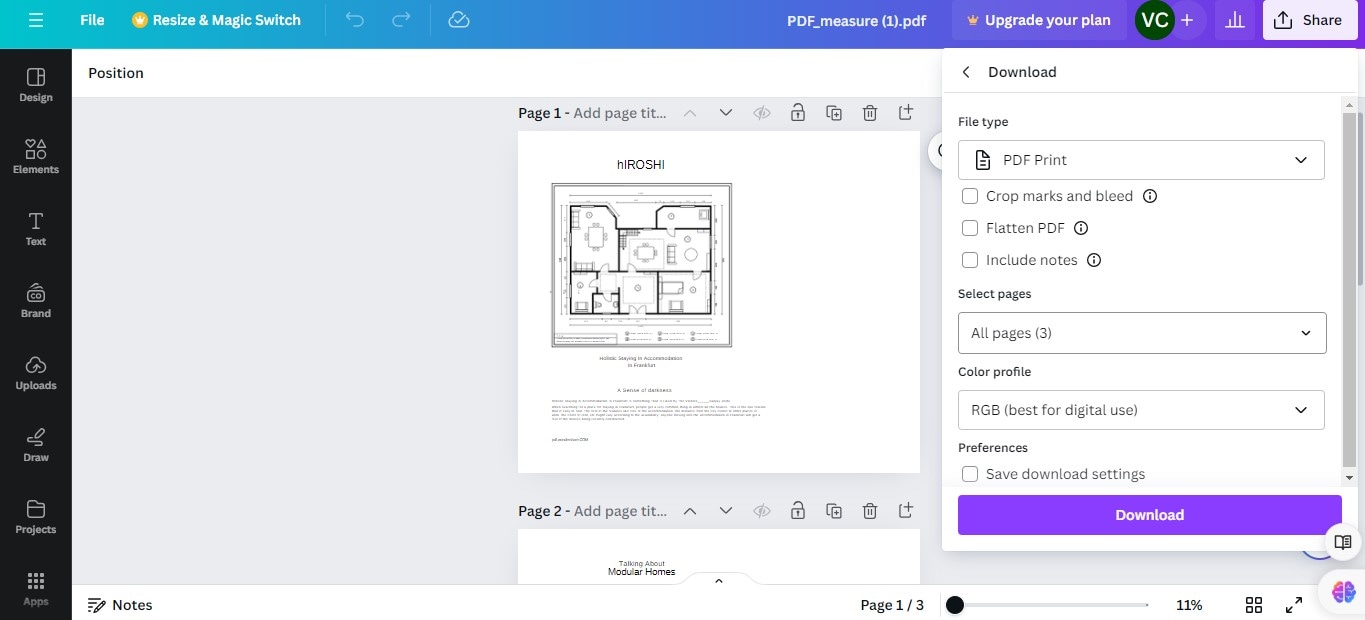
Canva PDF Print download settings panel
Do not judge the deliverable only from the Canva canvas. Review the exported file at normal reading size, check small text at higher zoom, and click any links that matter. Keep a clearly named original and final copy so a later revision starts from the correct file.
Fix common PDF import problems
| Problem | Useful next step |
|---|---|
| Words cannot be selected separately | Check whether the page is a scan. Rebuild a small amount of text or use an OCR workflow for substantial text recovery. |
| Text wraps differently | Compare the font and text-box width, then review the surrounding objects. |
| Part of the page is missing | Test a smaller, simpler copy and compare it with the source. |
| The design looks right but the download does not | Check output type and page selection; inspect the actual downloaded file again. |
Best Alternative to Canva for PDF Editing: WPS Office
WPS Office is a useful alternative when your goal is to correct a document, prepare a report, or reuse its content in an office file. Its PDF tools sit alongside Writer, Spreadsheet, and Presentation, so a PDF task can continue into document editing without becoming a separate design project.
That distinction matters. If you are turning a brochure into a social graphic, Canva's design workflow may be the right choice. If you only need to replace a date, review a proposal, or extract content for a Word document, start with a PDF-focused workflow in WPS PDF.
Edit the document before redesigning it
WPS PDF editing tools support working with PDF text and images. For a small correction, try editing the existing content directly and save a separate result. This avoids rebuilding an entire page just to change a name or update a paragraph.
For example, take a two-page event handout. First list the details that must change: date, venue, registration address, and organizer contact. Make those edits, check line wrapping, and compare the revised pages with the source. If the layout still meets your needs, there is no reason to redesign it. If it needs a new visual treatment, use the corrected copy for the Canva import.
Recover content from scans with OCR
If you cannot select text because the PDF is a scan, WPS offers PDF OCR to recognize it. Treat recognition as a starting point for review: check names, numbers, punctuation, and table cells against the image. An OCR pass does not guarantee that Canva will reconstruct every design element.
Use a simple acceptance check: can you find a distinctive phrase, select the expected words, and copy them correctly? If not, improve the source scan or reconsider whether manual transcription of the needed passage is faster.
Choose an output that matches the next task
WPS provides PDF conversion options including Word, Excel, PowerPoint, and images. Pick the output based on what you will do next. A text-heavy report is usually easier to rewrite in a word processor; a page kept as an image is better suited to visual placement than detailed text editing. Conversion can still require cleanup, especially with columns and complex tables.
Before a large conversion, test one demanding page and check reading order, table boundaries, and special characters. Save the working document separately from the PDF you intend to share.
| Your priority | Canva workflow | WPS Office workflow |
|---|---|---|
| Quick access | Upload to a browser design workspace | Open the PDF in a document workspace |
| Visual flexibility | Useful for repositioning design elements | Useful when the existing document layout is the starting point |
| Text recovery | Flattened pages may require rebuilding | OCR provides a text-recognition route for scans |
| Output planning | Finish a visual design and download it | Continue into PDF or office-document work |
| Access and cost | Check whether selected assets or options require a plan | Check the installed version and account entitlement for advanced PDF and AI tools |
Keep document work together: move from a PDF task to office-document editing.
Match the tool to the source: distinguish native text from scans before editing.
Prepare a cleaner handoff: correct and check the document before a design import.
Try WPS Office with a copy of your PDF, validate the result, and then decide whether a Canva redesign is still needed. Free download does not mean that every advanced feature is included in every version.
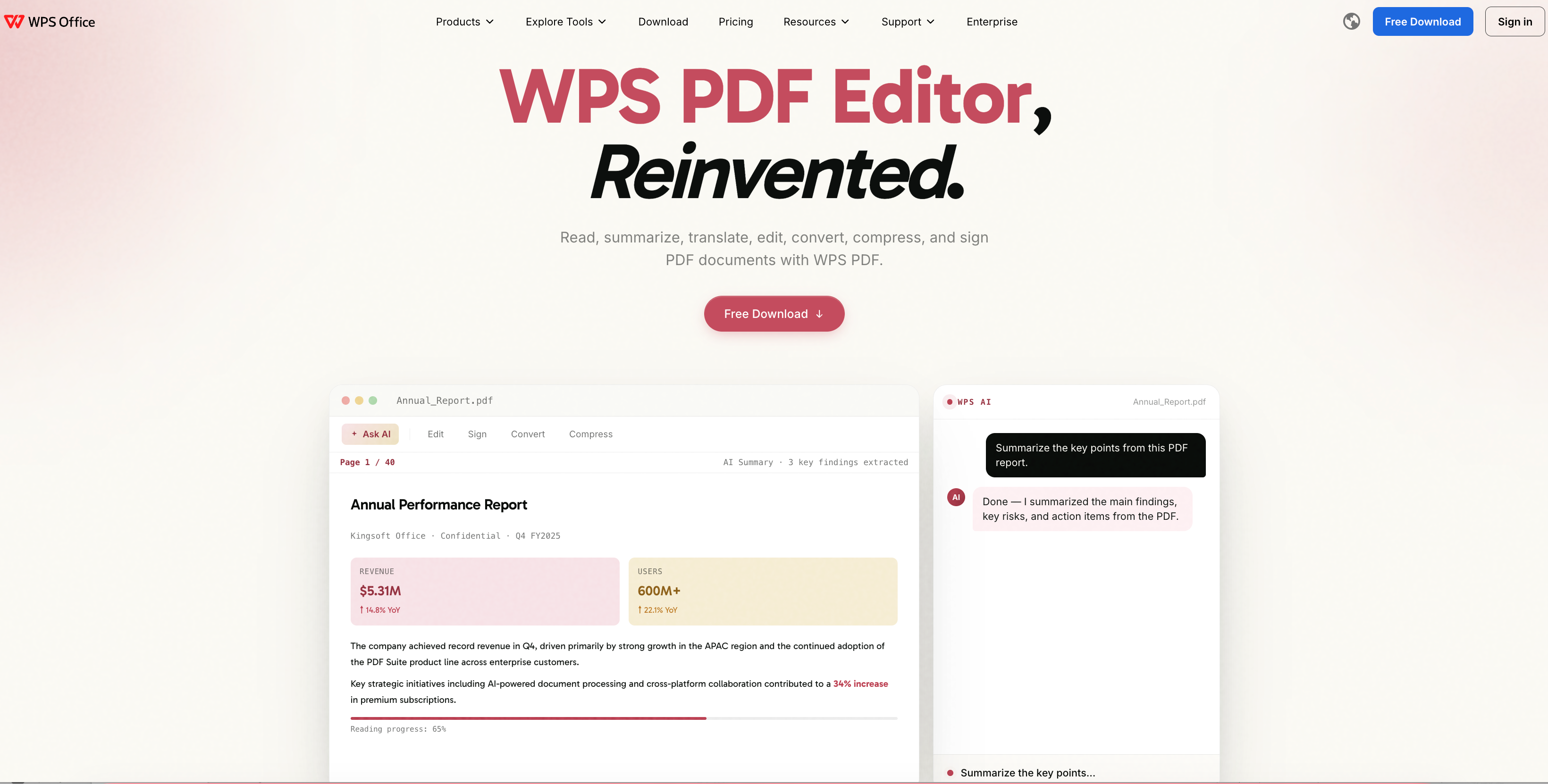
WPS PDF editor product website overview
FAQs
Can I import a PDF directly into Canva?
Yes. Use Canva's PDF upload entry point or drag the file onto its homepage, then open the imported design.
Why is my PDF text not editable in Canva?
A scanned or flattened page can arrive as one image. Test whether individual text boxes can be selected before planning detailed edits.
Will a PDF look exactly the same after import?
Do not assume an exact match. Compare fonts, line breaks, images, and page order, then check the downloaded result.
Should I turn the PDF into JPG first?
Use an image only when visual placement is your priority. Turning the page into a picture does not help you edit its original text.
When should I use WPS Office instead?
Use WPS for a document-focused task such as correcting PDF content, recognizing scanned text, or moving content into an office file.

'%3e%3cpath%20d='M19.9911%204.11386V6.471H18.5894C18.0775%206.471%2017.7322%206.57814%2017.5536%206.79243C17.3751%207.00671%2017.2858%207.32814%2017.2858%207.75671V9.44421H19.9019L19.5536%2012.0871H17.2858V18.8639H14.5536V12.0871H12.2769V9.44421H14.5536V7.49779C14.5536%206.39064%2014.8632%205.53201%2015.4822%204.92189C16.1013%204.31177%2016.9257%204.00671%2017.9554%204.00671C18.8304%204.00671%2019.509%204.04243%2019.9911%204.11386Z'%20fill='%23333333'/%3e%3c/g%3e%3cdefs%3e%3cclipPath%20id='clip0_2938_8199'%3e%3crect%20width='16'%20height='16'%20fill='white'%20transform='translate(8%204.00671)'/%3e%3c/clipPath%3e%3c/defs%3e%3c/svg%3e)
'%3e%3cpath%20d='M17.5237%2010.7813L23.4811%204H22.0699L16.8949%209.88693L12.7648%204H8L14.2469%2012.9029L8%2020.0133H9.4112L14.8725%2013.7952L19.2352%2020.0133H24M9.92053%205.04213H12.0885L22.0688%2019.0224H19.9003'%20fill='%23333333'/%3e%3c/g%3e%3cdefs%3e%3cclipPath%20id='clip0_2938_8200'%3e%3crect%20width='16'%20height='16.0134'%20fill='white'%20transform='translate(8%204)'/%3e%3c/clipPath%3e%3c/defs%3e%3c/svg%3e)


