

'%3e%3cpath%20d='M8%200C12.4183%200%2016%203.58172%2016%208C16%2012.4183%2012.4183%2016%208%2016C3.58172%2016%200%2012.4183%200%208C0%203.58172%203.58172%200%208%200ZM11.6162%204.38379C11.2257%203.99337%2010.5927%203.99338%2010.2021%204.38379L8%206.58594L5.79785%204.38379C5.40732%203.99334%204.77429%203.99329%204.38379%204.38379C3.99331%204.77429%203.99335%205.40733%204.38379%205.79785L6.58594%208L4.38379%2010.2021C3.99348%2010.5927%203.99341%2011.2257%204.38379%2011.6162C4.77426%2012.0066%205.40734%2012.0065%205.79785%2011.6162L8%209.41406L10.2021%2011.6162C10.5927%2012.0066%2011.2257%2012.0067%2011.6162%2011.6162C12.0067%2011.2257%2012.0066%2010.5927%2011.6162%2010.2021L9.41406%208L11.6162%205.79785C12.0066%205.40735%2012.0066%204.77429%2011.6162%204.38379Z'%20fill='%23080E17'%20fill-opacity='0.46'/%3e%3c/g%3e%3cdefs%3e%3cclipPath%20id='clip0_3761_713'%3e%3crect%20width='16'%20height='16'%20fill='white'/%3e%3c/clipPath%3e%3c/defs%3e%3c/svg%3e)




'%3e%3cpath%20fill-rule='evenodd'%20clip-rule='evenodd'%20d='M21.4999%2010.9993C21.4999%205.20009%2016.7986%200.498901%2010.9993%200.498901C5.19994%200.498901%200.498657%205.20009%200.498657%2010.9993C0.498657%2016.2404%204.33858%2020.5844%209.35855%2021.3722V14.0346H6.69238V10.9993H9.35855V8.68594C9.35855%206.05427%2010.9262%204.60062%2013.3248%204.60062C14.4736%204.60062%2015.6753%204.80571%2015.6753%204.80571V7.38979H14.3512C13.0468%207.38979%2012.64%208.19921%2012.64%209.0296V10.9993H15.5523L15.0867%2014.0346H12.64V21.3722C17.66%2020.5844%2021.4999%2016.2404%2021.4999%2010.9993Z'%20fill='%231568EA'/%3e%3c/g%3e%3c/svg%3e)


'%3e%3cpath%20d='M2.42045%2022.1876H6.31818V12.7217L0.75%208.54553V20.5171C0.75%2021.4414%201.49892%2022.1876%202.42045%2022.1876Z'%20fill='%234285F4'/%3e%3cpath%20d='M19.682%2022.1876H23.5797C24.5041%2022.1876%2025.2502%2021.4387%2025.2502%2020.5171V8.54553L19.682%2012.7217'%20fill='%2334A853'/%3e%3cpath%20d='M19.682%205.48293V12.7216L25.2502%208.54543V6.31816C25.2502%204.25236%2022.8921%203.07469%2021.2411%204.31361'%20fill='%23FBBC04'/%3e%3cpath%20d='M6.31824%2012.7217V5.48303L13.0001%2010.4944L19.6819%205.48303V12.7217L13.0001%2017.733'%20fill='%23EA4335'/%3e%3cpath%20d='M0.75%206.31816V8.54543L6.31818%2012.7216V5.48293L4.75909%204.31361C3.10534%203.07469%200.75%204.25236%200.75%206.31816Z'%20fill='%23C5221F'/%3e%3c/g%3e%3cdefs%3e%3cclipPath%20id='clip0_2954_7305'%3e%3crect%20width='24.5'%20height='18.375'%20fill='white'%20transform='translate(0.75%203.8125)'/%3e%3c/clipPath%3e%3c/defs%3e%3c/svg%3e)


Your Mac slows down, the beach ball spins, and apps take forever to switch. That is usually not a broken app — it is memory. When RAM runs out, macOS starts swapping active data to the startup disk, and everything from Safari to a large PDF starts to stutter.
The good news: you rarely need extra software. macOS ships with a built-in monitor that shows exactly what is eating RAM, and there are several native ways to free up memory (RAM) on Mac in a couple of minutes. This guide walks through both, plus one lightweight tool to handle the files that drain memory the most.
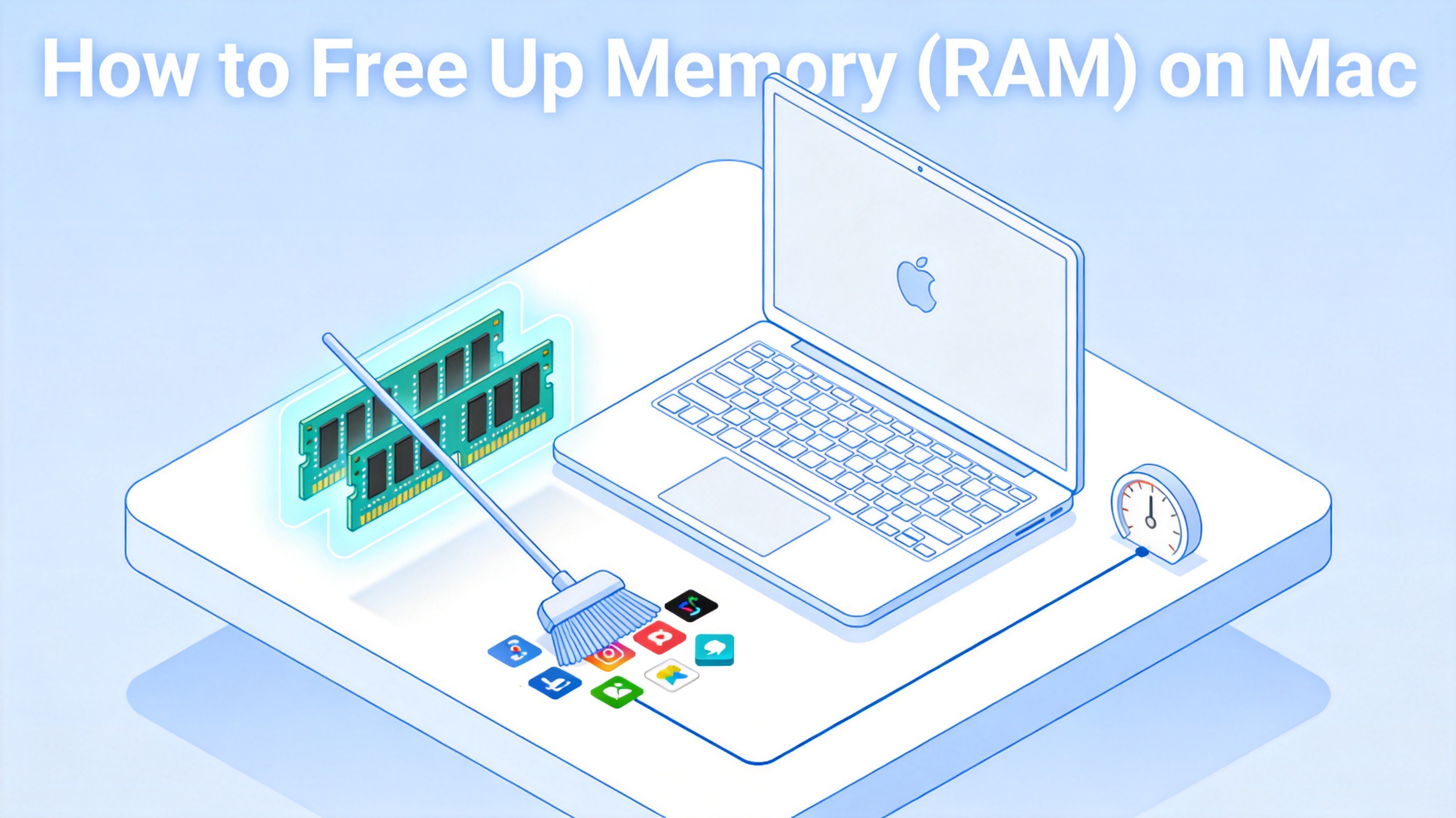
How to Free Up Memory (RAM) on Mac
How to Check Mac RAM Usage
Before quitting anything, confirm that memory is actually the bottleneck. macOS includes Activity Monitor for exactly this job.
Open Activity Monitor. Press Cmd + Space to open Spotlight, type Activity Monitor, and press Return. You can also find it in Applications > Utilities.
Click the Memory tab. The bottom of the window shows Memory Pressure, a graph that tells you how efficiently your Mac is using RAM. Green means healthy, yellow means your Mac may soon need more memory, and red means it is under real memory stress right now.
Sort by the Memory column. Click the Memory column header so the biggest consumers sit at the top. The usual suspects are browsers with many tabs, large creative apps, and PDF readers or editors holding a long document open.
If the pressure graph sits in the green, your slowdowns are probably CPU- or disk-related, and quitting apps will not help much. If it is yellow or red, keep reading — the process list you just sorted is your target list.
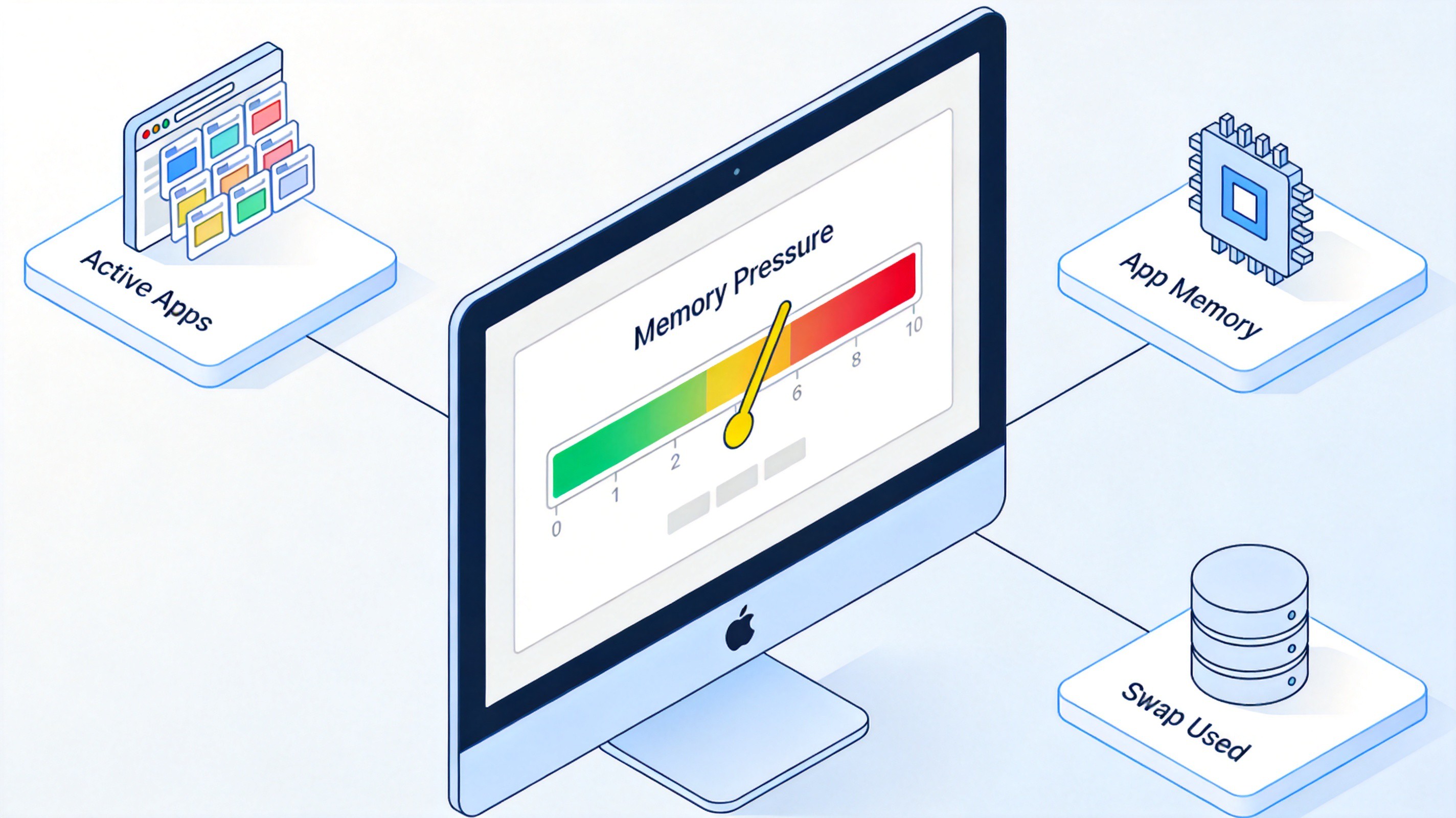
Check Mac RAM usage memory pressure


Native Ways to Free Up RAM on Mac
All six methods below use tools that are already on your Mac. Work down the list from the quickest to the most thorough.
Close unused apps and background processes. Press Cmd + Option + Esc to open the Force Quit window, select the apps you are not using, and click Force Quit. Quitting an app returns its RAM to the system immediately.
Replace or close heavy tabs and extensions. Browser tabs are the most common memory hogs. Close the tabs you are not reading, disable extensions you never use, and reopen a heavy page only when you need it.
Clean up your desktop. Every icon on the desktop is a window macOS has to render. Move scattered files into a few folders so Finder draws fewer items and your GPU and memory breathe easier.
Quit memory-leaking apps in Activity Monitor. In the Memory tab, look for a process whose memory keeps climbing even when you are not using it. Select it, click the X (Stop) button in the toolbar, and choose Quit or Force Quit to release the leak.
Restart your Mac. A restart clears RAM, swap files, and stuck caches in one move. If memory pressure stays yellow or red no matter what you close, this is the most reliable reset.
Keep macOS updated. Go to System Settings > General > Software Update and install what is offered. Each macOS release ships memory-management improvements, and staying current keeps the system from wasting RAM on known bugs.
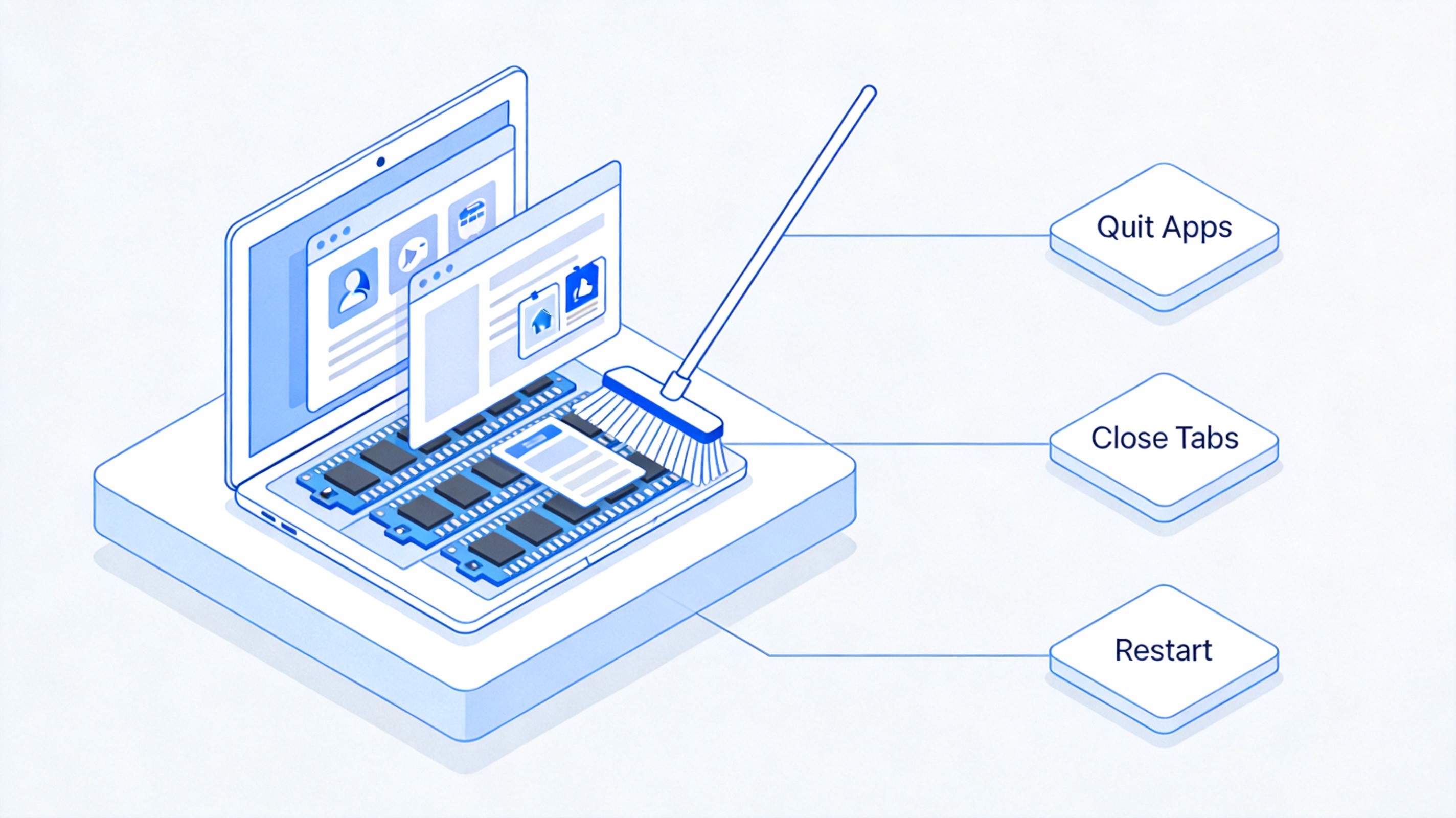
Free up RAM on Mac natively
The Best Free PDF Editor for macOS 10.15: WPS Office
One pattern you will notice in Activity Monitor: open a large or multi-page PDF — in a traditional PDF editor or even in a browser tab — and memory usage jumps. That is especially painful on Macs running macOS 10.15 (Catalina), where a heavyweight PDF app can push the whole system into the red.
This is where WPS Office earns its place as the best free PDF editor for macOS 10.15 and above:
Low memory footprint. WPS PDF uses an optimized rendering engine, so large PDFs and multi-document tabs stay smooth instead of squeezing the rest of your system out of RAM.
All-in-one PDF toolkit. Reading, editing, commenting, merging and splitting pages, and OCR are built into the same app — no extra viewers and editors stacked in the background.
Stable on older systems. Even on a Mac running macOS 10.15 (Catalina), WPS Office delivers fast, reliable PDF handling.
If you work with PDFs regularly, switching your PDF workflow to WPS is one of the easiest ways to keep memory pressure in the green. For a deeper look at editing PDFs on a Mac for free, see how to edit a PDF on Mac free.
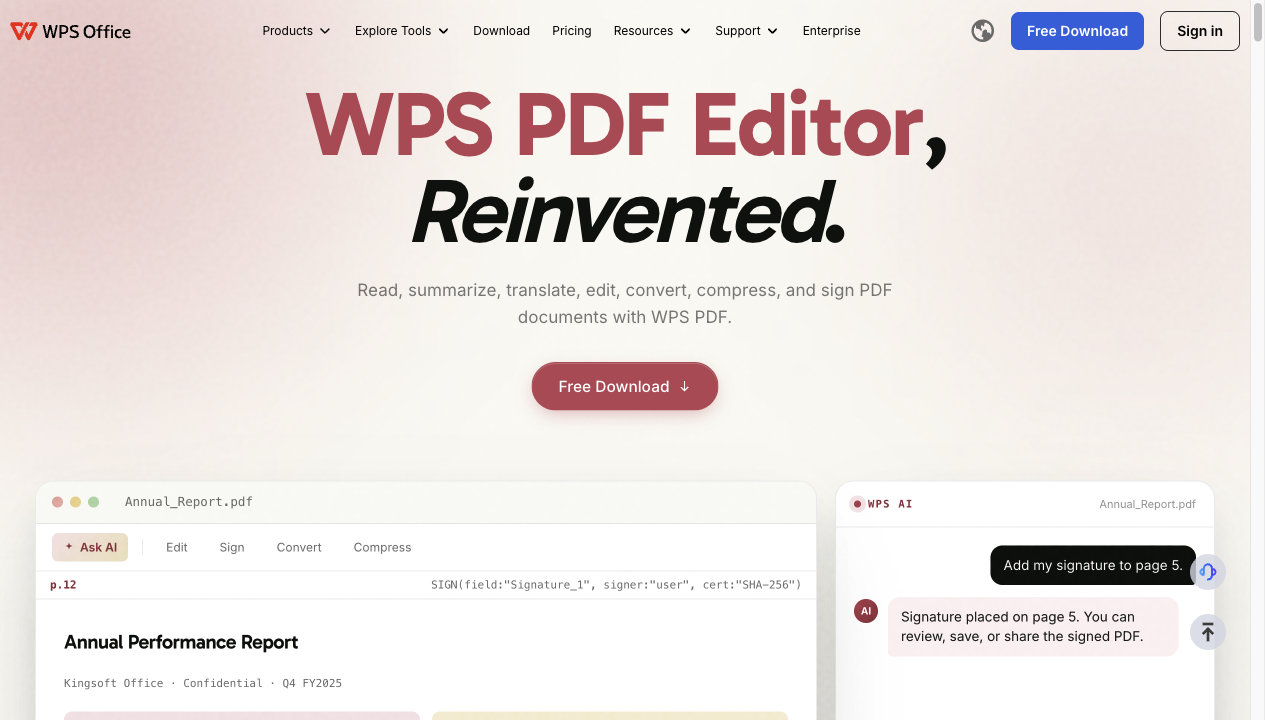
WPS Office PDF editor for Mac
FAQs
Does closing apps really free up RAM on Mac?
Yes. Quitting an app returns the memory it was holding to the system immediately. It is the fastest native way to free up RAM on Mac, especially for browsers and large apps you are not actively using.
How do I see which app is using the most memory?
Open Activity Monitor, click the Memory tab, and click the Memory column header to sort the list. The top entries are your biggest consumers, and the Memory Pressure graph at the bottom shows whether your Mac is under stress.
Do memory cleaner apps help free up RAM?
Usually not much. macOS manages memory well on its own, and most cleaner apps simply force-close cached files that macOS would reuse anyway. Quitting unused apps, closing tabs, and restarting are more reliable.
Why is my Mac slow even with free memory showing?
Free memory is not the same as healthy memory pressure. Check the Memory Pressure graph in Activity Monitor: if it is green, memory is not your bottleneck, and the slowdown is more likely CPU, disk, or network related.
What is the fastest way to free up RAM on Mac without restarting?
Press Cmd + Option + Esc, force-quit the apps you do not need, then close unused browser tabs. For a process whose memory keeps climbing in Activity Monitor, select it and click the Stop button to end it.


'%3e%3cpath%20d='M19.9911%204.11386V6.471H18.5894C18.0775%206.471%2017.7322%206.57814%2017.5536%206.79243C17.3751%207.00671%2017.2858%207.32814%2017.2858%207.75671V9.44421H19.9019L19.5536%2012.0871H17.2858V18.8639H14.5536V12.0871H12.2769V9.44421H14.5536V7.49779C14.5536%206.39064%2014.8632%205.53201%2015.4822%204.92189C16.1013%204.31177%2016.9257%204.00671%2017.9554%204.00671C18.8304%204.00671%2019.509%204.04243%2019.9911%204.11386Z'%20fill='%23333333'/%3e%3c/g%3e%3cdefs%3e%3cclipPath%20id='clip0_2938_8199'%3e%3crect%20width='16'%20height='16'%20fill='white'%20transform='translate(8%204.00671)'/%3e%3c/clipPath%3e%3c/defs%3e%3c/svg%3e)
'%3e%3cpath%20d='M17.5237%2010.7813L23.4811%204H22.0699L16.8949%209.88693L12.7648%204H8L14.2469%2012.9029L8%2020.0133H9.4112L14.8725%2013.7952L19.2352%2020.0133H24M9.92053%205.04213H12.0885L22.0688%2019.0224H19.9003'%20fill='%23333333'/%3e%3c/g%3e%3cdefs%3e%3cclipPath%20id='clip0_2938_8200'%3e%3crect%20width='16'%20height='16.0134'%20fill='white'%20transform='translate(8%204)'/%3e%3c/clipPath%3e%3c/defs%3e%3c/svg%3e)


