

'%3e%3cpath%20d='M8%200C12.4183%200%2016%203.58172%2016%208C16%2012.4183%2012.4183%2016%208%2016C3.58172%2016%200%2012.4183%200%208C0%203.58172%203.58172%200%208%200ZM11.6162%204.38379C11.2257%203.99337%2010.5927%203.99338%2010.2021%204.38379L8%206.58594L5.79785%204.38379C5.40732%203.99334%204.77429%203.99329%204.38379%204.38379C3.99331%204.77429%203.99335%205.40733%204.38379%205.79785L6.58594%208L4.38379%2010.2021C3.99348%2010.5927%203.99341%2011.2257%204.38379%2011.6162C4.77426%2012.0066%205.40734%2012.0065%205.79785%2011.6162L8%209.41406L10.2021%2011.6162C10.5927%2012.0066%2011.2257%2012.0067%2011.6162%2011.6162C12.0067%2011.2257%2012.0066%2010.5927%2011.6162%2010.2021L9.41406%208L11.6162%205.79785C12.0066%205.40735%2012.0066%204.77429%2011.6162%204.38379Z'%20fill='%23080E17'%20fill-opacity='0.46'/%3e%3c/g%3e%3cdefs%3e%3cclipPath%20id='clip0_3761_713'%3e%3crect%20width='16'%20height='16'%20fill='white'/%3e%3c/clipPath%3e%3c/defs%3e%3c/svg%3e)




'%3e%3cpath%20fill-rule='evenodd'%20clip-rule='evenodd'%20d='M21.4999%2010.9993C21.4999%205.20009%2016.7986%200.498901%2010.9993%200.498901C5.19994%200.498901%200.498657%205.20009%200.498657%2010.9993C0.498657%2016.2404%204.33858%2020.5844%209.35855%2021.3722V14.0346H6.69238V10.9993H9.35855V8.68594C9.35855%206.05427%2010.9262%204.60062%2013.3248%204.60062C14.4736%204.60062%2015.6753%204.80571%2015.6753%204.80571V7.38979H14.3512C13.0468%207.38979%2012.64%208.19921%2012.64%209.0296V10.9993H15.5523L15.0867%2014.0346H12.64V21.3722C17.66%2020.5844%2021.4999%2016.2404%2021.4999%2010.9993Z'%20fill='%231568EA'/%3e%3c/g%3e%3c/svg%3e)


'%3e%3cpath%20d='M2.42045%2022.1876H6.31818V12.7217L0.75%208.54553V20.5171C0.75%2021.4414%201.49892%2022.1876%202.42045%2022.1876Z'%20fill='%234285F4'/%3e%3cpath%20d='M19.682%2022.1876H23.5797C24.5041%2022.1876%2025.2502%2021.4387%2025.2502%2020.5171V8.54553L19.682%2012.7217'%20fill='%2334A853'/%3e%3cpath%20d='M19.682%205.48293V12.7216L25.2502%208.54543V6.31816C25.2502%204.25236%2022.8921%203.07469%2021.2411%204.31361'%20fill='%23FBBC04'/%3e%3cpath%20d='M6.31824%2012.7217V5.48303L13.0001%2010.4944L19.6819%205.48303V12.7217L13.0001%2017.733'%20fill='%23EA4335'/%3e%3cpath%20d='M0.75%206.31816V8.54543L6.31818%2012.7216V5.48293L4.75909%204.31361C3.10534%203.07469%200.75%204.25236%200.75%206.31816Z'%20fill='%23C5221F'/%3e%3c/g%3e%3cdefs%3e%3cclipPath%20id='clip0_2954_7305'%3e%3crect%20width='24.5'%20height='18.375'%20fill='white'%20transform='translate(0.75%203.8125)'/%3e%3c/clipPath%3e%3c/defs%3e%3c/svg%3e)


The problem is always small. One wrong date, one outdated figure, one sentence in the middle of a contract, and Preview, the free PDF app already installed on your Mac, will not let you click into that sentence and type. You can cover it with a text box, but the box floats above the paragraph, the font does not match, and the fix looks like a sticker.
Editing a PDF on a Mac without a subscription is possible, but the tool matters more than the price. Preview handles markup and signatures. A free desktop editor handles real text and image changes. A browser tool handles the one-off conversion you never want to install anything for.
This guide walks through all three routes, with the exact steps for the free desktop option in WPS Office for Mac, so you can match the tool to the change you actually need to make.
How to Edit a PDF on Mac Free (Step by Step)
How to edit a PDF on Mac free with WPS Office
This is the route to take when the change is inside the document rather than painted on top of it.
Install WPS Office for Mac. Download it from the WPS Office for Mac page and finish the setup. The suite bundles Writer, Spreadsheet, Presentation, and the PDF tools in one app, so the edit and any follow-up document work stay in one place.
Open the PDF. Launch WPS Office, choose Open, and select the file from Finder. The PDF opens in the PDF component with the Home, Edit, Convert, and Comment tabs across the top of the window.
Switch to the Edit tool. Click Edit in the toolbar to leave reading mode. Text becomes selectable, and the editing tools for text and objects appear in the ribbon.
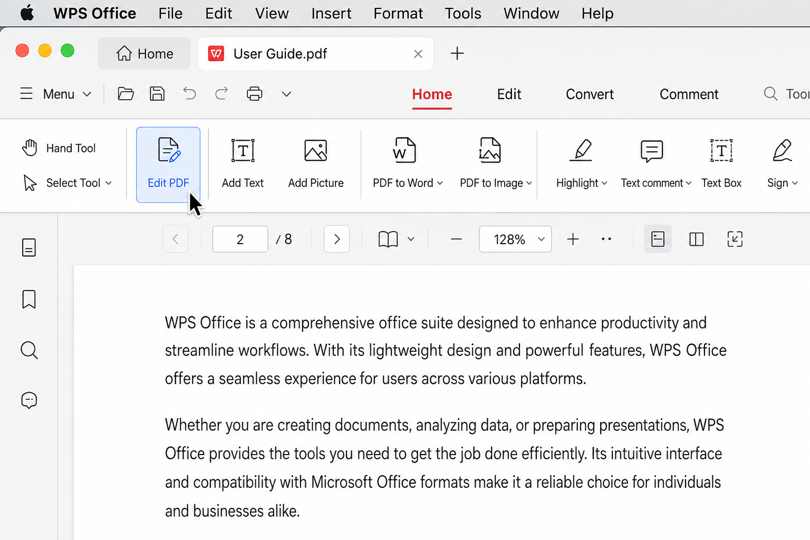
Edit tool enabled in WPS PDF
Click the text and retype it. Click inside the paragraph that needs the change and type over it. WPS matches the surrounding font and formatting, so the corrected line keeps the spacing of the page instead of sitting in a floating box.
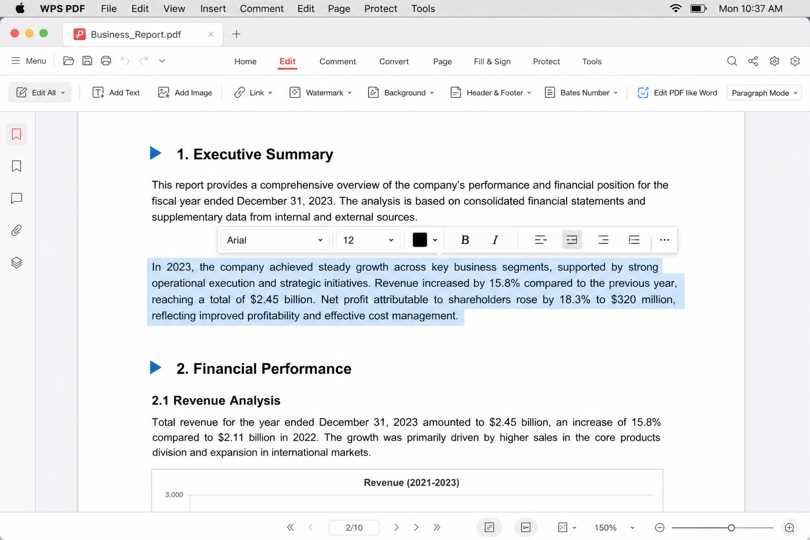
Editing PDF text in WPS
Fix images the same way. Switch to the object tools to select a picture, then move, resize, or replace it. Images behave like layout objects rather than stickers, so the rest of the page stays aligned.
Run OCR if nothing is selectable. When clicking a page selects the whole sheet as one block, the PDF is a scan and the text is only pixels. Use the OCR option to recognize the text first, then edit it like any other text.
Save the edited file. Use Save to update the PDF in place, or Save As to keep the original untouched. Exported copies flatten annotations into the page, which is what you want if the file is going to a client or a print shop.
How to edit a PDF on Mac free in a browser
When the job is a conversion or a single operation rather than a real edit, a browser tab saves the install. WPS runs its PDF tools online at pdf.wps.com, and the workflow is the same across the toolset.
Open the tool you need. Go to pdf.wps.com and pick the operation, such as converting a PDF to Word or compressing a large file for email.
Upload the file. Drag the PDF onto the page and check the file-size limit before you start. Large or image-heavy documents sometimes need to be split first.
Run the operation and download the result. Convert, merge, split, or compress, then download the finished file and open it to confirm the pages, fonts, and images survived the trip.
Check the privacy rule first. Do not upload contracts, IDs, medical records, or client files to a free online tool. Keep those on your Mac and use a desktop app instead.
Expect conversion, not editing. Browser tools rebuild your file in another format. Complex layouts, multi-column pages, and form fields often shift in the process, so proofread the output.
Scans still need OCR. If the PDF is a picture of a page, a converter returns a picture of text. Recognize the text first, or the result stays uneditable.
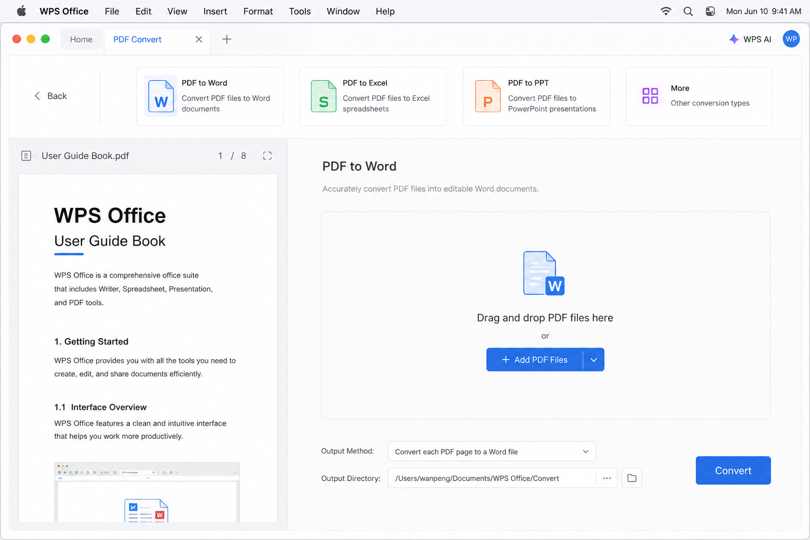
WPS PDF to Word online tool


What free tools on Mac cannot edit inside a PDF
A PDF stores text as characters placed at exact coordinates rather than as flowing paragraphs. That single design decision explains most of the limits you run into, whichever tool you open.
Preview cannot edit existing text. Its markup tools sit on a layer above the page. You can add a text box over a mistake, but you cannot select the underlying paragraph and change a date or a figure.
Preview cannot swap an image inside the layout. You can insert a new image over the page or replace a whole page, but not replace the picture that belongs inside a paragraph or table.
Browser converters are not editors. They reproduce the document in another format, which is efficient for reuse and unreliable for pixel-accurate fixes.
Scanned pages have no text until OCR runs. Until then, every "edit" is really a drawing operation on an image.
Protected PDFs stay locked. If the file has a permissions password, editing is blocked until that password is entered, regardless of the app.
The best free PDF editor for Mac: WPS Office
WPS Office for Mac is the free option that covers the whole job: open the PDF, change the text, replace an image, run OCR on a scan, sign it, and export it. It is one app for Word, Excel, PowerPoint, and PDF files, which matters on the days when the PDF edit turns into a rewrite in Writer.
The table below compares the two free options on the work you actually do, not on feature counts.
| What matters | Apple Preview | WPS Office for Mac |
|---|---|---|
| Text edits | Markup and floating text boxes only | Click into a paragraph and retype it, with the layout preserved |
| Image edits | Not possible inside the layout | Add, resize, or replace images within the PDF |
| Scanned files | No OCR, so the page stays an image | OCR tools turn scanned pages into editable text |
| Convert and export | Export to PDF or image formats | Convert to Word, Excel, PPT, and PDF, plus online converters |
| Forms and signatures | Fill in and sign PDF forms | Fill, sign, and work with form fields inside the PDF workflow |
| AI help | None | WPS AI summaries, translation, and explanations for long PDFs |
| Price | Free and built into macOS | Free to download, with some premium features on paid plans |
One app instead of four. The same window handles the PDF, the Word version, the spreadsheet behind it, and the slides that summarize it.
Native on Apple silicon. WPS Office for Mac is built for M-series Macs, so opening a 200-page PDF does not feel like a workaround.
Edits that respect the page. Font matching and object-level editing keep the surrounding layout intact, so a corrected sentence does not announce itself on the printed page.
Start with the free download, open the file that needs the change, and see whether the Edit tool covers it before you consider paying for anything else.
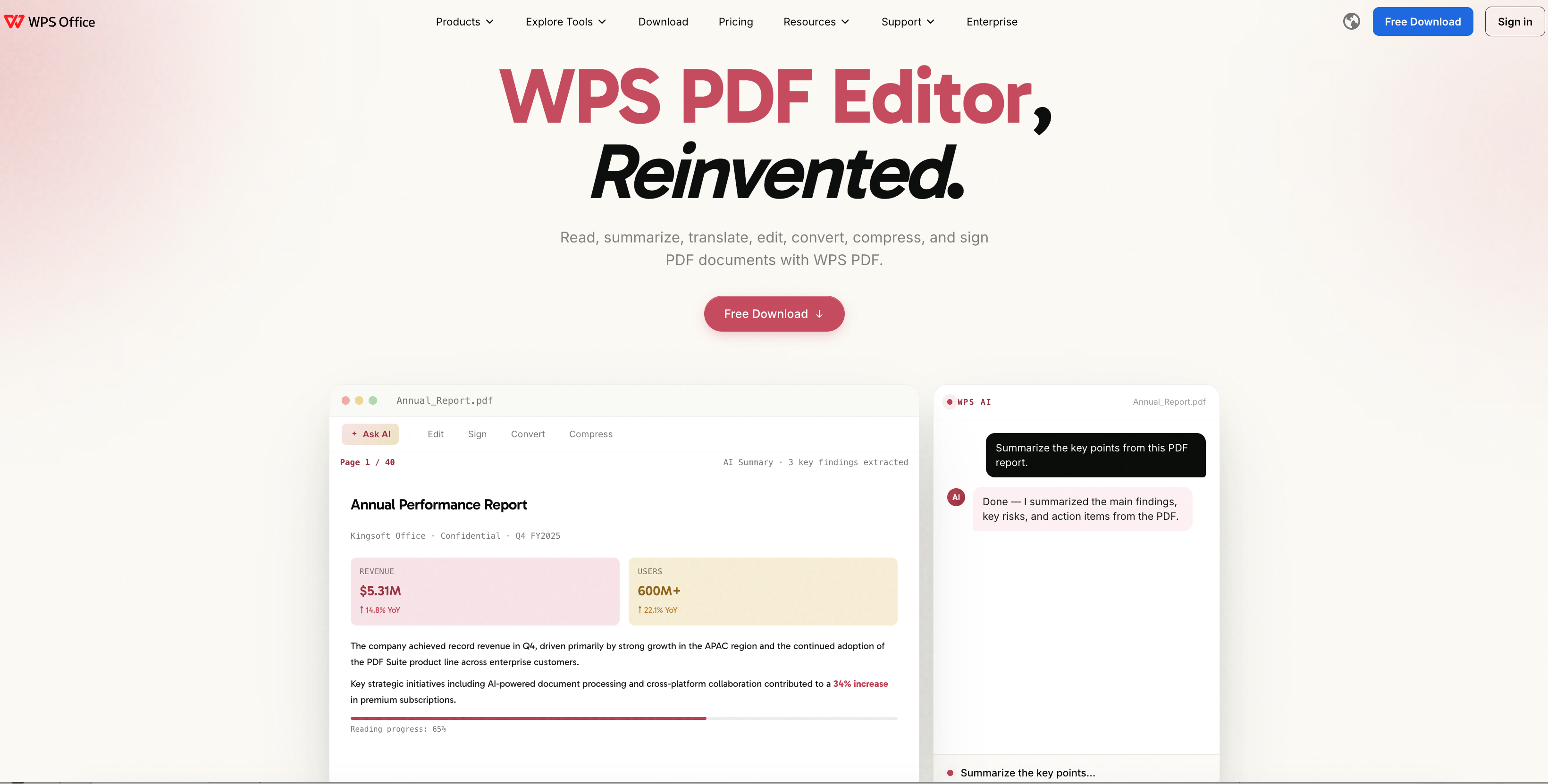
WPS PDF Editor for Mac
FAQs
Can I edit a PDF on Mac for free?
Yes. Preview covers markup, forms, and signatures at no cost. For changes to the text and images themselves, WPS Office for Mac is free to download, and browser tools handle one-off conversions when the file is not sensitive.
Why can’t Preview edit the text in my PDF?
Preview is a viewer with markup tools. A PDF records where each character sits on the page rather than which paragraph it belongs to, so there is no text flow for Preview to edit. Editors that can change PDF text either map those characters back into paragraphs or convert the file internally, which is what WPS PDF does.
How do I edit a scanned PDF on Mac?
A scan is an image of a page, so there is nothing to select until OCR runs. Use the OCR option in WPS PDF to recognize the text, then edit it as you would any other document. Without OCR you can only annotate the page or rebuild it from scratch.
Do I have to convert the PDF to Word before editing it?
Not for small changes. Editing text directly in WPS PDF keeps the page exactly where it was. Convert to Word when the edit is structural, such as rewriting several paragraphs or reusing the content in a new document, and check the converted file for layout shifts before you send it.
Is it safe to edit a PDF in an online tool?
For public or disposable files, yes. For contracts, IDs, financial records, or client work, keep the file on your Mac and use a desktop app such as WPS Office for Mac. Free online tools also cap file sizes and may compress images during processing.


'%3e%3cpath%20d='M19.9911%204.11386V6.471H18.5894C18.0775%206.471%2017.7322%206.57814%2017.5536%206.79243C17.3751%207.00671%2017.2858%207.32814%2017.2858%207.75671V9.44421H19.9019L19.5536%2012.0871H17.2858V18.8639H14.5536V12.0871H12.2769V9.44421H14.5536V7.49779C14.5536%206.39064%2014.8632%205.53201%2015.4822%204.92189C16.1013%204.31177%2016.9257%204.00671%2017.9554%204.00671C18.8304%204.00671%2019.509%204.04243%2019.9911%204.11386Z'%20fill='%23333333'/%3e%3c/g%3e%3cdefs%3e%3cclipPath%20id='clip0_2938_8199'%3e%3crect%20width='16'%20height='16'%20fill='white'%20transform='translate(8%204.00671)'/%3e%3c/clipPath%3e%3c/defs%3e%3c/svg%3e)
'%3e%3cpath%20d='M17.5237%2010.7813L23.4811%204H22.0699L16.8949%209.88693L12.7648%204H8L14.2469%2012.9029L8%2020.0133H9.4112L14.8725%2013.7952L19.2352%2020.0133H24M9.92053%205.04213H12.0885L22.0688%2019.0224H19.9003'%20fill='%23333333'/%3e%3c/g%3e%3cdefs%3e%3cclipPath%20id='clip0_2938_8200'%3e%3crect%20width='16'%20height='16.0134'%20fill='white'%20transform='translate(8%204)'/%3e%3c/clipPath%3e%3c/defs%3e%3c/svg%3e)


