

'%3e%3cpath%20d='M8%200C12.4183%200%2016%203.58172%2016%208C16%2012.4183%2012.4183%2016%208%2016C3.58172%2016%200%2012.4183%200%208C0%203.58172%203.58172%200%208%200ZM11.6162%204.38379C11.2257%203.99337%2010.5927%203.99338%2010.2021%204.38379L8%206.58594L5.79785%204.38379C5.40732%203.99334%204.77429%203.99329%204.38379%204.38379C3.99331%204.77429%203.99335%205.40733%204.38379%205.79785L6.58594%208L4.38379%2010.2021C3.99348%2010.5927%203.99341%2011.2257%204.38379%2011.6162C4.77426%2012.0066%205.40734%2012.0065%205.79785%2011.6162L8%209.41406L10.2021%2011.6162C10.5927%2012.0066%2011.2257%2012.0067%2011.6162%2011.6162C12.0067%2011.2257%2012.0066%2010.5927%2011.6162%2010.2021L9.41406%208L11.6162%205.79785C12.0066%205.40735%2012.0066%204.77429%2011.6162%204.38379Z'%20fill='%23080E17'%20fill-opacity='0.46'/%3e%3c/g%3e%3cdefs%3e%3cclipPath%20id='clip0_3761_713'%3e%3crect%20width='16'%20height='16'%20fill='white'/%3e%3c/clipPath%3e%3c/defs%3e%3c/svg%3e)




'%3e%3cpath%20fill-rule='evenodd'%20clip-rule='evenodd'%20d='M21.4999%2010.9993C21.4999%205.20009%2016.7986%200.498901%2010.9993%200.498901C5.19994%200.498901%200.498657%205.20009%200.498657%2010.9993C0.498657%2016.2404%204.33858%2020.5844%209.35855%2021.3722V14.0346H6.69238V10.9993H9.35855V8.68594C9.35855%206.05427%2010.9262%204.60062%2013.3248%204.60062C14.4736%204.60062%2015.6753%204.80571%2015.6753%204.80571V7.38979H14.3512C13.0468%207.38979%2012.64%208.19921%2012.64%209.0296V10.9993H15.5523L15.0867%2014.0346H12.64V21.3722C17.66%2020.5844%2021.4999%2016.2404%2021.4999%2010.9993Z'%20fill='%231568EA'/%3e%3c/g%3e%3c/svg%3e)


'%3e%3cpath%20d='M2.42045%2022.1876H6.31818V12.7217L0.75%208.54553V20.5171C0.75%2021.4414%201.49892%2022.1876%202.42045%2022.1876Z'%20fill='%234285F4'/%3e%3cpath%20d='M19.682%2022.1876H23.5797C24.5041%2022.1876%2025.2502%2021.4387%2025.2502%2020.5171V8.54553L19.682%2012.7217'%20fill='%2334A853'/%3e%3cpath%20d='M19.682%205.48293V12.7216L25.2502%208.54543V6.31816C25.2502%204.25236%2022.8921%203.07469%2021.2411%204.31361'%20fill='%23FBBC04'/%3e%3cpath%20d='M6.31824%2012.7217V5.48303L13.0001%2010.4944L19.6819%205.48303V12.7217L13.0001%2017.733'%20fill='%23EA4335'/%3e%3cpath%20d='M0.75%206.31816V8.54543L6.31818%2012.7216V5.48293L4.75909%204.31361C3.10534%203.07469%200.75%204.25236%200.75%206.31816Z'%20fill='%23C5221F'/%3e%3c/g%3e%3cdefs%3e%3cclipPath%20id='clip0_2954_7305'%3e%3crect%20width='24.5'%20height='18.375'%20fill='white'%20transform='translate(0.75%203.8125)'/%3e%3c/clipPath%3e%3c/defs%3e%3c/svg%3e)


Searching for a PDF editor for Mac usually means one thing: you need to change real content—not just highlight a page. Apple Preview opens PDFs instantly and handles markup well, but it cannot rewrite existing text the way a dedicated editor can. That gap is why Mac users look beyond the built-in app for contracts, forms, resumes, and reports.
This guide explains what a practical PDF editor for Mac should do, how Preview falls short for true edits, and how to edit PDFs step by step with WPS PDF on macOS—including convert and save options.
Why Preview falls short as a PDF editor for Mac
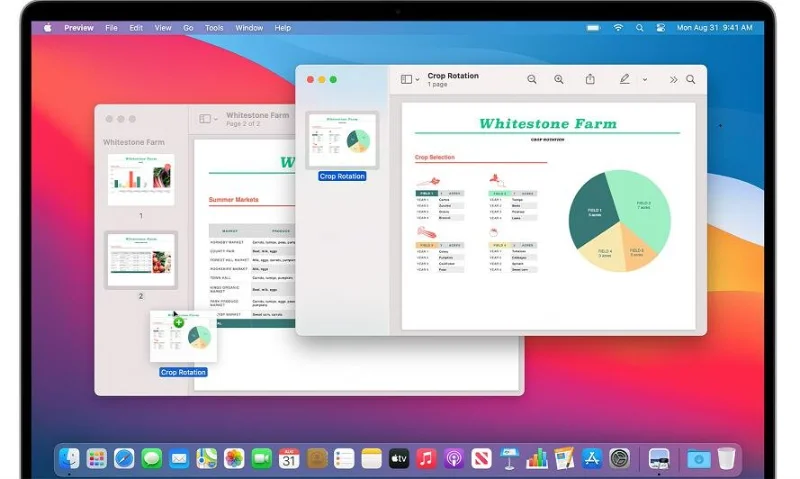
Preview is free and already on every Mac, so it feels like the default answer. For light work it is fine: open a file, highlight a line, add a sticky note, draw a signature, merge a few pages, or export a protected copy.
What Preview does not do well is act as a full PDF editor for Mac when you need to fix body text. You can place a new text box over a mistake, but you cannot click into an existing paragraph, change a date, or match fonts the way you would in Writer or Word. Scanned pages stay as images unless you use another tool with OCR.
Choose Preview when you only need markup. Switch to a dedicated PDF editor for Mac when you must revise wording, replace images, fill complex forms, or convert the file into an editable office format.


How to edit PDFs with a PDF editor for Mac in WPS
WPS Office includes a built-in PDF module that works as a practical PDF editor for Mac: open the file, edit text and images, convert when needed, then save. Follow the steps below.
Step 1. Install WPS and open your PDF
Download WPS Office for Mac, install it, then open your PDF from File > Open or by dragging the file onto the WPS window.
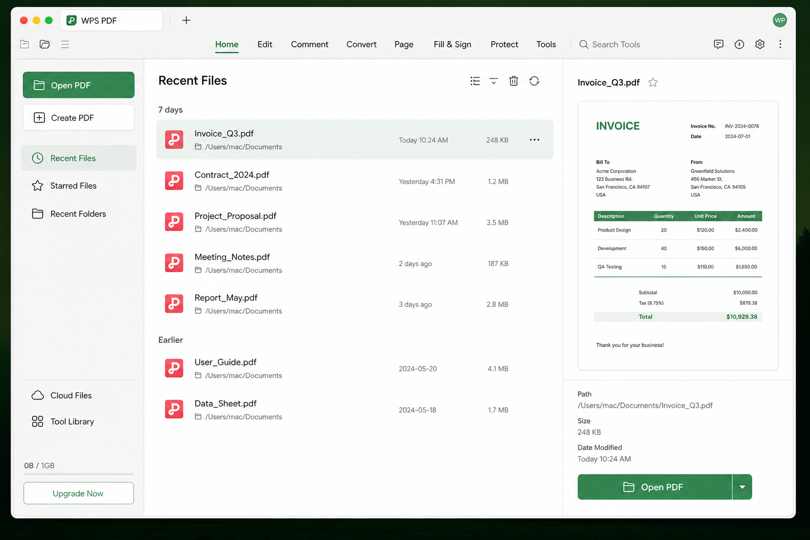
Open PDF in WPS Office
Step 2. Enter Edit PDF mode
With the document open, select the Edit PDF option on the top toolbar (or open the Edit tab). This switches the viewer into editing mode so text boxes and images become selectable.
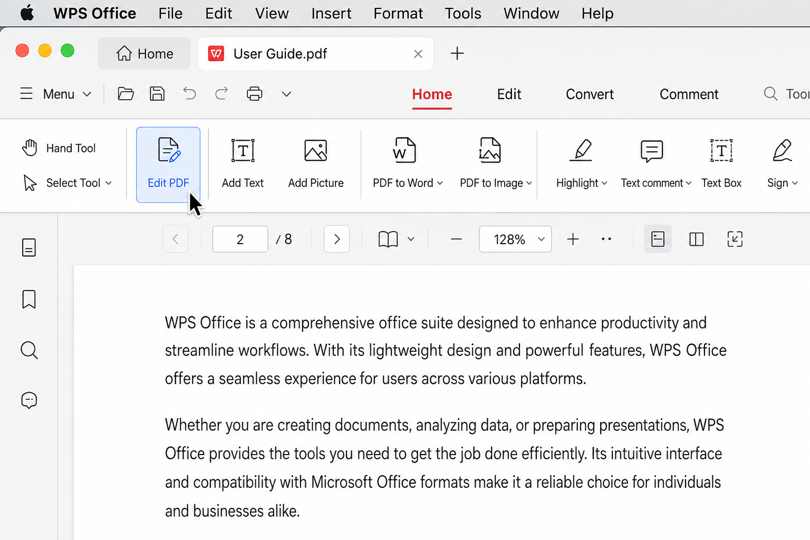
Edit PDF toolbar in WPS
Step 3. Change text, images, or layout
Click an existing paragraph to rewrite it, or use Add Text / Add Picture to insert new content. Adjust font, size, and color from the formatting tools. Drag images to resize or reposition them. Keep a copy of the original file before large changes.
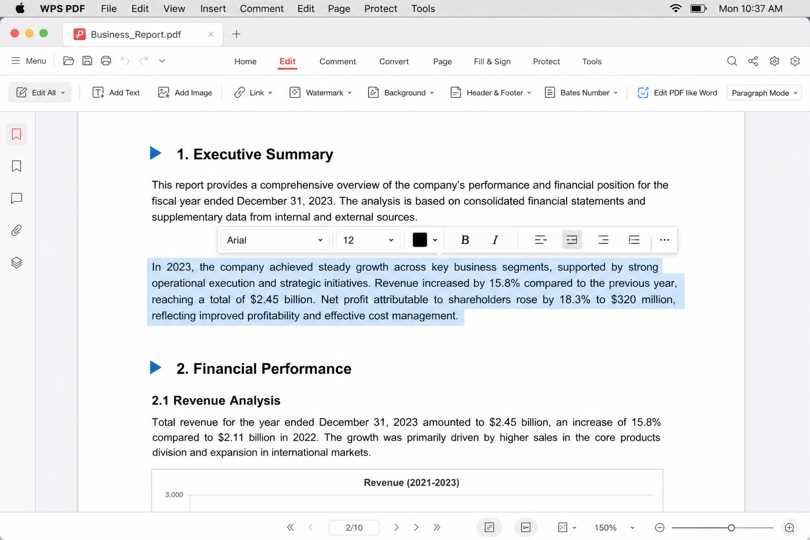
Edit PDF text like Word
Step 4. Convert if you need deeper edits, then save
For long rewrites, open the Convert tab and choose PDF to Word (or Excel / PowerPoint). Edit in the office format, then export back to PDF if you still need a shareable PDF. Otherwise choose File > Save or Save As to keep your edited PDF.
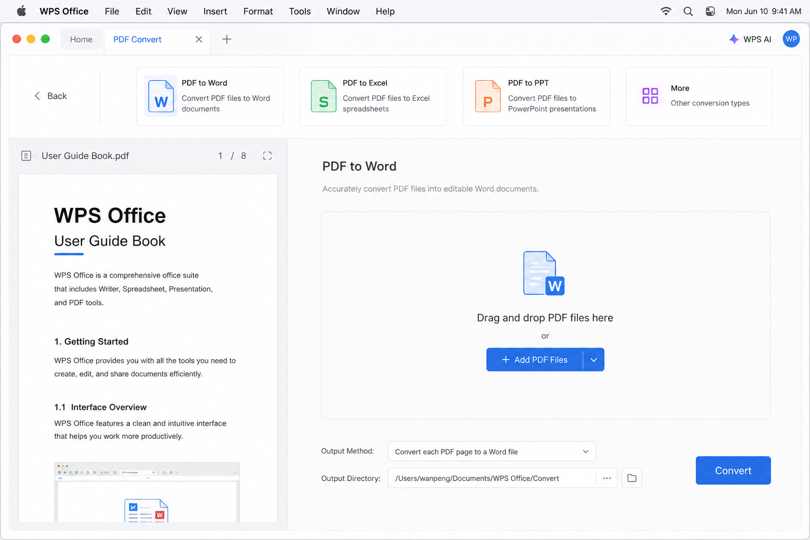
Convert PDF with WPS tools
Extra tools every PDF editor for Mac should include
Editing body text is only part of the job. A capable PDF editor for Mac should also speed up these tasks:
Annotate and comment — highlight, underline, and leave notes for reviewers
Merge and split — combine invoices or extract a single page from a long packet
Compress — shrink attachments for email without unreadable blur
Protect — add passwords or restrict printing and copying when files are sensitive
OCR for scans — turn phone photos of documents into searchable, editable text
In WPS, many of these sit next to Edit and Convert, so you stay inside one app instead of bouncing between Preview, a converter site, and a separate signer.
How to choose the right PDF editor for Mac
Use this short decision guide when comparing options for a PDF editor for Mac:
Markup only — stick with Preview; it is fast and free
Occasional text fixes + office docs — WPS Office covers PDF, Word, Excel, and PPT together
Heavy Acrobat-centric workflows — Acrobat Pro still fits teams that already live in Adobe tools
Mac-only power users — apps such as PDF Expert are popular native alternatives if you do not need Windows later
If your week mixes PDFs with spreadsheets and presentations, an all-in-one suite is usually simpler than stacking three single-purpose apps.
FAQ
Can Preview fully edit PDF text on Mac?
No. Preview can annotate, add new text boxes, sign, and manage pages, but it cannot rewrite existing body text like a dedicated PDF editor for Mac.
Is there a free PDF editor for Mac?
Yes. Preview covers free markup. For freer text editing, tools such as WPS PDF on Mac let you modify content and convert files without buying Acrobat Pro for everyday jobs. Some advanced features may require a premium plan depending on the product.
Can I edit a scanned PDF on Mac?
Only after OCR. A scanned page is an image until software recognizes the characters. Use a PDF editor for Mac with OCR (or convert to Word after recognition) before you try to rewrite the content.
Does WPS work as a PDF editor for Mac on Apple silicon?
WPS Office for Mac supports modern macOS installs used on Intel and Apple silicon machines. Download the current Mac build from the official WPS site for the latest compatibility details.


'%3e%3cpath%20d='M19.9911%204.11386V6.471H18.5894C18.0775%206.471%2017.7322%206.57814%2017.5536%206.79243C17.3751%207.00671%2017.2858%207.32814%2017.2858%207.75671V9.44421H19.9019L19.5536%2012.0871H17.2858V18.8639H14.5536V12.0871H12.2769V9.44421H14.5536V7.49779C14.5536%206.39064%2014.8632%205.53201%2015.4822%204.92189C16.1013%204.31177%2016.9257%204.00671%2017.9554%204.00671C18.8304%204.00671%2019.509%204.04243%2019.9911%204.11386Z'%20fill='%23333333'/%3e%3c/g%3e%3cdefs%3e%3cclipPath%20id='clip0_2938_8199'%3e%3crect%20width='16'%20height='16'%20fill='white'%20transform='translate(8%204.00671)'/%3e%3c/clipPath%3e%3c/defs%3e%3c/svg%3e)
'%3e%3cpath%20d='M17.5237%2010.7813L23.4811%204H22.0699L16.8949%209.88693L12.7648%204H8L14.2469%2012.9029L8%2020.0133H9.4112L14.8725%2013.7952L19.2352%2020.0133H24M9.92053%205.04213H12.0885L22.0688%2019.0224H19.9003'%20fill='%23333333'/%3e%3c/g%3e%3cdefs%3e%3cclipPath%20id='clip0_2938_8200'%3e%3crect%20width='16'%20height='16.0134'%20fill='white'%20transform='translate(8%204)'/%3e%3c/clipPath%3e%3c/defs%3e%3c/svg%3e)


