

'%3e%3cpath%20d='M8%200C12.4183%200%2016%203.58172%2016%208C16%2012.4183%2012.4183%2016%208%2016C3.58172%2016%200%2012.4183%200%208C0%203.58172%203.58172%200%208%200ZM11.6162%204.38379C11.2257%203.99337%2010.5927%203.99338%2010.2021%204.38379L8%206.58594L5.79785%204.38379C5.40732%203.99334%204.77429%203.99329%204.38379%204.38379C3.99331%204.77429%203.99335%205.40733%204.38379%205.79785L6.58594%208L4.38379%2010.2021C3.99348%2010.5927%203.99341%2011.2257%204.38379%2011.6162C4.77426%2012.0066%205.40734%2012.0065%205.79785%2011.6162L8%209.41406L10.2021%2011.6162C10.5927%2012.0066%2011.2257%2012.0067%2011.6162%2011.6162C12.0067%2011.2257%2012.0066%2010.5927%2011.6162%2010.2021L9.41406%208L11.6162%205.79785C12.0066%205.40735%2012.0066%204.77429%2011.6162%204.38379Z'%20fill='%23080E17'%20fill-opacity='0.46'/%3e%3c/g%3e%3cdefs%3e%3cclipPath%20id='clip0_3761_713'%3e%3crect%20width='16'%20height='16'%20fill='white'/%3e%3c/clipPath%3e%3c/defs%3e%3c/svg%3e)




'%3e%3cpath%20fill-rule='evenodd'%20clip-rule='evenodd'%20d='M21.4999%2010.9993C21.4999%205.20009%2016.7986%200.498901%2010.9993%200.498901C5.19994%200.498901%200.498657%205.20009%200.498657%2010.9993C0.498657%2016.2404%204.33858%2020.5844%209.35855%2021.3722V14.0346H6.69238V10.9993H9.35855V8.68594C9.35855%206.05427%2010.9262%204.60062%2013.3248%204.60062C14.4736%204.60062%2015.6753%204.80571%2015.6753%204.80571V7.38979H14.3512C13.0468%207.38979%2012.64%208.19921%2012.64%209.0296V10.9993H15.5523L15.0867%2014.0346H12.64V21.3722C17.66%2020.5844%2021.4999%2016.2404%2021.4999%2010.9993Z'%20fill='%231568EA'/%3e%3c/g%3e%3c/svg%3e)


'%3e%3cpath%20d='M2.42045%2022.1876H6.31818V12.7217L0.75%208.54553V20.5171C0.75%2021.4414%201.49892%2022.1876%202.42045%2022.1876Z'%20fill='%234285F4'/%3e%3cpath%20d='M19.682%2022.1876H23.5797C24.5041%2022.1876%2025.2502%2021.4387%2025.2502%2020.5171V8.54553L19.682%2012.7217'%20fill='%2334A853'/%3e%3cpath%20d='M19.682%205.48293V12.7216L25.2502%208.54543V6.31816C25.2502%204.25236%2022.8921%203.07469%2021.2411%204.31361'%20fill='%23FBBC04'/%3e%3cpath%20d='M6.31824%2012.7217V5.48303L13.0001%2010.4944L19.6819%205.48303V12.7217L13.0001%2017.733'%20fill='%23EA4335'/%3e%3cpath%20d='M0.75%206.31816V8.54543L6.31818%2012.7216V5.48293L4.75909%204.31361C3.10534%203.07469%200.75%204.25236%200.75%206.31816Z'%20fill='%23C5221F'/%3e%3c/g%3e%3cdefs%3e%3cclipPath%20id='clip0_2954_7305'%3e%3crect%20width='24.5'%20height='18.375'%20fill='white'%20transform='translate(0.75%203.8125)'/%3e%3c/clipPath%3e%3c/defs%3e%3c/svg%3e)


To unlock a PDF with iLovePDF, open its Unlock PDF tool, select your file, run the unlock action, provide the password if requested, and download the result. Use a document you own or have permission to modify, and keep the protected original.
If the PDF needs a password just to open, an unlock tool is not a promise of access without that password. This guide covers the normal workflow, checks to make when it fails, and how WPS Office can help you continue working with the document afterward.
How to Unlock PDF with iLovePDF
How to Unlock PDF with iLovePDF Online
First decide whether uploading the file is appropriate for its contents and your organization's rules. For a routine document that you are permitted to process online, the browser workflow is straightforward. If uploads are restricted, use an approved local workflow instead.
Upload, unlock, and download
Open the official tool. Go to iLovePDF Unlock PDF.
Select the PDF. Use Select PDF files or drag the document into the upload area. The example screenshot uses an earlier singular button label.
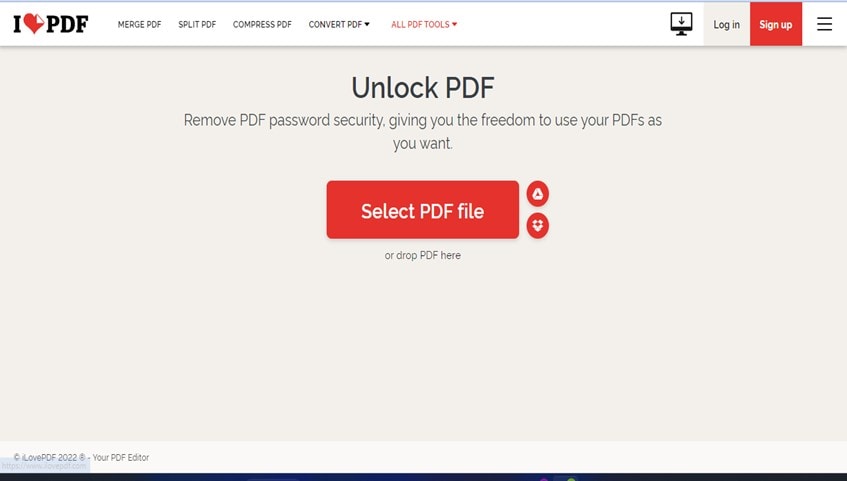
Select a protected PDF in iLovePDF
Run the unlock action. Choose Unlock PDF. If a password prompt appears, enter the correct document password and submit it.
Download the result. Save the unlocked file with a distinctive name so you can tell it apart from the protected source.
Test the saved copy. Close the preview and reopen the downloaded file. Check the operation you actually need, such as opening, copying permitted text, or printing.
The overall workflow is described in iLovePDF's unlock guide. The screenshots are reference examples, so the live interface may have different spacing or wording.
Verify success against the task
A completed download does not answer every question about the result. If your goal was to stop entering an opening password, reopen the saved copy and check that behavior. If your goal was to reuse a passage, test that passage. A scanned page can still require text recognition even after password protection is removed.
For a practical handoff, compare the first and last page and a page with a table or diagram. Check page count and orientation. Keep the original until you have verified the complete result, and name the output clearly rather than overwriting the only source file.


When You Cannot Unlock PDF with iLovePDF
The tool asks for a password
A prompt is a request for the current password, not a sign that the tool will recover it for you. Confirm the password with the file owner. When pasting it, check for accidental leading or trailing spaces and make sure you are using the password for this version of the file.
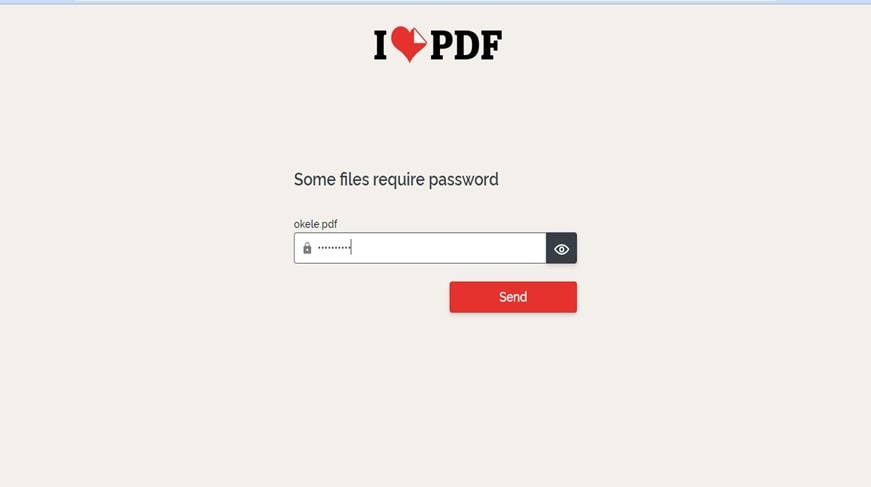
iLovePDF requests the current PDF password
Knowing permission exists and having the password required by a file are different things. If you are authorized but do not have the needed password, ask the sender for it or request an accessible copy. Avoid making repeated copies with unclear names while testing.
The file uploads but processing fails
Start with a simple diagnostic: does the source open correctly in a regular PDF reader when you provide the known password? If it does not, ask for a fresh source copy. If it does, note the exact error and review the tool's current limits or support guidance.
| Symptom | Next check |
|---|---|
| Password rejected | Verify the password and the exact source file with the sender. |
| Upload never completes | Check the connection and test a non-sensitive sample before retrying the original. |
| Downloaded file still prompts | Confirm you opened the new file, not the original in a recent-files list. |
| Text still cannot be selected | Check whether the page is an image; unlocking is separate from OCR. |
| The needed operation still fails | Record the operation and error, then request a suitable source or consult product support. |
The document should not be uploaded
Choose the processing environment before selecting a file. A browser tool requires you to consider an upload; a desktop application should be assessed for the particular feature you plan to use, since some functions can still depend on online services. Follow the file owner's handling requirements.
For a shared team task, write down what the recipient needs to do with the PDF. That makes it easier to request an appropriate document rather than removing protection simply because an unlock option is available.
Best Alternative to iLovePDF: WPS Office
WPS Office is a strong alternative when unlocking is only the first step in a larger document task. You may still need to correct text, organize pages, extract content, or prepare a new output copy. WPS combines PDF tools with Writer, Spreadsheet, and Presentation so these related tasks can stay within an office workflow.
Choose it for the work that comes after access is resolved. For example, an authorized project handout may need its date corrected, an obsolete appendix removed, and a section reused in a new document. A good process treats those as separate checks rather than assuming one unlock operation completes the job.
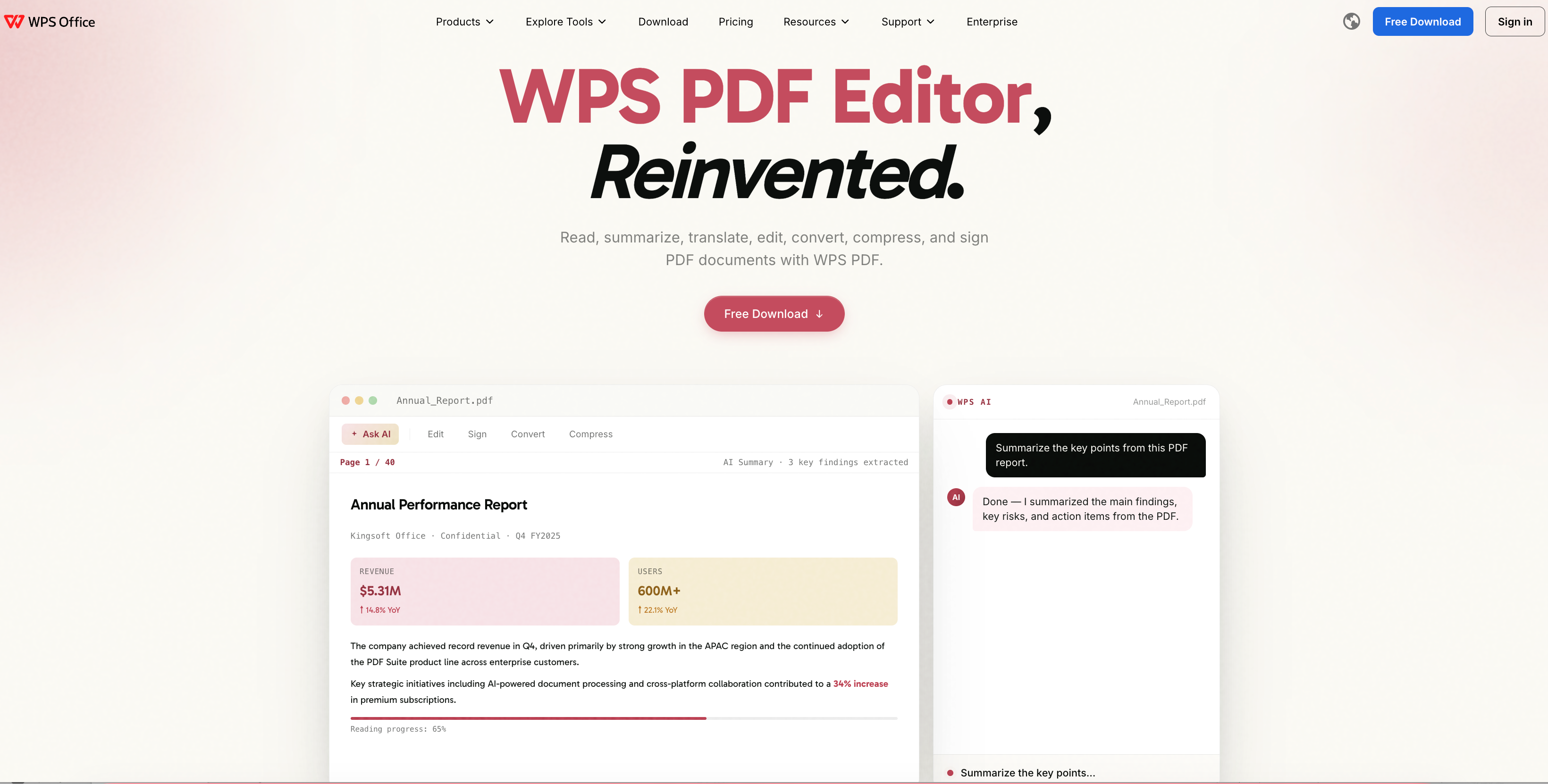
WPS PDF editor product website overview
Use WPS's known-password unlock workflow
The official WPS Unlock PDF tool accepts a protected PDF and asks for the current document-open or permissions password when needed. It removes supported protection and returns a PDF copy. It is not described here as an unknown-password recovery tool.
Open the WPS Unlock PDF page and select the authorized file.
Provide the current password if the tool requests it.
Complete processing and download the result.
Reopen that result and test the action you need before moving to editing or conversion.
This is an online route. If your document must stay in an approved local environment, do not substitute the web workflow without checking its suitability. Confirm the capabilities and processing requirements of your installed WPS version.
Continue with editing, conversion, or OCR
For changes to the document itself, WPS PDF editing offers text and image editing capabilities. Make a small test change, save it as a new file, and compare the affected paragraph and surrounding layout with the source. A short correction is easier to validate before you edit several pages.
If the next task is a substantial rewrite, conversion to an office format may be more practical. Review converted tables, columns, and symbols carefully. If the source is a scan, use a supported OCR workflow to recover text; removing a password alone does not turn a picture of text into editable paragraphs.
For a document with names and reference numbers, create a short checking list before recognition or conversion. Verify each critical value against the source image rather than relying only on whether the output looks tidy. This is particularly useful when several pages share similar layouts.
Organize a clear document handoff
The WPS PDF workspace includes page-management, conversion, compression, and signing tools. Use only the operations the task needs. For instance, compress a copy when upload size is the issue, but do not remove pages just to make a file smaller unless those pages are unnecessary.
A useful file sequence is an unchanged original, a working copy, and a reviewed final copy. Check the final page order and confirm that every required attachment is present. Where your workflow requires protection again, apply the appropriate settings to the outgoing document and verify them separately.
| Workflow priority | iLovePDF Unlock PDF | WPS Office approach |
|---|---|---|
| Quick access | A focused browser unlock entry point | An online unlock tool plus a broader PDF workspace |
| Editing after access | Move on from the unlock tool to the next task | Continue with available PDF editing tools |
| Scanned text | Unlocking alone does not recognize text | Use supported OCR separately when needed |
| Output planning | Download the processed PDF | Choose a PDF or office-format workflow for the next stage |
| Access and cost | Check current tool limits and plan requirements | Check the feature, platform, and account entitlement before a large job |
A fuller document workflow: handle the edits needed after unlocking.
Tools matched to the source: distinguish protection, scan recognition, and conversion.
A reviewable output: keep the original and validate each transformation.
Download WPS Office if you want to continue with document work beyond unlocking. Test your required feature on a representative copy first; availability and advanced-feature access can differ by version and plan.
FAQs
Can iLovePDF unlock a PDF without its password?
Do not assume it can remove every kind of protection without a password. If it prompts for one, obtain the correct password or an accessible copy from the owner.
Does unlocking a PDF make scanned text editable?
No. A scan remains an image unless a separate text-recognition process is applied.
Why does the downloaded PDF still ask for a password?
First confirm you opened the newly downloaded result. If it still prompts, recheck the source, processing result, and tool support for that file.
Is WPS Unlock PDF an offline tool?
The linked WPS Unlock PDF page is an online tool. Check your installed desktop version separately for a suitable local workflow.
What should I check before sharing the unlocked copy?
Review its pages and required operations, confirm you may share the unprotected version, and keep the protected original separately.

'%3e%3cpath%20d='M19.9911%204.11386V6.471H18.5894C18.0775%206.471%2017.7322%206.57814%2017.5536%206.79243C17.3751%207.00671%2017.2858%207.32814%2017.2858%207.75671V9.44421H19.9019L19.5536%2012.0871H17.2858V18.8639H14.5536V12.0871H12.2769V9.44421H14.5536V7.49779C14.5536%206.39064%2014.8632%205.53201%2015.4822%204.92189C16.1013%204.31177%2016.9257%204.00671%2017.9554%204.00671C18.8304%204.00671%2019.509%204.04243%2019.9911%204.11386Z'%20fill='%23333333'/%3e%3c/g%3e%3cdefs%3e%3cclipPath%20id='clip0_2938_8199'%3e%3crect%20width='16'%20height='16'%20fill='white'%20transform='translate(8%204.00671)'/%3e%3c/clipPath%3e%3c/defs%3e%3c/svg%3e)
'%3e%3cpath%20d='M17.5237%2010.7813L23.4811%204H22.0699L16.8949%209.88693L12.7648%204H8L14.2469%2012.9029L8%2020.0133H9.4112L14.8725%2013.7952L19.2352%2020.0133H24M9.92053%205.04213H12.0885L22.0688%2019.0224H19.9003'%20fill='%23333333'/%3e%3c/g%3e%3cdefs%3e%3cclipPath%20id='clip0_2938_8200'%3e%3crect%20width='16'%20height='16.0134'%20fill='white'%20transform='translate(8%204)'/%3e%3c/clipPath%3e%3c/defs%3e%3c/svg%3e)


