

'%3e%3cpath%20d='M8%200C12.4183%200%2016%203.58172%2016%208C16%2012.4183%2012.4183%2016%208%2016C3.58172%2016%200%2012.4183%200%208C0%203.58172%203.58172%200%208%200ZM11.6162%204.38379C11.2257%203.99337%2010.5927%203.99338%2010.2021%204.38379L8%206.58594L5.79785%204.38379C5.40732%203.99334%204.77429%203.99329%204.38379%204.38379C3.99331%204.77429%203.99335%205.40733%204.38379%205.79785L6.58594%208L4.38379%2010.2021C3.99348%2010.5927%203.99341%2011.2257%204.38379%2011.6162C4.77426%2012.0066%205.40734%2012.0065%205.79785%2011.6162L8%209.41406L10.2021%2011.6162C10.5927%2012.0066%2011.2257%2012.0067%2011.6162%2011.6162C12.0067%2011.2257%2012.0066%2010.5927%2011.6162%2010.2021L9.41406%208L11.6162%205.79785C12.0066%205.40735%2012.0066%204.77429%2011.6162%204.38379Z'%20fill='%23080E17'%20fill-opacity='0.46'/%3e%3c/g%3e%3cdefs%3e%3cclipPath%20id='clip0_3761_713'%3e%3crect%20width='16'%20height='16'%20fill='white'/%3e%3c/clipPath%3e%3c/defs%3e%3c/svg%3e)




'%3e%3cpath%20fill-rule='evenodd'%20clip-rule='evenodd'%20d='M21.4999%2010.9993C21.4999%205.20009%2016.7986%200.498901%2010.9993%200.498901C5.19994%200.498901%200.498657%205.20009%200.498657%2010.9993C0.498657%2016.2404%204.33858%2020.5844%209.35855%2021.3722V14.0346H6.69238V10.9993H9.35855V8.68594C9.35855%206.05427%2010.9262%204.60062%2013.3248%204.60062C14.4736%204.60062%2015.6753%204.80571%2015.6753%204.80571V7.38979H14.3512C13.0468%207.38979%2012.64%208.19921%2012.64%209.0296V10.9993H15.5523L15.0867%2014.0346H12.64V21.3722C17.66%2020.5844%2021.4999%2016.2404%2021.4999%2010.9993Z'%20fill='%231568EA'/%3e%3c/g%3e%3c/svg%3e)


'%3e%3cpath%20d='M2.42045%2022.1876H6.31818V12.7217L0.75%208.54553V20.5171C0.75%2021.4414%201.49892%2022.1876%202.42045%2022.1876Z'%20fill='%234285F4'/%3e%3cpath%20d='M19.682%2022.1876H23.5797C24.5041%2022.1876%2025.2502%2021.4387%2025.2502%2020.5171V8.54553L19.682%2012.7217'%20fill='%2334A853'/%3e%3cpath%20d='M19.682%205.48293V12.7216L25.2502%208.54543V6.31816C25.2502%204.25236%2022.8921%203.07469%2021.2411%204.31361'%20fill='%23FBBC04'/%3e%3cpath%20d='M6.31824%2012.7217V5.48303L13.0001%2010.4944L19.6819%205.48303V12.7217L13.0001%2017.733'%20fill='%23EA4335'/%3e%3cpath%20d='M0.75%206.31816V8.54543L6.31818%2012.7216V5.48293L4.75909%204.31361C3.10534%203.07469%200.75%204.25236%200.75%206.31816Z'%20fill='%23C5221F'/%3e%3c/g%3e%3cdefs%3e%3cclipPath%20id='clip0_2954_7305'%3e%3crect%20width='24.5'%20height='18.375'%20fill='white'%20transform='translate(0.75%203.8125)'/%3e%3c/clipPath%3e%3c/defs%3e%3c/svg%3e)


Need to turn table data trapped in a PDF into a working spreadsheet? The free iLovePDF PDF to Excel converter extracts tables from your PDF into an editable .xlsx file in a few clicks — right in your browser, with no installation required.
In this guide you will learn how to convert PDF to Excel with iLovePDF step by step, which OCR and table options to choose, what the free limits mean for you, and when WPS Office is a better free alternative for everyday conversion work.
How to Convert PDF to Excel with iLovePDF
How to Convert PDF to Excel with iLovePDF Online
The fastest way to convert PDF to Excel is iLovePDF’s web tool. It works in any modern browser on Windows, Mac, Linux, iPhone, and Android, and you can also convert many other formats such as PDF to Word if you need to. Follow these steps:
Open the PDF to Excel tool. Go to iLovePDF’s PDF to Excel page in your browser.
Upload your PDF. Click Select PDF files to pick a file from your device, or import it from Google Drive or Dropbox. You can also drag and drop files into the upload area.
Choose your conversion options. Pick between No OCR and OCR, and decide whether you want one table per sheet or all tables on the same sheet.
Click Convert to Excel. The tool extracts the tables from your PDF and builds an .xlsx spreadsheet.
Download the Excel file. Save the result to your device or upload it back to Google Drive or Dropbox, then open it in Excel or WPS Spreadsheets to check the cells.
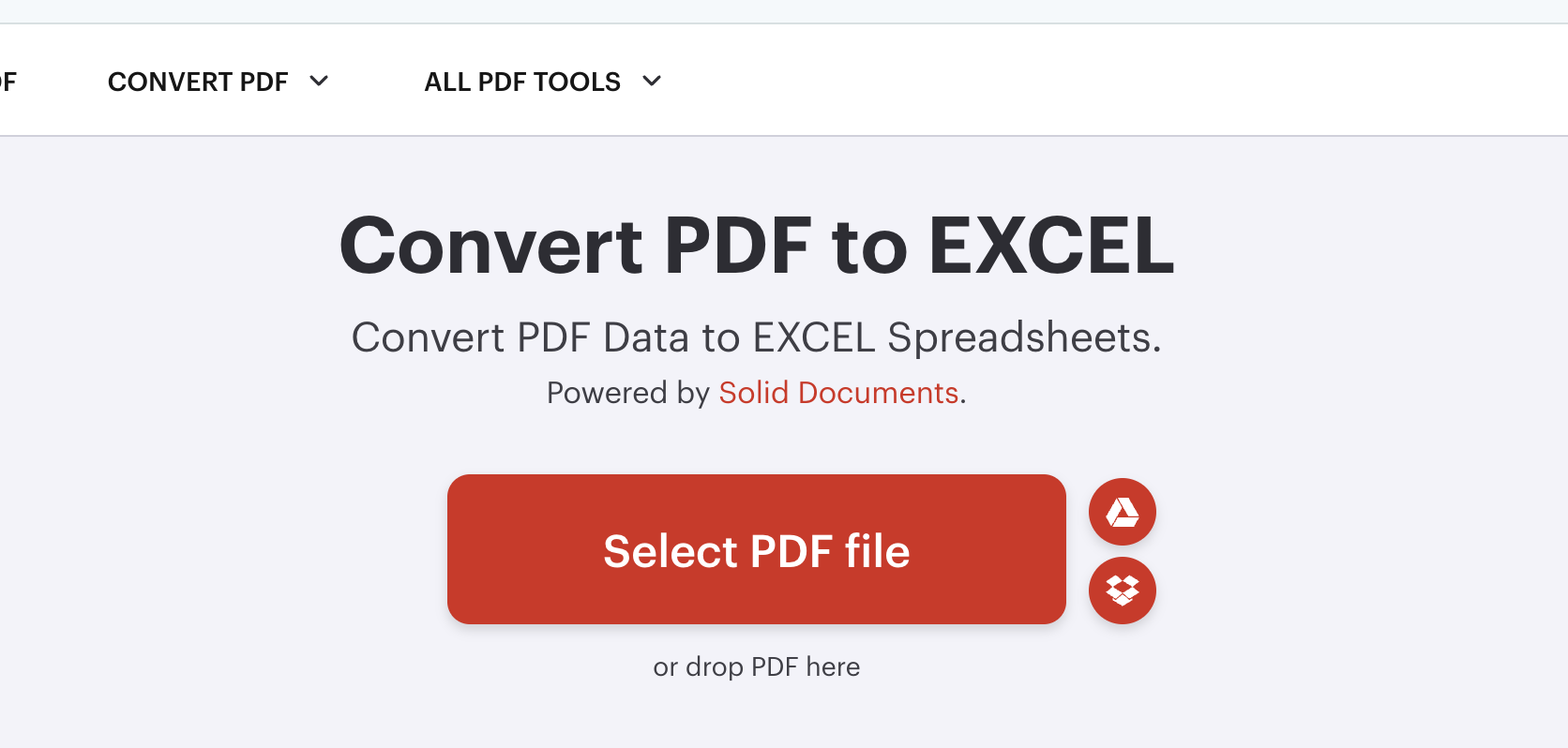
iLovePDF PDF to Excel upload page


iLovePDF PDF to Excel Options and Free Limits
Before you click convert, two settings decide how accurate your PDF to Excel result will be:
No OCR vs OCR: Use No OCR for digital PDFs with selectable text — it is faster and keeps the table structure clean. Use OCR for scanned pages or image-only PDFs, so the tool can recognize the text first.
Table layout: Choose one table per sheet when each PDF page holds a separate table, or put all detected tables on the same sheet when you want everything in one place for analysis.
On the free plan, iLovePDF applies file size and daily task limits, and heavy OCR work may require a Premium subscription. Uploaded files are transferred over an encrypted connection and are automatically deleted from the servers after processing, so casual conversions of non-sensitive documents are reasonably safe. If you regularly hit those caps, compare other converters — for example, this guide to how to convert PDF to Excel in Sejda for free or this roundup of 8 ways to convert PDF to Excel.
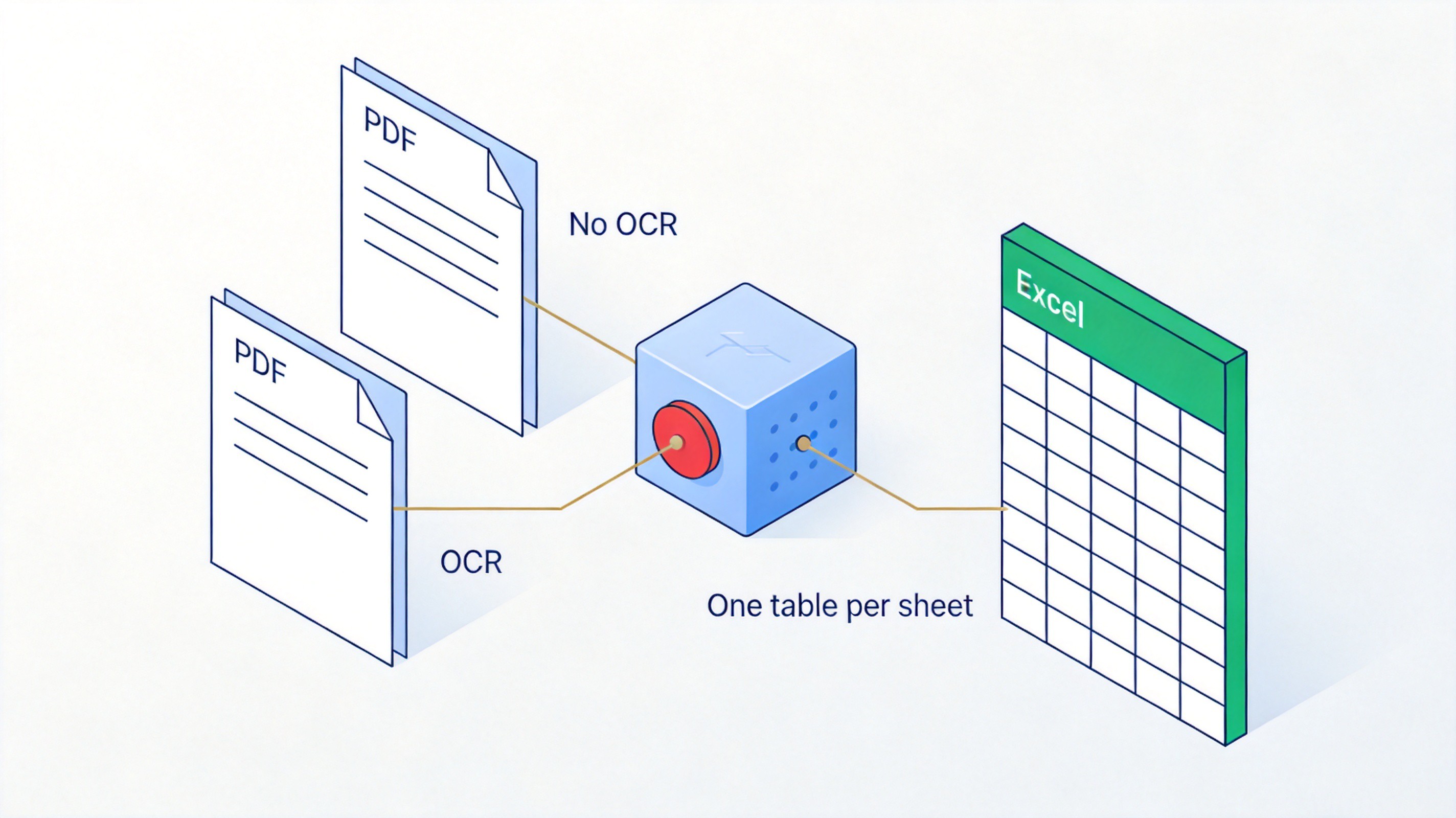
iLovePDF OCR and table options
The Best Free Alternative: WPS Office for PDF to Excel
If iLovePDF’s free limits get in the way — or you prefer to work without uploading files — WPS Office is a strong free alternative. Its PDF toolkit converts PDF to Excel directly, and the result opens in WPS Spreadsheets, where you can clean headers, recalculate, and format without switching apps.
Key advantages for everyday PDF to Excel work:
All-in-one suite: Convert, then keep editing in Word, Excel, PowerPoint, and PDF inside the same free office suite.
Formatting retention: Tables, layout, and data from the original PDF are preserved as much as possible during conversion.
Free to start: Core conversion and editing features are free, with generous limits compared with browser-only tools.
For teams that convert reports every week, keeping the whole workflow — convert, check, edit, share — inside one desktop suite is usually faster than round-tripping through online tools.
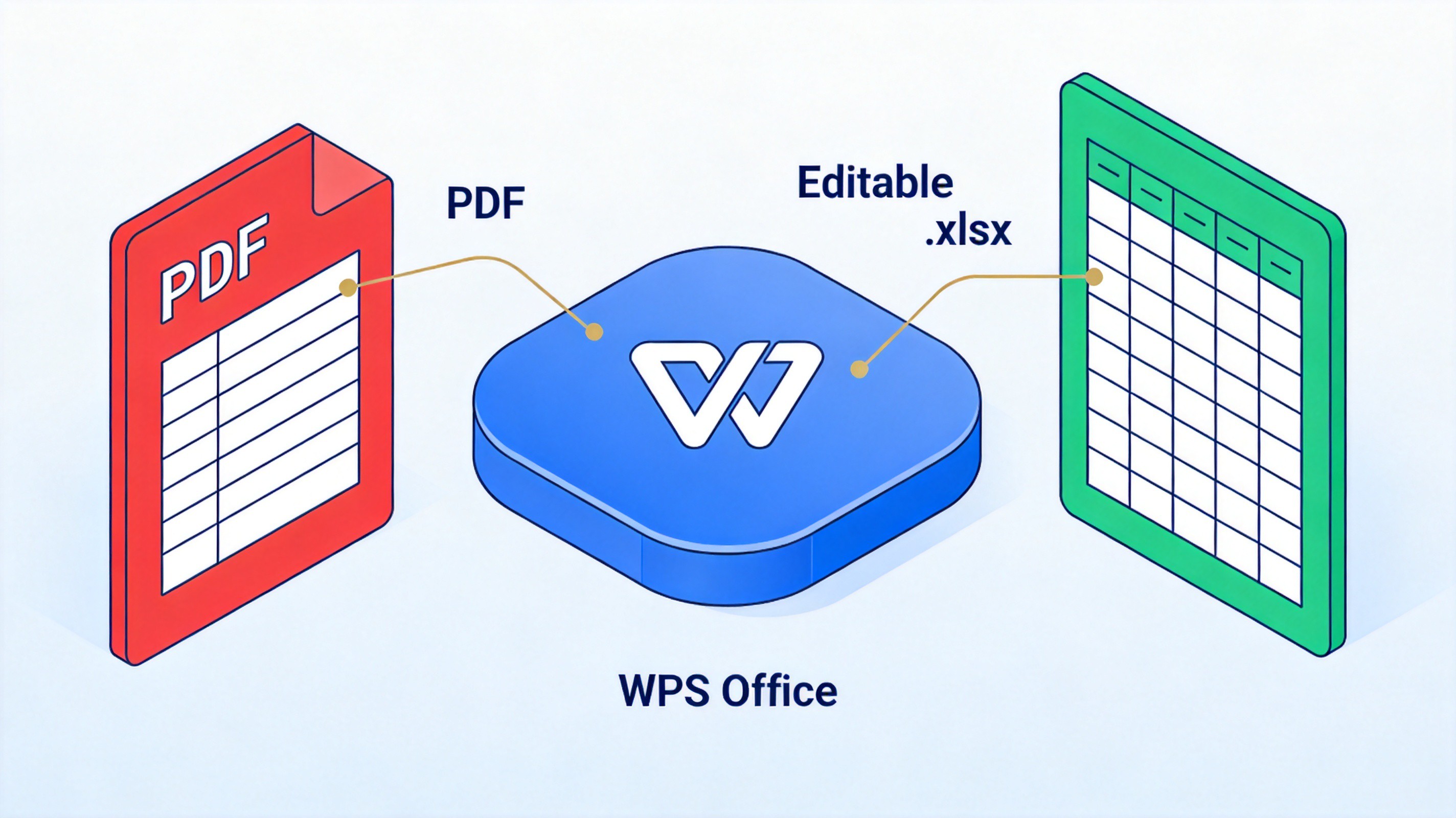
WPS Office PDF to Excel alternative
FAQs
Is iLovePDF PDF to Excel free to use?
Yes, the basic conversion is free in the browser. Free accounts face file size and daily task limits, and OCR-heavy jobs may require a Premium plan.
Can iLovePDF convert scanned PDFs to Excel?
Yes. Select the OCR option when uploading a scanned or image-only PDF, so the tool recognizes the text before building the spreadsheet. Results depend on scan quality.
Will the converted Excel file keep the original layout?
iLovePDF tries to preserve the table structure of the source PDF, but complex merged cells, multi-page tables, or decorative layouts may need manual cleanup after conversion.
Can I convert multiple PDFs to Excel at once?
Yes, you can upload several PDF files in one batch, and each file is converted to its own Excel spreadsheet, which you can download individually or together.
What if the free limits are too small for my files?
You can upgrade to iLovePDF Premium, or switch to WPS Office, which offers free PDF to Excel conversion with a full office suite for post-conversion editing.

Summary
Converting PDF to Excel with iLovePDF takes five steps: open the tool, upload your PDF, pick No OCR or OCR and a table layout, click Convert to Excel, then download the .xlsx file. Free accounts work well for light use, with file size and task limits to keep in mind.
When those limits or privacy concerns get in the way, switch to WPS Office: convert PDF to Excel for free, then keep editing the result in the same all-in-one suite.
100% secure

'%3e%3cpath%20d='M19.9911%204.11386V6.471H18.5894C18.0775%206.471%2017.7322%206.57814%2017.5536%206.79243C17.3751%207.00671%2017.2858%207.32814%2017.2858%207.75671V9.44421H19.9019L19.5536%2012.0871H17.2858V18.8639H14.5536V12.0871H12.2769V9.44421H14.5536V7.49779C14.5536%206.39064%2014.8632%205.53201%2015.4822%204.92189C16.1013%204.31177%2016.9257%204.00671%2017.9554%204.00671C18.8304%204.00671%2019.509%204.04243%2019.9911%204.11386Z'%20fill='%23333333'/%3e%3c/g%3e%3cdefs%3e%3cclipPath%20id='clip0_2938_8199'%3e%3crect%20width='16'%20height='16'%20fill='white'%20transform='translate(8%204.00671)'/%3e%3c/clipPath%3e%3c/defs%3e%3c/svg%3e)
'%3e%3cpath%20d='M17.5237%2010.7813L23.4811%204H22.0699L16.8949%209.88693L12.7648%204H8L14.2469%2012.9029L8%2020.0133H9.4112L14.8725%2013.7952L19.2352%2020.0133H24M9.92053%205.04213H12.0885L22.0688%2019.0224H19.9003'%20fill='%23333333'/%3e%3c/g%3e%3cdefs%3e%3cclipPath%20id='clip0_2938_8200'%3e%3crect%20width='16'%20height='16.0134'%20fill='white'%20transform='translate(8%204)'/%3e%3c/clipPath%3e%3c/defs%3e%3c/svg%3e)


