

'%3e%3cpath%20d='M8%200C12.4183%200%2016%203.58172%2016%208C16%2012.4183%2012.4183%2016%208%2016C3.58172%2016%200%2012.4183%200%208C0%203.58172%203.58172%200%208%200ZM11.6162%204.38379C11.2257%203.99337%2010.5927%203.99338%2010.2021%204.38379L8%206.58594L5.79785%204.38379C5.40732%203.99334%204.77429%203.99329%204.38379%204.38379C3.99331%204.77429%203.99335%205.40733%204.38379%205.79785L6.58594%208L4.38379%2010.2021C3.99348%2010.5927%203.99341%2011.2257%204.38379%2011.6162C4.77426%2012.0066%205.40734%2012.0065%205.79785%2011.6162L8%209.41406L10.2021%2011.6162C10.5927%2012.0066%2011.2257%2012.0067%2011.6162%2011.6162C12.0067%2011.2257%2012.0066%2010.5927%2011.6162%2010.2021L9.41406%208L11.6162%205.79785C12.0066%205.40735%2012.0066%204.77429%2011.6162%204.38379Z'%20fill='%23080E17'%20fill-opacity='0.46'/%3e%3c/g%3e%3cdefs%3e%3cclipPath%20id='clip0_3761_713'%3e%3crect%20width='16'%20height='16'%20fill='white'/%3e%3c/clipPath%3e%3c/defs%3e%3c/svg%3e)




'%3e%3cpath%20fill-rule='evenodd'%20clip-rule='evenodd'%20d='M21.4999%2010.9993C21.4999%205.20009%2016.7986%200.498901%2010.9993%200.498901C5.19994%200.498901%200.498657%205.20009%200.498657%2010.9993C0.498657%2016.2404%204.33858%2020.5844%209.35855%2021.3722V14.0346H6.69238V10.9993H9.35855V8.68594C9.35855%206.05427%2010.9262%204.60062%2013.3248%204.60062C14.4736%204.60062%2015.6753%204.80571%2015.6753%204.80571V7.38979H14.3512C13.0468%207.38979%2012.64%208.19921%2012.64%209.0296V10.9993H15.5523L15.0867%2014.0346H12.64V21.3722C17.66%2020.5844%2021.4999%2016.2404%2021.4999%2010.9993Z'%20fill='%231568EA'/%3e%3c/g%3e%3c/svg%3e)


'%3e%3cpath%20d='M2.42045%2022.1876H6.31818V12.7217L0.75%208.54553V20.5171C0.75%2021.4414%201.49892%2022.1876%202.42045%2022.1876Z'%20fill='%234285F4'/%3e%3cpath%20d='M19.682%2022.1876H23.5797C24.5041%2022.1876%2025.2502%2021.4387%2025.2502%2020.5171V8.54553L19.682%2012.7217'%20fill='%2334A853'/%3e%3cpath%20d='M19.682%205.48293V12.7216L25.2502%208.54543V6.31816C25.2502%204.25236%2022.8921%203.07469%2021.2411%204.31361'%20fill='%23FBBC04'/%3e%3cpath%20d='M6.31824%2012.7217V5.48303L13.0001%2010.4944L19.6819%205.48303V12.7217L13.0001%2017.733'%20fill='%23EA4335'/%3e%3cpath%20d='M0.75%206.31816V8.54543L6.31818%2012.7216V5.48293L4.75909%204.31361C3.10534%203.07469%200.75%204.25236%200.75%206.31816Z'%20fill='%23C5221F'/%3e%3c/g%3e%3cdefs%3e%3cclipPath%20id='clip0_2954_7305'%3e%3crect%20width='24.5'%20height='18.375'%20fill='white'%20transform='translate(0.75%203.8125)'/%3e%3c/clipPath%3e%3c/defs%3e%3c/svg%3e)


Need editable spreadsheet data from a PDF invoice, report, or price list? A quick sejda pdf to excel conversion extracts tables into Excel (.xlsx) or CSV so you can sort, filter, and recalculate without retyping every cell.
Sejda’s online PDF to Excel tool is free for light use, runs in the browser with no install, and also offers Desktop offline processing. Below you’ll learn how to convert PDF to Excel with Sejda step by step, which layout option to pick, what free limits matter, and why WPS Office is a strong free alternative when Sejda’s caps get in the way.
100% secure
1. Convert PDF to Excel With Sejda
Sejda pdf to excel is one of Sejda’s focused conversion tools. You upload a PDF, choose how tables should be detected, then export to Excel or CSV. If you also need broader editing later, Sejda’s suite includes the sejda pdf editor, merge, compress, split, PDF to Word, and more.
Sejda offers two product versions for the same goal:
Sejda Web (online): Works in Chrome, Edge, Firefox, Safari — on Windows, Mac, Linux, and mobile browsers. No app install required.
Sejda Desktop (offline): Installed app for local processing when you prefer not to upload files (Windows, Mac, and Linux).
For most searches around sejda pdf to excel, the online converter is the starting point: upload → pick layout mode → convert to Excel or CSV → download.


2. How to Convert PDF to Excel Free Online With Sejda?
For most users, Sejda Web is the primary sejda pdf to excel path. No Desktop install is required.
Which versions/devices support Sejda online?
Windows / Mac / Linux PC: any modern browser
iPhone / Android: Safari or Chrome → Sejda PDF to Excel page
There is no separate full native mobile app required for basic online conversion — mobile users use the same Sejda Web tool in the browser.
Steps: Convert PDF to Excel online
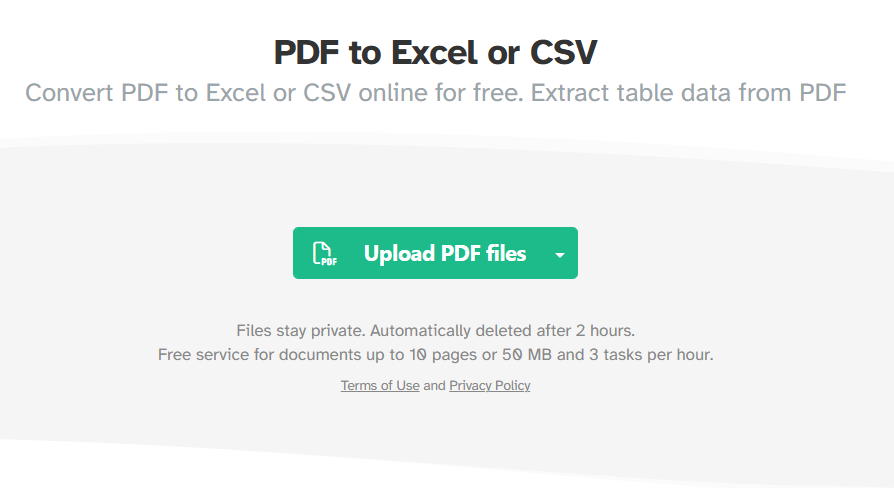
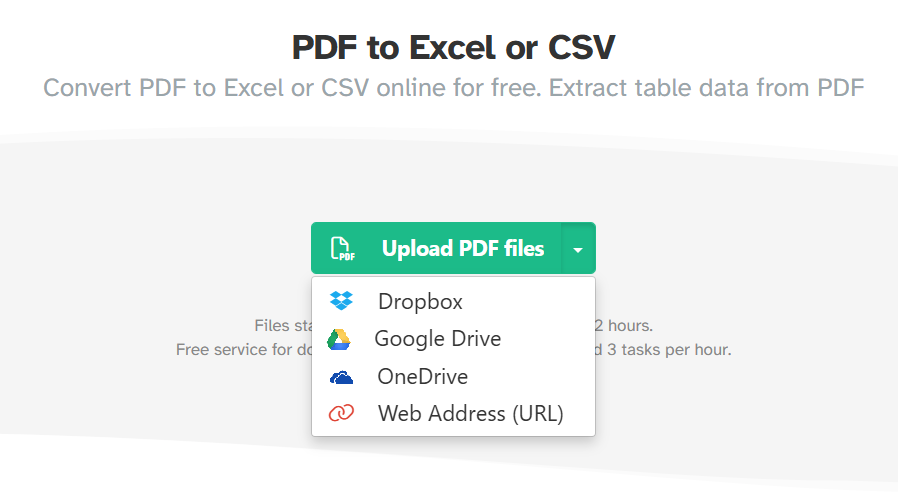
Step 1: Upload your PDF. Open Sejda’s PDF to Excel tool. Click Upload PDF file (or drag and drop). You can also pull files from Google Drive, Dropbox, OneDrive, or a web URL via the upload menu.
Files are uploaded over an encrypted connection and are automatically deleted after about 2 hours. If you still wonder is sejda safe for cloud conversion, that auto-delete policy is a key reason people use Sejda Web for non-sensitive spreadsheets and reports.
Step 2: Choose a conversion mode. Sejda asks you to pick how content should be handled:
Keep style and layout — best when the PDF mixes text paragraphs and tables and you want formatting preserved as much as possible.
Optimized for tables — best for pre-cropped documents that are mostly table data and you care about clean cells more than page styling.
Step 3: Pick Excel or CSV (and table options). Choose Convert to Excel for an .xlsx workbook you can open in Excel or WPS Spreadsheets, or Convert to CSV for a lightweight data file. When available, enable All tables in a single spreadsheet if you want every detected table combined into one sheet instead of many.
Step 4: Convert and download. Click continue / convert, wait for processing, then download your spreadsheet. Open it in Excel or WPS Office Spreadsheets to verify results and clean headers if needed.
Note: Free Sejda Web use on this tool is commonly limited to about 3 tasks/hour and roughly 10 pages / 50 MB. If you hit the ceiling often, consider Desktop/Premium or switch to WPS for freer everyday conversion.
3. How to Convert PDF to Excel Offline With Sejda?
Prefer not to upload documents? Use Sejda Desktop for offline sejda pdf to excel conversion. Files stay on your computer — useful for sensitive finance PDFs or repeated local work.
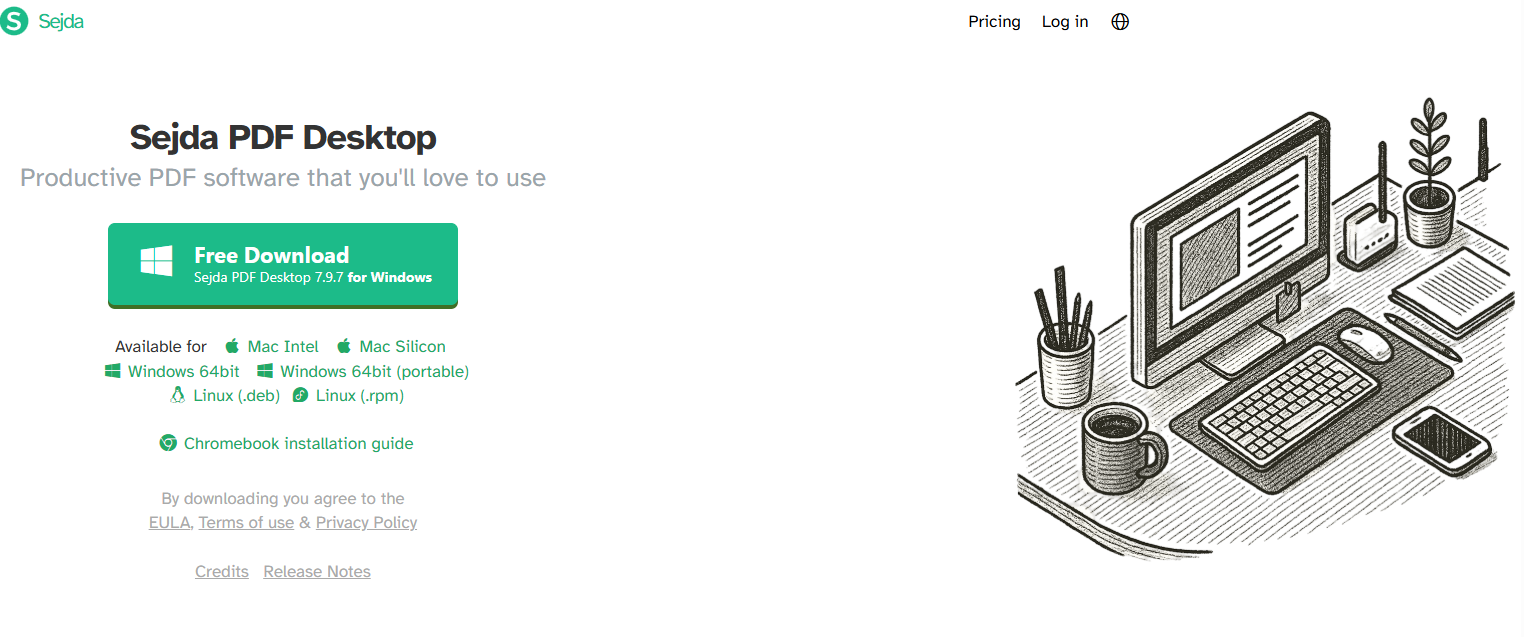
Step 1: Download Sejda Desktop from the Sejda website and install it (Windows, Mac, or Linux as supported).
Step 2: Open Sejda Desktop and choose the PDF to Excel tool.
Step 3: Add your PDF, then choose Keep style and layout or Optimized for tables, and Excel vs CSV.
Step 4: Convert and open the output folder to collect your spreadsheet.
4. Sejda Web vs Sejda Desktop
You can use either Sejda Web or Sejda Desktop for sejda pdf to excel. Desktop is better when privacy or recurring local jobs matter more.
| Feature | Sejda Web (Online) | Sejda Desktop (Offline) |
|---|---|---|
| Installation | No install required | Requires download & install |
| File security | Processed on Sejda servers; auto-deleted after ~2 hours | Files stay on your device |
| Best for | Quick one-off table exports | Sensitive files & recurring work |
| Free limits | Task/page/size caps apply | Depends on Desktop license plan |
Quick tip: Use Sejda Web for fast online jobs within free limits. Switch to Sejda Desktop when privacy or offline access matters more.
5. Best Alternative to sejda pdf to excel: WPS Office
If Sejda’s free limits interrupt your work — or you want local conversion without uploading — WPS Office is a strong alternative. You can convert PDF to Excel, then keep editing in Spreadsheets (and Word/PPT/PDF) inside the same free suite.
100% secure
Here’s how WPS free advantages map against Sejda’s limitations for PDF → Excel:
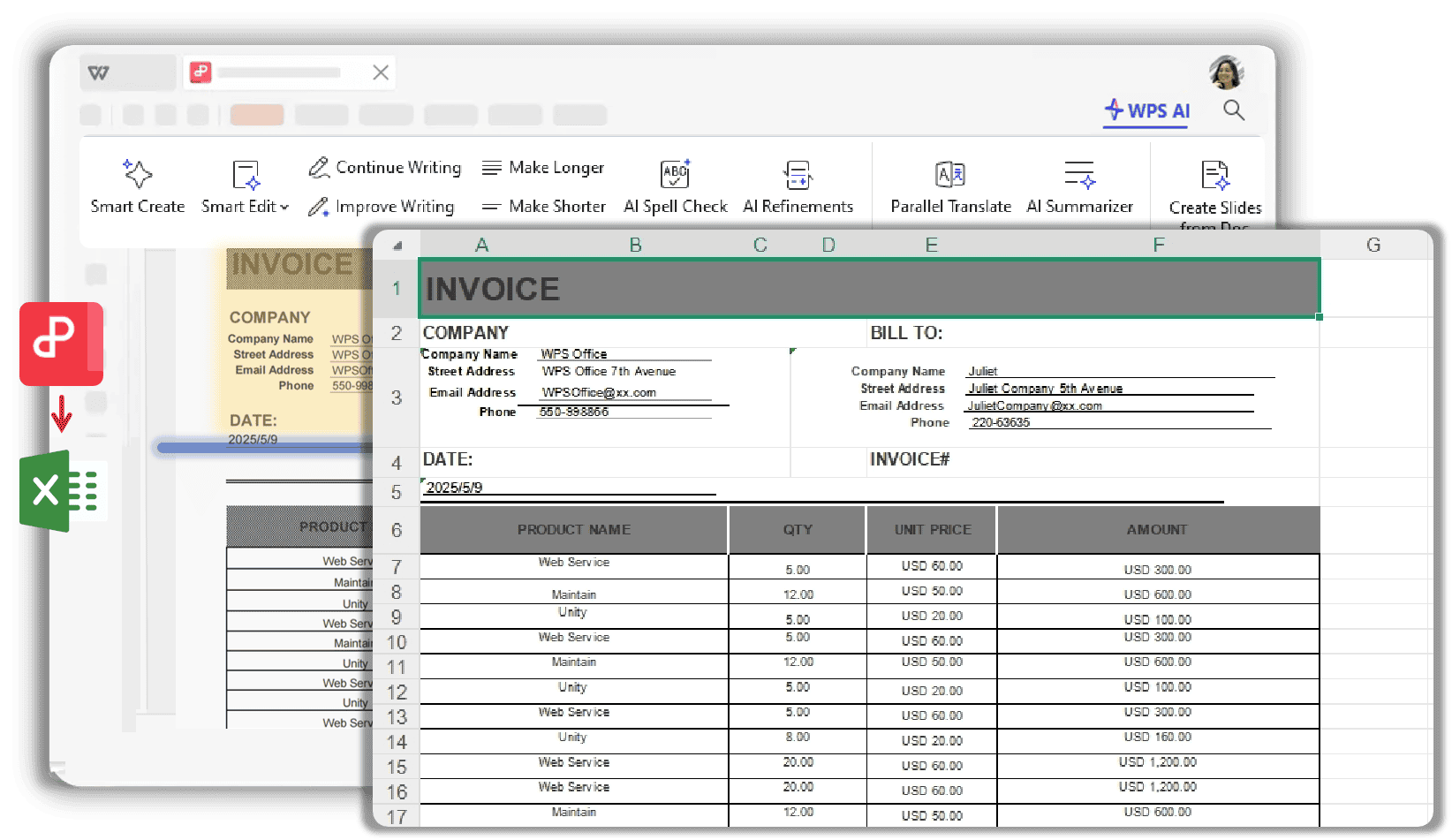
Formatting retention: WPS PDF to Excel is built to keep tables, layout, and even images from the original PDF where possible — so you spend less time fixing columns later.
Local & private: Desktop conversion can stay on your device — no cloud upload required for everyday PDF to Excel.
No Sejda-style hourly free-task bottleneck: Better for everyday free conversion without the same 3-tasks-per-hour feel of Sejda Free Web.
All-in-one follow-up: After conversion, open the .xlsx in WPS Spreadsheets to filter, chart, and share — without bouncing between a converter and another editor.
Easy free download: Install WPS Office once and use the built-in PDF to Excel converter for Windows (and other platforms as supported).
How to Convert PDF to Excel With WPS (free)
Step 1: Download and install WPS Office from the WPS website.
Step 2: Open the PDF converter / PDF tools, then click Add Files and select your PDF.
Step 3: Choose Excel as the output format, set the export path, and adjust options (pages or table detection) if needed.
Step 4: Click Convert. When finished, open the spreadsheet to confirm cells and formatting transferred correctly.
100% secure
Frequently Asked Questions (FAQs)
Q: Does sejda pdf to excel support CSV as well?
A: Yes. Sejda lets you convert to Excel or CSV. Use Excel when you need a full workbook; use CSV when you only need raw tabular data.
Q: Should I choose Keep style and layout or Optimized for tables?
A: Choose Keep style and layout for documents with mixed paragraphs and tables. Choose Optimized for tables when the PDF is mostly table data and you want cleaner cells.
Q: Is Sejda free for sejda pdf to excel?
A: Yes, with free-plan limits (commonly about 3 tasks/hour and roughly 10 pages / 50 MB on this tool). If those limits block you, WPS Office free PDF to Excel is usually the more complete everyday workflow.
Q: Can scanned PDFs convert well with Sejda?
A: Image-only scans often need OCR first. Sejda offers OCR tools separately; after text is recognized, PDF to Excel results improve. For frequent scan-heavy work, a desktop suite like WPS with OCR + Spreadsheets is often easier.
Q: When should I use Sejda Desktop instead of Sejda Web?
A: Use Desktop for sensitive files, offline work, or repeated local conversions. Use Web for quick one-off exports in the browser.

Summary
Sejda pdf to excel online is the most common starting path — upload, choose Keep style and layout or Optimized for tables, then export Excel or CSV — while Sejda Desktop covers offline needs.
When free-plan limits or privacy concerns become the problem, switch to WPS Office: convert PDF to Excel locally for free, then keep editing in Spreadsheets inside the same suite.
Try WPS PDF to Excel when you need a freer, more private alternative to Sejda’s free-plan bottlenecks.
'%3e%3cpath%20d='M19.9911%204.11386V6.471H18.5894C18.0775%206.471%2017.7322%206.57814%2017.5536%206.79243C17.3751%207.00671%2017.2858%207.32814%2017.2858%207.75671V9.44421H19.9019L19.5536%2012.0871H17.2858V18.8639H14.5536V12.0871H12.2769V9.44421H14.5536V7.49779C14.5536%206.39064%2014.8632%205.53201%2015.4822%204.92189C16.1013%204.31177%2016.9257%204.00671%2017.9554%204.00671C18.8304%204.00671%2019.509%204.04243%2019.9911%204.11386Z'%20fill='%23333333'/%3e%3c/g%3e%3cdefs%3e%3cclipPath%20id='clip0_2938_8199'%3e%3crect%20width='16'%20height='16'%20fill='white'%20transform='translate(8%204.00671)'/%3e%3c/clipPath%3e%3c/defs%3e%3c/svg%3e)
'%3e%3cpath%20d='M17.5237%2010.7813L23.4811%204H22.0699L16.8949%209.88693L12.7648%204H8L14.2469%2012.9029L8%2020.0133H9.4112L14.8725%2013.7952L19.2352%2020.0133H24M9.92053%205.04213H12.0885L22.0688%2019.0224H19.9003'%20fill='%23333333'/%3e%3c/g%3e%3cdefs%3e%3cclipPath%20id='clip0_2938_8200'%3e%3crect%20width='16'%20height='16.0134'%20fill='white'%20transform='translate(8%204)'/%3e%3c/clipPath%3e%3c/defs%3e%3c/svg%3e)


