

'%3e%3cpath%20d='M8%200C12.4183%200%2016%203.58172%2016%208C16%2012.4183%2012.4183%2016%208%2016C3.58172%2016%200%2012.4183%200%208C0%203.58172%203.58172%200%208%200ZM11.6162%204.38379C11.2257%203.99337%2010.5927%203.99338%2010.2021%204.38379L8%206.58594L5.79785%204.38379C5.40732%203.99334%204.77429%203.99329%204.38379%204.38379C3.99331%204.77429%203.99335%205.40733%204.38379%205.79785L6.58594%208L4.38379%2010.2021C3.99348%2010.5927%203.99341%2011.2257%204.38379%2011.6162C4.77426%2012.0066%205.40734%2012.0065%205.79785%2011.6162L8%209.41406L10.2021%2011.6162C10.5927%2012.0066%2011.2257%2012.0067%2011.6162%2011.6162C12.0067%2011.2257%2012.0066%2010.5927%2011.6162%2010.2021L9.41406%208L11.6162%205.79785C12.0066%205.40735%2012.0066%204.77429%2011.6162%204.38379Z'%20fill='%23080E17'%20fill-opacity='0.46'/%3e%3c/g%3e%3cdefs%3e%3cclipPath%20id='clip0_3761_713'%3e%3crect%20width='16'%20height='16'%20fill='white'/%3e%3c/clipPath%3e%3c/defs%3e%3c/svg%3e)




'%3e%3cpath%20fill-rule='evenodd'%20clip-rule='evenodd'%20d='M21.4999%2010.9993C21.4999%205.20009%2016.7986%200.498901%2010.9993%200.498901C5.19994%200.498901%200.498657%205.20009%200.498657%2010.9993C0.498657%2016.2404%204.33858%2020.5844%209.35855%2021.3722V14.0346H6.69238V10.9993H9.35855V8.68594C9.35855%206.05427%2010.9262%204.60062%2013.3248%204.60062C14.4736%204.60062%2015.6753%204.80571%2015.6753%204.80571V7.38979H14.3512C13.0468%207.38979%2012.64%208.19921%2012.64%209.0296V10.9993H15.5523L15.0867%2014.0346H12.64V21.3722C17.66%2020.5844%2021.4999%2016.2404%2021.4999%2010.9993Z'%20fill='%231568EA'/%3e%3c/g%3e%3c/svg%3e)


'%3e%3cpath%20d='M2.42045%2022.1876H6.31818V12.7217L0.75%208.54553V20.5171C0.75%2021.4414%201.49892%2022.1876%202.42045%2022.1876Z'%20fill='%234285F4'/%3e%3cpath%20d='M19.682%2022.1876H23.5797C24.5041%2022.1876%2025.2502%2021.4387%2025.2502%2020.5171V8.54553L19.682%2012.7217'%20fill='%2334A853'/%3e%3cpath%20d='M19.682%205.48293V12.7216L25.2502%208.54543V6.31816C25.2502%204.25236%2022.8921%203.07469%2021.2411%204.31361'%20fill='%23FBBC04'/%3e%3cpath%20d='M6.31824%2012.7217V5.48303L13.0001%2010.4944L19.6819%205.48303V12.7217L13.0001%2017.733'%20fill='%23EA4335'/%3e%3cpath%20d='M0.75%206.31816V8.54543L6.31818%2012.7216V5.48293L4.75909%204.31361C3.10534%203.07469%200.75%204.25236%200.75%206.31816Z'%20fill='%23C5221F'/%3e%3c/g%3e%3cdefs%3e%3cclipPath%20id='clip0_2954_7305'%3e%3crect%20width='24.5'%20height='18.375'%20fill='white'%20transform='translate(0.75%203.8125)'/%3e%3c/clipPath%3e%3c/defs%3e%3c/svg%3e)


Scattered phone photos are hard to email, upload, or print in the right order. A single PDF keeps every page together, looks the same on any device, and is much harder to reshuffle by accident. That is exactly what a good free photo to PDF app is for: it turns snapshots, screenshots, and scans of documents into one tidy file.
This guide explains why the photo to PDF format works so well, walks through converting photos on Android, iPhone, Windows, and Mac with WPS Office, and lists the checks that keep your final PDF clean. An online converter option is included at the end for one-off jobs.
How to Convert Photos to PDF with a Free Photo to PDF App
Why Use a Free Photo to PDF App
JPG and PNG files are made for single pictures. When a teacher, HR team, or government portal asks for "one PDF", sending five separate images often fails or arrives out of order. A photo to PDF converter solves three common problems at once:
One attachment instead of many. Certificate photos, receipt scans, and whiteboard shots merge into a single file that survives email size limits more gracefully.
Fixed page order. Pages stay in the sequence you set, so page 3 of a contract does not become page 1.
Consistent printing. PDF pages carry a defined size and orientation, so nothing prints cropped or sideways.
A free app is enough for this job. Conversion from image to PDF is a light task, and WPS Office includes it alongside the document tools you may already use, so there is no need to pay for a dedicated converter.
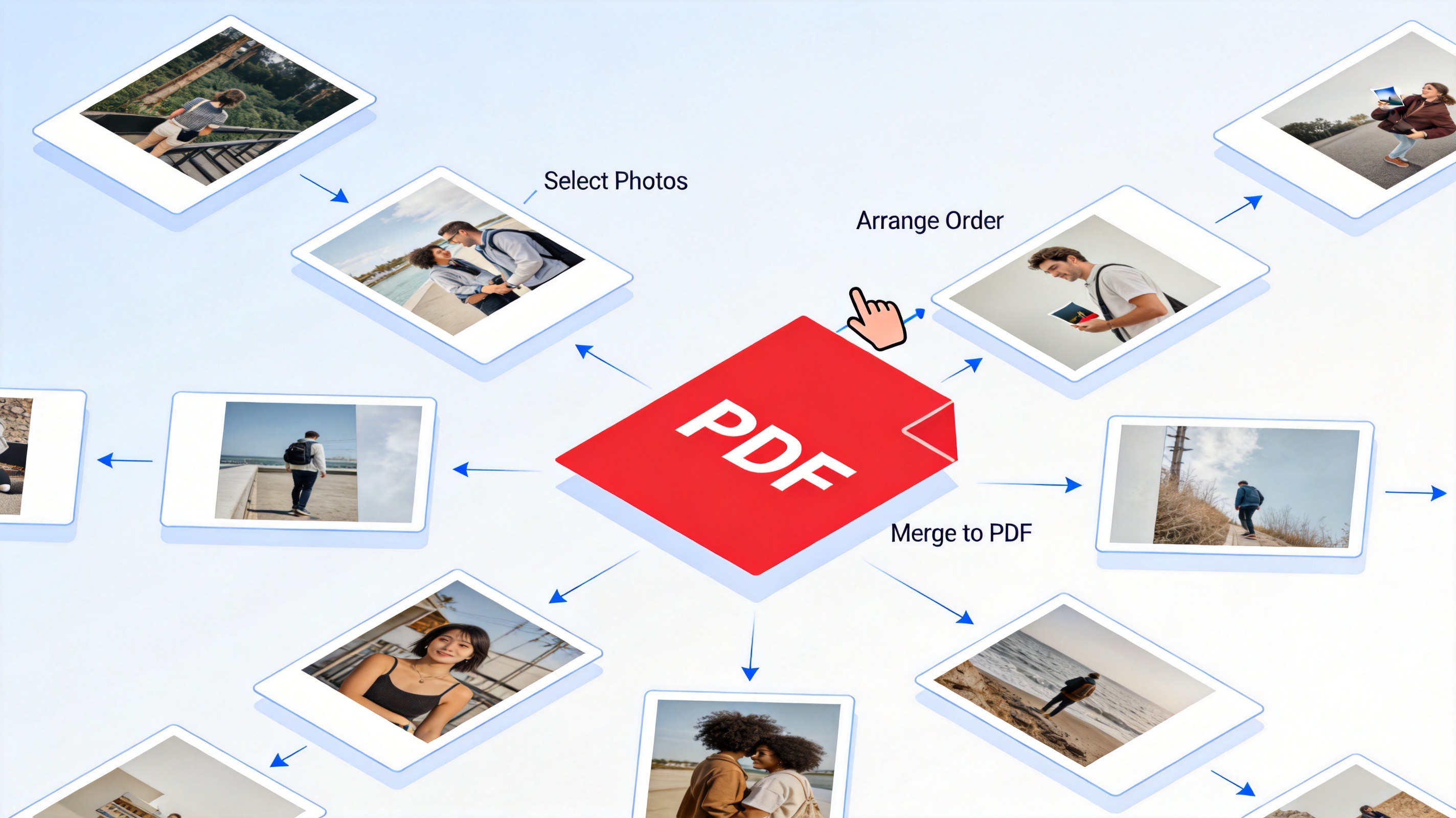
Photos merging into one PDF file


How to Convert Photos to PDF with the WPS Photo to PDF App
The fastest path on a phone is the WPS Office mobile app. Its Image to PDF tool takes photos straight from your album and builds the PDF in seconds, on both Android and iPhone.
Install WPS Office from Google Play or the App Store, then open the app.
Open the Image to PDF tool. Tap Services (or Tools), find the PDF group, and choose Image to PDF.
Select your photos. Pick images from the album in the order you want them to appear; tap again to deselect any mistakes.
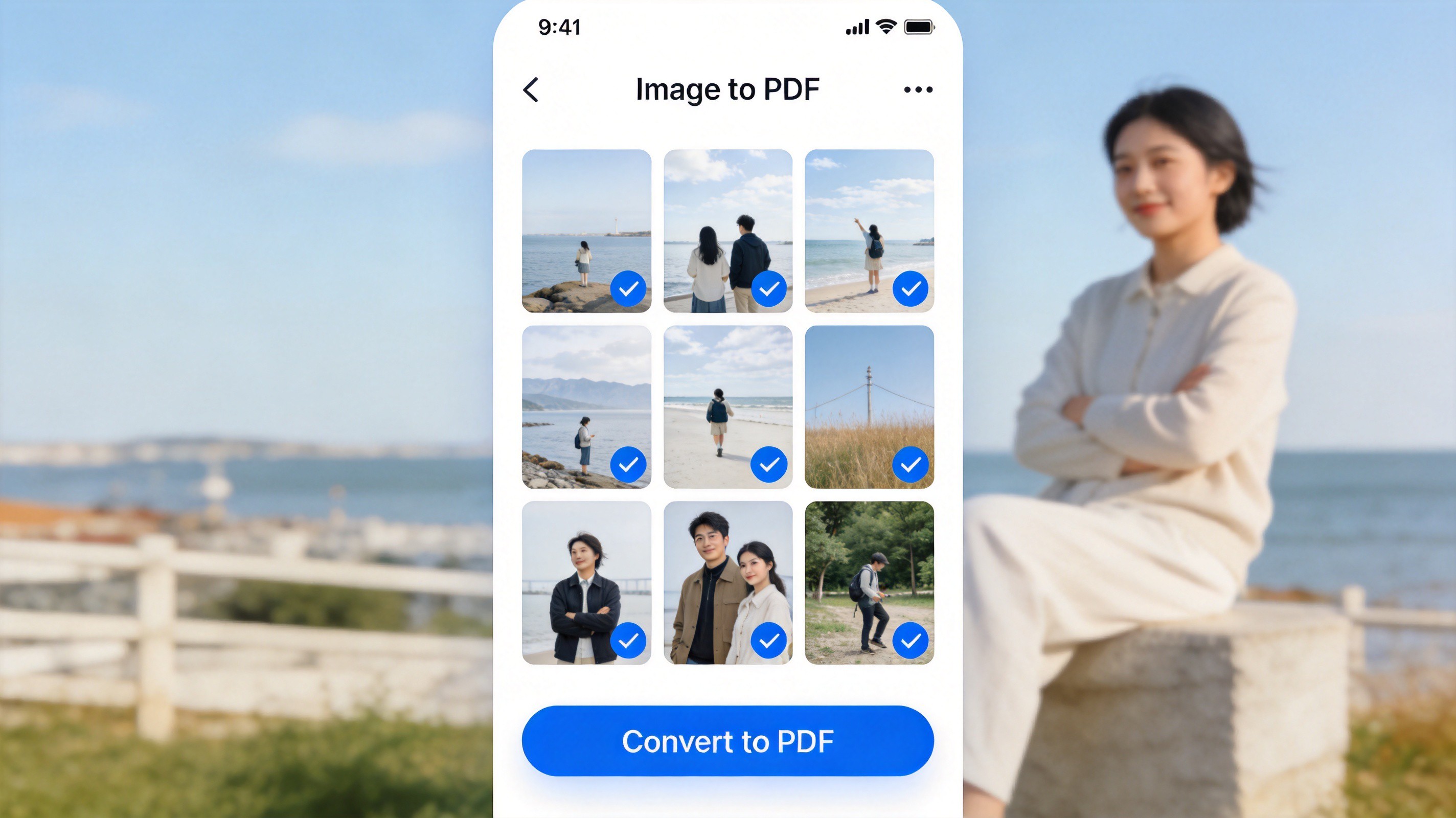
WPS app convert photos to PDF
Tap Convert to PDF. The app merges the selected photos into one document and saves it to your WPS folder.
Rename and share. Give the file a clear name, then send it by email, chat, or cloud link directly from the app.
How to Convert Photos to PDF on Windows and Mac
On a computer, the WPS PDF toolkit does the same job with more page controls, which helps when the PDF is destined for printing.
Open WPS Office and go to the PDF tools area.
Choose Picture to PDF, then add your JPG or PNG files. Drag them until the order is right.
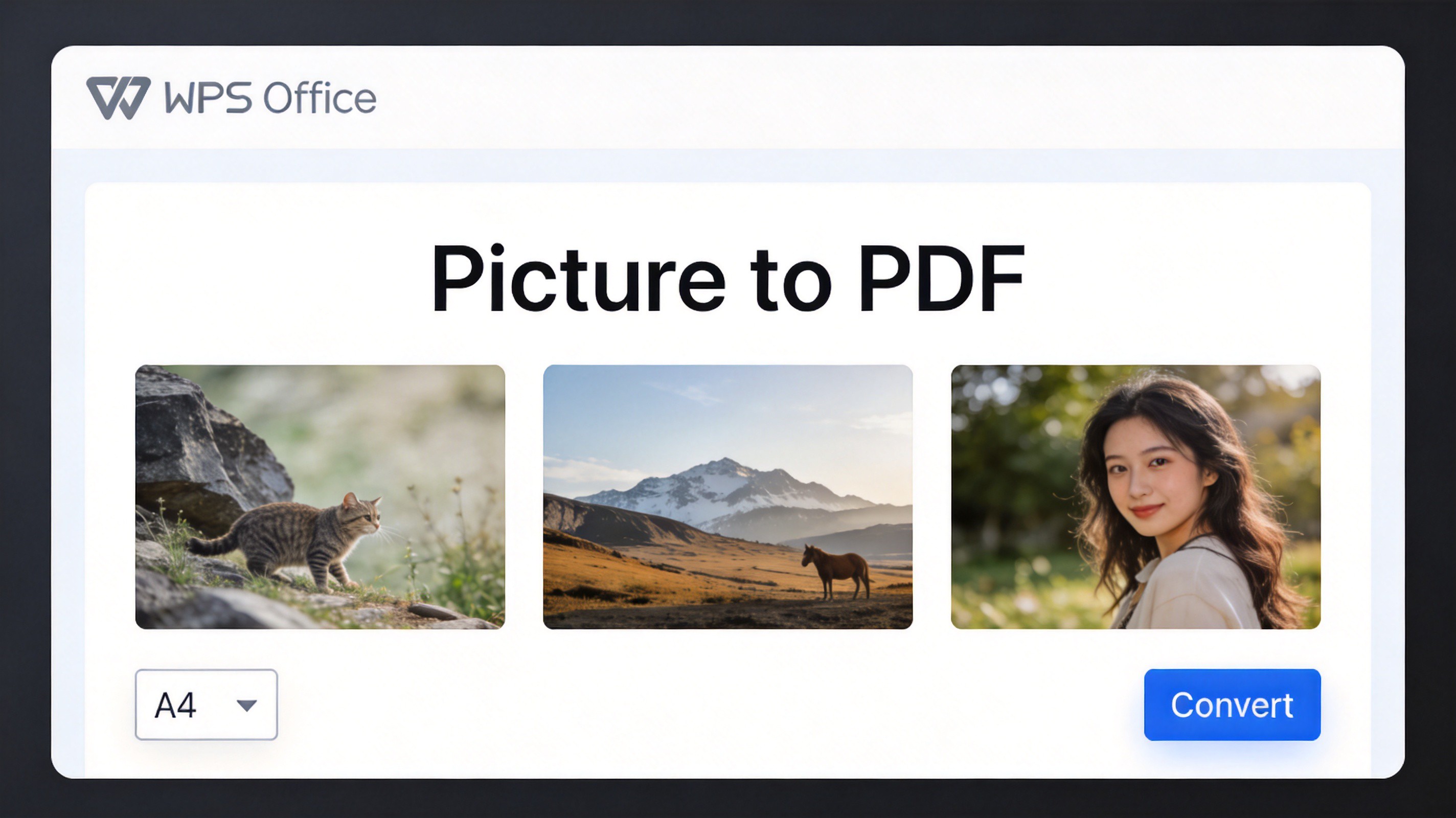
WPS desktop picture to PDF tool
Set the page size, such as A4 or Letter, and pick the orientation that matches your images.
Click Convert and save the new PDF to a folder you can find later.
What to Check After You Convert Photos to PDF
A 30-second review catches almost every conversion mistake before someone else sees the file:
Page order. Flip through the PDF once; reorder and re-export if two pages swapped.
File size. Dozens of full-resolution photos can exceed email limits. Compress the PDF if the upload fails.
Image quality. Zoom into a page with small print; if it is unreadable, reshoot the photo in better light instead of tweaking the PDF.
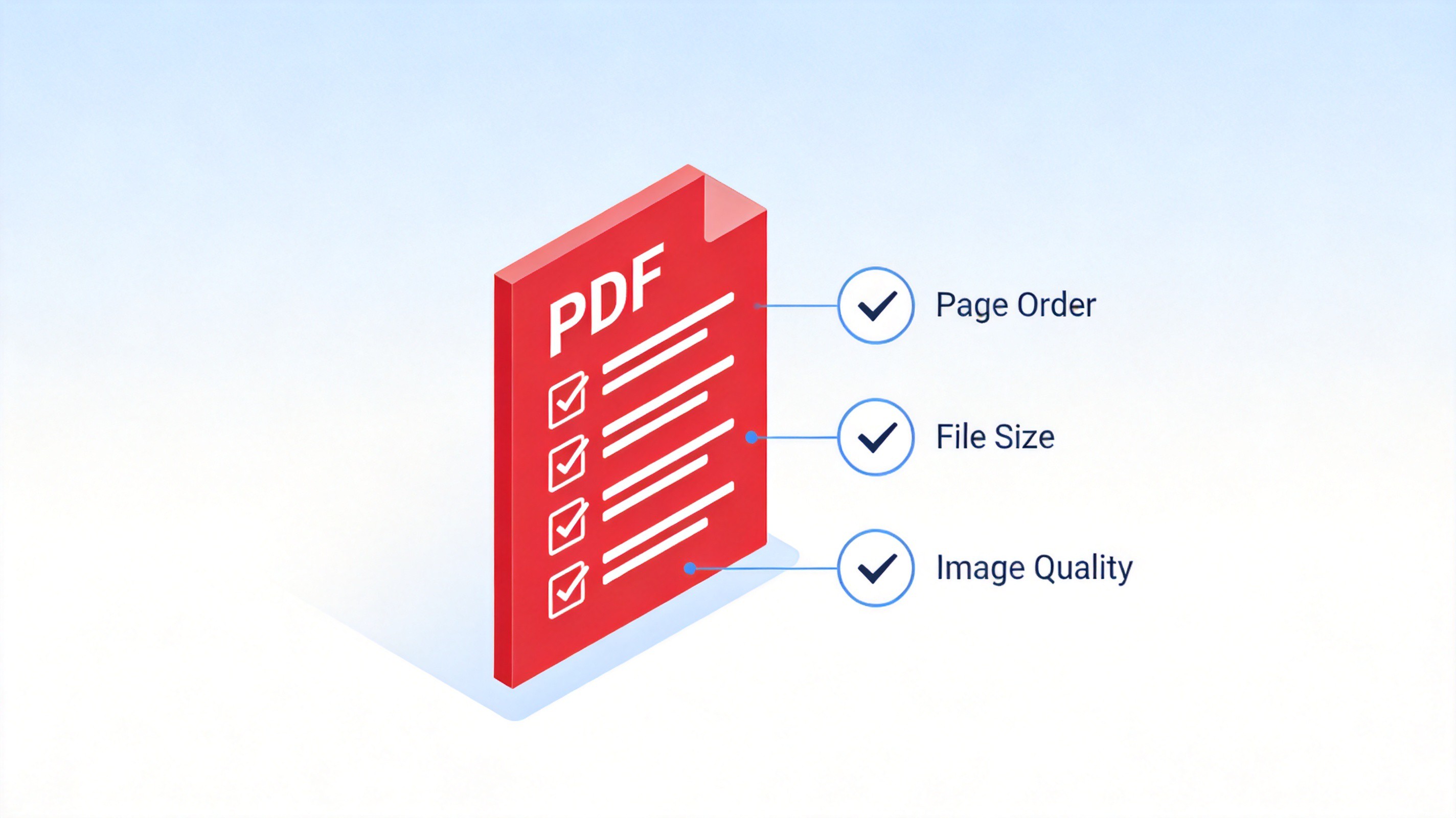
Check page order and file size
The Best Free Alternative: WPS Office Online Photo to PDF Converter
If you are on a borrowed computer or do not want to install anything, the browser route works well. The WPS online photo to PDF converter follows the same three-step flow: add images, arrange them, and download the finished PDF. It is best for occasional jobs with a handful of photos; for regular or sensitive documents, the desktop and mobile apps keep everything offline.
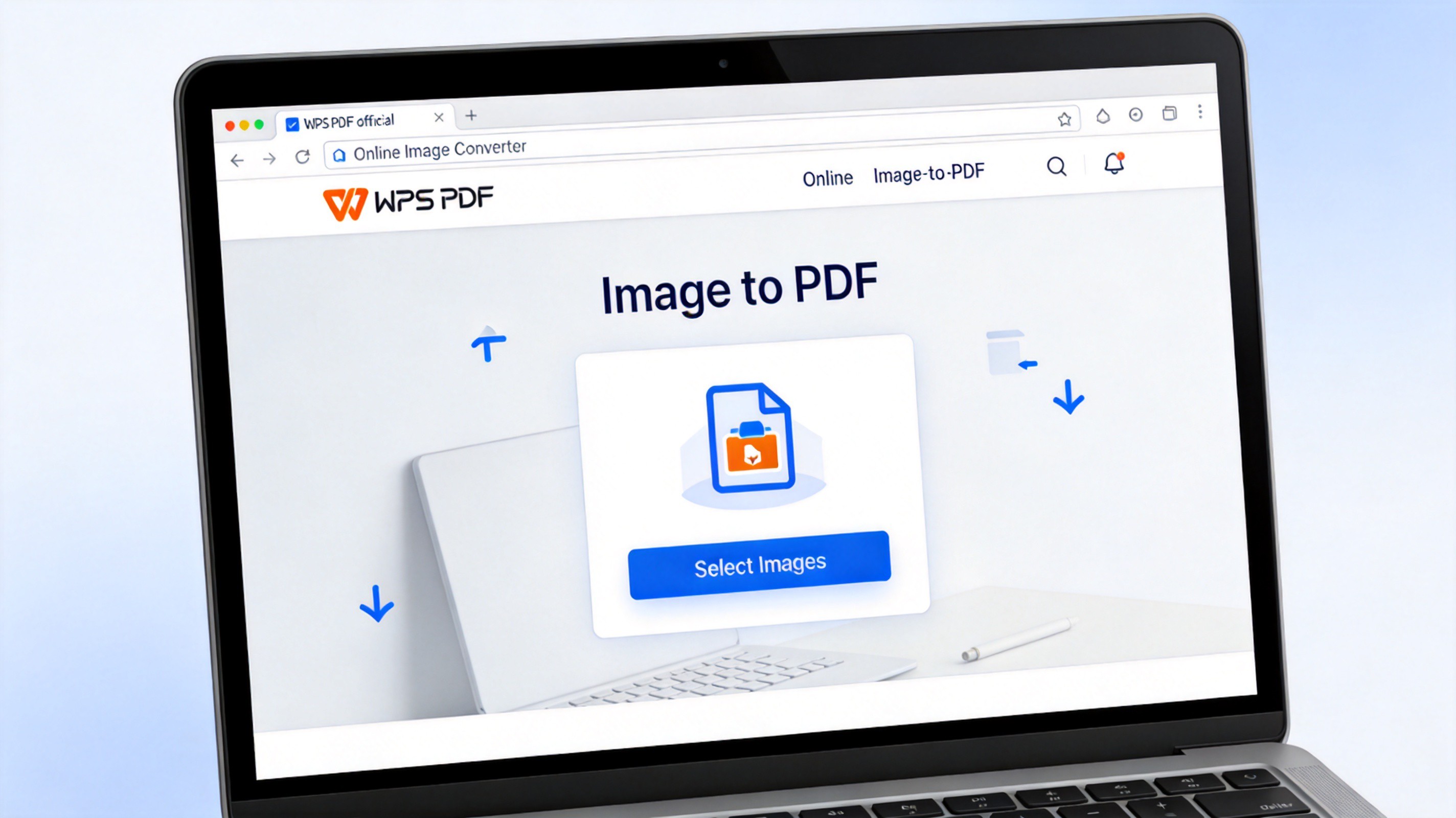
WPS online image to PDF converter
FAQs
Is there a truly free photo to PDF app?
Yes. WPS Office converts photos to PDF for free on Android, iPhone, Windows, and Mac, and the same capability is built into an office suite you can keep using for documents.
How many photos can I merge into one PDF?
WPS lets you add a long list of images in one pass. For very large batches, converting in groups of 20 to 30 pages keeps the file responsive and easier to reorder.
Will converting photos to PDF reduce image quality?
The images are embedded at their original resolution by default. Quality loss usually comes from aggressive compression or re-saving an already small screenshot, so keep the source photos intact.
Can I convert HEIC photos from my iPhone?
Newer iPhones save HEIC by default. WPS handles common formats, but if a file will not import, switch your camera settings to shoot JPEG, or convert the HEIC file first.
Can I rearrange pages after creating the PDF?
Yes. Open the PDF in WPS PDF tools and use the page management features to rotate, delete, or reorder pages, then save a new copy.


'%3e%3cpath%20d='M19.9911%204.11386V6.471H18.5894C18.0775%206.471%2017.7322%206.57814%2017.5536%206.79243C17.3751%207.00671%2017.2858%207.32814%2017.2858%207.75671V9.44421H19.9019L19.5536%2012.0871H17.2858V18.8639H14.5536V12.0871H12.2769V9.44421H14.5536V7.49779C14.5536%206.39064%2014.8632%205.53201%2015.4822%204.92189C16.1013%204.31177%2016.9257%204.00671%2017.9554%204.00671C18.8304%204.00671%2019.509%204.04243%2019.9911%204.11386Z'%20fill='%23333333'/%3e%3c/g%3e%3cdefs%3e%3cclipPath%20id='clip0_2938_8199'%3e%3crect%20width='16'%20height='16'%20fill='white'%20transform='translate(8%204.00671)'/%3e%3c/clipPath%3e%3c/defs%3e%3c/svg%3e)
'%3e%3cpath%20d='M17.5237%2010.7813L23.4811%204H22.0699L16.8949%209.88693L12.7648%204H8L14.2469%2012.9029L8%2020.0133H9.4112L14.8725%2013.7952L19.2352%2020.0133H24M9.92053%205.04213H12.0885L22.0688%2019.0224H19.9003'%20fill='%23333333'/%3e%3c/g%3e%3cdefs%3e%3cclipPath%20id='clip0_2938_8200'%3e%3crect%20width='16'%20height='16.0134'%20fill='white'%20transform='translate(8%204)'/%3e%3c/clipPath%3e%3c/defs%3e%3c/svg%3e)


