

'%3e%3cpath%20d='M8%200C12.4183%200%2016%203.58172%2016%208C16%2012.4183%2012.4183%2016%208%2016C3.58172%2016%200%2012.4183%200%208C0%203.58172%203.58172%200%208%200ZM11.6162%204.38379C11.2257%203.99337%2010.5927%203.99338%2010.2021%204.38379L8%206.58594L5.79785%204.38379C5.40732%203.99334%204.77429%203.99329%204.38379%204.38379C3.99331%204.77429%203.99335%205.40733%204.38379%205.79785L6.58594%208L4.38379%2010.2021C3.99348%2010.5927%203.99341%2011.2257%204.38379%2011.6162C4.77426%2012.0066%205.40734%2012.0065%205.79785%2011.6162L8%209.41406L10.2021%2011.6162C10.5927%2012.0066%2011.2257%2012.0067%2011.6162%2011.6162C12.0067%2011.2257%2012.0066%2010.5927%2011.6162%2010.2021L9.41406%208L11.6162%205.79785C12.0066%205.40735%2012.0066%204.77429%2011.6162%204.38379Z'%20fill='%23080E17'%20fill-opacity='0.46'/%3e%3c/g%3e%3cdefs%3e%3cclipPath%20id='clip0_3761_713'%3e%3crect%20width='16'%20height='16'%20fill='white'/%3e%3c/clipPath%3e%3c/defs%3e%3c/svg%3e)




'%3e%3cpath%20fill-rule='evenodd'%20clip-rule='evenodd'%20d='M21.4999%2010.9993C21.4999%205.20009%2016.7986%200.498901%2010.9993%200.498901C5.19994%200.498901%200.498657%205.20009%200.498657%2010.9993C0.498657%2016.2404%204.33858%2020.5844%209.35855%2021.3722V14.0346H6.69238V10.9993H9.35855V8.68594C9.35855%206.05427%2010.9262%204.60062%2013.3248%204.60062C14.4736%204.60062%2015.6753%204.80571%2015.6753%204.80571V7.38979H14.3512C13.0468%207.38979%2012.64%208.19921%2012.64%209.0296V10.9993H15.5523L15.0867%2014.0346H12.64V21.3722C17.66%2020.5844%2021.4999%2016.2404%2021.4999%2010.9993Z'%20fill='%231568EA'/%3e%3c/g%3e%3c/svg%3e)


'%3e%3cpath%20d='M2.42045%2022.1876H6.31818V12.7217L0.75%208.54553V20.5171C0.75%2021.4414%201.49892%2022.1876%202.42045%2022.1876Z'%20fill='%234285F4'/%3e%3cpath%20d='M19.682%2022.1876H23.5797C24.5041%2022.1876%2025.2502%2021.4387%2025.2502%2020.5171V8.54553L19.682%2012.7217'%20fill='%2334A853'/%3e%3cpath%20d='M19.682%205.48293V12.7216L25.2502%208.54543V6.31816C25.2502%204.25236%2022.8921%203.07469%2021.2411%204.31361'%20fill='%23FBBC04'/%3e%3cpath%20d='M6.31824%2012.7217V5.48303L13.0001%2010.4944L19.6819%205.48303V12.7217L13.0001%2017.733'%20fill='%23EA4335'/%3e%3cpath%20d='M0.75%206.31816V8.54543L6.31818%2012.7216V5.48293L4.75909%204.31361C3.10534%203.07469%200.75%204.25236%200.75%206.31816Z'%20fill='%23C5221F'/%3e%3c/g%3e%3cdefs%3e%3cclipPath%20id='clip0_2954_7305'%3e%3crect%20width='24.5'%20height='18.375'%20fill='white'%20transform='translate(0.75%203.8125)'/%3e%3c/clipPath%3e%3c/defs%3e%3c/svg%3e)


Need a PDF but only have your phone with you? Good news: you can create a PDF in phone in under a minute, whether you start from photos, a Word document, a web page, or a paper form on your desk. Both iPhone and Android include built-in print-to-PDF and scanning tools, and free apps add even more control.
This guide walks through the most practical ways to create a PDF on iPhone and Android, step by step, plus the common issues that can spoil the result and how to fix them.
How to Create a PDF in Phone: Easy Steps for iPhone and Android
Create a PDF in Phone from Photos
Turning photos into a single PDF is the most common mobile scenario: receipts, assignment pages, or signed forms you photographed earlier. iPhone has a hidden print-to-PDF trick, while Android relies on the print dialog of any gallery or file app.
On iPhone:
Select the photos. Open Photos, tap Select, and pick the images in the order you want them to appear as pages.
Open the print sheet. Tap the Share button and choose Print.
Use the pinch trick. On the print preview thumbnail, pinch outward (zoom in) with two fingers. The preview opens as a full PDF.
Save the file. Tap Share again and choose Save to Files, then pick a folder.
On Android:
Open the image in your gallery or Files app and tap the Print option in the menu.
Change the printer to PDF. In the print dialog, tap Select a printer and choose Save as PDF.
Save the result. Tap the PDF icon, name the file, and confirm. Each photo becomes one page; for multi-page files, select all images at once in the gallery first.
If you work with images often, a dedicated converter gives you page-order control and page size options. Our guide on how to convert JPG to PDF covers both desktop and mobile routes.
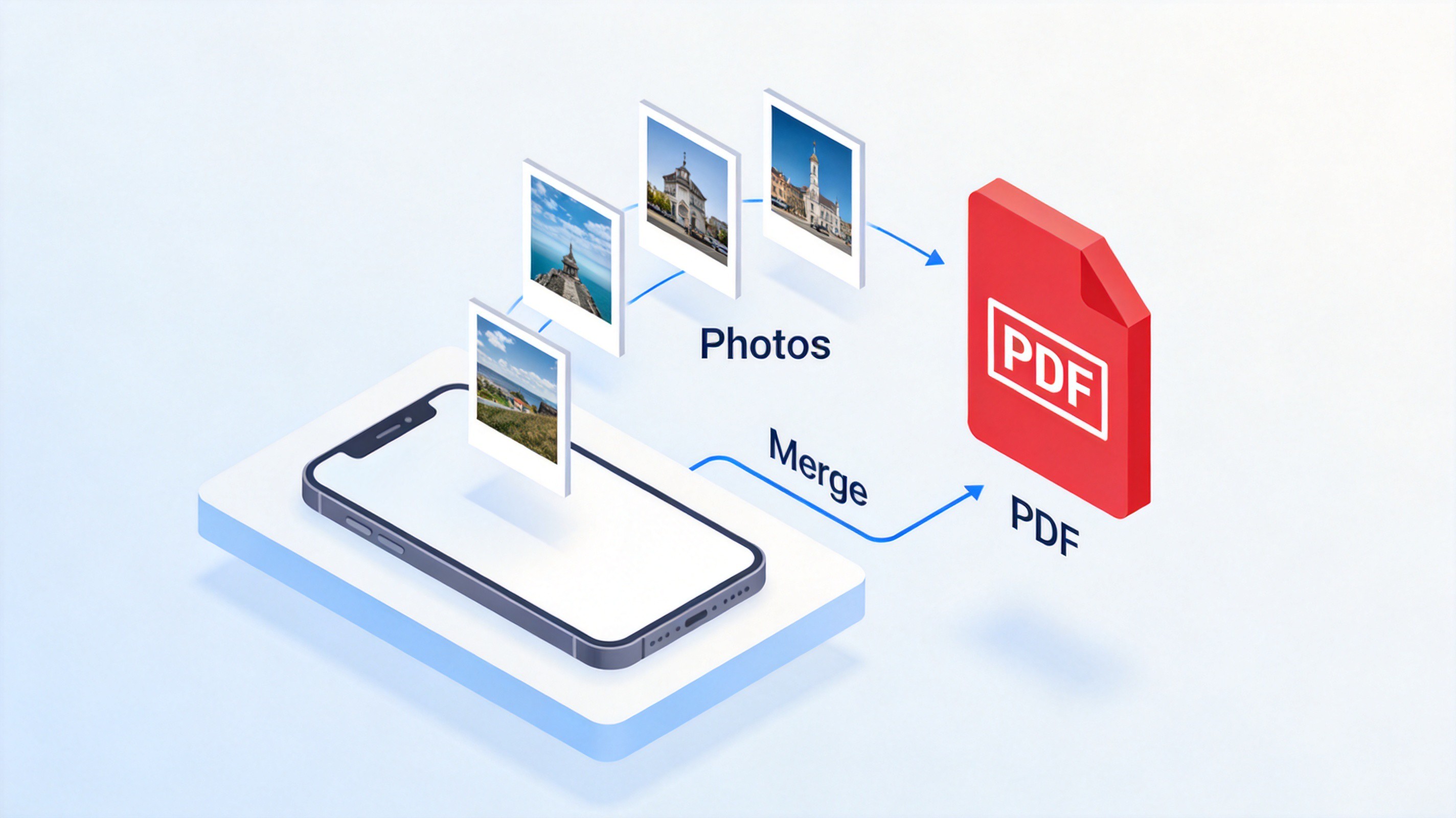
Make a PDF from phone photos


Create a PDF in Phone from Word Documents and Web Pages
Documents and web pages convert just as easily. Any app that can print can produce a PDF, because both iOS and Android ship a virtual PDF printer.
Open the document or web page. Use your office app for a .docx file, or Safari/Chrome for a web page you want to archive.
Start the print flow. Tap Share (or the three-dot menu on Android) and select Print.
Choose Save as PDF. On iPhone, pinch out on the preview to open the PDF; on Android, set the destination printer to Save as PDF.
Check the layout. Page breaks in a Word file may shift on mobile. Open the PDF and confirm tables and images landed where you expect before sharing.
For a .docx you plan to edit as well as share, exporting from the office app itself keeps fonts and margins more faithful than printing. In WPS Office, open the file, tap Tools > File > Save As, and pick PDF as the output format.
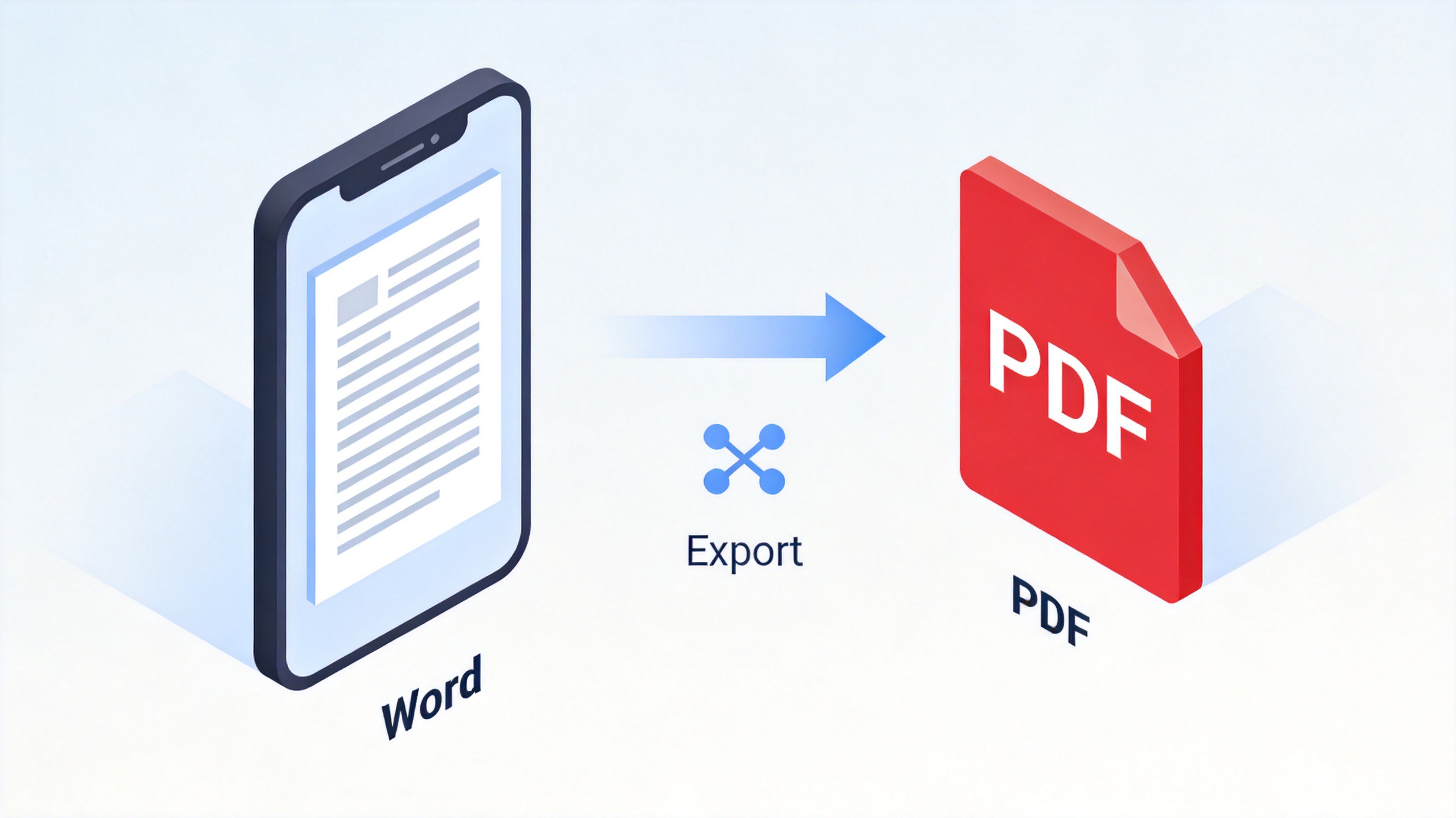
Export Word to PDF on phone
Create a PDF in Phone with the Camera Scan
Paper documents are the third common source. Scanning beats a plain photo because the camera straightens the page, boosts contrast, and stacks multiple pages into one file automatically.
Open the scanner. On iPhone, use the Files app (tap the browse icon > Scan Documents) or the camera button inside a Notes memo. On Android, the Google Drive app includes a scan button under the + menu.
Capture each page. Hold the phone steady over the paper; the scanner detects the edges and takes the shot. Continue for every page of the document.
Review and reorder pages. Crop or rotate any page that the auto-detection missed, then arrange them in the right sequence.
Save as one PDF. Tap Save or Done, and all captured pages are merged into a single PDF in your chosen location.
Scanned pages become images inside the PDF, so the text is not selectable. If you later need to copy or edit the content, run the file through OCR first. Our complete guide on how to scan a document on iPhone compares the built-in and app-based options in detail.
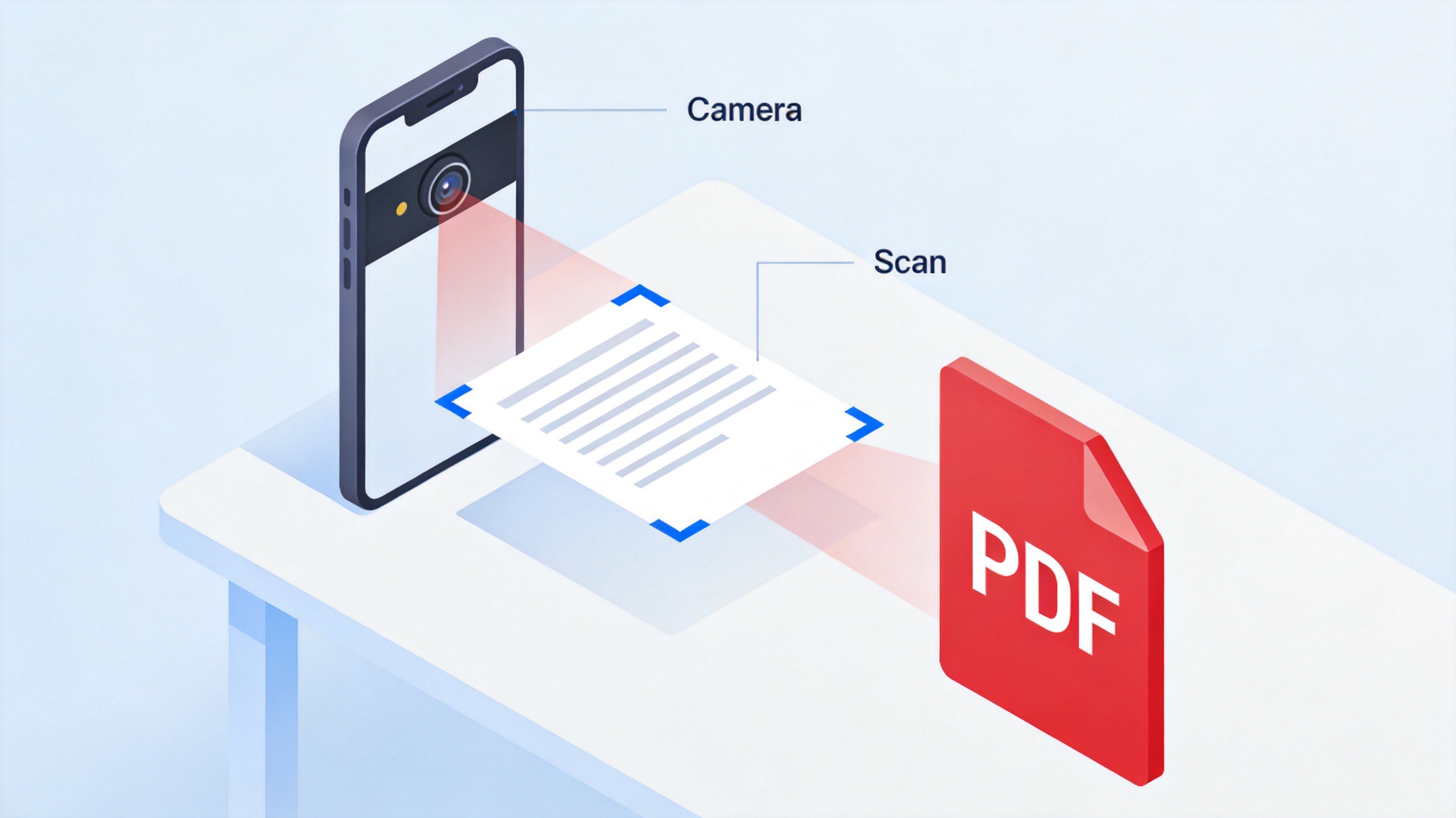
Scan documents to PDF on phone
The Best Free Alternative: WPS Office
Built-in tools handle one file at a time, but if you regularly create PDFs on the go, a free office suite is more efficient. WPS Office for iOS and Android combines all the routes above in one app: convert Word, Excel, and PPT files to PDF, merge images into a single PDF with page-size and orientation control, and scan paper documents with automatic edge detection.
It also covers what happens after the file exists: annotate and sign PDFs, compress them before emailing, and share directly to email or cloud storage. The mobile app is free to download and works alongside the desktop version, so files move with you.
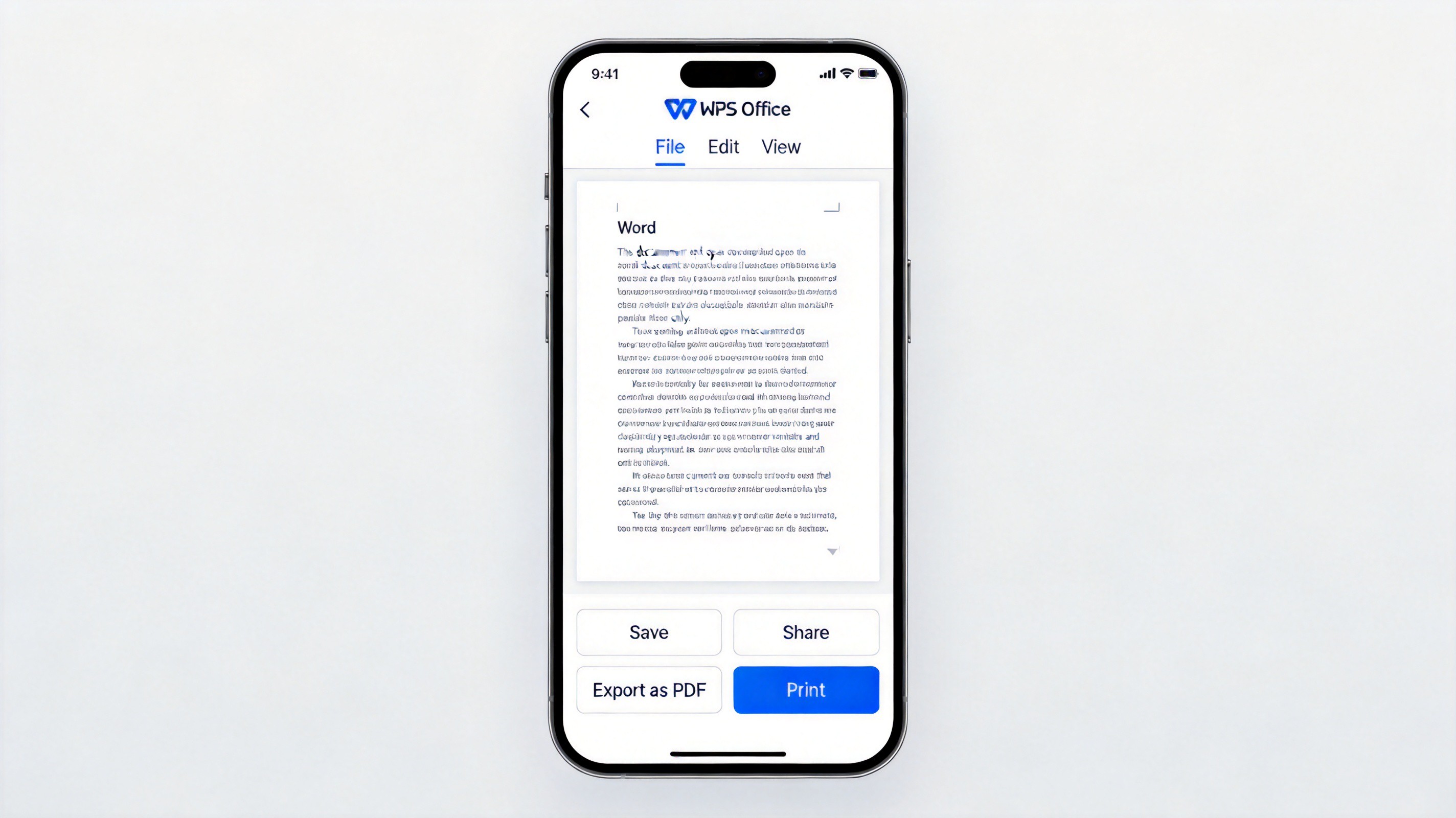
WPS Office mobile export PDF interface
Fix Common Issues When You Create a PDF in Phone
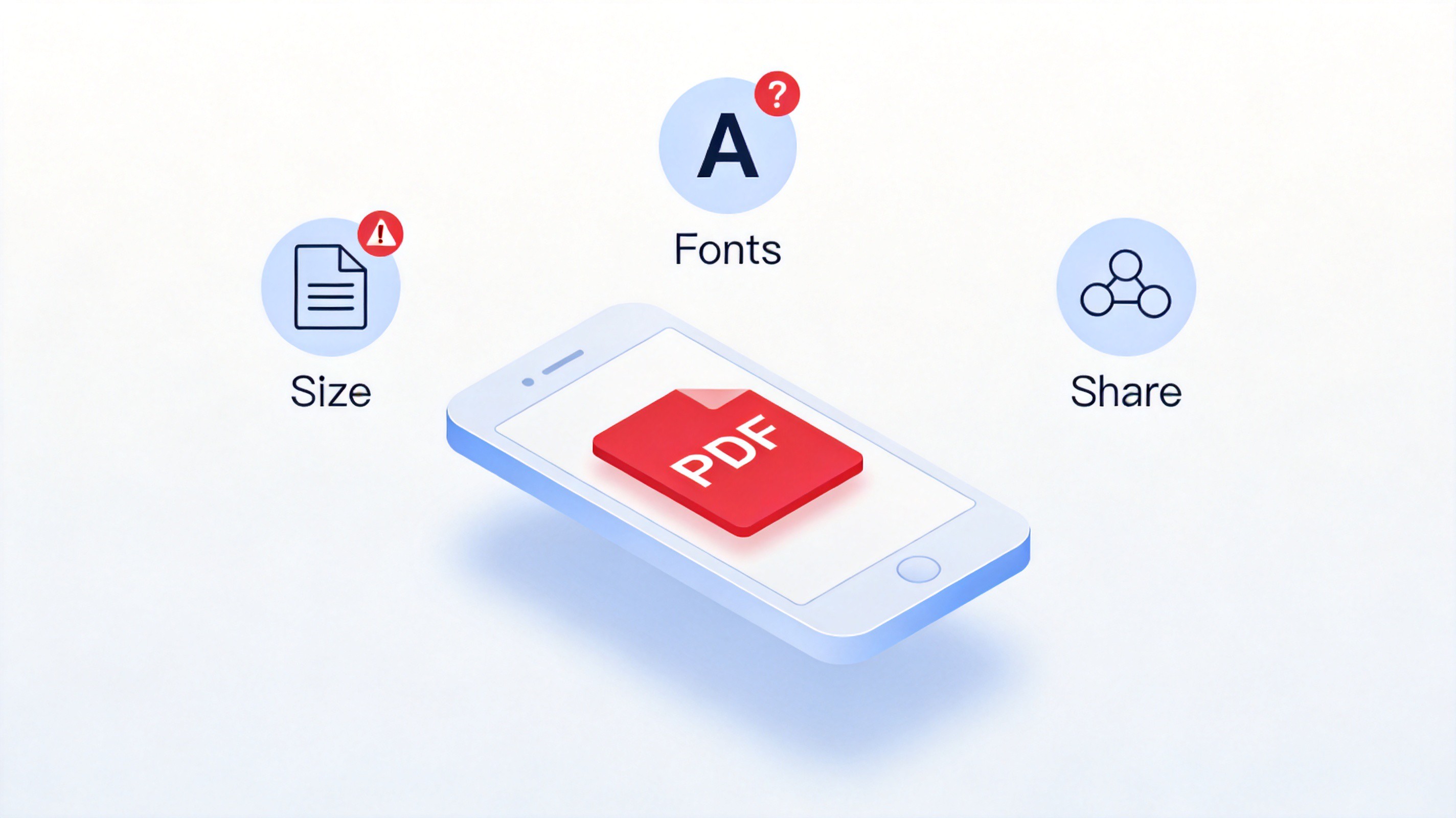
Most failed conversions trace back to three causes. Work through this checklist before you share the finished file:
File too large to email. Photo-based PDFs grow quickly. Compress the file in a PDF app, or re-capture pages at a lower scan resolution.
Blank or garbled pages. This usually means the app printed before the document finished loading. Reopen the file, let it render fully, and print again.
Pages in the wrong order. Photos become pages in selection order. Rename image files with numbers, or drag to reorder inside the PDF tool before saving.
Scanned text is not searchable. Scans store images, not text. Run OCR in a PDF app if you need to search or copy content later.
Fix common PDF creation issues
FAQs
Can I create a PDF in phone without installing any app?
Yes. iPhone offers print-to-PDF from the Share sheet and document scanning in the Files and Notes apps, while Android devices can save any printable content as PDF through the print dialog or scan with Google Drive.
How do I combine several photos into one PDF on my phone?
Select all the photos at once, then use the print flow: on iPhone, pinch out on the print preview to open it as a PDF; on Android, choose Save as PDF in the print dialog. The photos become pages in the order you selected them.
Why is the PDF on my phone so large, and how do I shrink it?
Scanned and photographed pages are stored as images, which adds up quickly. Compress the finished PDF in a free PDF app, or re-scan at a lower resolution when file size matters more than image quality.
Is the text in a scanned PDF searchable?
No. A scan is a picture of the page, so the text is not selectable or searchable until you run OCR (optical character recognition) on the file with a PDF app.
Can I edit or sign the PDF after I create it on my phone?
Yes. Free apps such as WPS Office let you annotate, fill forms, and add a signature directly on the phone; see our guide on how to sign a PDF on iPhone for the step-by-step workflow.


'%3e%3cpath%20d='M19.9911%204.11386V6.471H18.5894C18.0775%206.471%2017.7322%206.57814%2017.5536%206.79243C17.3751%207.00671%2017.2858%207.32814%2017.2858%207.75671V9.44421H19.9019L19.5536%2012.0871H17.2858V18.8639H14.5536V12.0871H12.2769V9.44421H14.5536V7.49779C14.5536%206.39064%2014.8632%205.53201%2015.4822%204.92189C16.1013%204.31177%2016.9257%204.00671%2017.9554%204.00671C18.8304%204.00671%2019.509%204.04243%2019.9911%204.11386Z'%20fill='%23333333'/%3e%3c/g%3e%3cdefs%3e%3cclipPath%20id='clip0_2938_8199'%3e%3crect%20width='16'%20height='16'%20fill='white'%20transform='translate(8%204.00671)'/%3e%3c/clipPath%3e%3c/defs%3e%3c/svg%3e)
'%3e%3cpath%20d='M17.5237%2010.7813L23.4811%204H22.0699L16.8949%209.88693L12.7648%204H8L14.2469%2012.9029L8%2020.0133H9.4112L14.8725%2013.7952L19.2352%2020.0133H24M9.92053%205.04213H12.0885L22.0688%2019.0224H19.9003'%20fill='%23333333'/%3e%3c/g%3e%3cdefs%3e%3cclipPath%20id='clip0_2938_8200'%3e%3crect%20width='16'%20height='16.0134'%20fill='white'%20transform='translate(8%204)'/%3e%3c/clipPath%3e%3c/defs%3e%3c/svg%3e)


