

'%3e%3cpath%20d='M8%200C12.4183%200%2016%203.58172%2016%208C16%2012.4183%2012.4183%2016%208%2016C3.58172%2016%200%2012.4183%200%208C0%203.58172%203.58172%200%208%200ZM11.6162%204.38379C11.2257%203.99337%2010.5927%203.99338%2010.2021%204.38379L8%206.58594L5.79785%204.38379C5.40732%203.99334%204.77429%203.99329%204.38379%204.38379C3.99331%204.77429%203.99335%205.40733%204.38379%205.79785L6.58594%208L4.38379%2010.2021C3.99348%2010.5927%203.99341%2011.2257%204.38379%2011.6162C4.77426%2012.0066%205.40734%2012.0065%205.79785%2011.6162L8%209.41406L10.2021%2011.6162C10.5927%2012.0066%2011.2257%2012.0067%2011.6162%2011.6162C12.0067%2011.2257%2012.0066%2010.5927%2011.6162%2010.2021L9.41406%208L11.6162%205.79785C12.0066%205.40735%2012.0066%204.77429%2011.6162%204.38379Z'%20fill='%23080E17'%20fill-opacity='0.46'/%3e%3c/g%3e%3cdefs%3e%3cclipPath%20id='clip0_3761_713'%3e%3crect%20width='16'%20height='16'%20fill='white'/%3e%3c/clipPath%3e%3c/defs%3e%3c/svg%3e)




'%3e%3cpath%20fill-rule='evenodd'%20clip-rule='evenodd'%20d='M21.4999%2010.9993C21.4999%205.20009%2016.7986%200.498901%2010.9993%200.498901C5.19994%200.498901%200.498657%205.20009%200.498657%2010.9993C0.498657%2016.2404%204.33858%2020.5844%209.35855%2021.3722V14.0346H6.69238V10.9993H9.35855V8.68594C9.35855%206.05427%2010.9262%204.60062%2013.3248%204.60062C14.4736%204.60062%2015.6753%204.80571%2015.6753%204.80571V7.38979H14.3512C13.0468%207.38979%2012.64%208.19921%2012.64%209.0296V10.9993H15.5523L15.0867%2014.0346H12.64V21.3722C17.66%2020.5844%2021.4999%2016.2404%2021.4999%2010.9993Z'%20fill='%231568EA'/%3e%3c/g%3e%3c/svg%3e)


'%3e%3cpath%20d='M2.42045%2022.1876H6.31818V12.7217L0.75%208.54553V20.5171C0.75%2021.4414%201.49892%2022.1876%202.42045%2022.1876Z'%20fill='%234285F4'/%3e%3cpath%20d='M19.682%2022.1876H23.5797C24.5041%2022.1876%2025.2502%2021.4387%2025.2502%2020.5171V8.54553L19.682%2012.7217'%20fill='%2334A853'/%3e%3cpath%20d='M19.682%205.48293V12.7216L25.2502%208.54543V6.31816C25.2502%204.25236%2022.8921%203.07469%2021.2411%204.31361'%20fill='%23FBBC04'/%3e%3cpath%20d='M6.31824%2012.7217V5.48303L13.0001%2010.4944L19.6819%205.48303V12.7217L13.0001%2017.733'%20fill='%23EA4335'/%3e%3cpath%20d='M0.75%206.31816V8.54543L6.31818%2012.7216V5.48293L4.75909%204.31361C3.10534%203.07469%200.75%204.25236%200.75%206.31816Z'%20fill='%23C5221F'/%3e%3c/g%3e%3cdefs%3e%3cclipPath%20id='clip0_2954_7305'%3e%3crect%20width='24.5'%20height='18.375'%20fill='white'%20transform='translate(0.75%203.8125)'/%3e%3c/clipPath%3e%3c/defs%3e%3c/svg%3e)


PDF to Base64: Encode, Decode, and Verify Your File
When an API asks for a PDF as a text field, encode the original file bytes as Base64; do not copy the document's visible text. Base64 represents those bytes using text characters so a receiving system can decode them back into the same file. It does not encrypt the PDF, make it smaller, or turn its pages into editable text.
The workflow below uses Python for a local conversion, shows a browser alternative, and checks that decoding restores the original bytes. WPS Office is useful for preparing and inspecting the PDF before encoding; the encoding step is handled by the code, not a claimed WPS Base64 export feature.
PDF to Base64: Encode, Decode, and Verify Your File
Convert PDF to Base64 locally
First, check the receiving system's documentation. Does it want a plain Base64 string, a data URL, or a file upload? Does it specify standard Base64 or Base64url? Choose the expected representation before writing the request.
| Requested format | What to provide | Important distinction |
|---|---|---|
| Plain Base64 | The encoded characters only | Do not add a MIME prefix unless requested. |
| Data URL | data:application/pdf;base64, followed by the encoded characters | The prefix is metadata, not part of the Base64 payload. |
| Multipart file upload | The PDF as the documented file field | Base64 may be unnecessary. |
| Base64url | The URL-safe alphabet specified by the API | Padding requirements also depend on the API. |
Encode a PDF with Python
This example uses Python 3 and its standard library. Put a PDF named input.pdf in a working folder. Save the following code as encode_pdf.py in that folder, then run python3 encode_pdf.py or the equivalent command for your Python installation.
from pathlib import Path
import base64

source = Path("input.pdf")
raw = source.read_bytes()
encoded = base64.b64encode(raw).decode("ascii")

Path("input.base64.txt").write_text(encoded, encoding="ascii")
print(f"PDF bytes: {len(raw)}")
print(f"Base64 characters: {len(encoded)}")
Reading bytes preserves the binary file. The ASCII conversion turns the encoded result into a text string that can be written to a file or placed in JSON. The example writes a single line rather than MIME-style wrapped output. Python documents these operations in its Base64 module reference.
Open input.base64.txt with a plain-text editor if you need to inspect it. Do not save it through a word processor that may introduce formatting. Keep this file as carefully as the original PDF: encoding does not remove private content.
Read a selected PDF as Base64 in a browser
For a browser application, FileReader.readAsDataURL() can read a user-selected file. This minimal example updates a text area and sends no network request. Keep it on a trusted local page without third-party scripts when handling a private document.
The file picker filter is a convenience, not proof that the selected file is a valid PDF. The example removes the data-URL prefix to return plain Base64. Keep the complete result instead if the destination explicitly requires a data URL. MDN explains this distinction in the FileReader documentation.
Both examples load the full file into memory. For large documents, use the receiving system's documented file-upload or streaming approach rather than assuming a large text area or one JSON field will be practical.
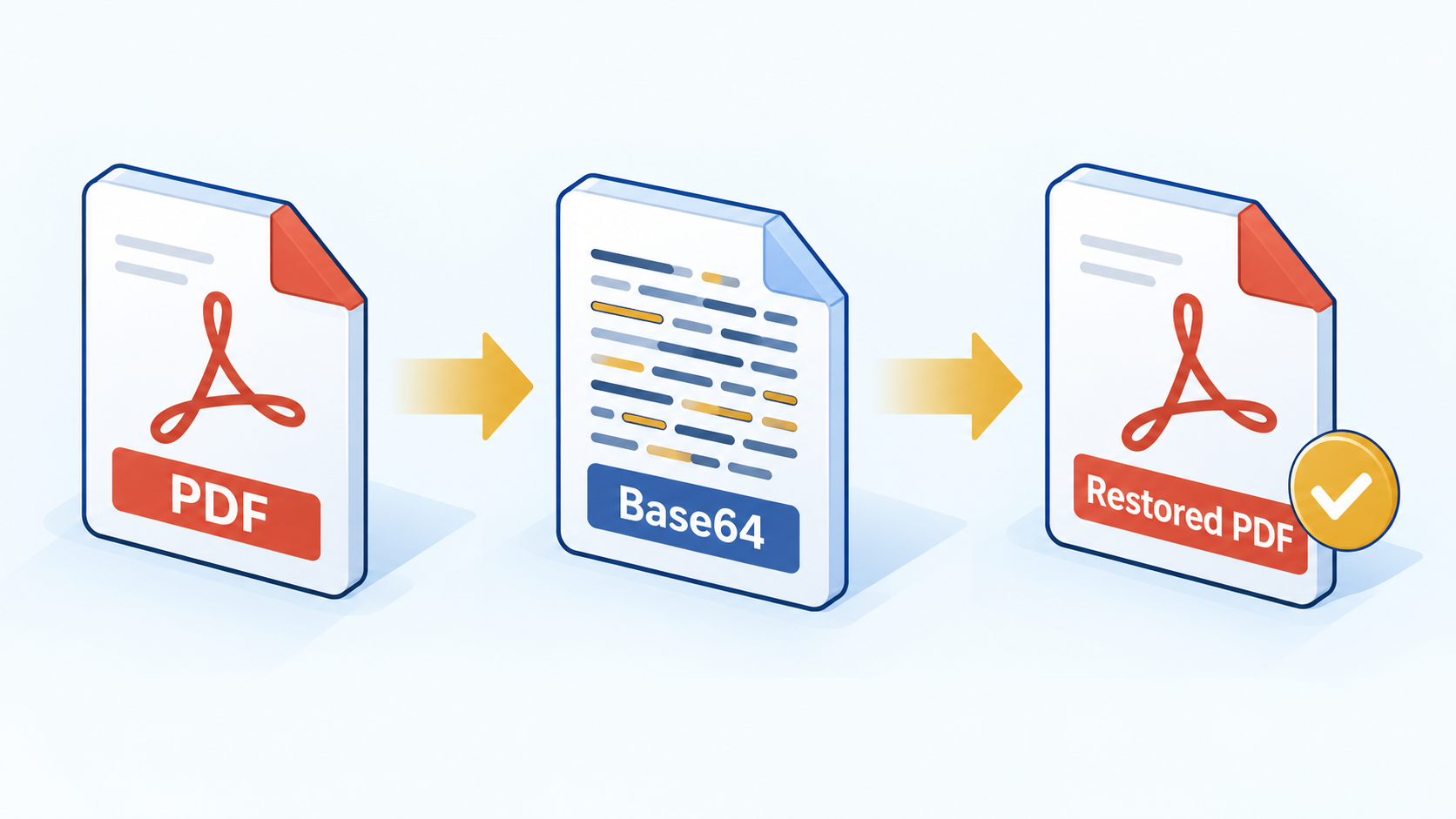
PDF encoding and decoding workflow illustration


Verify PDF to Base64 output and fix errors
A string that looks like Base64 is not enough. Decode it, compare the bytes, and open the restored file. That separates an encoding problem from a PDF that was already damaged before conversion.
Decode and compare the original bytes
Run this in the same folder after the Python encoding example. It expects the unwrapped, plain Base64 output created above. It writes a separate file named restored.pdf.
from pathlib import Path
import base64
import hashlib

original = Path("input.pdf").read_bytes()
text = Path("input.base64.txt").read_text(encoding="ascii")
restored = base64.b64decode(text, validate=True)

if restored != original:
    raise ValueError("Decoded bytes differ from the source PDF")

Path("restored.pdf").write_bytes(restored)
print("Round-trip byte comparison passed")
print("SHA-256:", hashlib.sha256(restored).hexdigest())
The byte comparison checks exact preservation for this local round trip. The digest is also useful when comparing files across systems, provided the reference digest comes from a trusted source. A matching digest does not prove a document is harmless or that its contents are correct.
Allow for the larger payload
Standard padded Base64 uses 4 × ceil(n / 3) characters for n input bytes, excluding prefixes or line breaks. For a 3,000,000-byte PDF, the result is 4,000,000 characters. This is roughly a one-third increase for large files, before JSON or other request overhead.
Check whether an API's limit applies to the decoded file, the encoded field, or the entire request. A PDF below the file-size limit can still exceed a request-size limit after encoding. The alphabet and padding rules are defined in RFC 4648.
Troubleshooting checklist
| Symptom | What to check |
|---|---|
| Invalid Base64 or padding error | Check for truncation, an unexpected data-URL prefix, added whitespace, or the wrong alphabet. Do not invent missing characters. |
| API rejects a valid string | Confirm the field name, content type, expected prefix, and size limit in that API's documentation. |
| Decoded PDF does not open | Compare decoded bytes with the original. If they match, inspect the original PDF and any password requirement. |
| Spaces appear where plus signs should be | Check whether form or URL processing changed the data. Use the transport and encoding required by the API. |
| Browser becomes slow | Try a smaller file or a documented binary-upload workflow. Avoid rendering very large strings in the page. |
For an online converter, confirm its privacy and processing behavior before uploading sensitive material. “Browser-based” does not by itself mean the document stays on your device. The local Python approach above avoids sending the PDF to a conversion service.
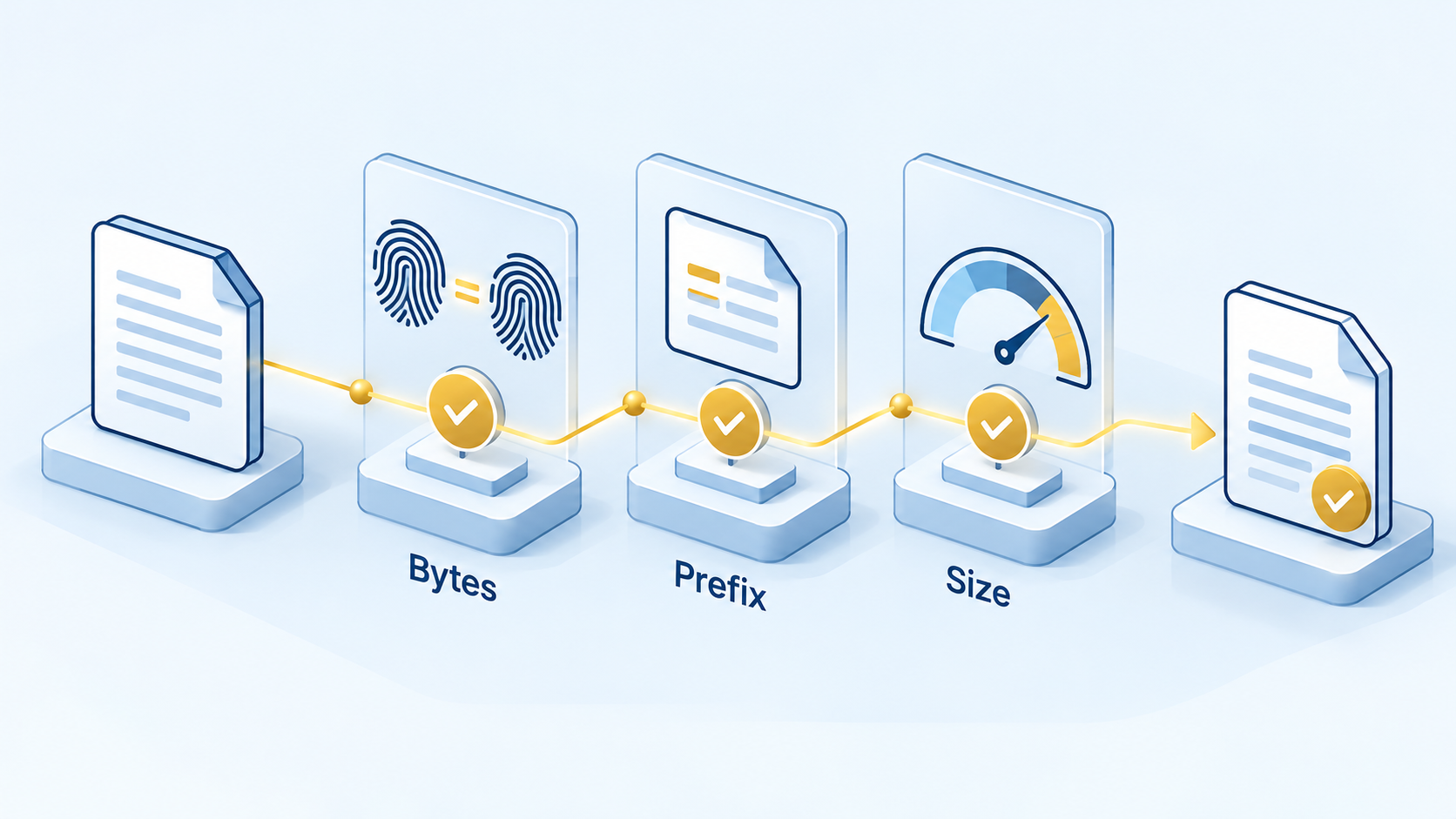
Verify encoded bytes prefix and size
Prepare and inspect your PDF with WPS Office
Use WPS Office to finish the document before encoding it. If the content starts as an editable Writer document, make the necessary text and layout changes, save the source, and export the final PDF. This reduces the chance of encoding an outdated draft.
- Finish the source document. Check names, dates, page breaks, and images in the editable file.
- Export the PDF. In Writer, choose Menu > Export to PDF, select the destination, and export. The WPS export tutorial explains the command.
- Inspect the saved PDF. Open it in a PDF reader such as WPS PDF and check the first and last pages plus any complex tables or images.
- Encode that exact saved file. Point the Python script to the final PDF, then decode and compare the output.
Once a PDF has been encoded, any later edit creates a different source file and requires fresh encoding. Base64 preserves the existing bytes, including a PDF's encryption if it is already encrypted; it does not remove a password requirement. Keep source, encoded, and restored files clearly named during testing.
WPS handles the document preparation and visual review in this workflow. Python or your application's encoding library handles the Base64 conversion. Do not look for an unverified “Save as Base64” option in WPS.
WPS PDF Editor product page overview
FAQs
Is PDF to Base64 conversion encryption?
No. Base64 is reversible encoding. Anyone with the encoded data can decode it; it provides no additional confidentiality.
Does Base64 reduce PDF quality?
Correct encoding and decoding preserve the original bytes, so they do not reduce quality. Compression, editing, or re-exporting the PDF before encoding is a separate operation that may change the file.
Why is the Base64 string larger than the PDF?
Standard Base64 represents each group of three bytes with four text characters, with padding for the last group when needed. Large files therefore grow by roughly one third before other overhead.
Should I include data:application/pdf;base64,?
Include it only when the destination expects a data URL. A plain Base64 field normally contains only the encoded characters; follow the receiving API's specification.
Can WPS Office export directly to Base64?
This guide does not rely on a verified native Base64 export in WPS. Prepare and inspect the PDF in WPS, then encode the saved file with Python or the browser method shown above.


'%3e%3cpath%20d='M19.9911%204.11386V6.471H18.5894C18.0775%206.471%2017.7322%206.57814%2017.5536%206.79243C17.3751%207.00671%2017.2858%207.32814%2017.2858%207.75671V9.44421H19.9019L19.5536%2012.0871H17.2858V18.8639H14.5536V12.0871H12.2769V9.44421H14.5536V7.49779C14.5536%206.39064%2014.8632%205.53201%2015.4822%204.92189C16.1013%204.31177%2016.9257%204.00671%2017.9554%204.00671C18.8304%204.00671%2019.509%204.04243%2019.9911%204.11386Z'%20fill='%23333333'/%3e%3c/g%3e%3cdefs%3e%3cclipPath%20id='clip0_2938_8199'%3e%3crect%20width='16'%20height='16'%20fill='white'%20transform='translate(8%204.00671)'/%3e%3c/clipPath%3e%3c/defs%3e%3c/svg%3e)
'%3e%3cpath%20d='M17.5237%2010.7813L23.4811%204H22.0699L16.8949%209.88693L12.7648%204H8L14.2469%2012.9029L8%2020.0133H9.4112L14.8725%2013.7952L19.2352%2020.0133H24M9.92053%205.04213H12.0885L22.0688%2019.0224H19.9003'%20fill='%23333333'/%3e%3c/g%3e%3cdefs%3e%3cclipPath%20id='clip0_2938_8200'%3e%3crect%20width='16'%20height='16.0134'%20fill='white'%20transform='translate(8%204)'/%3e%3c/clipPath%3e%3c/defs%3e%3c/svg%3e)


