

'%3e%3cpath%20d='M8%200C12.4183%200%2016%203.58172%2016%208C16%2012.4183%2012.4183%2016%208%2016C3.58172%2016%200%2012.4183%200%208C0%203.58172%203.58172%200%208%200ZM11.6162%204.38379C11.2257%203.99337%2010.5927%203.99338%2010.2021%204.38379L8%206.58594L5.79785%204.38379C5.40732%203.99334%204.77429%203.99329%204.38379%204.38379C3.99331%204.77429%203.99335%205.40733%204.38379%205.79785L6.58594%208L4.38379%2010.2021C3.99348%2010.5927%203.99341%2011.2257%204.38379%2011.6162C4.77426%2012.0066%205.40734%2012.0065%205.79785%2011.6162L8%209.41406L10.2021%2011.6162C10.5927%2012.0066%2011.2257%2012.0067%2011.6162%2011.6162C12.0067%2011.2257%2012.0066%2010.5927%2011.6162%2010.2021L9.41406%208L11.6162%205.79785C12.0066%205.40735%2012.0066%204.77429%2011.6162%204.38379Z'%20fill='%23080E17'%20fill-opacity='0.46'/%3e%3c/g%3e%3cdefs%3e%3cclipPath%20id='clip0_3761_713'%3e%3crect%20width='16'%20height='16'%20fill='white'/%3e%3c/clipPath%3e%3c/defs%3e%3c/svg%3e)




'%3e%3cpath%20fill-rule='evenodd'%20clip-rule='evenodd'%20d='M21.4999%2010.9993C21.4999%205.20009%2016.7986%200.498901%2010.9993%200.498901C5.19994%200.498901%200.498657%205.20009%200.498657%2010.9993C0.498657%2016.2404%204.33858%2020.5844%209.35855%2021.3722V14.0346H6.69238V10.9993H9.35855V8.68594C9.35855%206.05427%2010.9262%204.60062%2013.3248%204.60062C14.4736%204.60062%2015.6753%204.80571%2015.6753%204.80571V7.38979H14.3512C13.0468%207.38979%2012.64%208.19921%2012.64%209.0296V10.9993H15.5523L15.0867%2014.0346H12.64V21.3722C17.66%2020.5844%2021.4999%2016.2404%2021.4999%2010.9993Z'%20fill='%231568EA'/%3e%3c/g%3e%3c/svg%3e)


'%3e%3cpath%20d='M2.42045%2022.1876H6.31818V12.7217L0.75%208.54553V20.5171C0.75%2021.4414%201.49892%2022.1876%202.42045%2022.1876Z'%20fill='%234285F4'/%3e%3cpath%20d='M19.682%2022.1876H23.5797C24.5041%2022.1876%2025.2502%2021.4387%2025.2502%2020.5171V8.54553L19.682%2012.7217'%20fill='%2334A853'/%3e%3cpath%20d='M19.682%205.48293V12.7216L25.2502%208.54543V6.31816C25.2502%204.25236%2022.8921%203.07469%2021.2411%204.31361'%20fill='%23FBBC04'/%3e%3cpath%20d='M6.31824%2012.7217V5.48303L13.0001%2010.4944L19.6819%205.48303V12.7217L13.0001%2017.733'%20fill='%23EA4335'/%3e%3cpath%20d='M0.75%206.31816V8.54543L6.31818%2012.7216V5.48293L4.75909%204.31361C3.10534%203.07469%200.75%204.25236%200.75%206.31816Z'%20fill='%23C5221F'/%3e%3c/g%3e%3cdefs%3e%3cclipPath%20id='clip0_2954_7305'%3e%3crect%20width='24.5'%20height='18.375'%20fill='white'%20transform='translate(0.75%203.8125)'/%3e%3c/clipPath%3e%3c/defs%3e%3c/svg%3e)


You drop a PDF into Google Drive, open it, and start looking for the text tool. It never appears. That is the first surprise most people meet when they search for a Google PDF editor.
Google Docs can open a PDF and turn it into an editable document, but it is not a PDF editor. There is no page-design view, no text box tool, and no way to nudge a logo two centimetres to the left. Everything you change is changed inside a Google Doc, and the PDF you download afterwards is rebuilt from that document.
This guide shows what the Google PDF editor workflow really does, how to run it correctly, and how to edit a PDF when the layout has to stay intact.
Google PDF Editor: Can You Really Edit a PDF in Google Docs?
What a Google PDF Editor Can and Cannot Do
It helps to separate two jobs that sound the same. Editing the text of a document is not the same as editing a PDF.
It can open a PDF. Upload the file to Google Drive and on most accounts you can preview it, search the text and print it.
It can convert a PDF into a Doc. Open the file from Drive with Google Docs and the text layer becomes editable.
It can translate the document. Under Tools > Translate document you can produce a translated copy of the file.
It cannot edit pages. There is no way to move an image, rotate a single page or resize a text block in place.
It cannot keep the original layout. Converting to a Doc rebuilds the page from a text flow.
It cannot read a scan. A scanned PDF arrives as page images, so there is no text to edit until OCR runs.
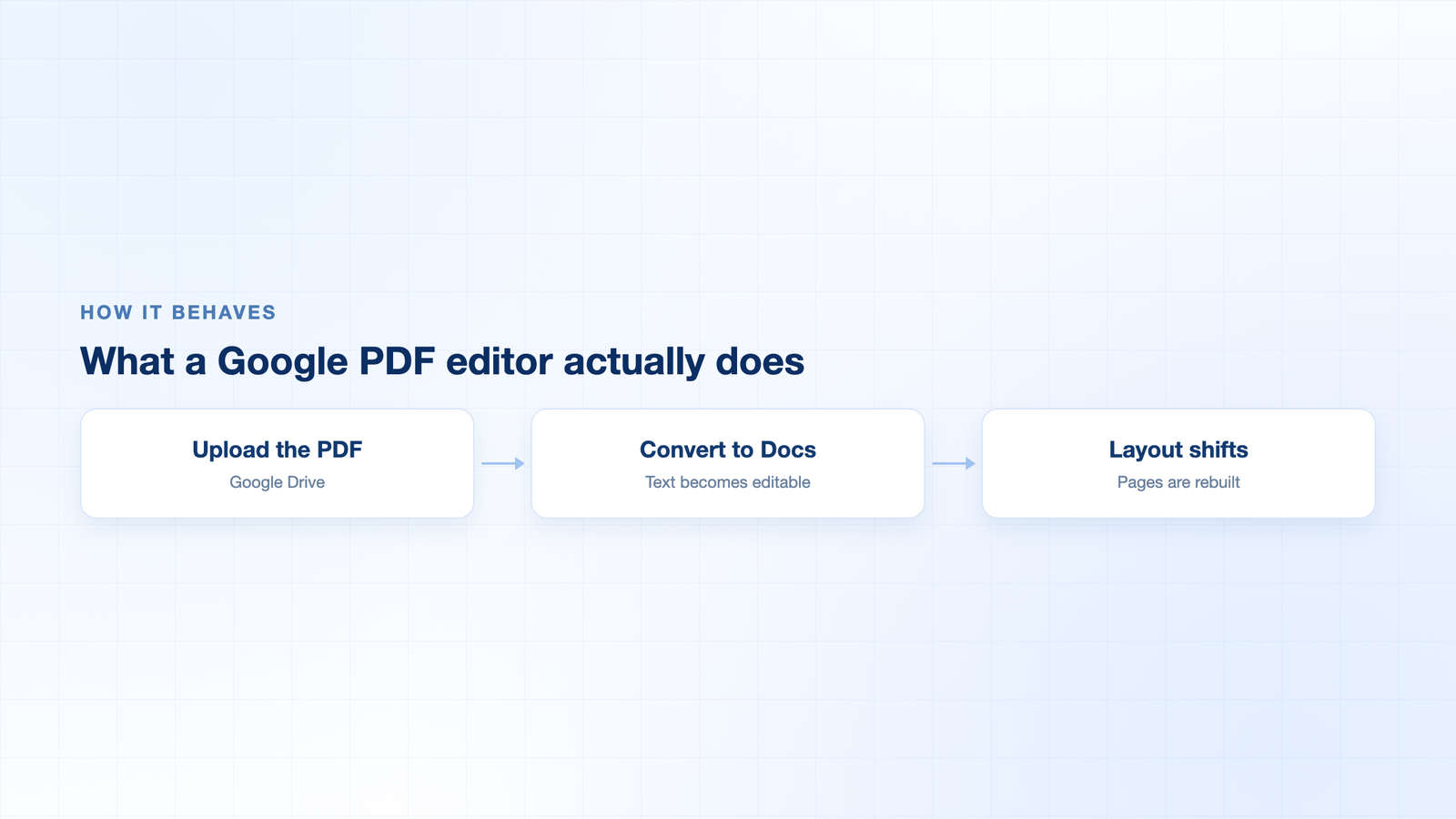
Google Drive PDF conversion flow


How to Use Google Docs as a Google PDF Editor
This is the workflow people usually mean by a Google PDF editor. It works, as long as you accept that the result is a rebuilt document rather than an edited PDF.
Step 1: Upload the PDF to Google Drive. Open Google Drive, choose New > File upload and select the PDF.
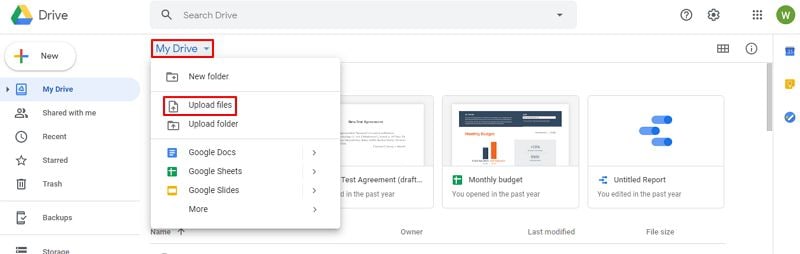
Upload a PDF file to Drive
Step 2: Open the file with Google Docs. Right-click the uploaded PDF and choose Open with > Google Docs.
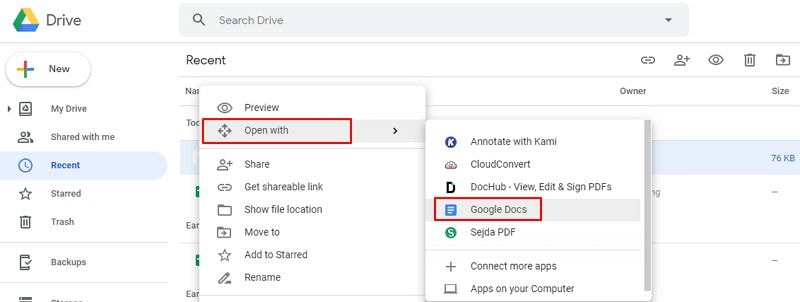
Open a PDF with Google Docs
Step 3: Edit the text. Google Docs opens a converted copy. Change wording, fix a paragraph, add comments, and use suggestion mode when somebody else has to approve your edits.
Step 4: Download the document as a PDF. Choose File > Download > PDF Document (.pdf) to export the rebuilt file.
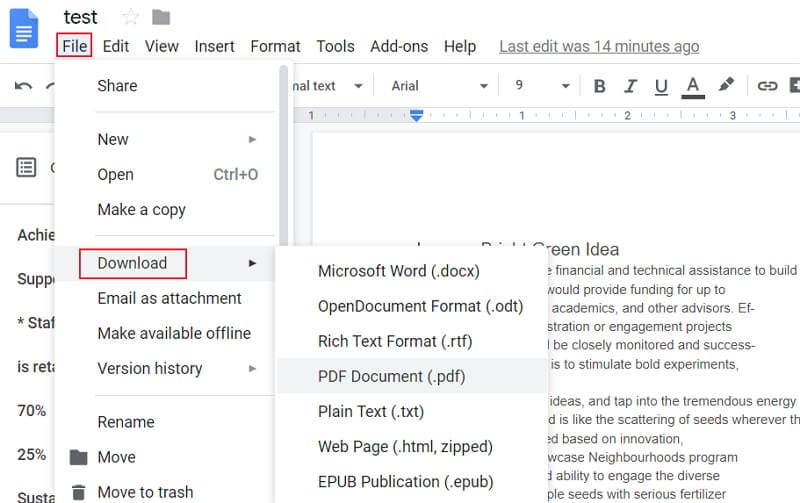
Download the edited document as PDF
If you expect to make the same edit again next month, keep the Google Doc. Re-uploading the PDF and converting it again starts the layout problems from scratch.
Why Google PDF Editor Workarounds Break Your Formatting
Conversion reads the PDF as text and images, then lays the page out again. Every decision the original designer made gets remade, and not always in the same way.
Columns collapse. Two-column brochures often come out as a single column with the reading order shuffled.
Tables break apart. Cell borders, merged cells and row heights are guesses once the grid becomes text.
Fonts are substituted. A font that is not available in Google Docs gets replaced, which changes line lengths and page breaks.
Headers and footers move. Page numbers, footers and watermarks can shift or duplicate across the rebuilt pages.
Forms stop working. Interactive fields are flattened, and a digital signature has nothing left to validate.
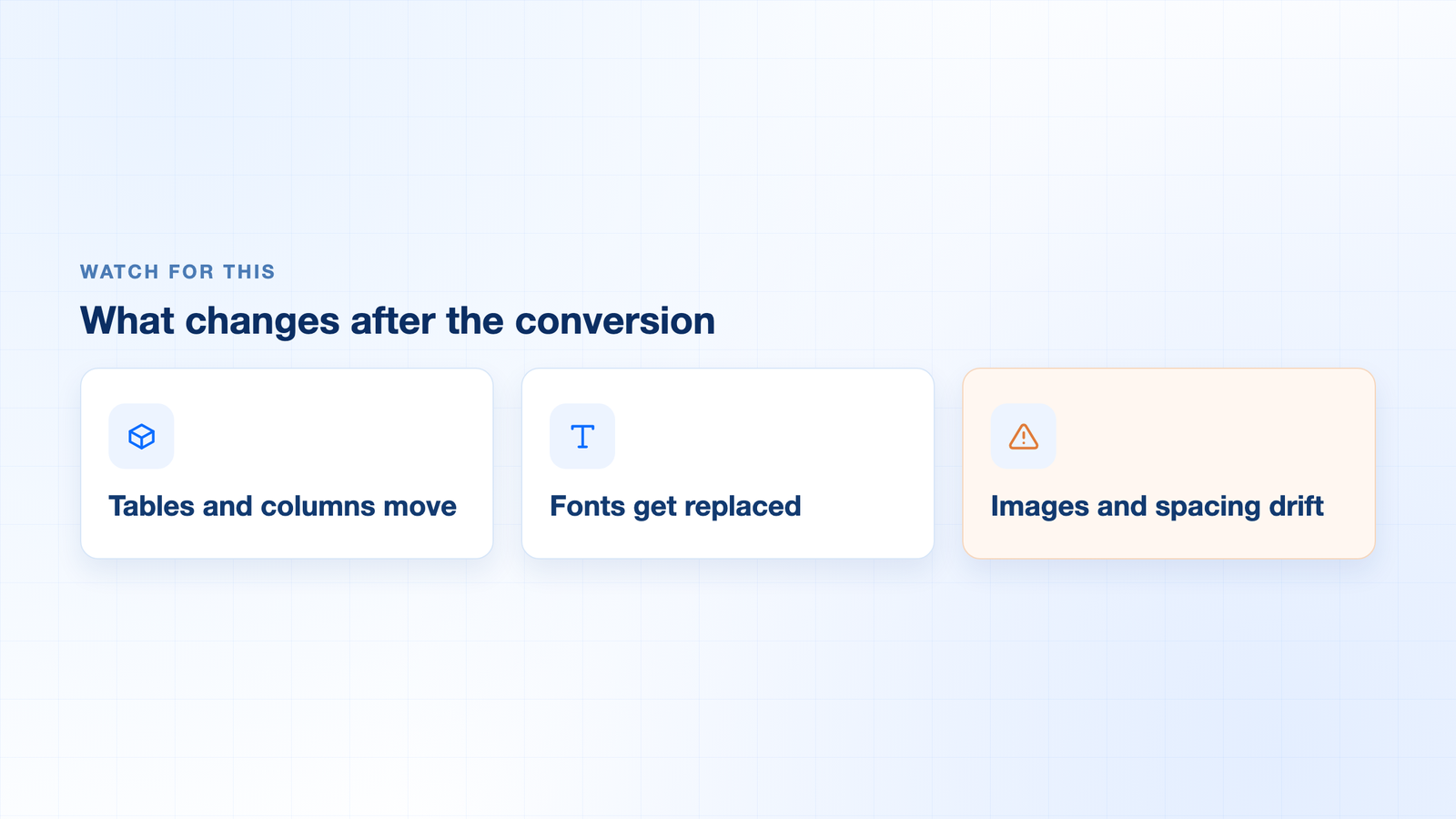
Layout changes after a PDF conversion
The Best Free Google PDF Editor Alternative: WPS Office
When the layout has to stay exactly where it is, you need a tool that edits the PDF itself instead of rebuilding it. WPS PDF opens the file as a PDF, keeps the page geometry, and edits text, images and links in place.
How to edit a PDF in WPS PDF step by step
Open the PDF. Launch WPS Office, open the file and switch to the Edit tab.
Choose what to edit. Pick All, Text, Image or Link to target only the layer you need.
Make the change. Click the text or object, type the replacement and drag it into position. The rest of the page stays untouched.
Annotate or fill. Use the comment tools for review notes and the form tools when the file is a fillable document.
Save or export. Save over the original or export a copy, then check the page count and file size before you send it.
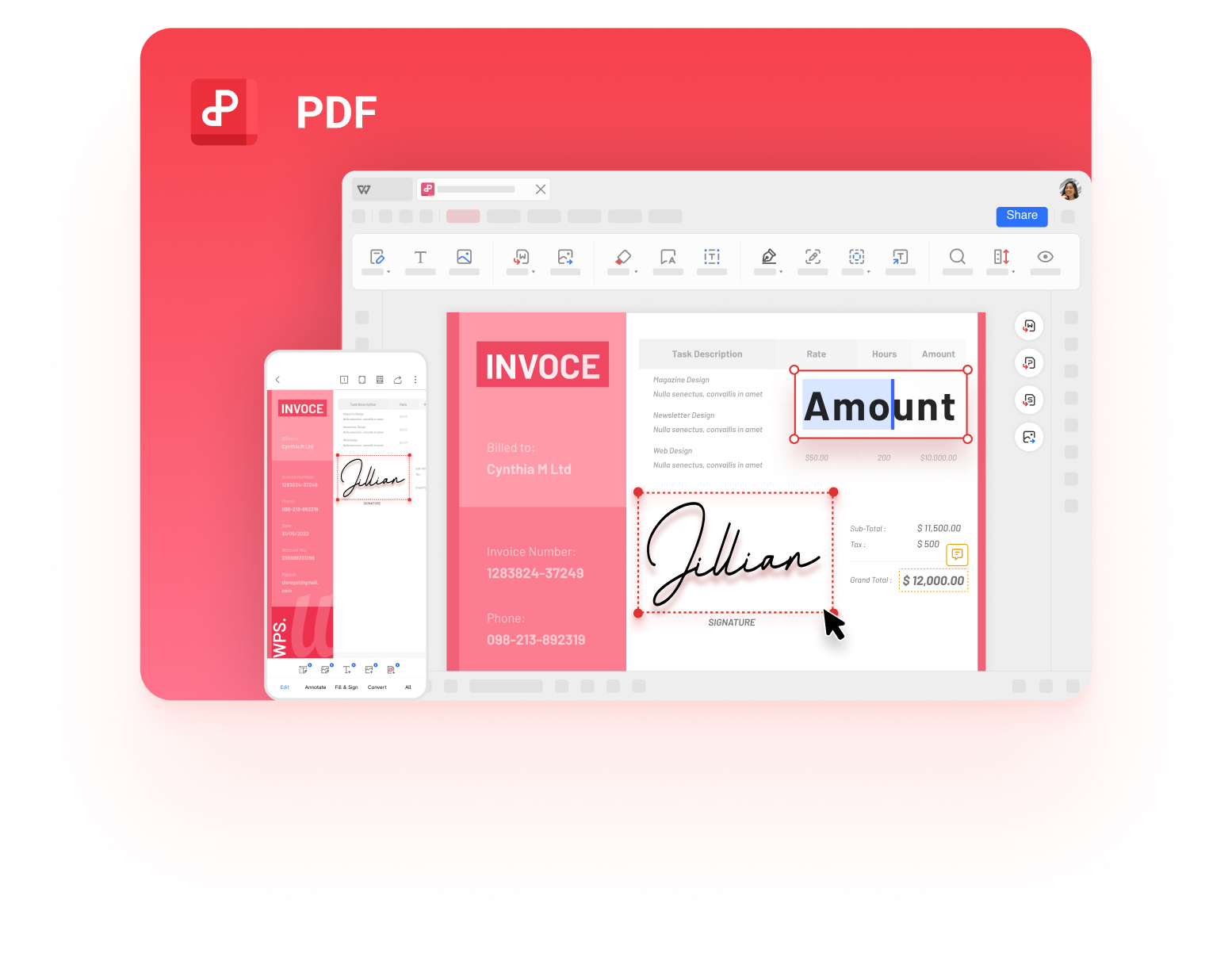
Manage PDF files in WPS PDF
If the file is a scan rather than text, turn on OCR so WPS PDF can read the letters inside the image and make them editable. That is the one step Google Docs cannot do for you.
FAQs
Can I edit a PDF in Google Docs for free?
Yes. On a free Google account you can upload a PDF to Drive, open it with Google Docs, edit the converted text and export a new PDF. What you cannot do is edit the original PDF page layout, because Google Docs edits a rebuilt document.
Does Google have a dedicated PDF editor?
Google offers PDF viewing, commenting and conversion through Drive and Docs, but not a full PDF editor. For page-level editing you need a tool that works on the PDF itself, such as WPS PDF.
Why does my PDF look different after editing it in Google Docs?
Conversion rebuilds the page from a text flow, so columns can collapse, fonts can be substituted and tables can re-flow. Compare the exported PDF with the original before you send it to anyone.
Can I edit a scanned PDF in Google Docs?
A scanned PDF is a picture of a page, so there is nothing to edit until the text is recognised. Run OCR in WPS PDF or another OCR tool, then check the recognised text before you rely on it.
How do I edit a PDF without changing the layout?
Work on the PDF instead of converting it. In WPS PDF, open the file and use the Edit tab so text, images and links are changed in place and the page stays as it was designed.


'%3e%3cpath%20d='M19.9911%204.11386V6.471H18.5894C18.0775%206.471%2017.7322%206.57814%2017.5536%206.79243C17.3751%207.00671%2017.2858%207.32814%2017.2858%207.75671V9.44421H19.9019L19.5536%2012.0871H17.2858V18.8639H14.5536V12.0871H12.2769V9.44421H14.5536V7.49779C14.5536%206.39064%2014.8632%205.53201%2015.4822%204.92189C16.1013%204.31177%2016.9257%204.00671%2017.9554%204.00671C18.8304%204.00671%2019.509%204.04243%2019.9911%204.11386Z'%20fill='%23333333'/%3e%3c/g%3e%3cdefs%3e%3cclipPath%20id='clip0_2938_8199'%3e%3crect%20width='16'%20height='16'%20fill='white'%20transform='translate(8%204.00671)'/%3e%3c/clipPath%3e%3c/defs%3e%3c/svg%3e)
'%3e%3cpath%20d='M17.5237%2010.7813L23.4811%204H22.0699L16.8949%209.88693L12.7648%204H8L14.2469%2012.9029L8%2020.0133H9.4112L14.8725%2013.7952L19.2352%2020.0133H24M9.92053%205.04213H12.0885L22.0688%2019.0224H19.9003'%20fill='%23333333'/%3e%3c/g%3e%3cdefs%3e%3cclipPath%20id='clip0_2938_8200'%3e%3crect%20width='16'%20height='16.0134'%20fill='white'%20transform='translate(8%204)'/%3e%3c/clipPath%3e%3c/defs%3e%3c/svg%3e)


