

'%3e%3cpath%20d='M8%200C12.4183%200%2016%203.58172%2016%208C16%2012.4183%2012.4183%2016%208%2016C3.58172%2016%200%2012.4183%200%208C0%203.58172%203.58172%200%208%200ZM11.6162%204.38379C11.2257%203.99337%2010.5927%203.99338%2010.2021%204.38379L8%206.58594L5.79785%204.38379C5.40732%203.99334%204.77429%203.99329%204.38379%204.38379C3.99331%204.77429%203.99335%205.40733%204.38379%205.79785L6.58594%208L4.38379%2010.2021C3.99348%2010.5927%203.99341%2011.2257%204.38379%2011.6162C4.77426%2012.0066%205.40734%2012.0065%205.79785%2011.6162L8%209.41406L10.2021%2011.6162C10.5927%2012.0066%2011.2257%2012.0067%2011.6162%2011.6162C12.0067%2011.2257%2012.0066%2010.5927%2011.6162%2010.2021L9.41406%208L11.6162%205.79785C12.0066%205.40735%2012.0066%204.77429%2011.6162%204.38379Z'%20fill='%23080E17'%20fill-opacity='0.46'/%3e%3c/g%3e%3cdefs%3e%3cclipPath%20id='clip0_3761_713'%3e%3crect%20width='16'%20height='16'%20fill='white'/%3e%3c/clipPath%3e%3c/defs%3e%3c/svg%3e)




'%3e%3cpath%20fill-rule='evenodd'%20clip-rule='evenodd'%20d='M21.4999%2010.9993C21.4999%205.20009%2016.7986%200.498901%2010.9993%200.498901C5.19994%200.498901%200.498657%205.20009%200.498657%2010.9993C0.498657%2016.2404%204.33858%2020.5844%209.35855%2021.3722V14.0346H6.69238V10.9993H9.35855V8.68594C9.35855%206.05427%2010.9262%204.60062%2013.3248%204.60062C14.4736%204.60062%2015.6753%204.80571%2015.6753%204.80571V7.38979H14.3512C13.0468%207.38979%2012.64%208.19921%2012.64%209.0296V10.9993H15.5523L15.0867%2014.0346H12.64V21.3722C17.66%2020.5844%2021.4999%2016.2404%2021.4999%2010.9993Z'%20fill='%231568EA'/%3e%3c/g%3e%3c/svg%3e)


'%3e%3cpath%20d='M2.42045%2022.1876H6.31818V12.7217L0.75%208.54553V20.5171C0.75%2021.4414%201.49892%2022.1876%202.42045%2022.1876Z'%20fill='%234285F4'/%3e%3cpath%20d='M19.682%2022.1876H23.5797C24.5041%2022.1876%2025.2502%2021.4387%2025.2502%2020.5171V8.54553L19.682%2012.7217'%20fill='%2334A853'/%3e%3cpath%20d='M19.682%205.48293V12.7216L25.2502%208.54543V6.31816C25.2502%204.25236%2022.8921%203.07469%2021.2411%204.31361'%20fill='%23FBBC04'/%3e%3cpath%20d='M6.31824%2012.7217V5.48303L13.0001%2010.4944L19.6819%205.48303V12.7217L13.0001%2017.733'%20fill='%23EA4335'/%3e%3cpath%20d='M0.75%206.31816V8.54543L6.31818%2012.7216V5.48293L4.75909%204.31361C3.10534%203.07469%200.75%204.25236%200.75%206.31816Z'%20fill='%23C5221F'/%3e%3c/g%3e%3cdefs%3e%3cclipPath%20id='clip0_2954_7305'%3e%3crect%20width='24.5'%20height='18.375'%20fill='white'%20transform='translate(0.75%203.8125)'/%3e%3c/clipPath%3e%3c/defs%3e%3c/svg%3e)


Someone sends you a contract, a research paper, or a design draft as a PDF, and you need to mark it up—but the text will not edit like a Word file. That is exactly what PDF annotation is for: you add highlights, comments, notes, and drawings on top of the original page without changing a single character of the source document.
This guide walks you through how to annotate a PDF step by step, both offline in a desktop app and online in a browser, and shows where a free all-in-one suite like WPS Office fits into the workflow.
How to Annotate a PDF: A Complete Step-by-Step Guide
How to Annotate a PDF in WPS Office
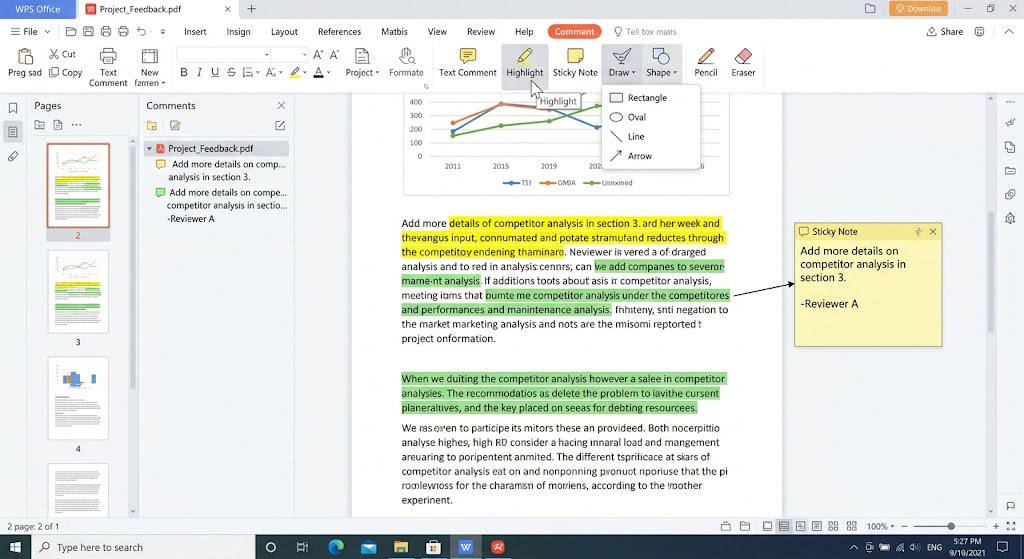
The fastest offline route is a desktop reader with a dedicated annotation toolbar. In WPS Office for Windows and Mac, the Comment tab collects every markup tool in one place, and annotations can be saved back into the same PDF file.
Open the PDF in WPS Office, either by double-clicking the file or through File > Open.
Switch to the Comment tab on the ribbon to reveal the annotation toolbar.
Highlight text: select the Highlight tool, then drag across a sentence or paragraph. Pick a color from the tool's dropdown if yellow does not suit your color code.
Add comments and sticky notes: choose Text Comment or Sticky Note, click the spot you want to annotate, and type your note.
Draw and shape: use Shape or Draw to box an area, circle a figure, or add arrows to point reviewers to the right place.
Save the file with Ctrl+S (or Cmd+S on Mac). All marks are stored in the PDF, so anyone opening it later sees the same annotations.
Annotate PDF in WPS Office
Small habit that saves time: keep one highlight color per purpose—yellow for key points, green for numbers to verify, red for anything that must change—so a 40-page document stays scannable at a glance.
How to Annotate a PDF Online for Free
No install needed? A browser-based editor does the job in three moves: upload, mark up, download. This path is handy on a borrowed computer, and if you work inside Chrome, you can also annotate PDF files directly in Google Chrome with extensions or Drive.
Open an online PDF annotator in your browser and upload the file from your device.
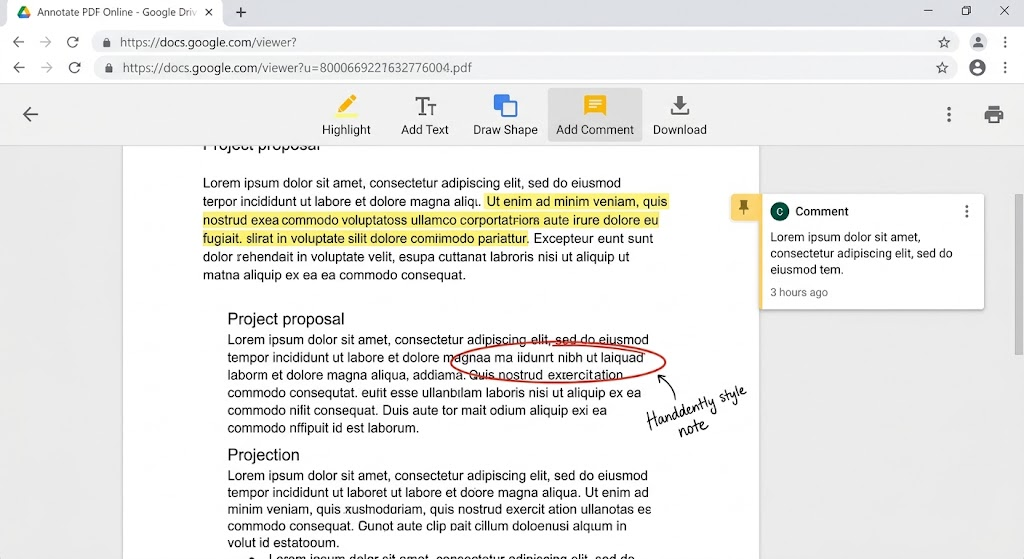
Pick a tool—highlight, comment, or shape—and apply it on the page. Most editors let you change colors before you mark.
Download the annotated PDF when you finish. The saved copy keeps every mark and still opens in any standard reader.
Annotate PDF online for free
Two cautions for the online route: check the service's privacy policy before uploading confidential contracts, and expect file-size limits on free tiers. For documents you cannot upload anywhere, the offline desktop method above is the safer choice. Chrome users who only need to mark text can start with our guide on highlighting PDF files in Chrome.


The Best Free Alternative: WPS Office
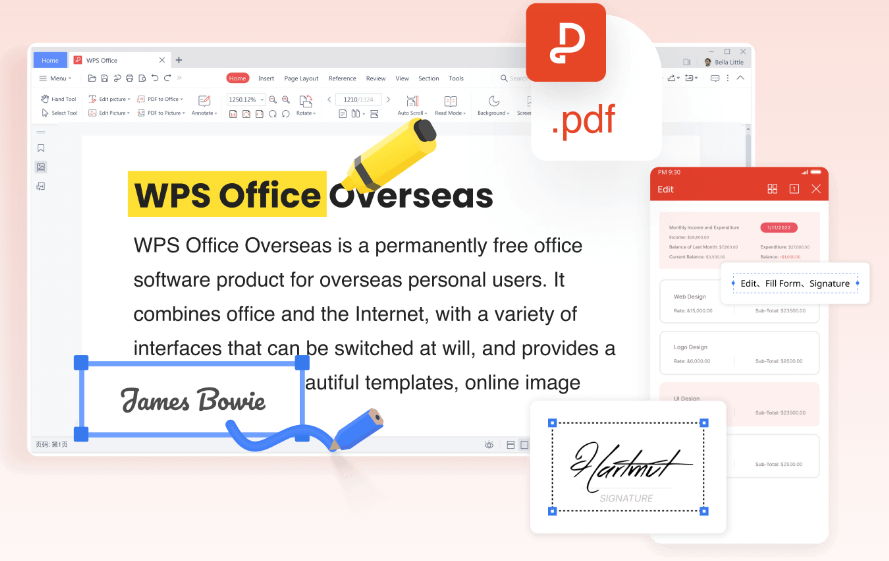
Dedicated PDF editors often lock annotation behind a paywall or drown it in a heavyweight interface. WPS Office takes a lighter path: a free suite where PDF annotation sits next to Writer, Spreadsheet, and Presentation, so marking up a PDF and editing the source document happen in one app. The Comment toolbar covers highlights, text comments, sticky notes, shapes, and freehand drawing, and an Annotations panel lists every mark so you can jump between reviewers' notes.
WPS Office PDF editor free
FAQs
Can I annotate a PDF without changing the original text?
Yes. Annotations live on a separate layer above the page content. Highlights, comments, and drawings never alter the underlying text, and each mark can be edited or removed later.
Will my annotations be visible in other PDF readers?
In most cases yes. Standard highlights, notes, and comments saved by mainstream tools follow the PDF specification, so Adobe Reader, Preview, and browser viewers display them. Flattened or drawn markup is saved as part of the page and shows everywhere.
How do I remove highlights or comments from a PDF?
Click the mark to select it, then press Delete. In WPS Office you can also open the Annotations or Comments panel and remove entries one by one, which is faster when reviewing someone else's markup.
Is it safe to annotate confidential PDFs with online tools?
Be careful. Online annotators upload your file to a server, so read the privacy policy first and avoid sensitive contracts or personal records. For confidential documents, annotate offline in a desktop app such as WPS Office, where the file never leaves your computer.
Can I annotate a PDF on my phone?
Yes. WPS Office's mobile app supports highlights, text comments, and shapes on Android and iOS, and changes sync when you open the same file on desktop—useful for marking up a contract right after receiving it by email.


'%3e%3cpath%20d='M19.9911%204.11386V6.471H18.5894C18.0775%206.471%2017.7322%206.57814%2017.5536%206.79243C17.3751%207.00671%2017.2858%207.32814%2017.2858%207.75671V9.44421H19.9019L19.5536%2012.0871H17.2858V18.8639H14.5536V12.0871H12.2769V9.44421H14.5536V7.49779C14.5536%206.39064%2014.8632%205.53201%2015.4822%204.92189C16.1013%204.31177%2016.9257%204.00671%2017.9554%204.00671C18.8304%204.00671%2019.509%204.04243%2019.9911%204.11386Z'%20fill='%23333333'/%3e%3c/g%3e%3cdefs%3e%3cclipPath%20id='clip0_2938_8199'%3e%3crect%20width='16'%20height='16'%20fill='white'%20transform='translate(8%204.00671)'/%3e%3c/clipPath%3e%3c/defs%3e%3c/svg%3e)
'%3e%3cpath%20d='M17.5237%2010.7813L23.4811%204H22.0699L16.8949%209.88693L12.7648%204H8L14.2469%2012.9029L8%2020.0133H9.4112L14.8725%2013.7952L19.2352%2020.0133H24M9.92053%205.04213H12.0885L22.0688%2019.0224H19.9003'%20fill='%23333333'/%3e%3c/g%3e%3cdefs%3e%3cclipPath%20id='clip0_2938_8200'%3e%3crect%20width='16'%20height='16.0134'%20fill='white'%20transform='translate(8%204)'/%3e%3c/clipPath%3e%3c/defs%3e%3c/svg%3e)


