

'%3e%3cpath%20d='M8%200C12.4183%200%2016%203.58172%2016%208C16%2012.4183%2012.4183%2016%208%2016C3.58172%2016%200%2012.4183%200%208C0%203.58172%203.58172%200%208%200ZM11.6162%204.38379C11.2257%203.99337%2010.5927%203.99338%2010.2021%204.38379L8%206.58594L5.79785%204.38379C5.40732%203.99334%204.77429%203.99329%204.38379%204.38379C3.99331%204.77429%203.99335%205.40733%204.38379%205.79785L6.58594%208L4.38379%2010.2021C3.99348%2010.5927%203.99341%2011.2257%204.38379%2011.6162C4.77426%2012.0066%205.40734%2012.0065%205.79785%2011.6162L8%209.41406L10.2021%2011.6162C10.5927%2012.0066%2011.2257%2012.0067%2011.6162%2011.6162C12.0067%2011.2257%2012.0066%2010.5927%2011.6162%2010.2021L9.41406%208L11.6162%205.79785C12.0066%205.40735%2012.0066%204.77429%2011.6162%204.38379Z'%20fill='%23080E17'%20fill-opacity='0.46'/%3e%3c/g%3e%3cdefs%3e%3cclipPath%20id='clip0_3761_713'%3e%3crect%20width='16'%20height='16'%20fill='white'/%3e%3c/clipPath%3e%3c/defs%3e%3c/svg%3e)




'%3e%3cpath%20fill-rule='evenodd'%20clip-rule='evenodd'%20d='M21.4999%2010.9993C21.4999%205.20009%2016.7986%200.498901%2010.9993%200.498901C5.19994%200.498901%200.498657%205.20009%200.498657%2010.9993C0.498657%2016.2404%204.33858%2020.5844%209.35855%2021.3722V14.0346H6.69238V10.9993H9.35855V8.68594C9.35855%206.05427%2010.9262%204.60062%2013.3248%204.60062C14.4736%204.60062%2015.6753%204.80571%2015.6753%204.80571V7.38979H14.3512C13.0468%207.38979%2012.64%208.19921%2012.64%209.0296V10.9993H15.5523L15.0867%2014.0346H12.64V21.3722C17.66%2020.5844%2021.4999%2016.2404%2021.4999%2010.9993Z'%20fill='%231568EA'/%3e%3c/g%3e%3c/svg%3e)


'%3e%3cpath%20d='M2.42045%2022.1876H6.31818V12.7217L0.75%208.54553V20.5171C0.75%2021.4414%201.49892%2022.1876%202.42045%2022.1876Z'%20fill='%234285F4'/%3e%3cpath%20d='M19.682%2022.1876H23.5797C24.5041%2022.1876%2025.2502%2021.4387%2025.2502%2020.5171V8.54553L19.682%2012.7217'%20fill='%2334A853'/%3e%3cpath%20d='M19.682%205.48293V12.7216L25.2502%208.54543V6.31816C25.2502%204.25236%2022.8921%203.07469%2021.2411%204.31361'%20fill='%23FBBC04'/%3e%3cpath%20d='M6.31824%2012.7217V5.48303L13.0001%2010.4944L19.6819%205.48303V12.7217L13.0001%2017.733'%20fill='%23EA4335'/%3e%3cpath%20d='M0.75%206.31816V8.54543L6.31818%2012.7216V5.48293L4.75909%204.31361C3.10534%203.07469%200.75%204.25236%200.75%206.31816Z'%20fill='%23C5221F'/%3e%3c/g%3e%3cdefs%3e%3cclipPath%20id='clip0_2954_7305'%3e%3crect%20width='24.5'%20height='18.375'%20fill='white'%20transform='translate(0.75%203.8125)'/%3e%3c/clipPath%3e%3c/defs%3e%3c/svg%3e)


Blank scans, outdated appendices, and duplicate pages can make a PDF harder to review. The iLovePDF Remove Pages tool offers a quick browser workflow to remove page from PDF, while an offline editor is the better fit when a file contains confidential or regulated information.
Whichever method you choose, work on a copy and verify the saved file before deleting the original.
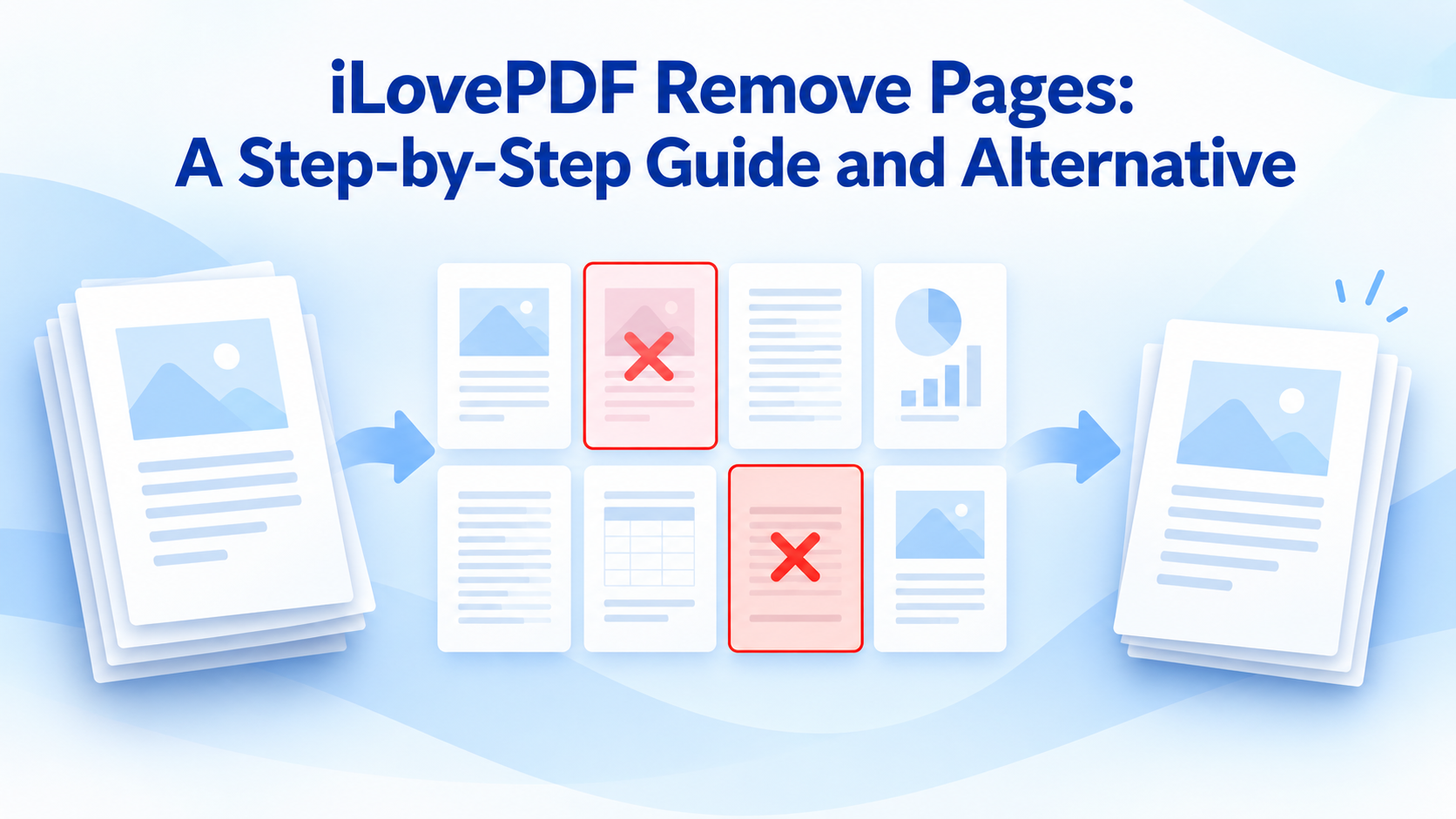
iLovePDF Remove Pages: A Step-by-Step Guide and Alternative
How to Use iLovePDF Remove Pages
Step 1: Upload the PDF
Open the official Remove Pages tool and select the PDF from your device or an available connected cloud account. Do not upload a confidential document unless that use is permitted by your organization.
Step 2: Mark the pages to delete
Review the thumbnail grid carefully and select only the unwanted pages. The official documentation describes selected pages with a red cross. Check printed page labels as well as thumbnail numbers because cover pages can shift the numbering readers expect.
Step 3: Remove and download
Choose Remove Pages, download the processed PDF, and give it a new filename rather than overwriting your source immediately.
Step 4: Verify the result
Open the downloaded file, confirm the page count and order, search for key headings, and inspect bookmarks or links near the removed section. Deleting pages may leave references such as “see page 12” out of date.

Select PDF pages for removal


The Best Offline Alternative to iLovePDF Remove Pages: WPS Office
Compared with browser-based tools, the biggest advantage of WPS PDF is that sensitive pages never leave your computer. Where iLovePDF requires uploading the document to a web service, WPS PDF runs the same organize-pages workflow locally on Windows, macOS, Linux, and mobile. Open a duplicate of the PDF, enter the page organizer, select unwanted thumbnails, delete them, and use Save As to keep the original intact. The interface illustration is a representative mockup, so menu wording may differ by version.
Local, offline editing: no upload step and no server queue, which makes it the safer choice for confidential, regulated, or very large files.
Visual page organizer: review thumbnails, drag to reorder, and delete or rotate pages in one view, with Undo available if you select the wrong page.
More than page removal: edit text, add a PDF watermark, compress, and export the finished PDF from the same free toolkit.
Safe versioning: Save As keeps the original file untouched until the page order, links, and bookmarks are verified.
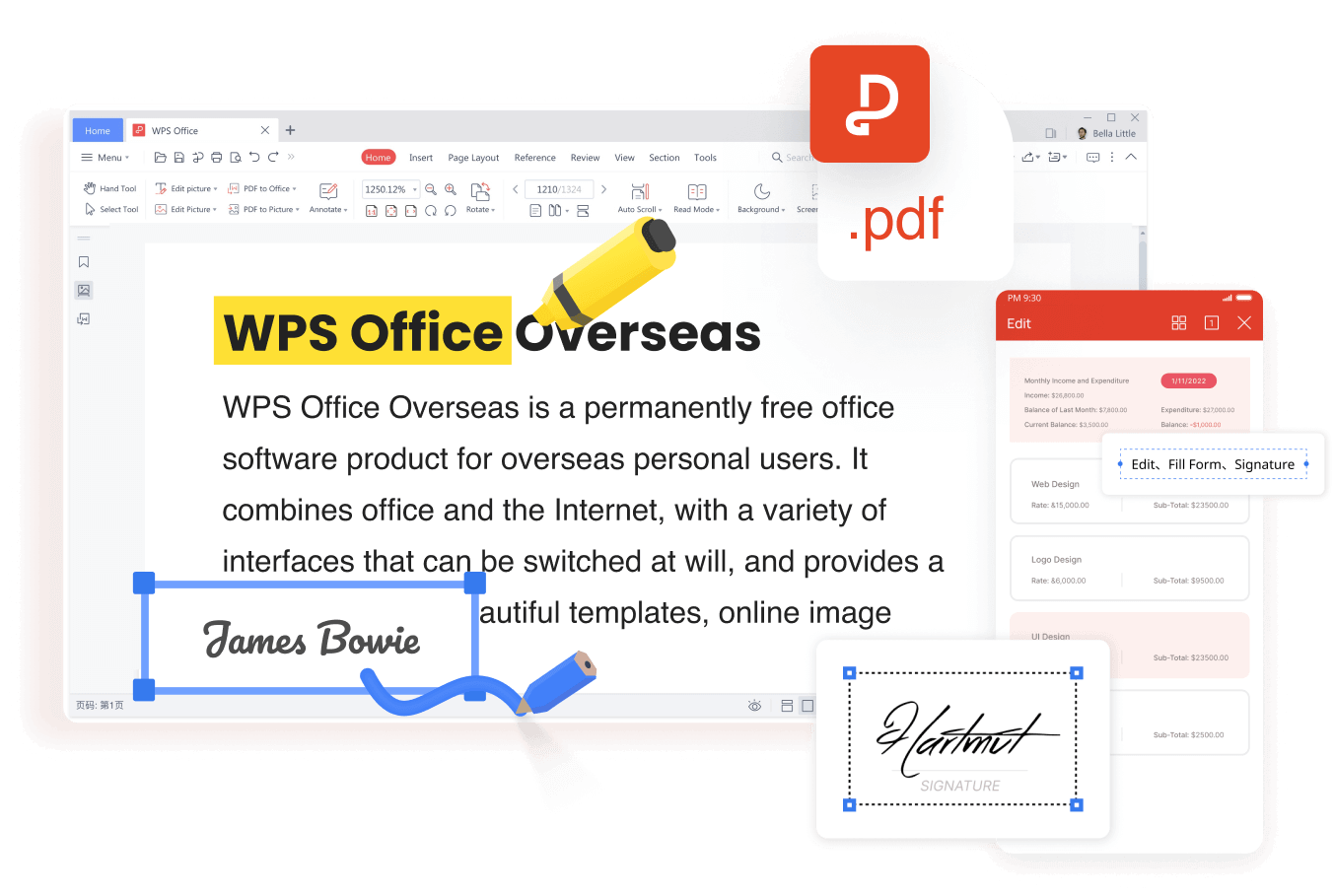
WPS PDF workspace
FAQs
Can iLovePDF remove one page from a PDF?
Yes. Select that page thumbnail, run Remove Pages, and verify the downloaded copy.
Why is the page I deleted still visible?
You may be viewing the original file or a cached browser tab. Open the newly downloaded file and compare its filename and page count.
Can I recover a deleted PDF page?
Not from a flattened final copy unless you kept the original or have a backup. Always work on a duplicate.
Does removing pages always reduce file size?
Not proportionally. Shared fonts, images, metadata, and incremental save data can remain in the file.
Should I use an online remover for sensitive PDFs?
Follow your organization’s rules. For restricted data, an approved offline editor is generally the safer workflow.

'%3e%3cpath%20d='M19.9911%204.11386V6.471H18.5894C18.0775%206.471%2017.7322%206.57814%2017.5536%206.79243C17.3751%207.00671%2017.2858%207.32814%2017.2858%207.75671V9.44421H19.9019L19.5536%2012.0871H17.2858V18.8639H14.5536V12.0871H12.2769V9.44421H14.5536V7.49779C14.5536%206.39064%2014.8632%205.53201%2015.4822%204.92189C16.1013%204.31177%2016.9257%204.00671%2017.9554%204.00671C18.8304%204.00671%2019.509%204.04243%2019.9911%204.11386Z'%20fill='%23333333'/%3e%3c/g%3e%3cdefs%3e%3cclipPath%20id='clip0_2938_8199'%3e%3crect%20width='16'%20height='16'%20fill='white'%20transform='translate(8%204.00671)'/%3e%3c/clipPath%3e%3c/defs%3e%3c/svg%3e)
'%3e%3cpath%20d='M17.5237%2010.7813L23.4811%204H22.0699L16.8949%209.88693L12.7648%204H8L14.2469%2012.9029L8%2020.0133H9.4112L14.8725%2013.7952L19.2352%2020.0133H24M9.92053%205.04213H12.0885L22.0688%2019.0224H19.9003'%20fill='%23333333'/%3e%3c/g%3e%3cdefs%3e%3cclipPath%20id='clip0_2938_8200'%3e%3crect%20width='16'%20height='16.0134'%20fill='white'%20transform='translate(8%204)'/%3e%3c/clipPath%3e%3c/defs%3e%3c/svg%3e)


