In today’s fast-paced digital world, you often have to work with text
or information trapped inside JPG images so it’s almost binding upon
each person to learn how to convert JPG to PDF. But like every
conversion, the process isn’t always smooth as many converters produce
inaccurate OCR results, or scramble the layout, leaving you to rebuild
your document word by word. In this guide, I’ll take you through
everything: online tools, OCR options, and step-by-step instructions so
you can convert JPG files to PDF confidently and efficiently.
Use Word, Excel, and PPT for FREE
How to Convert JPG to PDF
How to Convert JPG to PDF
Online
When someone Googles ‘how to convert JPG to PDF”, they don’t want a
solution that requires downloading heavy software or fiddling with
complex settings. That’s why online converters are so popular: they’re
straightforward, fast, and really accurate for most everyday tasks.
Using a reliable online tool like WPS preserves the layout and
quality of the images along with letting you quickly rearrange
pages, adjust margins, and export a professional-looking PDF
without any unnecessary steps. Here’s how to convert your JPGs to PDF
efficiently and without stress on WPS:
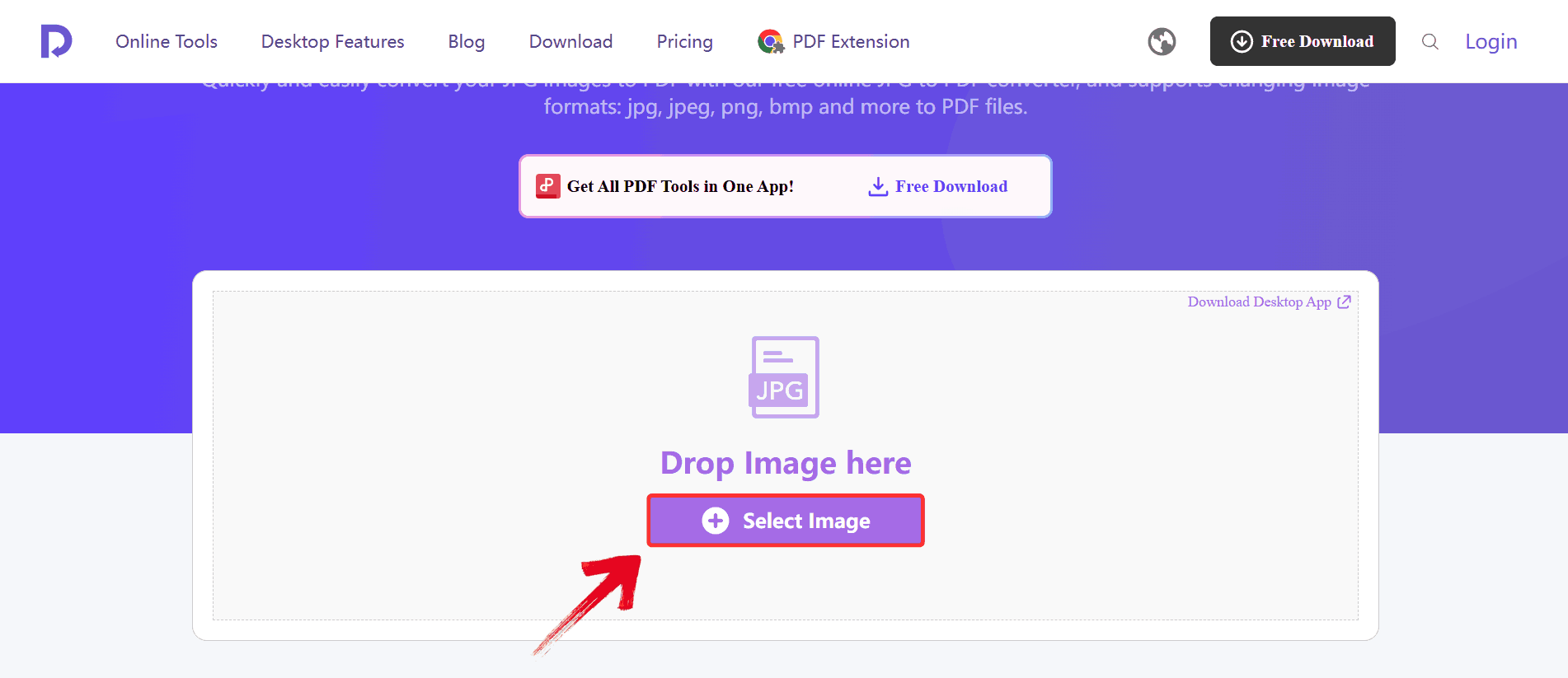
Step 1: Head over to the WPS JPG to
PDF online converter and click on “Select JPG
Files” to upload the images you want to convert.
Click Select Image
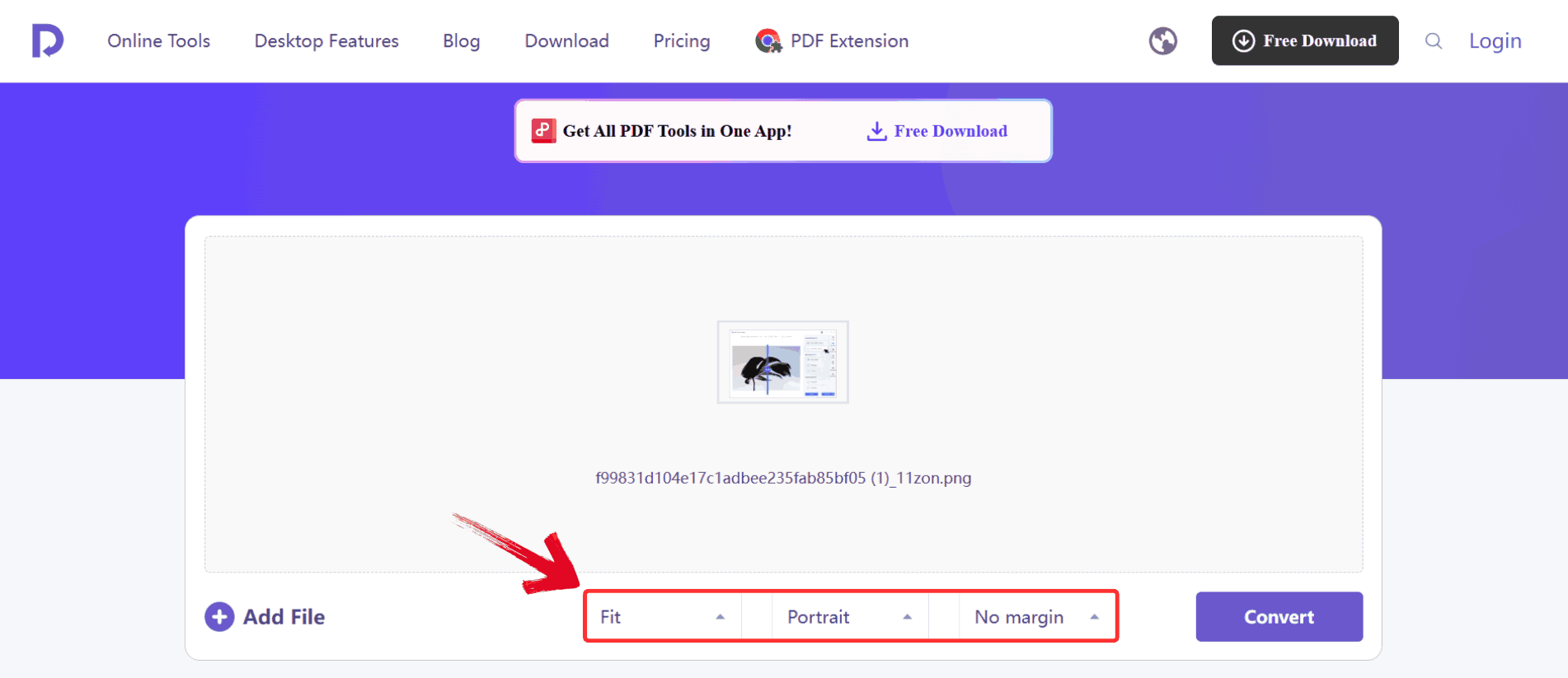
Step 2: Once your images are uploaded, you can
change a few settings to make sure your PDF looks exactly the way you
want, like choosing between portrait or landscape orientation, adjusting
margins, and selecting the page size.
Change Settings
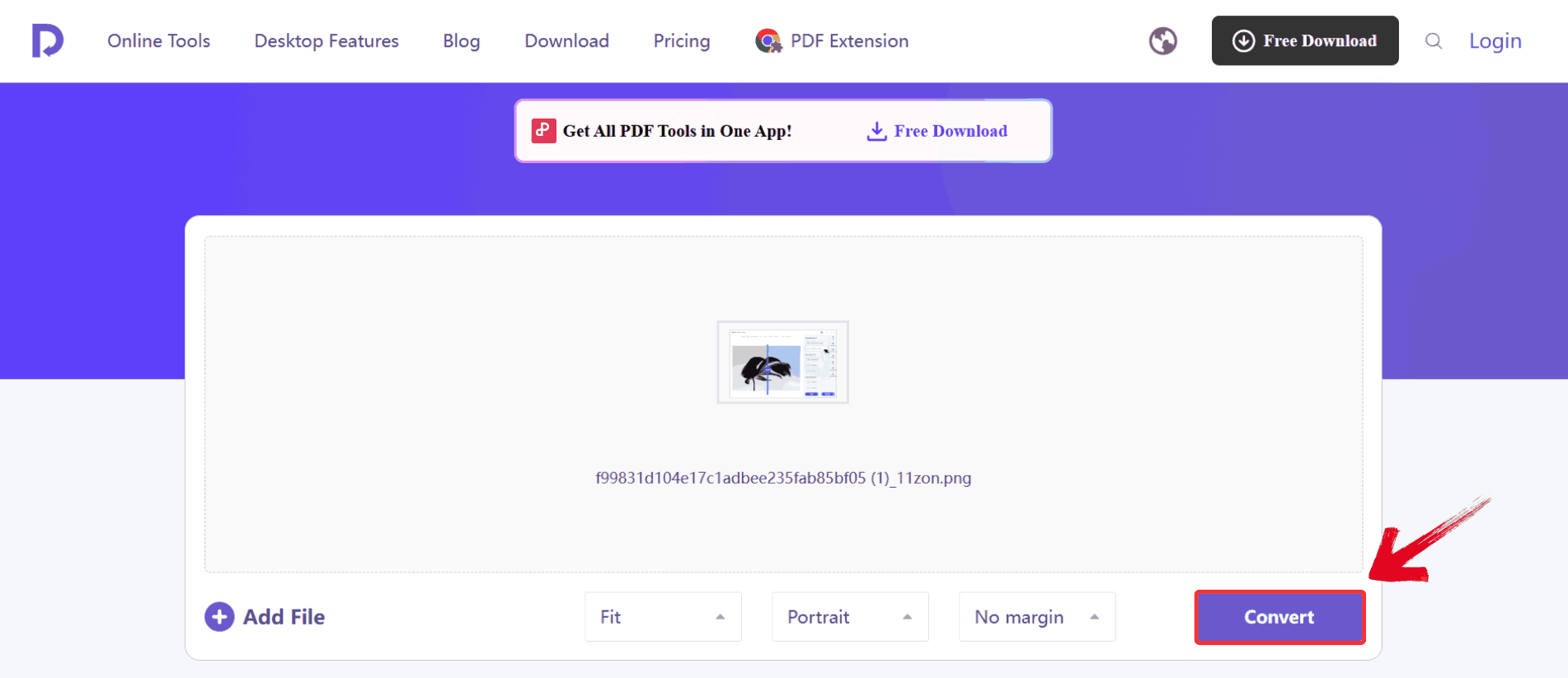
Step 3: After you’ve uploaded your files and made
any adjustments, click the “Convert” button. WPS will
process your images and generate a PDF.
Click Convert
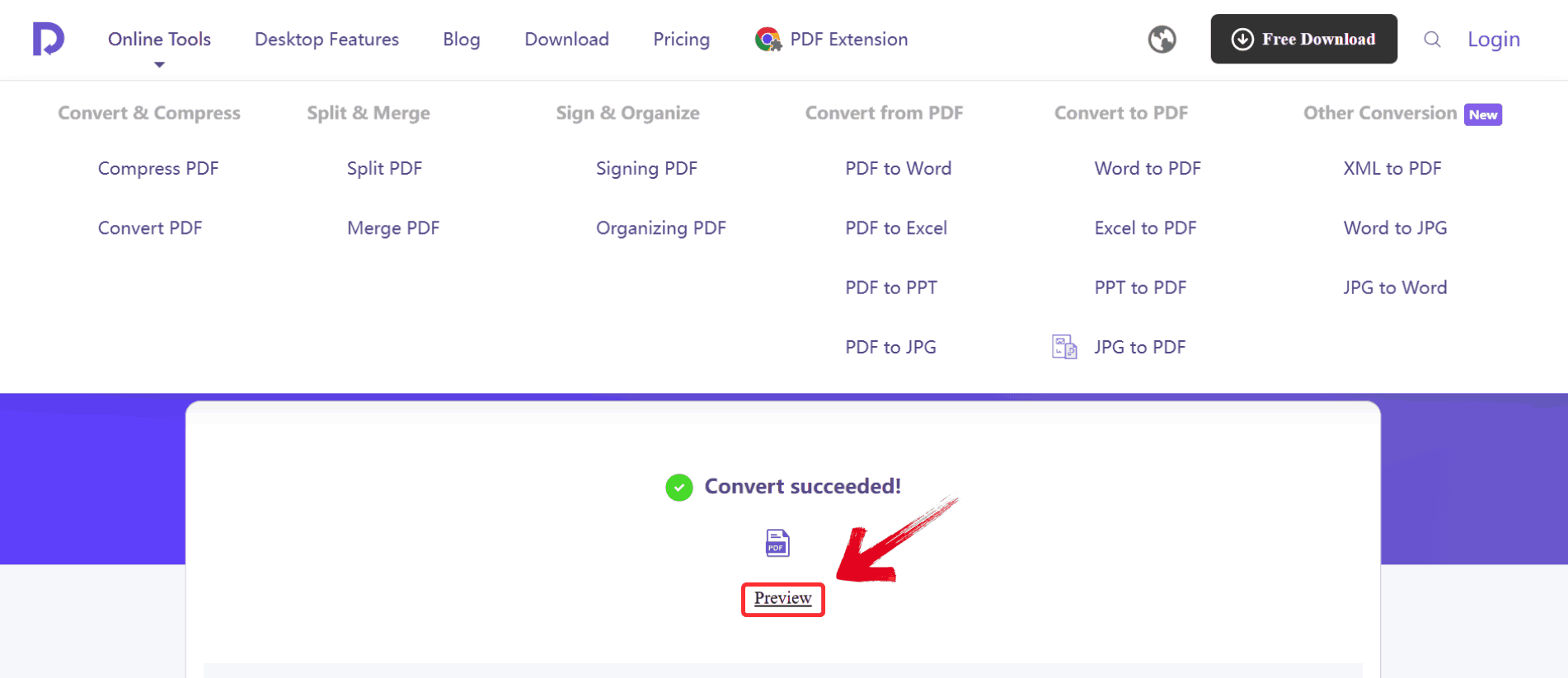
Step 4: Once the conversion is complete, click on “Preview” to view your newly created PDF.
Click Preview
Comparison
Even the small differences in the interface or available settings can
have a noticeable impact on how quickly and accurately you can turn JPGs
into a refined PDF. To help you make a more informed decision, I tested
a few of the most popular online options side by side, focusing on
practical aspects like how intuitive they felt, how closely the final
PDF matched the original images, and how quickly the entire process
finished. The table below summarizes what I found.
Feature
WPS Online
iLovePDF
FreeConverter
Ease of Use
Very easy, clean UI
Easy
Moderate
Format Preservation
Excellent
Good
Average
Conversion Speed
Fastest
Medium
Slow
File Limitations
Large uploads allowed
Some limits on free use
Strict free limits
System Compatibility
Works on all systems
Works on all
Works on all
During the free convert JPG to PDF files, WPS consistently preserved
spacing, alignment, and image sharpness better than the others. iLovePDF
did well, but FreeConverter struggled with maintaining layout.
How to
Convert JPG to PDF with OCR (Higher Accuracy)
If you need the highest accuracy especially for scanned images
containing text, desktop tools are your best bet. OCR, which stands for
Optical Character Recognition, reads the text inside your JPG image and
turns it into an editable, searchable PDF. While online tools can handle
simple conversions, desktop apps like WPS Office deliver far better
accuracy and layout preservation.
WPS is particularly reliable because it extracts
text precisely without overwhelming beginners with complicated
settings. It’s widely used for contracts, study notes, and invoices,
maintaining both text accuracy and the original formatting. Here’s how
you can use WPS Office to convert JPGs to PDF with OCR:
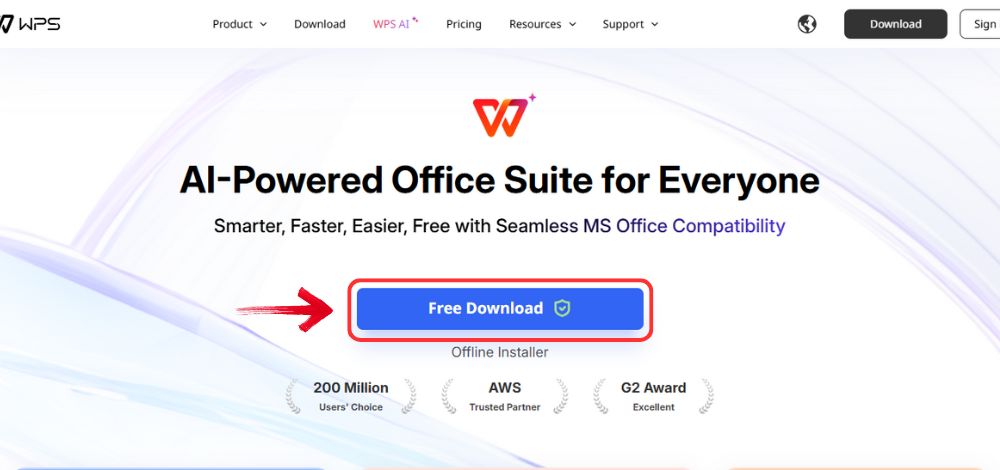
Step 1: First, open your browser to visit WPS Office and click the "Free Download" button to start the download.
Download WPS Office
Step 2: The download will finish in a few seconds.
Once done, run the installation file like you would for any other app or
software.
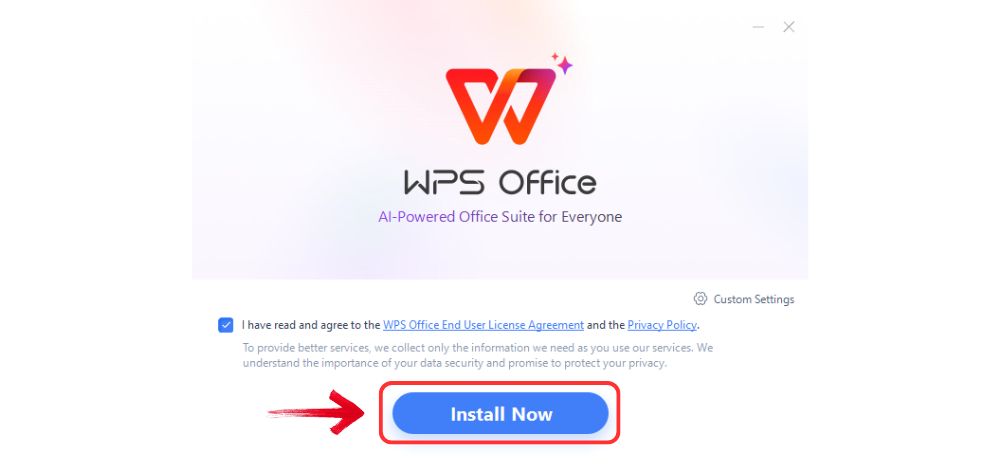
Step 3: WPS Office will show you a few simple terms
and conditions. Accept them, then click the "Install" button to begin the installation.
Install WPS Office
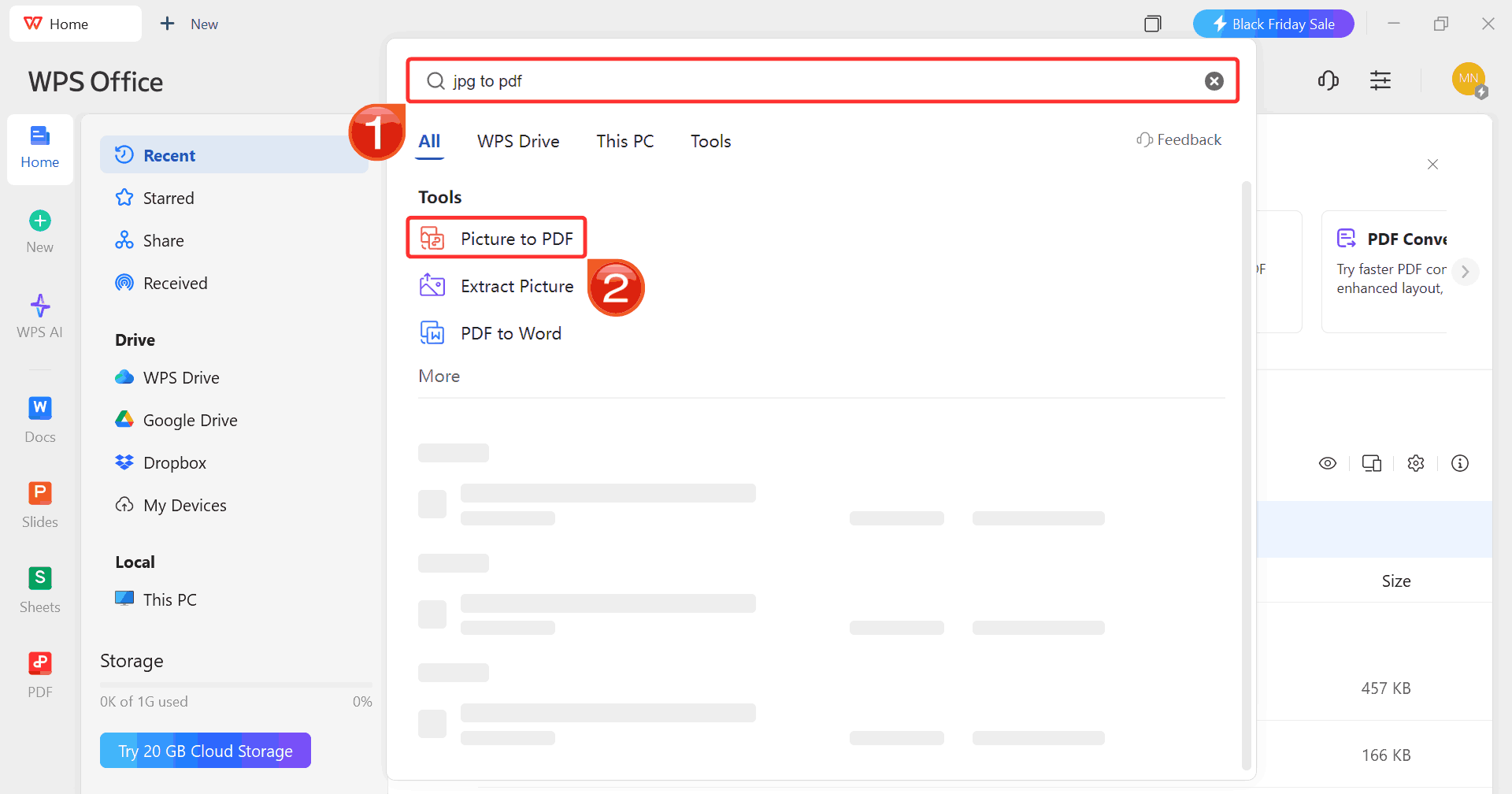
Step 4: After launching WPS Office, use the search
bar at the top to type “JPG to PDF” and select “Picture to PDF” from the results. This will launch the
desktop converter with the OCR feature ready to go.
Search JPG To PDF
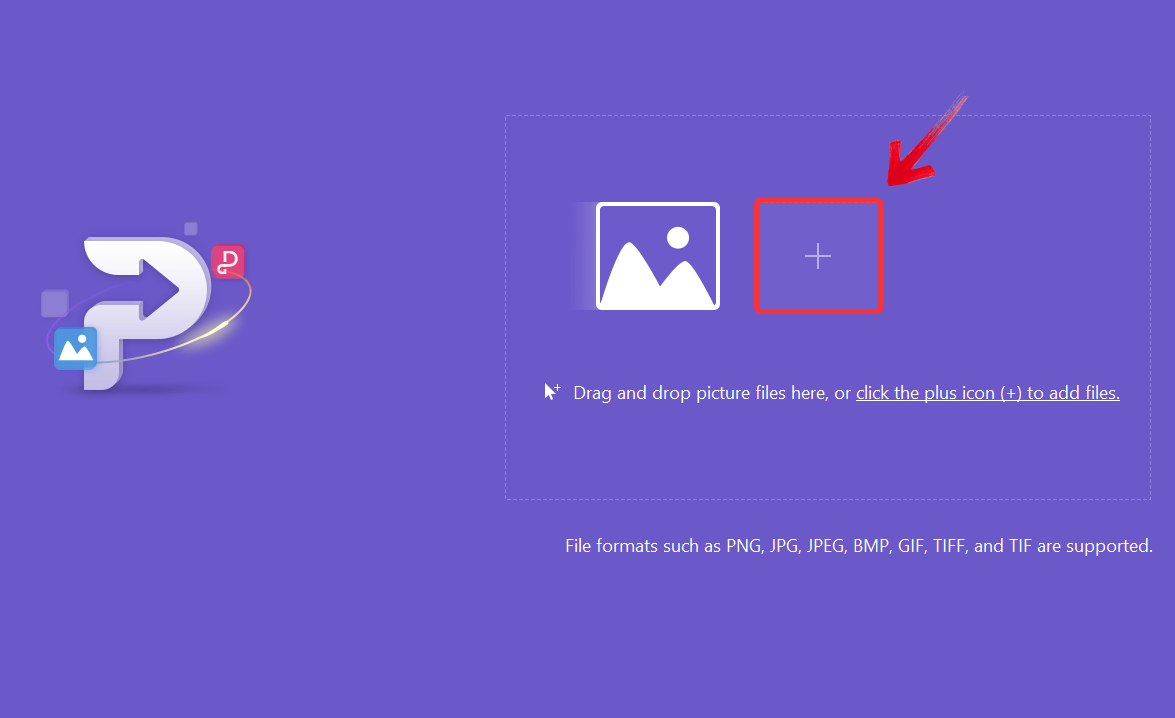
Step 5: Once the converter opens, click on the “plus” sign to add your JPG files. You can import one
or multiple images depending on your project.
Click Plus Sign
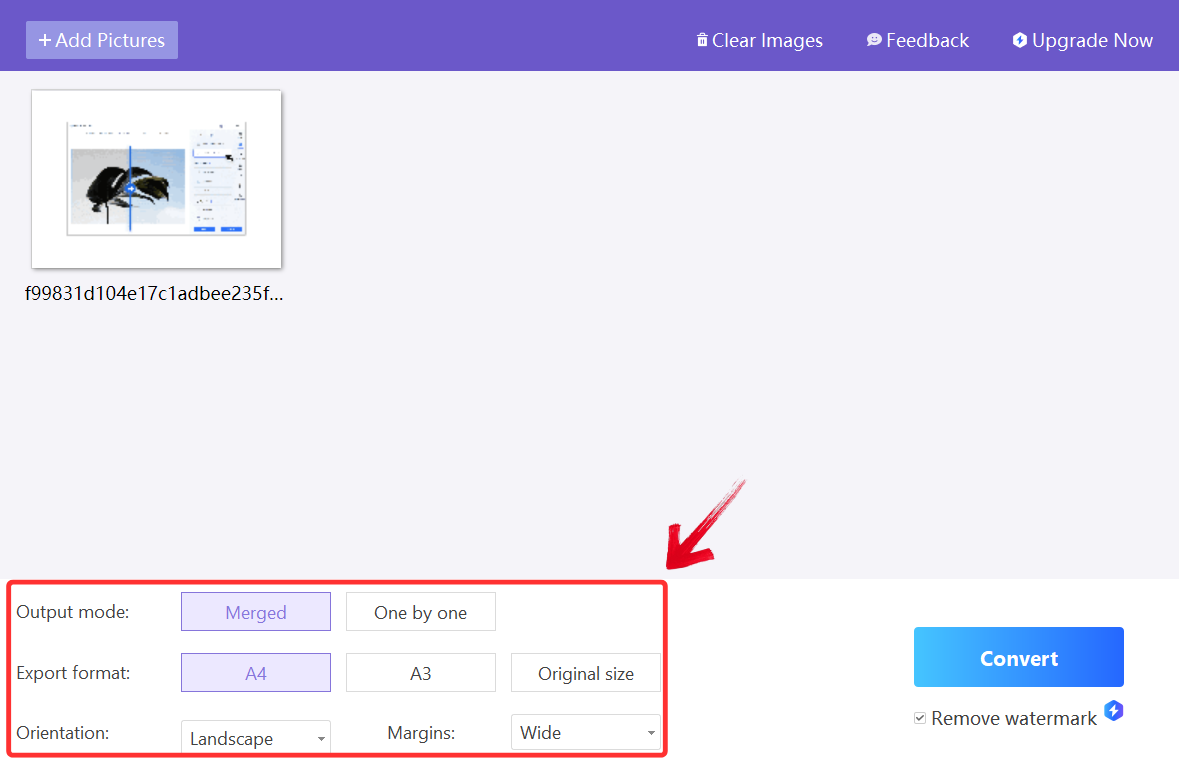
Step 6: Before converting, take a moment to check
the settings. You can change the orientation, select the output mode, or
even pick a different export format if needed.
Adjust Settings
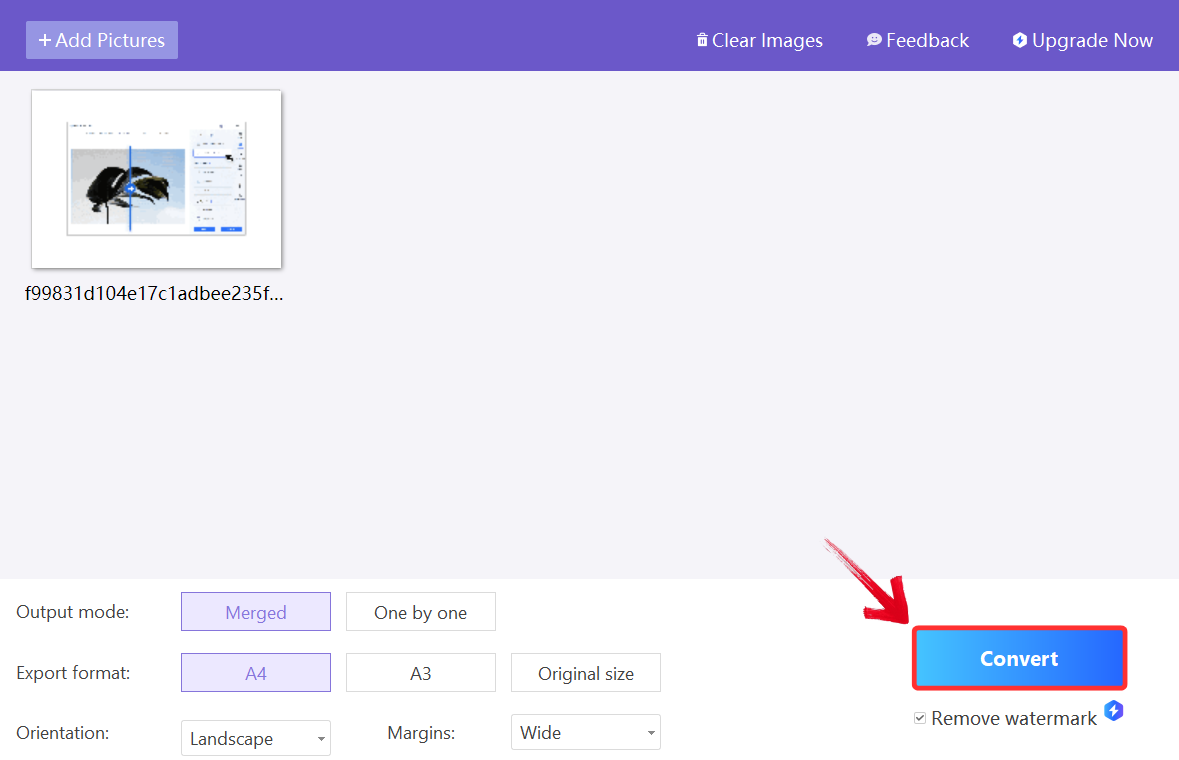
Step 7: Click “Convert” to begin.
WPS will process your images, recognize any text through OCR, and
generate a searchable, editable PDF.
Convert JPG To PDF
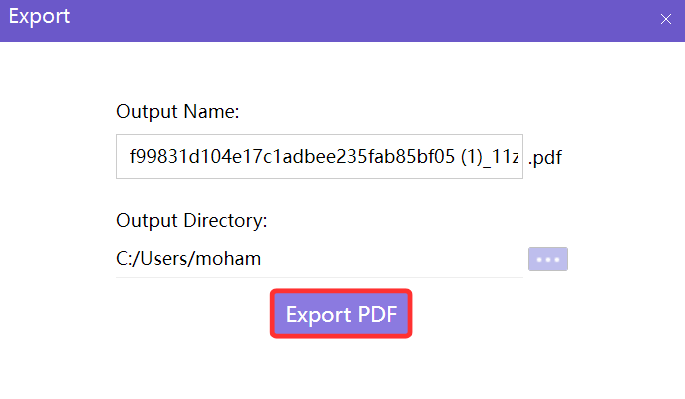
Step 8: After conversion, a small window will pop
up. Click “Export PDF” to save your file to your
desired location. Your JPG images are now fully converted into a
professional, editable PDF.
Export PDF
How to Convert JPG
to PDF on a Mobile Phone
A lot of the documents that are usually needed to convert start on
your phone such as photos of receipts, lecture notes,
or forms.
It’s not always practical to transfer these files to a computer just to
convert them. Using WPS Office on a smartphone makes it possible to turn
JPG images into PDFs directly on your device, with options for
orientation, page size, and even OCR for text recognition.
If you’re looking for the best convert jpg to pdf converter for
everyday mobile use, having this functionality in your pocket saves
time, keeps your documents organized, and lets you edit or share PDFs
instantly without waiting to get back to a desktop. Here’s how to
convert it.
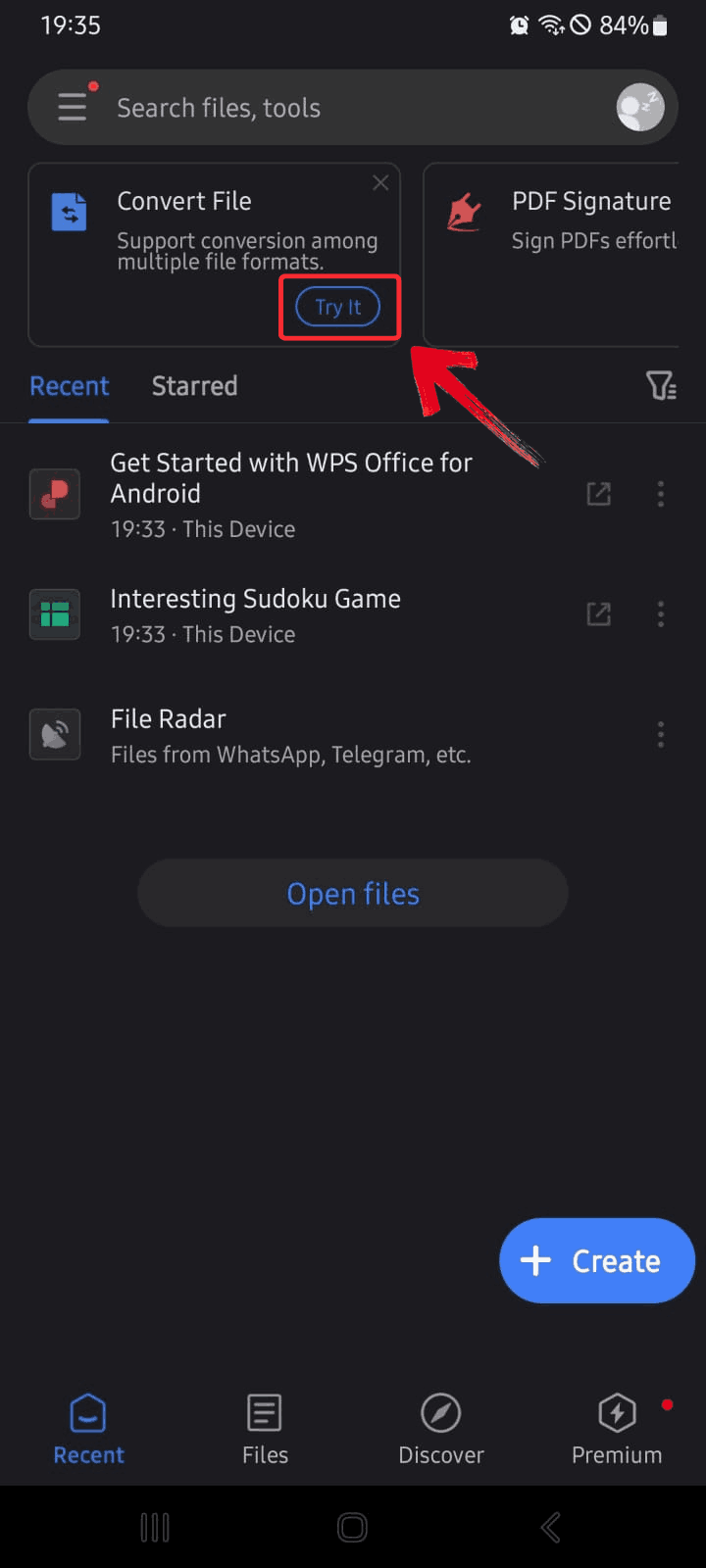
Step 1: Launch the WPS Office app on your phone and
on the home screen, tap “Try It” under the Convert File
section to open the converter tools.
Convert File
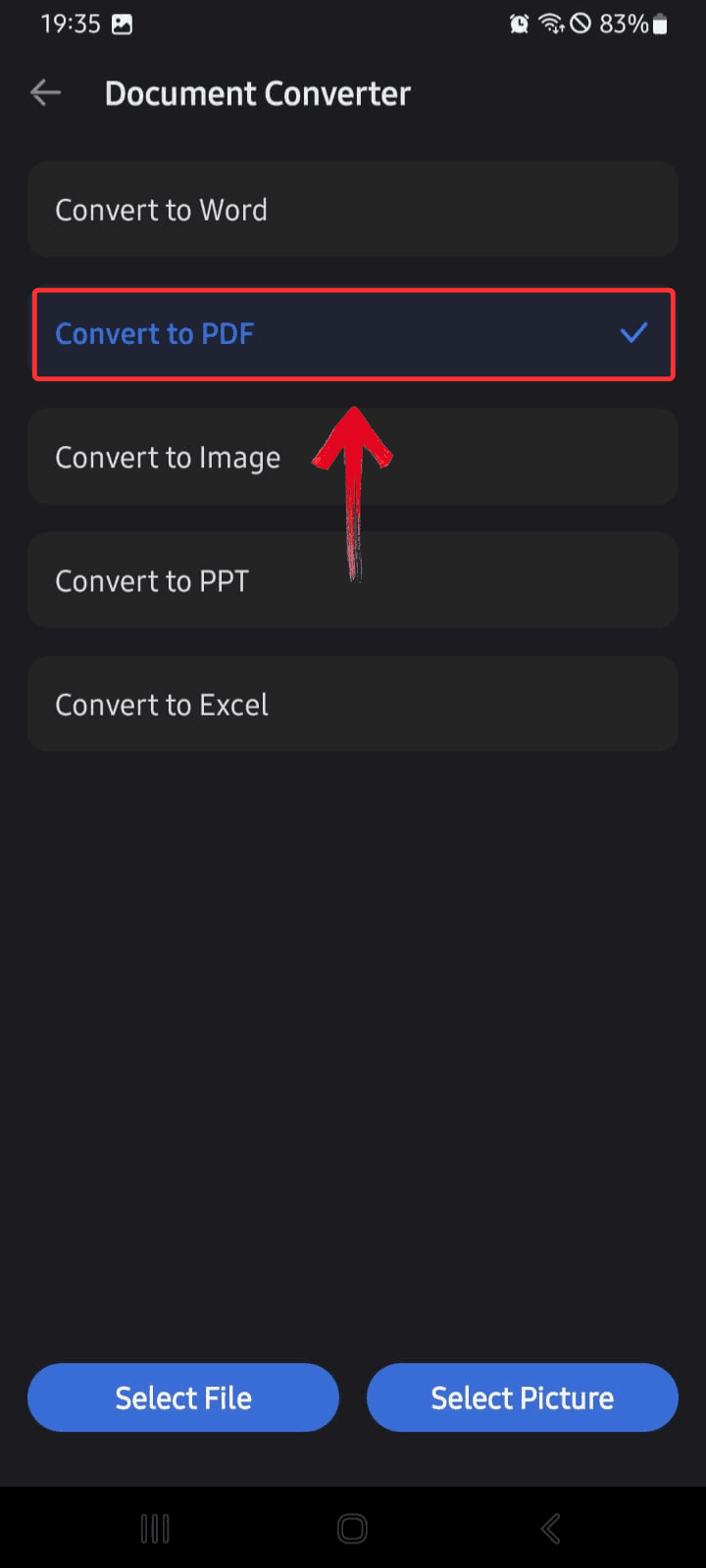
Step 2: Select “Convert to PDF” from the list of options. This opens the mobile PDF conversion menu.
Convert to PDF
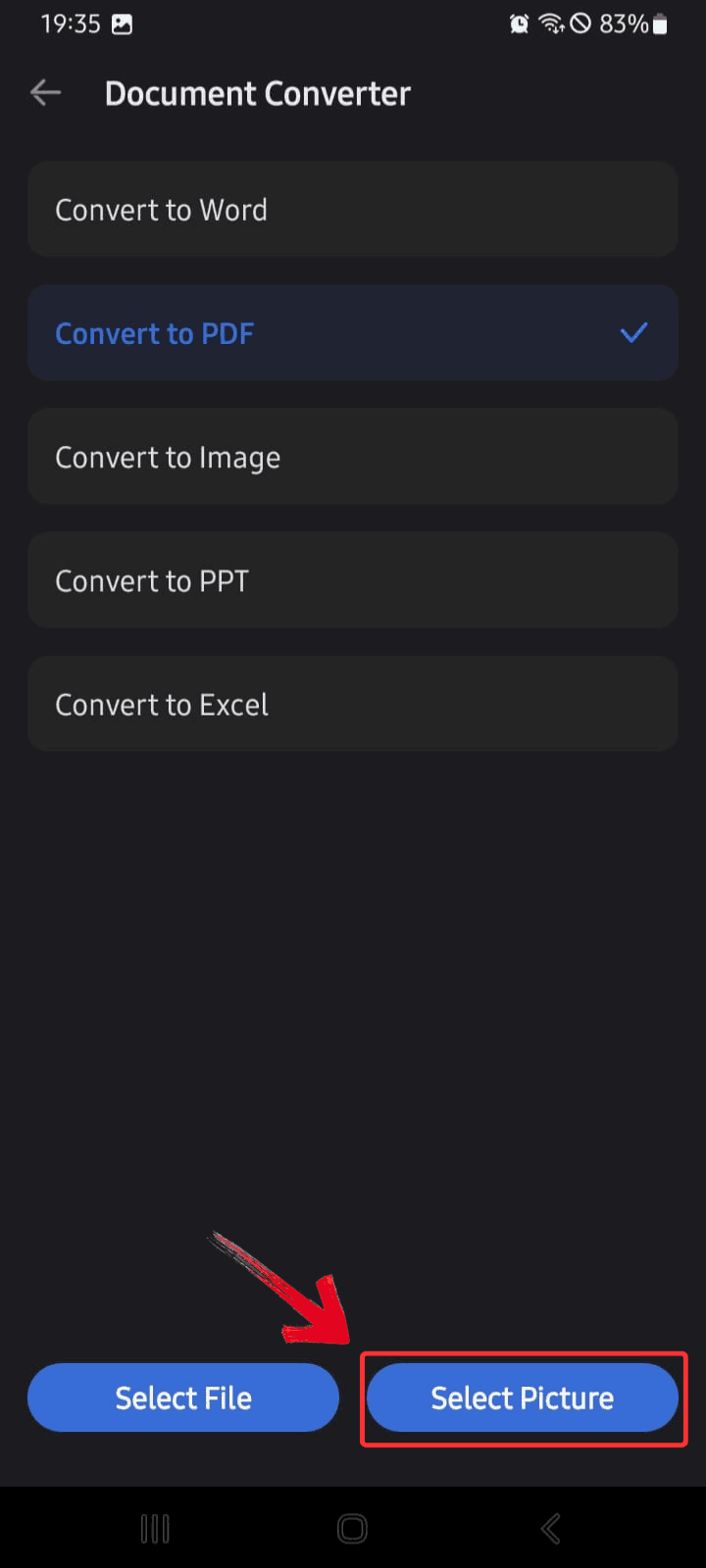
Step 3: Tap “Select Picture” to
choose the JPG you want to convert from your gallery or camera roll.
Import Picture from Gallery
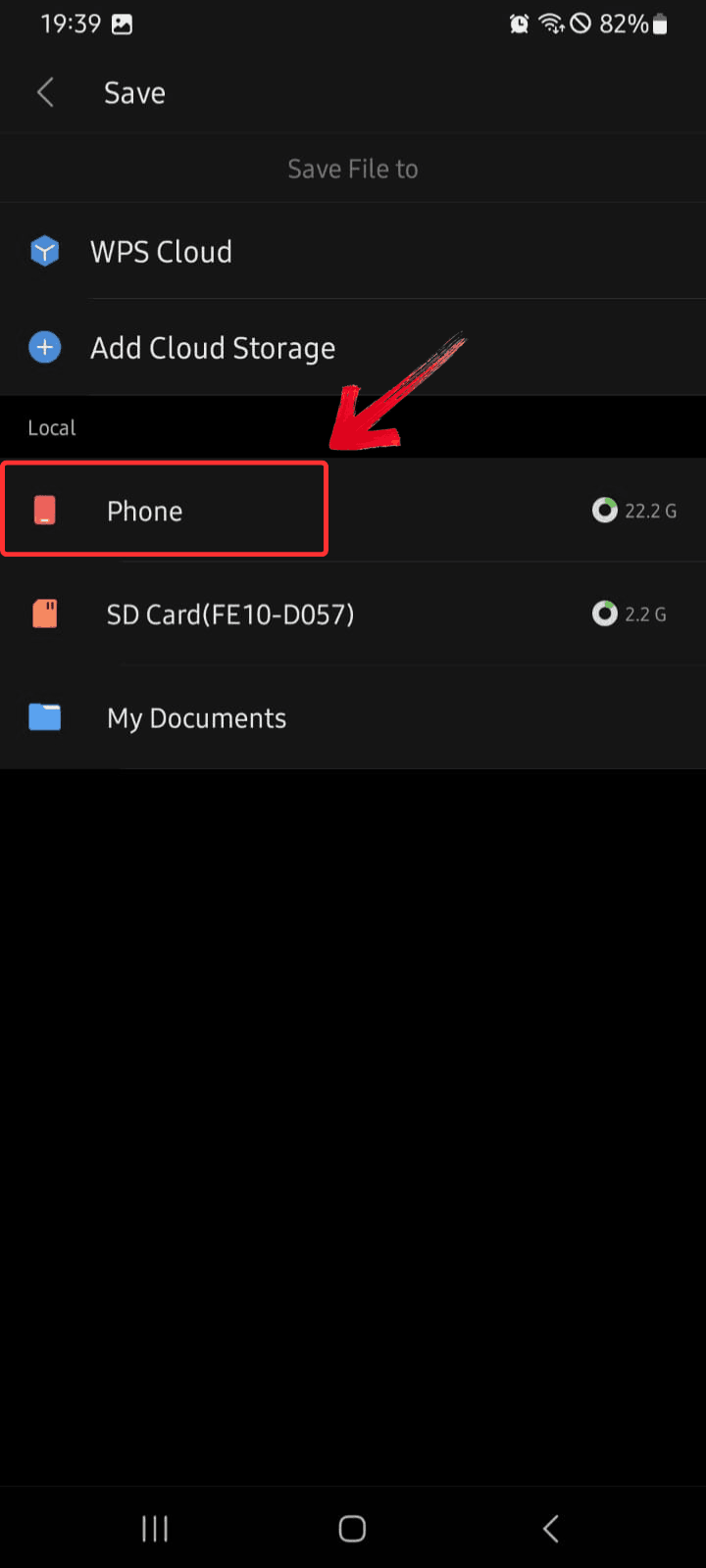
Step 4: Choose where you want to save the final PDF
like your phone’s internal storage or a cloud location to allow your
converted file to be saved there.
Choose Location
Why Choose WPS
Office to Convert JPG to PDF
I often choose WPS Office when I need more than a quick web conversion because it combines a
practical OCR engine with fast, platform-agnostic PDF tools that don’t
force me to jump back and forth between apps. WPS’s OCR is designed to
keep columns, tables, and basic layout intact while turning image text
into searchable, selectable content, which means you spend less time
fixing spacing or reflowing paragraphs after conversion. The suite also
includes both a lightweight desktop editor and a web/mobile converter,
so you can batch-process images on your PC and then pick up the same
file on your phone using WPS Cloud without exporting and re-uploading
multiple versions.
WPS Office
Features:
High-Accuracy OCR: Extracts text from scanned JPGs with strong layout retention, reducing the need for manual fixing.
Consistent Formatting: Keeps fonts, spacing, and alignment stable when converting multiple images into one PDF.
Cross-Platform Access: Lets you work easily between desktop, mobile, and the web without recreating files.
Flexible Export Controls: Offers custom page sizes, orientation settings, and adjustable compression for both high-quality and lightweight PDFs.
Batch Conversion Support: Converts multiple JPG images at once, saving time during large document prep.
Pros:
Accurate OCR for most scanned images
Simple interface that’s easy to navigate
Fast conversion even on low-spec devices
Offline desktop tools for sensitive files
Convenient cloud sync across devices
Cons:
Fewer customization options on mobile
Some features require signing in
WPS Office is a practical middle ground, capable enough for detailed
work but still lightweight for everyday tasks, making it a dependable
choice for handling JPG to PDF conversions across different devices.
100% secure
FAQs
1. Will
converting JPG to PDF reduce the image quality?
Usually no. JPG is already compressed, so converting it to PDF
generally keeps the same quality unless the tool applies heavy
compression.
2. How can I reduce
the final PDF file size?
Use a converter with a “Compression” feature, or optimize your JPG
before conversion.
3. Do free
online JPG to PDF converters have limits?
Yes, many limit file size, daily conversions, or advanced
features.
4. Is OCR
necessary for every JPG-to-PDF conversion?
No. OCR is useful only when the JPG contains text you want to extract
or search.
5. Can I merge multiple
JPGs into one PDF?
Yes. Tools like WPS let you upload multiple images and combine them
into a single PDF.
Picture Perfect Finish with WPS
Anyone who’s looking to learn how to convert JPG to PDF should understand that it’s an easy process once you know which tools to use. Online converters like WPS simplify quick tasks with excellent formatting preservation. For more accurate results and OCR support, the desktop version of WPS Office offers top-tier quality. And for mobile users, WPS remains the most reliable and feature-rich app. If you want a smooth, accurate, and free way to convert JPG to PDF, WPS and WPS PDF Tools give you the best balance of speed, quality, and convenience across all platforms.
7+ years in productivity tech. I test and review the latest tools to simplify your workflow. Follow for honest app comparisons, practical guides, and curated tech picks to boost efficiency.


'%3e%3cpath%20d='M8%200C12.4183%200%2016%203.58172%2016%208C16%2012.4183%2012.4183%2016%208%2016C3.58172%2016%200%2012.4183%200%208C0%203.58172%203.58172%200%208%200ZM11.6162%204.38379C11.2257%203.99337%2010.5927%203.99338%2010.2021%204.38379L8%206.58594L5.79785%204.38379C5.40732%203.99334%204.77429%203.99329%204.38379%204.38379C3.99331%204.77429%203.99335%205.40733%204.38379%205.79785L6.58594%208L4.38379%2010.2021C3.99348%2010.5927%203.99341%2011.2257%204.38379%2011.6162C4.77426%2012.0066%205.40734%2012.0065%205.79785%2011.6162L8%209.41406L10.2021%2011.6162C10.5927%2012.0066%2011.2257%2012.0067%2011.6162%2011.6162C12.0067%2011.2257%2012.0066%2010.5927%2011.6162%2010.2021L9.41406%208L11.6162%205.79785C12.0066%205.40735%2012.0066%204.77429%2011.6162%204.38379Z'%20fill='%23080E17'%20fill-opacity='0.46'/%3e%3c/g%3e%3cdefs%3e%3cclipPath%20id='clip0_3761_713'%3e%3crect%20width='16'%20height='16'%20fill='white'/%3e%3c/clipPath%3e%3c/defs%3e%3c/svg%3e)




'%3e%3cpath%20fill-rule='evenodd'%20clip-rule='evenodd'%20d='M21.4999%2010.9993C21.4999%205.20009%2016.7986%200.498901%2010.9993%200.498901C5.19994%200.498901%200.498657%205.20009%200.498657%2010.9993C0.498657%2016.2404%204.33858%2020.5844%209.35855%2021.3722V14.0346H6.69238V10.9993H9.35855V8.68594C9.35855%206.05427%2010.9262%204.60062%2013.3248%204.60062C14.4736%204.60062%2015.6753%204.80571%2015.6753%204.80571V7.38979H14.3512C13.0468%207.38979%2012.64%208.19921%2012.64%209.0296V10.9993H15.5523L15.0867%2014.0346H12.64V21.3722C17.66%2020.5844%2021.4999%2016.2404%2021.4999%2010.9993Z'%20fill='%231568EA'/%3e%3c/g%3e%3c/svg%3e)


'%3e%3cpath%20d='M2.42045%2022.1876H6.31818V12.7217L0.75%208.54553V20.5171C0.75%2021.4414%201.49892%2022.1876%202.42045%2022.1876Z'%20fill='%234285F4'/%3e%3cpath%20d='M19.682%2022.1876H23.5797C24.5041%2022.1876%2025.2502%2021.4387%2025.2502%2020.5171V8.54553L19.682%2012.7217'%20fill='%2334A853'/%3e%3cpath%20d='M19.682%205.48293V12.7216L25.2502%208.54543V6.31816C25.2502%204.25236%2022.8921%203.07469%2021.2411%204.31361'%20fill='%23FBBC04'/%3e%3cpath%20d='M6.31824%2012.7217V5.48303L13.0001%2010.4944L19.6819%205.48303V12.7217L13.0001%2017.733'%20fill='%23EA4335'/%3e%3cpath%20d='M0.75%206.31816V8.54543L6.31818%2012.7216V5.48293L4.75909%204.31361C3.10534%203.07469%200.75%204.25236%200.75%206.31816Z'%20fill='%23C5221F'/%3e%3c/g%3e%3cdefs%3e%3cclipPath%20id='clip0_2954_7305'%3e%3crect%20width='24.5'%20height='18.375'%20fill='white'%20transform='translate(0.75%203.8125)'/%3e%3c/clipPath%3e%3c/defs%3e%3c/svg%3e)



'%3e%3cpath%20d='M19.9911%204.11386V6.471H18.5894C18.0775%206.471%2017.7322%206.57814%2017.5536%206.79243C17.3751%207.00671%2017.2858%207.32814%2017.2858%207.75671V9.44421H19.9019L19.5536%2012.0871H17.2858V18.8639H14.5536V12.0871H12.2769V9.44421H14.5536V7.49779C14.5536%206.39064%2014.8632%205.53201%2015.4822%204.92189C16.1013%204.31177%2016.9257%204.00671%2017.9554%204.00671C18.8304%204.00671%2019.509%204.04243%2019.9911%204.11386Z'%20fill='%23333333'/%3e%3c/g%3e%3cdefs%3e%3cclipPath%20id='clip0_2938_8199'%3e%3crect%20width='16'%20height='16'%20fill='white'%20transform='translate(8%204.00671)'/%3e%3c/clipPath%3e%3c/defs%3e%3c/svg%3e)
'%3e%3cpath%20d='M17.5237%2010.7813L23.4811%204H22.0699L16.8949%209.88693L12.7648%204H8L14.2469%2012.9029L8%2020.0133H9.4112L14.8725%2013.7952L19.2352%2020.0133H24M9.92053%205.04213H12.0885L22.0688%2019.0224H19.9003'%20fill='%23333333'/%3e%3c/g%3e%3cdefs%3e%3cclipPath%20id='clip0_2938_8200'%3e%3crect%20width='16'%20height='16.0134'%20fill='white'%20transform='translate(8%204)'/%3e%3c/clipPath%3e%3c/defs%3e%3c/svg%3e)


