

'%3e%3cpath%20d='M8%200C12.4183%200%2016%203.58172%2016%208C16%2012.4183%2012.4183%2016%208%2016C3.58172%2016%200%2012.4183%200%208C0%203.58172%203.58172%200%208%200ZM11.6162%204.38379C11.2257%203.99337%2010.5927%203.99338%2010.2021%204.38379L8%206.58594L5.79785%204.38379C5.40732%203.99334%204.77429%203.99329%204.38379%204.38379C3.99331%204.77429%203.99335%205.40733%204.38379%205.79785L6.58594%208L4.38379%2010.2021C3.99348%2010.5927%203.99341%2011.2257%204.38379%2011.6162C4.77426%2012.0066%205.40734%2012.0065%205.79785%2011.6162L8%209.41406L10.2021%2011.6162C10.5927%2012.0066%2011.2257%2012.0067%2011.6162%2011.6162C12.0067%2011.2257%2012.0066%2010.5927%2011.6162%2010.2021L9.41406%208L11.6162%205.79785C12.0066%205.40735%2012.0066%204.77429%2011.6162%204.38379Z'%20fill='%23080E17'%20fill-opacity='0.46'/%3e%3c/g%3e%3cdefs%3e%3cclipPath%20id='clip0_3761_713'%3e%3crect%20width='16'%20height='16'%20fill='white'/%3e%3c/clipPath%3e%3c/defs%3e%3c/svg%3e)




'%3e%3cpath%20fill-rule='evenodd'%20clip-rule='evenodd'%20d='M21.4999%2010.9993C21.4999%205.20009%2016.7986%200.498901%2010.9993%200.498901C5.19994%200.498901%200.498657%205.20009%200.498657%2010.9993C0.498657%2016.2404%204.33858%2020.5844%209.35855%2021.3722V14.0346H6.69238V10.9993H9.35855V8.68594C9.35855%206.05427%2010.9262%204.60062%2013.3248%204.60062C14.4736%204.60062%2015.6753%204.80571%2015.6753%204.80571V7.38979H14.3512C13.0468%207.38979%2012.64%208.19921%2012.64%209.0296V10.9993H15.5523L15.0867%2014.0346H12.64V21.3722C17.66%2020.5844%2021.4999%2016.2404%2021.4999%2010.9993Z'%20fill='%231568EA'/%3e%3c/g%3e%3c/svg%3e)


'%3e%3cpath%20d='M2.42045%2022.1876H6.31818V12.7217L0.75%208.54553V20.5171C0.75%2021.4414%201.49892%2022.1876%202.42045%2022.1876Z'%20fill='%234285F4'/%3e%3cpath%20d='M19.682%2022.1876H23.5797C24.5041%2022.1876%2025.2502%2021.4387%2025.2502%2020.5171V8.54553L19.682%2012.7217'%20fill='%2334A853'/%3e%3cpath%20d='M19.682%205.48293V12.7216L25.2502%208.54543V6.31816C25.2502%204.25236%2022.8921%203.07469%2021.2411%204.31361'%20fill='%23FBBC04'/%3e%3cpath%20d='M6.31824%2012.7217V5.48303L13.0001%2010.4944L19.6819%205.48303V12.7217L13.0001%2017.733'%20fill='%23EA4335'/%3e%3cpath%20d='M0.75%206.31816V8.54543L6.31818%2012.7216V5.48293L4.75909%204.31361C3.10534%203.07469%200.75%204.25236%200.75%206.31816Z'%20fill='%23C5221F'/%3e%3c/g%3e%3cdefs%3e%3cclipPath%20id='clip0_2954_7305'%3e%3crect%20width='24.5'%20height='18.375'%20fill='white'%20transform='translate(0.75%203.8125)'/%3e%3c/clipPath%3e%3c/defs%3e%3c/svg%3e)


Open a PDF and the text is usually too small to read on screen or too pale to print — but there is no single "make it bigger" button, because every PDF stores text at a fixed size and position. Below you get three working fixes: edit the text directly in WPS PDF Editor, reflow the whole file as a Word document, or scale the pages when you only need bigger print.
How to Increase Font Size in a PDF Without Adobe Acrobat
Increase Font Size in a PDF in WPS PDF Editor
Use this when the PDF is a native, text-based file and you only need to enlarge a heading, a disclaimer, or a paragraph without changing the layout.
Open the PDF in WPS Office and click the Edit tab, then choose Edit Content (or click Edit Text on the toolbar) to switch the page into edit mode.
Click the paragraph you want to enlarge. When it turns into an editable text box, select the characters or the whole block.
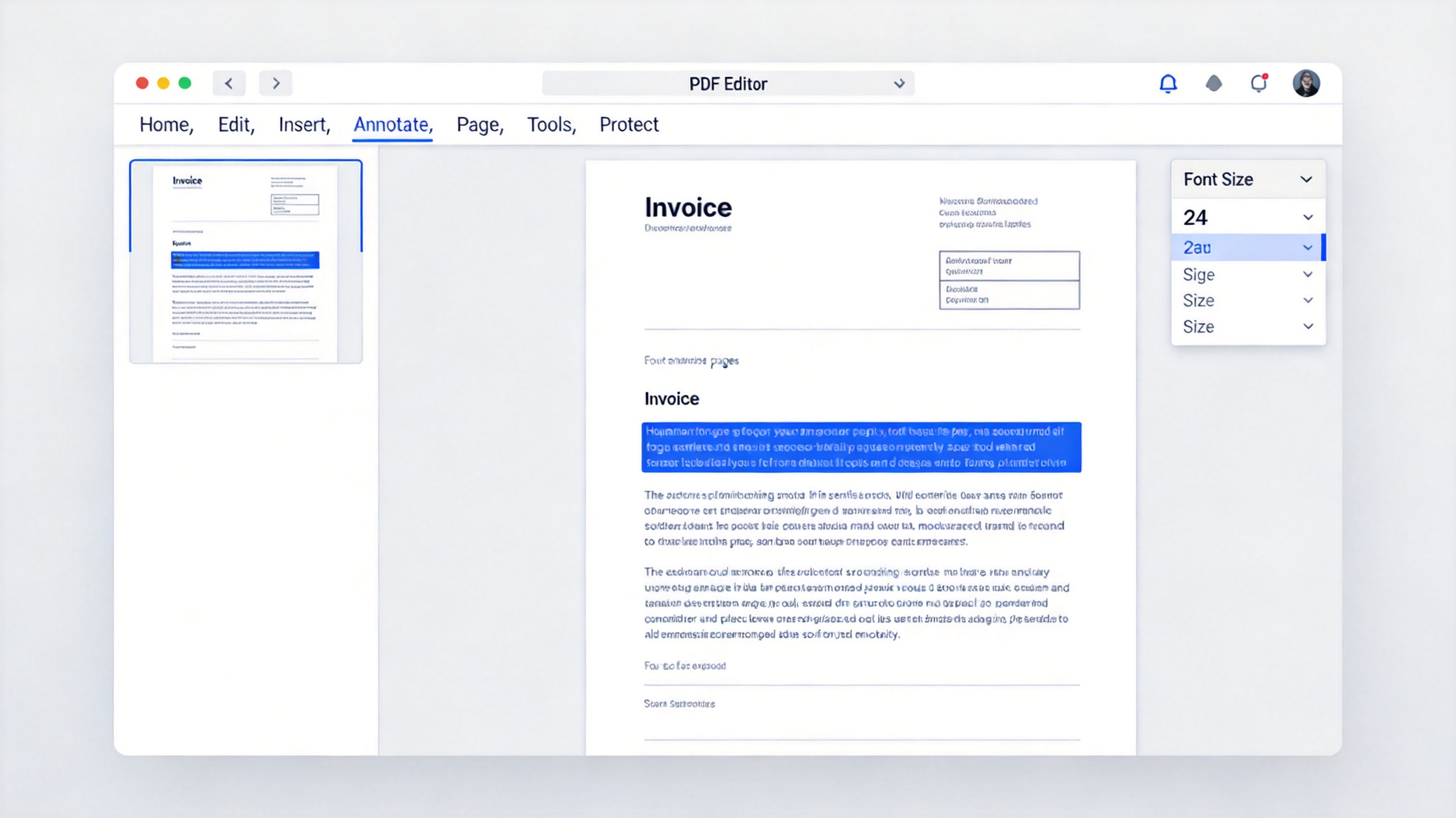
Select text to enlarge font size
In the font toolbar, raise the Font Size value — for example from 10 to 14 — until the line is easy to read.
If a longer line overflows its box, drag the box edge to widen it, then press Ctrl + S. WPS keeps the file in PDF format.


Enlarge PDF Text by Editing the File as a Word Document
When a document has many small paragraphs, nudging text boxes one by one is slow. Convert the PDF to an editable Word file, change the font size once, and let the text reflow.
Open the PDF in WPS Office and choose Convert > PDF to Word (or use the free PDF to Word converter).
Press Ctrl + A to select the whole document, then set a larger Font Size in the Home tab. The paragraphs reflow instead of overlapping.
Fix any heading styles you want to keep, then export back to PDF with File > Export to PDF.
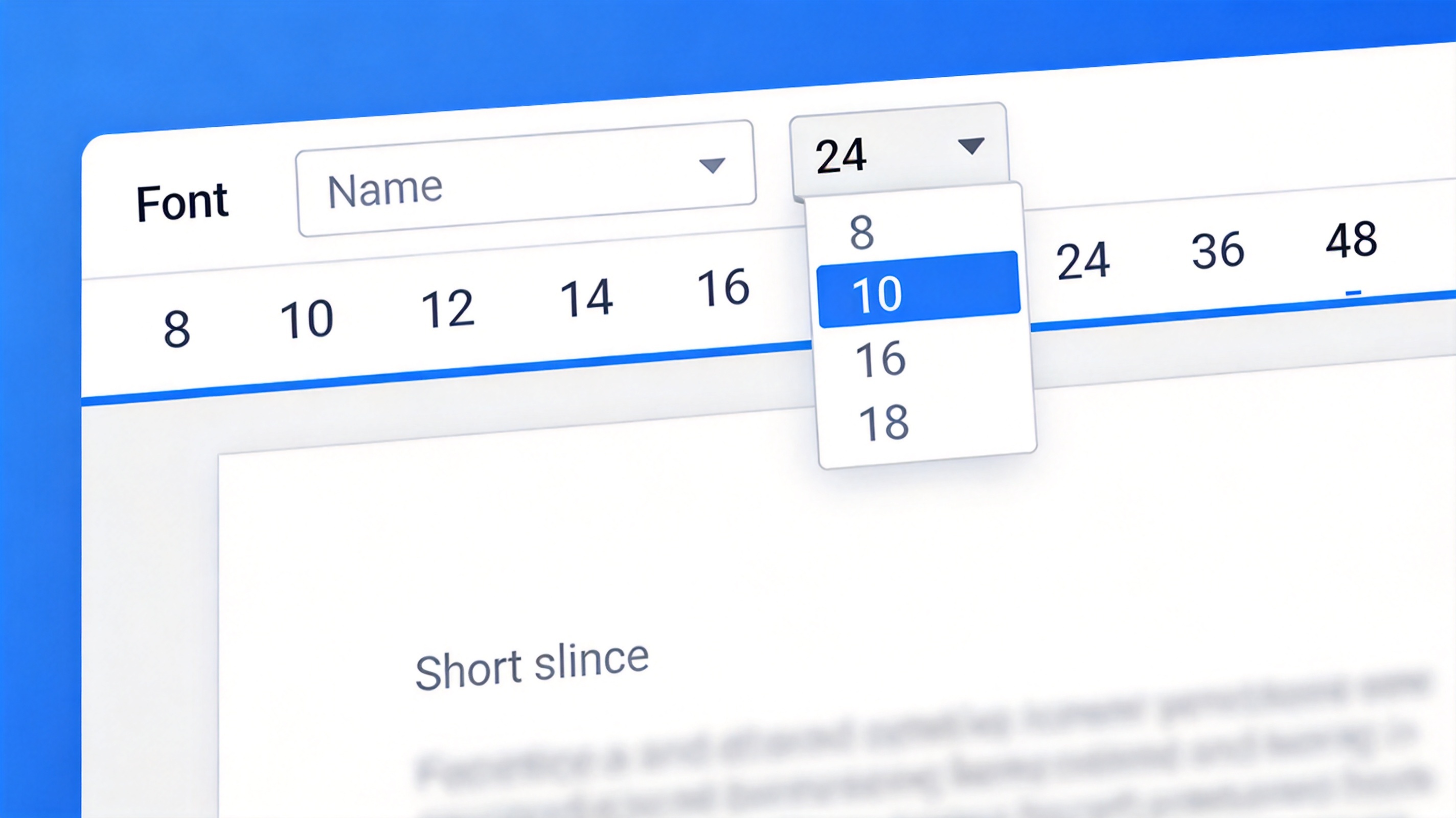
Set a larger font size in a word document
When the Text Will Not Edit: Enlarge Font in Scanned PDFs
If clicking the page selects the whole area instead of a word, the file is a scan and the characters are images. Turn on OCR first so WPS can recognize them and hand you editable text.
Open the scanned file, accept the OCR prompt (or click Convert > OCR), and wait for the recognition pass to finish.
Once the text is selectable, follow the same edit steps as above and raise the font size.
For a fillable form, click inside the field and change the font size in the field properties instead of editing the page — the answer box grows with the text and stays inside its border.
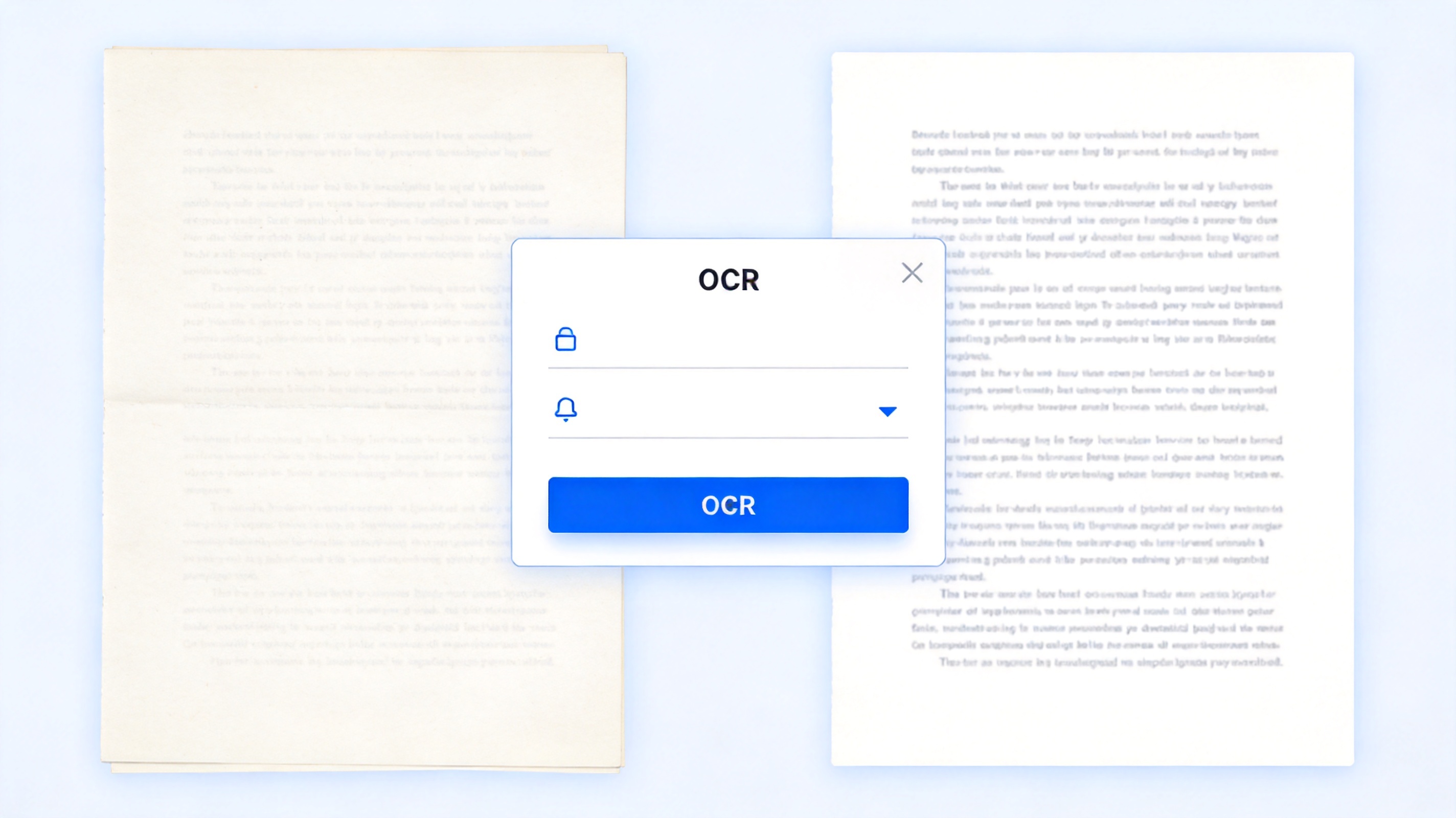
OCR converts scanned PDF into editable text
The Best Free PDF Alternative: WPS Office
Adobe Acrobat charges a subscription for text editing, and most online editors cap free exports. WPS Office handles the same job in one install: open the PDF, edit the words, and save — your file never leaves your device.
| What you need | WPS Office | Adobe Acrobat |
|---|---|---|
| Edit text and font size | Built in on desktop and mobile | Paid subscription |
| OCR for scanned pages | Included in the PDF toolkit | Extra cost |
| PDF to Word and back | One click, keeps the file local | Cloud round trip |
| Cost | Free for everyday use | Monthly or annual fee |
One workspace: the same window edits the PDF, the Word copy, and the slides, so you stop paying for three separate tools.
Nothing uploaded: OCR and text edits run locally, which matters for contracts and medical records.
Works everywhere: the PDF toolkit is available on Windows, macOS, Android, and iOS.
Free PDF alternative: WPS Office
FAQs
How do I increase font size in a PDF for free?
Open the PDF in WPS Office, click Edit, select the text, and raise the font size in the toolbar, then save. No paid subscription is required for basic text edits.
Can I enlarge text in a PDF that is a scan?
Not directly, because a scan stores letters as pixels. Run OCR first so WPS recognizes the characters, then the text becomes editable and you can change its size.
Why does the layout shift after I change the font size?
PDF keeps each block of text in its own fixed text box. Enlarging the words inside it can push lines past the box edge, so widen the box or reflow the file as a Word document instead.
Can I make the whole page bigger instead of the font?
Yes. If the PDF is only for printing, open the print dialog, set the page scaling to Fit to page or a custom percentage, and print — the file itself stays unchanged.
Does changing the font size break the PDF for other readers?
No. Saving in WPS keeps the standard PDF format, so the file still opens in Adobe Reader, browsers, and mobile viewers with the new size baked in.


'%3e%3cpath%20d='M19.9911%204.11386V6.471H18.5894C18.0775%206.471%2017.7322%206.57814%2017.5536%206.79243C17.3751%207.00671%2017.2858%207.32814%2017.2858%207.75671V9.44421H19.9019L19.5536%2012.0871H17.2858V18.8639H14.5536V12.0871H12.2769V9.44421H14.5536V7.49779C14.5536%206.39064%2014.8632%205.53201%2015.4822%204.92189C16.1013%204.31177%2016.9257%204.00671%2017.9554%204.00671C18.8304%204.00671%2019.509%204.04243%2019.9911%204.11386Z'%20fill='%23333333'/%3e%3c/g%3e%3cdefs%3e%3cclipPath%20id='clip0_2938_8199'%3e%3crect%20width='16'%20height='16'%20fill='white'%20transform='translate(8%204.00671)'/%3e%3c/clipPath%3e%3c/defs%3e%3c/svg%3e)
'%3e%3cpath%20d='M17.5237%2010.7813L23.4811%204H22.0699L16.8949%209.88693L12.7648%204H8L14.2469%2012.9029L8%2020.0133H9.4112L14.8725%2013.7952L19.2352%2020.0133H24M9.92053%205.04213H12.0885L22.0688%2019.0224H19.9003'%20fill='%23333333'/%3e%3c/g%3e%3cdefs%3e%3cclipPath%20id='clip0_2938_8200'%3e%3crect%20width='16'%20height='16.0134'%20fill='white'%20transform='translate(8%204)'/%3e%3c/clipPath%3e%3c/defs%3e%3c/svg%3e)


