

'%3e%3cpath%20d='M8%200C12.4183%200%2016%203.58172%2016%208C16%2012.4183%2012.4183%2016%208%2016C3.58172%2016%200%2012.4183%200%208C0%203.58172%203.58172%200%208%200ZM11.6162%204.38379C11.2257%203.99337%2010.5927%203.99338%2010.2021%204.38379L8%206.58594L5.79785%204.38379C5.40732%203.99334%204.77429%203.99329%204.38379%204.38379C3.99331%204.77429%203.99335%205.40733%204.38379%205.79785L6.58594%208L4.38379%2010.2021C3.99348%2010.5927%203.99341%2011.2257%204.38379%2011.6162C4.77426%2012.0066%205.40734%2012.0065%205.79785%2011.6162L8%209.41406L10.2021%2011.6162C10.5927%2012.0066%2011.2257%2012.0067%2011.6162%2011.6162C12.0067%2011.2257%2012.0066%2010.5927%2011.6162%2010.2021L9.41406%208L11.6162%205.79785C12.0066%205.40735%2012.0066%204.77429%2011.6162%204.38379Z'%20fill='%23080E17'%20fill-opacity='0.46'/%3e%3c/g%3e%3cdefs%3e%3cclipPath%20id='clip0_3761_713'%3e%3crect%20width='16'%20height='16'%20fill='white'/%3e%3c/clipPath%3e%3c/defs%3e%3c/svg%3e)




'%3e%3cpath%20fill-rule='evenodd'%20clip-rule='evenodd'%20d='M21.4999%2010.9993C21.4999%205.20009%2016.7986%200.498901%2010.9993%200.498901C5.19994%200.498901%200.498657%205.20009%200.498657%2010.9993C0.498657%2016.2404%204.33858%2020.5844%209.35855%2021.3722V14.0346H6.69238V10.9993H9.35855V8.68594C9.35855%206.05427%2010.9262%204.60062%2013.3248%204.60062C14.4736%204.60062%2015.6753%204.80571%2015.6753%204.80571V7.38979H14.3512C13.0468%207.38979%2012.64%208.19921%2012.64%209.0296V10.9993H15.5523L15.0867%2014.0346H12.64V21.3722C17.66%2020.5844%2021.4999%2016.2404%2021.4999%2010.9993Z'%20fill='%231568EA'/%3e%3c/g%3e%3c/svg%3e)


'%3e%3cpath%20d='M2.42045%2022.1876H6.31818V12.7217L0.75%208.54553V20.5171C0.75%2021.4414%201.49892%2022.1876%202.42045%2022.1876Z'%20fill='%234285F4'/%3e%3cpath%20d='M19.682%2022.1876H23.5797C24.5041%2022.1876%2025.2502%2021.4387%2025.2502%2020.5171V8.54553L19.682%2012.7217'%20fill='%2334A853'/%3e%3cpath%20d='M19.682%205.48293V12.7216L25.2502%208.54543V6.31816C25.2502%204.25236%2022.8921%203.07469%2021.2411%204.31361'%20fill='%23FBBC04'/%3e%3cpath%20d='M6.31824%2012.7217V5.48303L13.0001%2010.4944L19.6819%205.48303V12.7217L13.0001%2017.733'%20fill='%23EA4335'/%3e%3cpath%20d='M0.75%206.31816V8.54543L6.31818%2012.7216V5.48293L4.75909%204.31361C3.10534%203.07469%200.75%204.25236%200.75%206.31816Z'%20fill='%23C5221F'/%3e%3c/g%3e%3cdefs%3e%3cclipPath%20id='clip0_2954_7305'%3e%3crect%20width='24.5'%20height='18.375'%20fill='white'%20transform='translate(0.75%203.8125)'/%3e%3c/clipPath%3e%3c/defs%3e%3c/svg%3e)


GIMP is a powerful, free tool, but simple tasks like resizing often feel overly complicated if you're a beginner. You might struggle with the difference between canvas and image size or worry about pixelated results. Learning how to resize an image in GIMP is a fundamental skill for any project. This guide breaks down how to change image size in GIMP and offers a faster AI alternative.
How to Resize an Image in GIMP (Image Size)
Resizing is extremely important in photo editing, especially if you're a blogger or social media manager, yet GIMP separates this function into specific categories that can confuse you if you're new to it. The most important tool is Scale Image, which adjusts the pixel dimensions of the entire composition, including all active layers, simultaneously. This is the correct method on how to resize a layer in GIMP when preparing a high-resolution photo for a website, reducing file size for an email attachment, or scaling artwork to specific print dimensions.
Here is how to resize an image in GIMP:
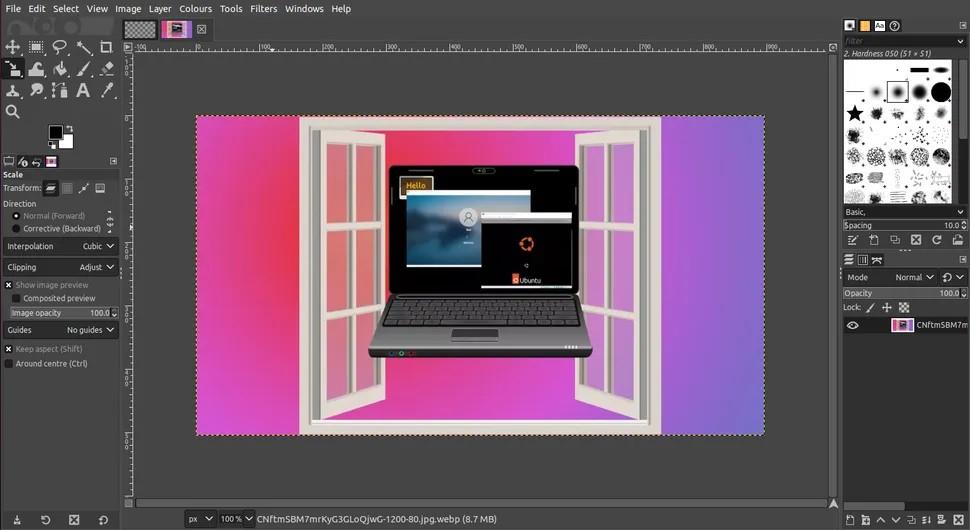
Step 1: First, open the photo you want to resize in GIMP.
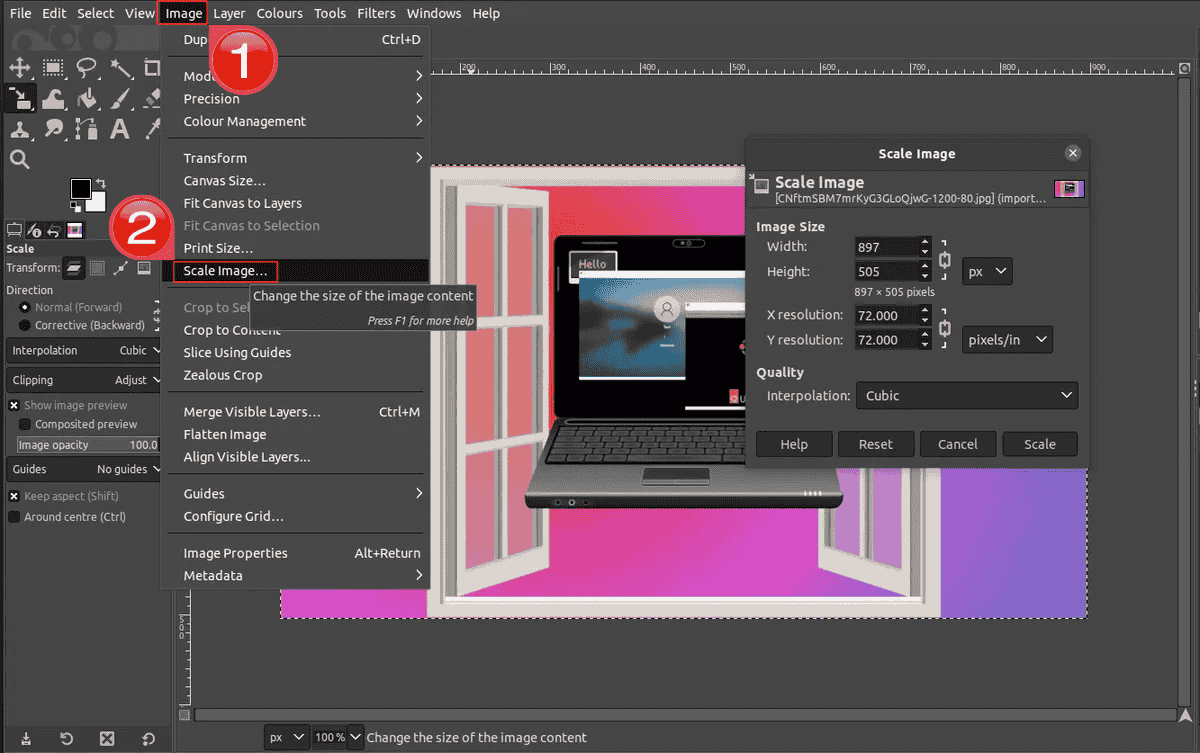
Step 2: Go to the top menu bar, click“Image”, and select “Scale Image…”from the dropdown list.
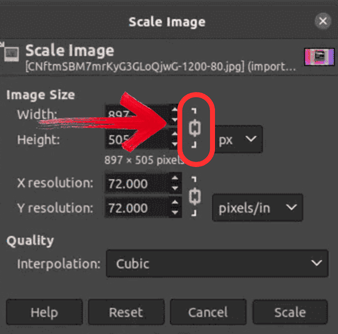
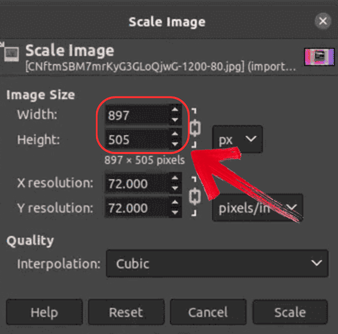
Step 3: A dialog box will appear. Look for the“Width” and “Height” fields under Image Size. Ensure the chain link icon next to the boxes is connected. This locks the aspect ratio so the image doesn't get stretched or squashed.
Step 4: Enter the desired “Width”or “Height”. If the chain link is active, the other number will update automatically.
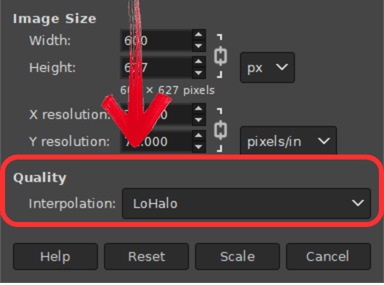
Step 5: For the best quality, look at the“Quality” section and click the dropdown next to“Interpolation”. Select “NoHalo” or“LoHalo” for the smoothest results.
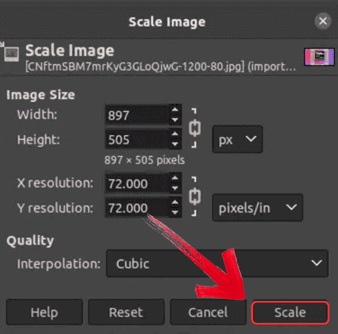
Step 6: Click the “Scale” button to finish the process.
The Smart Alternative: How to Perfectly Resize Images with WPS Photo
GIMP is great for complex design, but it’s frustratingly slow when you just need GIMP resize image without losing quality. You might want to change a photo's size, but rather than just the specific image intended, it ends up changing all the other layers in your project to other dimensions. Plus, digging through menus and worrying about technical settingsjust to keep the quality high is beyond annoying.
This is where WPS Photo offers a distinct advantage. It cuts out the complicated steps and uses AI to automatically keep your image sharp, so you don't end up with blurry results.
Here is the simple way to resize and optimize your images in seconds using WPS Photos:
Step 1: First, upload a photo to WPS Photos.

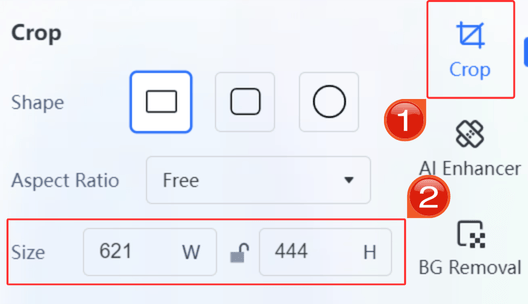
Step 2: Then, on the menu on the right side, click“Crop” and then adjust your “Size” by changing the Width and height.
Step 3: Then choose an AI editing tool from the menu on the right-hand side.
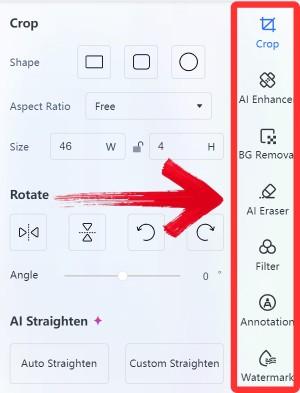
Step 4: Finally, click on “Export”to download and use your enhanced and resized image.

Why Choose WPS AI for Integrated Image Editing
Most people don't need a complex digital art studio, they just need their images to look good in a document now. Launching a heavy, separate program like GIMP every time you need to resize a screenshot is a major killer that breaks your focus. WPS AI solves this entirely. By embedding advanced AI editing tools directly into the office suite, it allows you to resize, remove backgrounds, and polish visuals instantly, right alongside your text.
| Tool | Primary Use Case | Cost | Key Strength | Learning Curve | Ideal User |
|---|---|---|---|---|---|
| GIMP | Full-featured image manipulation | Free | Unmatched control for layers and masks | Steep | Designers, Photographers |
| WPS AI | Document-ready quick edits | Freemium | AI-driven speed and seamless workflow | Gentle | Students, Office Workers |
WPS AI (Integrated Web Tool):
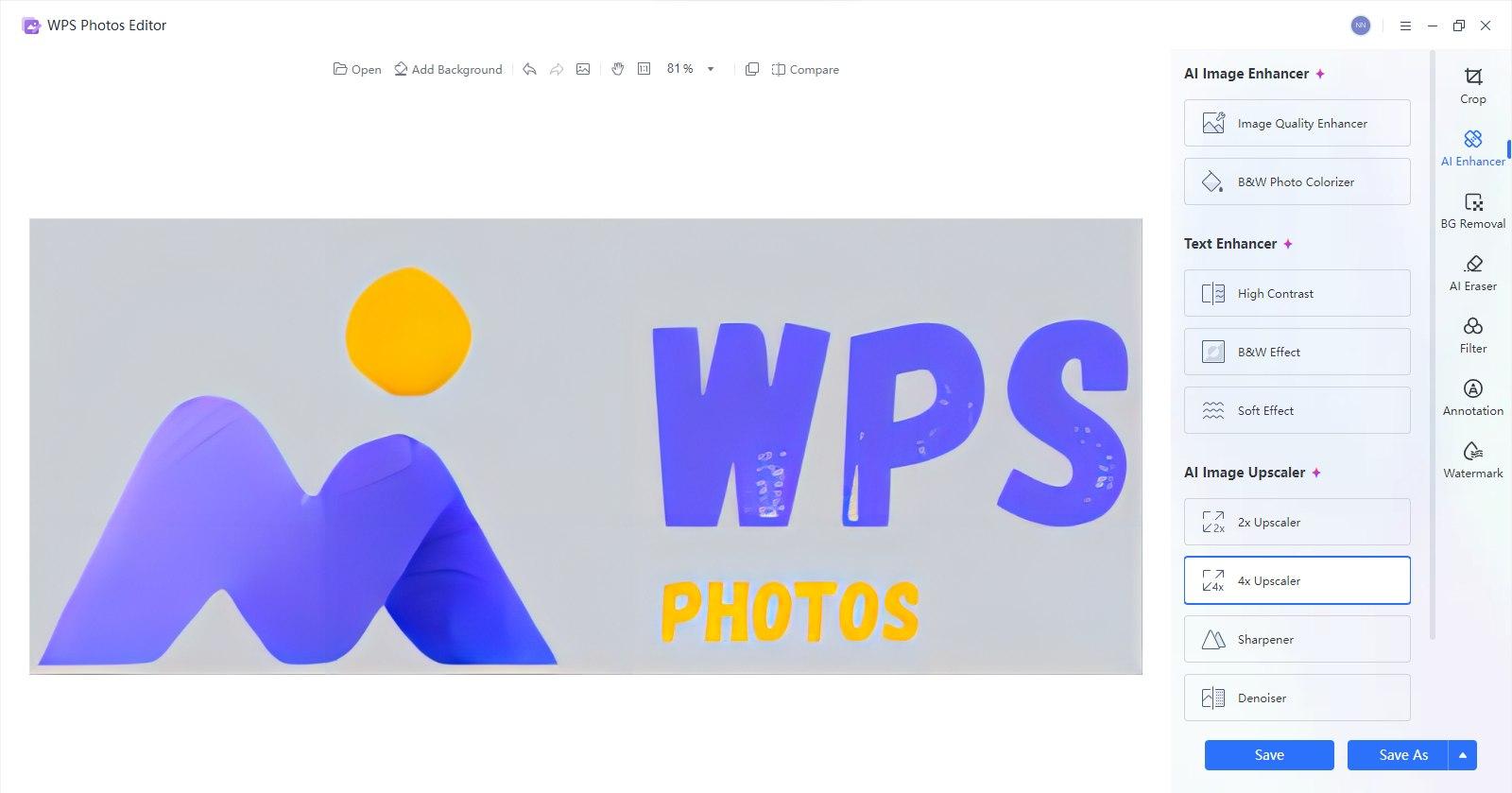
WPS Photos is a completely new AI photo editor with advanced AI features, making photo editing quicker and easier for all. You do not have to be professionally trained in creating amazing images using WPS Photos, since AI-powered features do most of your busy work to enable you to focus on creativity and results. Whether it's enhancing, upscaling, or removing unwanted elements in your photos, WPS Photos provides a clean yet powerful solution.
Key Advantages of WPS AI
AI-Powered Speed & Simplicity: Resize, crop, and enhance images with one-click tools, drastically reducing the time and technical knowledge required compared to manual editors like GIMP.
Seamless Office Workflow: As part of WPS Office, resize or edit an image and insert it directly into your document, presentation, or spreadsheet without ever leaving the tab.
Web-Based & Accessible: No download or installation is required. Access the tool from any modern web browser, making it perfect for quick edits on any machine.
Beyond Basic Resizing: Offers advanced, easy-to-use features like AI background removal, object erasure, and style filters that are complex to achieve in GIMP.
Cost-Effective: Provides powerful AI features within the WPS ecosystem, offering tremendous value, especially for users already within the WPS environment.
Why WPS AI is a Strong Recommendation
WPS AI excels not as a direct replacement for GIMP's full feature set, but as a highly efficient tool for anyone whose primary need is to quickly prepare images for office documents.
Dramatically Lowered Barrier to Entry: It makes professional-looking edits accessible to everyone, removing the steep learning curve associated with traditional image editors.
Unified Document Creation Process: It bridges the gap between image editing and document creation, allowing for a fluid workflow that GIMP, as a standalone application, cannot natively provide.
Leveraging AI for Efficiency: It automates complex editing tasks, allowing users to achieve in seconds what might take minutes or hours of manual work in GIMP.
FAQs
Q1: How can I resize an image in GIMP without losing quality?
You should use the Scale Image dialog. Ideally, choose LoHalo or NoHalo interpolation settings to minimize quality loss. Remember that making an image significantly larger will always result in some loss of sharpness.
Q2: What is the difference between Image Size and Canvas Size in GIMP?
Image Size scales the entire picture, stretching or shrinking the photo itself. Canvas Size only changes the size of the "paper" behind the photo, which is useful for adding borders or cropping without distorting the image.
Q3: Why is GIMP so complicated for a simple task like resizing?
GIMP is a professional-grade tool built for complex graphic design, so it exposes every possible option to the user. For simple tasks, this level of control can feel overwhelming compared to streamlined tools like WPS AI.
Q4: How do I resize just one layer in GIMP?
Instead of the main Image menu, go to the Layer menu and select Scale Layer. This allows you to change the size of a single object without affecting the rest of the project.
Q5: Is there a keyboard shortcut for resizing in GIMP?
There isn't a default one for "Scale Image", but you can useShift + S to activate the Scale Tool, which allows you to resize layers or selections manually by dragging handles.
Simplify Your Workflow with AI-Powered Image Tools
Knowing how to resize an image in GIMP gives you precise control over your visuals, which is essential for detailed design work. However, for most daily tasks, navigating complex menus is unnecessary. Tools like WPS Photo and WPS AI provide a smarter, faster alternative, leveraging artificial intelligence to resize and enhance your images instantly so you can get back to work.

'%3e%3cpath%20d='M19.9911%204.11386V6.471H18.5894C18.0775%206.471%2017.7322%206.57814%2017.5536%206.79243C17.3751%207.00671%2017.2858%207.32814%2017.2858%207.75671V9.44421H19.9019L19.5536%2012.0871H17.2858V18.8639H14.5536V12.0871H12.2769V9.44421H14.5536V7.49779C14.5536%206.39064%2014.8632%205.53201%2015.4822%204.92189C16.1013%204.31177%2016.9257%204.00671%2017.9554%204.00671C18.8304%204.00671%2019.509%204.04243%2019.9911%204.11386Z'%20fill='%23333333'/%3e%3c/g%3e%3cdefs%3e%3cclipPath%20id='clip0_2938_8199'%3e%3crect%20width='16'%20height='16'%20fill='white'%20transform='translate(8%204.00671)'/%3e%3c/clipPath%3e%3c/defs%3e%3c/svg%3e)
'%3e%3cpath%20d='M17.5237%2010.7813L23.4811%204H22.0699L16.8949%209.88693L12.7648%204H8L14.2469%2012.9029L8%2020.0133H9.4112L14.8725%2013.7952L19.2352%2020.0133H24M9.92053%205.04213H12.0885L22.0688%2019.0224H19.9003'%20fill='%23333333'/%3e%3c/g%3e%3cdefs%3e%3cclipPath%20id='clip0_2938_8200'%3e%3crect%20width='16'%20height='16.0134'%20fill='white'%20transform='translate(8%204)'/%3e%3c/clipPath%3e%3c/defs%3e%3c/svg%3e)


