

'%3e%3cpath%20d='M8%200C12.4183%200%2016%203.58172%2016%208C16%2012.4183%2012.4183%2016%208%2016C3.58172%2016%200%2012.4183%200%208C0%203.58172%203.58172%200%208%200ZM11.6162%204.38379C11.2257%203.99337%2010.5927%203.99338%2010.2021%204.38379L8%206.58594L5.79785%204.38379C5.40732%203.99334%204.77429%203.99329%204.38379%204.38379C3.99331%204.77429%203.99335%205.40733%204.38379%205.79785L6.58594%208L4.38379%2010.2021C3.99348%2010.5927%203.99341%2011.2257%204.38379%2011.6162C4.77426%2012.0066%205.40734%2012.0065%205.79785%2011.6162L8%209.41406L10.2021%2011.6162C10.5927%2012.0066%2011.2257%2012.0067%2011.6162%2011.6162C12.0067%2011.2257%2012.0066%2010.5927%2011.6162%2010.2021L9.41406%208L11.6162%205.79785C12.0066%205.40735%2012.0066%204.77429%2011.6162%204.38379Z'%20fill='%23080E17'%20fill-opacity='0.46'/%3e%3c/g%3e%3cdefs%3e%3cclipPath%20id='clip0_3761_713'%3e%3crect%20width='16'%20height='16'%20fill='white'/%3e%3c/clipPath%3e%3c/defs%3e%3c/svg%3e)




'%3e%3cpath%20fill-rule='evenodd'%20clip-rule='evenodd'%20d='M21.4999%2010.9993C21.4999%205.20009%2016.7986%200.498901%2010.9993%200.498901C5.19994%200.498901%200.498657%205.20009%200.498657%2010.9993C0.498657%2016.2404%204.33858%2020.5844%209.35855%2021.3722V14.0346H6.69238V10.9993H9.35855V8.68594C9.35855%206.05427%2010.9262%204.60062%2013.3248%204.60062C14.4736%204.60062%2015.6753%204.80571%2015.6753%204.80571V7.38979H14.3512C13.0468%207.38979%2012.64%208.19921%2012.64%209.0296V10.9993H15.5523L15.0867%2014.0346H12.64V21.3722C17.66%2020.5844%2021.4999%2016.2404%2021.4999%2010.9993Z'%20fill='%231568EA'/%3e%3c/g%3e%3c/svg%3e)


'%3e%3cpath%20d='M2.42045%2022.1876H6.31818V12.7217L0.75%208.54553V20.5171C0.75%2021.4414%201.49892%2022.1876%202.42045%2022.1876Z'%20fill='%234285F4'/%3e%3cpath%20d='M19.682%2022.1876H23.5797C24.5041%2022.1876%2025.2502%2021.4387%2025.2502%2020.5171V8.54553L19.682%2012.7217'%20fill='%2334A853'/%3e%3cpath%20d='M19.682%205.48293V12.7216L25.2502%208.54543V6.31816C25.2502%204.25236%2022.8921%203.07469%2021.2411%204.31361'%20fill='%23FBBC04'/%3e%3cpath%20d='M6.31824%2012.7217V5.48303L13.0001%2010.4944L19.6819%205.48303V12.7217L13.0001%2017.733'%20fill='%23EA4335'/%3e%3cpath%20d='M0.75%206.31816V8.54543L6.31818%2012.7216V5.48293L4.75909%204.31361C3.10534%203.07469%200.75%204.25236%200.75%206.31816Z'%20fill='%23C5221F'/%3e%3c/g%3e%3cdefs%3e%3cclipPath%20id='clip0_2954_7305'%3e%3crect%20width='24.5'%20height='18.375'%20fill='white'%20transform='translate(0.75%203.8125)'/%3e%3c/clipPath%3e%3c/defs%3e%3c/svg%3e)


Digital images often require adjustments beyond simple cropping, such as flipping orientation or reversing colors for a creative effect. However, many people confuse mirroring with color inversion and struggle to find a tool that handles both without complex installation. Many online inverters and integrated office tools allow you to flip, mirror, and adjust photos in just a few clicks. This guide goes over 5 of the best tools to invert image so that you don't have to go through each of them individually.
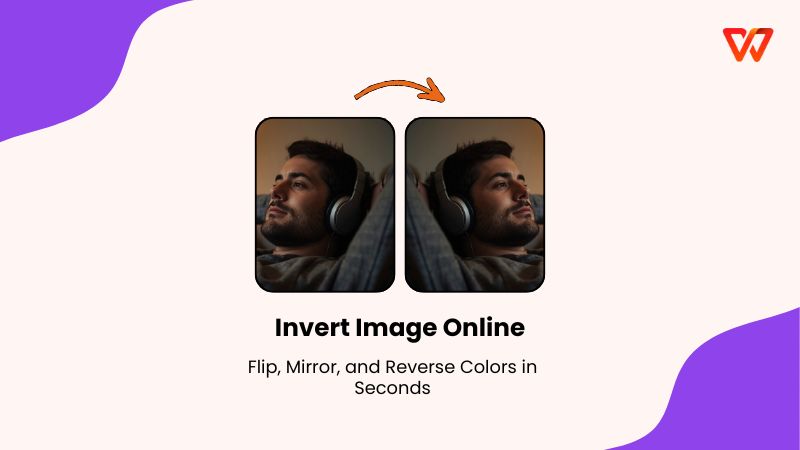
How to Invert Image on Computer
When working on a PC or Mac, you generally have two goals, either geometric inversion (flipping/mirroring) or chromatic inversion (reversing colors). And unless you have a solid tool to do them, you’ll end up confused and lost down a rabbit hole of online guides. Below are the specific guidesand reviews for five popular tools that can invert image.
1. WPS AI Photo (Windows & Online)
WPS AI Photo is best known for its seamless integration within the WPS Office suite. Unlike standalone photo editors that require you to export and re-import files, WPS allows you to manipulate images directly within your Word documents or PowerPoint slides. It differentiates itself by prioritizing workflow efficiency, making it the ideal choice for office workers and students who need to mirror or flip images while building reports or presentations.
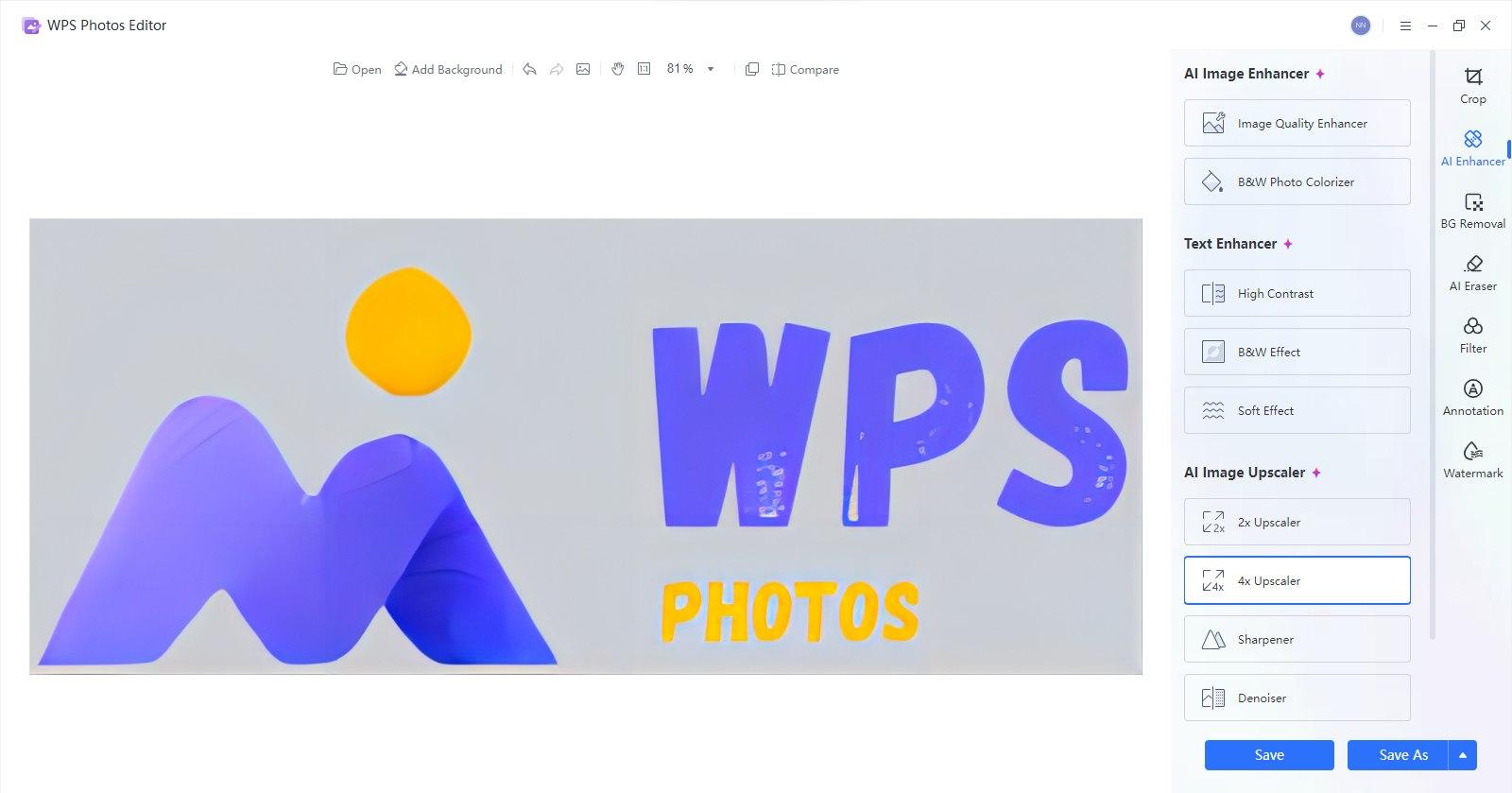
The tool provides a robust set of formatting features, including precision rotation, flipping, and AI-powered enhancement. While it focuses on geometric changes (mirroring) rather than chromatic color inversion, its ability to process images without leaving the document window makes it uniquely efficient. It's best known for Document integration and quick geometric adjustments.
How to Flip and Mirror:
The process of mirroring images in WPS Office is straightforward and integrated directly into the document editor, eliminating the need to export files to external software for simple adjustments. Here’s how to color invert image and Mirror invert image in WPS Photos:
Step 1: First, upload your photo to WPS Photos.
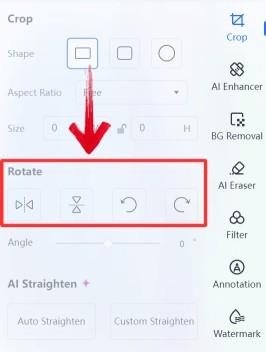
Step 2: Then, under the Rotation, choose whichever direction you want to invert your image in.
Step 3: Then choose an AI editing tool from the menu on the right-hand side.
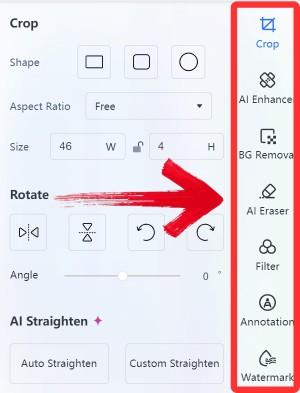
Step 4: Finally, click on “Export”to download and use your enhanced and inverted image.

Pros:
Edits directly inside documents (Writer, Presentation, Spreadsheet).
Free to use for basic editing.
Zero quality loss during rotation.
Cons:
Does not support negative/color inversion.
2. Canva (Online)
Canvais best known as a drag-and-drop design powerhouse that simplifies complex editing tasks for non-designers. It distinguishes itself with a vast library of filters and apps integrated directly into the editor. This makes it the perfect solution for social media managers or marketers who need to invert colors for an artistic, negative effect or flip images for symmetrical layouts.
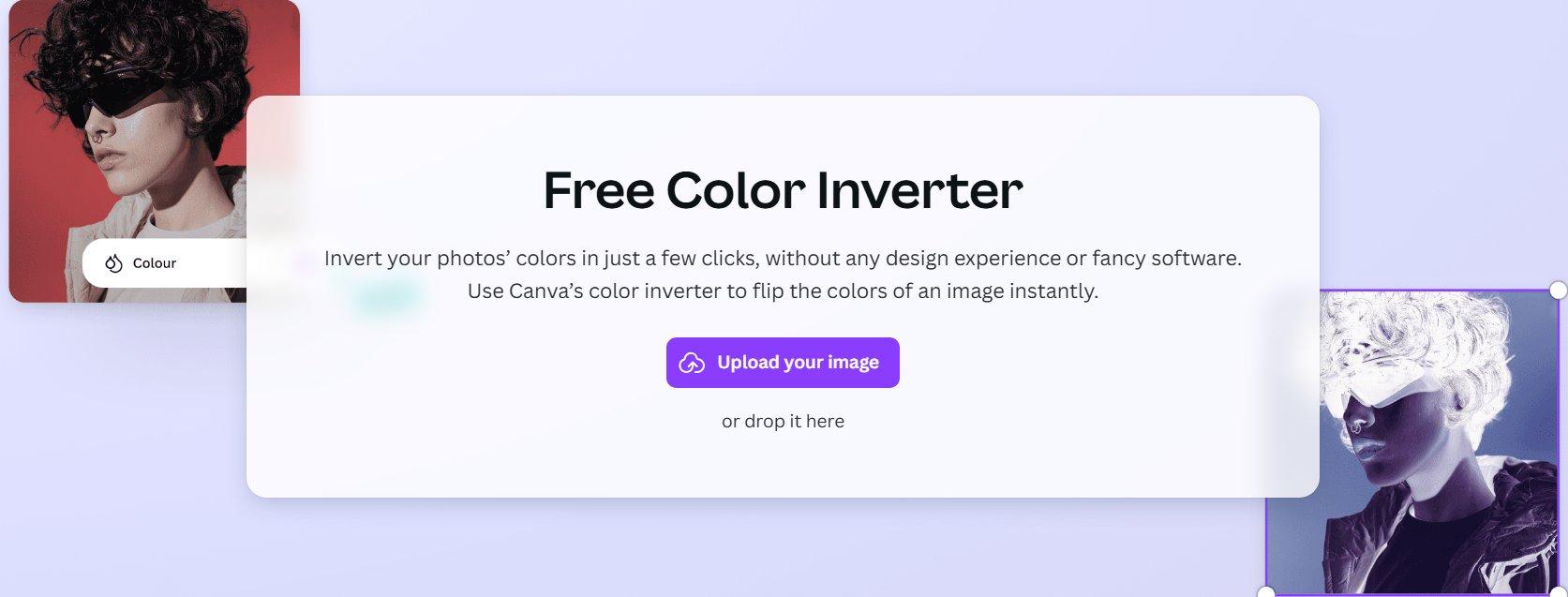
The platform operates entirely in the cloud, offering a collaborative environment where teams can edit images simultaneously. Its feature set extends beyond basic flipping, as you can access a vast library of filters.
How to Invert and Save:
Canva provides distinct workflows for geometric flipping and color adjustments, allowing users to apply quick transformations or artistic effects using its built-in filter library. Here’s how to Horizontal invert image and invert colors in Canva:
Step 1: Upload your photo to the Canva Color Inverter tool and place it on the canvas.
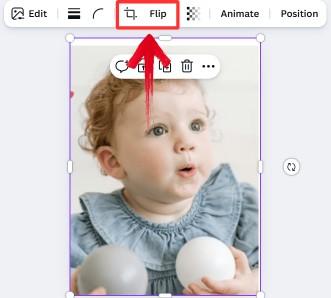
Step 2: To mirror/flip an image, click the image, select "Flip" in the top toolbar, and choose "Flip Horizontal" or "Flip Vertical".
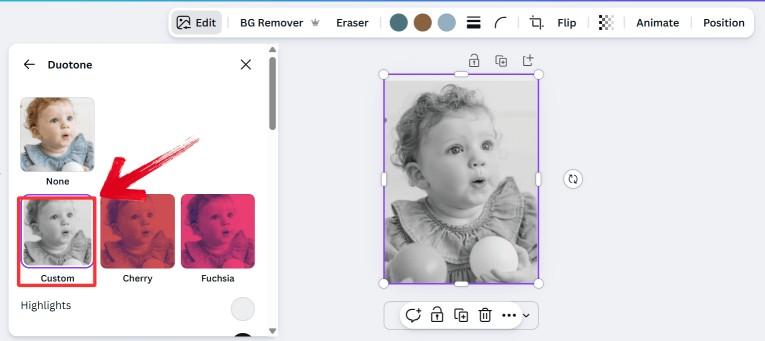
Step 3: To Invert Colors Click"Edit photo", navigate to Effects, and click for the"Duotone" effect.
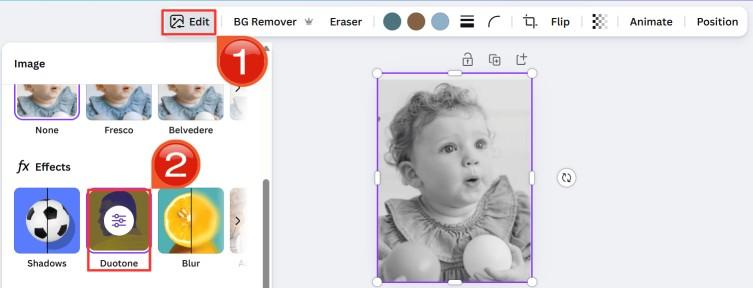
Step 4: Select “Custom” to simulate inversion, or use a specific third-party app within Canva named Color Invert if using the paid version
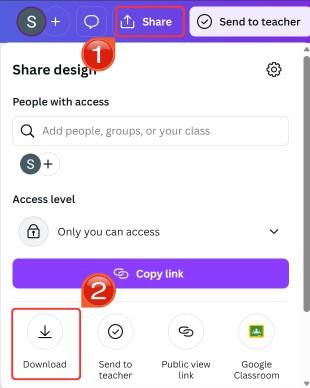
Step 5: To download the image, just click“Share” and then “Download” to export the image.
Pros:
Extremely intuitive interface.
Cloud-based; access from anywhere.
Cons:
High-resolution downloads often require a "Pro" subscription.
Color inversion is sometimes hidden behind effects menus.
3. Zight (Online Tool)
Zight is best known for visual communication through rapid screen capture and instant cloud sharing. It sets itself apart from traditional photo editors by focusing on speed and shareability rather than deep manipulation. This tool is the premier choice for customer support agents, developers, and product managers who need to capture a visual error or concept, flip it for better orientation, and send a link to a colleague in a matter of seconds.
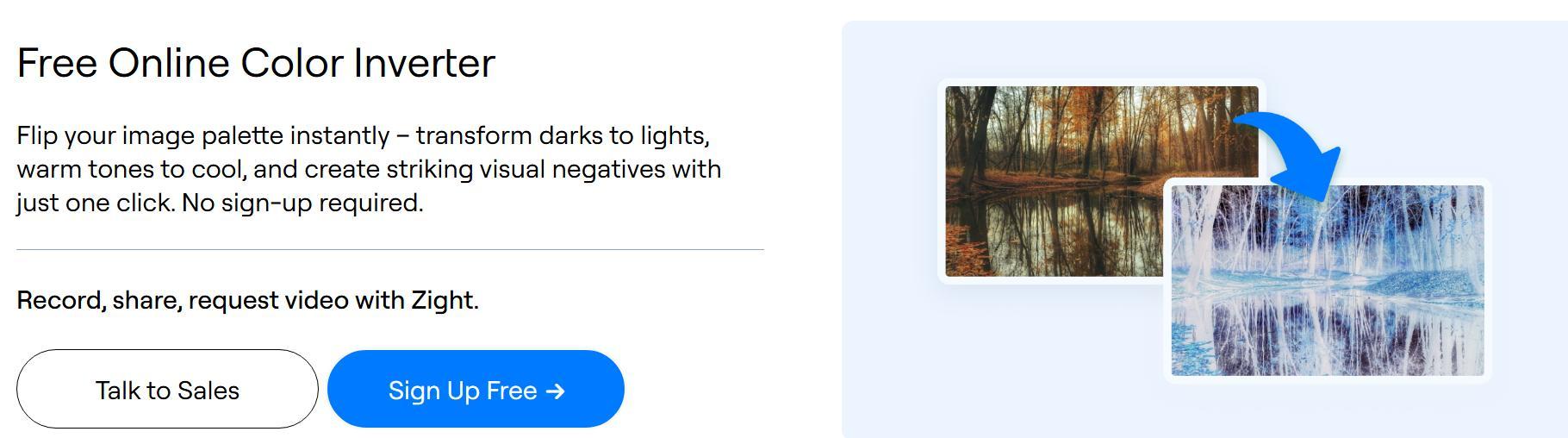
As a lightweight browser extension and desktop application, Zight prioritizes workflow speed. Its editing suite is intentionally lean, providing essential annotation and transformation tools such as flipping and rotating, designed to clarify visual information immediately after capture. This focus ensures that you can convey a message without getting bogged down in complex rendering processes or large file downloads, making it a highly efficient utility for business communication.
How to Edit and Save:
Designed for rapid sharing, Zight allows users to capture, edit, and generate a link for their inverted images instantly through a streamlined browser-based interface.
Step 1: Navigate to the Zight free online tool and sign up for free.
Step 2: Upload your image by clicking“Choose File” or dragging it into the browser window.
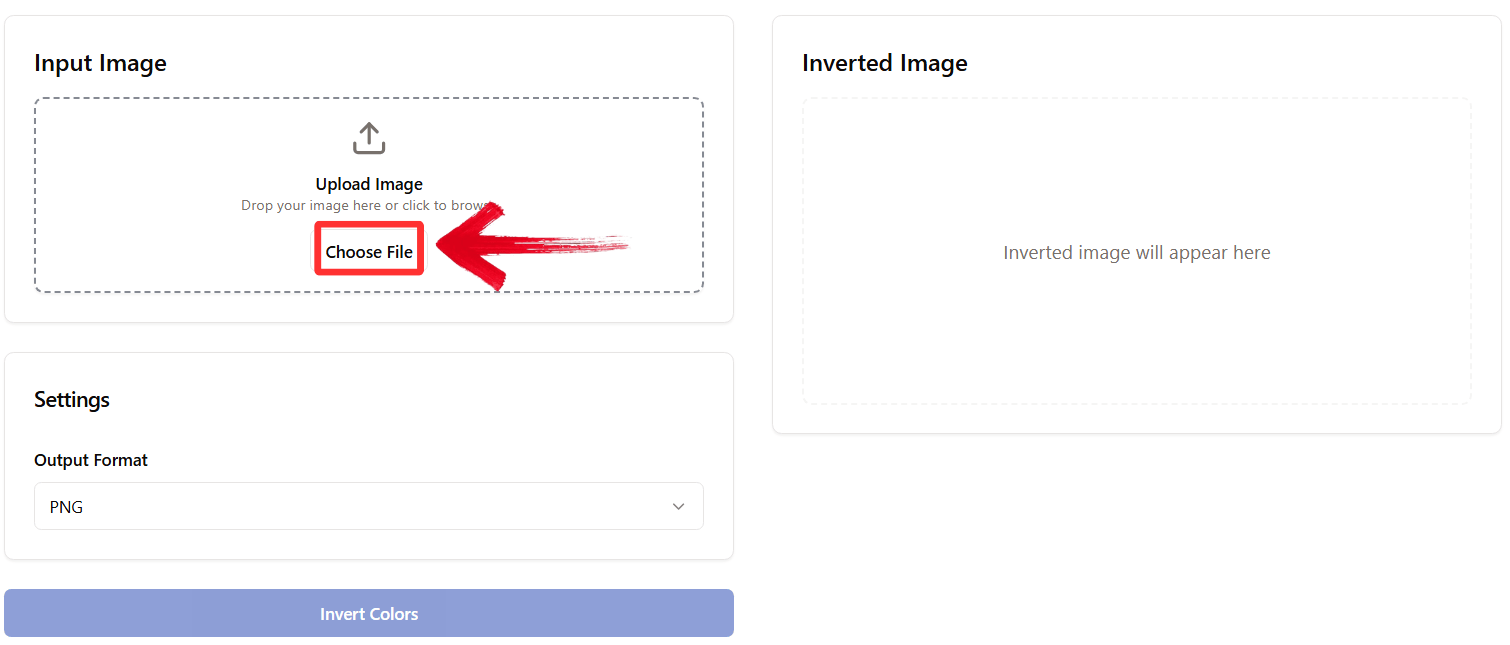
Step 3: Then select the “Output Format” and click “Invert Colors”.
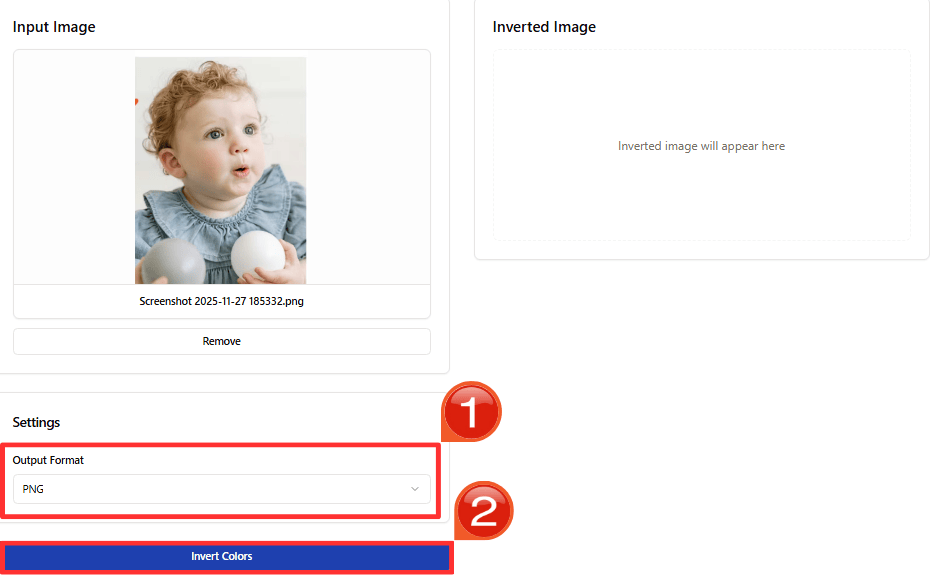
Step 4: Save the file to your computer or copy the generated link to share immediately.
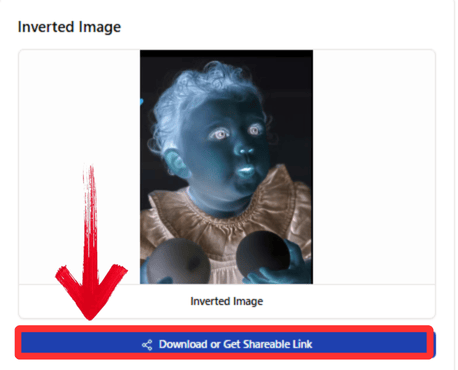
Step 5: To invert the image, just go to the Zight Image rotator tool and upload your image as mentioned above.
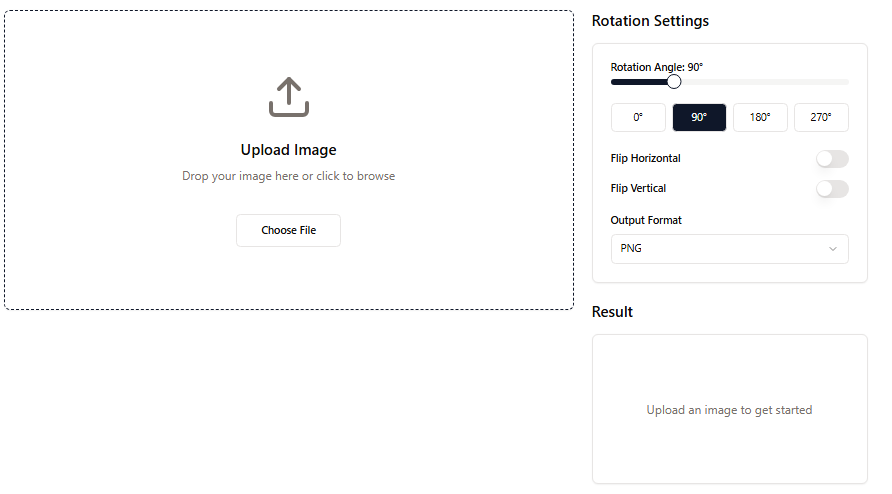
Step 6: Choose your “Rotation settings” and click “Rotate Image”.
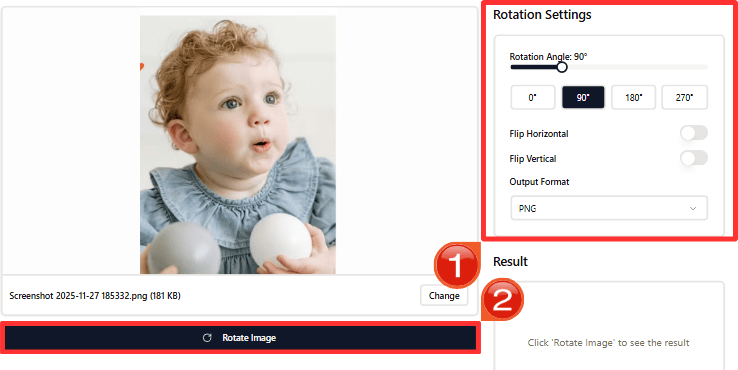
Step 7: Finally, download or share the shareable link just like above.
Pros:
Fastest method for sharing results via a link.
Lightweight and browser-based.
Cons:
Editing capabilities are basic compared to dedicated photo software.
4. Luminar Neo (Online/Software)
Luminar Neo is best known for leveraging advanced Artificial Intelligence to automate complex photo editing tasks that traditionally required manual masking. It differentiates itself from legacy editors by offering smart tools that understand the 3D depth and lighting of a scene, allowing for realistic adjustments. This software is the ideal solution for photographers and digital artists who want to creatively invert colors or manipulate perspective while simultaneously enhancing image quality through automated noise reduction and sharpening.
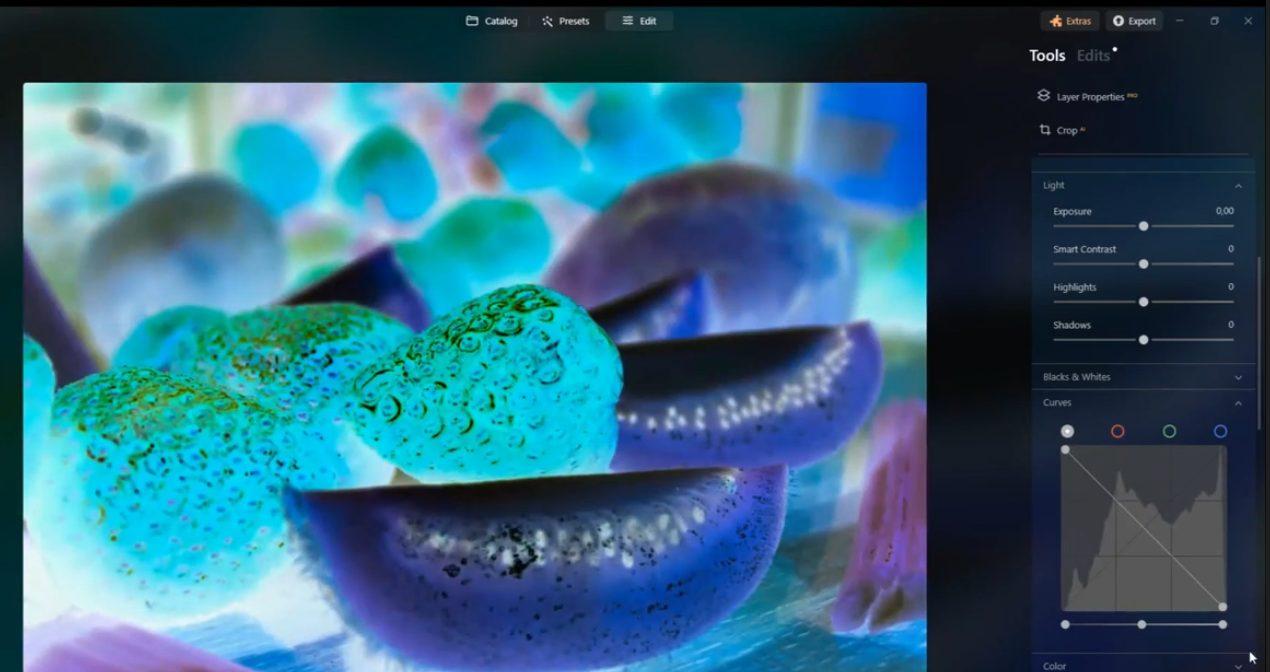
The software functions as both a standalone application and a plugin, bridging the gap between quick fixes and professional-grade editing. Its capabilities include robust color grading panels and curve adjustments that allow for precise chromatic inversion, alongside standard geometric tools. By automating technical adjustments, it allows creators to focus on the artistic aspect of the image transformation rather than the mathematical pixel values.
How to Edit and Save:
For precise creative control, Luminar Neo utilizes advanced adjustment tools like curves to invert colors manually while offering standard rotation features for geometric changes.
Step 1: Load your image into the Luminareditor.
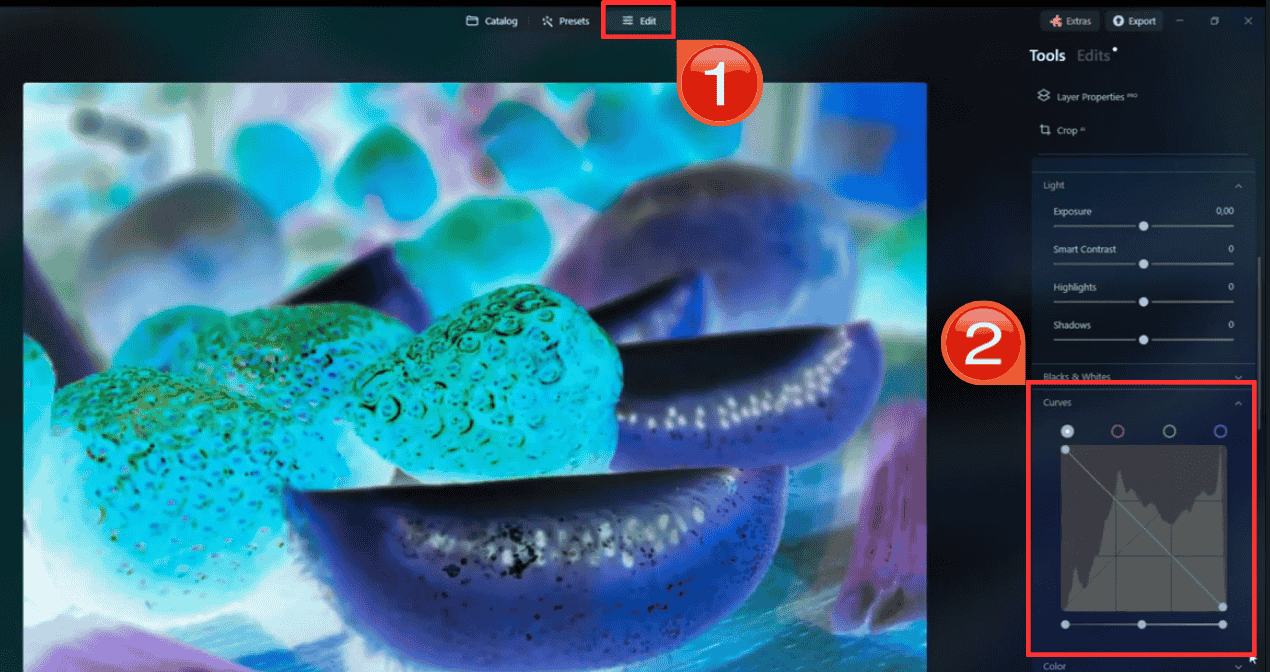
Step 2: To Invert Colors go to the or "Curves" tool. Drag the bottom-left point of the curve to the top-left, and the top-right point to the bottom-right. This manually creates a perfect negative.
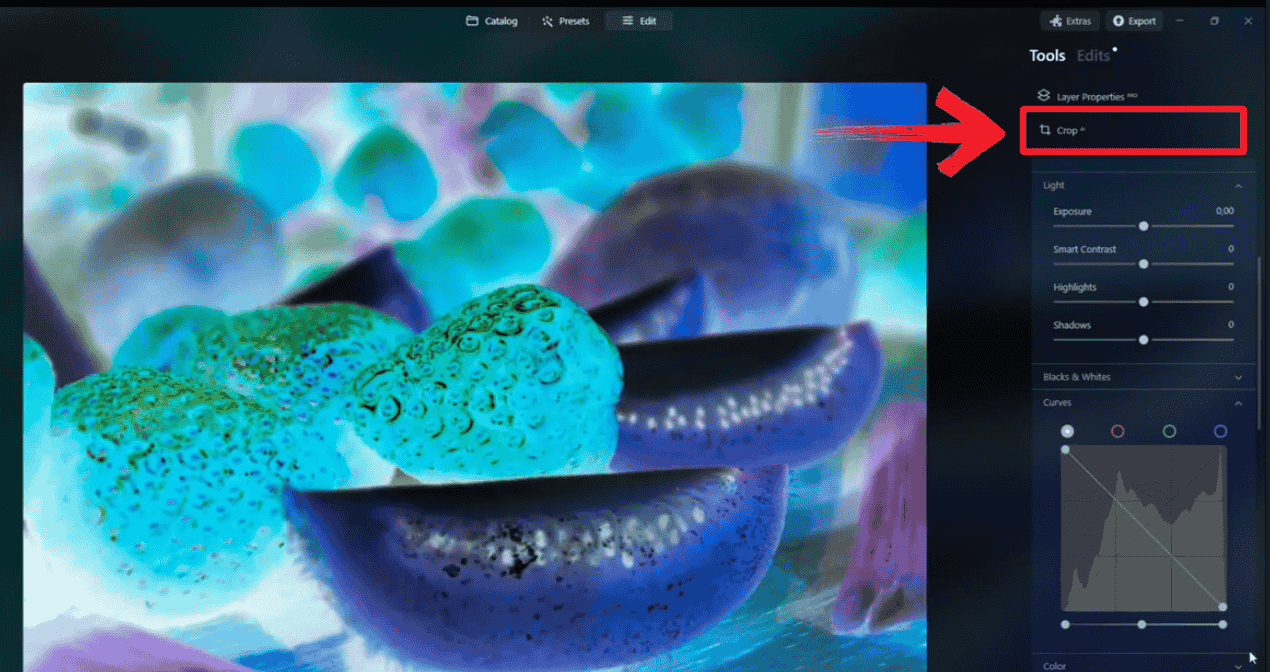
Step 3: To Flip navigate to the"Crop" tool and select the flip your image in whichever direction you want.
Pros:
Professional-grade color grading.
Non-destructive editing.
Cons:
Can be resource-heavy on older computers.
Software requires a purchase/subscription.
5. Adobe Photoshop
Adobe Photoshop stands as the undisputed industry standard for digital imaging, renowned for its limitless creative potential and pixel-level precision. It differs from every other tool on this list by offering a layer-based editing system that provides total control over every aspect of an image. It is the definitive choice for professional graphic designers, retouching experts, and photographers who require complex inversions, such as flipping specific selection areas or creating intricate negative film effects without affecting the rest of the composition.
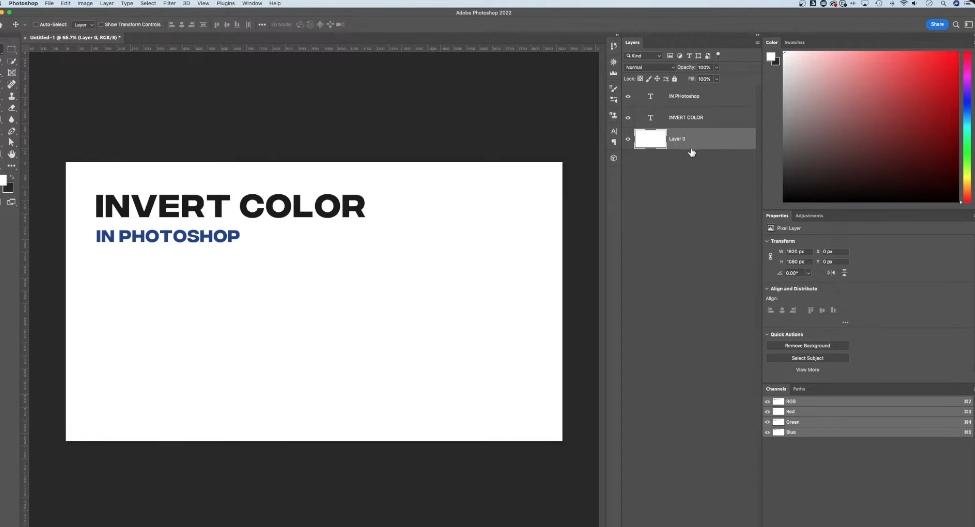
The software is a comprehensive powerhouse featuring an extensive array of tools for manipulation, compositing, and color correction. You can utilize non-destructive adjustment layers to invert colors without permanently altering the original pixel data, or employ smart objects to flip and rotate elements while maintaining maximum resolution. Its support for every file format and color space ensures that the final output meets the highest professional printing and web standards.
How to Edit and Save:
Photoshop provides extensive menu options and keyboard shortcuts for both geometric flipping and chromatic inversion, offering pixel-perfect control for professional edits.
Step 1: Open your image in Adobe Photoshop to begin the editing process.
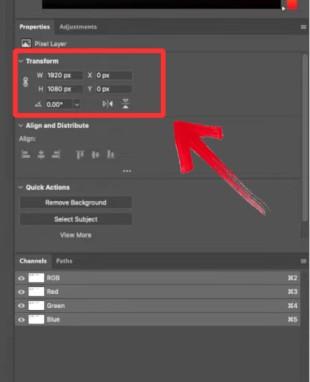
Step 2: To rotate your image just go on over to the properties on the menu on the right side of the image and adjust the settings to your preferences.
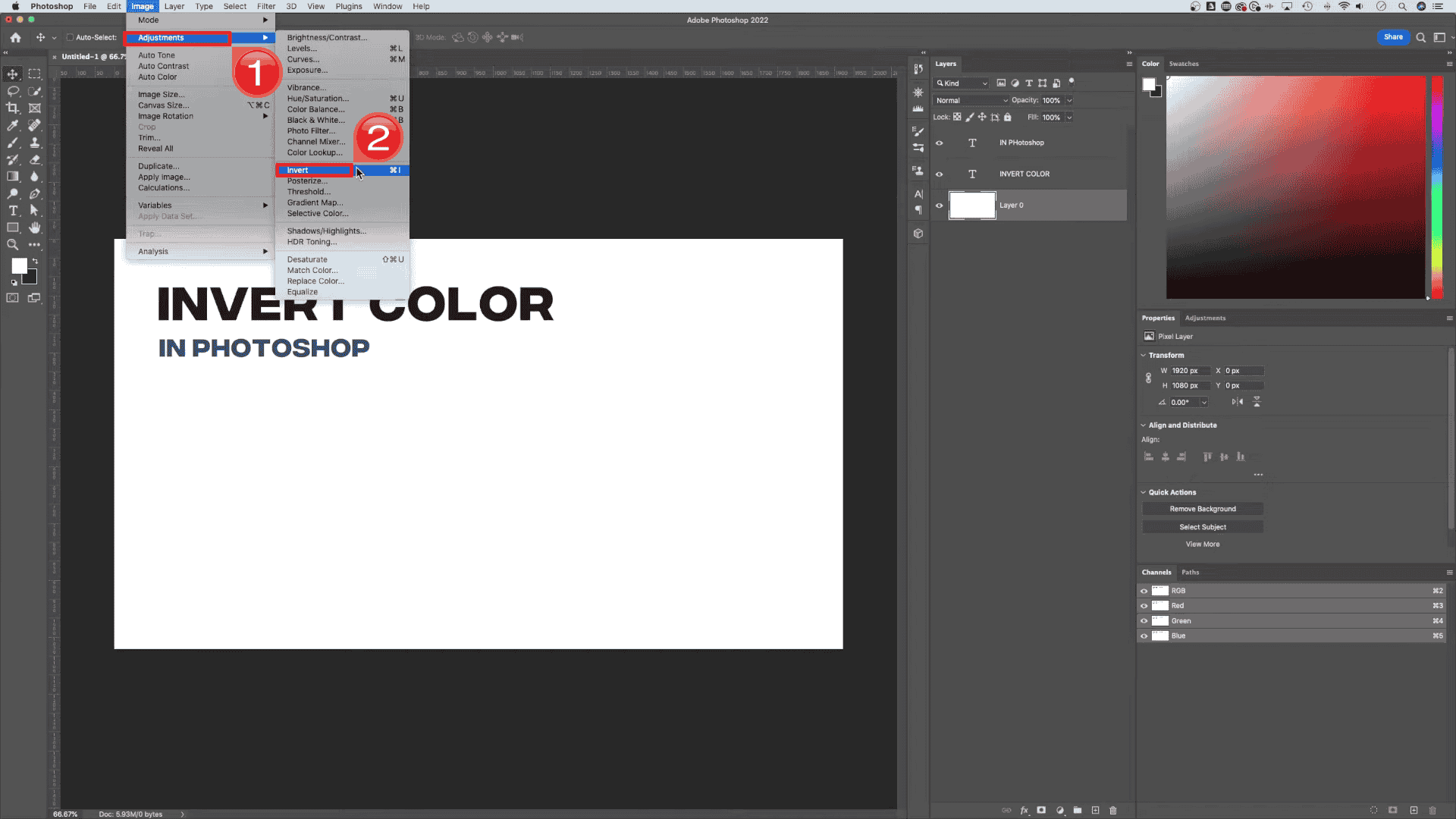
Step 3: To reverse the colors, click"Image" in the menu bar again, select"Adjustments", and click "Invert", or simply press the "Ctrl + I" shortcut on your keyboard.
Step 4: Click "File" followed by"Export As" to save your final edited image in your desired format.
Pros:
Unlimited editing possibilities.
Supports every file format imaginable.
Cons:
Steep learning curve.
Expensive monthly subscription.
Comparison of Inverting Image Tool
Selecting the ideal tool depends largely on your specific workflow, whether you need a quick fix for a presentation, a high-quality edit for a portfolio, or a rapid screenshotfor a team chat. The comparison below outlines the key differences in platform, cost, and usability to help you decide which software fits your needs best.
| Tool | Best For | Platform | Cost | Ease of Use |
|---|---|---|---|---|
| WPS AI Photo | Documents & Reports | Windows / Online | Free | ⭐⭐⭐⭐⭐ |
| Canva | Social Media | Online | Freemium | ⭐⭐⭐⭐⭐ |
| Zight | Quick Sharing | Online | Free | ⭐⭐⭐⭐ |
| Luminar | Photography | Windows / Mac | Paid | ⭐⭐⭐ |
| Photoshop | Professionals | Windows / Mac | Paid | ⭐⭐ |
The right tool depends entirely on what you’re doing. If you’re a professional or a student, WPS AI Photo is my top choice because it never tracks you and is the easiest to use among the options, whereas Canva is superior for quick creative layouts despite some buried menus. While Zight excels at instant screen-capture sharing and Luminar offers powerful AI fixes, I still reserve Adobe Photoshop for complex, layer-specific edits where total control is necessary, even though it's overkill for simple edits.
Why is WPS Photo the Best Tool to Invert Image?
WPS Photois an AI photo editor embedded directly within the WPS Office suite, designed to remove the complexity from everyday image adjustments. It allows users to flip, mirror, and enhance photos instantly inside their documents, bypassing the need for heavy external software or confusing web interfaces. This integration ensures a fluid, professional workflow where editing and document creation happen simultaneously without preserving file quality.
Limitations of Traditional Tools:
While many options exist for image manipulation, they often introduce significant barriers that slow down efficiency for the average user:
Complex Installation & Cost: Professional software like Adobe Photoshop requires expensive monthly subscriptions and heavy installation processes that are impractical for quick tasks.
Quality Degradation: Many free online converters aggressively compress images to save server space, resulting in pixelated or blurryoutputs that look unprofessional in print.
Disjointed Workflow: Manual editing often requires you to export an image, upload it to a browser, edit it, download it, and re-import it, turning a simple fix into a time-consuming technical chore.
What Makes WPS Photo Stand Out:
WPS Photo addresses these friction points by bringing professional-grade tools directly to the page where you are working:
All-in-one Integration: You do not need separate software because you can flip and mirror images directly on the page where you are typing your report.
AI Enhancement: After flipping an image, the built-in AI tools automatically adjust brightness, contrast, and tone to ensure the edited photo blends naturally with your document.
Ease of Use: The Picture Toolsmenu is designed for beginners, replacing complex layers and curves with simple, one-click buttons for rotation and flipping.
Smart Options: Beyond simple inversion, the tool offers context-aware features like background removal and vertical mirroring to handle all layout needs in one place.
Fast Export: Once edited, you can keep the image in the document or right-click to Save as Picture, effectively functioning as a standalone high-quality converter.
FAQs
Q1. What’s the difference between invert image and flip image?
The term invert image generally refers to altering color values to create a negative effect, such as turning black pixels to white. In contrast, flip image describes the process of mirroring the picture horizontally or vertically to change its orientation without modifying the actual colors.
Q2. Can inverting colors permanently damage images or screens?
No, color inversion is a strictly digital processing technique that does not harm your hardware. It is non-destructive, meaning the original file data remains intact if you save your work as a new file, and the process has zero impact on the physical components of your screen.
Q3. What features should I look for in free image inverter software?
When searching for high-quality software, you should prioritize three key aspects. First, ensure it has a user-friendly interface that does not require a manual to operate. Second, look for tools that preserve image quality so your photos do not become blurry after flipping. Finally, choose software that includes contextual tools like cropping or background removal, allowing you to complete your editing in one place.
Q4. Is WPS Photo free to use for inverting images?
Yes, the core geometric inversion tools, such as the ability to flip and rotate images, are available in the free version of WPS Office. While some advanced AI-powered enhancement features may require a premium plan, the essential functionality needed for mirroring images is accessible to all users without cost.
Q5. How can WPS AI improve my inverted images?
Flipping an image can sometimes alter how shadows and lighting appear relative to the surrounding text. WPS AI solves this by analyzing the flipped image and automatically balancing the lighting tones, ensuring that the edited photo blends naturally and professionally with your document layout.
Q6. How to invert an image on iPhone?
To invert the geometry of a photo on an iPhone, open the Photos app, tap the Edit button, and select the Crop/Rotate icon at the bottom. Then, tap the triangular Flip icon in the top left corner to mirror the image. If you need to invert colors, navigate to your Settings, select Accessibility, then Display, and toggle Invert Colors; however, note that this changes the entire screen view rather than modifying the image file itself.
Q7. Will inverting an image in WPS affect quality?
No, using WPS Photo to flip or mirror your pictures does not degrade their quality. The software preserves the original image resolution, ensuring that pixel clarity remains suitable for professional printing regardless of how many times you rotate or flip the file.
Geometry vs. Color: Choosing the Right Software for Image Inversion
To invert image, you either mirror its geometry for layout symmetry or reverse its colors for a creative negative effect. While specialized design tools like Canva or Photoshop are necessary for complex color grading, WPS Photo stands out as the superior choice for the vast majority of users who simply need to mirror an image for a report or presentation. It streamlines the entire workflow by eliminating the need for external software, allowing you to flip images directly within your documents while maintaining high quality and professional standards.

'%3e%3cpath%20d='M19.9911%204.11386V6.471H18.5894C18.0775%206.471%2017.7322%206.57814%2017.5536%206.79243C17.3751%207.00671%2017.2858%207.32814%2017.2858%207.75671V9.44421H19.9019L19.5536%2012.0871H17.2858V18.8639H14.5536V12.0871H12.2769V9.44421H14.5536V7.49779C14.5536%206.39064%2014.8632%205.53201%2015.4822%204.92189C16.1013%204.31177%2016.9257%204.00671%2017.9554%204.00671C18.8304%204.00671%2019.509%204.04243%2019.9911%204.11386Z'%20fill='%23333333'/%3e%3c/g%3e%3cdefs%3e%3cclipPath%20id='clip0_2938_8199'%3e%3crect%20width='16'%20height='16'%20fill='white'%20transform='translate(8%204.00671)'/%3e%3c/clipPath%3e%3c/defs%3e%3c/svg%3e)
'%3e%3cpath%20d='M17.5237%2010.7813L23.4811%204H22.0699L16.8949%209.88693L12.7648%204H8L14.2469%2012.9029L8%2020.0133H9.4112L14.8725%2013.7952L19.2352%2020.0133H24M9.92053%205.04213H12.0885L22.0688%2019.0224H19.9003'%20fill='%23333333'/%3e%3c/g%3e%3cdefs%3e%3cclipPath%20id='clip0_2938_8200'%3e%3crect%20width='16'%20height='16.0134'%20fill='white'%20transform='translate(8%204)'/%3e%3c/clipPath%3e%3c/defs%3e%3c/svg%3e)


