

'%3e%3cpath%20d='M8%200C12.4183%200%2016%203.58172%2016%208C16%2012.4183%2012.4183%2016%208%2016C3.58172%2016%200%2012.4183%200%208C0%203.58172%203.58172%200%208%200ZM11.6162%204.38379C11.2257%203.99337%2010.5927%203.99338%2010.2021%204.38379L8%206.58594L5.79785%204.38379C5.40732%203.99334%204.77429%203.99329%204.38379%204.38379C3.99331%204.77429%203.99335%205.40733%204.38379%205.79785L6.58594%208L4.38379%2010.2021C3.99348%2010.5927%203.99341%2011.2257%204.38379%2011.6162C4.77426%2012.0066%205.40734%2012.0065%205.79785%2011.6162L8%209.41406L10.2021%2011.6162C10.5927%2012.0066%2011.2257%2012.0067%2011.6162%2011.6162C12.0067%2011.2257%2012.0066%2010.5927%2011.6162%2010.2021L9.41406%208L11.6162%205.79785C12.0066%205.40735%2012.0066%204.77429%2011.6162%204.38379Z'%20fill='%23080E17'%20fill-opacity='0.46'/%3e%3c/g%3e%3cdefs%3e%3cclipPath%20id='clip0_3761_713'%3e%3crect%20width='16'%20height='16'%20fill='white'/%3e%3c/clipPath%3e%3c/defs%3e%3c/svg%3e)




'%3e%3cpath%20fill-rule='evenodd'%20clip-rule='evenodd'%20d='M21.4999%2010.9993C21.4999%205.20009%2016.7986%200.498901%2010.9993%200.498901C5.19994%200.498901%200.498657%205.20009%200.498657%2010.9993C0.498657%2016.2404%204.33858%2020.5844%209.35855%2021.3722V14.0346H6.69238V10.9993H9.35855V8.68594C9.35855%206.05427%2010.9262%204.60062%2013.3248%204.60062C14.4736%204.60062%2015.6753%204.80571%2015.6753%204.80571V7.38979H14.3512C13.0468%207.38979%2012.64%208.19921%2012.64%209.0296V10.9993H15.5523L15.0867%2014.0346H12.64V21.3722C17.66%2020.5844%2021.4999%2016.2404%2021.4999%2010.9993Z'%20fill='%231568EA'/%3e%3c/g%3e%3c/svg%3e)


'%3e%3cpath%20d='M2.42045%2022.1876H6.31818V12.7217L0.75%208.54553V20.5171C0.75%2021.4414%201.49892%2022.1876%202.42045%2022.1876Z'%20fill='%234285F4'/%3e%3cpath%20d='M19.682%2022.1876H23.5797C24.5041%2022.1876%2025.2502%2021.4387%2025.2502%2020.5171V8.54553L19.682%2012.7217'%20fill='%2334A853'/%3e%3cpath%20d='M19.682%205.48293V12.7216L25.2502%208.54543V6.31816C25.2502%204.25236%2022.8921%203.07469%2021.2411%204.31361'%20fill='%23FBBC04'/%3e%3cpath%20d='M6.31824%2012.7217V5.48303L13.0001%2010.4944L19.6819%205.48303V12.7217L13.0001%2017.733'%20fill='%23EA4335'/%3e%3cpath%20d='M0.75%206.31816V8.54543L6.31818%2012.7216V5.48293L4.75909%204.31361C3.10534%203.07469%200.75%204.25236%200.75%206.31816Z'%20fill='%23C5221F'/%3e%3c/g%3e%3cdefs%3e%3cclipPath%20id='clip0_2954_7305'%3e%3crect%20width='24.5'%20height='18.375'%20fill='white'%20transform='translate(0.75%203.8125)'/%3e%3c/clipPath%3e%3c/defs%3e%3c/svg%3e)


Generative AI is changing how we work, especially in presentations, splitting tools into standalone apps and integrated add-ons. Plus AI has quickly become a top choice for those wanting AI power directly within Google Slides or PowerPoint. While standalone tools are fast, they often create isolated files and lack branding flexibility, and manual design is just too slow today. So, what exactly is Plus AI, how can you use it effectively, and are there any great free alternatives? This article will introduce you to Plus AI and share a powerful alternative, WPS AI Slides.
Part 1. What is Plus AI?
Overview of Plus AI
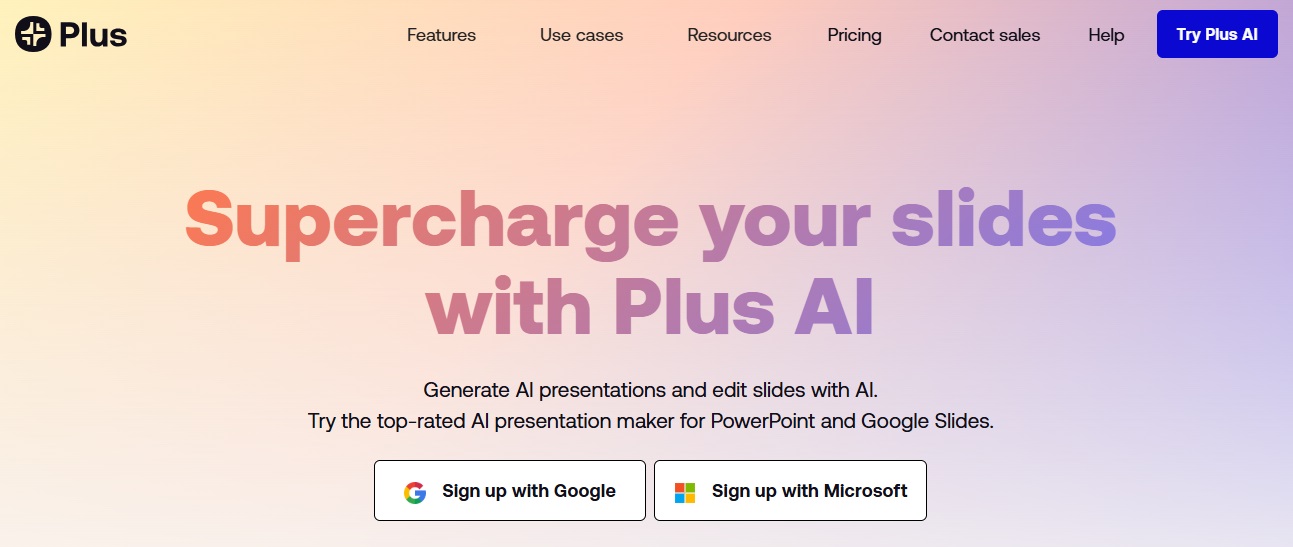
Plus AI is an AI-powered add-on for Google Slides and for PowerPoint. Instead of replacing your workflow, it works inside the tools you already use. This makes it popular with teams that care about branding, formatting, and easy sharing.
Features
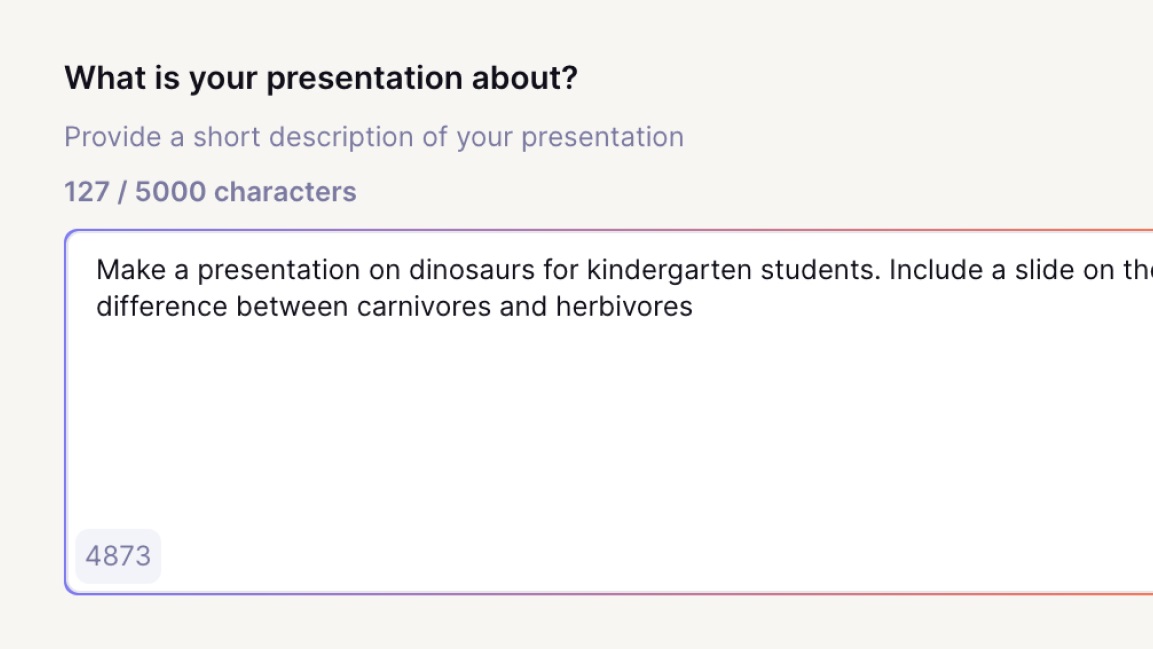
Prompt-to-Presentation: Generate entire slide decks from a text prompt. You can specify audience, tone, and key points.
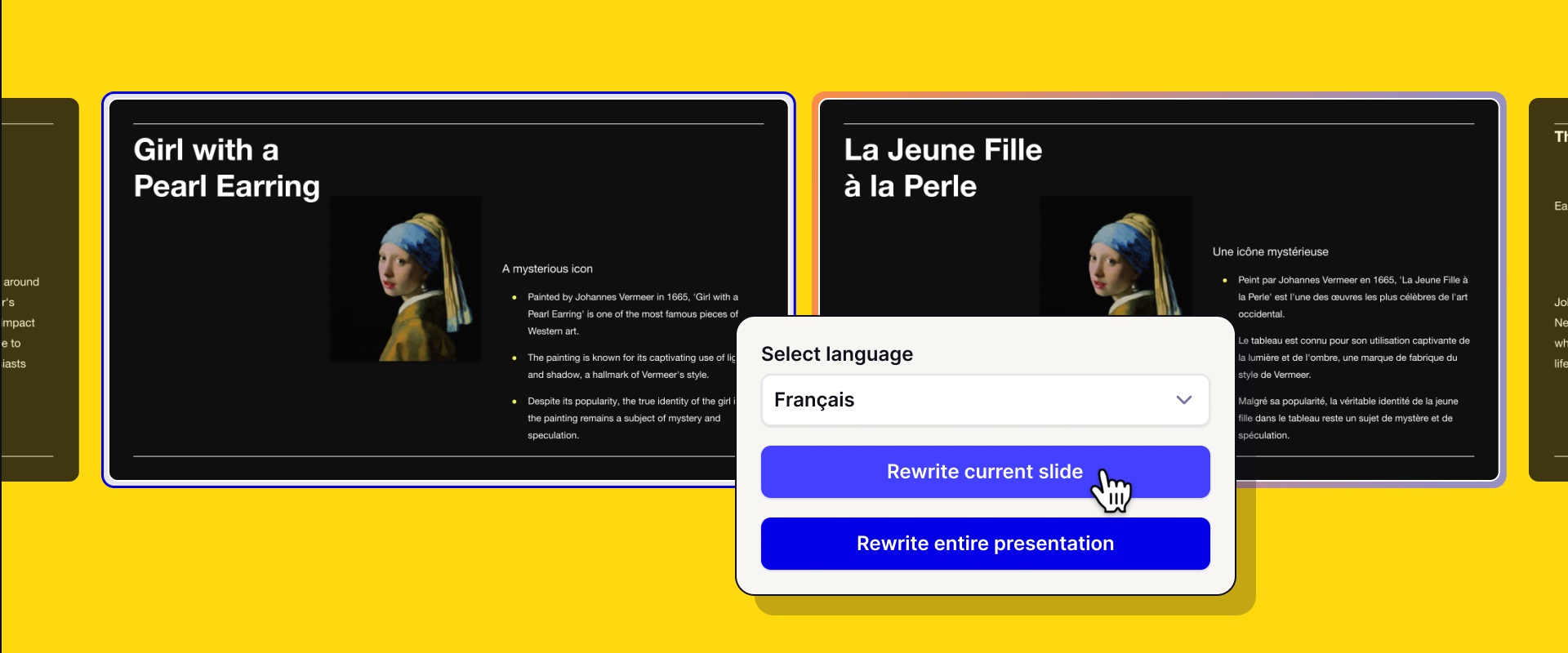
AI-Powered Editing: Get suggestions for rewriting content, summarizing text, or changing the layout of existing slides.
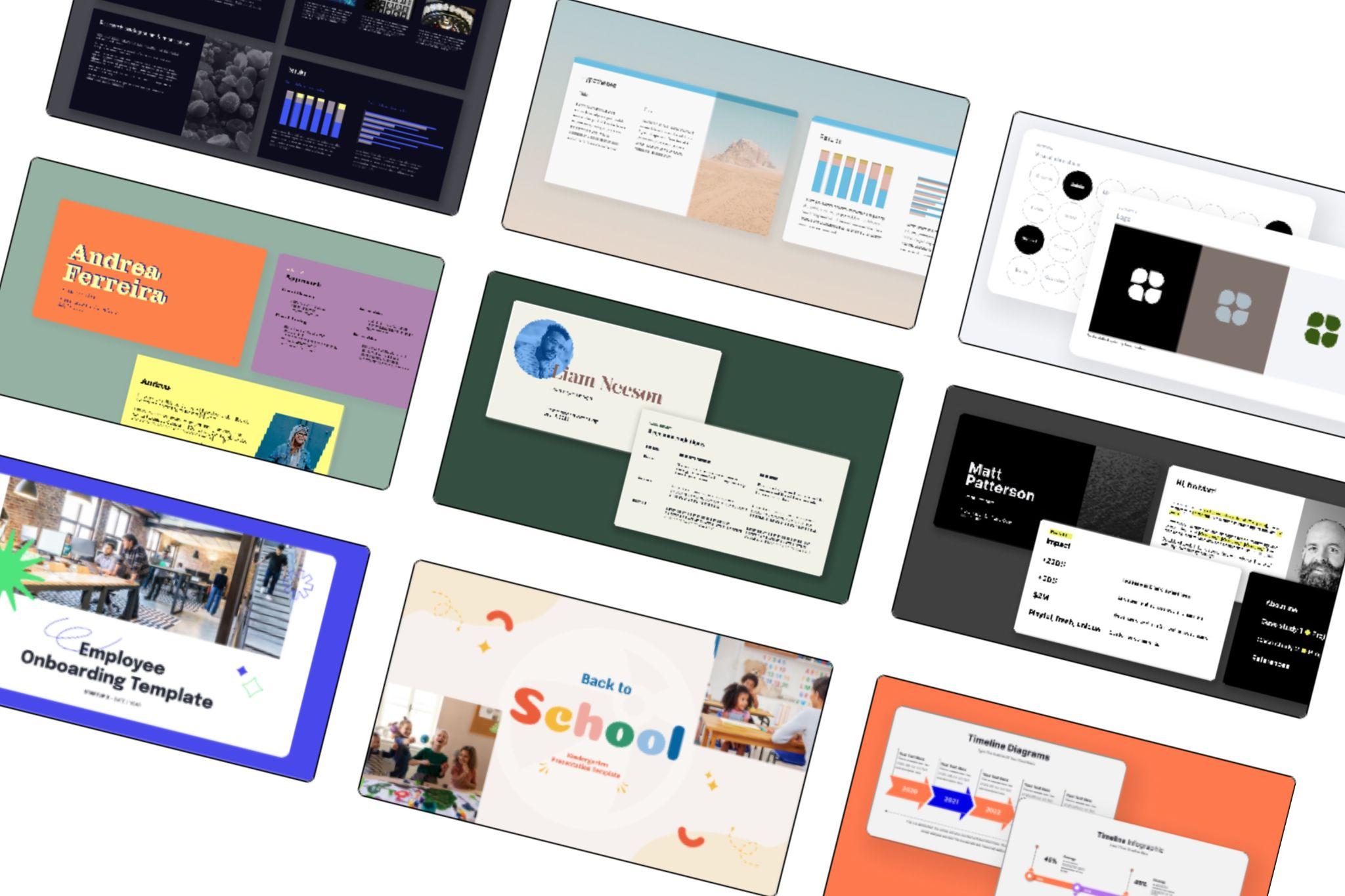
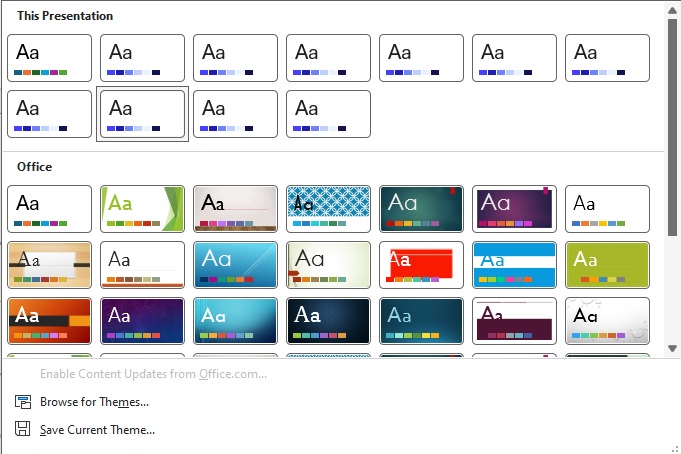
Theme and Style Customization: Apply company branding or choose from various design themes to maintain consistency.
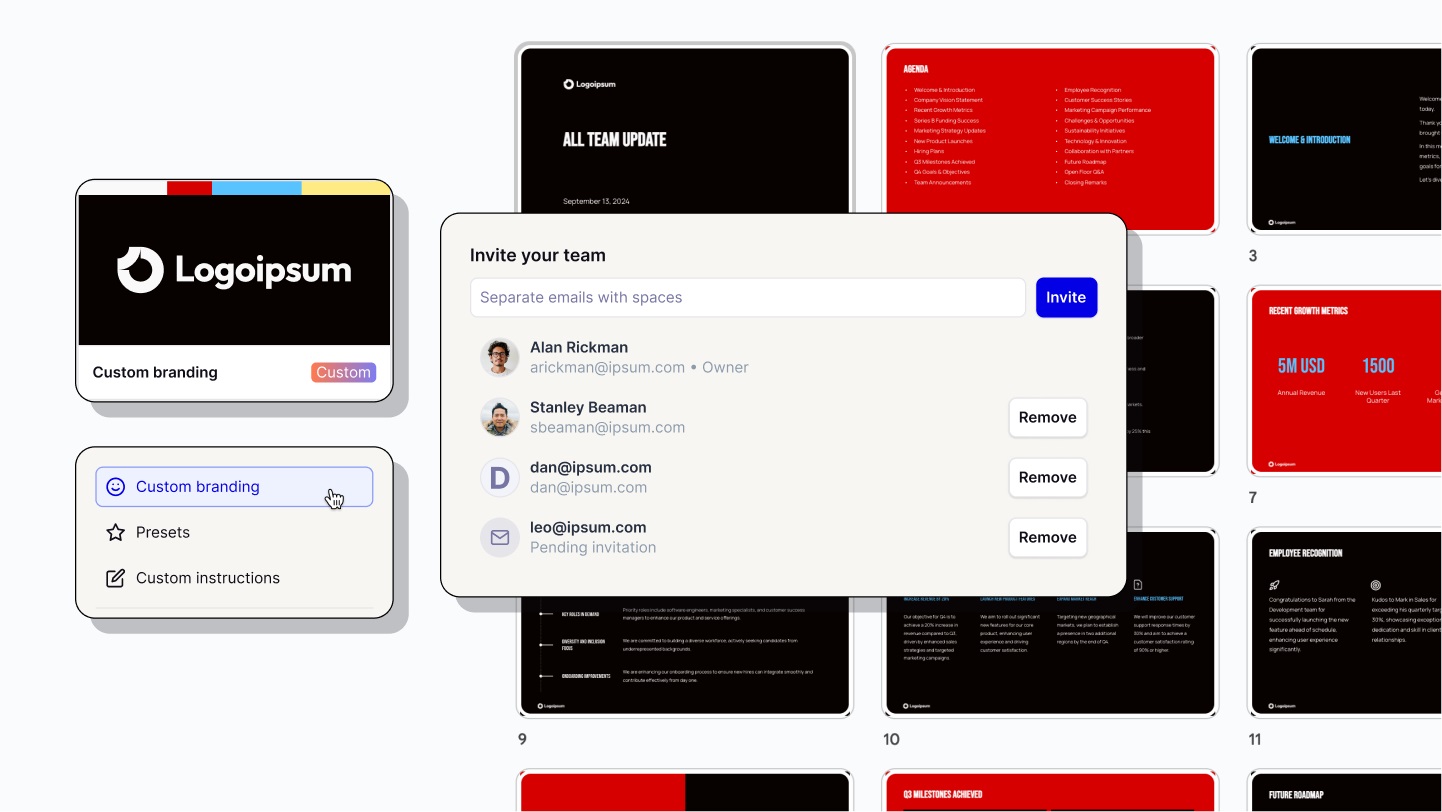
Real-time Collaboration: Work with teams directly within Google Slides, where Plus AI’s features are accessible to all collaborators.
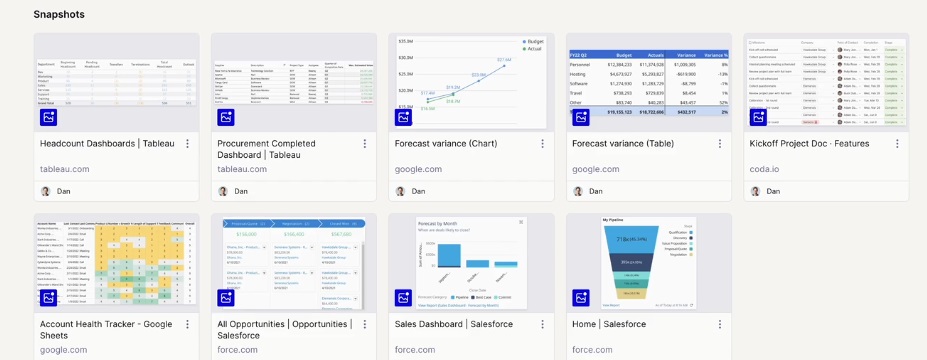
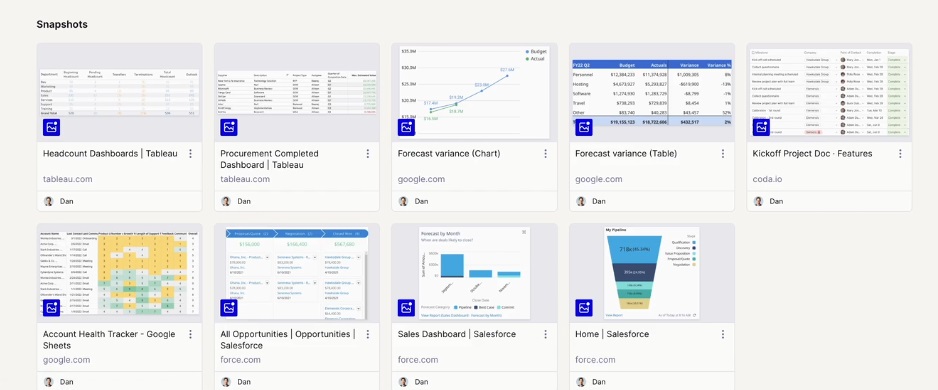
Snapshots: This feature lets you save different versions of your slides or presentations, making it easy to revert or compare iterations without losing work.
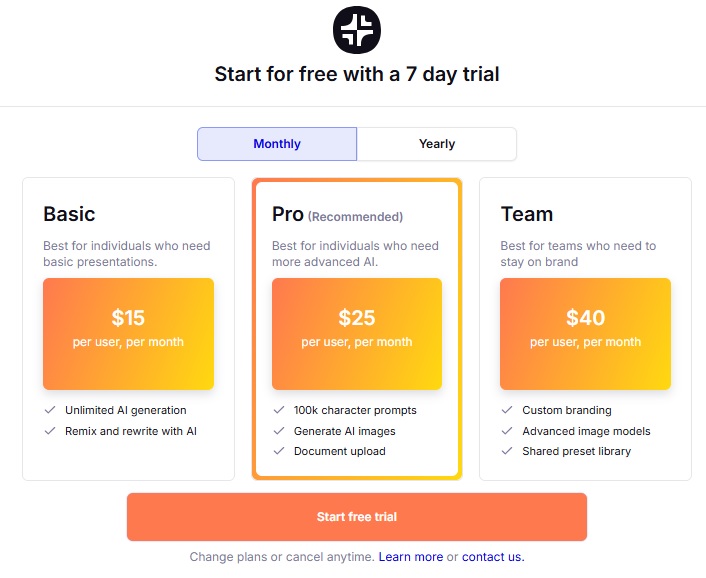
Pricing
Plus AI uses a subscription model. There is usually a short trial, but long-term use requires a paid plan. This can be a drawback for individuals or students looking for a truly free option.
Part 2. Pros and Cons of Plus AI
Plus AI is designed for people who already live inside Google Slides or PowerPoint. Its strengths are clear, but it is not perfect for everyone.
| Category | Summary | Evaluation |
|---|---|---|
| Integration | Works inside Google Slides and PowerPoint | √ |
| Deck creation | Builds full presentations from one prompt | √ |
| Editing tools | Rewrite and layout changes are fast | √ |
| Branding | Supports consistent fonts and colors | √ |
| Ease of use | Familiar but not beginner simple | × |
| Free access | No permanent free plan | × |
| Best for | Teams and professionals | × |
Part 3. How to Create a Presentation with Plus AI (Beginner Step by Step)
This section explains how to use Plus AI, from signing up to creating your first presentation. The process is simple, but it does require registration and starting a free trial.
Step 1: Sign up and start the free trial
Go to the official Plus AI website.

Click Sign up with Google or Sign up with Microsoft.
After completing the initial login, you are redirected to the plan selection and trial activation screen.
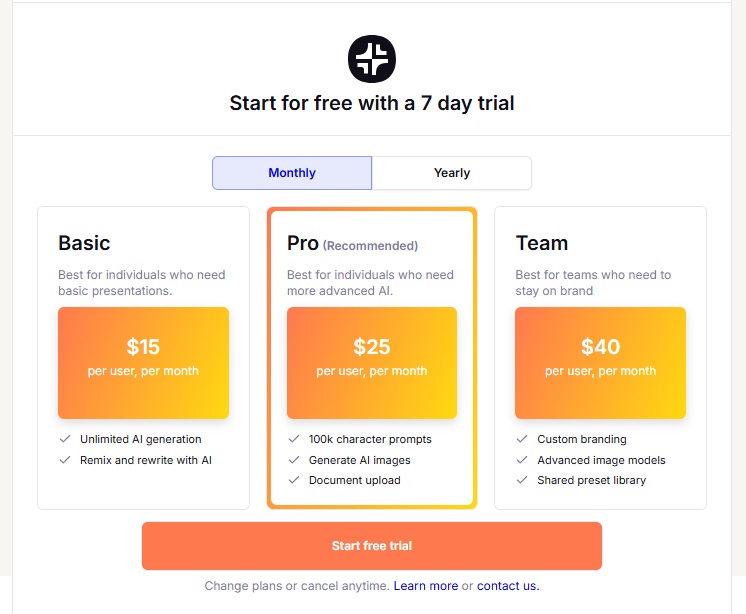
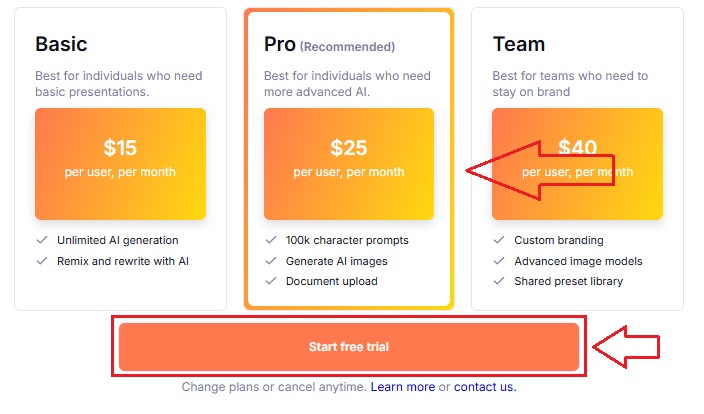
Choose your preferred plan and click Start Free Trial.
Enter payment information and click Start Trial.You will not be charged during the 7 days free trial period.
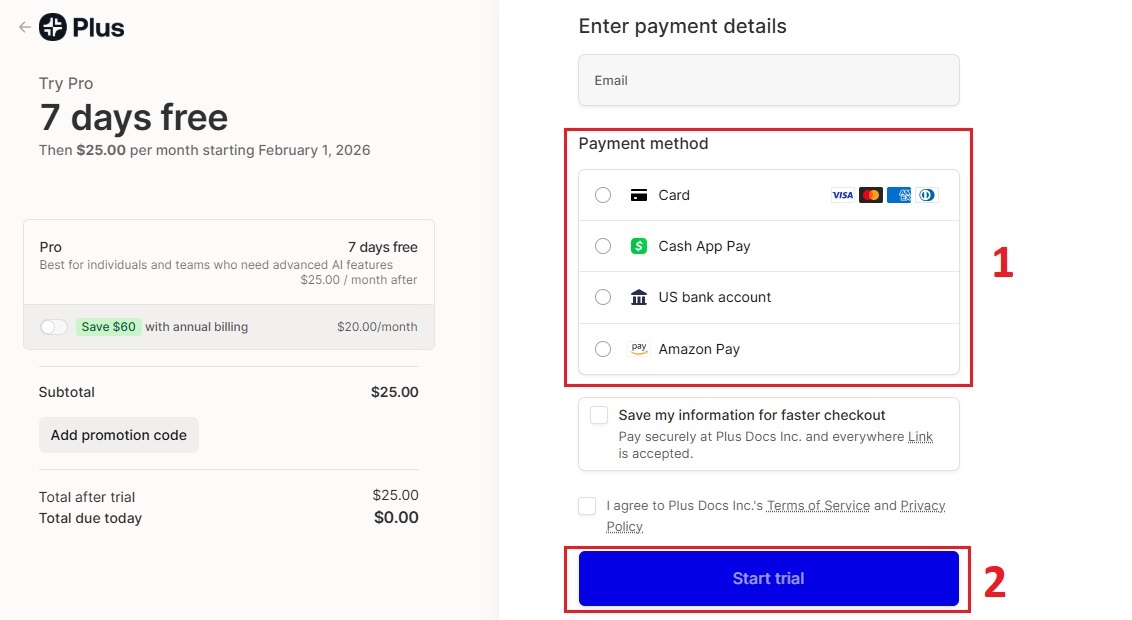
After this, Plus AI activates a 7-day free trial, and you can start using all features immediately.
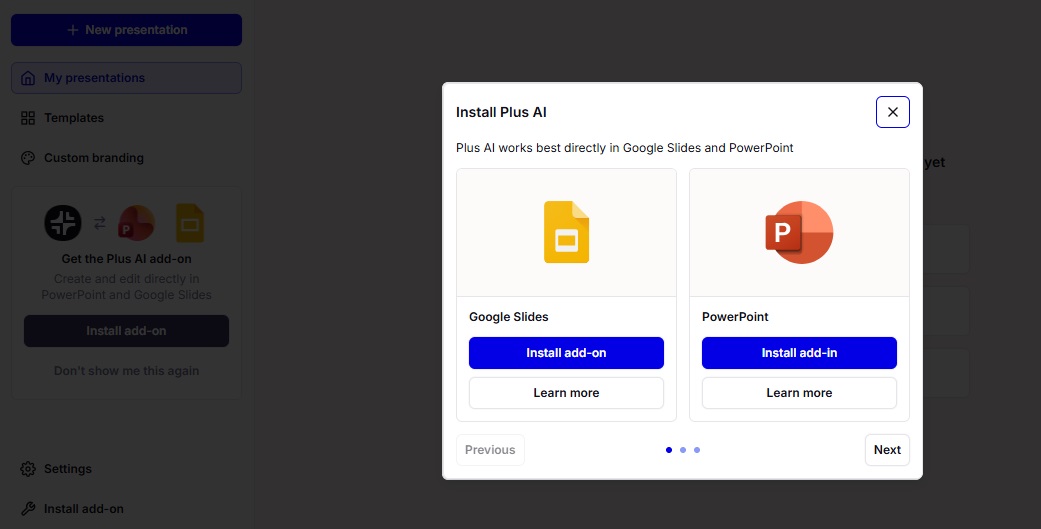
Beginner tip: You will not be able to use Plus AI without starting the trial, but you can cancel anytime before the trial ends.
Step 2: Open your slide tool and find Plus AI
Plus AI does not work as a standalone app; instead, it runs directly inside Google Slides or PowerPoint.
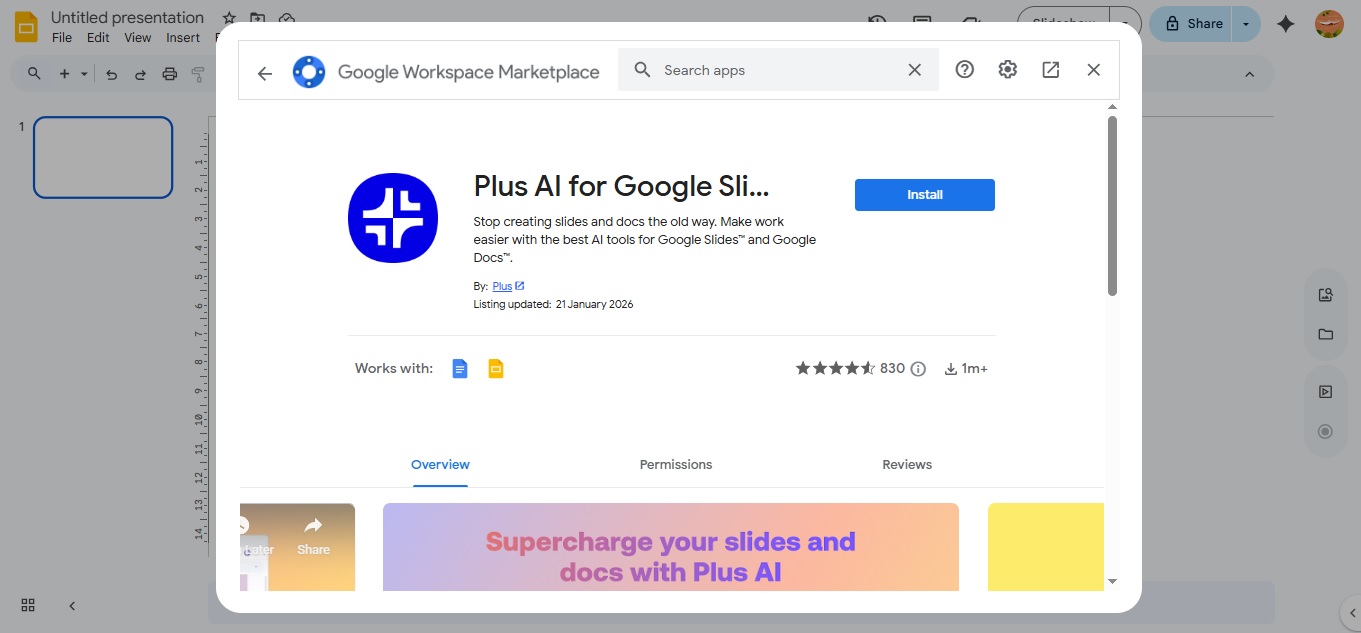
Google Slides: Open Google Slides → create a new presentation → look for Extensions/Add-ons (or a Plus AI panel/button).
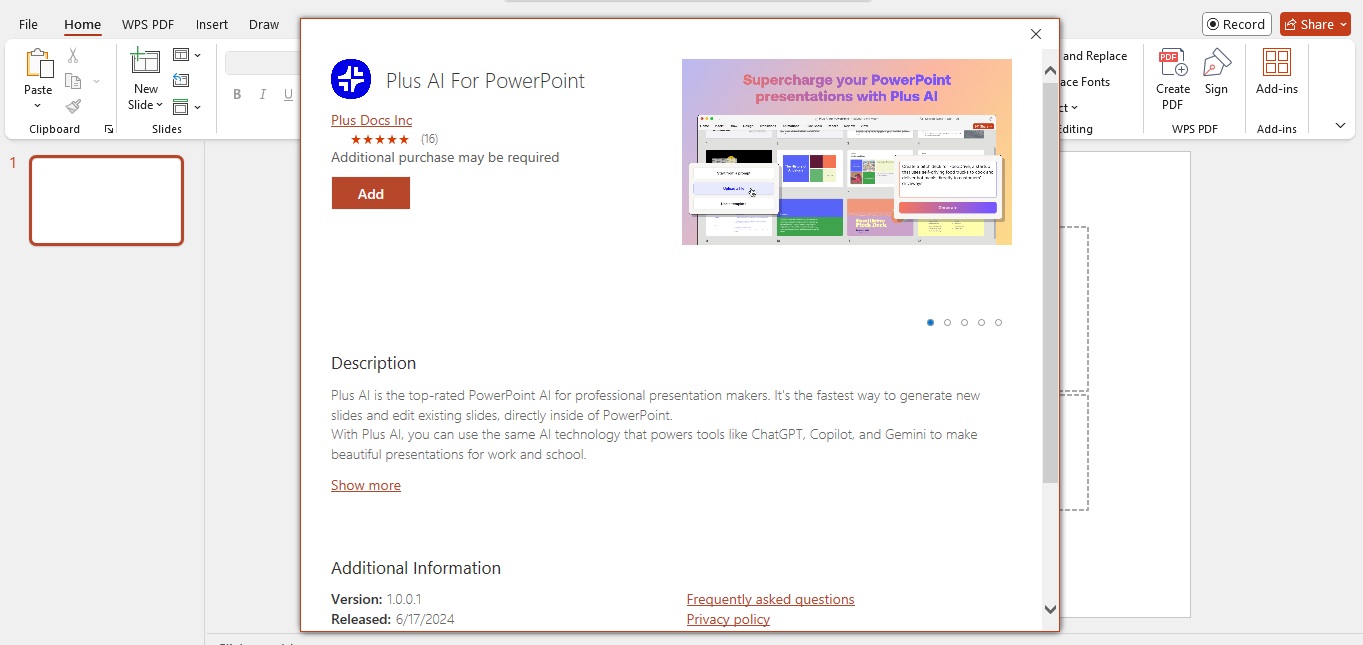
PowerPoint: Open PowerPoint → go toInsert or Add-ins → find Plus AI.
Step 3: Create your first draft with one good prompt
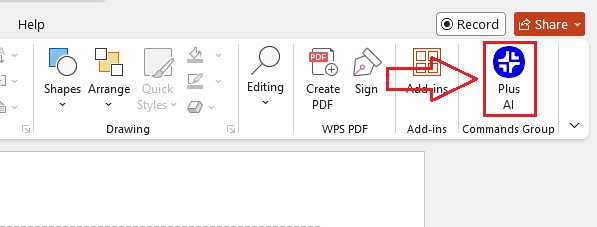
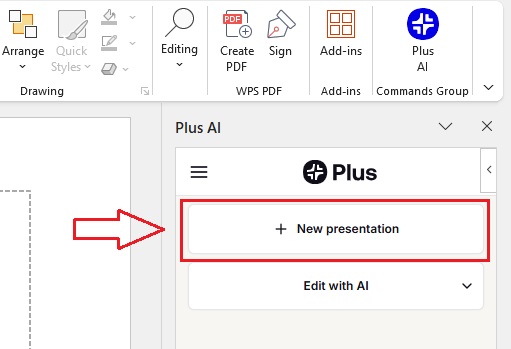
Click Plus AI to open the side panel.
Choose Create presentation (or similar).
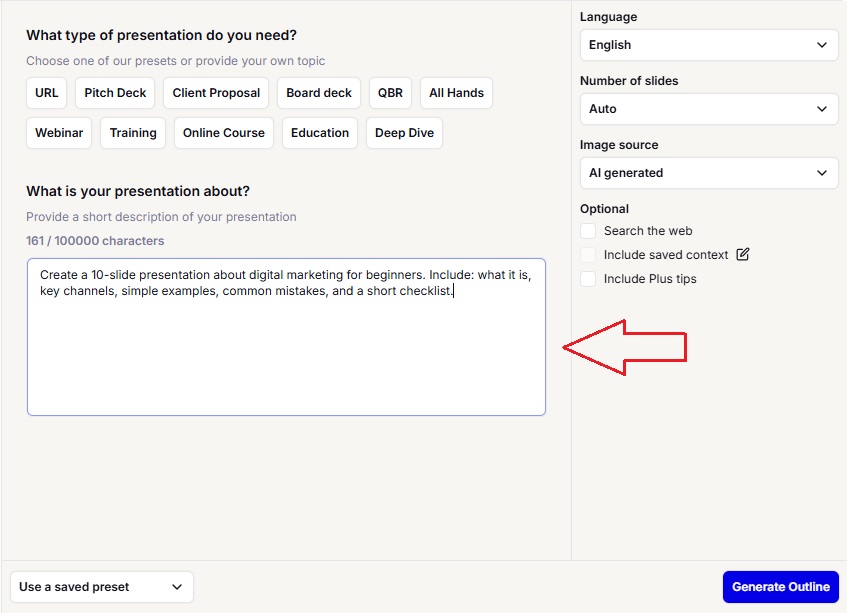
Paste a simple prompt like this:
Example prompt:
“Create a 10-slide presentation about digital marketing for
beginners. Include: what it is, key channels, simple examples, common
mistakes, and a short checklist.”
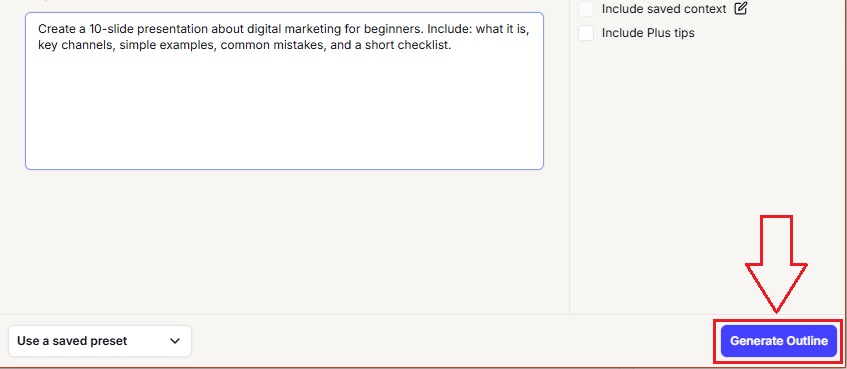
Click Generate.
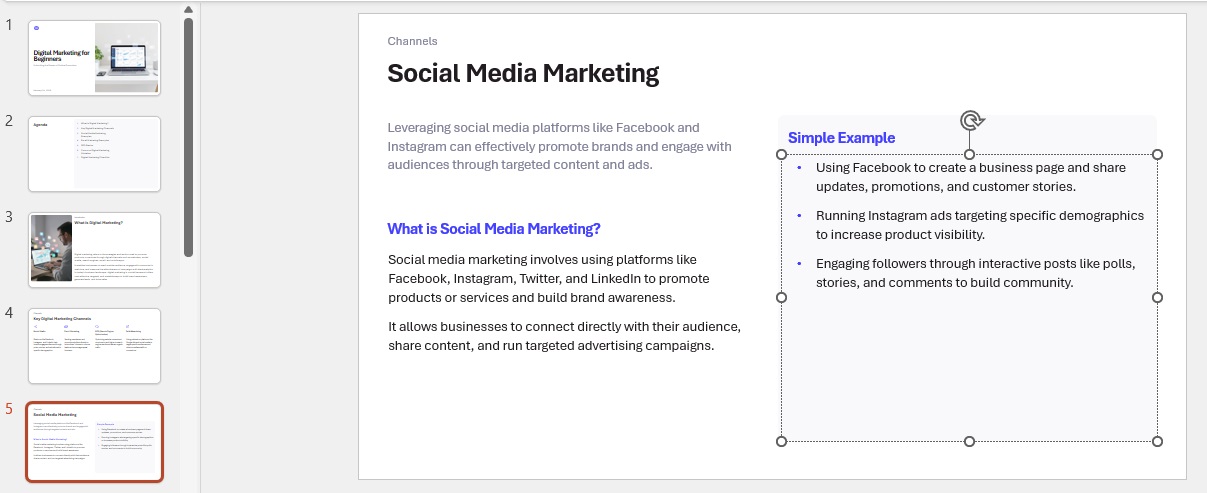
Step 4: Edit the slides using AI (simple workflow)
Pick one slide at a time. In the Plus AI panel, use actions like:
Rewrite (make it simpler or more professional)
Shorten (reduce text)
Expand (add 2–3 stronger points)
Change tone (formal to friendly, or vice versa)
Step 5: Improve layout and design (without overthinking)
Use layout options like Remix layout orChange layout if available.
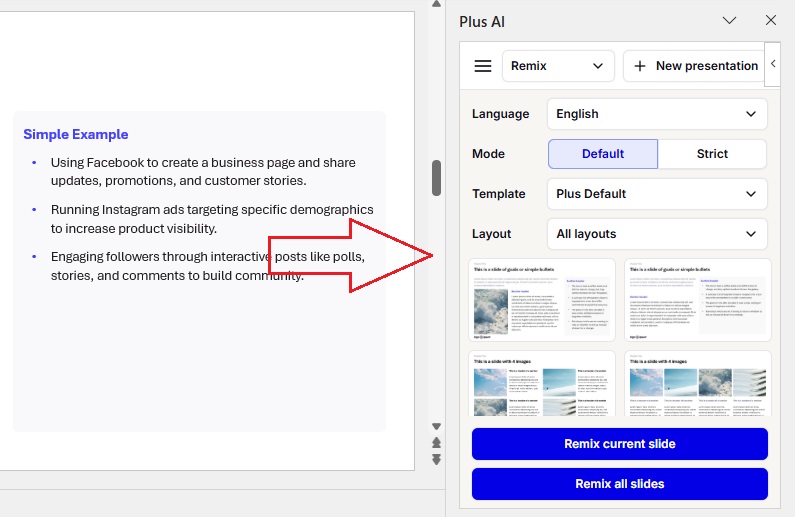
Pick a clean theme that matches your topic.
Make headings consistent (same style and size across slides).
Step 6: Use “Plus Snapshots” to turn notes into slides (optional but powerful)
If you already have content (doc, notes, bullet list):
Open Plus Snapshots.
Paste your notes or add the text source.
Let it convert content into slides. Take a quick review of the generated slides to fix order, tone, or length before finalizing.
Quickly edit the generated slides (shorten, reorder, rewrite).
Part 4. The Best Helper for Presenting Your Ideas: WPS AI Slides
WPS AI Slides is built for users who want fast results without being locked into a paid system. It focuses on simplicity, flexibility, and real-world use.
Overview
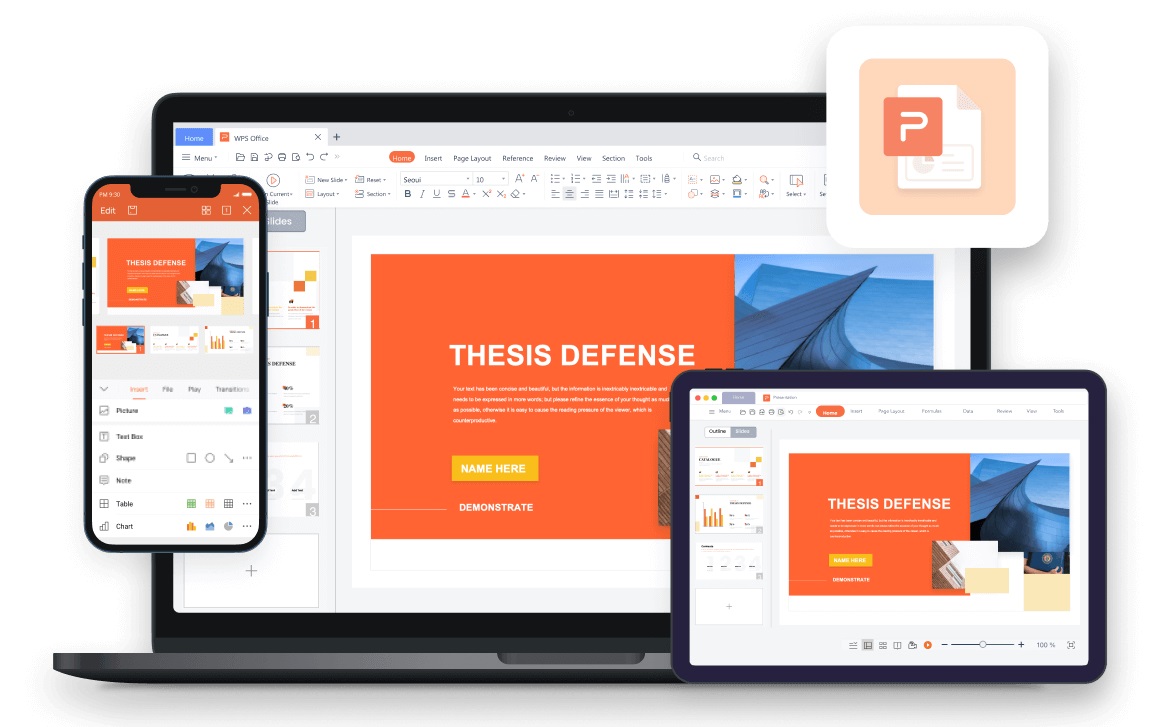
WPS AI Slides is an AI presentation tool inside WPS Office. It helps users create full slide decks from short prompts, outlines, or documents. It works well for students, professionals, and small teams who need clean presentations without spending hours on design.
Why WPS AI Slides Stand Out
The biggest difference is access. Unlike Plus AI, WPS AI Slides offers strong free usage, which makes it practical for everyday work. You can create, edit, and export presentations without hitting a paywall too early.
Key Features
Full presentation generation from a topic or prompt
Smart content expansion and summarization
Ready-made templates for business, education, and reports
Easy layout editing with drag and drop control
Works smoothly across desktop and mobile
Design and Editing Experience
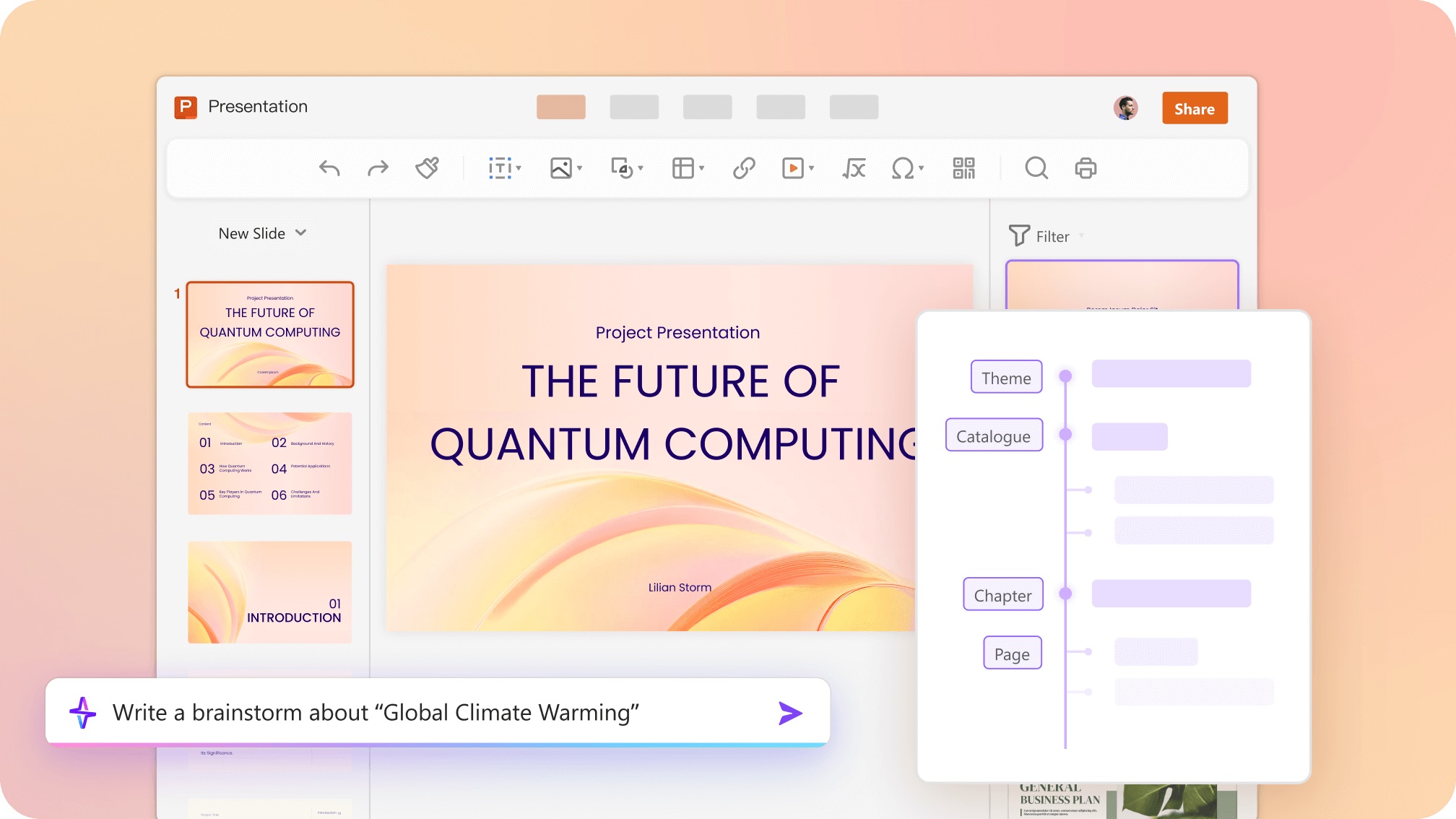
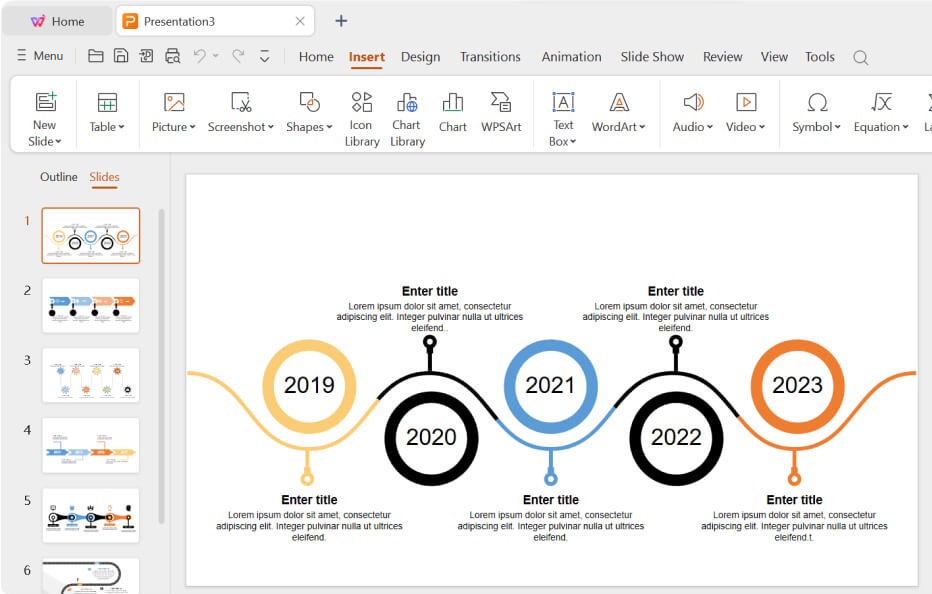
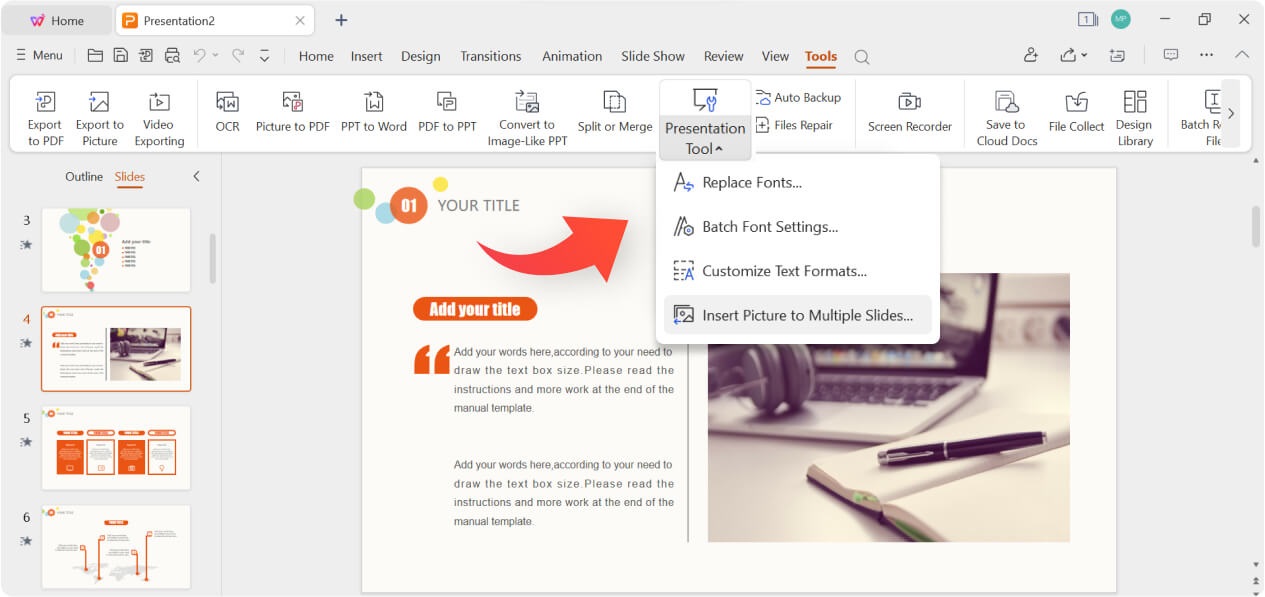
WPS AI Slides keeps the design simple. You choose a style, and the AI handles structure and layout. You can then manually adjust text, images, and slide order without restrictions. This gives more creative freedom than tools with fixed layouts.
How to Create a Presentation with WPS AI Slides
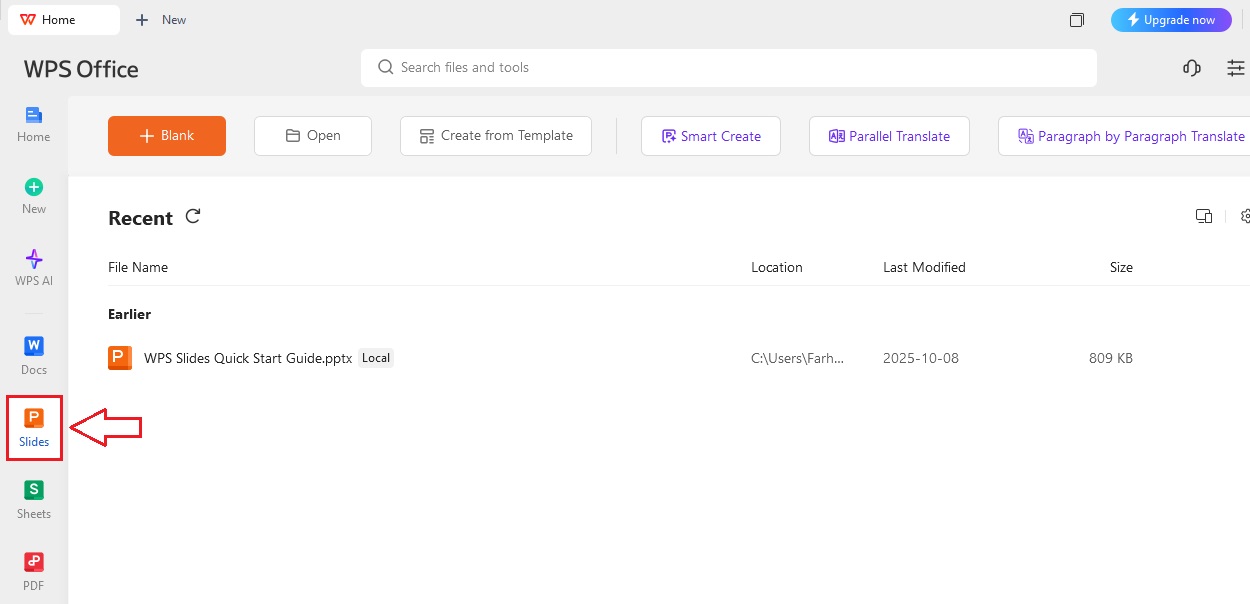
Open WPS Office and select AI Slides
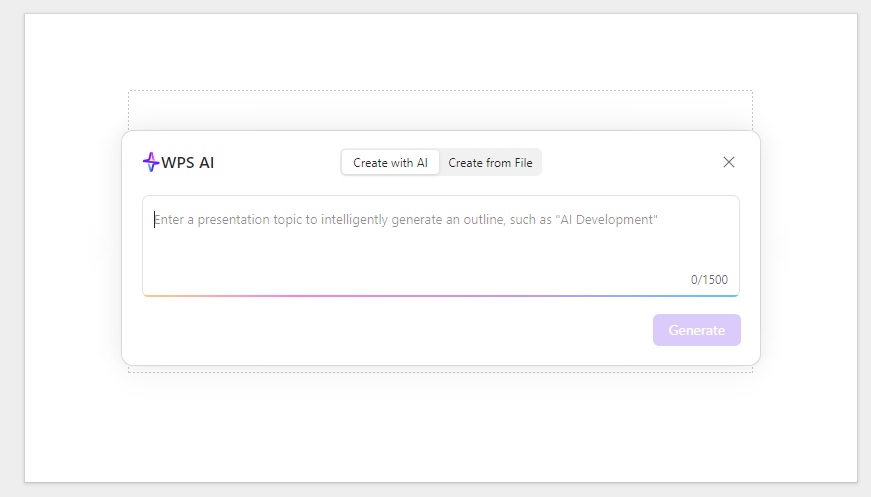
Enter your topic or paste an outline
Choose a presentation style or template
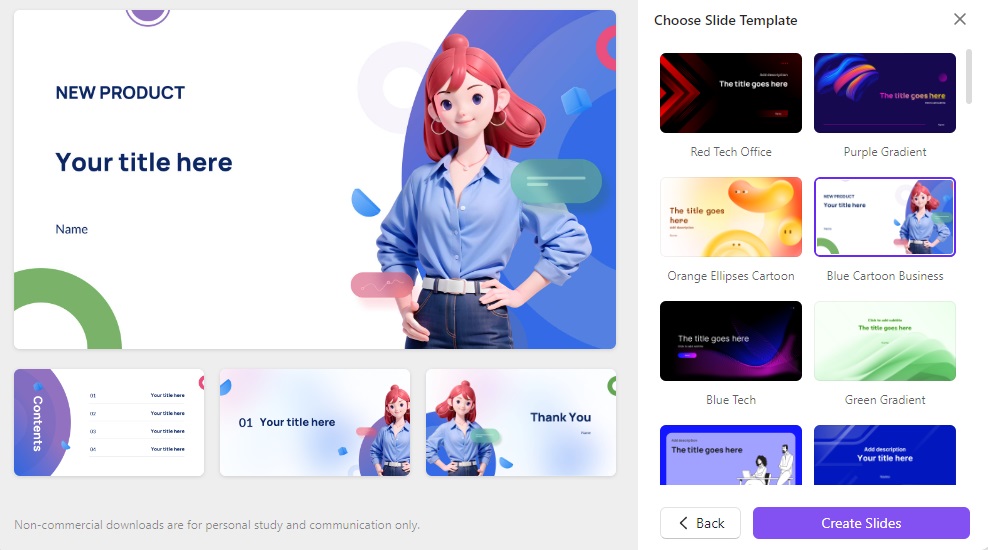
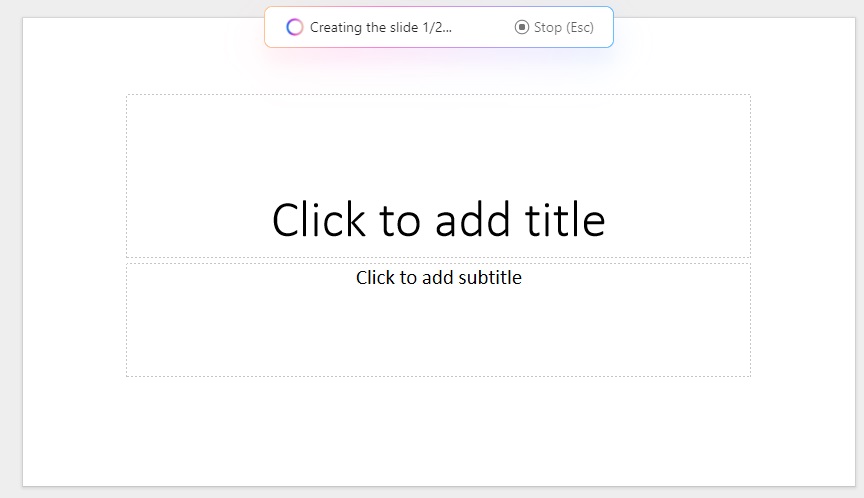
Let the AI generate the full deck
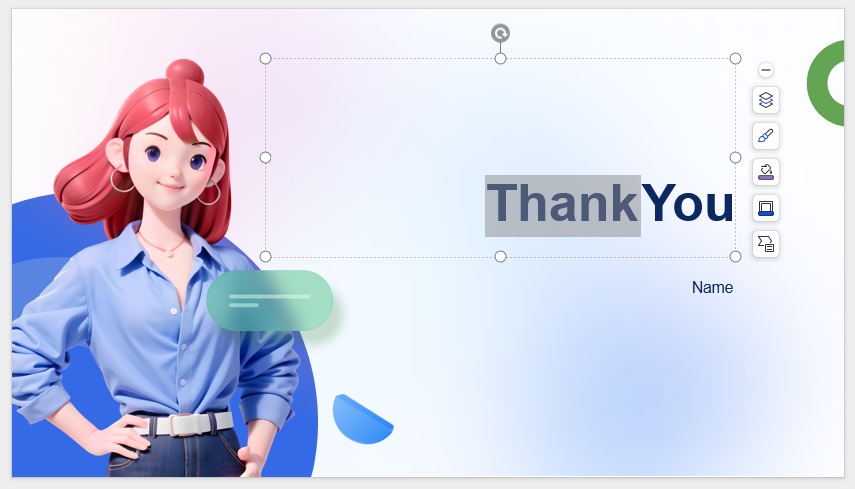
Edit text, rearrange slides, and export
Best Use Cases
Students creating assignments or class presentations
Professionals preparing reports or internal decks
Freelancers pitching ideas to clients
Users looking for a reliable free AI slide tool
WPS AI Slides is practical and flexible. It does not try to replace your control with automation. Instead, it helps you move faster while keeping editing simple. For users who want fewer limits and better value, it is a strong alternative to Plus AI.
Part 5. Competitive Comparison
| Tool | Core AI Capabilities | Design Resources | Customization | Compatibility | Key Advantages | Limitations | Pricing |
|---|---|---|---|---|---|---|---|
| WPS AI Slides | Full deck creation, smart rewrite | Rich templates | High | WPS formats, export | Free access, fast, flexible | Smaller brand ecosystem | Free + paid |
| Plus AI | Deep slide AI tools | Depends on the host app | High | Slides, PowerPoint | Strong branding control | Paid only | Paid |
| Microsoft Copilot | Slide assistance | PowerPoint native | Medium | PowerPoint | Built-in convenience | Less creative freedom | Paid |
| Beautiful.ai | Automated layouts | Fixed styles | Low | Web based | Very fast | Limited control | Paid |
From personal use, WPS AI Slides feels more open and forgiving.Plus AI is powerful, but the cost becomes noticeable when experimenting. Copilot is useful but conservative. Beautiful.ai is fast, yet restrictive once you want custom layouts.
FAQs
1. How does Plus AI differ from Google Gemini or Microsoft
Copilot?
Plus AI focuses specifically on presentations, offering full
deck creation, slide remix tools, and deeper branding options.
2. Is my data secure with Plus AI?
Yes. It follows SOC 2 Type II standards and uses strong
encryption for stored and transferred data.
3. How do I get the best results from Plus AI?
Be specific with prompts. Clear goals, audience details, and
structure lead to better slides.
4. Is there a Free Plus AI option?
There is usually a trial, but long-term use requires payment.
For ongoing free use, alternatives like WPS AI Slides work better.
5. Who should use Plus AI?
Teams that already rely heavily on Google Slides or PowerPoint
and need tight brand control.
Summary
This article explained what Plus AI is, how it works, and where it fits in 2026 workflows. It delivers a strong presentation-focused AI inside familiar tools. At the same time, pricing and flexibility can limit wider use. WPS AI Slides stands out as a more open and budget-friendly choice. For users who want speed, control, and freedom, WPS AI Slides is the better long-term option.

'%3e%3cpath%20d='M19.9911%204.11386V6.471H18.5894C18.0775%206.471%2017.7322%206.57814%2017.5536%206.79243C17.3751%207.00671%2017.2858%207.32814%2017.2858%207.75671V9.44421H19.9019L19.5536%2012.0871H17.2858V18.8639H14.5536V12.0871H12.2769V9.44421H14.5536V7.49779C14.5536%206.39064%2014.8632%205.53201%2015.4822%204.92189C16.1013%204.31177%2016.9257%204.00671%2017.9554%204.00671C18.8304%204.00671%2019.509%204.04243%2019.9911%204.11386Z'%20fill='%23333333'/%3e%3c/g%3e%3cdefs%3e%3cclipPath%20id='clip0_2938_8199'%3e%3crect%20width='16'%20height='16'%20fill='white'%20transform='translate(8%204.00671)'/%3e%3c/clipPath%3e%3c/defs%3e%3c/svg%3e)
'%3e%3cpath%20d='M17.5237%2010.7813L23.4811%204H22.0699L16.8949%209.88693L12.7648%204H8L14.2469%2012.9029L8%2020.0133H9.4112L14.8725%2013.7952L19.2352%2020.0133H24M9.92053%205.04213H12.0885L22.0688%2019.0224H19.9003'%20fill='%23333333'/%3e%3c/g%3e%3cdefs%3e%3cclipPath%20id='clip0_2938_8200'%3e%3crect%20width='16'%20height='16.0134'%20fill='white'%20transform='translate(8%204)'/%3e%3c/clipPath%3e%3c/defs%3e%3c/svg%3e)


