
5 Best AI PowerPoint Generators in 2026: Compared
AI presentation tools can now turn a topic, outline, or source document into a first-pass slide deck in minutes. But the best tool depends on what you need to do after the AI creates the slides.
Top 5 AI tools for generating slide decks
Five ways to generate slide decks with AI from editable PowerPoint-compatible presentations to browser-first design and in-editor AI.
At a glance
Pick based on your workflow: editable PPTX, visual design, narrative structure, or in-editor AI.
Fully editable slides
WPS AI Slides: unrestricted editing on editable AI PPT-not export-only.
Design-first output
Useful when visual polish matters more than deep structure.
Narrative structure
Helpful for turning rough notes into a cleaner story flow.
Workflow fit
The right choice depends on whether you want speed, control, or both.
WPS AI Slides
WPS AI Slides combines AI presentation generation with WPS Presentation, allowing you to generate a deck and continue editing the result in the same presentation environment. WPS supports generation from a topic or outline and can also work from Word and PDF files. Generated presentations can be exported as PPTX, PDF, or images.
100% Office-compatible, unrestricted editing on AI-generated PPT-one-click to generate, freely modify in WPS. Beyond export-only.
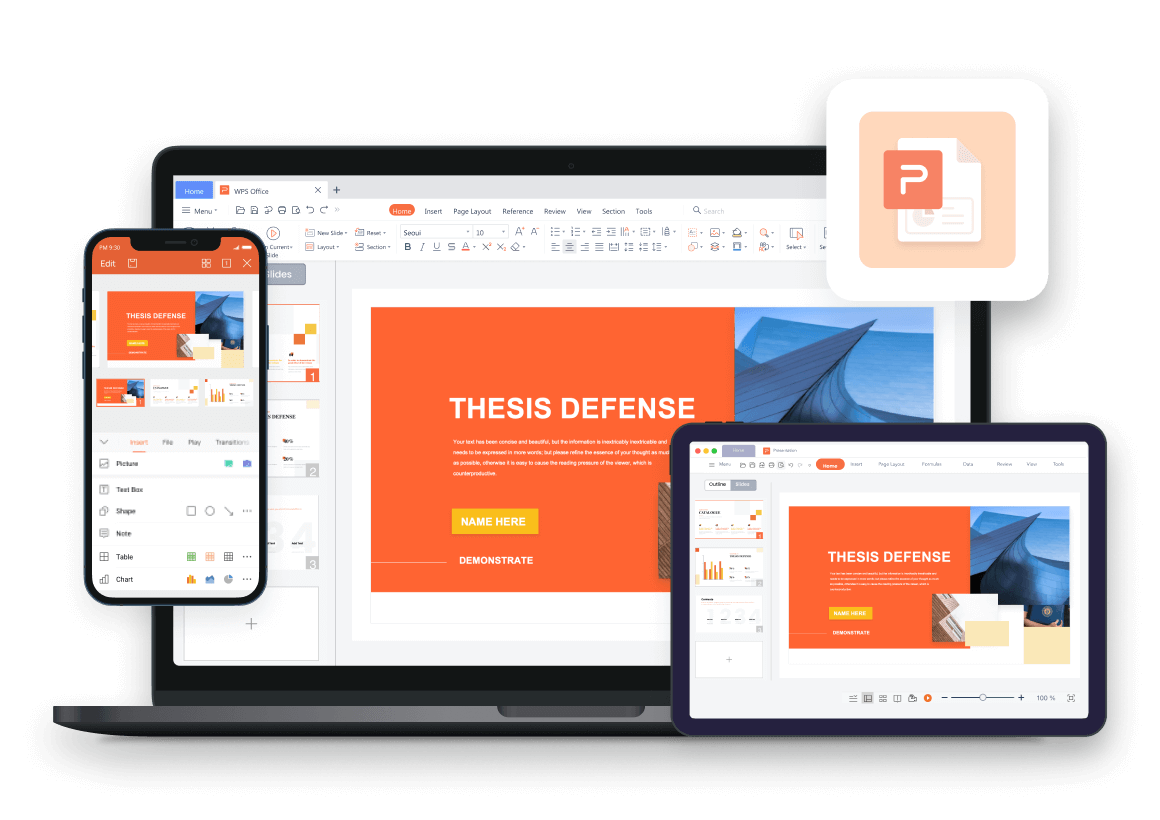
- Edit any element
- AI refine in-editor
- Editable PPTX export
Who it's for
Teams, professionals, educators, and students who need an AI-generated PowerPoint presentation they can continue editing rather than treating the AI output as a final export.
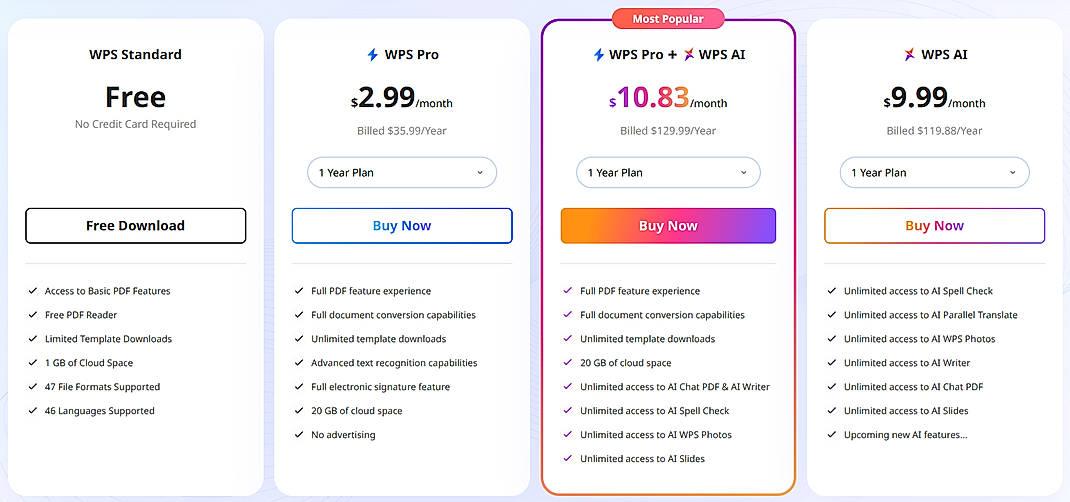
Pricing
- Free access is available for eligible AI presentation features.
- Additional AI usage, templates, and other capabilities may depend on the current WPS plan.
- Pricing and feature limits can change, so check the current WPS plan before upgrading.
Key features
- AI slide generation: Create a presentation from a topic, prompt, or outline.
- AI-powered editing: Generate or refine content without leaving the presentation editor.
- Editable export: Export presentations as PPTX, PDF, or images.
- File-to-presentation workflow: Use Word or PDF content as a starting point for a presentation.
- Office-style editing: Continue working with familiar presentation editing tools after generation.
Pros
- AI generation and presentation editing in the same workflow
- Editable presentation output
- Supports PPTX, PDF, and image export
- Useful for turning existing documents into presentations
- Suitable for business, education, and professional presentations
Cons
- Visual styles can be more conservative than design-first platforms.
- Some advanced AI features depend on the current WPS plan.
- Full desktop editing requires WPS Office.
How to use WPS AI Slides
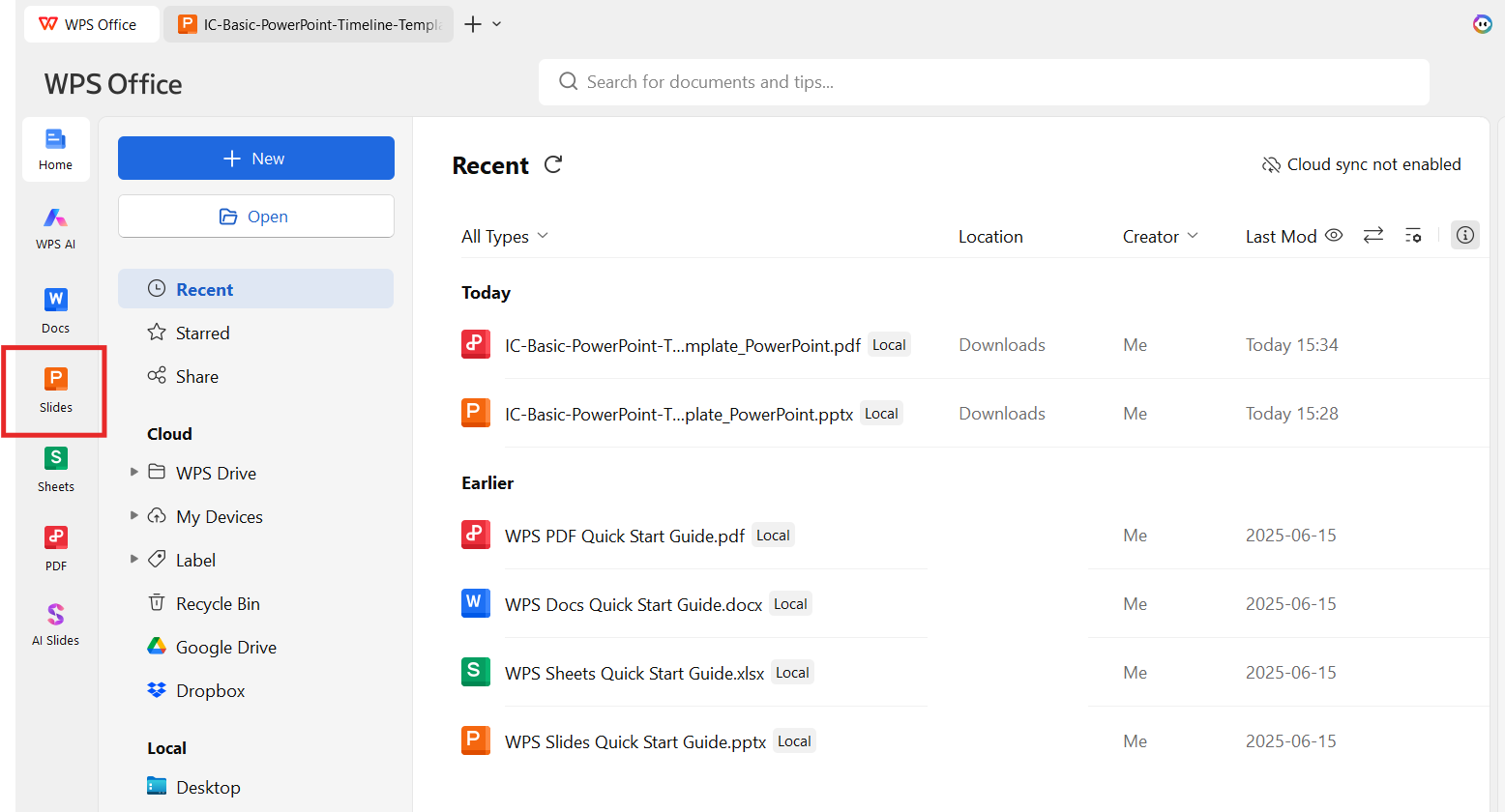
Step 1: Open WPS Presentation
Launch WPS Office and open the Presentation module.
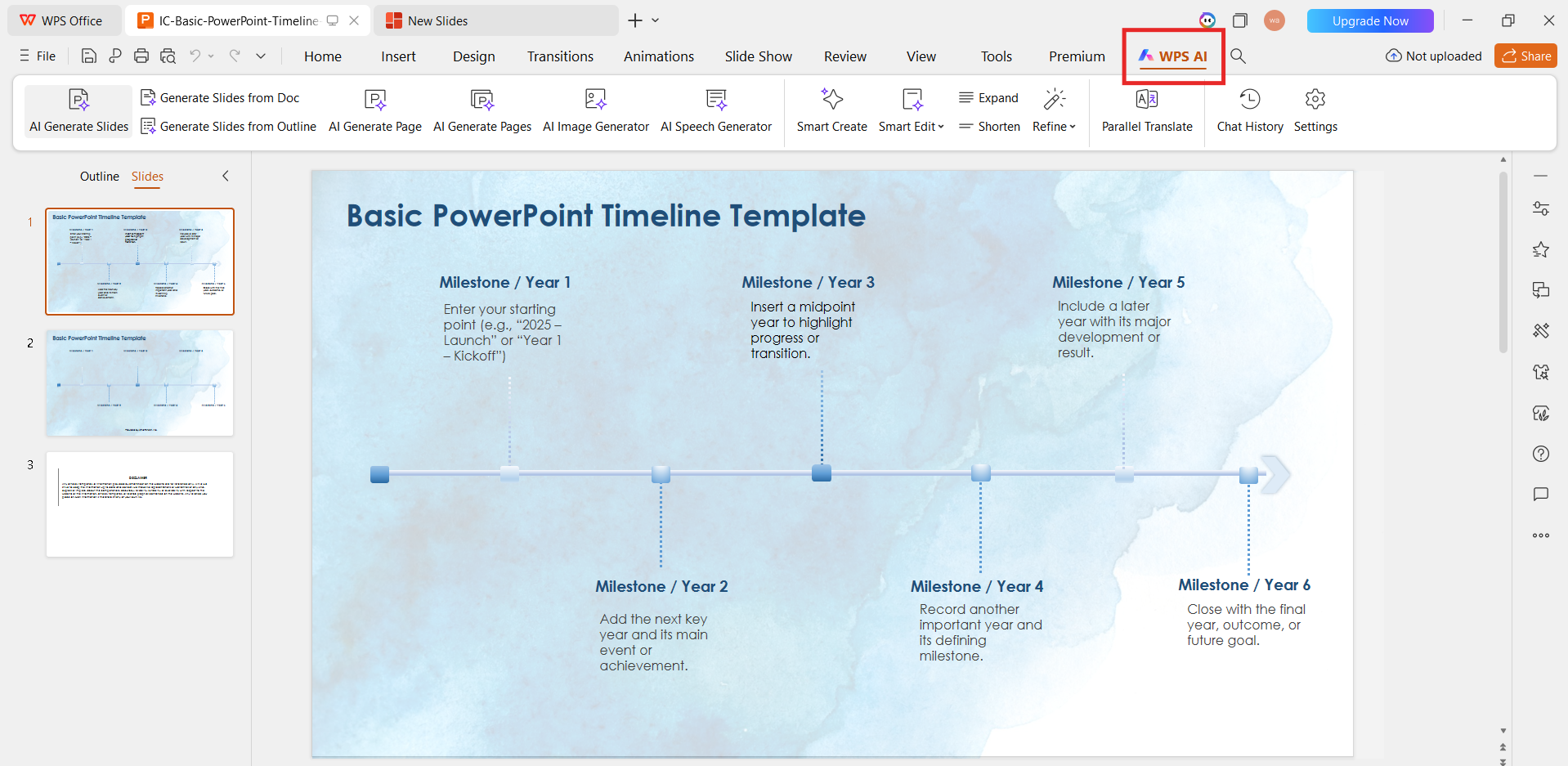
Step 2: Select AI Slides
Open the WPS AI tools and choose the AI slide-generation feature available in your version of WPS Presentation.
Step 3: Enter your prompt or outline
Enter your topic, audience, requirements, or a prepared outline. A specific prompt usually gives the AI more useful direction.
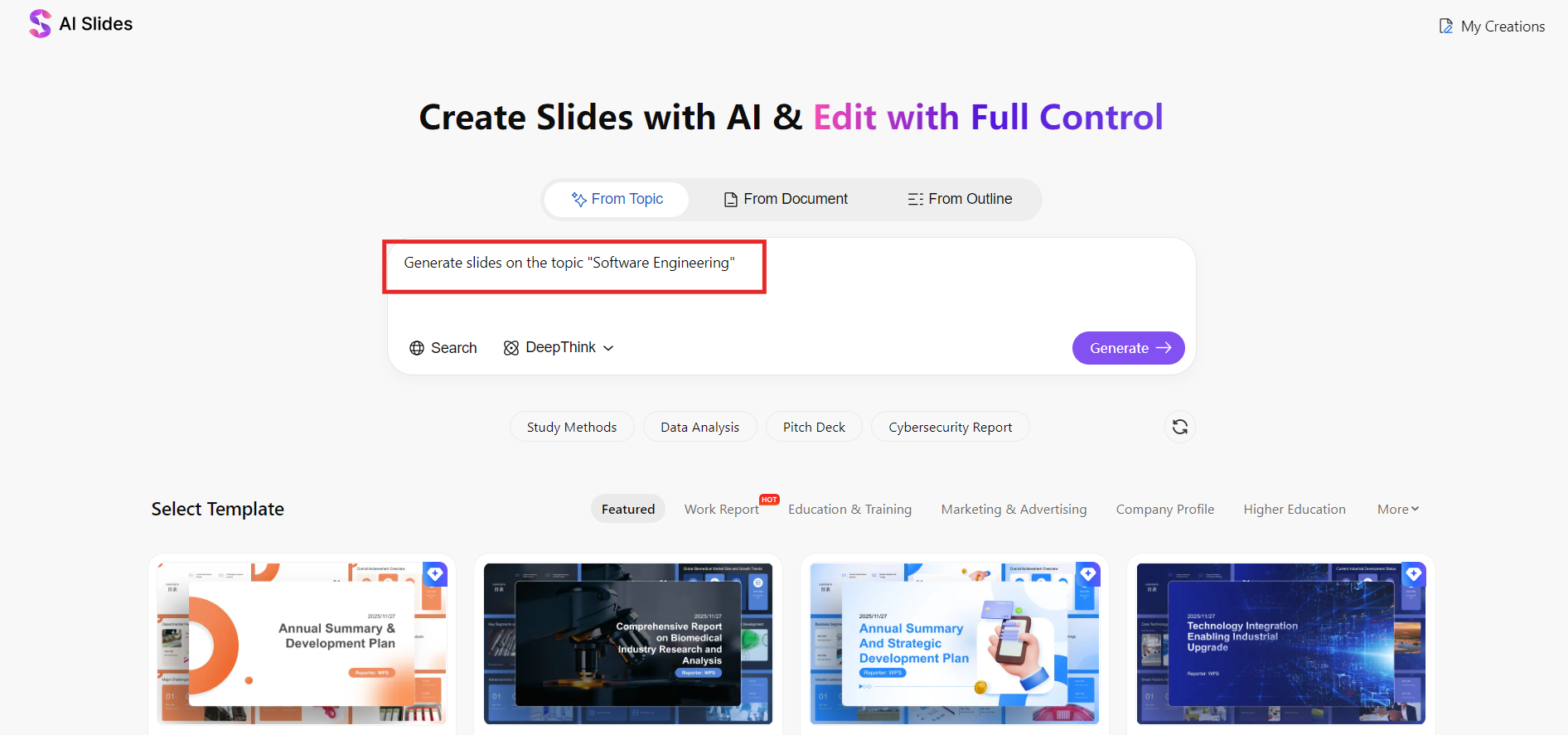
Step 4: Choose a theme and slide length
Select the presentation style and number of slides that fit your presentation goal.
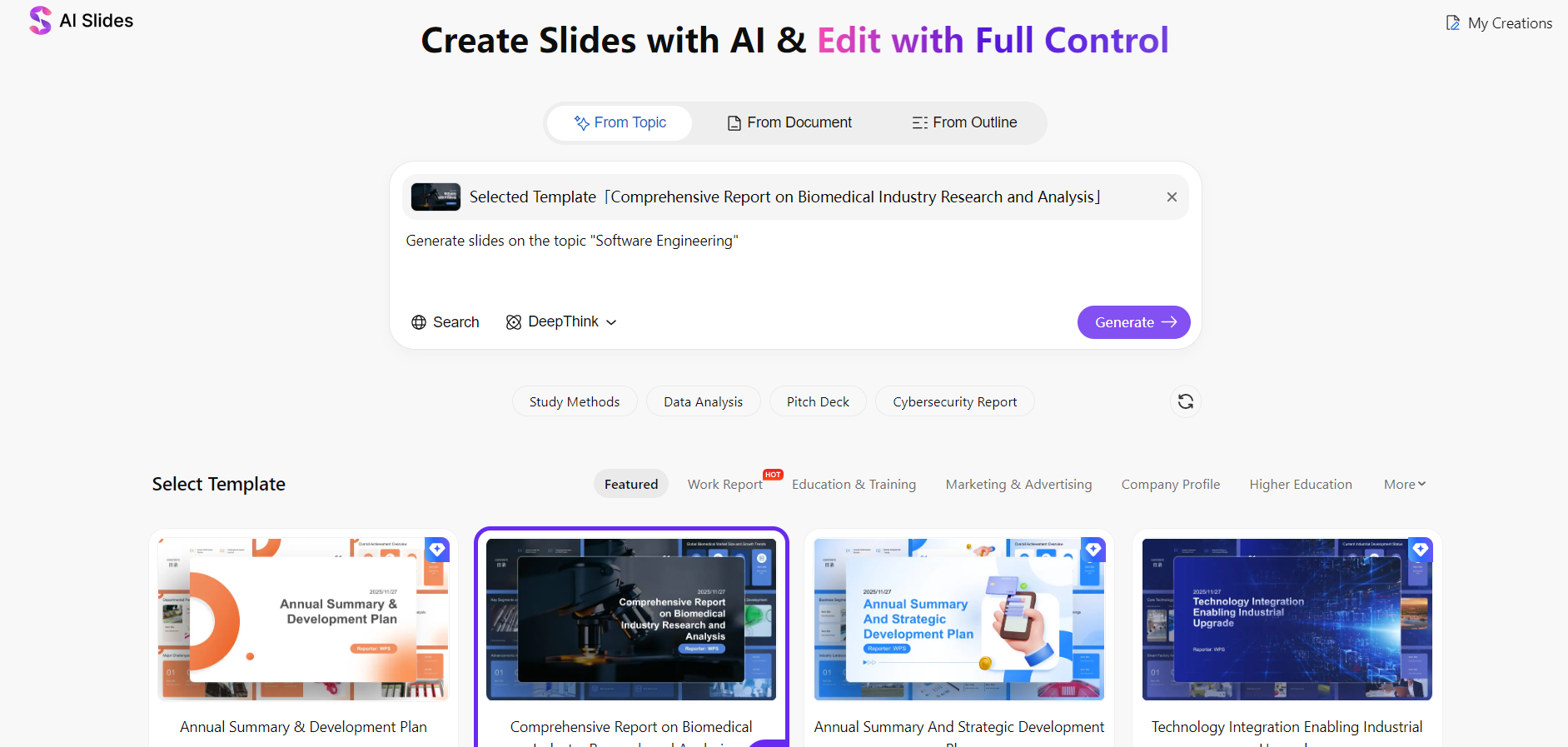
Step 5: Generate and edit
Generate the presentation, then review the structure, wording, visuals, and slide layouts in WPS Presentation before exporting the finished deck.
Canva
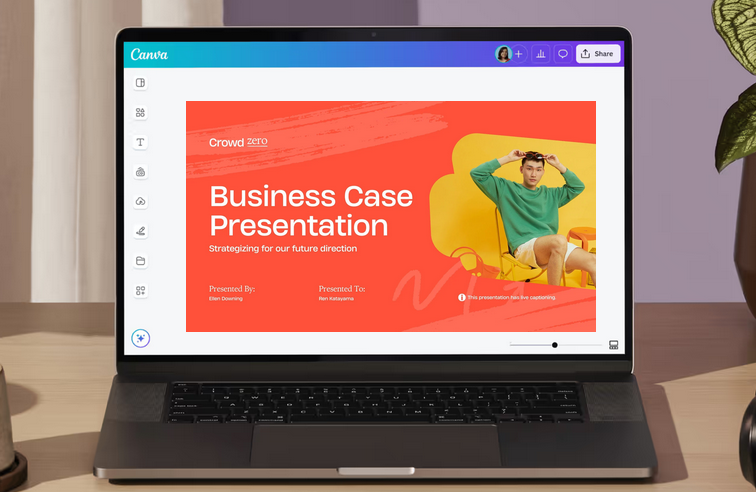
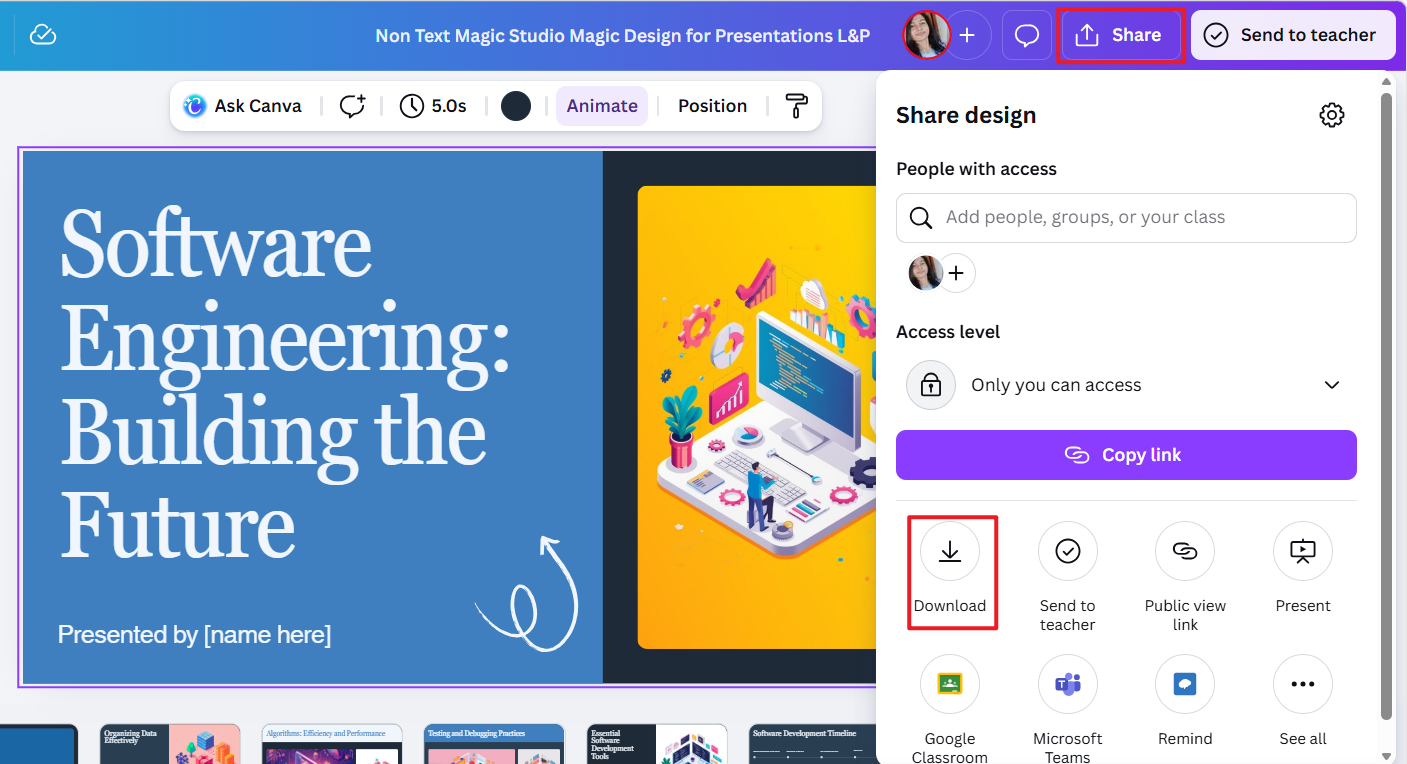
Canva combines AI presentation generation with a broad visual-design platform. Its AI presentation features can create an initial presentation from a prompt, after which you can refine the deck using Canva's templates, design tools, media, and brand features.
Who it's for
Marketers, educators, creators, and teams that prioritize visual design, templates, brand assets, and browser-based editing.
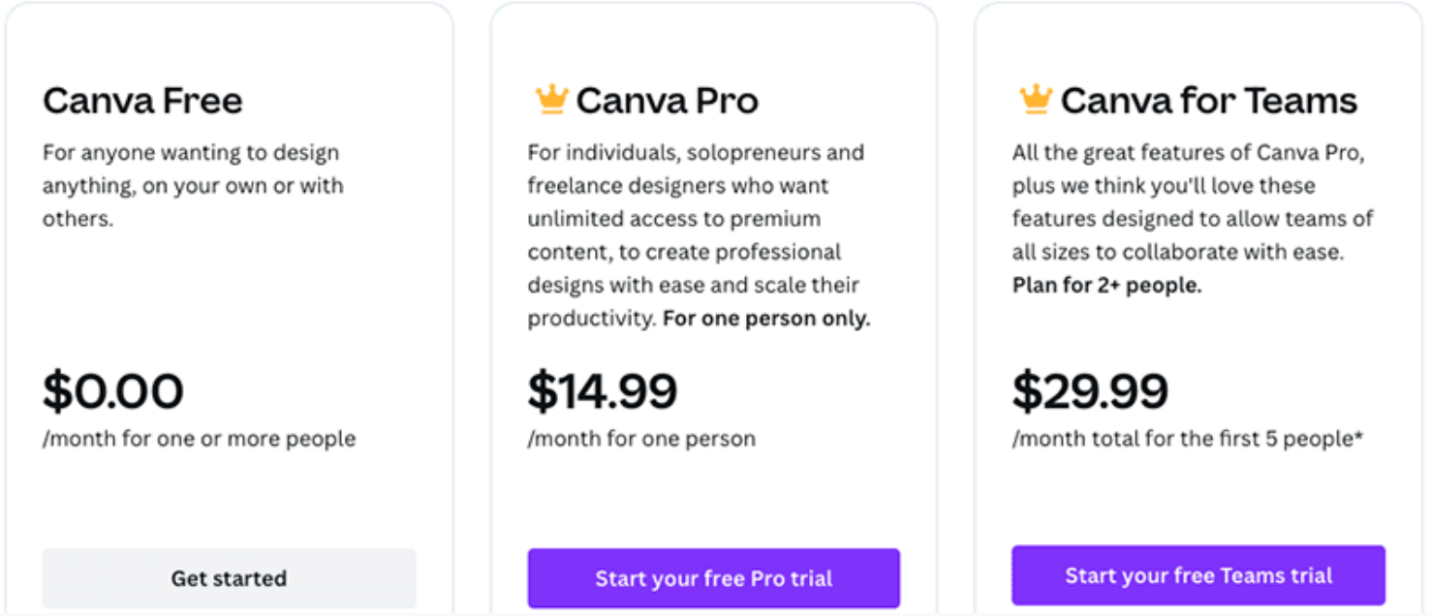
Pricing
- Free access is available with limits.
- Additional AI features, assets, and premium capabilities depend on the current Canva plan.
Key features
- AI-assisted presentation generation
- Large template and design library
- Brand and visual-design tools
- Browser-based editing and collaboration
- PPTX export
Free plan covers basics; Pro unlocks advanced AI-a handy free online tool for visual decks.
Fast and good-looking, but shallow structure. Suited for marketing visuals; less suited to data-heavy corporate decks.
Pros
- Strong visual starting points
- Large template and asset ecosystem
- Easy browser-based editing
- Useful for branded presentations
- Good fit for visually driven content
Cons
- Presentation workflows are closely tied to Canva's design environment.
- Exported PPTX files should be reviewed if the final presentation will be edited or presented elsewhere.
- Content quality still depends on the prompt and the amount of manual refinement.
How to use Canva
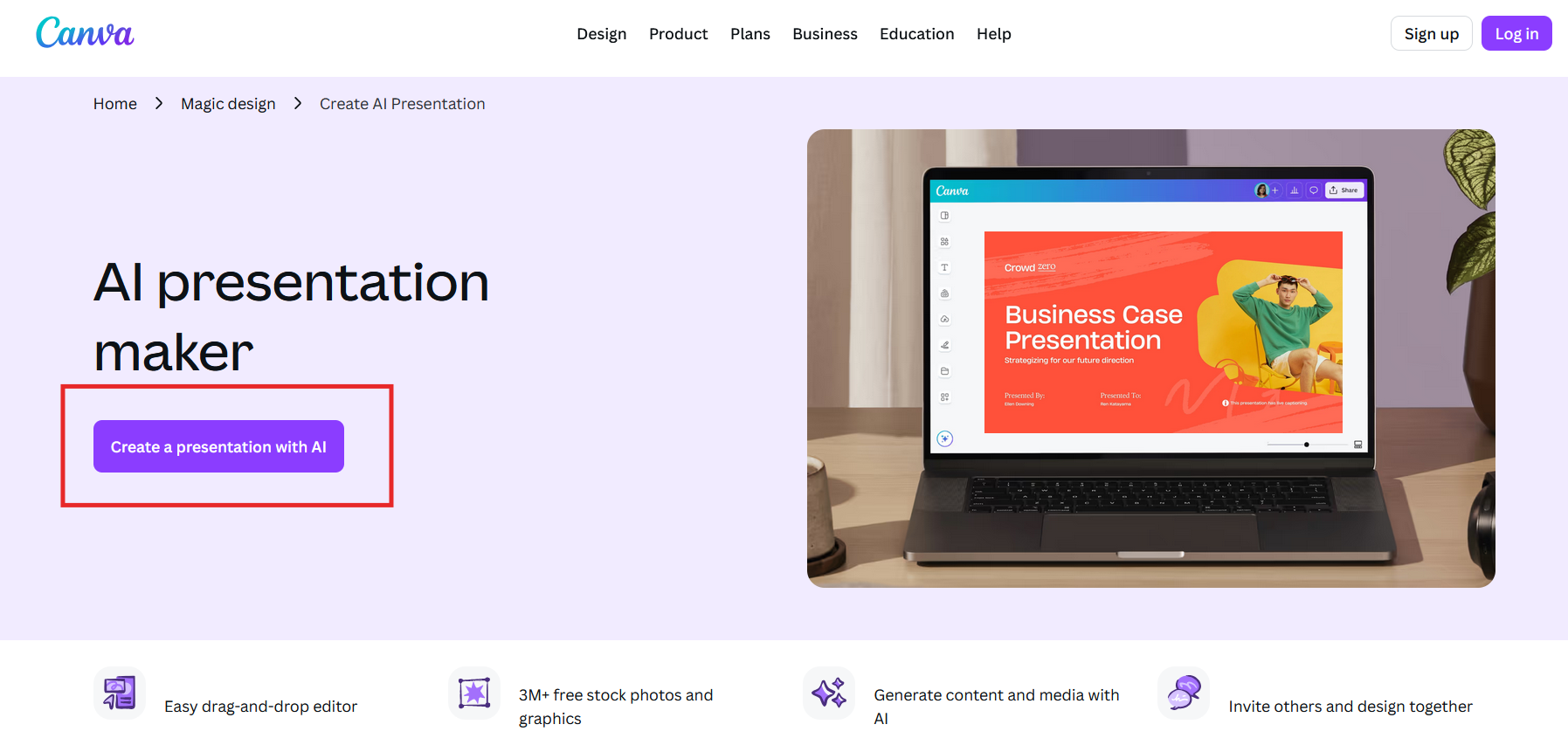
Step 1: Start a presentation
Open Canva and create a new presentation.
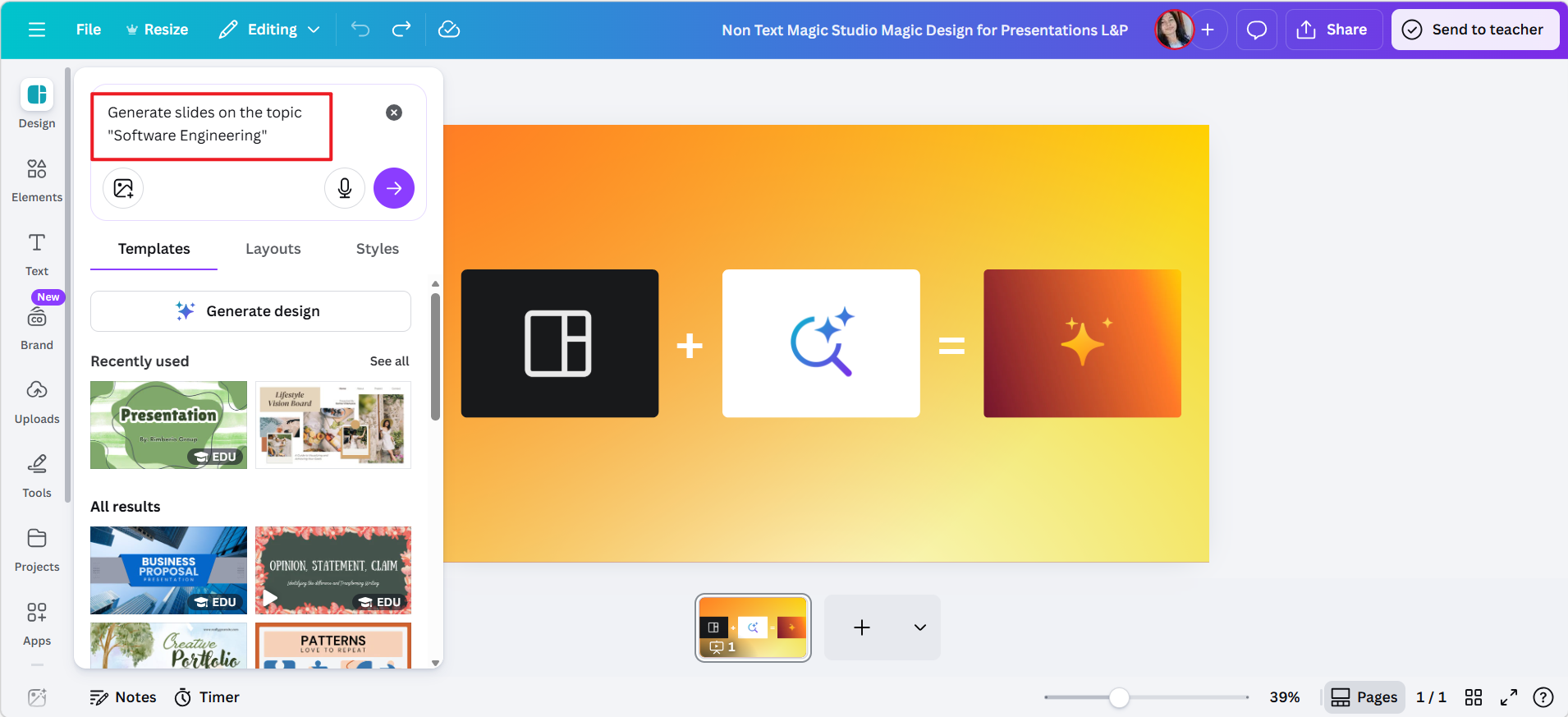
Step 2: Use the AI presentation feature
Describe your topic, audience, and presentation goal.
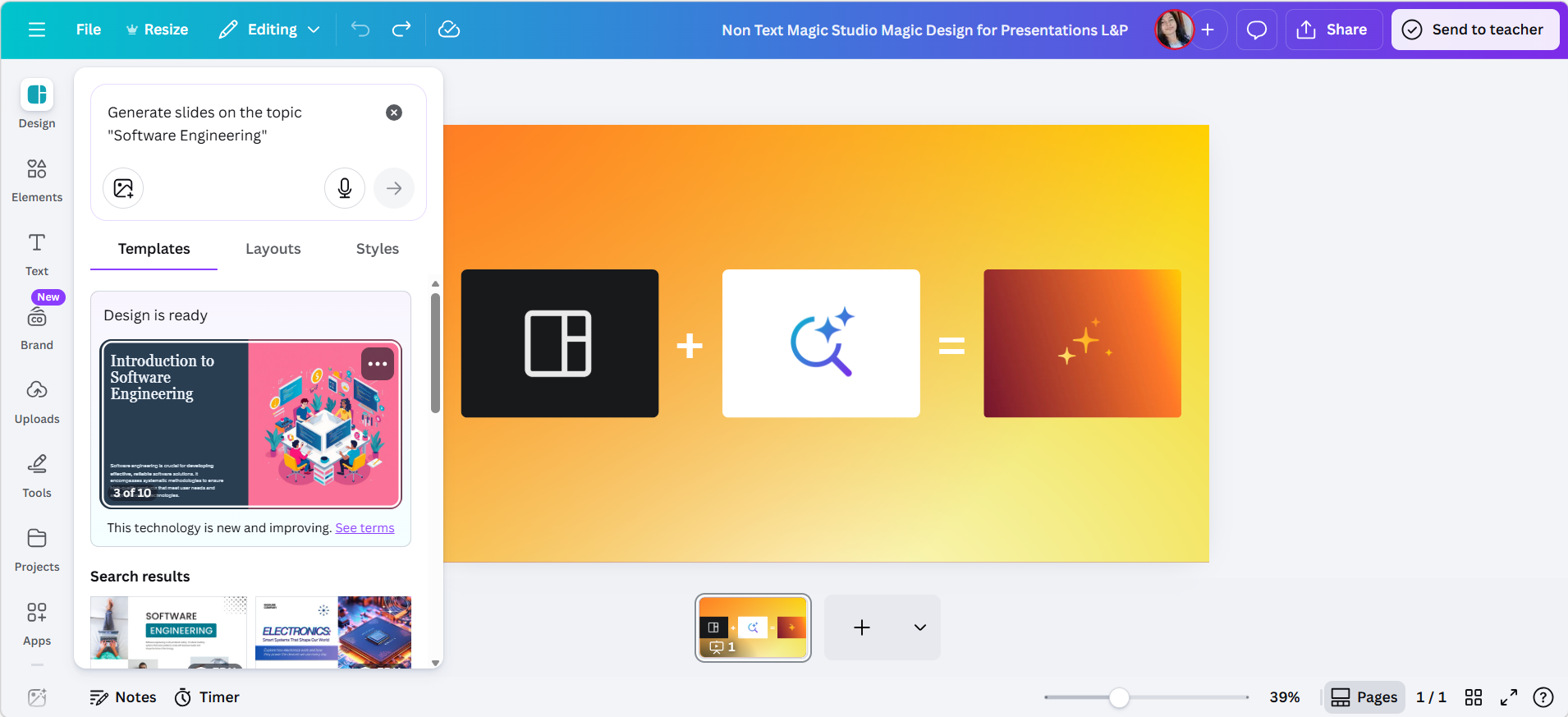
Step 3: Review the generated deck
Check the slide order, wording, visuals, and overall story.
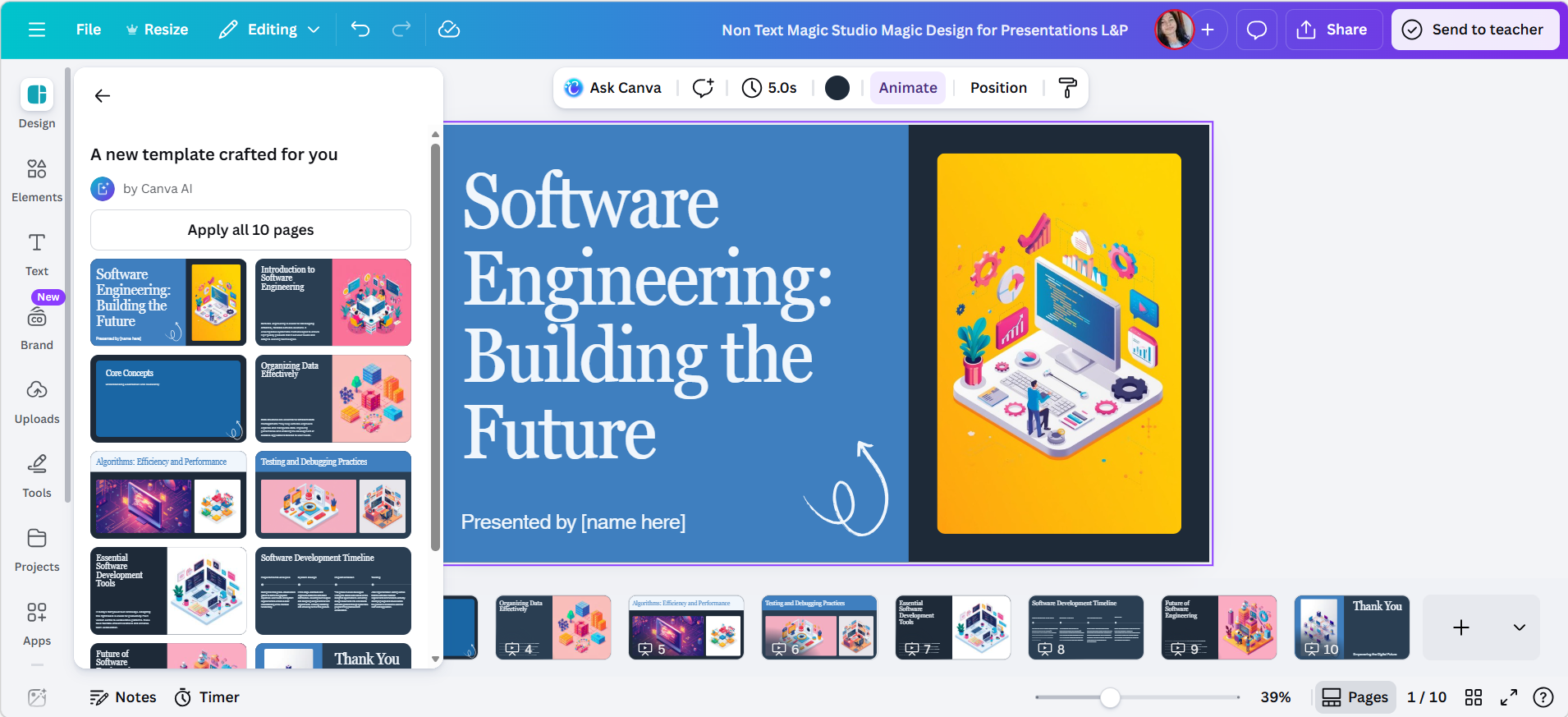
Step 4: Customize the design
Adjust templates, fonts, colors, images, and brand elements.
Step 5: Export or present
Download the finished presentation in the format you need or present directly from Canva.
Gamma
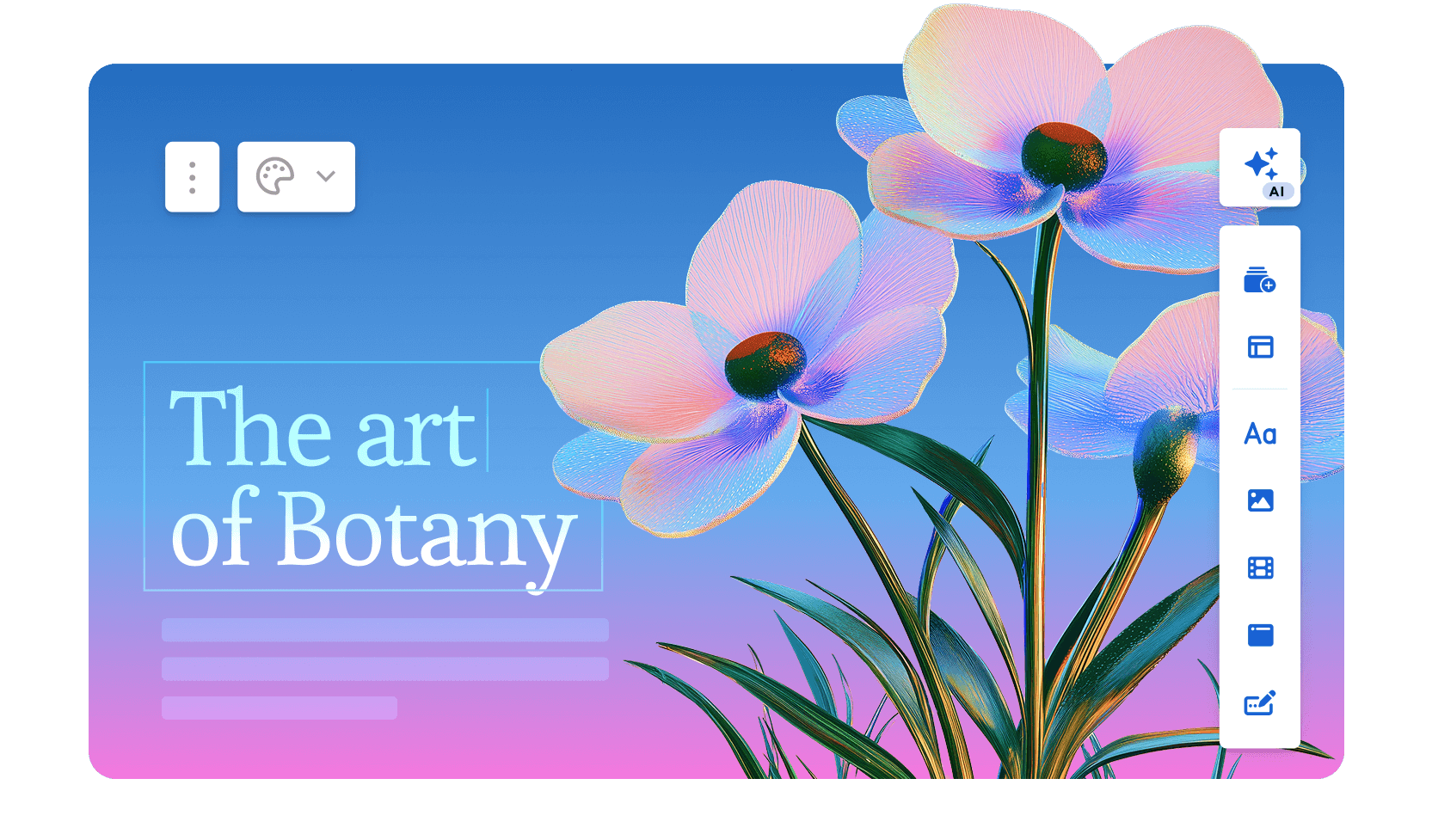
Gamma focuses on turning ideas, outlines, and source material into structured visual presentations quickly.
Who it's for
Users who want to turn rough notes into a coherent presentation quickly and prefer an AI-first, browser-based workflow.
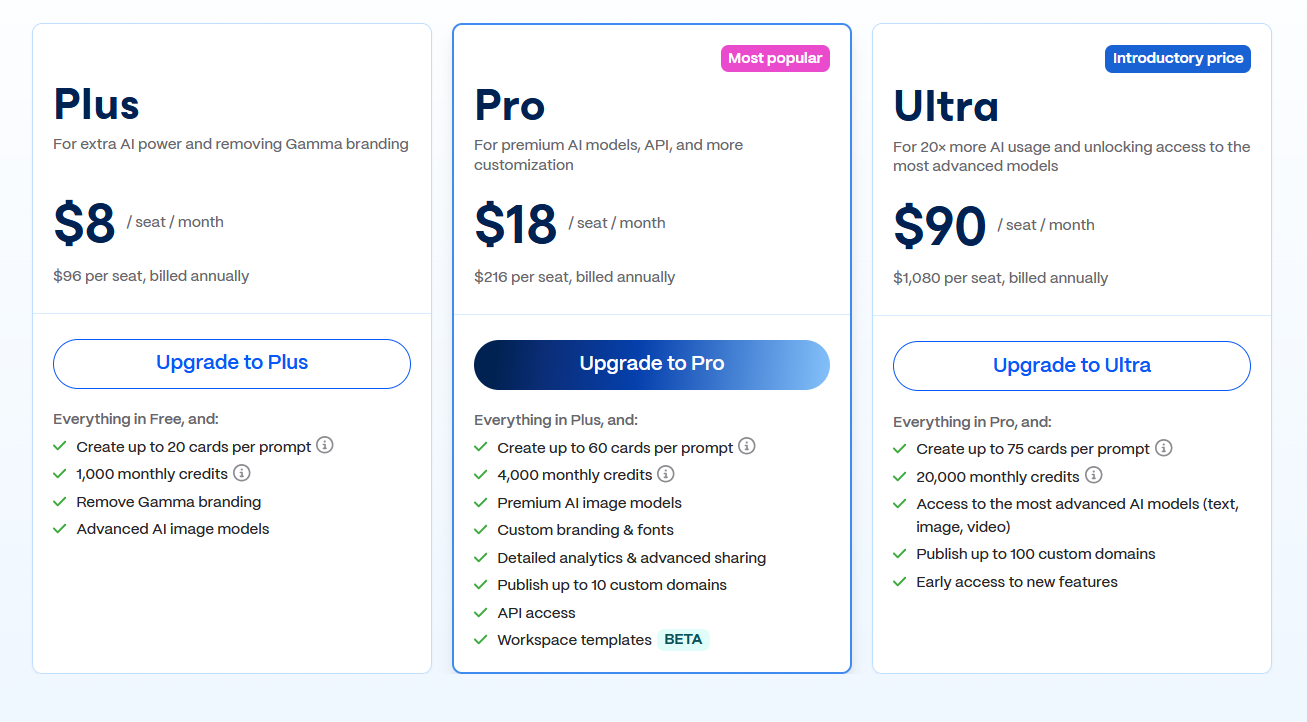
Pricing
- Free access is available with limits.
- Additional AI usage and export capabilities depend on the current plan.
Key features
- Prompt-based presentation generation
- AI-assisted content structure
- Story-focused slide creation
- Browser-based editing and sharing
- PPTX export
Free tier for trying AI slide generation; paid plans for unlimited exports.
Clear narrative flow-often used to draft, then polish in PowerPoint elsewhere.
Pros
- Fast first-draft generation
- Strong focus on narrative flow
- Modern presentation style
- Easy browser-based workflow
- Useful for turning rough ideas into a structured deck
Cons
- Detailed PowerPoint-style editing may require additional work after export.
- Exported presentations should be reviewed for fonts, layouts, and other visual elements.
- Users who need extensive manual slide customization may prefer a traditional presentation editor.
How to use Gamma
Step 1: Start a new presentation
Open Gamma and begin a new presentation.
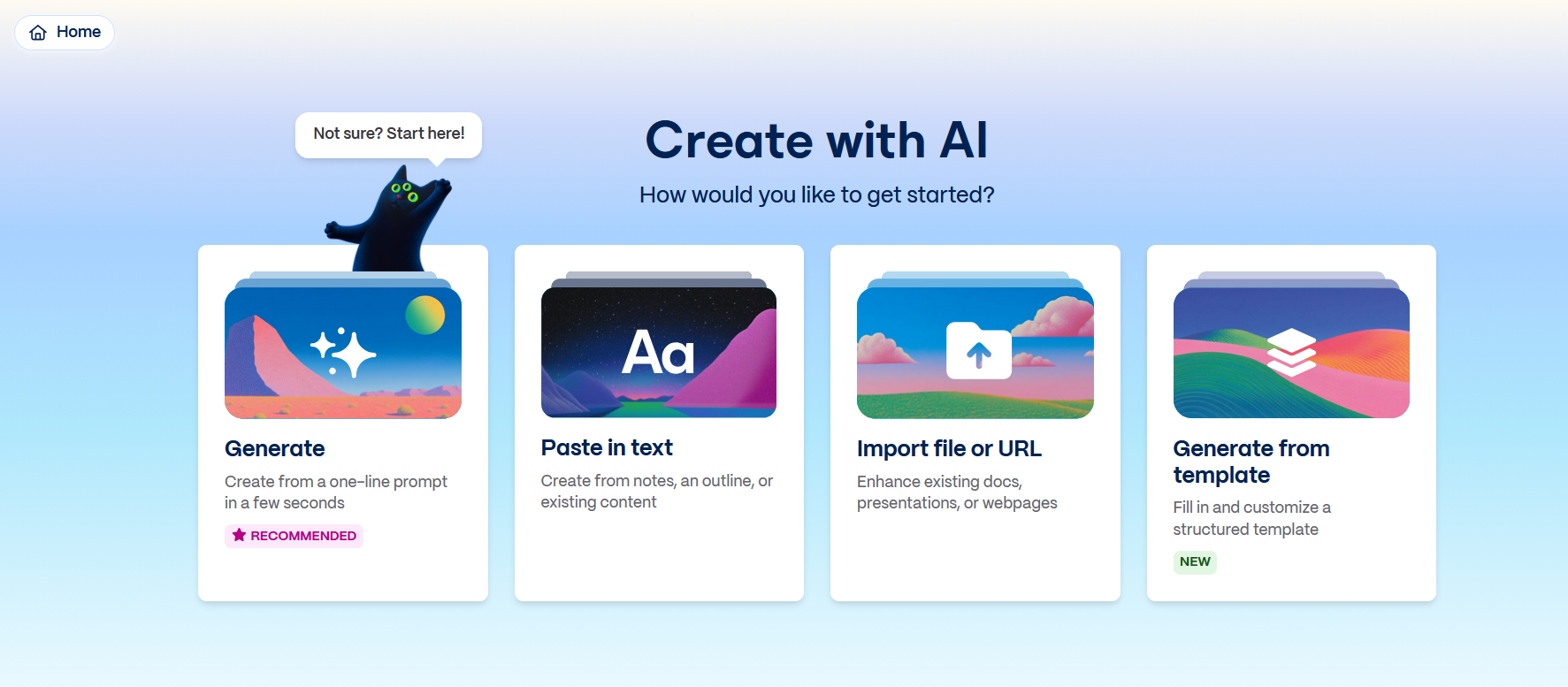
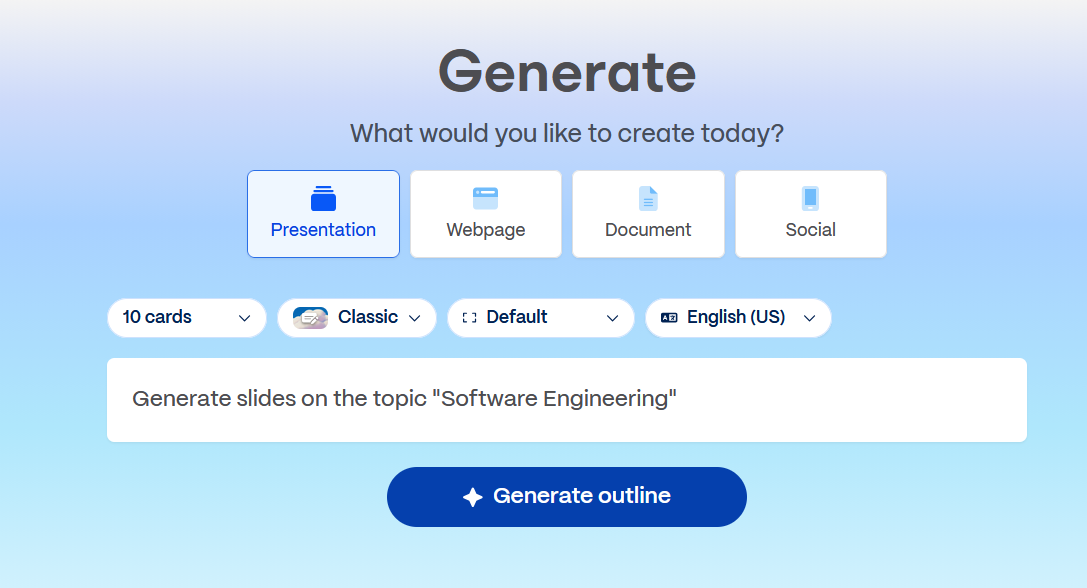
Step 2: Enter a topic or outline
Describe the subject, audience, and purpose of the presentation.
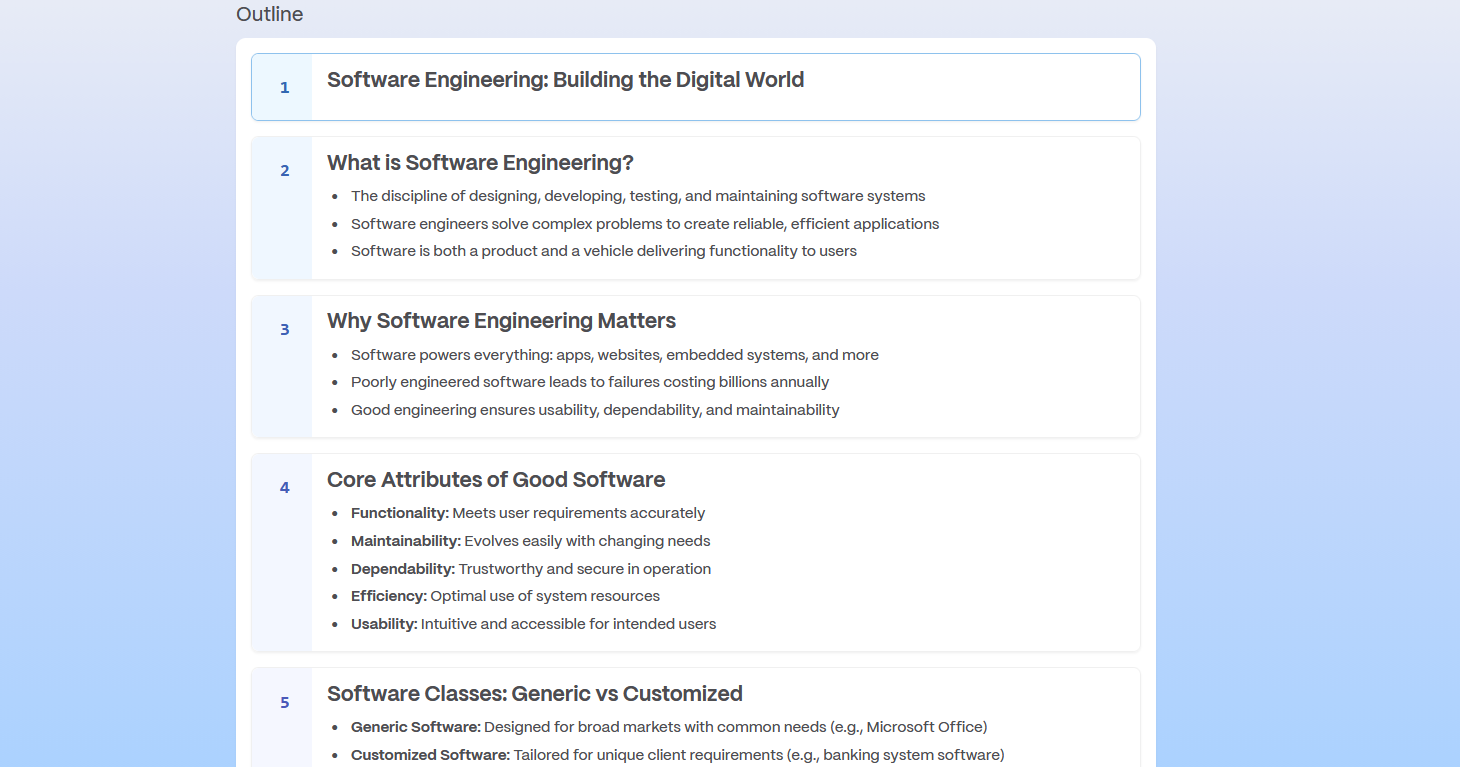
Step 3: Review the structure
Check the proposed story and slide sequence before generating the final deck.
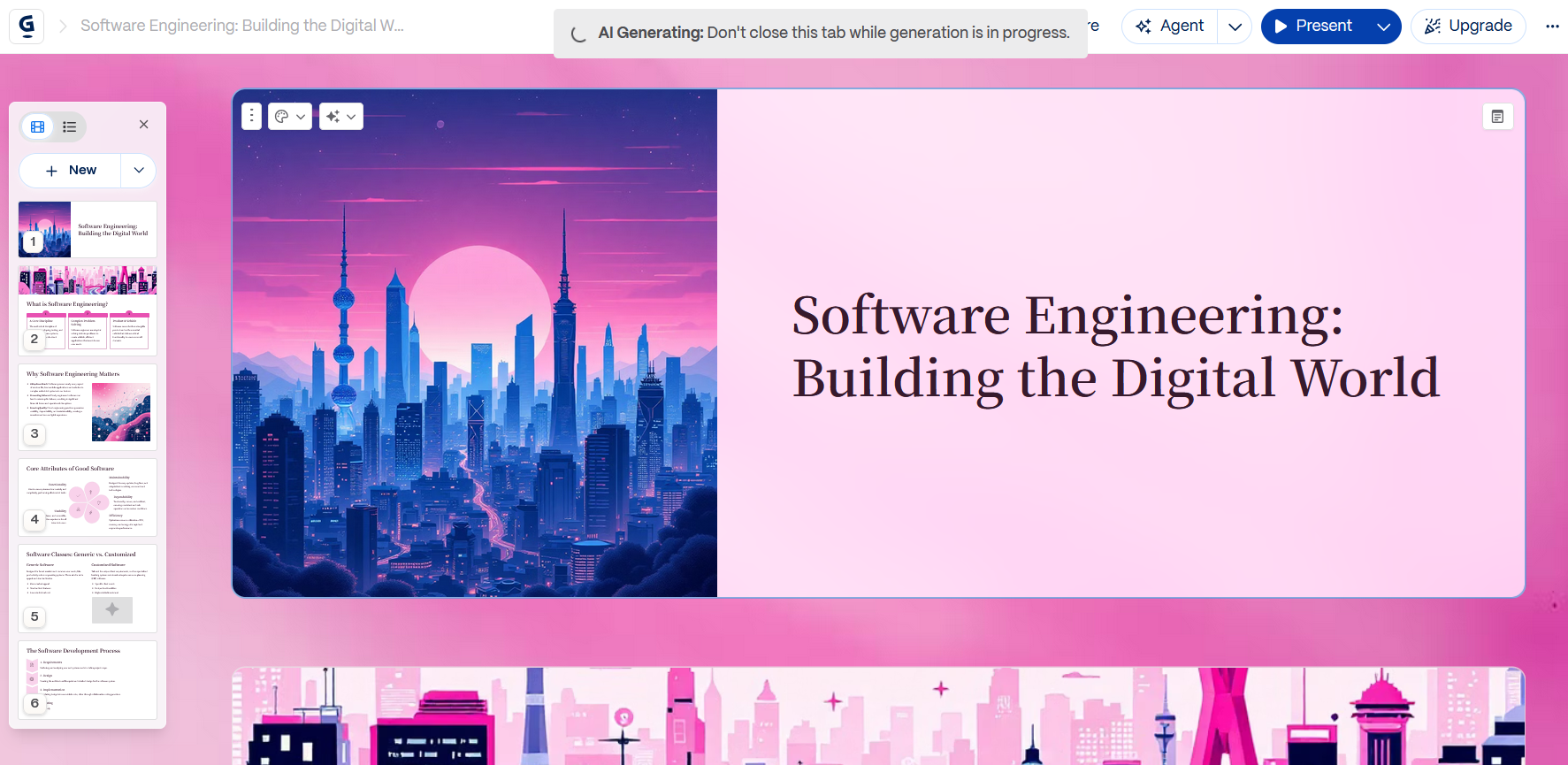
Step 4: Refine the presentation
Edit the content, visuals, themes, and layouts.
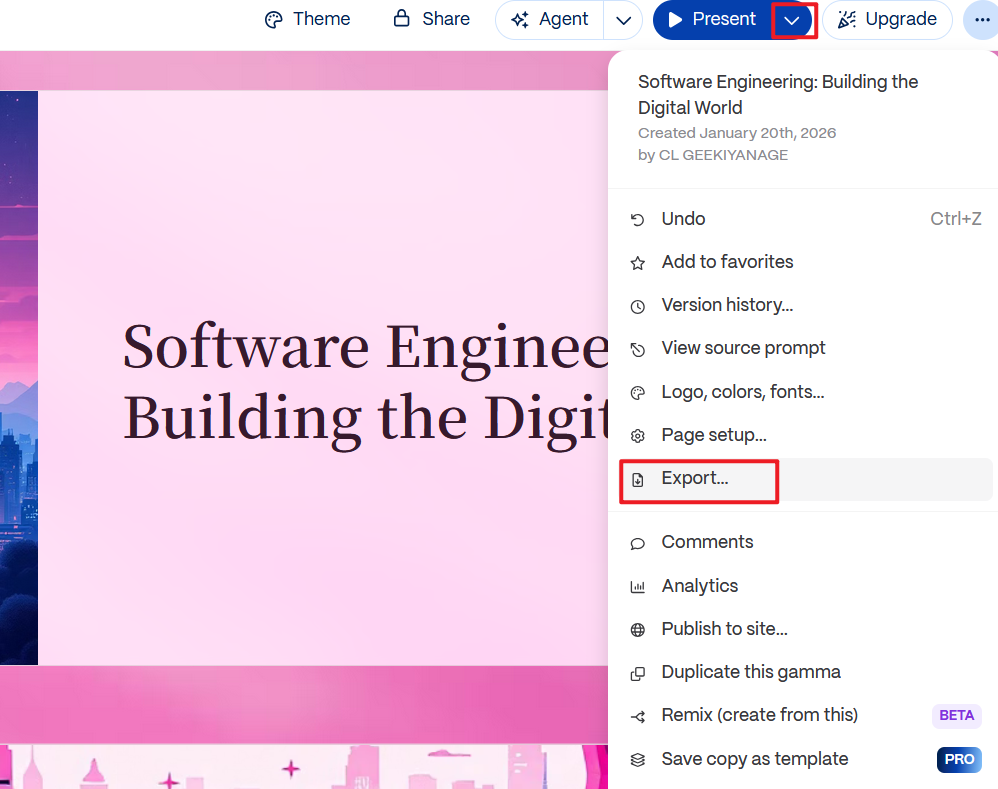
Step 5: Export or present
Present from Gamma or export the deck when you need a PowerPoint-compatible file.
Beautiful.AI
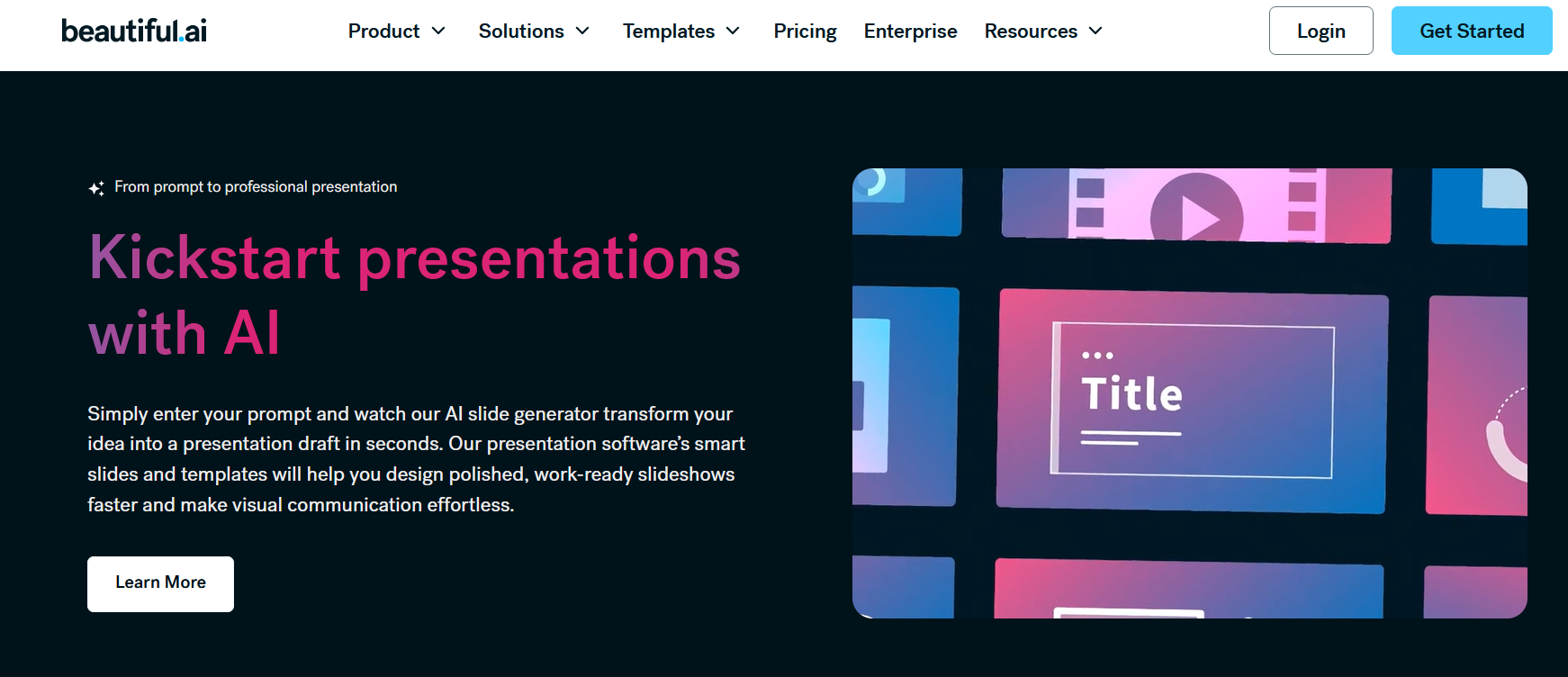
Beautiful.AI focuses on automated slide layouts that adjust as content changes. Its approach is useful when you want a consistent visual system without manually managing every spacing and alignment decision.
Who it's for
Marketing teams, executives, and professionals who need polished, consistent presentations and do not require complete freedom over every slide layout.
Pricing
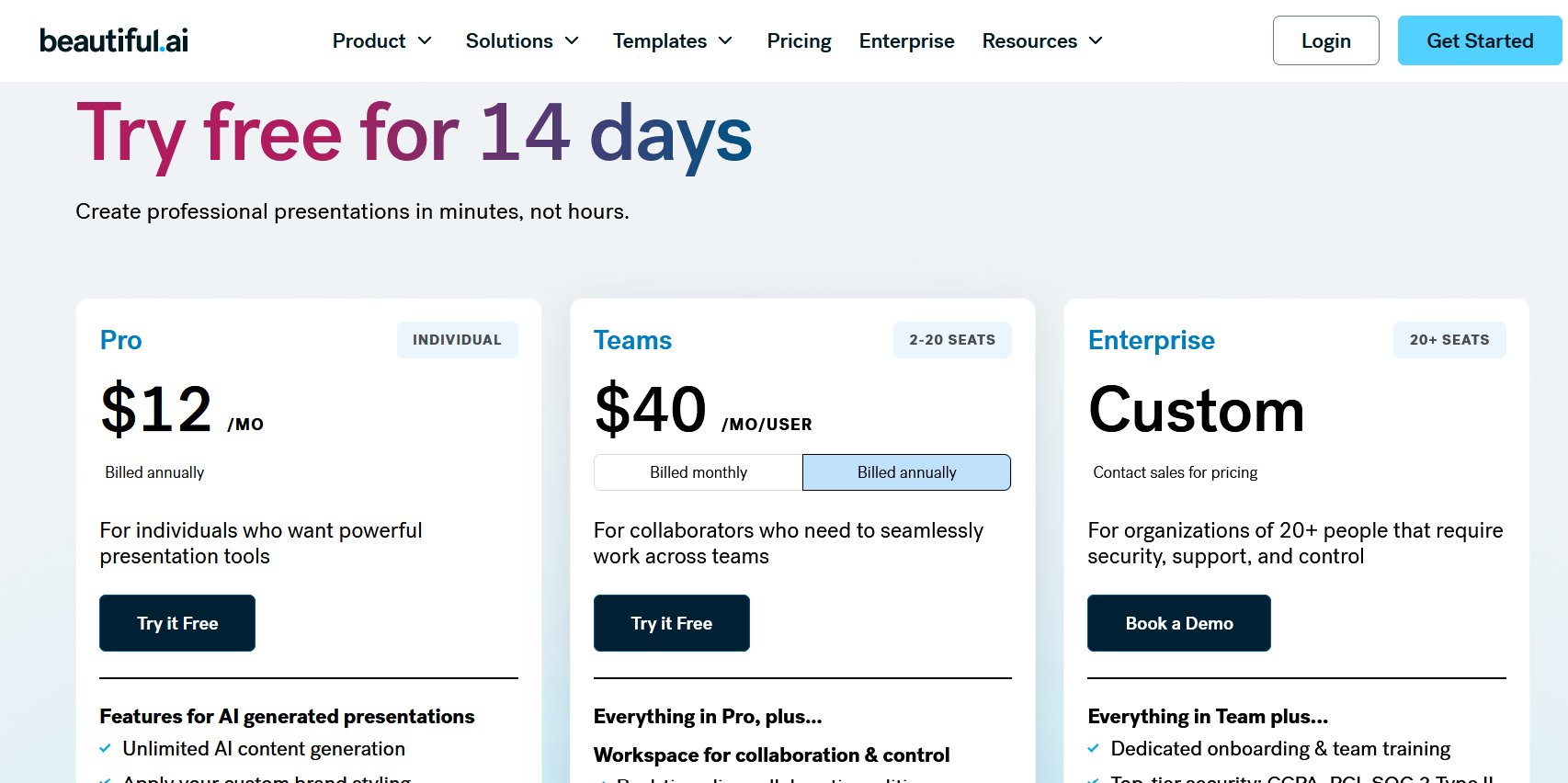
- Trial access may be available.
- Export, branding, and advanced features depend on the current plan.
Key features
- Smart templates that adapt to content
- AI-assisted slide creation
- Charts, diagrams, and visual components
- Brand controls
- Cloud-based collaboration
- PPTX export
Trial only-not fully free, but worth testing if you need polished, consistent layouts.
Suited when content is ready and you need fast, consistent visuals-not flexible custom layouts.
Pros
- Strong visual consistency
- Reduces manual layout work
- Professional-looking starting points
- Useful for recurring business presentations
Cons
- Less flexible for highly customized slide layouts
- Some workflows may require additional editing after export
- Full feature access depends on the current plan
How to use Beautiful.AI
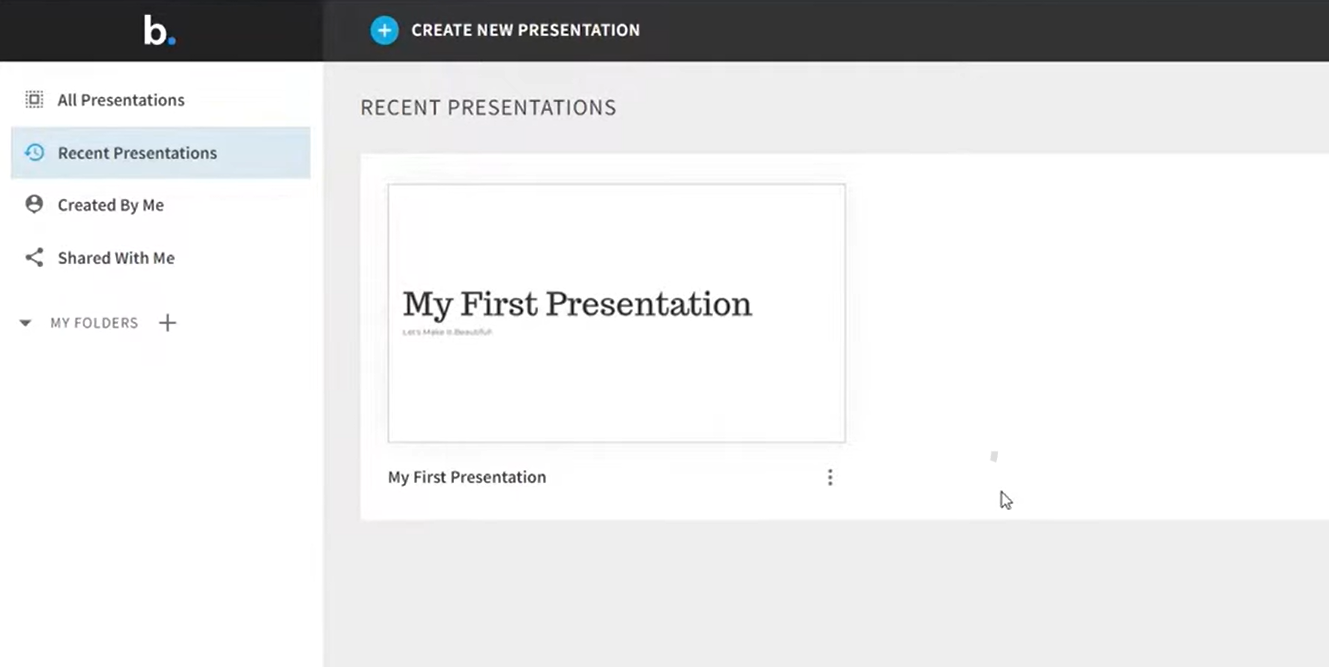
Step 1: Start a new presentation
Sign in and create a new presentation.
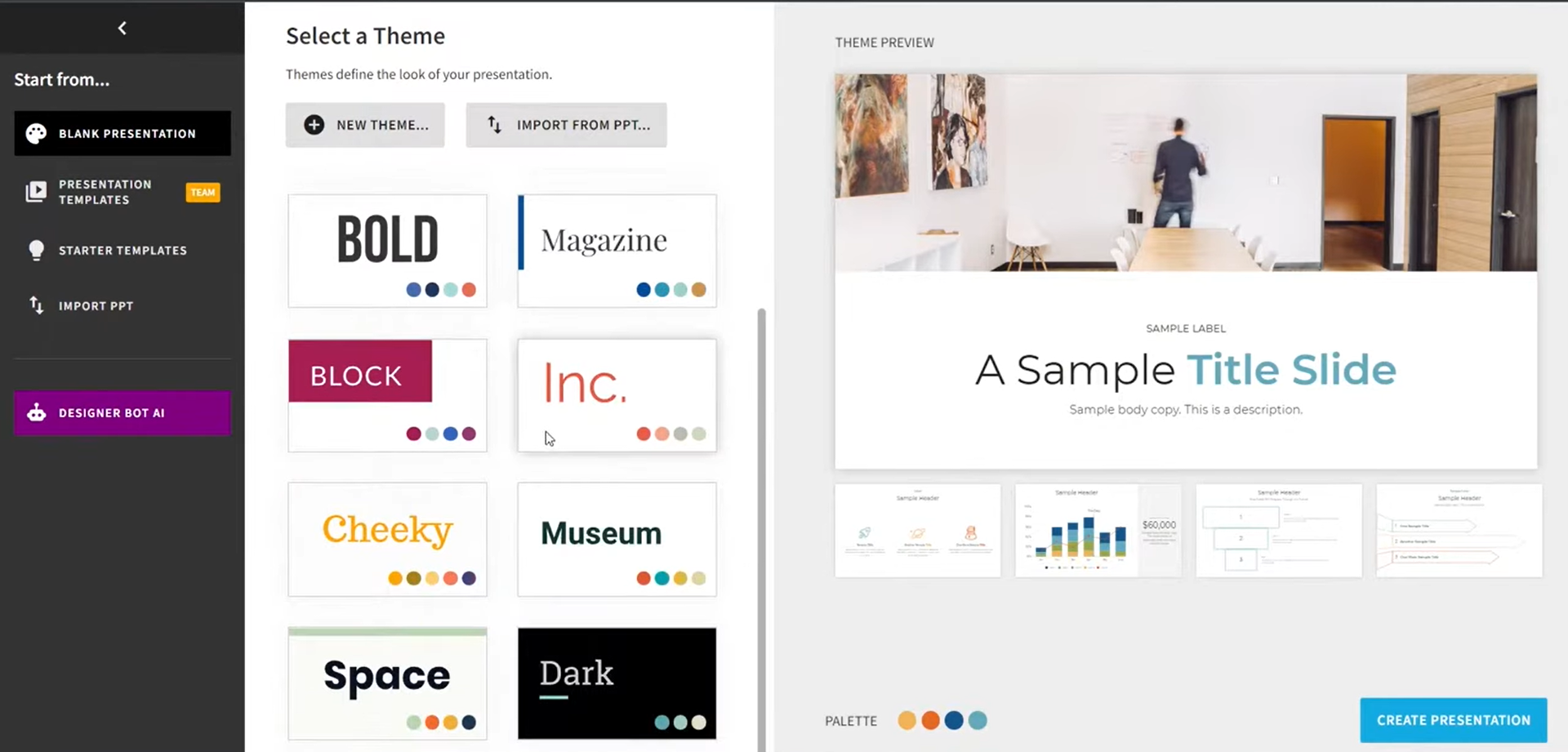
Step 2: Choose a smart template
Select a presentation structure that fits your content.
Step 3: Add or generate content
Enter your content or use AI to create the initial slide copy.
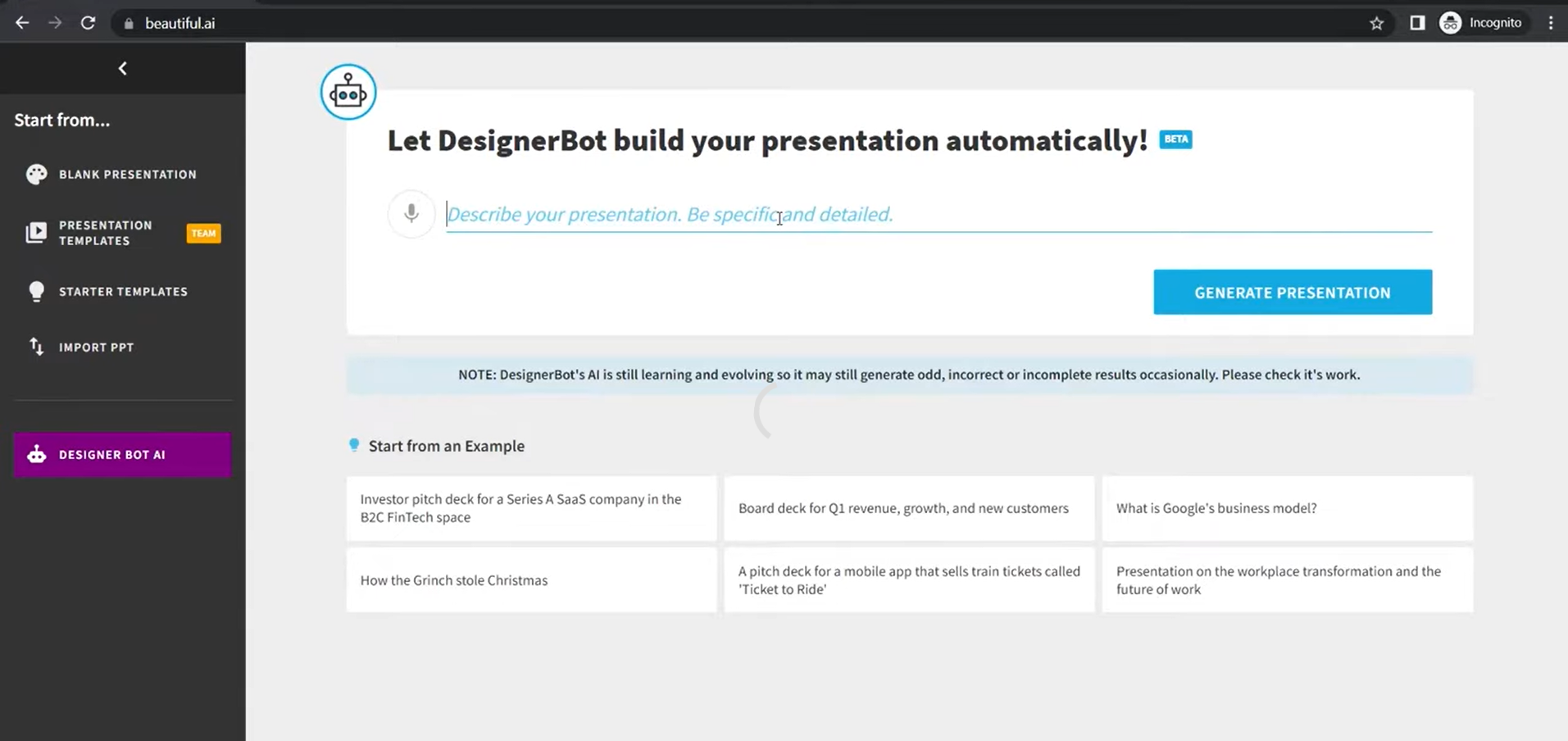
Step 4: Adjust visual elements
Refine text, images, charts, diagrams, and branding within the available layout system.

Step 5: Export the presentation
Download the finished deck or present it online.
Plus AI
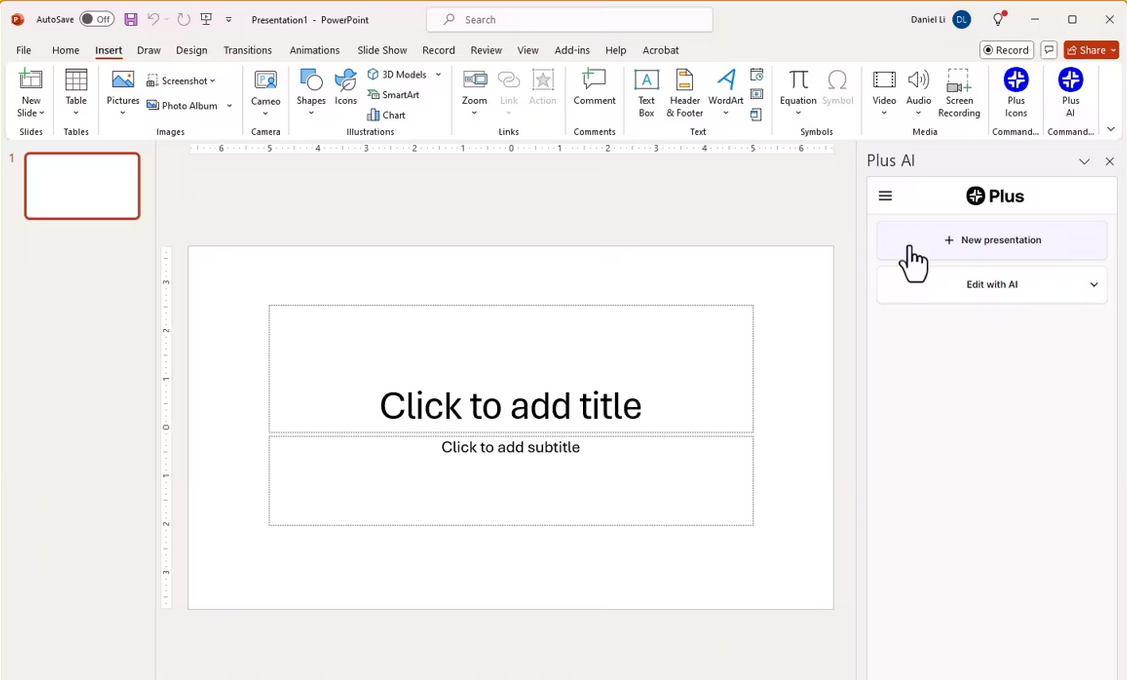
Plus AI adds AI-assisted presentation generation to PowerPoint and Google Slides, making it useful for people who want AI help without moving their entire workflow into a separate presentation platform.
Who it's for
Users who already work in PowerPoint or Google Slides and want AI assistance for building, expanding, or refining presentations.
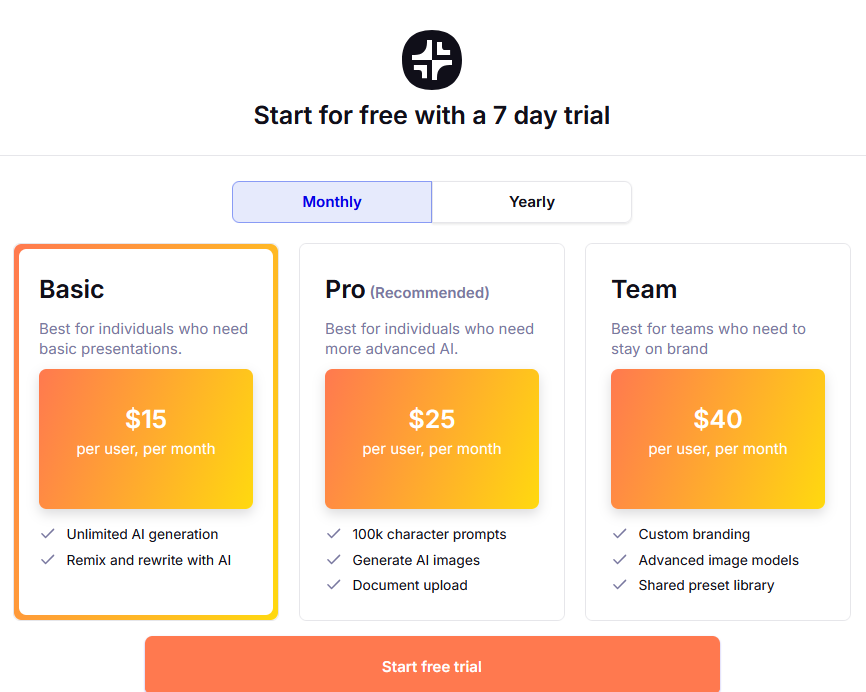
Pricing
- Trial access may be available.
- Ongoing AI features depend on the current plan.
Key features
- AI slide generation inside PowerPoint and Google Slides
- Prompt-based content creation
- Outline-to-slide conversion
- Editable slides within the host presentation software
- Support for business, sales, and educational presentations
Trial available; full AI features need a paid plan.
A productivity add-on: expand rough outlines into slides without leaving PowerPoint or Google Slides.
Pros
- Works within familiar presentation environments
- Keeps the existing presentation workflow
- Useful for iterative slide creation
- Strong fit for users who already have PowerPoint or Google Slides
Cons
- Requires an existing PowerPoint or Google Slides environment.
- Output quality depends heavily on the quality of the prompt and source material.
- Design customization may be less extensive than design-first platforms.
How to use Plus AI
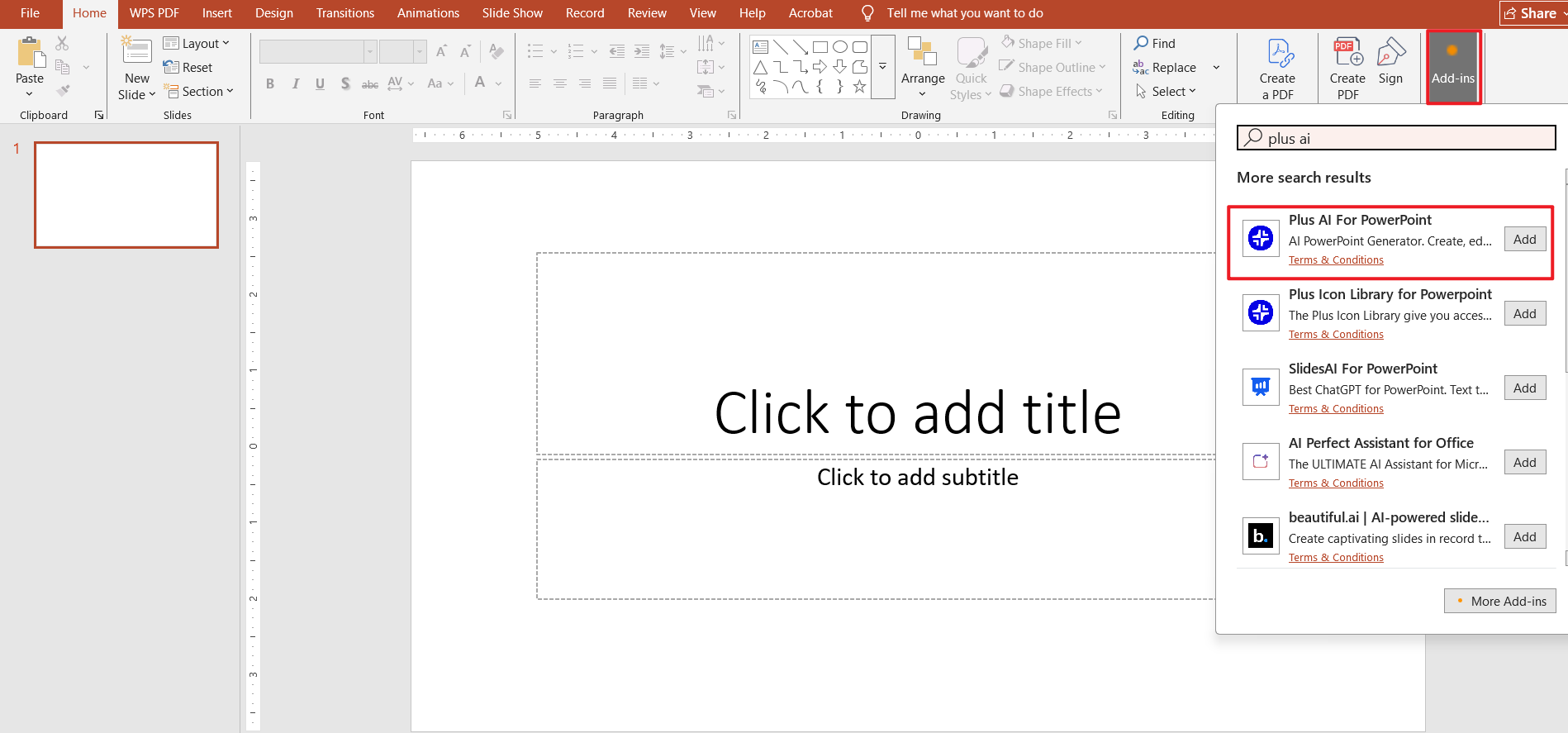
Step 1: Install Plus AI
Add Plus AI to the presentation environment you use.
Step 2: Open a new or existing presentation
Start with a blank deck or an existing presentation that needs additional slides.
Step 3: Enter a prompt or outline
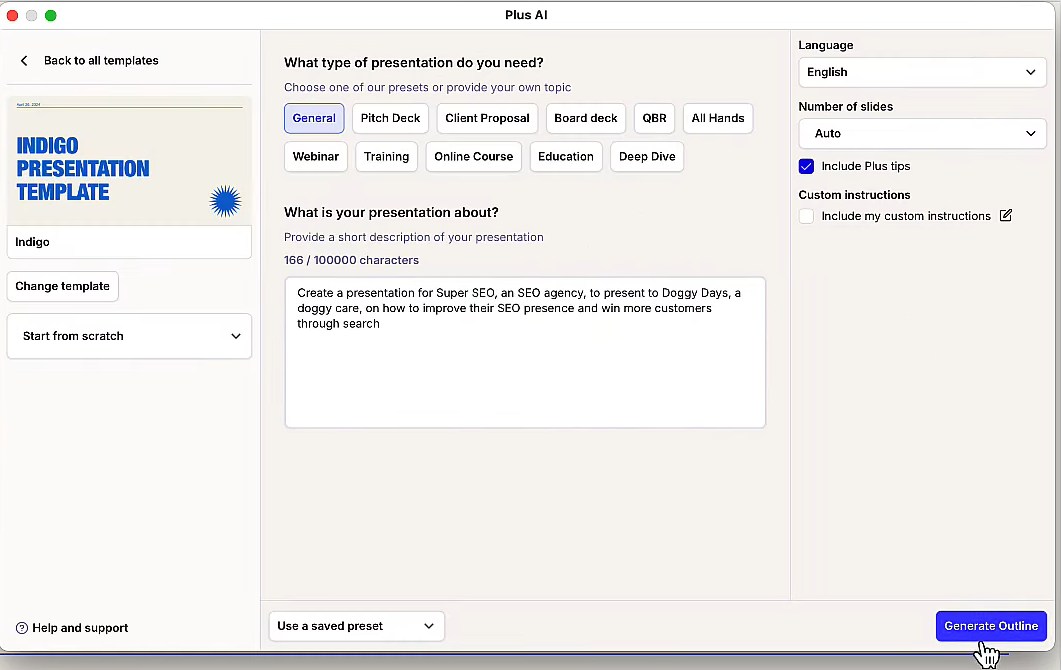
Describe the topic, audience, purpose, and desired structure.
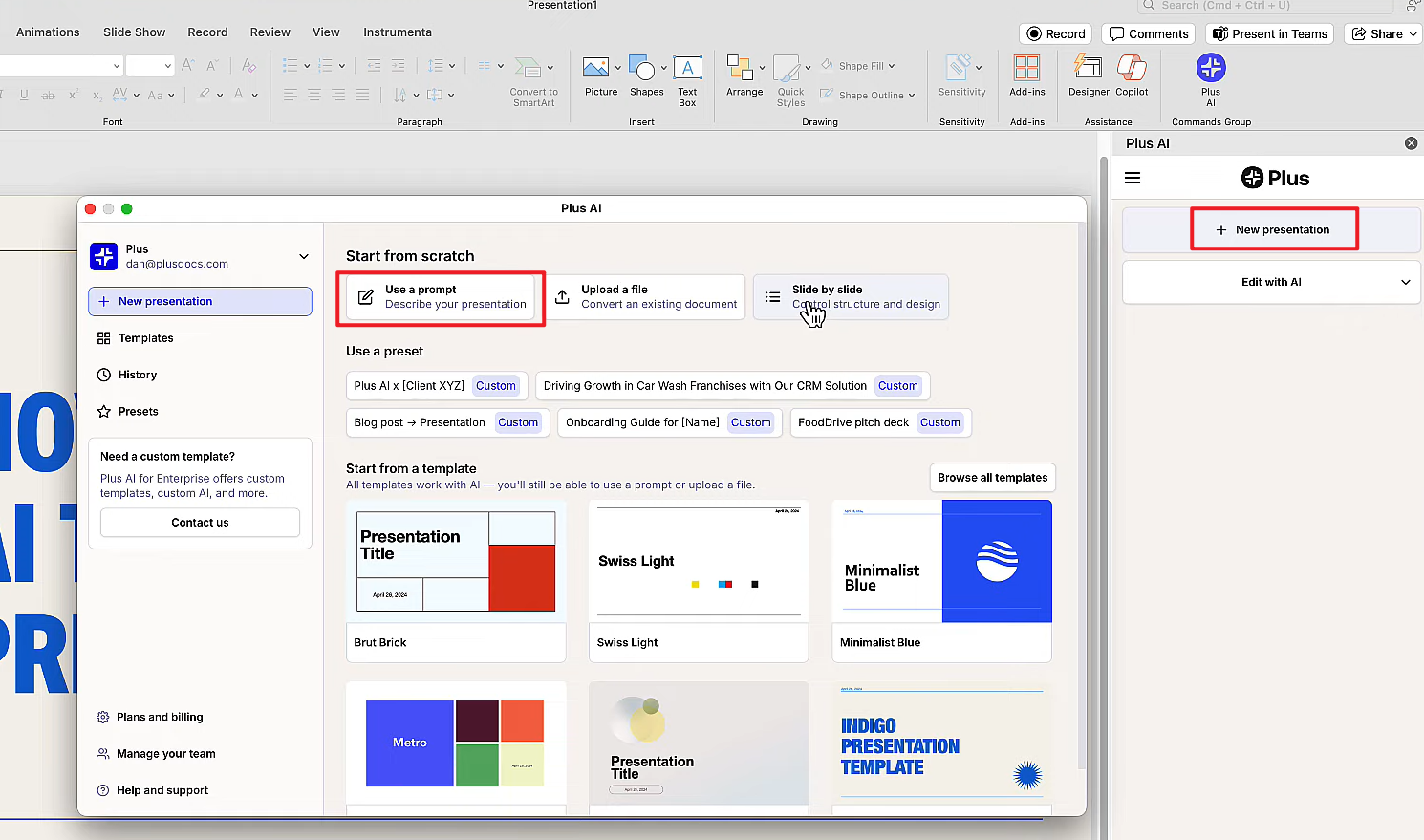
Step 4: Generate the outline and slides
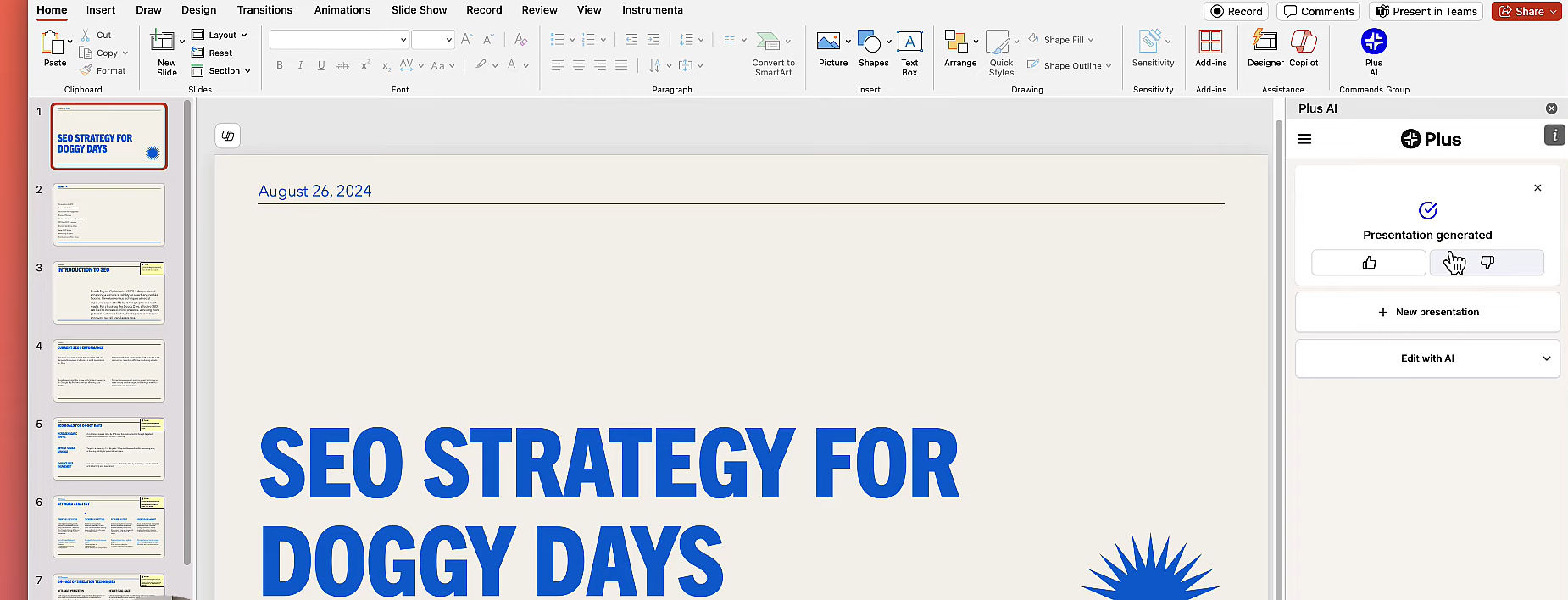
Let Plus AI create the initial structure and slide content.
Step 5: Refine and present
Review the content, edit the slides using your normal presentation tools, and prepare the final deck.
Comparison table of the top 5 AI tools
Compare PPTX export, editing control, free access, and day-to-day workflow fit at a glance.
| Tool | Who it's for | PPTX Export | Editing Flexibility | Free Option | Overall Experience |
|---|---|---|---|---|---|
| WPS AI Slides | Editable AI presentations in an Office-style workflow | Yes | High | Yes* | Strong balance between AI generation and manual editing |
| Canva | Visually appealing, design-focused presentations | Yes | High in Canva | Yes* | Fast design with extensive templates and assets |
| Gamma | Content structure and storytelling | Yes | Medium | Yes* | Fast AI generation with a web-first workflow |
| Beautiful.AI | Automated visual consistency | Yes | Medium | Trial* | Polished visuals with layout automation |
| Plus AI | AI assistance inside existing presentation editors | Yes | High | Trial* | Useful for iterative creation in PowerPoint or Google Slides |
Quick takeaways
- WPS AI Slides: Best fit when editable Office-style presentations are the priority.
- Canva: Strong choice for visual design, templates, and brand-focused presentations.
- Gamma: Useful for fast AI-generated storytelling and structured first drafts.
- Beautiful.AI: A good fit when automated layout consistency matters.
- Plus AI: Best suited to users who want AI assistance without leaving PowerPoint or Google Slides.
When to choose AI Slides
Choose AI Slides when you need AI-generated slides that you can continue editing in an Office-style presentation workflow.
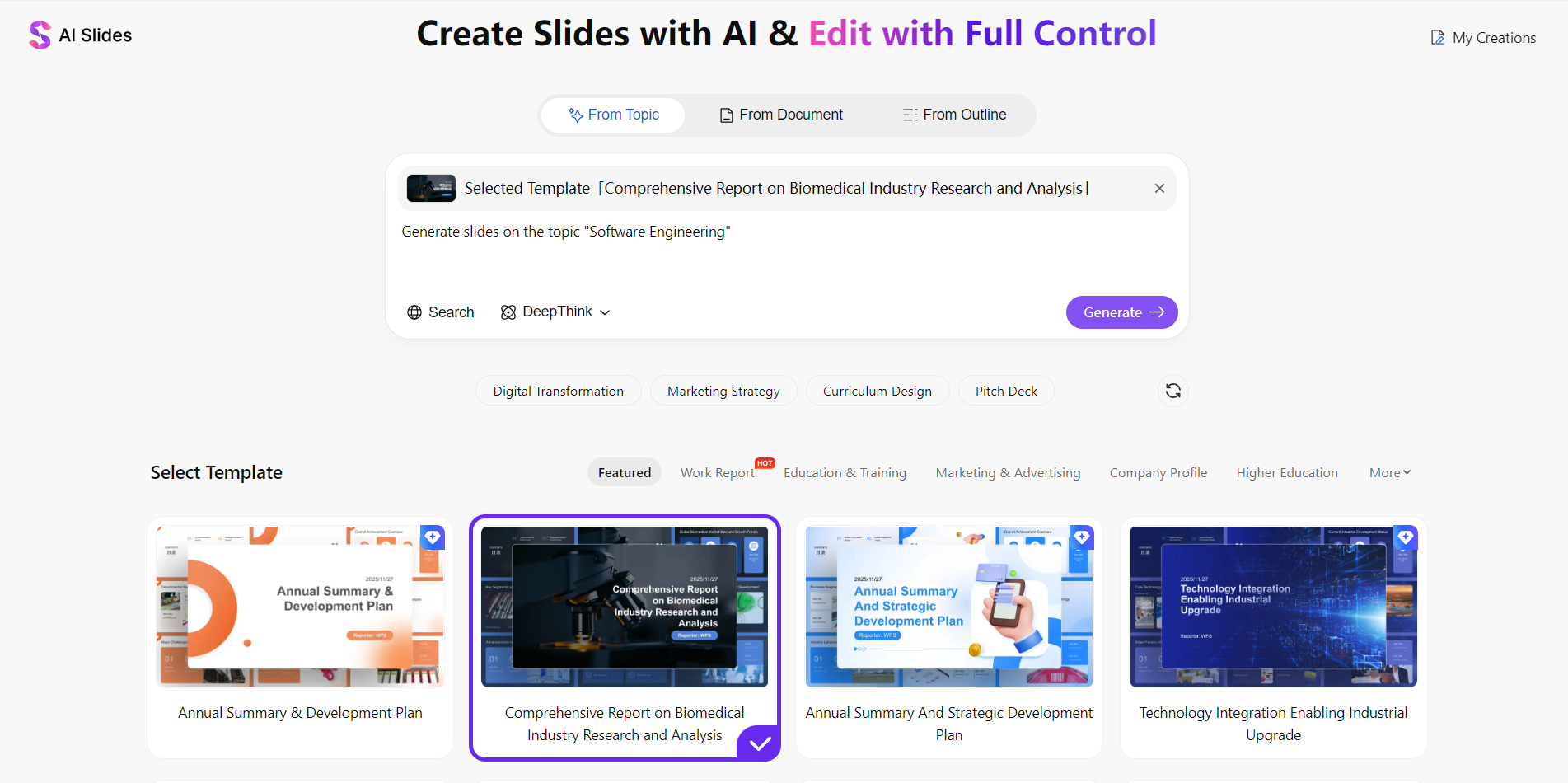
Who AI Slides is for
- You need an editable AI-generated presentation after generation.
- You want to keep editing the deck in an Office-style presentation editor.
- You need to refine text, images, layouts, and presentation structure manually.
- You want AI assistance while continuing to work inside the same presentation environment.
- You start with a topic, outline, Word document, or PDF and want to turn it into slides.
- You need to export the finished presentation as PPTX, PDF, or images.
It is particularly useful for business, training, academic, and professional presentations where editing the final file matters as much as generating the first draft.
How it differs from export-only AI slide tools
AI presentation tools can generate an attractive first draft, but the amount of control you have afterward varies.
Common questions
AI slide generation, PPTX export, accuracy, free plans, and choosing the right tool.
Summary: matching tools to your workflow
No single AI presentation tool is best for everyone. Need editable AI presentations in an Office-style workflow? WPS AI Slides. Need visual design and templates? Canva. Need fast AI storytelling and structure? Gamma. Need automated visual consistency? Beautiful.AI. Already work in PowerPoint or Google Slides? Plus AI.
If you need to generate a presentation quickly but still want control over the final editable deck, WPS AI Slides is worth considering.
Try AI Slides free
Turn a topic, outline, Word document, or PDF into an editable presentation, then refine the slides in WPS Presentation before exporting your finished deck.
