

'%3e%3cpath%20d='M8%200C12.4183%200%2016%203.58172%2016%208C16%2012.4183%2012.4183%2016%208%2016C3.58172%2016%200%2012.4183%200%208C0%203.58172%203.58172%200%208%200ZM11.6162%204.38379C11.2257%203.99337%2010.5927%203.99338%2010.2021%204.38379L8%206.58594L5.79785%204.38379C5.40732%203.99334%204.77429%203.99329%204.38379%204.38379C3.99331%204.77429%203.99335%205.40733%204.38379%205.79785L6.58594%208L4.38379%2010.2021C3.99348%2010.5927%203.99341%2011.2257%204.38379%2011.6162C4.77426%2012.0066%205.40734%2012.0065%205.79785%2011.6162L8%209.41406L10.2021%2011.6162C10.5927%2012.0066%2011.2257%2012.0067%2011.6162%2011.6162C12.0067%2011.2257%2012.0066%2010.5927%2011.6162%2010.2021L9.41406%208L11.6162%205.79785C12.0066%205.40735%2012.0066%204.77429%2011.6162%204.38379Z'%20fill='%23080E17'%20fill-opacity='0.46'/%3e%3c/g%3e%3cdefs%3e%3cclipPath%20id='clip0_3761_713'%3e%3crect%20width='16'%20height='16'%20fill='white'/%3e%3c/clipPath%3e%3c/defs%3e%3c/svg%3e)



'%3e%3cpath%20fill-rule='evenodd'%20clip-rule='evenodd'%20d='M21.4999%2010.9993C21.4999%205.20009%2016.7986%200.498901%2010.9993%200.498901C5.19994%200.498901%200.498657%205.20009%200.498657%2010.9993C0.498657%2016.2404%204.33858%2020.5844%209.35855%2021.3722V14.0346H6.69238V10.9993H9.35855V8.68594C9.35855%206.05427%2010.9262%204.60062%2013.3248%204.60062C14.4736%204.60062%2015.6753%204.80571%2015.6753%204.80571V7.38979H14.3512C13.0468%207.38979%2012.64%208.19921%2012.64%209.0296V10.9993H15.5523L15.0867%2014.0346H12.64V21.3722C17.66%2020.5844%2021.4999%2016.2404%2021.4999%2010.9993Z'%20fill='%231568EA'/%3e%3c/g%3e%3c/svg%3e)


'%3e%3cpath%20d='M2.42045%2022.1876H6.31818V12.7217L0.75%208.54553V20.5171C0.75%2021.4414%201.49892%2022.1876%202.42045%2022.1876Z'%20fill='%234285F4'/%3e%3cpath%20d='M19.682%2022.1876H23.5797C24.5041%2022.1876%2025.2502%2021.4387%2025.2502%2020.5171V8.54553L19.682%2012.7217'%20fill='%2334A853'/%3e%3cpath%20d='M19.682%205.48293V12.7216L25.2502%208.54543V6.31816C25.2502%204.25236%2022.8921%203.07469%2021.2411%204.31361'%20fill='%23FBBC04'/%3e%3cpath%20d='M6.31824%2012.7217V5.48303L13.0001%2010.4944L19.6819%205.48303V12.7217L13.0001%2017.733'%20fill='%23EA4335'/%3e%3cpath%20d='M0.75%206.31816V8.54543L6.31818%2012.7216V5.48293L4.75909%204.31361C3.10534%203.07469%200.75%204.25236%200.75%206.31816Z'%20fill='%23C5221F'/%3e%3c/g%3e%3cdefs%3e%3cclipPath%20id='clip0_2954_7305'%3e%3crect%20width='24.5'%20height='18.375'%20fill='white'%20transform='translate(0.75%203.8125)'/%3e%3c/clipPath%3e%3c/defs%3e%3c/svg%3e)


Handling diverse image formats like JPG, PNG, and HEIC is a daily necessity. A good image converter is essential for a smooth workflow. The biggest issue, however, is that while some converters may be fast, the final image quality is terrible. Many tools are slow, cause quality loss, or lack support for newer formats. This guide will introduce you to the top 5 free converters that deliver high-quality results and show you how to use them.


Top 5 Image Converters
You've probably faced file incompatibility before, and how time-consuming it can be to convert it to the right format. A high-quality Free image converter is the tool that solves this. It ensures your files are compatible and perfectly sized for any platform, all while protecting the image quality. A great converter just makes this part of your workflow seamless. Let's look at five of the best free tools I've found for the job.
WPS Online Tool
WPS PDF Tool is an all-in-one solution for handling your documents. You can use it as a convenient online tool for quick jobs, or as a more powerful, full-featured desktop app that works offline. It goes beyond simple conversion, handling PDF, JPG, and Word, which is ideal for users who need more than just image-to-image conversion. Its best feature is its high-fidelity conversion, as it excels at maintaining the original resolution and layout. For me, this feels less like a simple web gadget and more like a complete, professional document management suite.
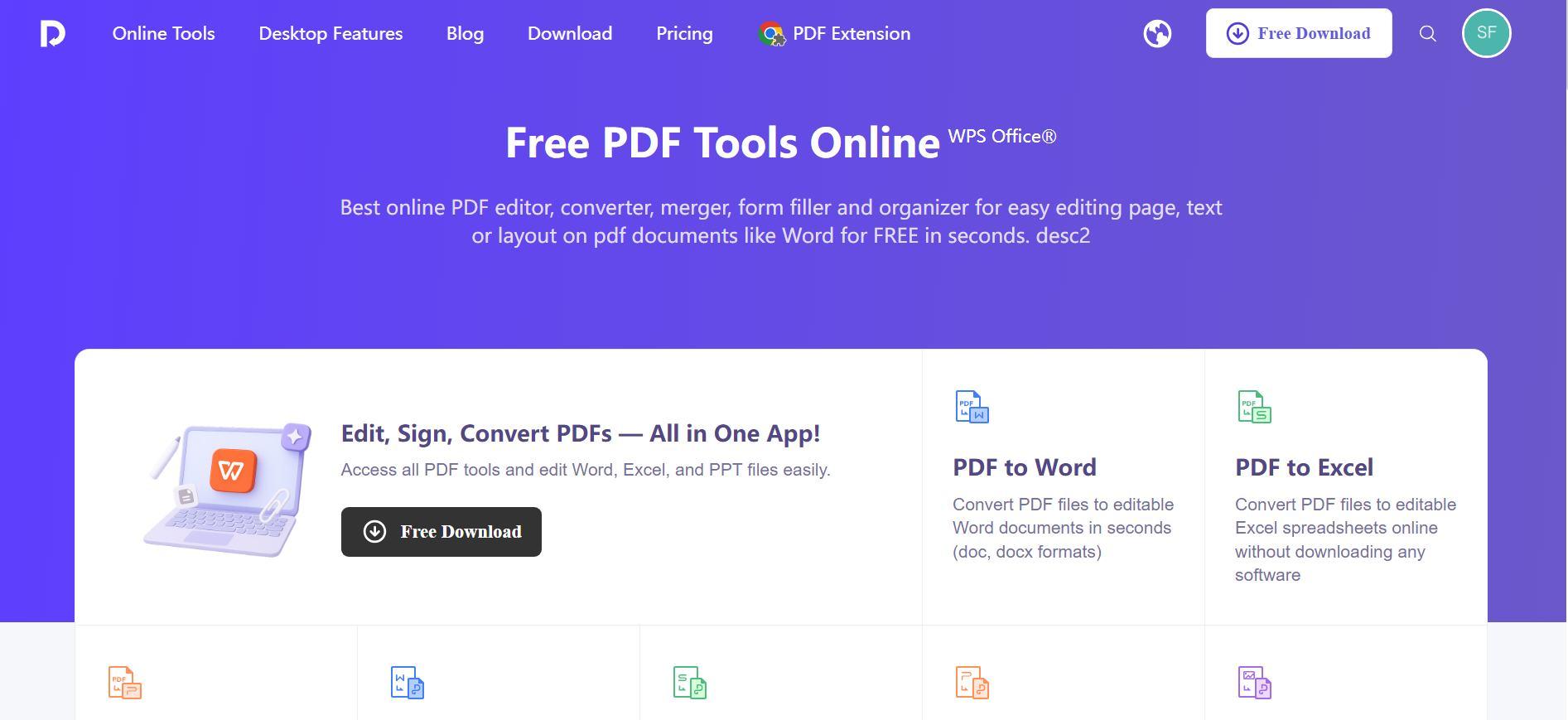
How to Use:
Step 1: First, head over to the online WPS PDF Tool website.
Step 2: Then, select your preferred option among the many different options.
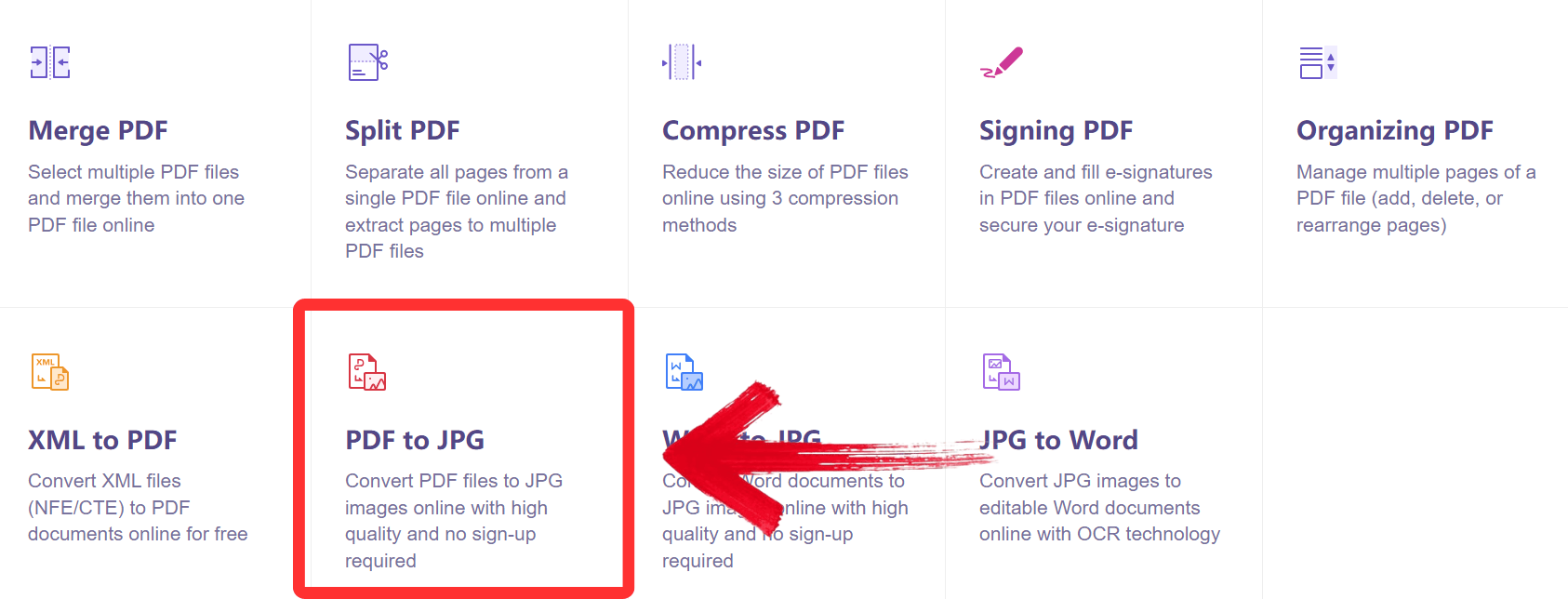
Step 3: Upload your files by dragging them or clicking the ‘Select PDF File’ button.

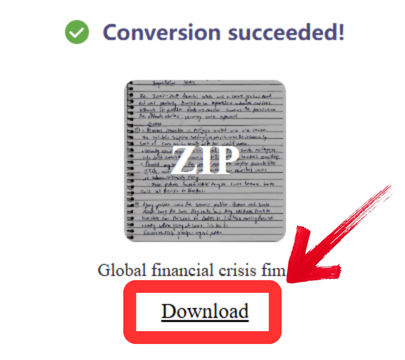
Step 4: Your file will be converted automatically, then just click ‘Download’ to save the extracted file onto your device.
WPS Office (On Desktop)
This is where the real power is. The downloadable WPS Office suite is a full, offline office platform that includes a robust image converter. You won’t have to worry about any privacy issues since it can handle all your files offline. Its killer feature is the JPG to Word converter. Since it uses advanced OCR to extract the text from your JPG and make it fully editable, any normal Image converter will not have this feature, and definitely not for free. This is a massive time-saver for anyone working with scanned documents or screenshots.
How to Convert JPG to Word:
Step 1: First, open a ‘New Document’ in the WPS Office desktop app.
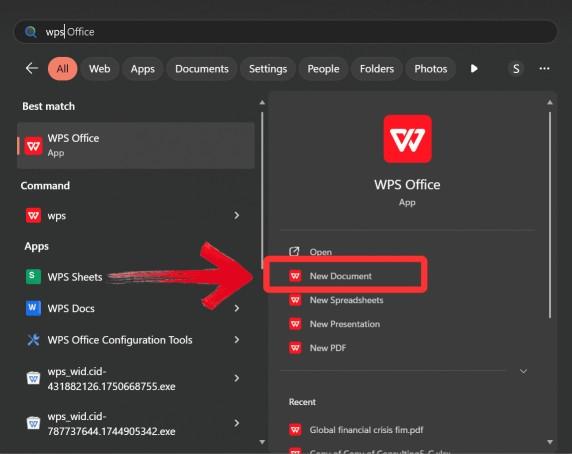
Step 2: Go to the 'Convert' tab and select from the options below what you want to convert your document into.

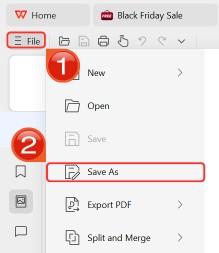
Step 3: The OCR will process the image. Once complete, you click ‘File’ and then click ‘Save as’ to export your converted file.
WPS is my top pick because it serves both needs. The online tool is fast and easy for quick jobs, like turning a JPG into a PDF. But the desktop app is the real professional workhorse, especially with its JPG-to-Word text extraction, which most simple converters just can't do.
2. Canva Converter
Canva is a full-fledged online design studio, and its image converter is a feature within that. It’s not just for converting; it's forimproving. You can convert common formats like JPG, PNG, HEIC, and WebP, but the real benefit is what you can do before you convert. Canva’s key feature is its integration with its photo editor, which lets you adjust brightness, saturation, or add filters and then export the file in a new format. This is the perfect tool for creatives who don't just want to convert a file but also prepareit for a social media post or presentation, all in one place.
How to Use:
Step 1: Go to Canva's free Image Converter website.
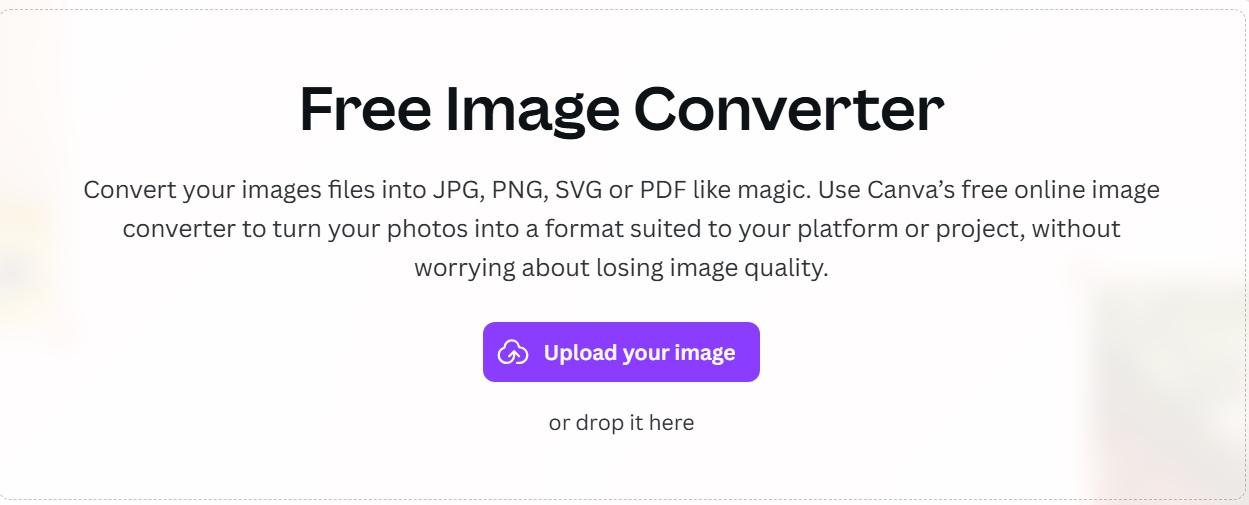
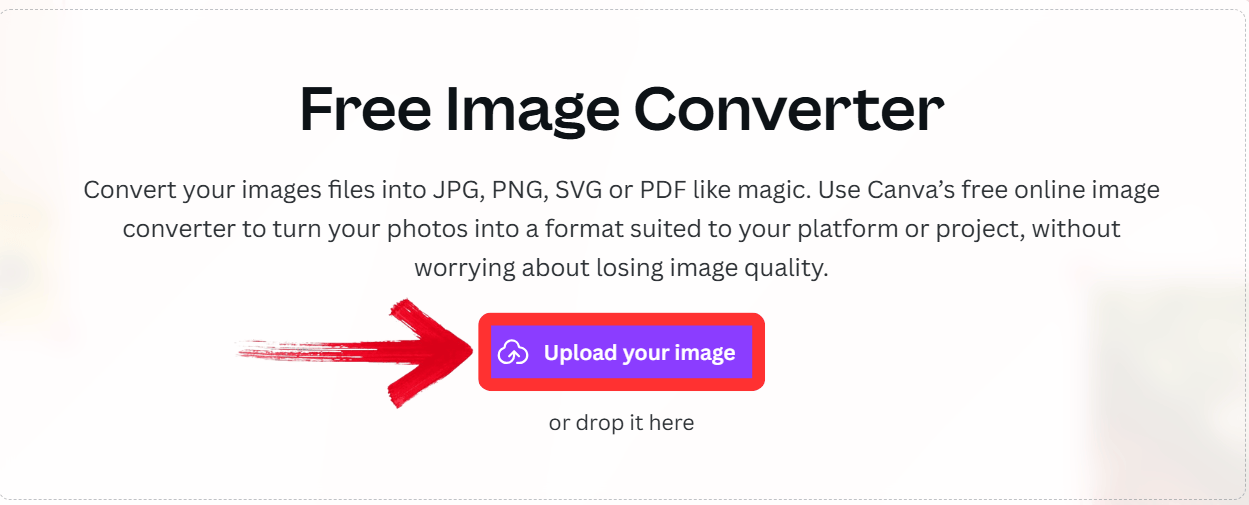
Step 2: Then, click ‘Upload your image’ or drag and drop the file onto the screen.
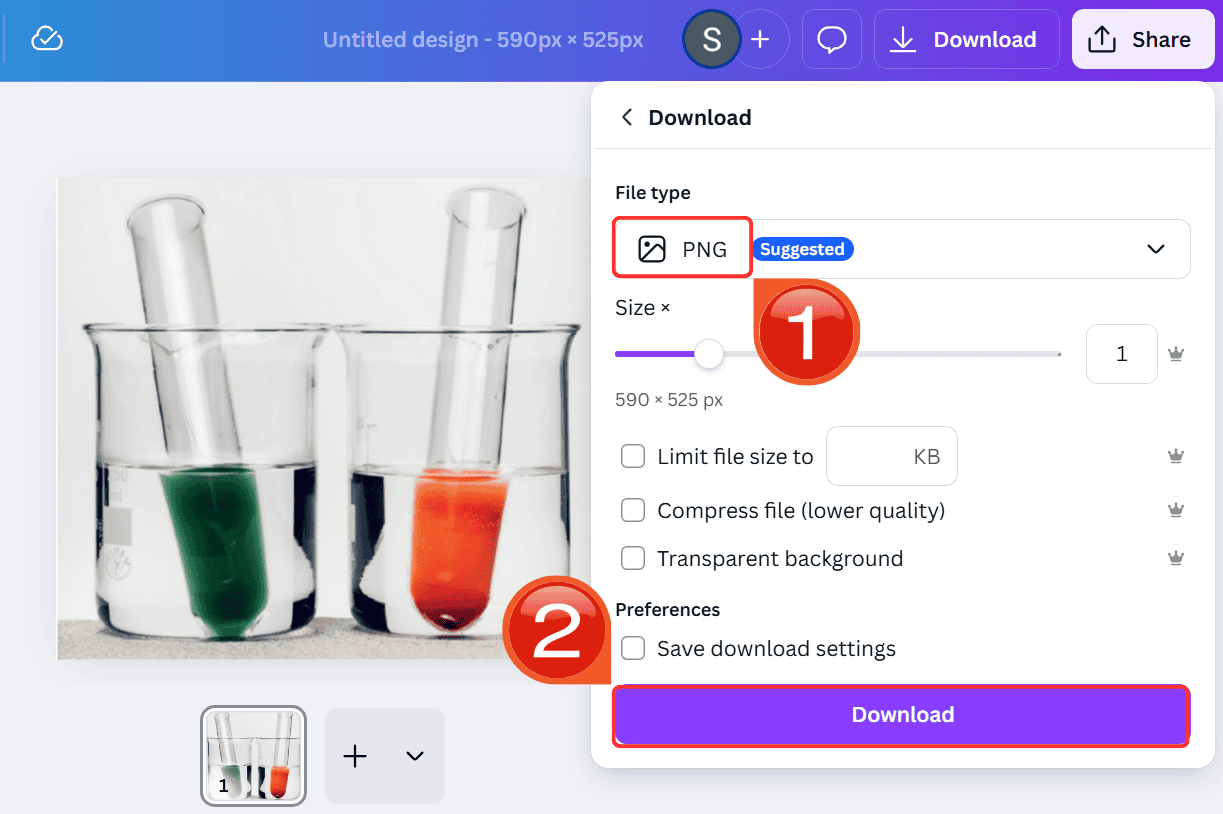
Step 3: Select your desired format (like JPG or PNG) to convert and then click 'Download'.
I use Canva when my conversion is part of a larger creative task. If I'm taking a HEIC photo from my phone and turning it into a JPG for an Instagram post, I can do it all in Canva. It's not a bulk converter, but it's an excellent creative image converter.
3. FreeConvert
FreeConvert is an online conversion workhorse. It's designed for one thing: converting a massive number of file types, fast. You don't need an account for most quick jobs. Its main strength is its sheer scale; it supports over 1500 file conversions, including 500+ image formats, even camera RAW files. This is the solution for that common "I have a weird file and need it in a normal format" problem. It's fast, web-based, and has advanced options if you need them, making it the best image converter for broad compatibility.
How to Use:
Step 1: Visit the FreeConvert website.
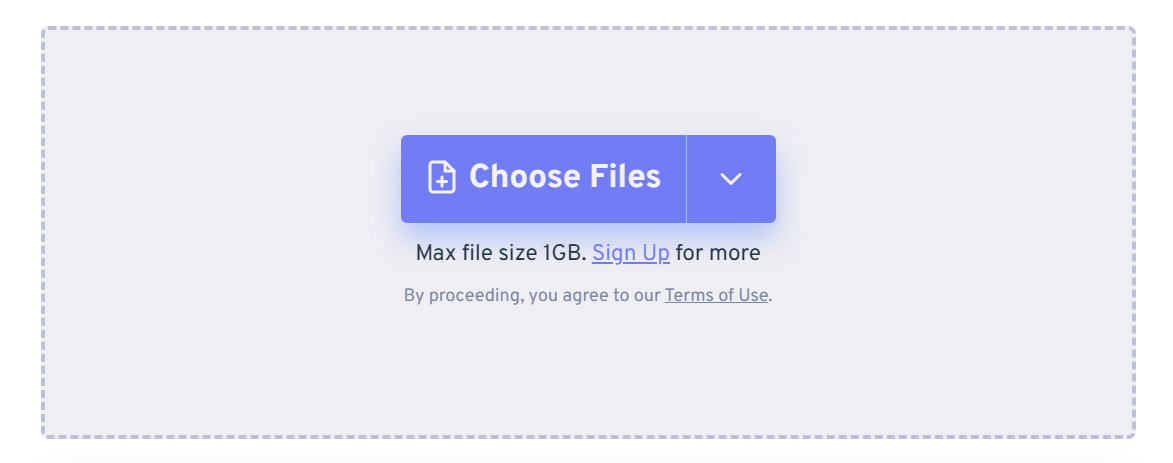
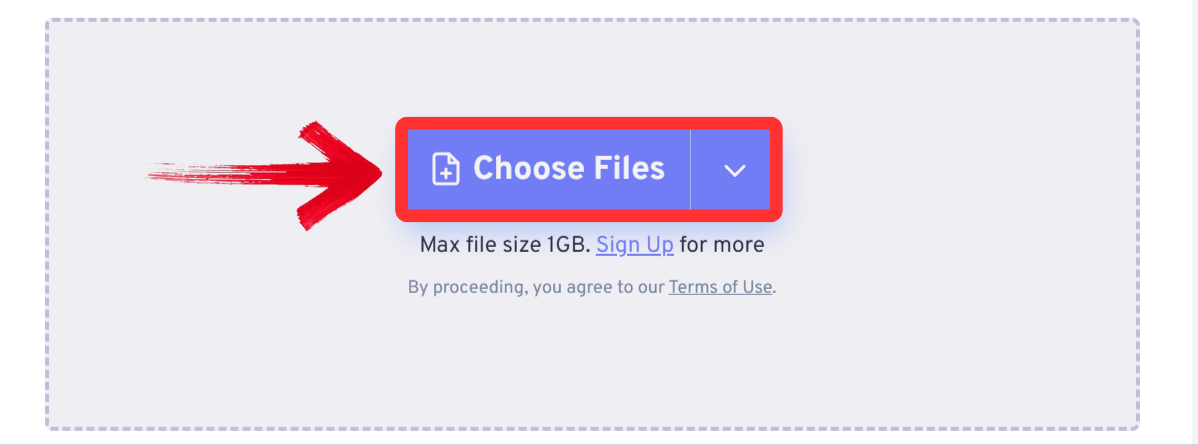
Step 2: Then click ‘Choose Files’ or drag and drop the image onto the screen to upload it.
Step 3: Select your output format and then click ‘Convert' to process the file.
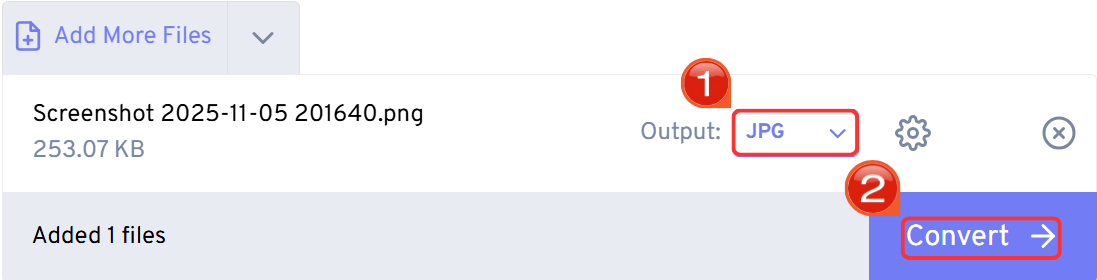
FreeConvert is my go-to for obscure formats. When a client sends me a .NEF or .CR2 RAW file, this is the tool I use. It’s fast and powerful, but you have to be mindful of the daily free limits if you're doing a large batch.
4. CloudConvert
CloudConvert is the professional's online tool, a step up from FreeConvert in power and integration. It's built for reliability and high-quality conversions, supporting over 200 formats. Its best feature is the deep integration with cloud storage like Google Drive and Dropbox, letting you convert files without ever downloading them to your computer. It gives you excellent control over the output, allowing you to set things like color mode, resolution, and quality. This is the tool I trust when quality and reliability are more important than just speed.
How to Use:
Step 1: Go to the CloudConvert website.
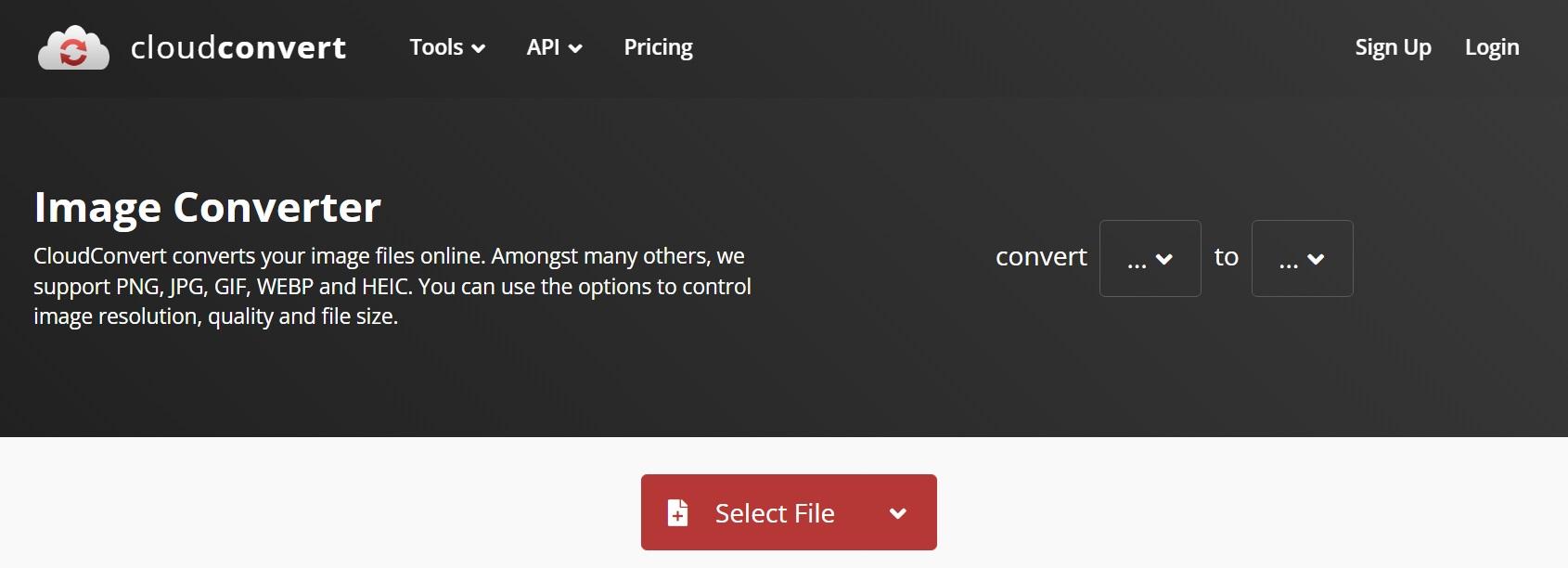
Step 2: Click ‘Select File’ or drag and drop the image onto the screen.

Step 3: Choose your output settings and click ‘Convert’.

Step 4: Finally, click on the ‘Download’ button on the window that pops up to export your converted file.
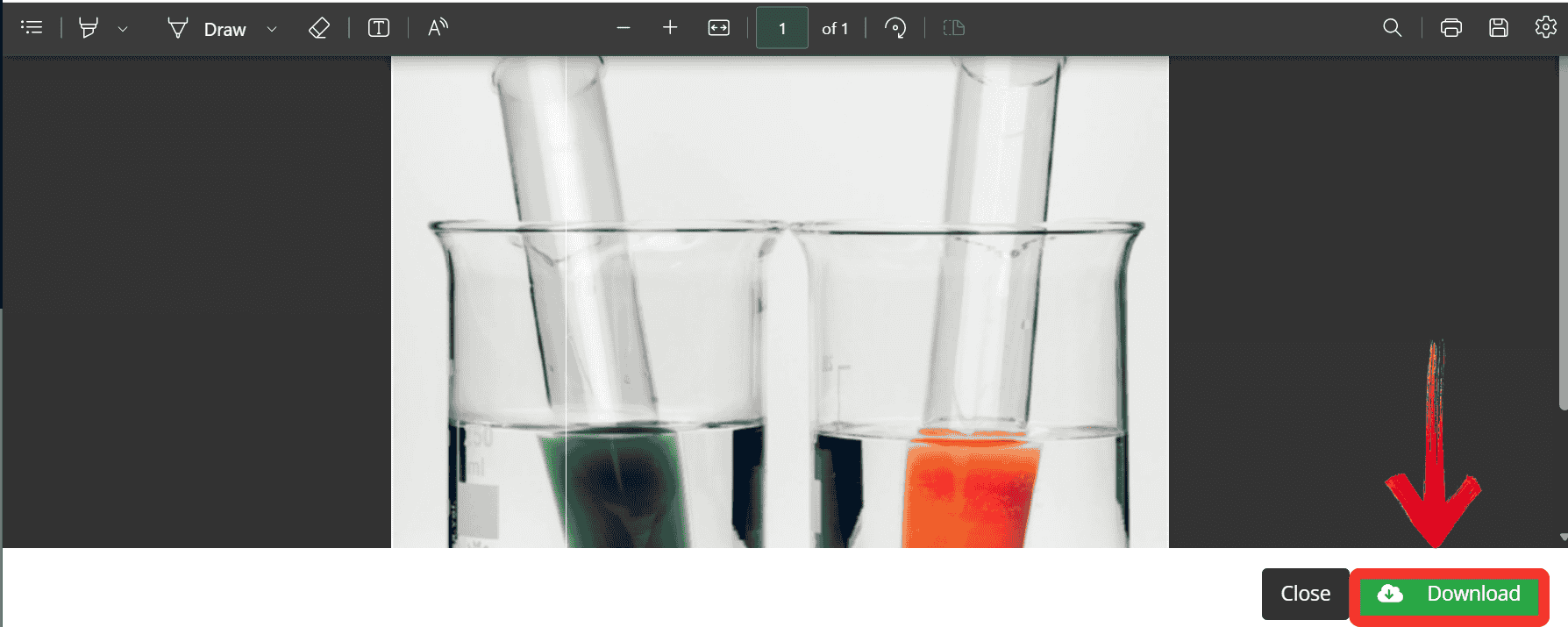
CloudConvert is my choice for serious, high-quality work. If I need to convert a client's PNG logo to a JPG for the web and knowthe color profile needs to be correct, I use this. The 25-conversion limit on the free plan is its only real drawback.
5. Fotor Converter
Fotor, much like Canva, is an all-in-one photo editing platform that includes an image converter. Its focus isn't just on changing formats but onenhancing them. Fotor's main strength is its suite of AI-powered tools. This is a true AI image converter. You can convert your file while also using the AI Enlarger to increase its resolution, or the AI Background Remover. It's also one of the few free online editors that can handle RAW files, making it a great choice for amateur photographers.
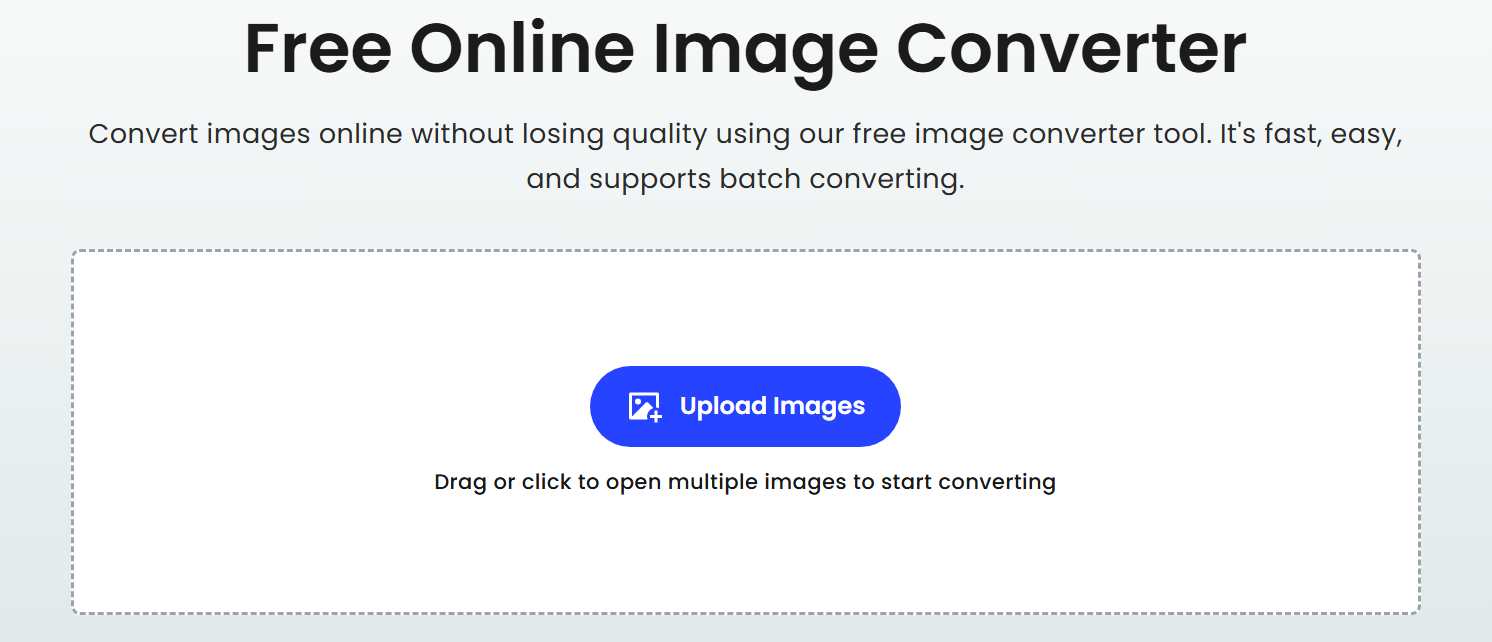
How to Use:
Step 1: Go to the Fotor onlineconverter website.
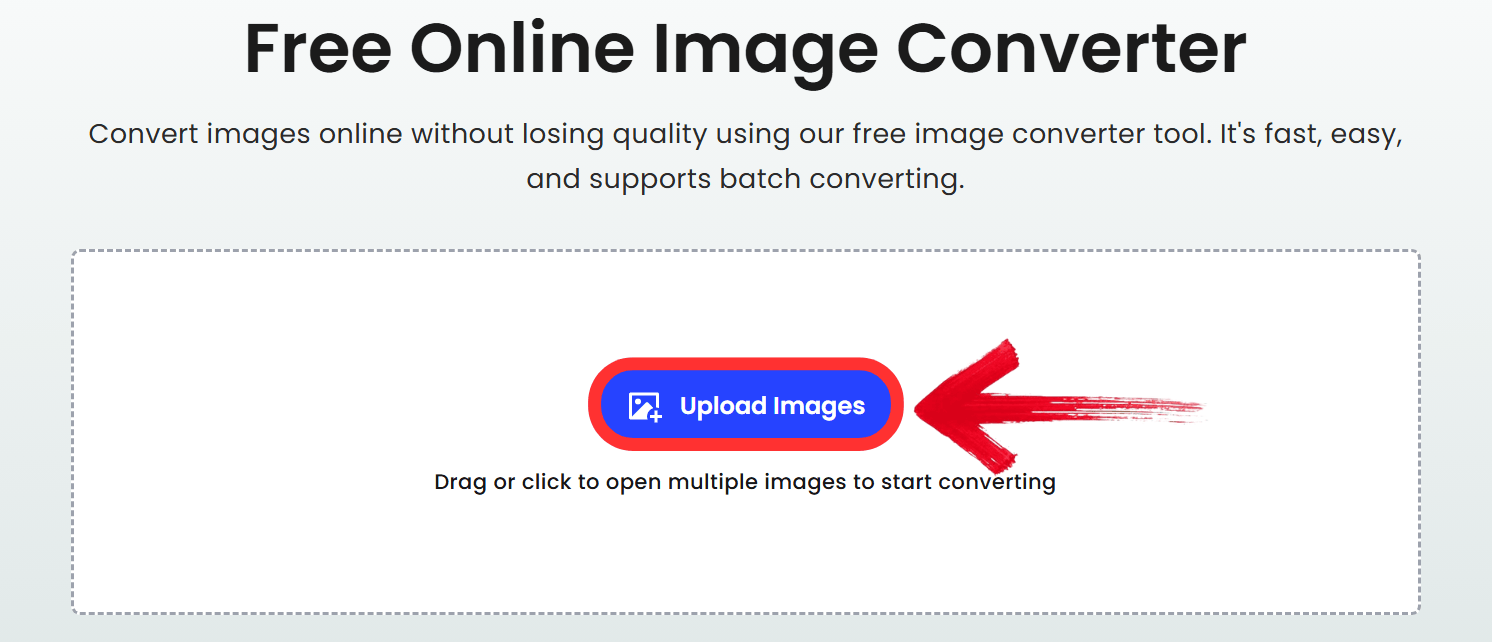
Step 2: Click ‘Upload Images’ or drag and drop the image onto the screen.
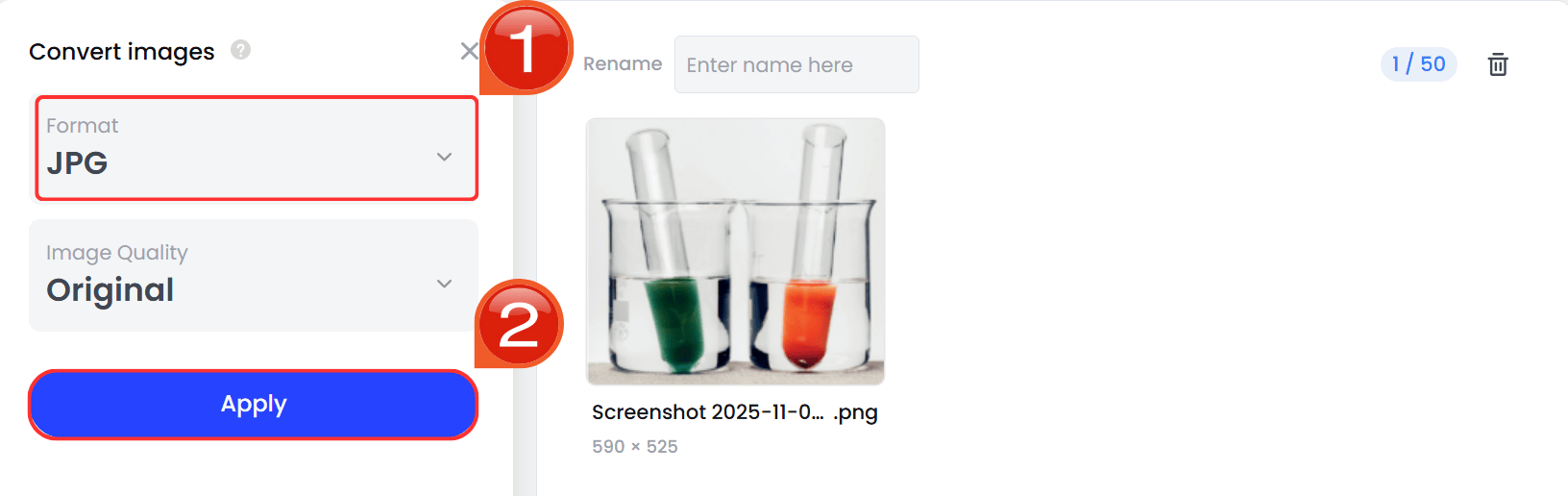
Step 3: Select your output format and then click ‘Apply' to process the file.
I turn to Fotor when a simple conversion isn't enough. If I have a small, low-quality logo, I can use Fotor to convert it from PNG to JPGand use the AI Enlarger to make it usable. It's an enhancement tool first, a converter second.
Quick Comparison Table of the Top 5 Image Converter
It can be a bit confusing since so much information can be a little overwhelming, so that's why, to help you decide, I’ve compared the top five options based on their best features in a brief table.
| Converter Name | Core Focus | Batch Conversion | Image Editing / Optimization | Format Versatility |
|---|---|---|---|---|
| WPS PDF Tools | Office/Document Workflow | Yes (Limited Free Access) | Integrated (Via WPS Photo/Office) | Good (Focus on common and document formats) |
| Canva | Design & Creative Assets | Yes (Via Design Platform) | Excellent (Core Functionality) | Good (Focus on web, print, and design formats) |
| Fotor | AI Photo Editing & Enhancement | Yes (Efficient Batch) | Excellent (AI Enhancement) | Good (Strong for photo formats) |
| FreeConvert | Universal File Conversion | Yes (File Size Limits) | Basic (Compression, Resize) | Extremely High (500+ formats, RAW) |
| CloudConvert | Professional Cloud Conversion | Yes (API-Driven) | Moderate (Quality Control) | Extremely High (200+ formats) |
Choosing the right tool depends on what you really want from it. Canva and Fotor are built for creative design workflows, while FreeConvert and CloudConvert are specialists for handling multiple formats. This often means you need different tools for different jobs. But you can find both of these within WPS Office. It solves this problem by offering both a fast online converter for simple tasks and a powerful, secure offline app for complex needs, like extracting text from an image.
Why WPS PDF Tools Stands Out?
From all the converters I’ve tested, the WPS PDF Tool just checks all the right boxes. First off, it's genuinely free. You get a suite of powerful online tools and a full, downloadable desktop app without watermarks or hidden subscription costs, just straight-up functionality. And then, the conversion quality is really impressive. It handles PDF and Word layouts perfectly, preserving the fonts and formatting without any issues. That’s something many online-only tools still struggle with.
What really comes off as a bonus is its power beyond just being an image converter. The desktop app’s ability to be a JPG to PDF tool one minute and then convert a scanned JPG back into an editable Word document, complete with the extracted text, is a feature I use constantly. Compared to basic, single-task tools, the WPS suite just feels more complete, professional, and reliable for any task you throw at it.
FAQs
Q1. Does using an Image Converter always result in losing image quality?
Not necessarily. Quality loss depends on the output format and the converter's technology. Converting to lossy formats like JPG will reduce quality. However, using AI-enhanced converters (like Fotor) or converting to lossless formats (like PNG or TIFF) helps minimize visible degradation.
Q2. Can I batch convert hundreds of images at once using online tools?
Yes, but with caveats. Tools like FreeConvert or CloudConvert support batch processing, but free tiers often impose strict limits on the total file size or the number of files you can upload per day. For heavy batch work, a paid subscription or a dedicated desktop app is usually required.
Q3. Besides just changing the format, what useful functions should a good converter include?
A truly valuable image converter should include optimization and editing features such as resizing/cropping, compression control (adjusting quality sliders), and AI Enhancement (sharpening or noise reduction).
Q4. How can I convert an image to JPG in kb?
To reduce the file size dramatically, you need to use the converter's quality settings. When converting to JPG, most tools (like Online-Convert or Fotor) will have a "quality" slider. Setting it to a lower value (e.g., 60-70%) will significantly reduce the size of the file, often to a kb level.
Q5. Is it safe to use these converters?
Reputable converters like CloudConvert, FreeConvert, and WPS are generally safe. They use SSL encryption and state that they delete your files after a few hours. However, for highly sensitive or confidential documents, I always recommend using a desktop app like WPS Office to process the files offline.
Q6. What's the difference between JPG and JPEG?
There is no difference in the format itself. JPEG (Joint Photographic Experts Group) is the full name of the file format. .jpg was just the three-letter file extension used by older Windows systems. The terms are used interchangeably.

'%3e%3cpath%20d='M19.9911%204.11386V6.471H18.5894C18.0775%206.471%2017.7322%206.57814%2017.5536%206.79243C17.3751%207.00671%2017.2858%207.32814%2017.2858%207.75671V9.44421H19.9019L19.5536%2012.0871H17.2858V18.8639H14.5536V12.0871H12.2769V9.44421H14.5536V7.49779C14.5536%206.39064%2014.8632%205.53201%2015.4822%204.92189C16.1013%204.31177%2016.9257%204.00671%2017.9554%204.00671C18.8304%204.00671%2019.509%204.04243%2019.9911%204.11386Z'%20fill='%23333333'/%3e%3c/g%3e%3cdefs%3e%3cclipPath%20id='clip0_2938_8199'%3e%3crect%20width='16'%20height='16'%20fill='white'%20transform='translate(8%204.00671)'/%3e%3c/clipPath%3e%3c/defs%3e%3c/svg%3e)
'%3e%3cpath%20d='M17.5237%2010.7813L23.4811%204H22.0699L16.8949%209.88693L12.7648%204H8L14.2469%2012.9029L8%2020.0133H9.4112L14.8725%2013.7952L19.2352%2020.0133H24M9.92053%205.04213H12.0885L22.0688%2019.0224H19.9003'%20fill='%23333333'/%3e%3c/g%3e%3cdefs%3e%3cclipPath%20id='clip0_2938_8200'%3e%3crect%20width='16'%20height='16.0134'%20fill='white'%20transform='translate(8%204)'/%3e%3c/clipPath%3e%3c/defs%3e%3c/svg%3e)


