

'%3e%3cpath%20d='M8%200C12.4183%200%2016%203.58172%2016%208C16%2012.4183%2012.4183%2016%208%2016C3.58172%2016%200%2012.4183%200%208C0%203.58172%203.58172%200%208%200ZM11.6162%204.38379C11.2257%203.99337%2010.5927%203.99338%2010.2021%204.38379L8%206.58594L5.79785%204.38379C5.40732%203.99334%204.77429%203.99329%204.38379%204.38379C3.99331%204.77429%203.99335%205.40733%204.38379%205.79785L6.58594%208L4.38379%2010.2021C3.99348%2010.5927%203.99341%2011.2257%204.38379%2011.6162C4.77426%2012.0066%205.40734%2012.0065%205.79785%2011.6162L8%209.41406L10.2021%2011.6162C10.5927%2012.0066%2011.2257%2012.0067%2011.6162%2011.6162C12.0067%2011.2257%2012.0066%2010.5927%2011.6162%2010.2021L9.41406%208L11.6162%205.79785C12.0066%205.40735%2012.0066%204.77429%2011.6162%204.38379Z'%20fill='%23080E17'%20fill-opacity='0.46'/%3e%3c/g%3e%3cdefs%3e%3cclipPath%20id='clip0_3761_713'%3e%3crect%20width='16'%20height='16'%20fill='white'/%3e%3c/clipPath%3e%3c/defs%3e%3c/svg%3e)




'%3e%3cpath%20fill-rule='evenodd'%20clip-rule='evenodd'%20d='M21.4999%2010.9993C21.4999%205.20009%2016.7986%200.498901%2010.9993%200.498901C5.19994%200.498901%200.498657%205.20009%200.498657%2010.9993C0.498657%2016.2404%204.33858%2020.5844%209.35855%2021.3722V14.0346H6.69238V10.9993H9.35855V8.68594C9.35855%206.05427%2010.9262%204.60062%2013.3248%204.60062C14.4736%204.60062%2015.6753%204.80571%2015.6753%204.80571V7.38979H14.3512C13.0468%207.38979%2012.64%208.19921%2012.64%209.0296V10.9993H15.5523L15.0867%2014.0346H12.64V21.3722C17.66%2020.5844%2021.4999%2016.2404%2021.4999%2010.9993Z'%20fill='%231568EA'/%3e%3c/g%3e%3c/svg%3e)


'%3e%3cpath%20d='M2.42045%2022.1876H6.31818V12.7217L0.75%208.54553V20.5171C0.75%2021.4414%201.49892%2022.1876%202.42045%2022.1876Z'%20fill='%234285F4'/%3e%3cpath%20d='M19.682%2022.1876H23.5797C24.5041%2022.1876%2025.2502%2021.4387%2025.2502%2020.5171V8.54553L19.682%2012.7217'%20fill='%2334A853'/%3e%3cpath%20d='M19.682%205.48293V12.7216L25.2502%208.54543V6.31816C25.2502%204.25236%2022.8921%203.07469%2021.2411%204.31361'%20fill='%23FBBC04'/%3e%3cpath%20d='M6.31824%2012.7217V5.48303L13.0001%2010.4944L19.6819%205.48303V12.7217L13.0001%2017.733'%20fill='%23EA4335'/%3e%3cpath%20d='M0.75%206.31816V8.54543L6.31818%2012.7216V5.48293L4.75909%204.31361C3.10534%203.07469%200.75%204.25236%200.75%206.31816Z'%20fill='%23C5221F'/%3e%3c/g%3e%3cdefs%3e%3cclipPath%20id='clip0_2954_7305'%3e%3crect%20width='24.5'%20height='18.375'%20fill='white'%20transform='translate(0.75%203.8125)'/%3e%3c/clipPath%3e%3c/defs%3e%3c/svg%3e)


You have a password manager on your phone, but the desktop browser still asks for a password you have not typed since 2021. The 1Password Chrome extension is the piece that closes that gap.
The extension is not a second account. It is a small window into the same vault, which is why the order of setup matters: install the extension, sign in or connect it to the desktop app, then switch on autofill.
This guide covers installing and using the 1Password Chrome extension, the problems that stop it working, and how to protect the documents that live outside your browser.
1Password Chrome Extension: How to Install and Use It
Install the 1Password Chrome Extension
Install from the official listing so you are not handing vault credentials to an unrelated publisher. Open the Chrome Web Store, search for 1Password, and compare the publisher name against the one shown on 1password.com.
Open the listing. Read the permissions before you install. A password manager needs to read and change data on the pages where it fills forms.
Select Add to Chrome. Confirm the permission prompt that Chrome shows.
Pin the icon. Open the extensions menu and pin the 1Password icon so it stays visible in the toolbar.
Install the desktop app if you are prompted. Some setups expect the desktop application to be present; if you see that prompt, install it and reopen the browser.
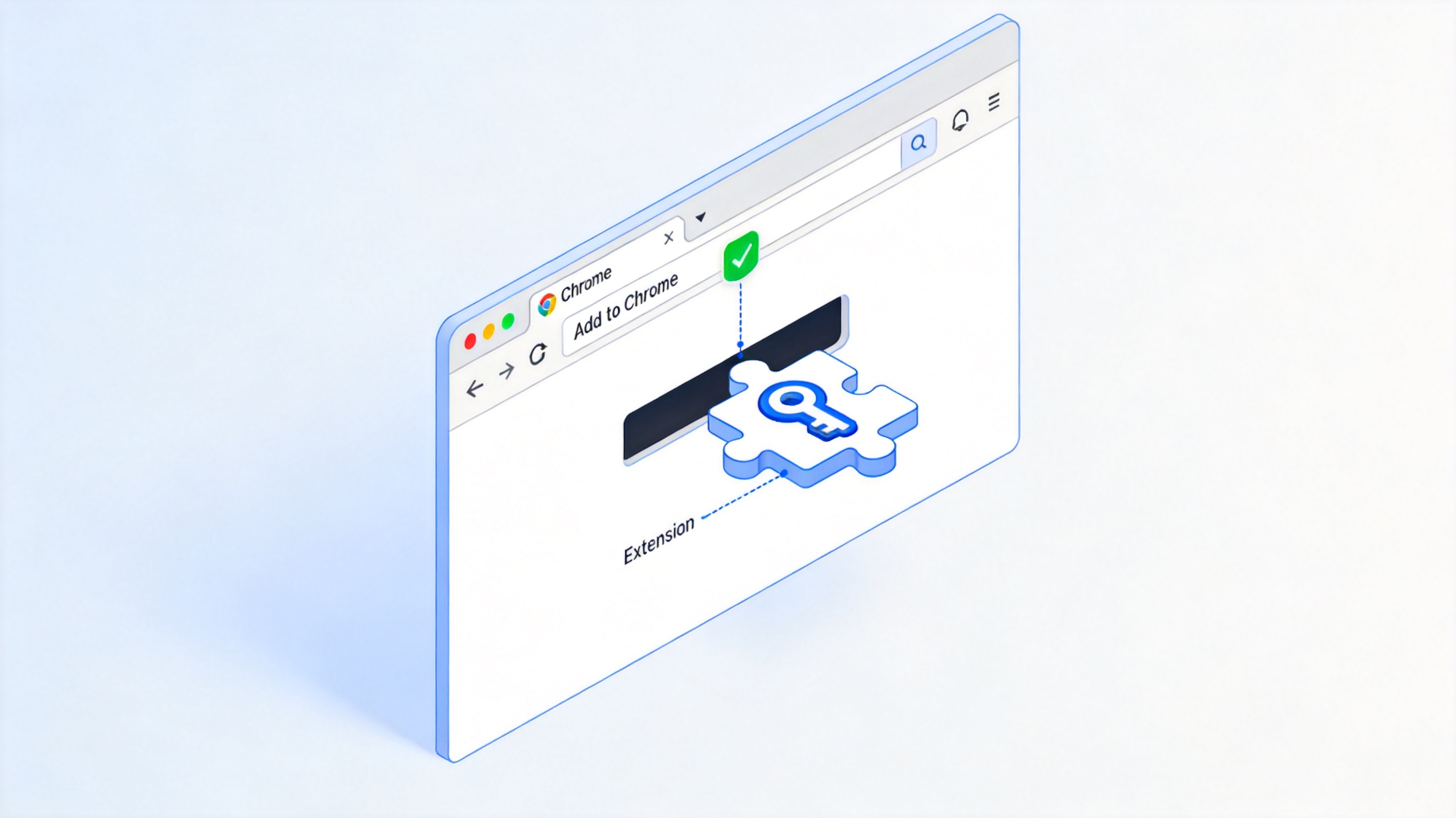
Add the extension to Chrome


Sign In and Unlock the 1Password Chrome Extension
Signing in and unlocking are two different things. Signing in tells the extension which vault to read; unlocking lets it decrypt the entries inside.
Open the extension. Select the 1Password icon in the toolbar.
Sign in with your account details. Use your account credentials and, if your team has one, the sign-in address for your organisation. Depending on your version and platform, the extension may instead offer to connect to the 1Password desktop app, so follow whichever prompt you see.
Unlock the vault. Enter your master password, or use biometric unlock when the desktop app supports it.
Set a sensible auto-lock. A short idle timeout is the difference between convenience and leaving an unlocked vault on a shared machine.
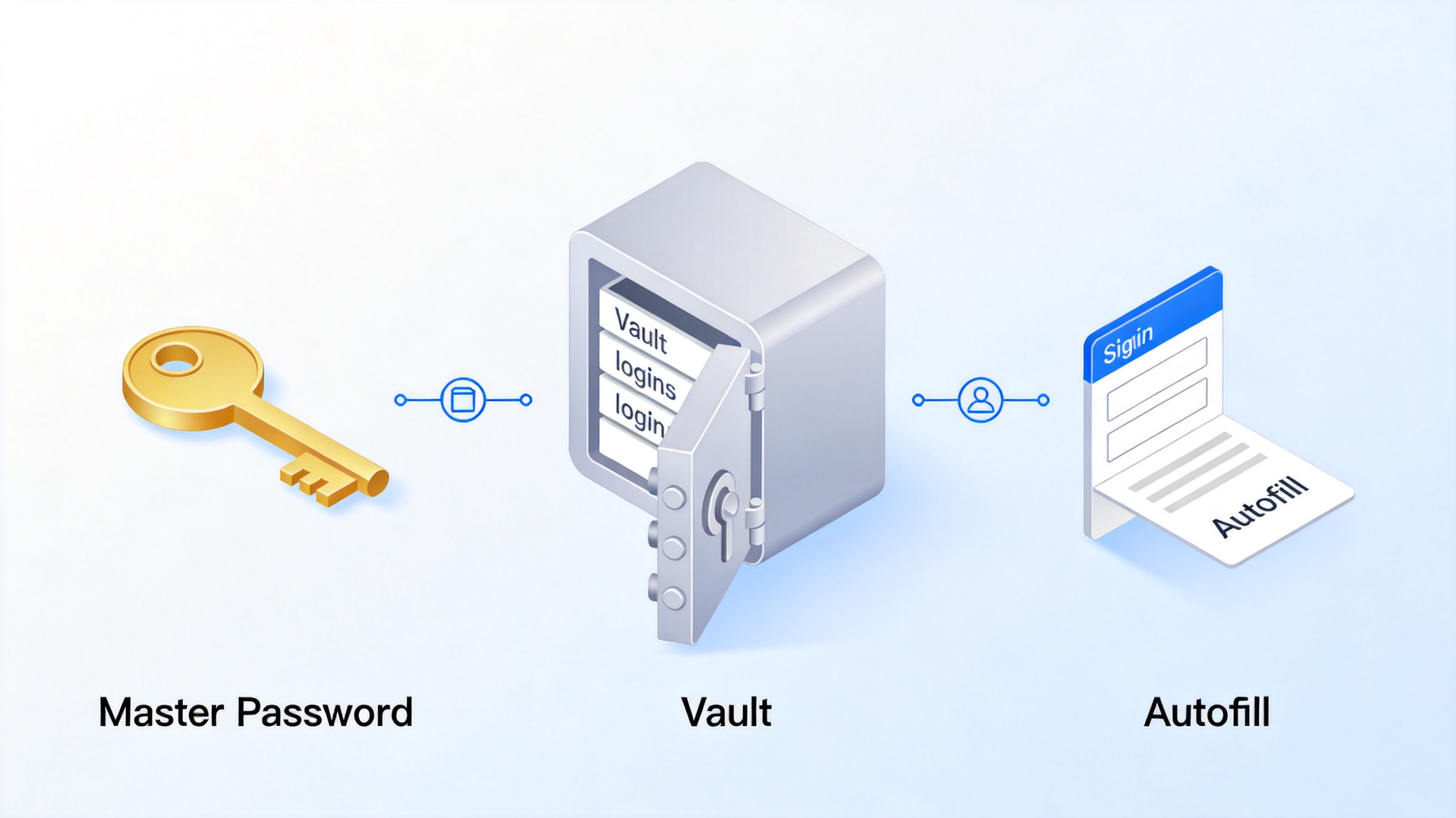
Master password, vault and autofill
Use the 1Password Chrome Extension to Save and Fill Logins
Day to day the extension does three things: it fills what you already have, it offers to save what is new, and it generates a password when you sign up somewhere.
Fill a saved login. On a sign-in page, open the extension and choose the matching entry, or accept the suggestion the extension shows inline in the field.
Save a new login. Sign in as usual and let the extension offer to save the credentials. Check that the entry lands in the vault you expect, personal or shared.
Generate a password. Use the password generator when you create an account, then save the result straight into the vault instead of a note.
Review as you go. Open the item afterwards to add a label, a second URL or a note, so the next search finds it.
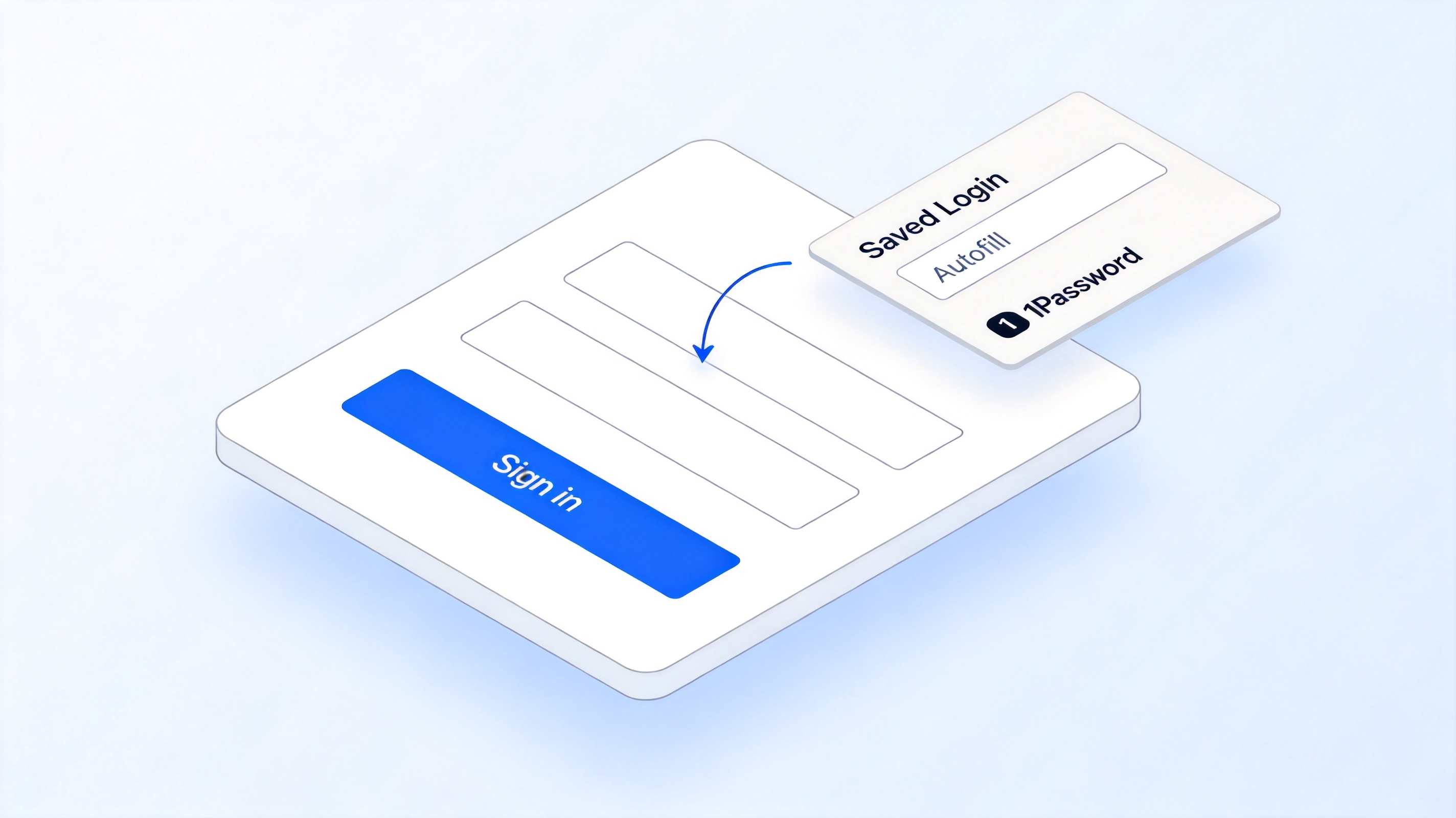
Fill a saved login in Chrome
1Password Chrome Extension Not Working? Fix These First
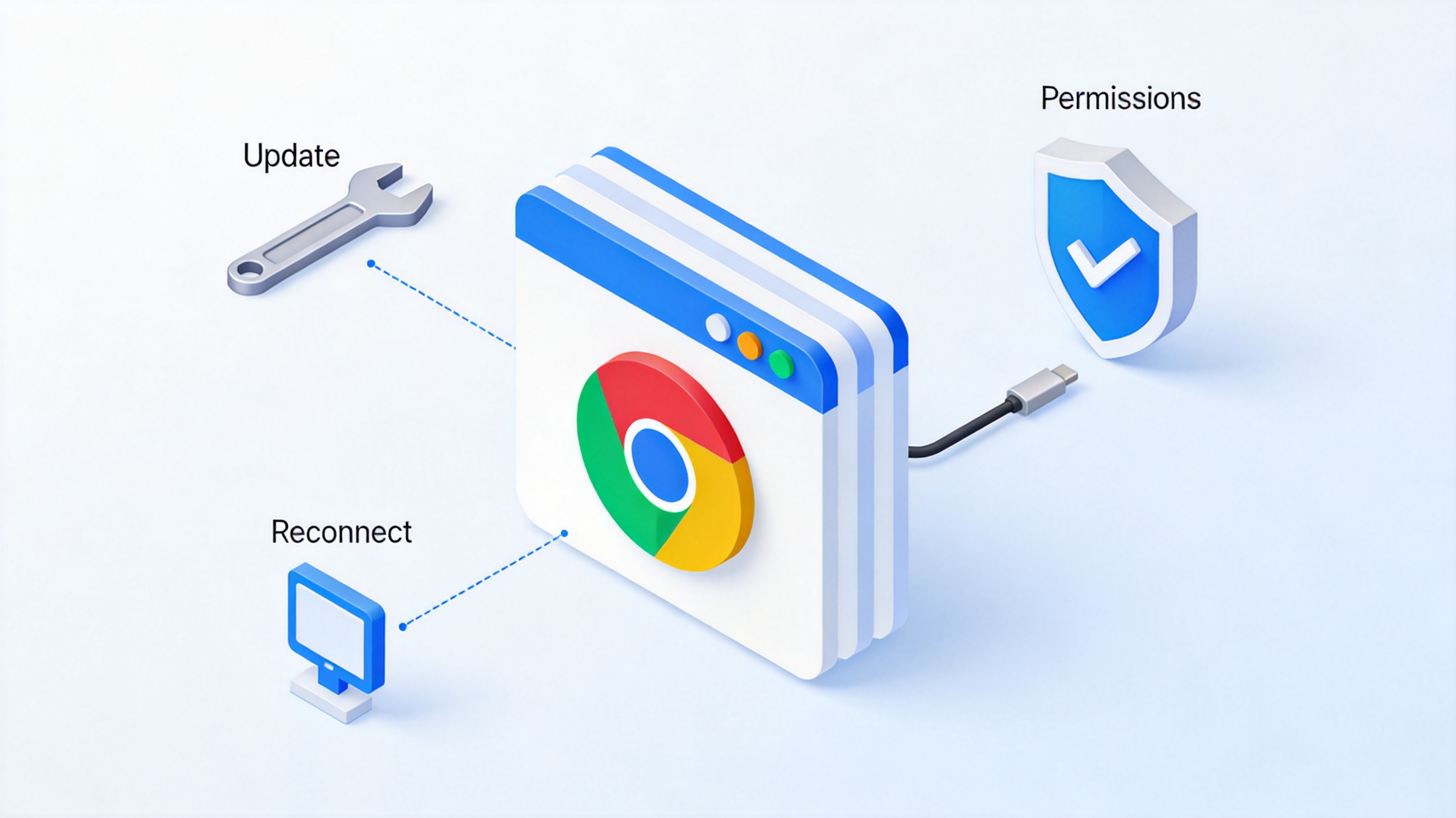
Most extension problems come from three places: an out-of-date component, a broken link to the desktop app, or a permission the site is missing.
Update Chrome and the extension. Open the extensions page and check for an update, then restart the browser.
Reconnect the desktop app. Open the desktop app, confirm it is unlocked and reopen the extension. If the connection still fails, quit both and start the desktop app first.
Check the site permissions. On pages where autofill does nothing, confirm the extension is allowed to run, then refresh the page after unlocking the vault.
Sign in again after a password change. Changing your account password signs sessions out, so unlock the extension with the new master password before you rely on it.
Confirm you are in the right profile. Chrome profiles and 1Password accounts are separate. If the extension opens the wrong vault, switch account or browser profile.
Fix common browser extension problems
The Best Free Way to Protect Your Documents: WPS Office
A password manager protects your logins. The files those logins open still need protection of their own, especially reports, contracts and spreadsheets that get emailed around.
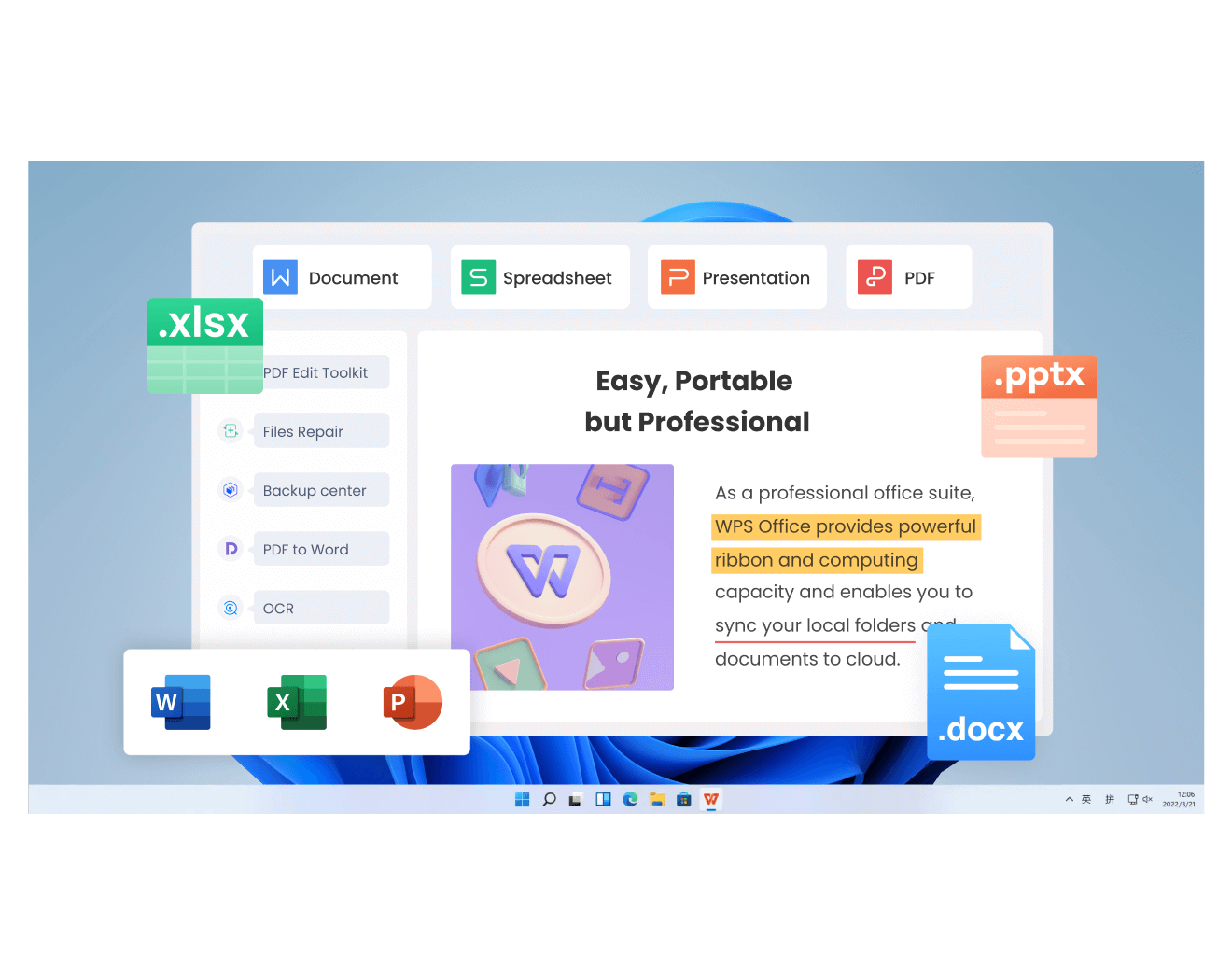
WPS Office handles the document side for free, across the same Writer, Spreadsheet, Presentation and PDF tools you already use.
Password-protect the file. Add an open password to a Word document, a spreadsheet or a PDF so the file itself is unreadable without it.
Restrict editing. Allow comments and tracked changes without allowing a rewrite of the body text, which suits documents under review.
Keep the original layout. Protection is applied to the file you already have, so the design does not change when you switch it on.
Protect documents with WPS Office tools
Our guide to protecting a Word document from editing walks through the restriction settings step by step, and free password generators covers how to create a password you will still be able to use next year.
FAQs
Is the 1Password Chrome extension free?
The extension is free to install, but it works with a 1Password account, and some account or feature options are paid. Check your current plan before you move your whole vault into the browser.
Do I need the 1Password desktop app for the Chrome extension?
Not always. Depending on your version and platform you can sign in directly in the extension or connect it to the desktop application. Follow the prompt the extension shows on first run.
Why is the 1Password extension not saving my passwords?
The usual causes are an out-of-date extension, a locked vault, or a site the extension has no permission to run on. Update and restart the browser, unlock the vault, then try again on a fresh page load.
Is it safe to let a browser extension fill my passwords?
Autofill is what makes a password manager practical, and it also means the extension can read the pages where it fills. Install only the official listing, keep the auto-lock short and check the permissions before you approve them.
Can I protect documents as well as logins?
Yes, but they are separate jobs. A password manager stores the credentials, while a suite such as WPS Office encrypts the document itself. Use both when a file leaves your organisation.


'%3e%3cpath%20d='M19.9911%204.11386V6.471H18.5894C18.0775%206.471%2017.7322%206.57814%2017.5536%206.79243C17.3751%207.00671%2017.2858%207.32814%2017.2858%207.75671V9.44421H19.9019L19.5536%2012.0871H17.2858V18.8639H14.5536V12.0871H12.2769V9.44421H14.5536V7.49779C14.5536%206.39064%2014.8632%205.53201%2015.4822%204.92189C16.1013%204.31177%2016.9257%204.00671%2017.9554%204.00671C18.8304%204.00671%2019.509%204.04243%2019.9911%204.11386Z'%20fill='%23333333'/%3e%3c/g%3e%3cdefs%3e%3cclipPath%20id='clip0_2938_8199'%3e%3crect%20width='16'%20height='16'%20fill='white'%20transform='translate(8%204.00671)'/%3e%3c/clipPath%3e%3c/defs%3e%3c/svg%3e)
'%3e%3cpath%20d='M17.5237%2010.7813L23.4811%204H22.0699L16.8949%209.88693L12.7648%204H8L14.2469%2012.9029L8%2020.0133H9.4112L14.8725%2013.7952L19.2352%2020.0133H24M9.92053%205.04213H12.0885L22.0688%2019.0224H19.9003'%20fill='%23333333'/%3e%3c/g%3e%3cdefs%3e%3cclipPath%20id='clip0_2938_8200'%3e%3crect%20width='16'%20height='16.0134'%20fill='white'%20transform='translate(8%204)'/%3e%3c/clipPath%3e%3c/defs%3e%3c/svg%3e)


