

'%3e%3cpath%20d='M8%200C12.4183%200%2016%203.58172%2016%208C16%2012.4183%2012.4183%2016%208%2016C3.58172%2016%200%2012.4183%200%208C0%203.58172%203.58172%200%208%200ZM11.6162%204.38379C11.2257%203.99337%2010.5927%203.99338%2010.2021%204.38379L8%206.58594L5.79785%204.38379C5.40732%203.99334%204.77429%203.99329%204.38379%204.38379C3.99331%204.77429%203.99335%205.40733%204.38379%205.79785L6.58594%208L4.38379%2010.2021C3.99348%2010.5927%203.99341%2011.2257%204.38379%2011.6162C4.77426%2012.0066%205.40734%2012.0065%205.79785%2011.6162L8%209.41406L10.2021%2011.6162C10.5927%2012.0066%2011.2257%2012.0067%2011.6162%2011.6162C12.0067%2011.2257%2012.0066%2010.5927%2011.6162%2010.2021L9.41406%208L11.6162%205.79785C12.0066%205.40735%2012.0066%204.77429%2011.6162%204.38379Z'%20fill='%23080E17'%20fill-opacity='0.46'/%3e%3c/g%3e%3cdefs%3e%3cclipPath%20id='clip0_3761_713'%3e%3crect%20width='16'%20height='16'%20fill='white'/%3e%3c/clipPath%3e%3c/defs%3e%3c/svg%3e)




'%3e%3cpath%20fill-rule='evenodd'%20clip-rule='evenodd'%20d='M21.4999%2010.9993C21.4999%205.20009%2016.7986%200.498901%2010.9993%200.498901C5.19994%200.498901%200.498657%205.20009%200.498657%2010.9993C0.498657%2016.2404%204.33858%2020.5844%209.35855%2021.3722V14.0346H6.69238V10.9993H9.35855V8.68594C9.35855%206.05427%2010.9262%204.60062%2013.3248%204.60062C14.4736%204.60062%2015.6753%204.80571%2015.6753%204.80571V7.38979H14.3512C13.0468%207.38979%2012.64%208.19921%2012.64%209.0296V10.9993H15.5523L15.0867%2014.0346H12.64V21.3722C17.66%2020.5844%2021.4999%2016.2404%2021.4999%2010.9993Z'%20fill='%231568EA'/%3e%3c/g%3e%3c/svg%3e)


'%3e%3cpath%20d='M2.42045%2022.1876H6.31818V12.7217L0.75%208.54553V20.5171C0.75%2021.4414%201.49892%2022.1876%202.42045%2022.1876Z'%20fill='%234285F4'/%3e%3cpath%20d='M19.682%2022.1876H23.5797C24.5041%2022.1876%2025.2502%2021.4387%2025.2502%2020.5171V8.54553L19.682%2012.7217'%20fill='%2334A853'/%3e%3cpath%20d='M19.682%205.48293V12.7216L25.2502%208.54543V6.31816C25.2502%204.25236%2022.8921%203.07469%2021.2411%204.31361'%20fill='%23FBBC04'/%3e%3cpath%20d='M6.31824%2012.7217V5.48303L13.0001%2010.4944L19.6819%205.48303V12.7217L13.0001%2017.733'%20fill='%23EA4335'/%3e%3cpath%20d='M0.75%206.31816V8.54543L6.31818%2012.7216V5.48293L4.75909%204.31361C3.10534%203.07469%200.75%204.25236%200.75%206.31816Z'%20fill='%23C5221F'/%3e%3c/g%3e%3cdefs%3e%3cclipPath%20id='clip0_2954_7305'%3e%3crect%20width='24.5'%20height='18.375'%20fill='white'%20transform='translate(0.75%203.8125)'/%3e%3c/clipPath%3e%3c/defs%3e%3c/svg%3e)


You need a room for six people in twenty minutes, and you have never set one up yourself. Creating the meeting is the easy half. Making sure the link, the passcode and the start time all reach your guests is the half that decides whether the call begins on time.
Zoom gives you three ways to create a meeting: start one immediately, schedule one for later, or reuse your personal meeting room. Each suits a different situation, and picking the wrong one creates avoidable work afterwards.
This guide covers how to create a Zoom meeting on desktop and mobile, what to put in the invitation, and how to prepare the agenda in WPS Office before the link goes out.
How to Create a Zoom Meeting on Desktop and Mobile
How to Create a Zoom Meeting Right Now
An instant meeting is the right choice for a quick conversation, a screen-share fix, or any call where nobody needs a calendar hold. Set the account up first: create or sign in to your Zoom account and install the app from the official download page.
On desktop
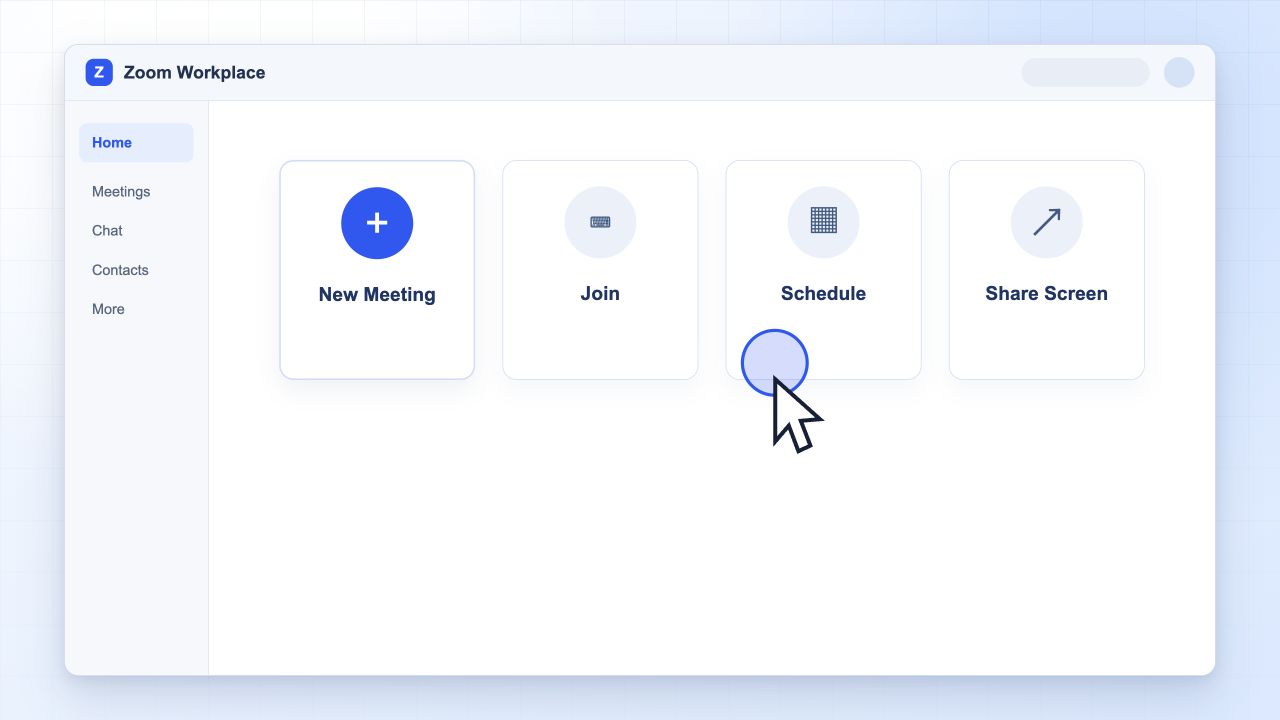
Open the Zoom Workplace app and sign in.
On the Home tab, select New Meeting. Use the small arrow beside the button to decide whether your video starts on or off.
Use Participants > Invite, then copy the invite link or send it by email.
Admit guests from the Participants panel if the waiting room is on, and confirm the audio before you begin.
On mobile
Open the Zoom app and tap New Meeting.
Confirm the audio option, then tap Start a Meeting.
Tap Participants > Invite to send the link through a messaging app or email.
Start an instant Zoom meeting


How to Create a Zoom Meeting and Schedule It for Later
Schedule the meeting when other people have to plan around it. A scheduled meeting produces an invitation with a date, a time zone, a meeting ID and a passcode.
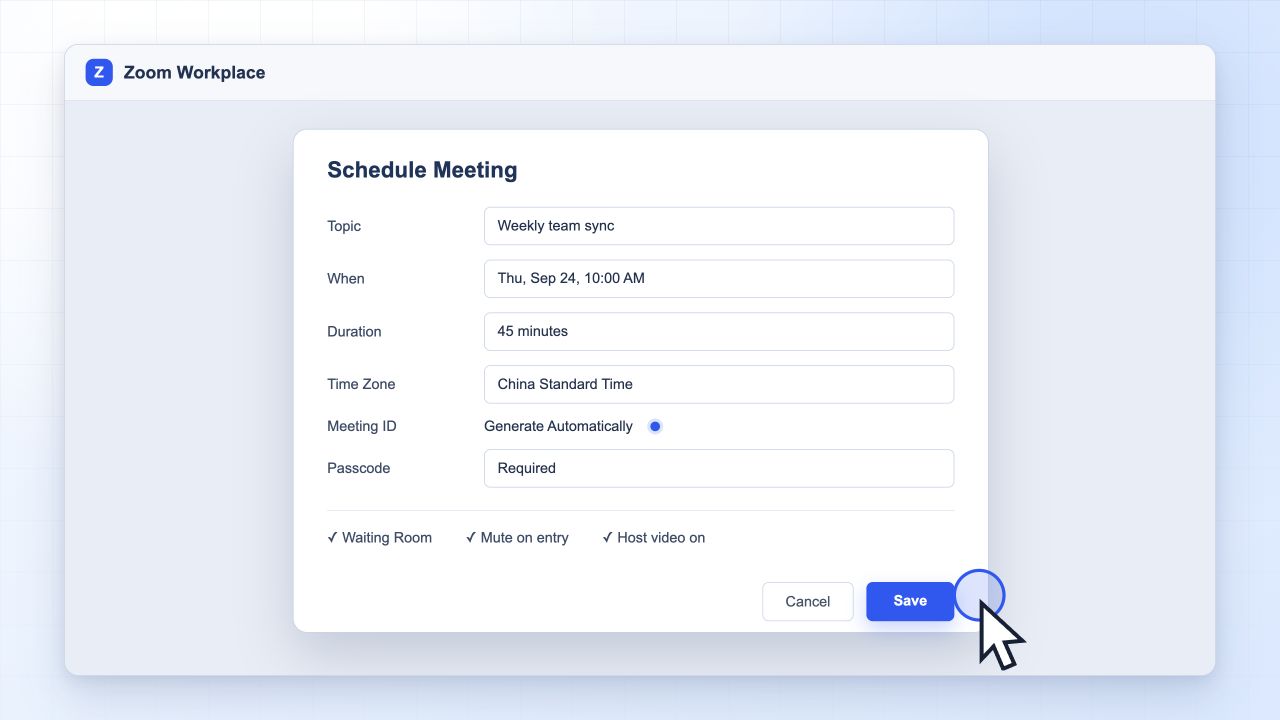
From Home, select Schedule.
Enter the topic, the date, the start time, the duration and the time zone. Choose a recurring meeting only when the same group needs the same room again.
Keep Generate Automatically for the meeting ID and require a passcode.
Set the waiting room, host video and mute-on-entry options for the format you expect.
Choose a calendar destination, select Save, and send the invitation to your guests.
Schedule a Zoom meeting in advance
Keep the topic short and specific. It becomes the calendar entry, the email subject and the meeting header, so a vague topic costs you a question in the chat later.
How to Create a Zoom Meeting Link You Can Share Anywhere
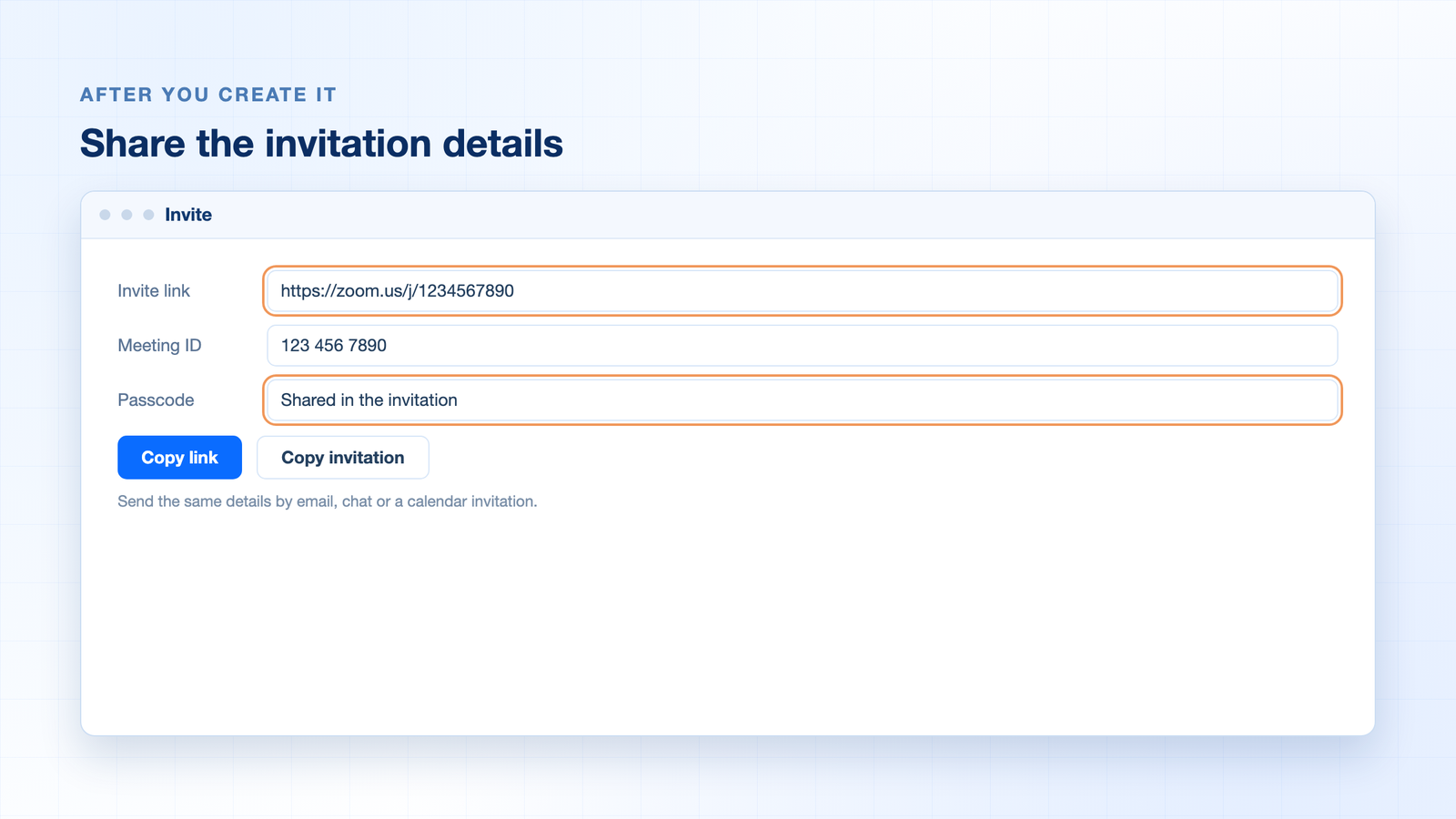
The invite link is the part people actually use. It contains the meeting ID, and the passcode travels with it when you share the full invitation.
Copy the whole invitation rather than only the URL when the meeting requires a passcode.
Share it once, in one place. Put the invitation in the calendar entry or the team channel, then link to that instead of pasting it into four different chats.
Your personal link is reusable. The personal meeting ID opens your own room, which suits drop-in hours and is a poor fit for meetings that need a fresh passcode.
Send the agenda with the link. Guests who can see what the meeting is for arrive prepared.
Share Zoom meeting link and passcode
The Best Free Way to Prep the Agenda: WPS Office
A meeting that starts without an agenda rarely ends with a decision. WPS Office gives you a free place to write the agenda, share the notes and keep the follow-up list in one document.
Write the agenda before the meeting exists
Open a WPS Writer document and list the topics, the person leading each one, the time box, and the decision or result you need. Share the link in the invitation. If you would rather not build the layout yourself, start from a ready-made file in the WPS template library.
Take notes in the same document
During the call, keep the Writer document open and record decisions in one section and action items in another. Owner and due date are the two columns that get lost when the notes live in a private file.
Send the recap with the recording link
Afterwards, paste the recording link and the summary into the same document so nobody has to search two systems for one meeting. If you also want the host side covered, our guide to hosting a Zoom meeting goes through participants, security and recording.
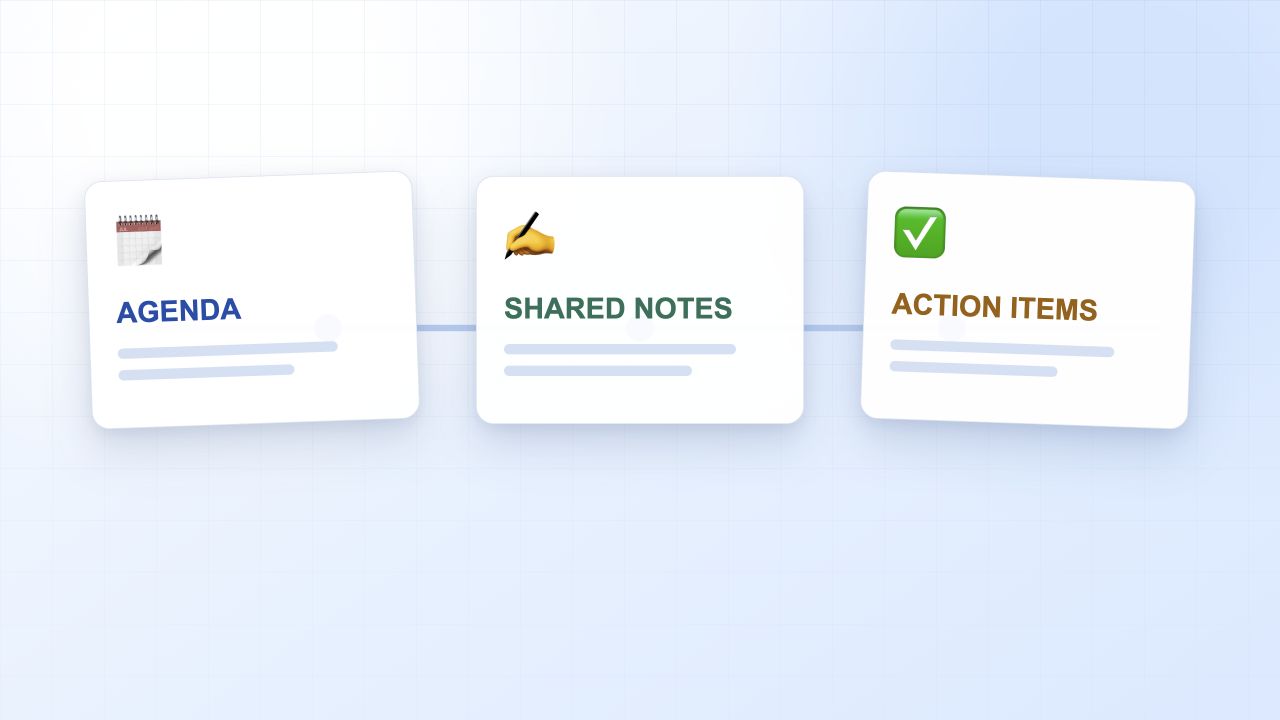
Agenda, shared notes and action items
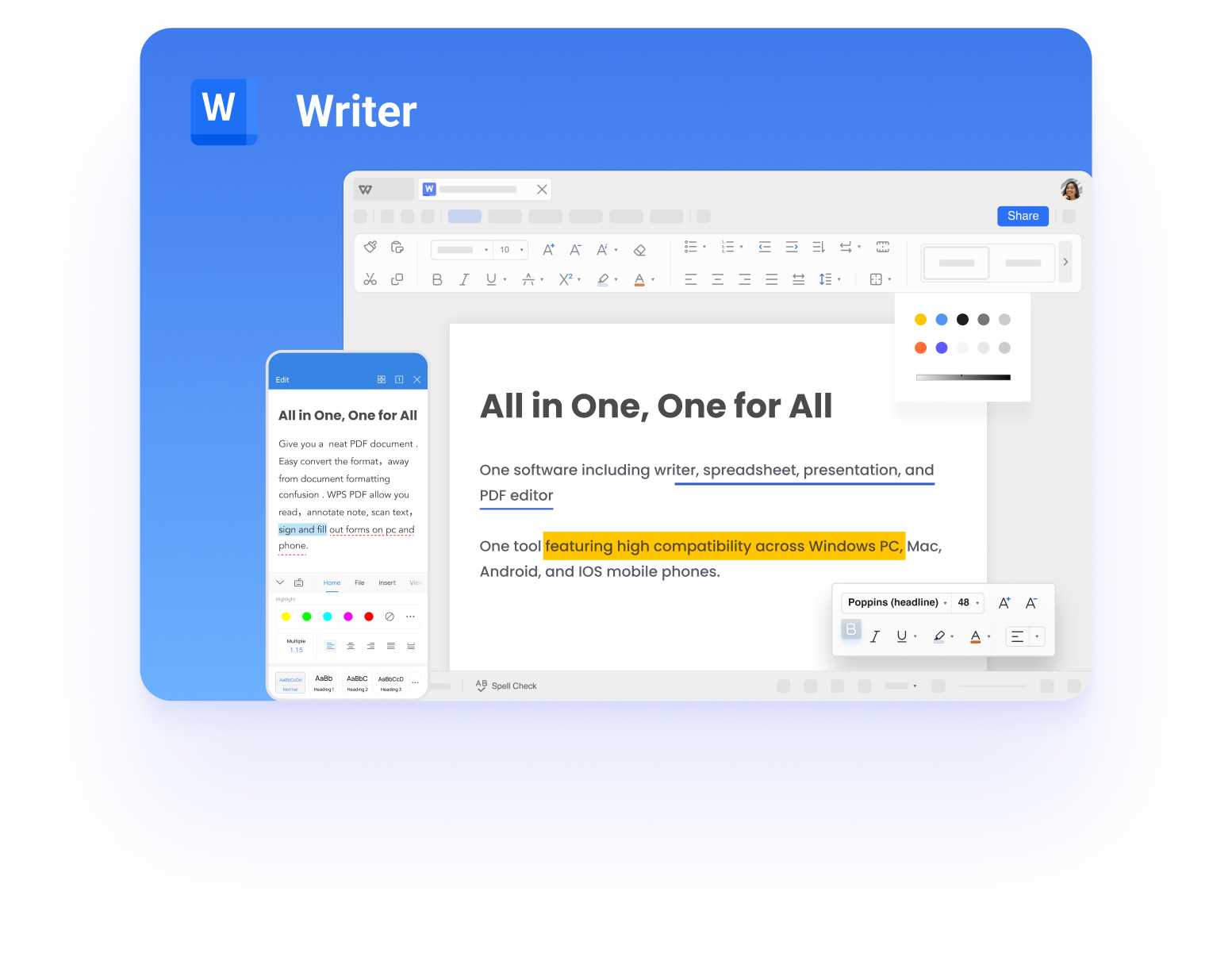
Draft meeting agenda in WPS Writer
FAQs
Can I create a Zoom meeting without an account?
You can join a meeting without an account, but you need a free Zoom account to start or schedule one of your own. Sign in through the desktop app or the mobile app before you create the meeting.
How long can a free Zoom meeting last?
Zoom's published plan page lists the Basic free plan with a 40-minute limit per group meeting and up to 100 participants. Limits differ by plan and region, so check your own account details before you schedule a long session.
What is the difference between an instant and a scheduled meeting?
An instant meeting starts immediately and suits a quick conversation. A scheduled meeting creates a dated invitation with a meeting ID, a passcode and optional calendar entries, which is what client calls and interviews usually need.
How do I send a Zoom link to someone?
Open the meeting, go to Participants and choose Invite, then copy the invitation. Send the whole invitation rather than the URL alone whenever a passcode is required, so your guest has everything needed to join.
Can I create a Zoom meeting on my phone?
Yes. The Zoom mobile app shows New Meeting and Schedule on the home screen, and both create the same kind of meeting as the desktop app. Long agendas are easier to write on a computer and share as a document.


'%3e%3cpath%20d='M19.9911%204.11386V6.471H18.5894C18.0775%206.471%2017.7322%206.57814%2017.5536%206.79243C17.3751%207.00671%2017.2858%207.32814%2017.2858%207.75671V9.44421H19.9019L19.5536%2012.0871H17.2858V18.8639H14.5536V12.0871H12.2769V9.44421H14.5536V7.49779C14.5536%206.39064%2014.8632%205.53201%2015.4822%204.92189C16.1013%204.31177%2016.9257%204.00671%2017.9554%204.00671C18.8304%204.00671%2019.509%204.04243%2019.9911%204.11386Z'%20fill='%23333333'/%3e%3c/g%3e%3cdefs%3e%3cclipPath%20id='clip0_2938_8199'%3e%3crect%20width='16'%20height='16'%20fill='white'%20transform='translate(8%204.00671)'/%3e%3c/clipPath%3e%3c/defs%3e%3c/svg%3e)
'%3e%3cpath%20d='M17.5237%2010.7813L23.4811%204H22.0699L16.8949%209.88693L12.7648%204H8L14.2469%2012.9029L8%2020.0133H9.4112L14.8725%2013.7952L19.2352%2020.0133H24M9.92053%205.04213H12.0885L22.0688%2019.0224H19.9003'%20fill='%23333333'/%3e%3c/g%3e%3cdefs%3e%3cclipPath%20id='clip0_2938_8200'%3e%3crect%20width='16'%20height='16.0134'%20fill='white'%20transform='translate(8%204)'/%3e%3c/clipPath%3e%3c/defs%3e%3c/svg%3e)


