

'%3e%3cpath%20d='M8%200C12.4183%200%2016%203.58172%2016%208C16%2012.4183%2012.4183%2016%208%2016C3.58172%2016%200%2012.4183%200%208C0%203.58172%203.58172%200%208%200ZM11.6162%204.38379C11.2257%203.99337%2010.5927%203.99338%2010.2021%204.38379L8%206.58594L5.79785%204.38379C5.40732%203.99334%204.77429%203.99329%204.38379%204.38379C3.99331%204.77429%203.99335%205.40733%204.38379%205.79785L6.58594%208L4.38379%2010.2021C3.99348%2010.5927%203.99341%2011.2257%204.38379%2011.6162C4.77426%2012.0066%205.40734%2012.0065%205.79785%2011.6162L8%209.41406L10.2021%2011.6162C10.5927%2012.0066%2011.2257%2012.0067%2011.6162%2011.6162C12.0067%2011.2257%2012.0066%2010.5927%2011.6162%2010.2021L9.41406%208L11.6162%205.79785C12.0066%205.40735%2012.0066%204.77429%2011.6162%204.38379Z'%20fill='%23080E17'%20fill-opacity='0.46'/%3e%3c/g%3e%3cdefs%3e%3cclipPath%20id='clip0_3761_713'%3e%3crect%20width='16'%20height='16'%20fill='white'/%3e%3c/clipPath%3e%3c/defs%3e%3c/svg%3e)



'%3e%3cpath%20fill-rule='evenodd'%20clip-rule='evenodd'%20d='M21.4999%2010.9993C21.4999%205.20009%2016.7986%200.498901%2010.9993%200.498901C5.19994%200.498901%200.498657%205.20009%200.498657%2010.9993C0.498657%2016.2404%204.33858%2020.5844%209.35855%2021.3722V14.0346H6.69238V10.9993H9.35855V8.68594C9.35855%206.05427%2010.9262%204.60062%2013.3248%204.60062C14.4736%204.60062%2015.6753%204.80571%2015.6753%204.80571V7.38979H14.3512C13.0468%207.38979%2012.64%208.19921%2012.64%209.0296V10.9993H15.5523L15.0867%2014.0346H12.64V21.3722C17.66%2020.5844%2021.4999%2016.2404%2021.4999%2010.9993Z'%20fill='%231568EA'/%3e%3c/g%3e%3c/svg%3e)


'%3e%3cpath%20d='M2.42045%2022.1876H6.31818V12.7217L0.75%208.54553V20.5171C0.75%2021.4414%201.49892%2022.1876%202.42045%2022.1876Z'%20fill='%234285F4'/%3e%3cpath%20d='M19.682%2022.1876H23.5797C24.5041%2022.1876%2025.2502%2021.4387%2025.2502%2020.5171V8.54553L19.682%2012.7217'%20fill='%2334A853'/%3e%3cpath%20d='M19.682%205.48293V12.7216L25.2502%208.54543V6.31816C25.2502%204.25236%2022.8921%203.07469%2021.2411%204.31361'%20fill='%23FBBC04'/%3e%3cpath%20d='M6.31824%2012.7217V5.48303L13.0001%2010.4944L19.6819%205.48303V12.7217L13.0001%2017.733'%20fill='%23EA4335'/%3e%3cpath%20d='M0.75%206.31816V8.54543L6.31818%2012.7216V5.48293L4.75909%204.31361C3.10534%203.07469%200.75%204.25236%200.75%206.31816Z'%20fill='%23C5221F'/%3e%3c/g%3e%3cdefs%3e%3cclipPath%20id='clip0_2954_7305'%3e%3crect%20width='24.5'%20height='18.375'%20fill='white'%20transform='translate(0.75%203.8125)'/%3e%3c/clipPath%3e%3c/defs%3e%3c/svg%3e)


JPG remains one of the most widely used image formats. A good JPG converter ensures your files are lightweight and compatible. However, not all converters maintain image quality, and many add watermarks or require subscriptions. This guide highlights the top 5 free converters, helping you choose a high-quality, user-friendly tool for your needs.
Top 5 JPG Converters
I believe nothing saves more time than a reliable JPG Converter. It ensures your files are compatible and ready for any platform, from a website to an email attachment. A great converter organizes your workflow, makes files lightweight for easy sharing without lowering the image quality. Here are the top 5 free converters that I've found to be the most reliable.
1. WPS PDF Tools
WPS PDF Tools provides an all-in-one solution for converting your files, including a powerful JPG converter. You can use it online for quick jobs or download the full desktop suite, which is a significant advantage for offline use and privacy. It goes beyond basic conversion by handling JPG, PDF, and Word, which is perfect for users who need more than just image-to-image conversion.
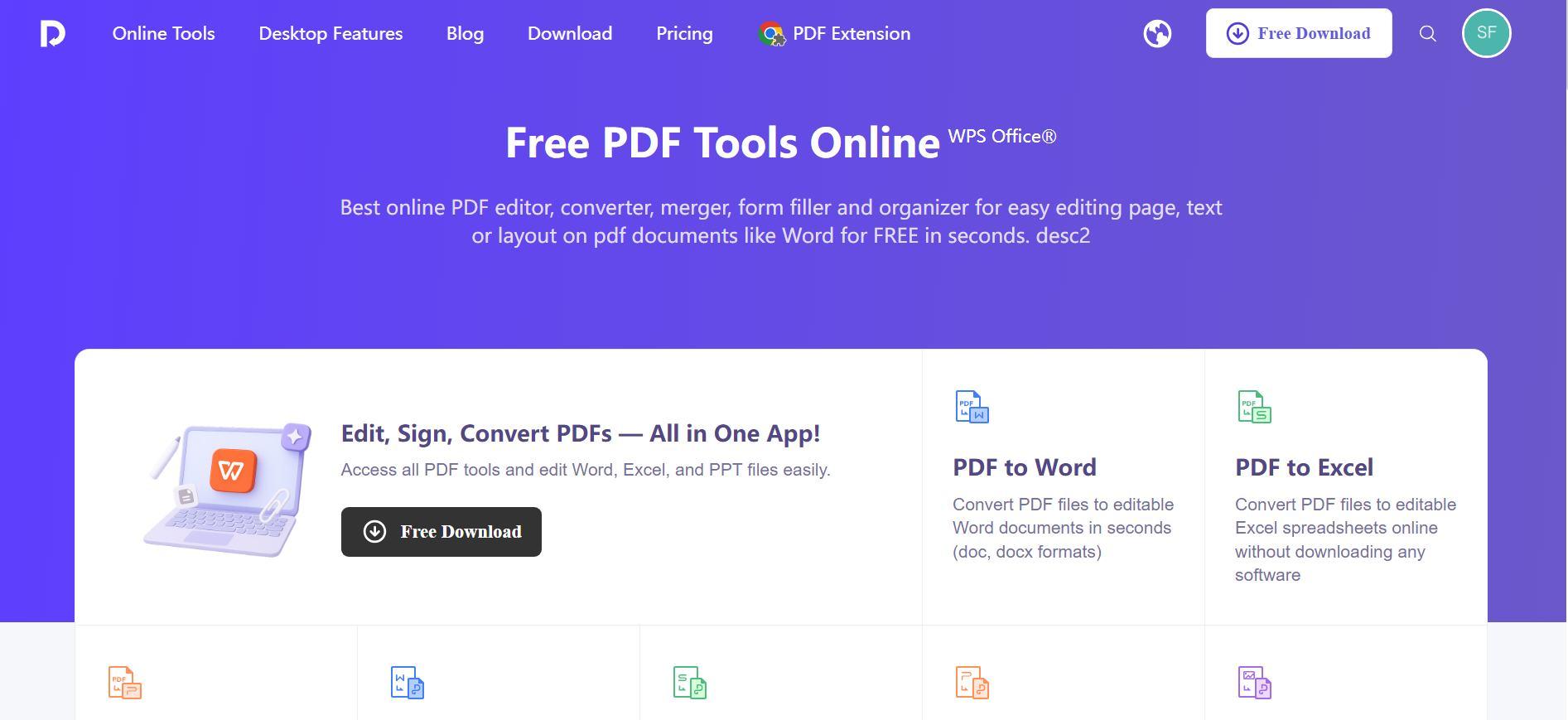
Its best feature is its high-fidelity conversion, as it excels at maintaining the original resolution and layout so your images don't look pixelated. For me, it feels less like a simple converter and more like a complete digital Swiss Army knife for all my documents.
How to Use:
Step 1: First, head over to the online WPS PDF Tool website.
Step 2: Then, select either 'Convert PDF to JPG' or 'JPG to PDF' according to what you want to do.
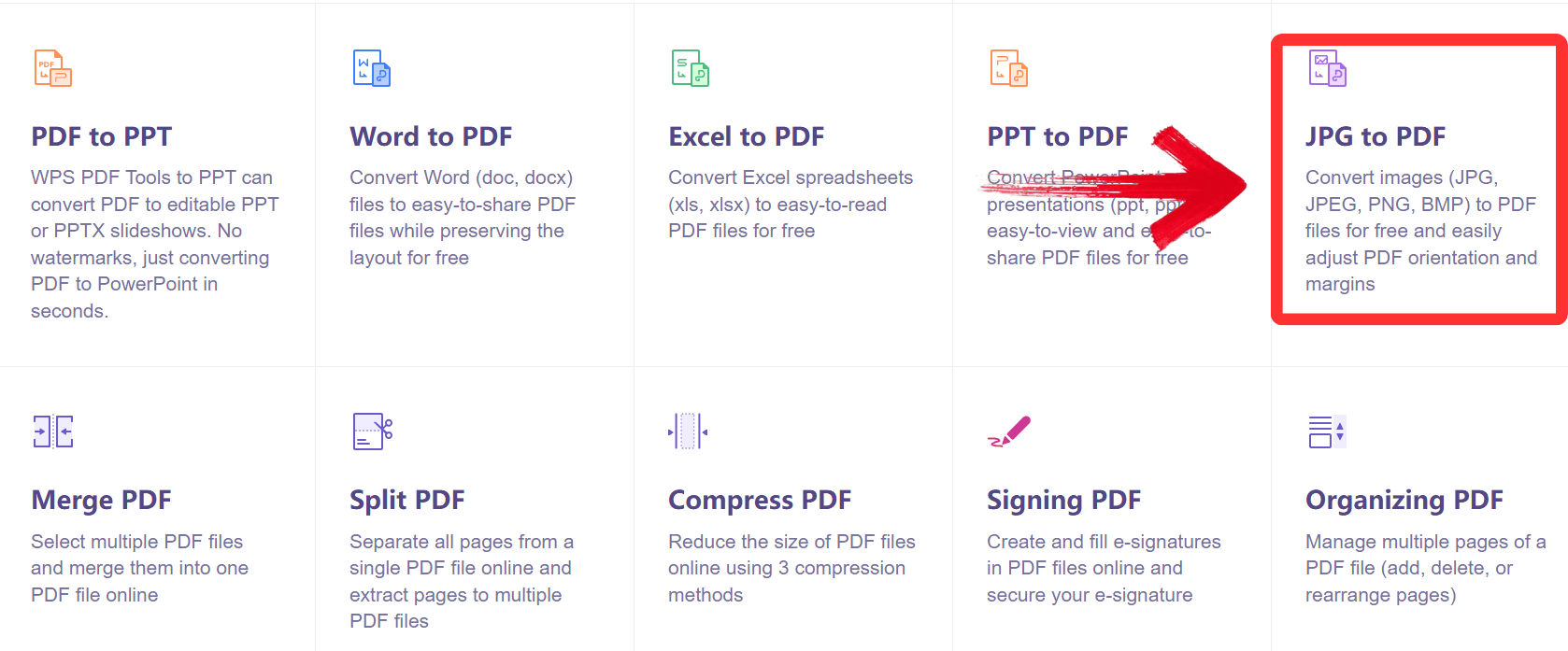
Step 3: Upload your files by dragging them or clicking the ‘Select Image’ button.

Step 4: 'Click Convert' and then just download the converted file onto your device.
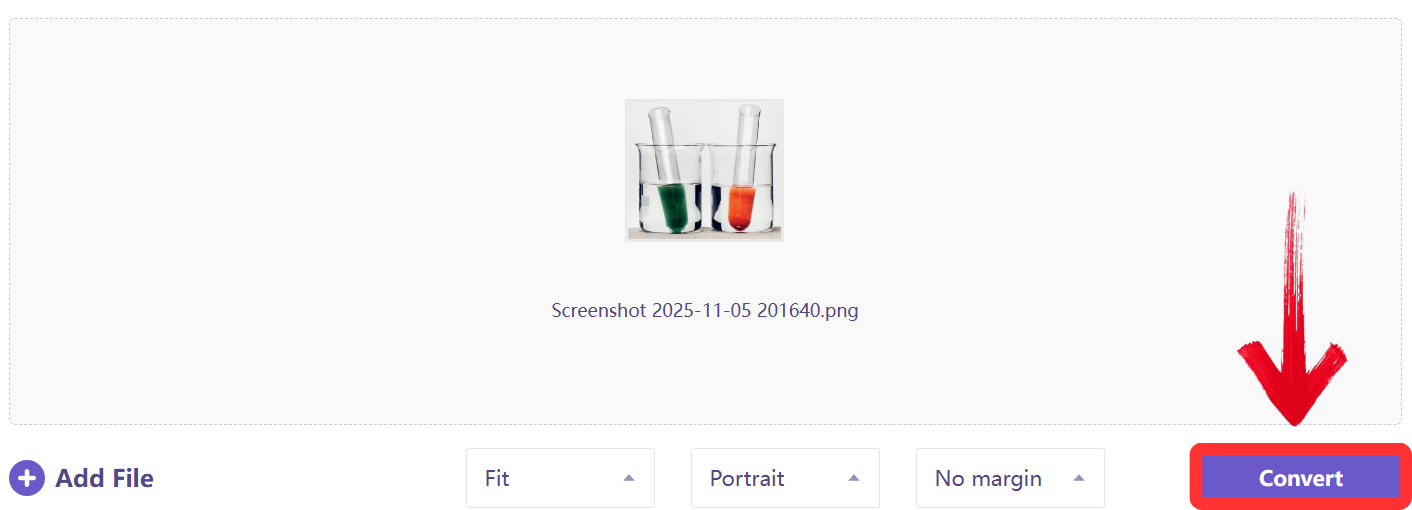
I was genuinely impressed with WPS PDF Tool. It delivers the most balanced performance by combining professional-grade results with an intuitive interface. The offline capability is what really sets it apart for me.
2. CloudConvert
CloudConvert is a heavy-duty online converter that acts as a universal translator for your files. It works entirely in your browser and conveniently connects directly to your cloud storage, like Google Drive or Dropbox. CloudConvert's real power is its massive library, which supports over 200 different file formats, far beyond just standard images.
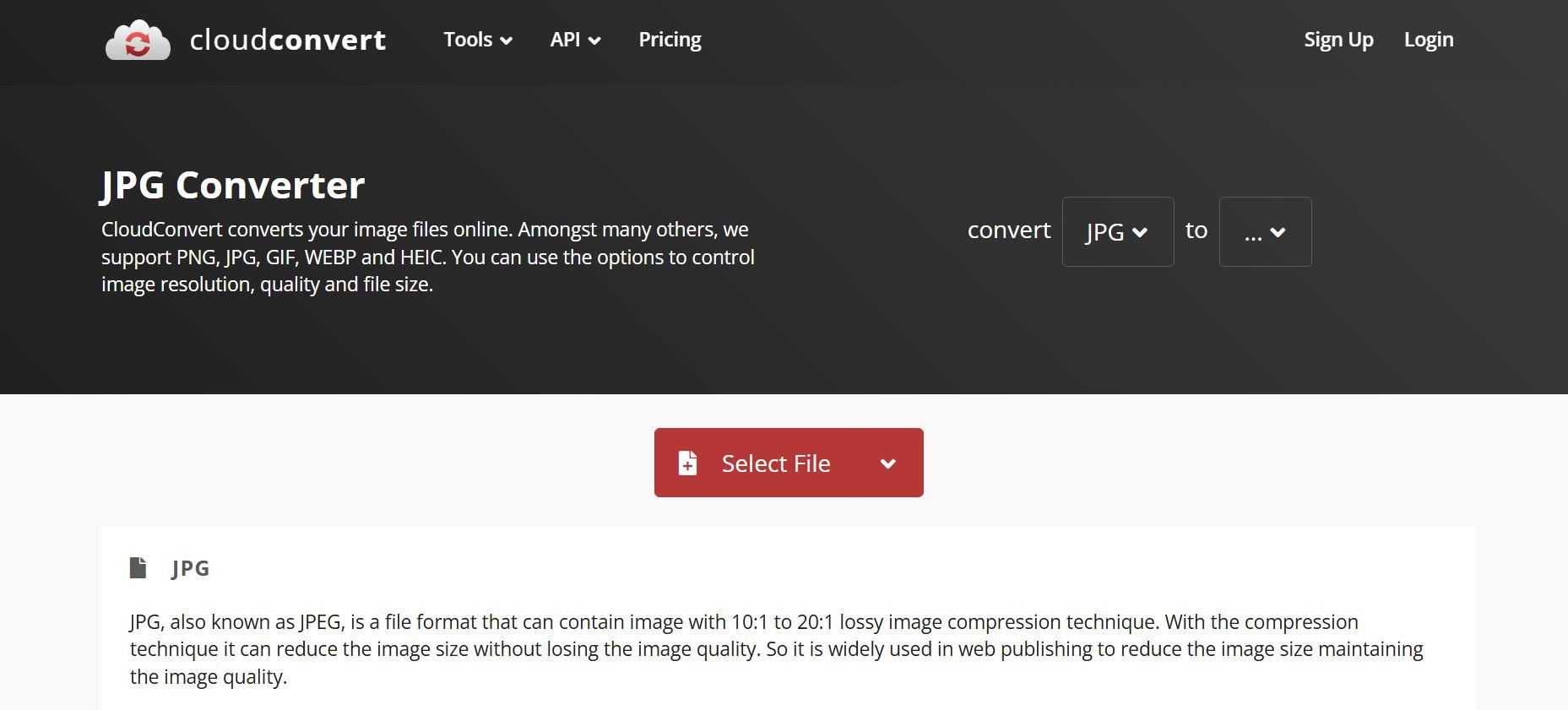
It gives you excellent control over the output, allowing you to adjust the quality setting to balance file size and resolution, which is great for web use. I find this is the tool you turn to when you have a truly obscure file format that other converters just don't recognize.
How to Use:
Step 1: Go to the CloudConvert JPG Converter website.
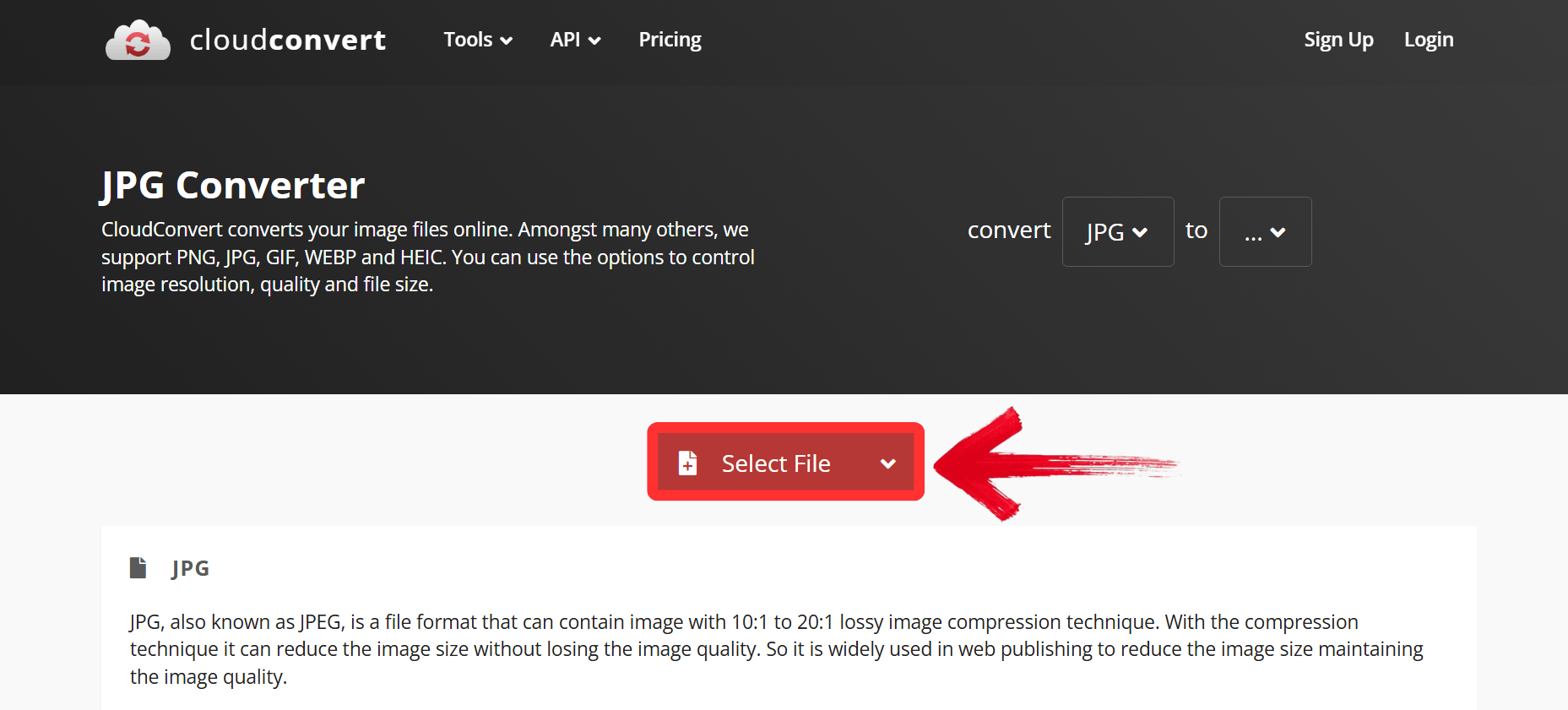
Step 2: Click ‘Select File’ or drag and drop the image onto the screen.
Step 3: Choose your output settings and click ‘Convert’.

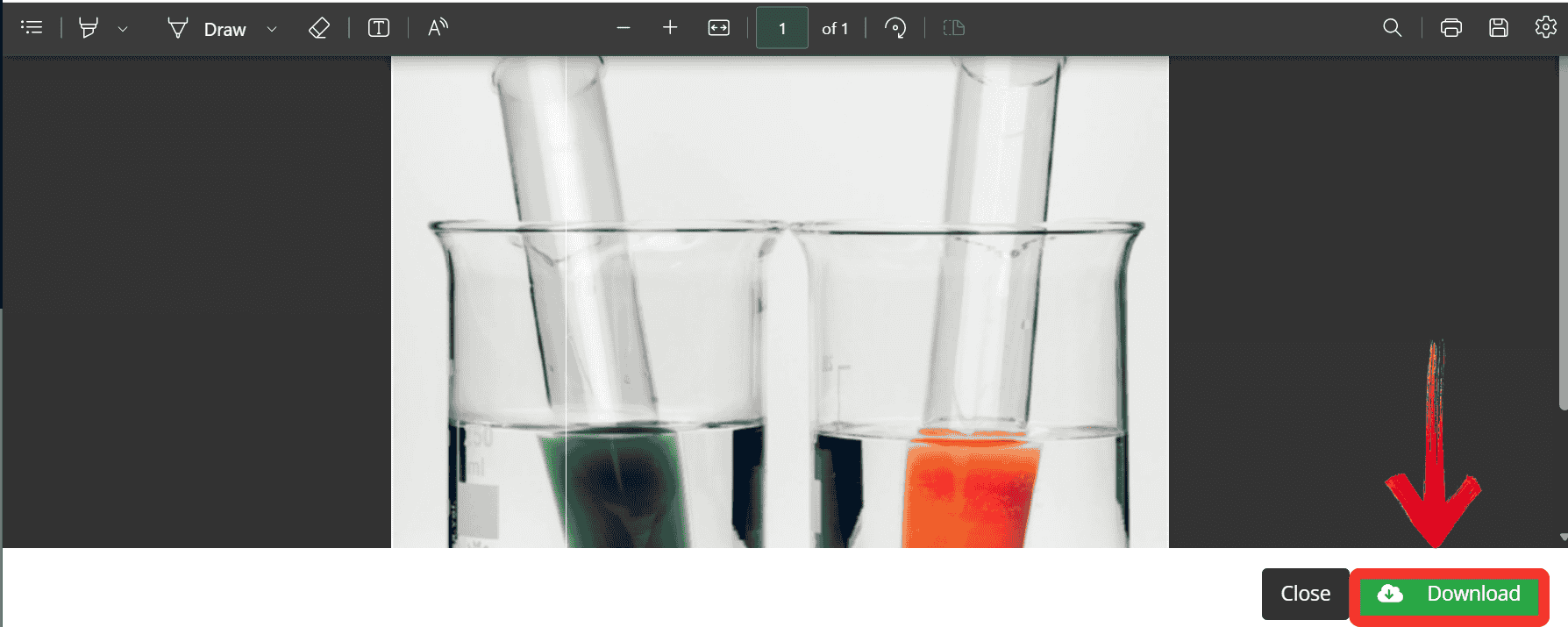
Step 4: Finally, click on the ‘Download’ button on the window that pops up to export your converted file.
From my perspective, CloudConvert is the powerhouse for professionals. The integration with Google Drive is seamless, but you'll hit that free daily limit quickly if you're doing heavy batch work.
3. Online-Convert
Online-Convert is a web-based converter designed for users who need maximum, specific control over their output. It's an online tool, but its focus is on technical customization rather than just simple, one-click conversion. This tool goes beyond basic format-switching by letting you adjust advanced settings like DPI, image quality, file size, and even add color filters. The ability to change the DPI (dots per inch) is a key feature for users who are converting images for print, not just for the web. This is what I'd call the pro-mode for converters, feeling less like a simple tool and more like a detailed image-processing lab.
How to Use:
Step 1: First, go to the Online-Convert Image Tool website.
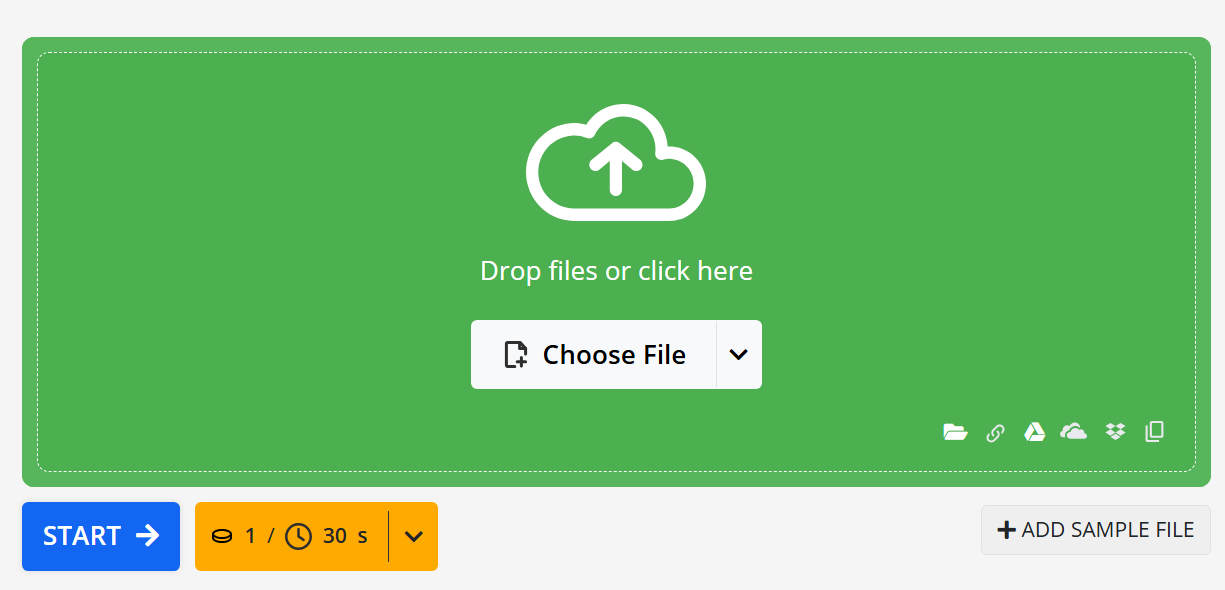
Step 2: Then click ‘Choose File’ or drag and drop the image onto the screen to upload it.
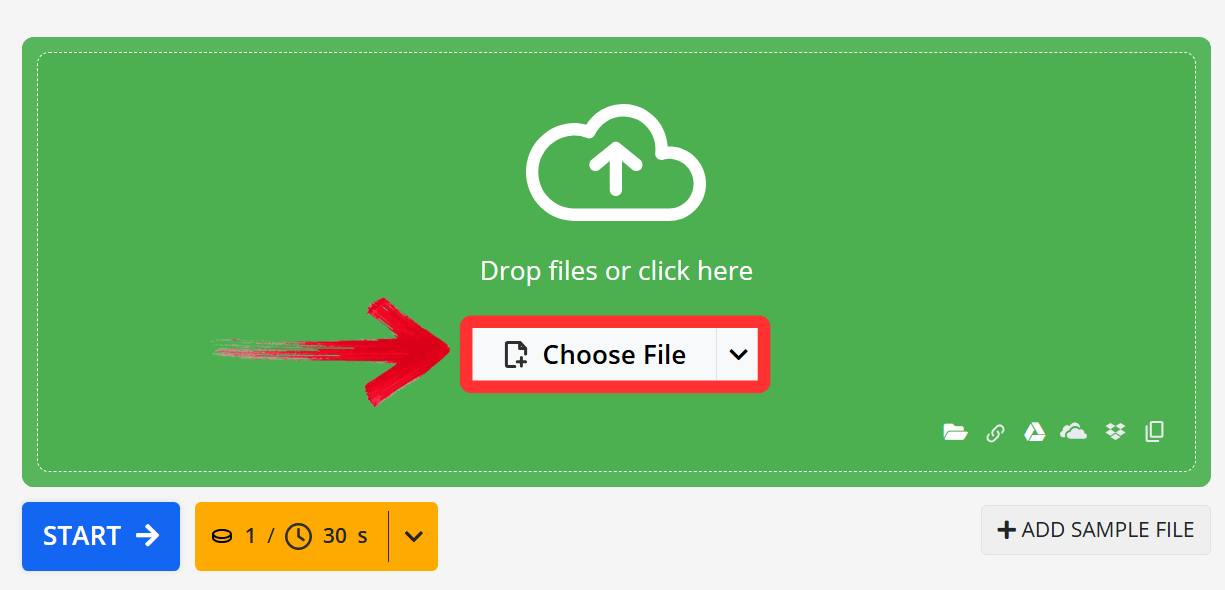
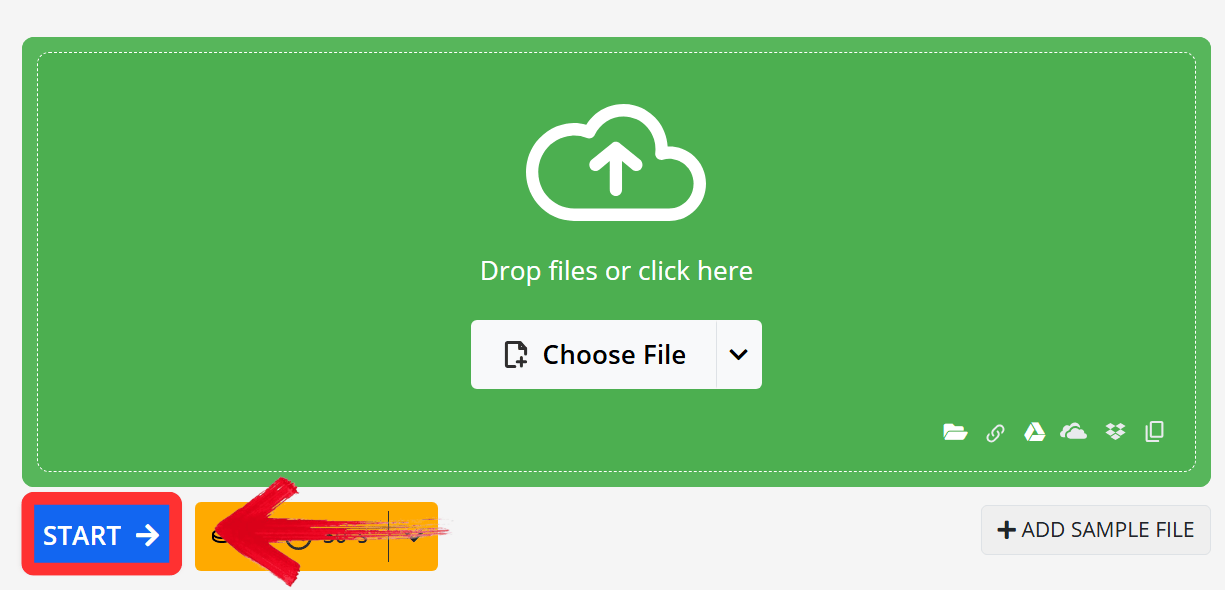
Step 3: Click 'Start' and then download the JPG output.
I found this tool to be for the 'power user.' If you're a photographer who needs to control DPI and color settings before you convert image to JPG, this is your tool. For a quick conversion, it's overkill.
4. FreeConvert
FreeConvert is an online tool that is built for one thing: speed and simplicity. You don't need to register or create an account to use it for most common conversions, making it incredibly fast to access. Its main strength is being a no-frills, fast, free JPG converter that doesn't overwhelm you with options.

It's perfect for a user who just wants to convert image to JPG without any hassle. The tool is fast, and even in its free version, it does a solid job of preserving the basic quality for everyday tasks. In my opinion, it's one of the best JPG converter online tools for those one-off, urgent conversions.
How to Use:
Step 1: Visit the FreeConvert JPG Converter website.
Step 2: Then click ‘Choose Files’or drag and drop the image onto the screen to upload it.

Step 3: Click ‘Convert' to process the file and then just download the converted file.
convert image to JPG
This is my go-to for a quick, one-off job. It's fast, it doesn't ask you to sign up, and it just works. The file size limit is the only trade-off for such a simple free JPG converter.
5. Convertio
Convertio is a modern online converter that balances powerful file support with a very user-friendly interface. It's a drag-and-drop web tool that also conveniently connects to cloud services like Dropbox and Google Drive. Convertio's key feature is its clean, visual, and intuitive workflow, making the process feel very polished and simple.

It handles a massive range of file types, including vector formats like SVG, making it a great PDF to JPG converter or vector-to-raster converter. I find it’s a strong all-rounder that has the power of a tool like CloudConvert but feels much more modern and friendly to use.
How to Use:
Step 1: Go to the Convertio JPG Converter website.
Step 2: Then click ‘Choose Files’ or drag and drop the image onto the screen to upload it.

Step 3: Click ‘Convert' to process the file and then just download the converted file.

Convertio's interface is excellent. It's clean, modern, and very easy to navigate. I found it to be a strong all-rounder, though processing larger files, like a high-res PDF, did feel a bit slower than the others.
Quick Comparison Table of the Top 5 JPG Converters
To help you make a better decision, I've put together a simple comparison table of all the tools we've looked at.
| Tool | Best For | Supported Formats | Batch Conversion | Free to Use | Output Quality | Ease of Use |
|---|---|---|---|---|---|---|
| WPS PDF Tool | Multi-format, offline conversions | JPG, PDF, Word, PNG | Yes | Yes | ⭐⭐⭐⭐⭐ | ⭐⭐⭐⭐⭐ |
| CloudConvert | Professional & API use | 200+ formats | Yes | Limited Free | ⭐⭐⭐⭐⭐ | ⭐⭐⭐⭐☆ |
| Online-Convert | Custom output settings | JPG, PNG, BMP, TIFF | Yes | Limited Free | ⭐⭐⭐⭐☆ | ⭐⭐⭐⭐☆ |
| FreeConvert | Simple everyday use | JPG, PNG, GIF | No | Yes | ⭐⭐⭐⭐☆ | ⭐⭐⭐⭐⭐ |
| Convertio | Cloud-based convenience | JPG, PDF, SVG | Yes | Limited Free | ⭐⭐⭐⭐☆ | ⭐⭐⭐⭐⭐ |
All five of these converters perform well, but they are clearly built for different users. However, for most professional and personal use, WPS PDF Tool truly leads the pack. While the others are online-only tools, WPS offers a robust, high-quality experience both online and offline. This offline capability, combined with its unique strength in converting between JPG, PDF, and Word, gives it a clear edge as the most balanced and reliable solution.
Why WPS PDF Tool Stands Out?
From all the converters I’ve tested, the WPS PDF Tool just checks all the right boxes. First off, it's genuinely free. You get a suite of powerful online tools and a full, downloadable desktop app without watermarks or hidden subscription costs, just straight-up functionality. The conversion quality honestly impressed me. It handles PDF and Word layouts perfectly, preserving the fonts and formatting without any problem. That’s something many online-only tools still struggle with.
Plus, the interface is incredibly user-friendly for all its power. You don’t need to read a complex guide because you can just drag, drop and get a high-quality file.
Compared to the online-only tools, WPS offers a more professional, integrated experience. I find that it maintains original file quality exceptionally well. It's also worth noting that the WPS desktop app is a full office suite. You can convert JPGs to Word documents, and it will even extract the text, which is an advanced feature most simple converters lack.
FAQs
Q1. What does a JPG converter do?
A JPG converter changes images or documents from other formats, such as PNG, PDF, or Word, into the widely compatible JPG format. It helps reduce file size and ensures easy sharing across devices.
Q2. How can I convert an image or document to JPG format?
You can use online tools like WPS PDF Tool, CloudConvert, or Convertio. Simply upload your file, select “Convert to JPG,” and download the converted image.
Q3. Does converting to JPG reduce image quality?
JPG uses compression to make files smaller, which may cause minimal quality loss. High-accuracy tools like WPS PDF Tool preserve sharpness and color balance during conversion.
Q4. Can I convert multiple images to JPG at once?
Yes. Tools such as WPS PDF Tool, CloudConvert, and Online-Convert support batch JPG conversion, allowing you to process multiple files simultaneously.
Q5. Are online JPG converters safe to use?
Most reputable JPG converters like WPS PDF Tool delete uploaded files automatically after conversion. For sensitive content, offline converters (e.g., WPS desktop version) are recommended for better data protection.

'%3e%3cpath%20d='M19.9911%204.11386V6.471H18.5894C18.0775%206.471%2017.7322%206.57814%2017.5536%206.79243C17.3751%207.00671%2017.2858%207.32814%2017.2858%207.75671V9.44421H19.9019L19.5536%2012.0871H17.2858V18.8639H14.5536V12.0871H12.2769V9.44421H14.5536V7.49779C14.5536%206.39064%2014.8632%205.53201%2015.4822%204.92189C16.1013%204.31177%2016.9257%204.00671%2017.9554%204.00671C18.8304%204.00671%2019.509%204.04243%2019.9911%204.11386Z'%20fill='%23333333'/%3e%3c/g%3e%3cdefs%3e%3cclipPath%20id='clip0_2938_8199'%3e%3crect%20width='16'%20height='16'%20fill='white'%20transform='translate(8%204.00671)'/%3e%3c/clipPath%3e%3c/defs%3e%3c/svg%3e)
'%3e%3cpath%20d='M17.5237%2010.7813L23.4811%204H22.0699L16.8949%209.88693L12.7648%204H8L14.2469%2012.9029L8%2020.0133H9.4112L14.8725%2013.7952L19.2352%2020.0133H24M9.92053%205.04213H12.0885L22.0688%2019.0224H19.9003'%20fill='%23333333'/%3e%3c/g%3e%3cdefs%3e%3cclipPath%20id='clip0_2938_8200'%3e%3crect%20width='16'%20height='16.0134'%20fill='white'%20transform='translate(8%204)'/%3e%3c/clipPath%3e%3c/defs%3e%3c/svg%3e)


