

'%3e%3cpath%20d='M8%200C12.4183%200%2016%203.58172%2016%208C16%2012.4183%2012.4183%2016%208%2016C3.58172%2016%200%2012.4183%200%208C0%203.58172%203.58172%200%208%200ZM11.6162%204.38379C11.2257%203.99337%2010.5927%203.99338%2010.2021%204.38379L8%206.58594L5.79785%204.38379C5.40732%203.99334%204.77429%203.99329%204.38379%204.38379C3.99331%204.77429%203.99335%205.40733%204.38379%205.79785L6.58594%208L4.38379%2010.2021C3.99348%2010.5927%203.99341%2011.2257%204.38379%2011.6162C4.77426%2012.0066%205.40734%2012.0065%205.79785%2011.6162L8%209.41406L10.2021%2011.6162C10.5927%2012.0066%2011.2257%2012.0067%2011.6162%2011.6162C12.0067%2011.2257%2012.0066%2010.5927%2011.6162%2010.2021L9.41406%208L11.6162%205.79785C12.0066%205.40735%2012.0066%204.77429%2011.6162%204.38379Z'%20fill='%23080E17'%20fill-opacity='0.46'/%3e%3c/g%3e%3cdefs%3e%3cclipPath%20id='clip0_3761_713'%3e%3crect%20width='16'%20height='16'%20fill='white'/%3e%3c/clipPath%3e%3c/defs%3e%3c/svg%3e)




'%3e%3cpath%20fill-rule='evenodd'%20clip-rule='evenodd'%20d='M21.4999%2010.9993C21.4999%205.20009%2016.7986%200.498901%2010.9993%200.498901C5.19994%200.498901%200.498657%205.20009%200.498657%2010.9993C0.498657%2016.2404%204.33858%2020.5844%209.35855%2021.3722V14.0346H6.69238V10.9993H9.35855V8.68594C9.35855%206.05427%2010.9262%204.60062%2013.3248%204.60062C14.4736%204.60062%2015.6753%204.80571%2015.6753%204.80571V7.38979H14.3512C13.0468%207.38979%2012.64%208.19921%2012.64%209.0296V10.9993H15.5523L15.0867%2014.0346H12.64V21.3722C17.66%2020.5844%2021.4999%2016.2404%2021.4999%2010.9993Z'%20fill='%231568EA'/%3e%3c/g%3e%3c/svg%3e)


'%3e%3cpath%20d='M2.42045%2022.1876H6.31818V12.7217L0.75%208.54553V20.5171C0.75%2021.4414%201.49892%2022.1876%202.42045%2022.1876Z'%20fill='%234285F4'/%3e%3cpath%20d='M19.682%2022.1876H23.5797C24.5041%2022.1876%2025.2502%2021.4387%2025.2502%2020.5171V8.54553L19.682%2012.7217'%20fill='%2334A853'/%3e%3cpath%20d='M19.682%205.48293V12.7216L25.2502%208.54543V6.31816C25.2502%204.25236%2022.8921%203.07469%2021.2411%204.31361'%20fill='%23FBBC04'/%3e%3cpath%20d='M6.31824%2012.7217V5.48303L13.0001%2010.4944L19.6819%205.48303V12.7217L13.0001%2017.733'%20fill='%23EA4335'/%3e%3cpath%20d='M0.75%206.31816V8.54543L6.31818%2012.7216V5.48293L4.75909%204.31361C3.10534%203.07469%200.75%204.25236%200.75%206.31816Z'%20fill='%23C5221F'/%3e%3c/g%3e%3cdefs%3e%3cclipPath%20id='clip0_2954_7305'%3e%3crect%20width='24.5'%20height='18.375'%20fill='white'%20transform='translate(0.75%203.8125)'/%3e%3c/clipPath%3e%3c/defs%3e%3c/svg%3e)


The SPI, also known as the Schedule Performance Index, is a crucial tool in project management, providing an easy way to measure your time efficiency. However, many people don’t seem to know how to use SPI in project management tasks. So, how can new students or even trained managers utilize the SPI dashboard? In this guide, I’ll walk you through 10 schedule performance index examples and introduce you to WPS to boost your productivity seamlessly.


10 Schedule Performance Index Templates
Regardless of your use case or occupation, SPI is an incredibly beneficial tool that will ultimately elevate your project management abilities. However, learning how to make a schedule performance index PPT from scratch can be a grueling task, especially if you’ve never done it before. Using pre-made templates, you can simplify this entire process and save yourself from a lot of hassle.
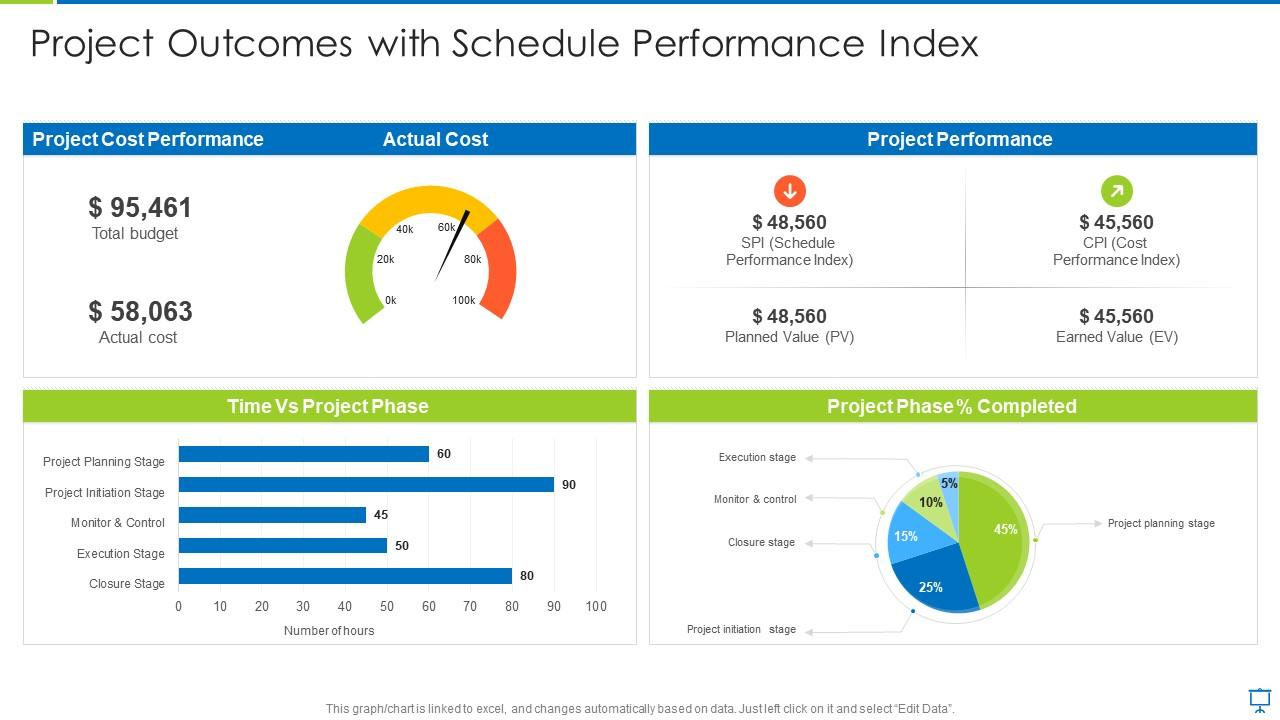
1. Project Outcomes with Schedule Performance Index
The Project Outcomes with Schedule Performance Index template is the perfect option for professional project managers and students trying to get a detailed analysis of their progress. It features all the necessary details you need to track to stay on top of your project and all its components, making sure you don’t miss anything.
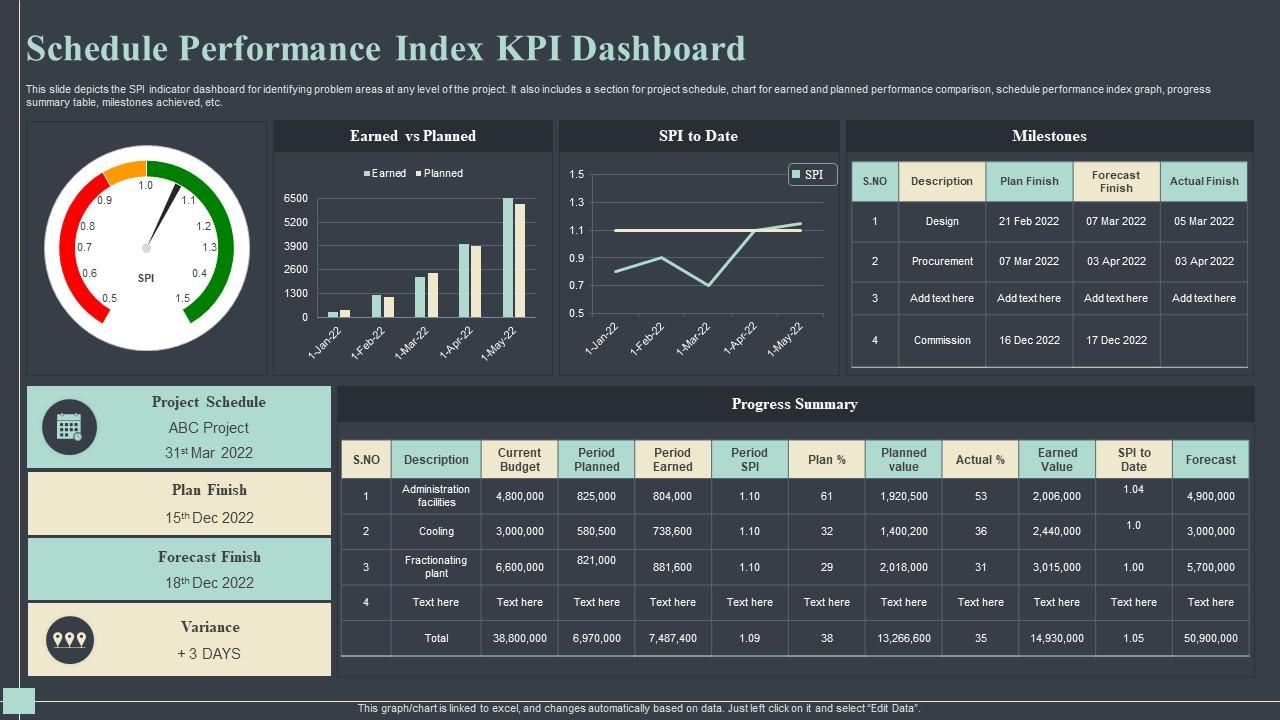
2. Schedule Performance Index KPI Dashboard
If you’re a perfectionist who likes to know even the most minuscule details and performance statistics about your projects, then going for the Schedule Performance Index KPI Dashboard would serve you well. It features detailed charts and tables to help you track all the budget details and how far you are from completion.
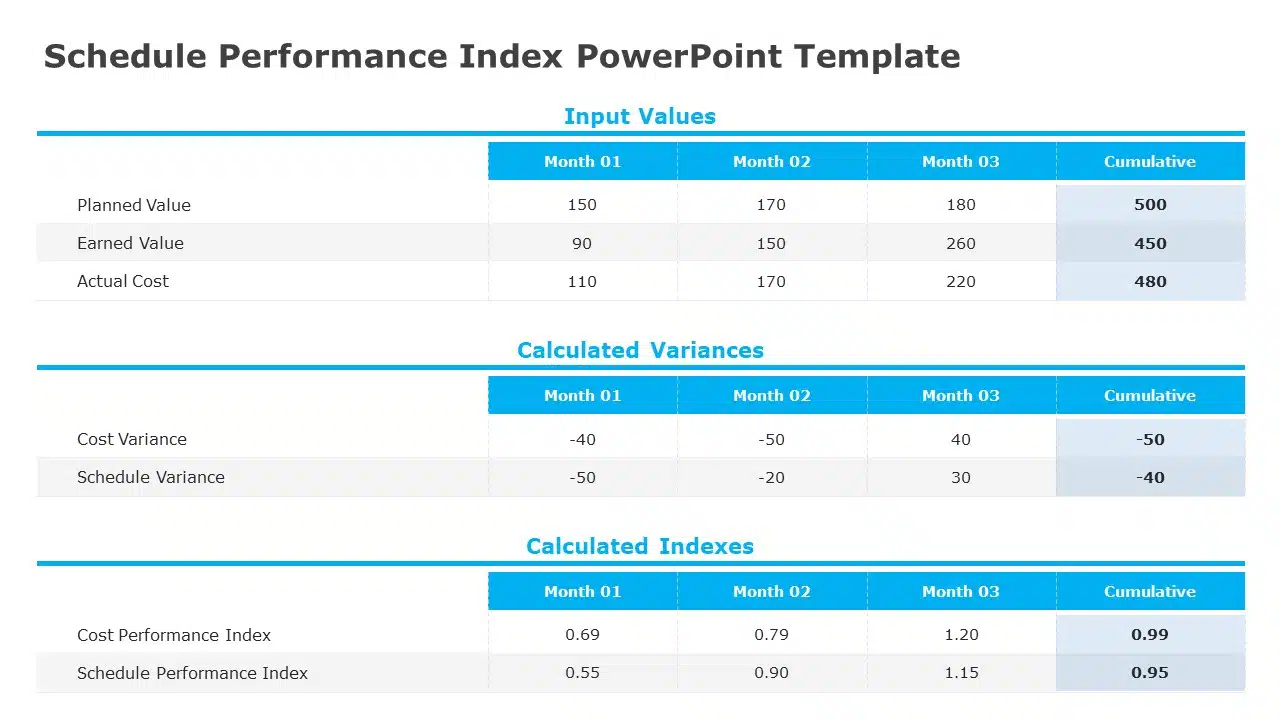
3. Blue and White Schedule Performance Index Analysis Table Slide Template
For those of you who are students and not looking for something too complicated for their SPI template, then I would recommend the Blue and White Schedule Performance Index Analysis Table Slide Template for your workflow needs. It features a simplistic blue and white table that tracks the cost and earned values of your project.
4. Blue Schedule Performance Index Bar and Line Chart PowerPoint Template
If you’re someone who prefers graphics and charts instead of unexciting tables, then the Blue Schedule Performance Index Bar and Line Chart PowerPoint Template would be a good choice for you. It features minimalistic but clear bar graphs and line charts to help you track your projects and their costs, without having to jump through any hoops.
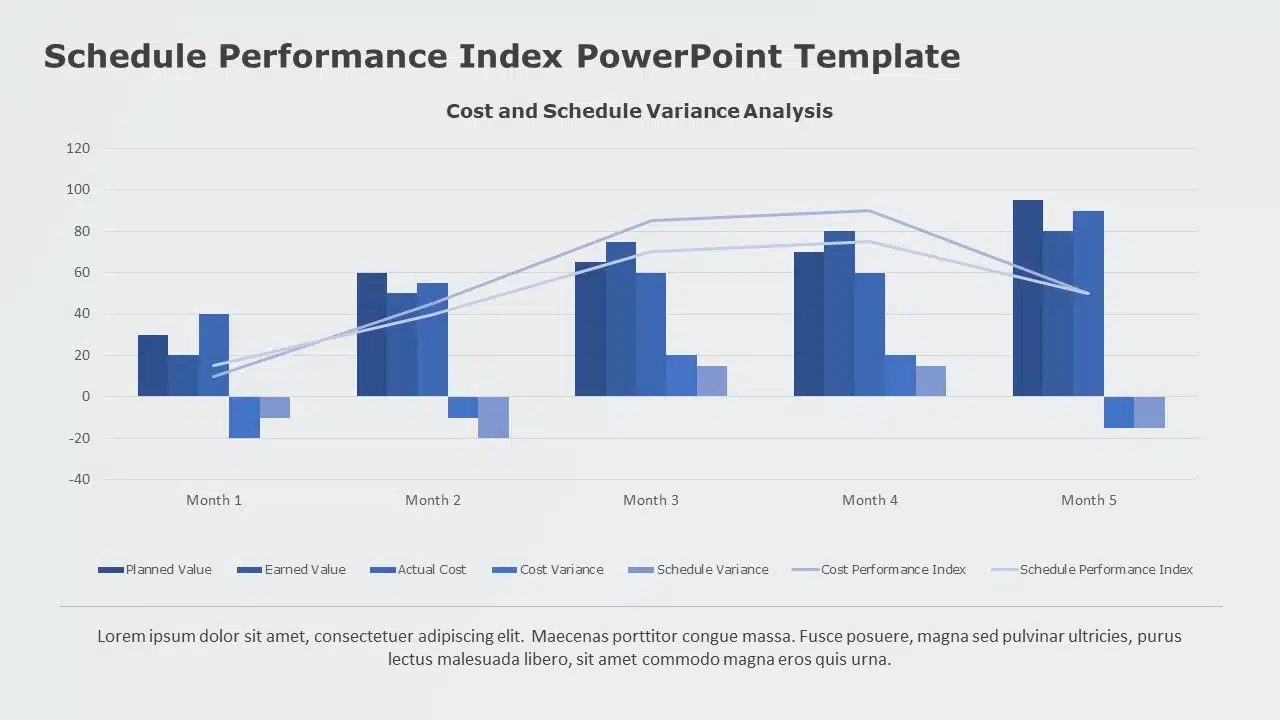
5. Blue Schedule Performance Index Dashboard for Variance Analysis PowerPoint Template
If you want the visual elements of the graphs without confusing your coworkers or partners, then the Blue Schedule Performance Index Dashboard for Variance Analysis PowerPoint Template would be suitable for you. It features the same kind of bar and line charts for tracking progress, along with explaining each value to remove any confusion.
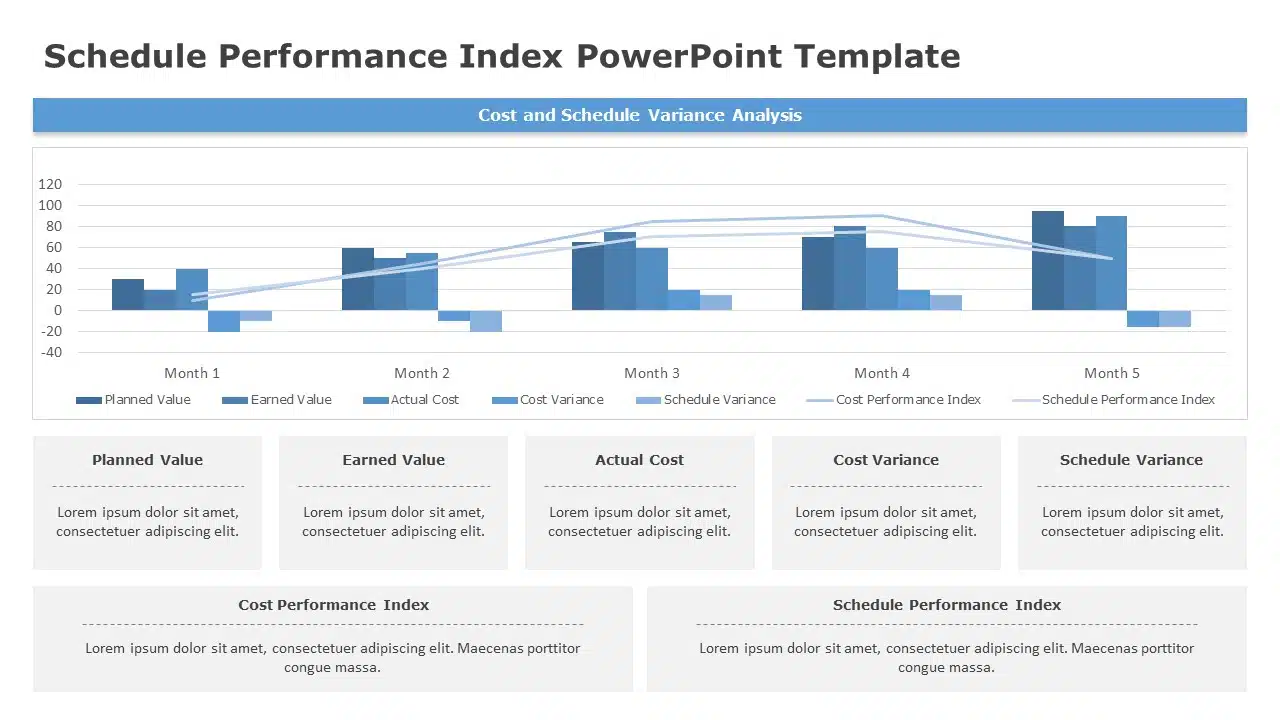
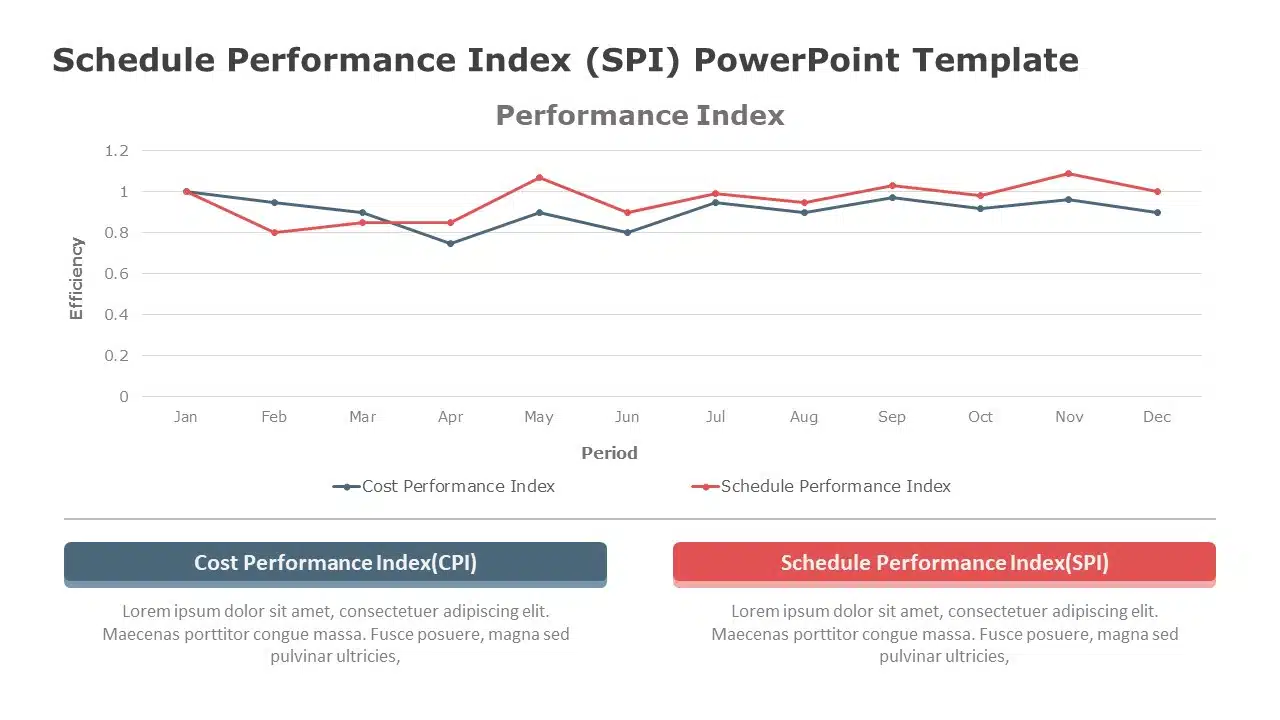
6. Schedule Performance Index (SPI) PowerPoint Template
If you’re trying to save time and don’t want to set up a complicated SPI table for your project management work, then you should try the Schedule Performance Index (SPI) PowerPoint Template. It features two simple line graphs, each one tracking the CPI and the SPI of your work without overwhelming you with too much information.
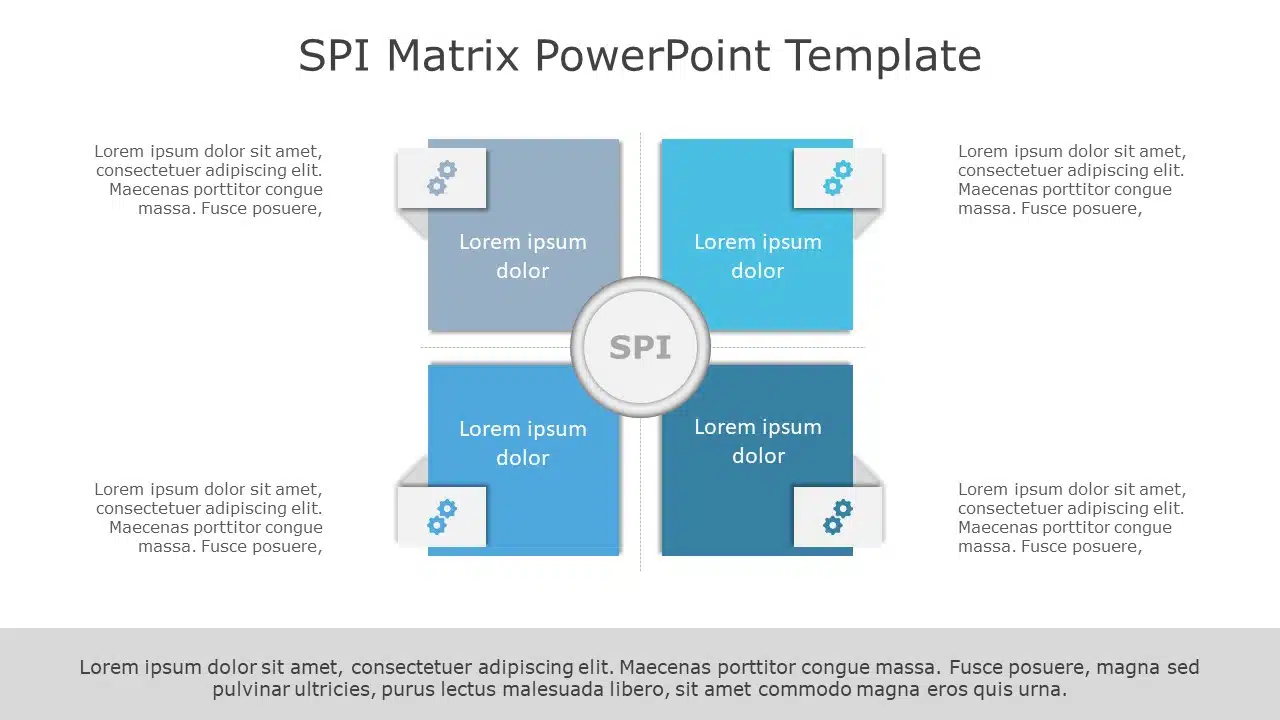
7. SPI Matrix PowerPoint Template
If you want to go for a different approach and stand out from the rest in your meetings and presentations, try integrating the SPI Matrix PowerPoint Template into your workflow. It goes for a matrix-based style rather than tables and graphs to represent the analytics, helping you track everything reliably.
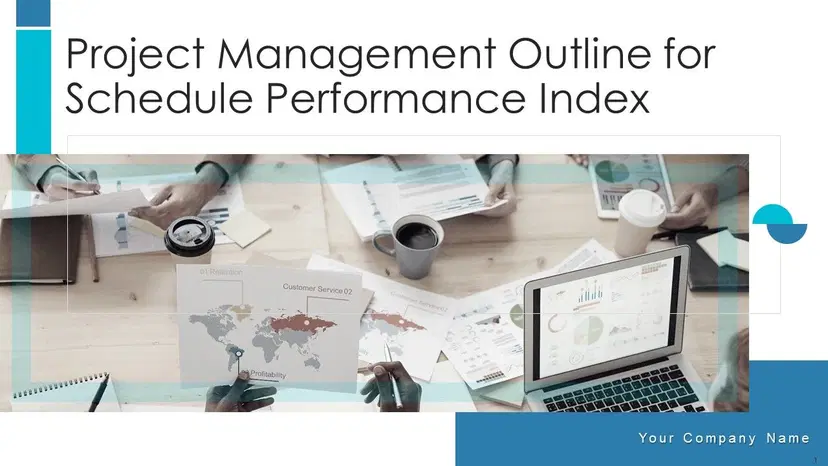
8. Project Management Outline For Schedule Performance Index Ppt PowerPoint Presentation Complete Deck With Slides
If you’re looking for a detailed presentation, complete with detailed slides and analytics for your project, then there is no better option than the Project Management Outline For Schedule Performance Index Ppt PowerPoint Presentation Complete Deck With Slides. It features multiple informative graphics and charts on each slide to help you present your project progress reliably.
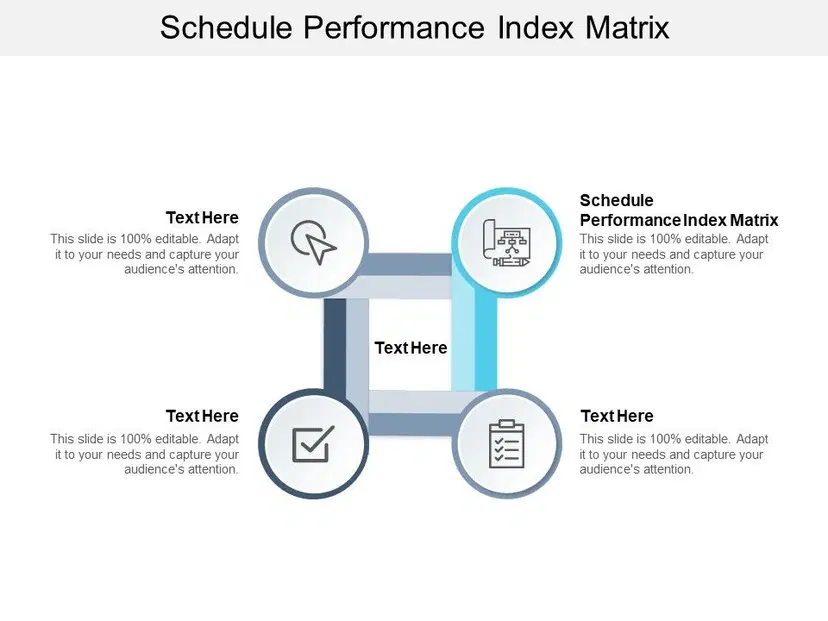
9. Schedule Performance Index Matrix PPT PowerPoint Presentation Pictures Example Introduction PDF
If you’re looking for a different matrix-styled approach to your Schedule Performance Index formula tracking needs, then Schedule Performance Index Matrix PPT PowerPoint Presentation Pictures Example Introduction PDF is another solid option for your productivity needs. It provides clear icons and textboxes, which you can customize and add your own details.
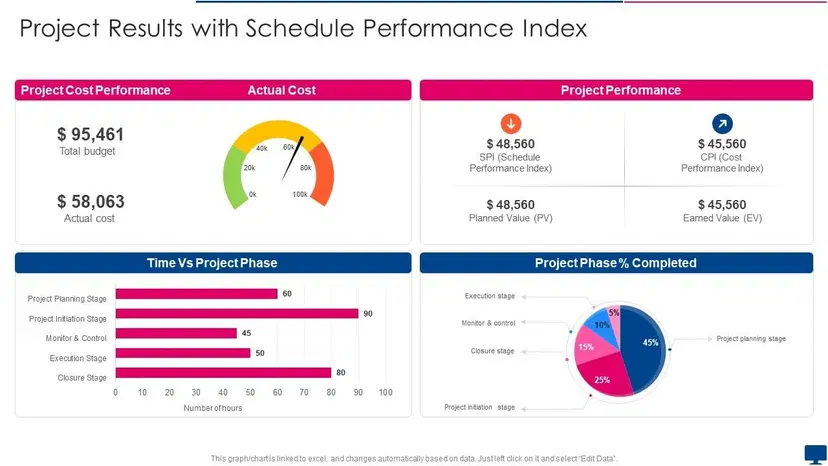
10. Project Results With Schedule Performance Index Formats PDF
If you want a detailed SPI format example filled with every analytic you’ll ever need, then you can’t go wrong with the Project Results With Schedule Performance Index Formats PDF template. It tracks the cost, performance, and even the detailed progress of your projects to help you stay up to date on everything.
How to Edit a Schedule Performance Index Template
Once you’ve chosen the right template for your SPI tracking needs, the next step is actually editing and customizing the template to make it your own. I personally rely on WPS Office for my template editing needs. It’s completely free and offers countless different templates for all my professional needs, making sure I don’t need to jump through any hoops just to get my work done. In this section, I’ll be walking you through how to easily customize your SPI templates in WPS Office.
Step 1: Open your PPT-formatted template using WPS Office to get started.
Step 2: Customize the template and add in your own text to match the details and project analytics of your work.
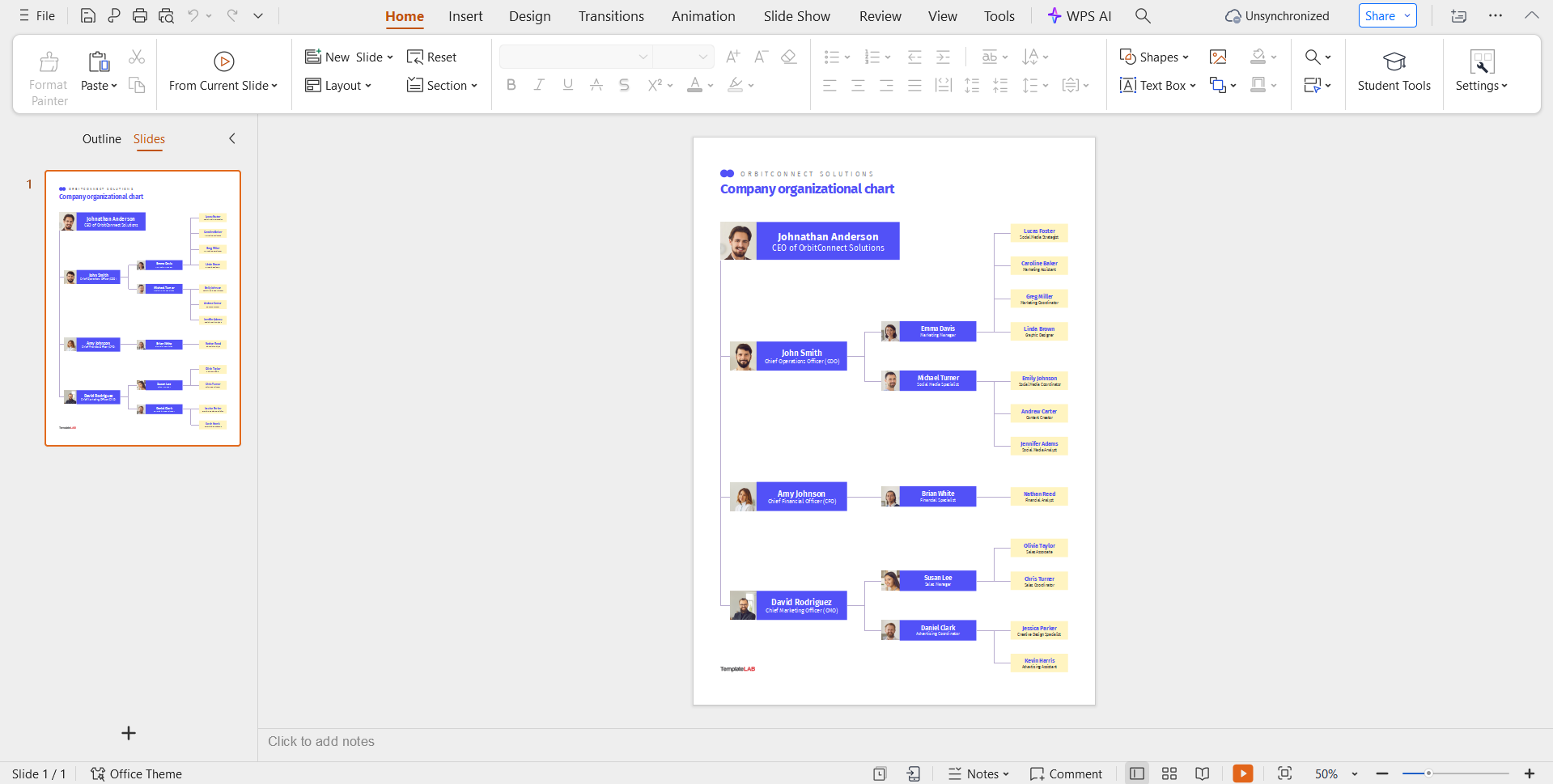
Step 3: You can even change the color and slide design to match your brand style better.
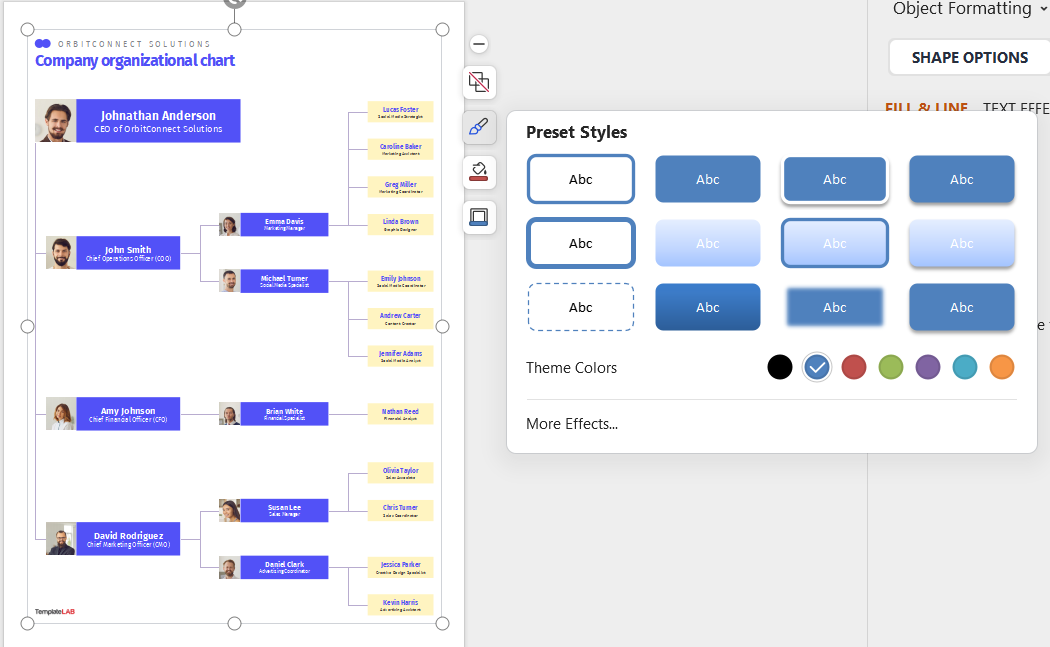
Step 4: To save your edited template, navigate to the File menu and click Save As.
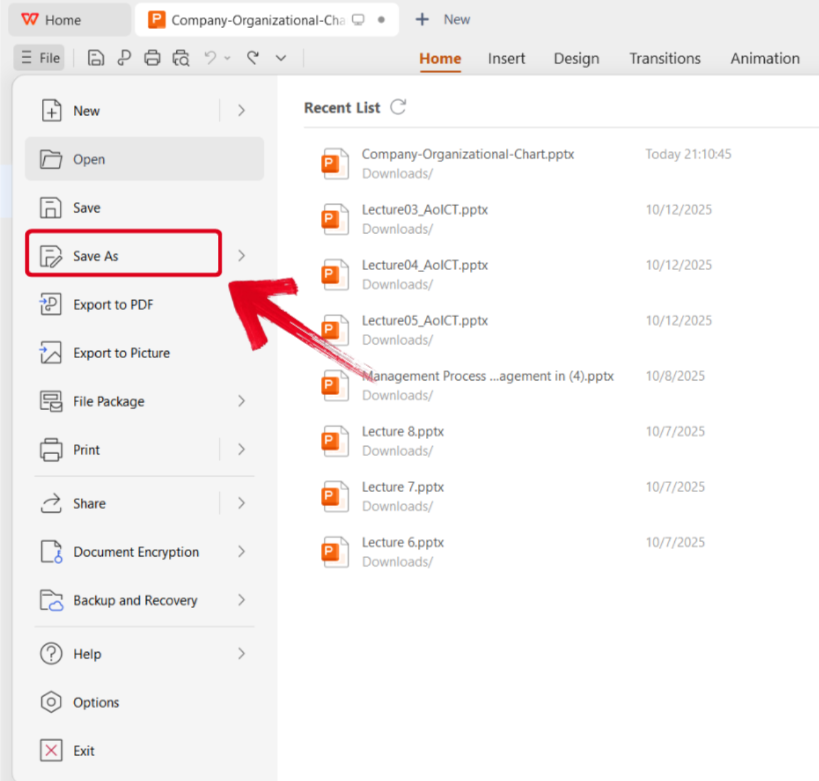
Step 5: Select the folder where you want your edited template saved, and then press Save.
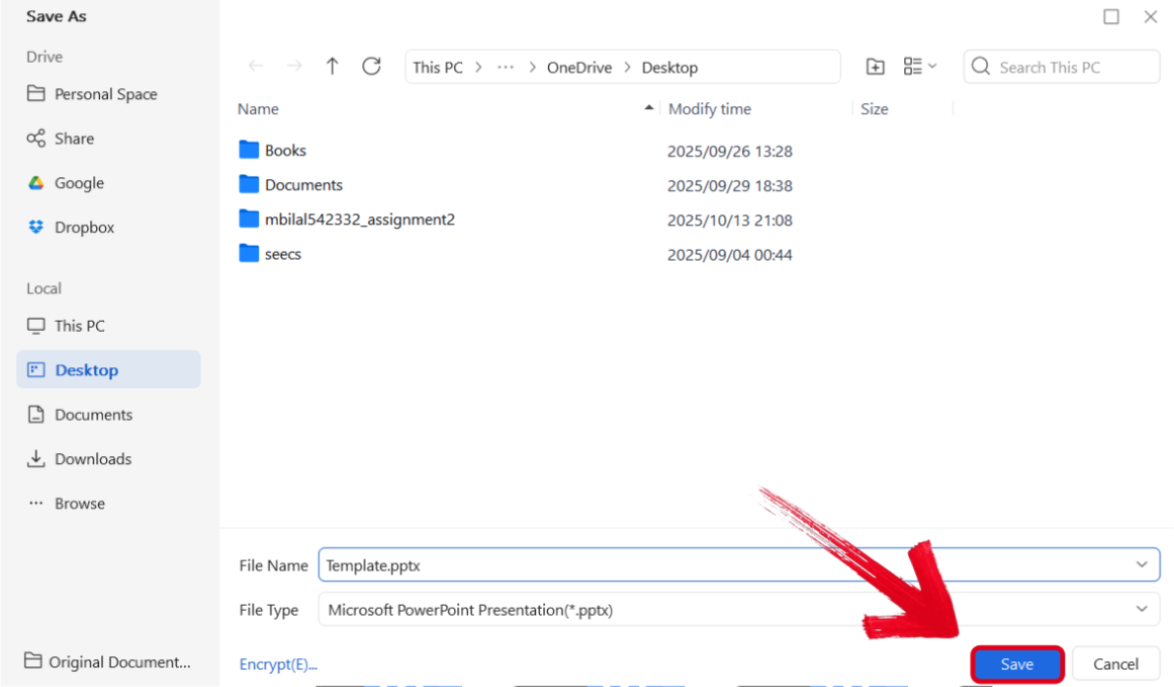
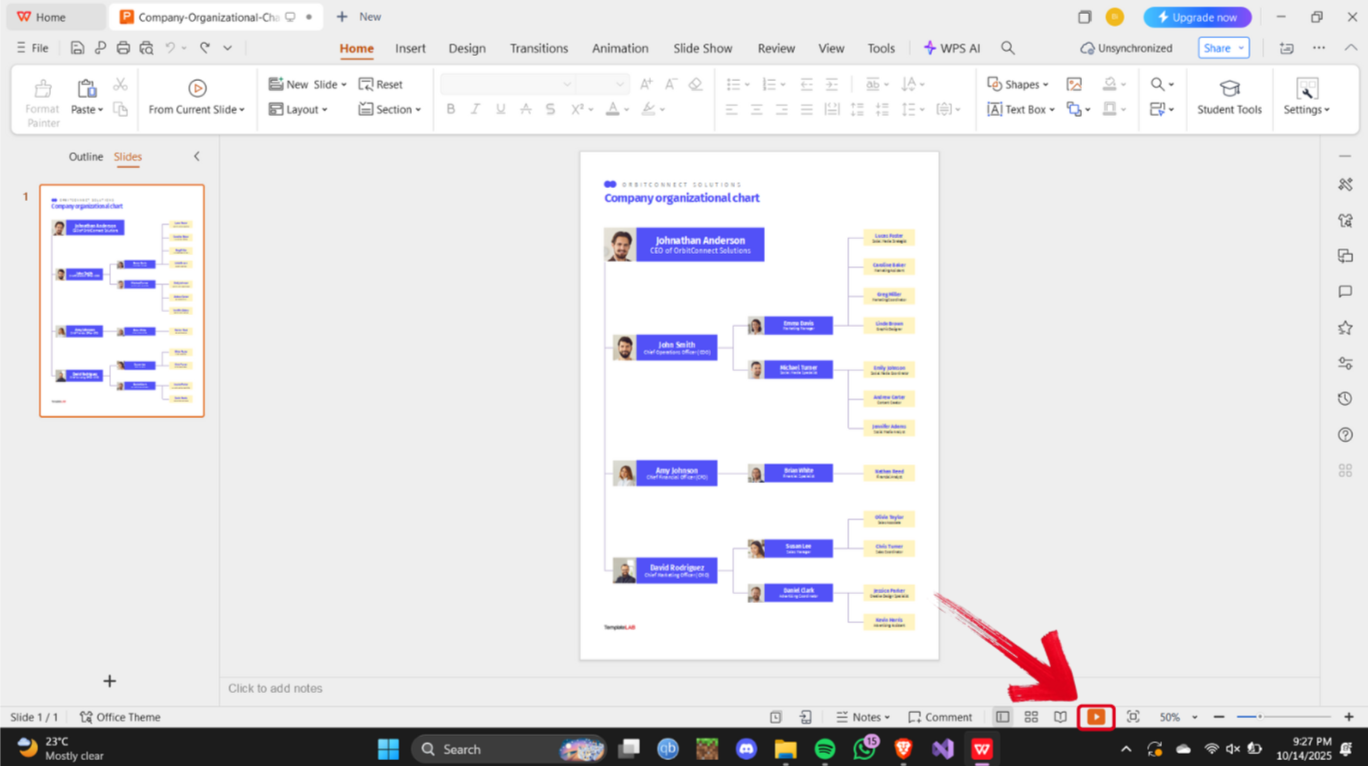
Step 6: If you want to present your PPT file, then simply press the Present Icon at the bottom of your screen.
A Smarter Office Suite to Support Project Performance Tracking
When I’m dealing with multiple projects with limited deadlines, it can be really stressful. The last thing I can afford in such a time is to waste more of my time dealing with slow and unreliable tools. This is why I use WPS Office to simplify the process and streamline my workflow. It equips me with all the templates and tools I need to make sure I can make polished SPI charts with just a few simple steps.
Why WPS Office Stands Out
FAQs
Q1. What is the schedule performance index (SPI)?
SPI is a project management metric that shows whether a project is ahead of or behind schedule, calculated as “Earned Value ÷ Planned Value”.
Q2. What does it mean if SPI is less than 1?
It indicates that the project is behind schedule because less work has been completed than planned.
Q3. How can I professionally present SPI?
You can use SPI dashboards, bar charts, or PowerPoint templates to visualize the metric and make it easier for stakeholders to understand.
Q4. Can I edit schedule performance index templates in WPS Office?
Yes, WPS Office supports PowerPoint and PDF formats, allowing users to edit, customize, and present SPI templates easily.
Streamlining Productivity with SPI
Schedule Performance Index is one of the most productive tools you can use to simplify your project management and streamline your productivity. However, many people find it difficult to learn and understand how to make one from scratch. Using pre-made templates online, you can simplify the process of making an SPI for yourself and get to work without any further delays.
WPS Office has quickly become my go-to companion when it comes to managing and editing online templates reliably. It provides me with countless templates, along with all the tools I need to polish them and make them look presentable.

'%3e%3cpath%20d='M19.9911%204.11386V6.471H18.5894C18.0775%206.471%2017.7322%206.57814%2017.5536%206.79243C17.3751%207.00671%2017.2858%207.32814%2017.2858%207.75671V9.44421H19.9019L19.5536%2012.0871H17.2858V18.8639H14.5536V12.0871H12.2769V9.44421H14.5536V7.49779C14.5536%206.39064%2014.8632%205.53201%2015.4822%204.92189C16.1013%204.31177%2016.9257%204.00671%2017.9554%204.00671C18.8304%204.00671%2019.509%204.04243%2019.9911%204.11386Z'%20fill='%23333333'/%3e%3c/g%3e%3cdefs%3e%3cclipPath%20id='clip0_2938_8199'%3e%3crect%20width='16'%20height='16'%20fill='white'%20transform='translate(8%204.00671)'/%3e%3c/clipPath%3e%3c/defs%3e%3c/svg%3e)
'%3e%3cpath%20d='M17.5237%2010.7813L23.4811%204H22.0699L16.8949%209.88693L12.7648%204H8L14.2469%2012.9029L8%2020.0133H9.4112L14.8725%2013.7952L19.2352%2020.0133H24M9.92053%205.04213H12.0885L22.0688%2019.0224H19.9003'%20fill='%23333333'/%3e%3c/g%3e%3cdefs%3e%3cclipPath%20id='clip0_2938_8200'%3e%3crect%20width='16'%20height='16.0134'%20fill='white'%20transform='translate(8%204)'/%3e%3c/clipPath%3e%3c/defs%3e%3c/svg%3e)


