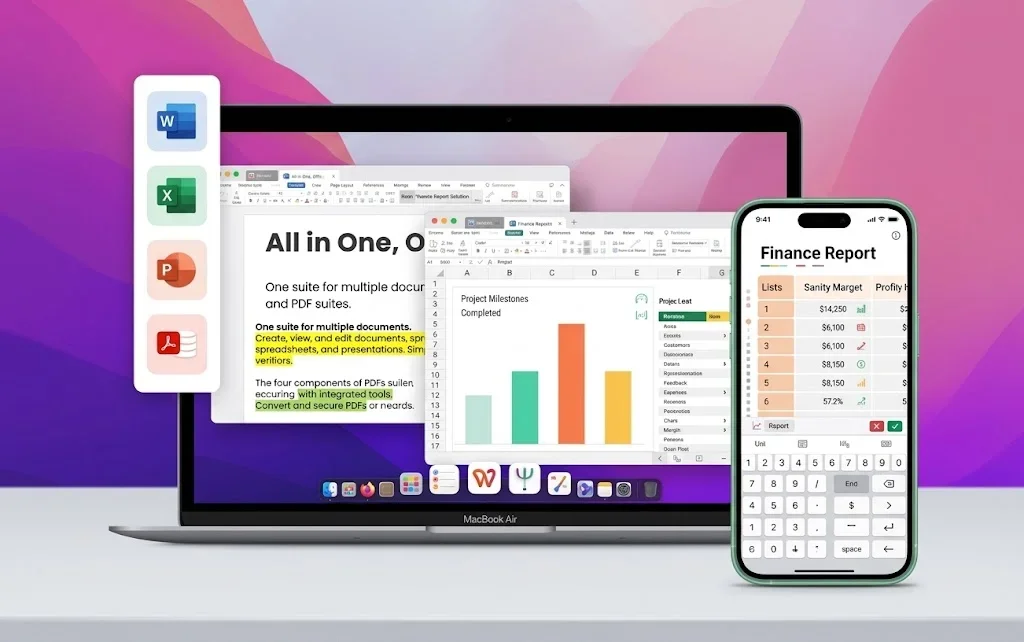
Raw Tags, Not a Table
Pain
Opening XML in Notepad or a browser shows nested tags. You cannot sort, sum, or chart until the data sits in rows and columns.
WPS Solution
XML to Excel — open or import as an XML table, then work in a familiar sheet grid.
Convert XML to Excel in WPS Spreadsheet when banks, CRMs, or developer tools export tagged data. Open or import the .xml file as a table, then Save As .xlsx locally—no upload and no Microsoft Excel license.

XML is great for systems—not for pivots. WPS Spreadsheet turns XML to Excel locally so you can filter, chart, and share without uploading sensitive dumps.
Pain
Opening XML in Notepad or a browser shows nested tags. You cannot sort, sum, or chart until the data sits in rows and columns.
WPS Solution
XML to Excel — open or import as an XML table, then work in a familiar sheet grid.
Pain
Web “XML to Excel” tools ask you to upload CRM, payroll, or customer exports to a random site.
WPS Solution
Local convert — import and Save As .xlsx on your PC or Mac. No third-party upload.
Pain
A Microsoft 365 seat is overkill when you only need one XML dump turned into a spreadsheet.
WPS Solution
Free Spreadsheet — convert XML to Excel, then keep editing in the same suite.
Pain
Helper fields, wrong encodings, and text-looking numbers make filters and formulas fail.
WPS Solution
Tidy in Spreadsheet — delete junk columns, set number/date formats, then Save As .xlsx or CSV.
Built Into WPS Spreadsheet
Stop pasting tags by hand. Open or import the .xml file, map nodes to columns, and Save As Excel Workbook on your device.
One installer · Writer + Spreadsheet + Presentation + PDF
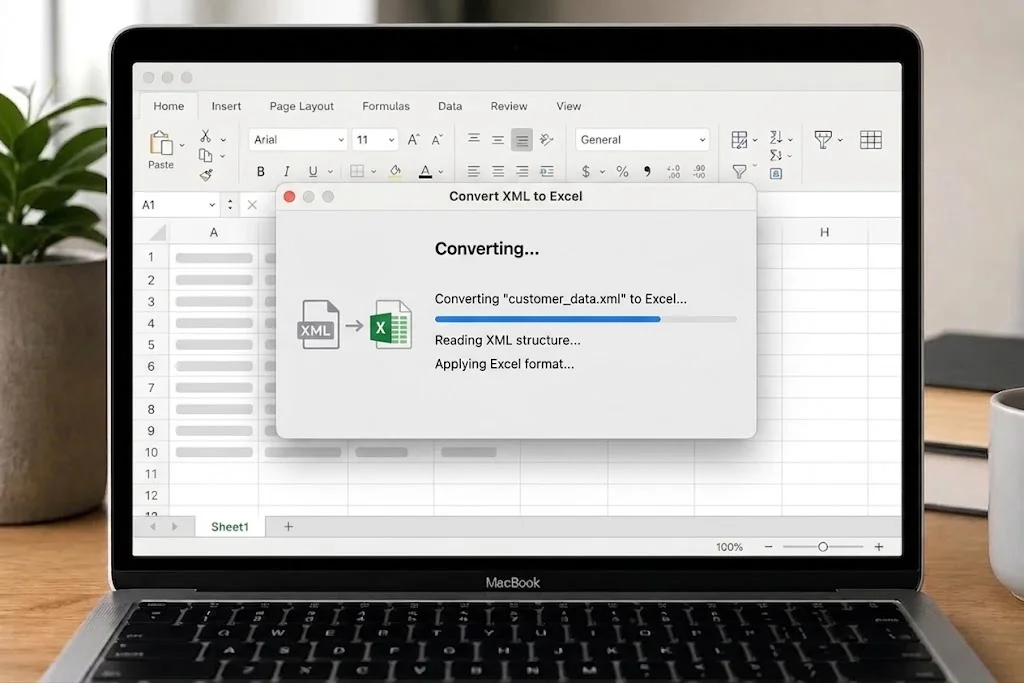
Everything you need to convert XML to Excel inside WPS Spreadsheet—import as a table, tidy columns, and save .xlsx locally.
No scripting required. Open the .xml file or import it as data, then Save As Excel Workbook.
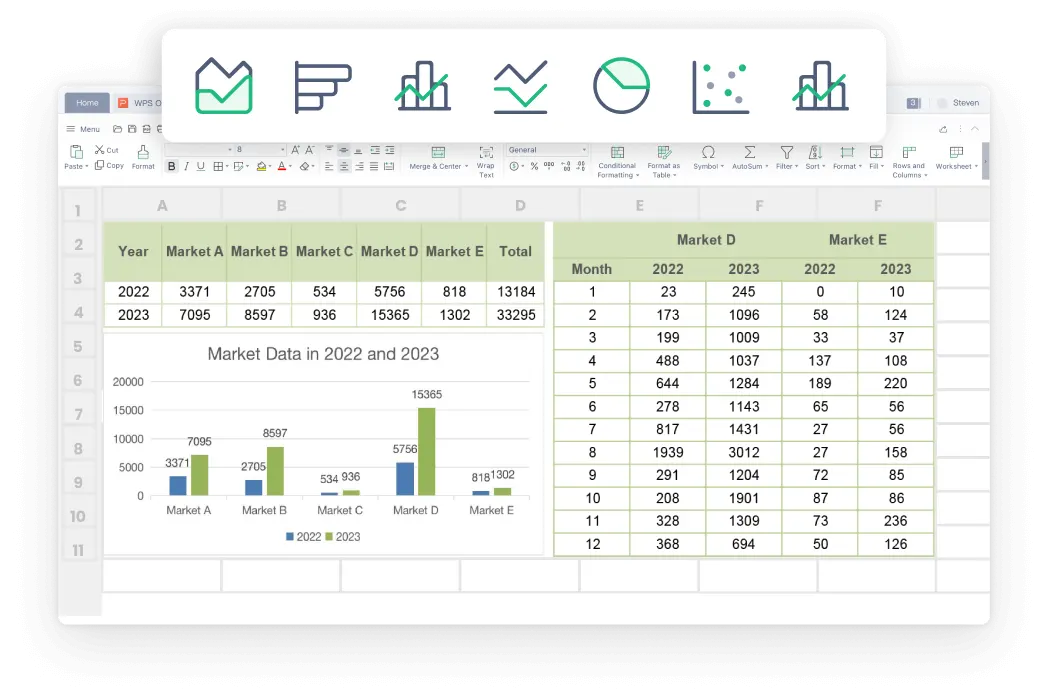
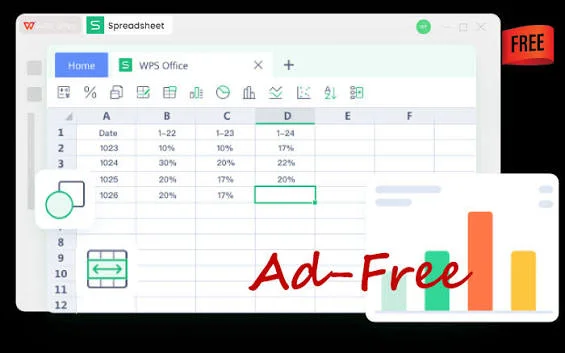
After XML to Excel, use filters, formulas, and charts—the same tools you already know in WPS Spreadsheet.
Online converters upload your dump. WPS converts locally, so CRM and finance XML never leave this computer.

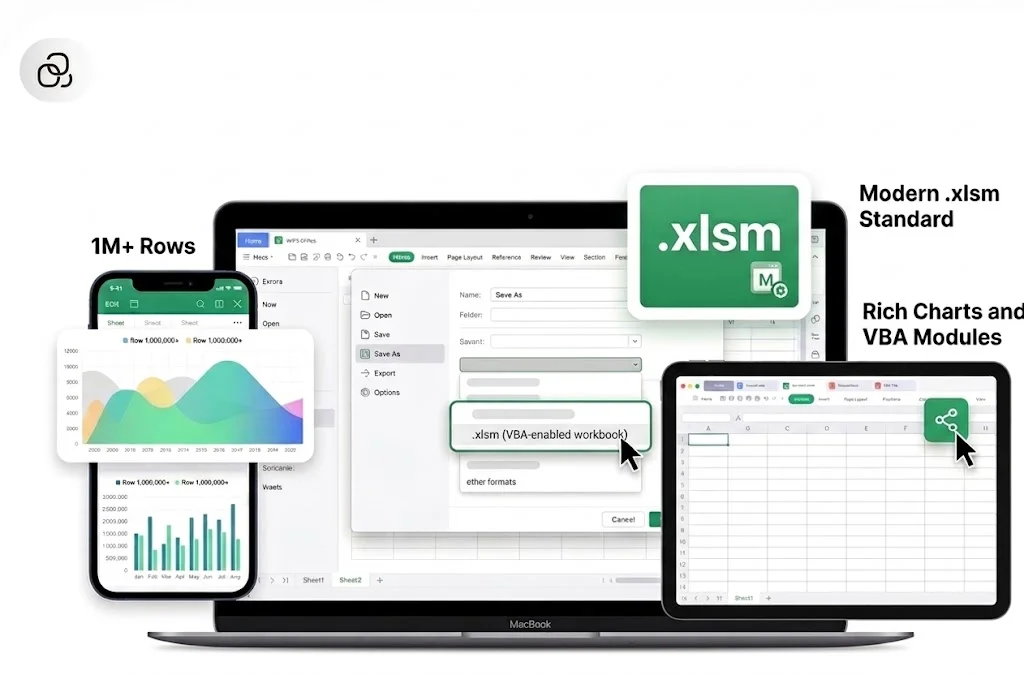
Convert XML to Excel on the desktop you already use, then open the workbook on Mac, Windows, or mobile.
REAL USERS · WPS OFFICE
Ops and analysts turn CRM and bank XML into .xlsx in WPS Spreadsheet—locally, on every platform.
0
Users
5
Platforms
XML→XLSX
Save As
Windows · Mac · Linux · Android · iOS
"Our CRM only exported XML. Online converters felt unsafe. WPS XML to Excel gave us a clean .xlsx on the laptop—no upload."
Jordan K.
Operations Analyst
Install the free suite on Windows, Mac, Linux, iOS, or Android. XML to Excel conversion lives in WPS Spreadsheet—no extra converter.
Choose File → Open and select the .xml file, or use Data → Import to pull XML into an existing workbook. WPS maps repeating nodes into table columns on your device.
Tidy headers and formats, then choose File → Save As → Excel Workbook (*.xlsx) (or CSV). Filter, chart, and share the spreadsheet without uploading the original XML.
Download WPS Office free and convert XML to Excel locally—import as a table and Save As .xlsx without a Microsoft Excel license.
One installer · Writer + Spreadsheet + Presentation + PDF