

'%3e%3cpath%20d='M8%200C12.4183%200%2016%203.58172%2016%208C16%2012.4183%2012.4183%2016%208%2016C3.58172%2016%200%2012.4183%200%208C0%203.58172%203.58172%200%208%200ZM11.6162%204.38379C11.2257%203.99337%2010.5927%203.99338%2010.2021%204.38379L8%206.58594L5.79785%204.38379C5.40732%203.99334%204.77429%203.99329%204.38379%204.38379C3.99331%204.77429%203.99335%205.40733%204.38379%205.79785L6.58594%208L4.38379%2010.2021C3.99348%2010.5927%203.99341%2011.2257%204.38379%2011.6162C4.77426%2012.0066%205.40734%2012.0065%205.79785%2011.6162L8%209.41406L10.2021%2011.6162C10.5927%2012.0066%2011.2257%2012.0067%2011.6162%2011.6162C12.0067%2011.2257%2012.0066%2010.5927%2011.6162%2010.2021L9.41406%208L11.6162%205.79785C12.0066%205.40735%2012.0066%204.77429%2011.6162%204.38379Z'%20fill='%23080E17'%20fill-opacity='0.46'/%3e%3c/g%3e%3cdefs%3e%3cclipPath%20id='clip0_3761_713'%3e%3crect%20width='16'%20height='16'%20fill='white'/%3e%3c/clipPath%3e%3c/defs%3e%3c/svg%3e)




'%3e%3cpath%20fill-rule='evenodd'%20clip-rule='evenodd'%20d='M21.4999%2010.9993C21.4999%205.20009%2016.7986%200.498901%2010.9993%200.498901C5.19994%200.498901%200.498657%205.20009%200.498657%2010.9993C0.498657%2016.2404%204.33858%2020.5844%209.35855%2021.3722V14.0346H6.69238V10.9993H9.35855V8.68594C9.35855%206.05427%2010.9262%204.60062%2013.3248%204.60062C14.4736%204.60062%2015.6753%204.80571%2015.6753%204.80571V7.38979H14.3512C13.0468%207.38979%2012.64%208.19921%2012.64%209.0296V10.9993H15.5523L15.0867%2014.0346H12.64V21.3722C17.66%2020.5844%2021.4999%2016.2404%2021.4999%2010.9993Z'%20fill='%231568EA'/%3e%3c/g%3e%3c/svg%3e)


'%3e%3cpath%20d='M2.42045%2022.1876H6.31818V12.7217L0.75%208.54553V20.5171C0.75%2021.4414%201.49892%2022.1876%202.42045%2022.1876Z'%20fill='%234285F4'/%3e%3cpath%20d='M19.682%2022.1876H23.5797C24.5041%2022.1876%2025.2502%2021.4387%2025.2502%2020.5171V8.54553L19.682%2012.7217'%20fill='%2334A853'/%3e%3cpath%20d='M19.682%205.48293V12.7216L25.2502%208.54543V6.31816C25.2502%204.25236%2022.8921%203.07469%2021.2411%204.31361'%20fill='%23FBBC04'/%3e%3cpath%20d='M6.31824%2012.7217V5.48303L13.0001%2010.4944L19.6819%205.48303V12.7217L13.0001%2017.733'%20fill='%23EA4335'/%3e%3cpath%20d='M0.75%206.31816V8.54543L6.31818%2012.7216V5.48293L4.75909%204.31361C3.10534%203.07469%200.75%204.25236%200.75%206.31816Z'%20fill='%23C5221F'/%3e%3c/g%3e%3cdefs%3e%3cclipPath%20id='clip0_2954_7305'%3e%3crect%20width='24.5'%20height='18.375'%20fill='white'%20transform='translate(0.75%203.8125)'/%3e%3c/clipPath%3e%3c/defs%3e%3c/svg%3e)


Quick answer: An XML file is structured data written as plain text with tags like .xlsx / CSV—don’t stare at tag soup if you only need a table.
This guide answers the four searches behind open xml file in the US: which app to use, how to read tags clearly, why Windows or Excel says the file is broken, and how to convert XML without learning markup. (Note: Office files like .docx/.xlsx are “Open XML” packages under the hood—but a generic .xml export from a bank, CRM, or developer tool is usually just tagged text.)
What is an XML file—and can Excel, Chrome, or Notepad open it?
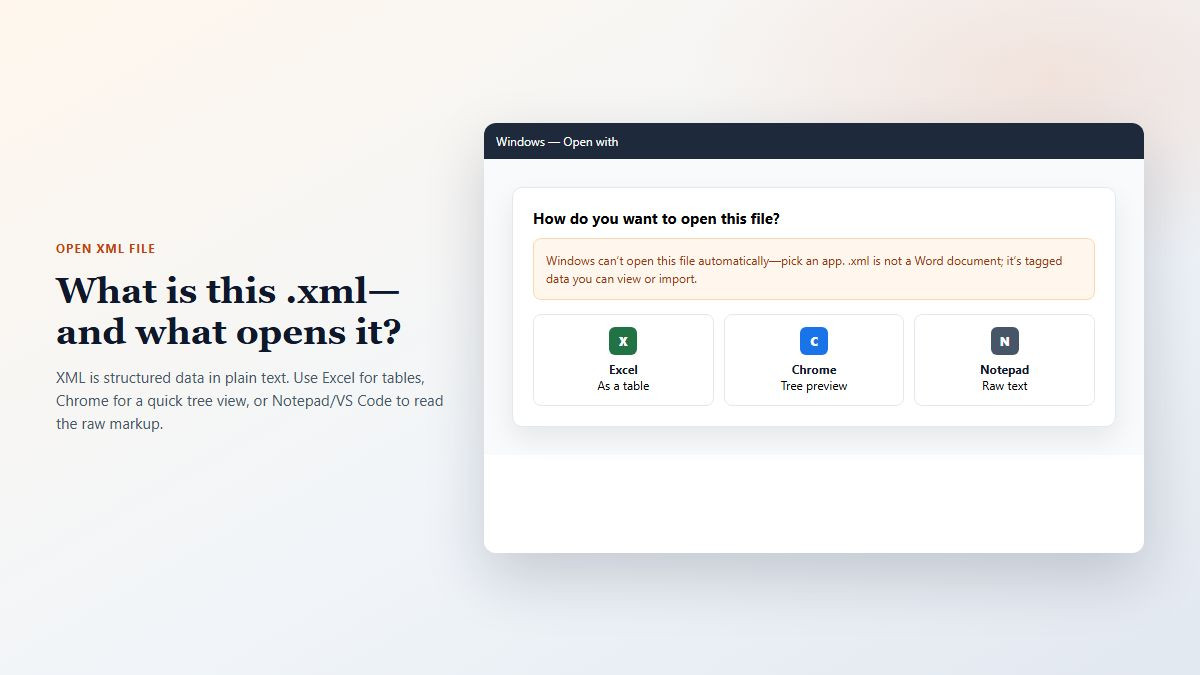
XML (Extensible Markup Language) stores hierarchical data. Windows often has no default “XML Viewer,” so double-click may show Windows cannot open this file or a long Open with list. Pick by goal:
Microsoft Excel — best when the file is tabular (orders, inventory, reports). Use File → Open → choose As an XML table, or Data → Get Data → From File → From XML.
Chrome / Edge — fast preview. Drag the file onto the browser or use File → Open. Valid XML often shows a collapsible tree.
Notepad — always works for small files, but you only get raw tags—fine for a quick peek, poor for nested data.
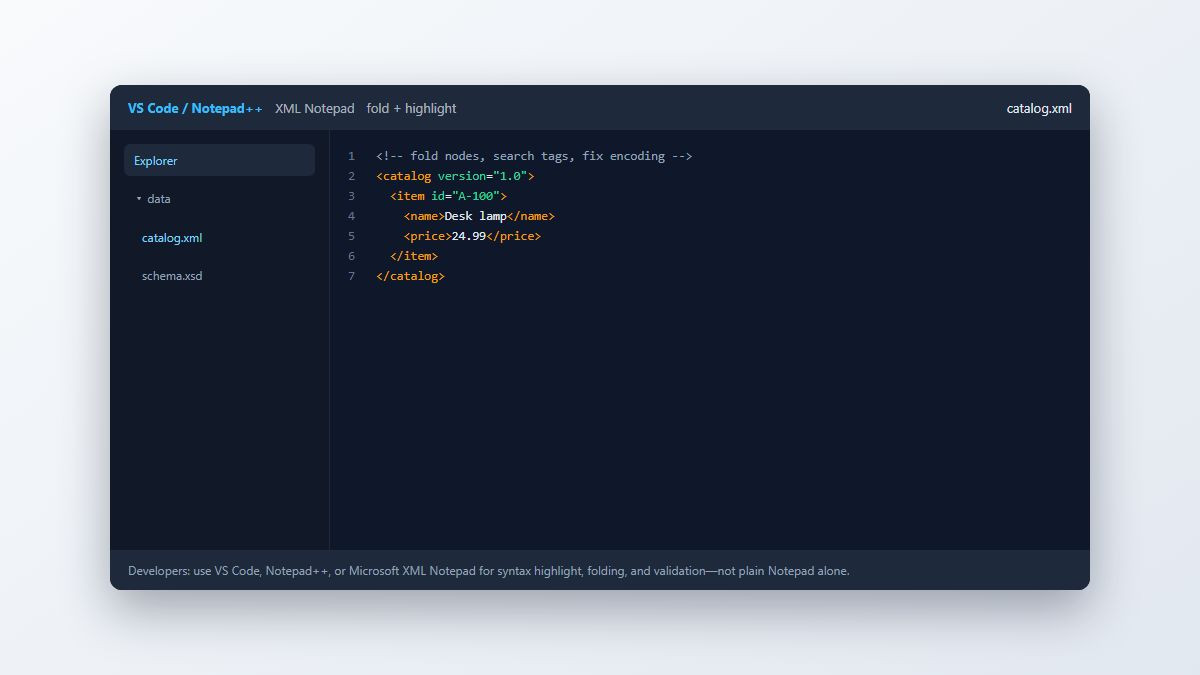
Notepad++ / Microsoft XML Notepad / VS Code — lightweight “pro” options: syntax colors, fold nodes, search, and (in some tools) schema validation.
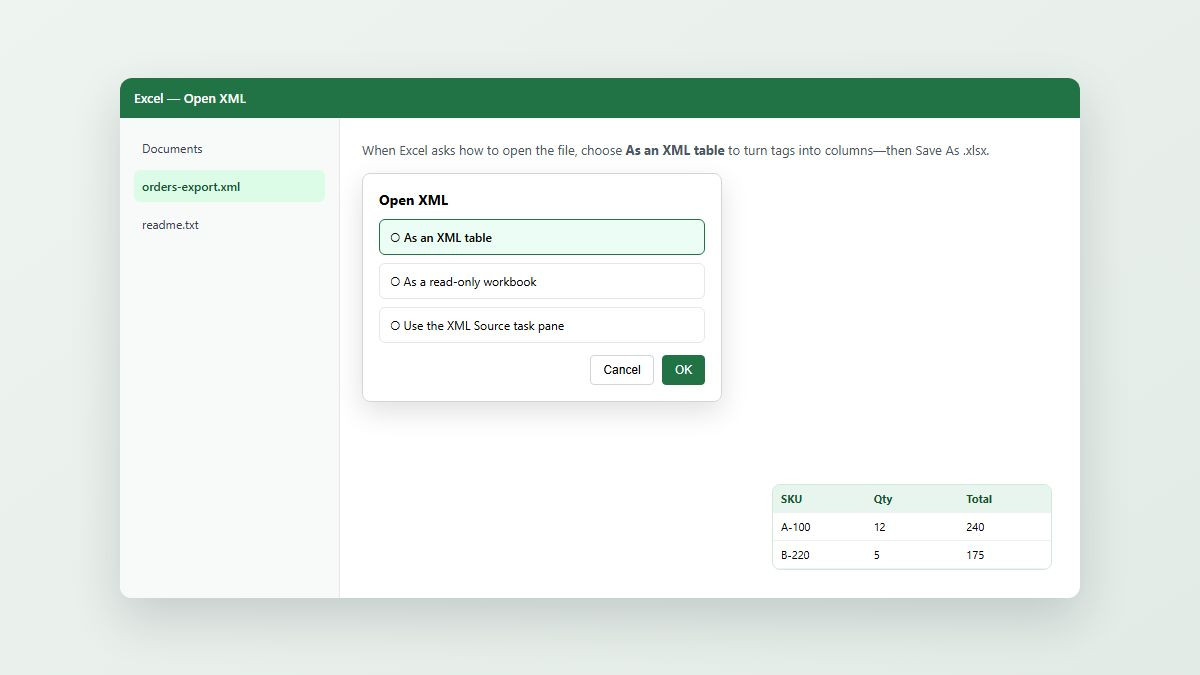
Tip: right-click → Open with → Choose another app and check “Always” only after you know which workflow you want. Many people set Excel for data XML and leave Chrome as the occasional viewer.
Why does my XML look like code—and how do I read it like a map?
Those angle brackets are the data. Tags name fields; nesting shows parent/child relationships. To read them “elegantly”:
Open in Chrome/Edge and click the triangles to expand/collapse nodes (when the browser formats the file).
In VS Code or Notepad++, use code folding on
In Microsoft XML Notepad, use the tree pane—closest to a mind-map view for non-developers.
If you only care about columns, skip reading markup: import as an Excel table and work in the grid.
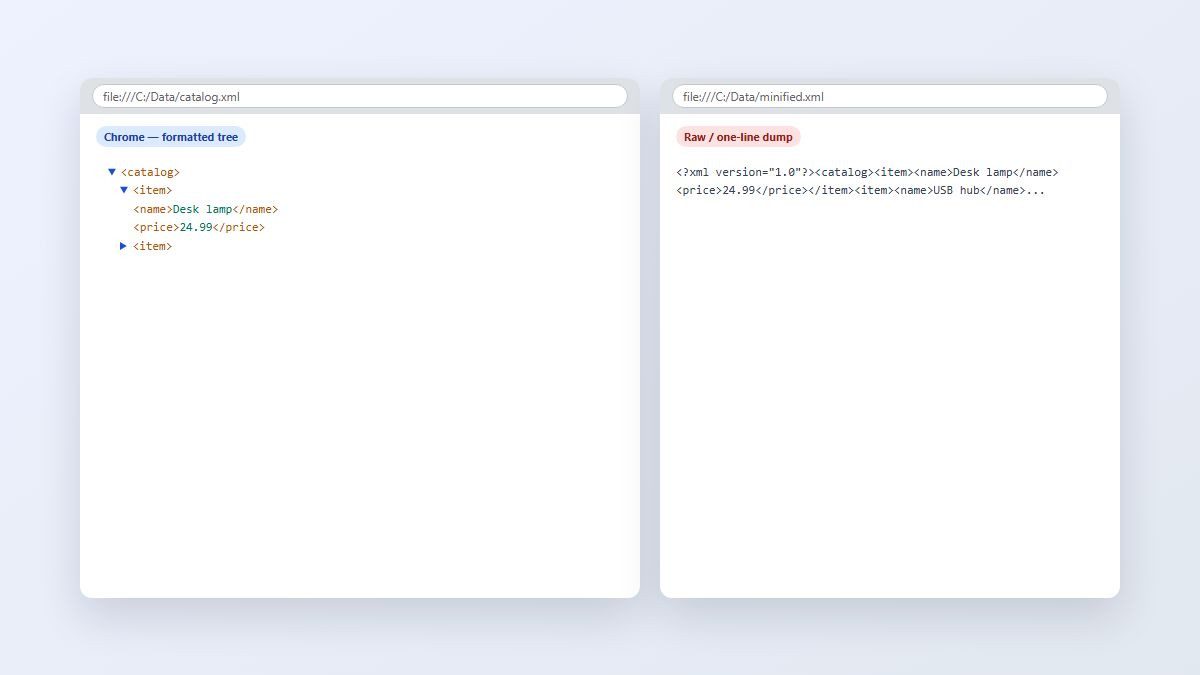
Why some browser views look neat and others are one line: pretty-printed XML with line breaks and indentation usually gets a tree UI. Minified XML (everything on one line), XML with a stylesheet that the browser treats differently, or files that aren’t well-formed can dump as a single code string. Pretty-print in an editor, or re-save with indentation, then reopen.
Why can’t I open the XML—damaged, encoding, or too big?
When Excel, a browser, or an app says the file is corrupt / invalid format, check these causes in order:
Broken syntax — missing closing tags, mismatched nesting, or special characters not escaped (
&→&,<<> →<). A red squiggle in VS Code often points to the line.Encoding clash — declaration says
UTF-8but the file was saved as ANSI/Windows-1252 (or the reverse). Reopen with the correct encoding in Notepad++/VS Code and Save As UTF-8.Huge files — hundreds of MB can freeze Notepad and strain casual viewers. Use Excel Power Query / Get Data, VS Code with patience, or a streaming XML tool—never rely on Notepad alone.
Wrong expectation — incomplete downloads, HTML renamed to
.xml, or password-wrapped exports that aren’t plain XML.
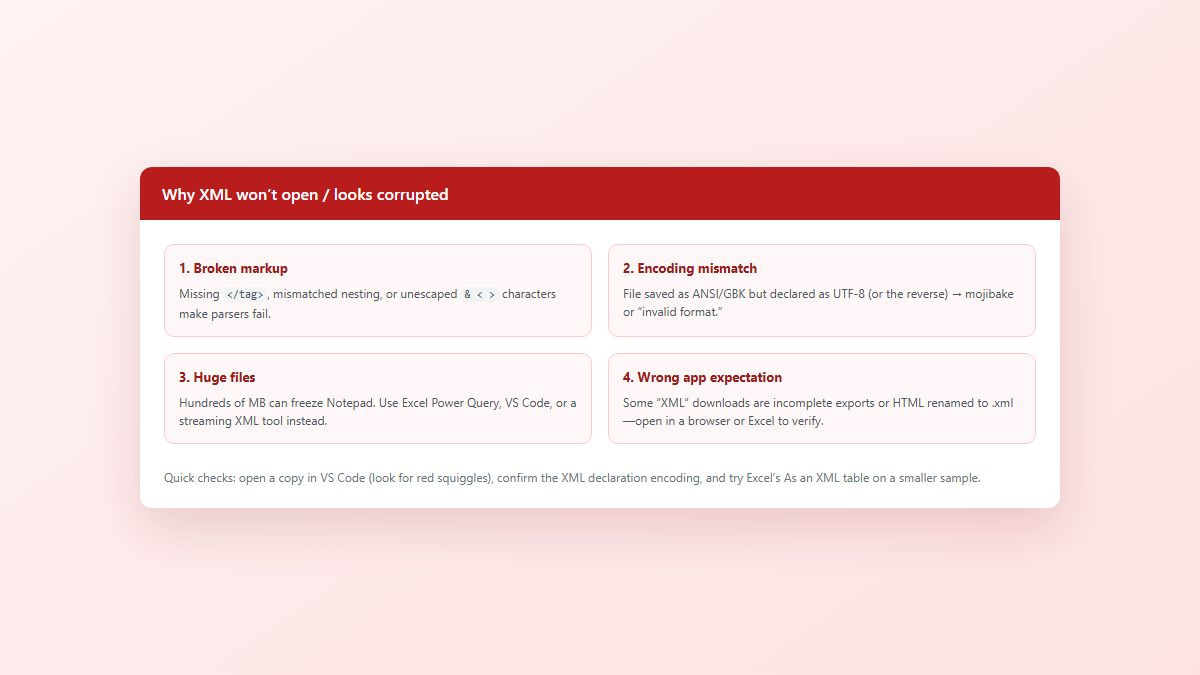
Work on a copy. If Excel fails on the full file, carve a small valid sample (first few records) to confirm the structure before trying conversion tools.
How to convert an XML file to Excel, CSV, or PDF
Most non-technical users don’t want to study tags—they want the numbers in a sheet or a printable page.
Open Excel → File → Open the
.xml→ select As an XML table (or Data → Get Data → From XML).Review headers, delete helper/junk columns, set number/date formats.
File → Save As → Excel Workbook (
.xlsx) or CSV (Comma delimited).For a printable snapshot: File → Print → Microsoft Print to PDF (or Export → Create PDF/XPS where available).
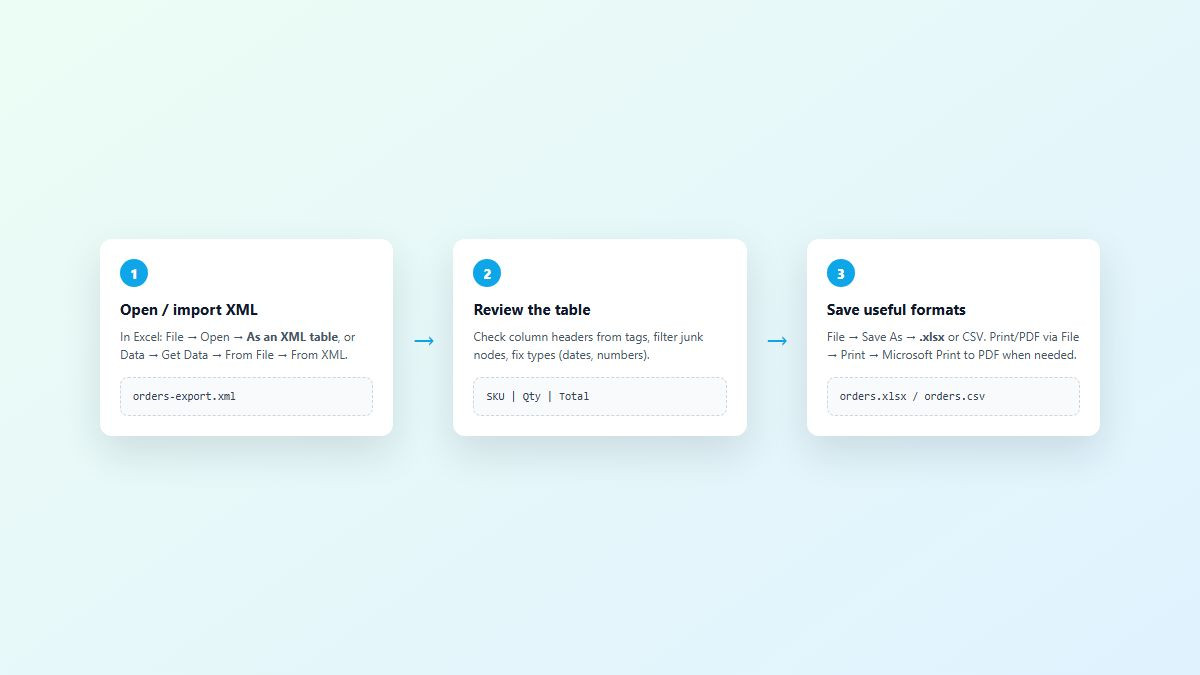
Online “XML to Excel” converters exist, but avoid uploading payroll, medical, or customer dumps to random sites—use desktop Excel/WPS on a local copy instead.
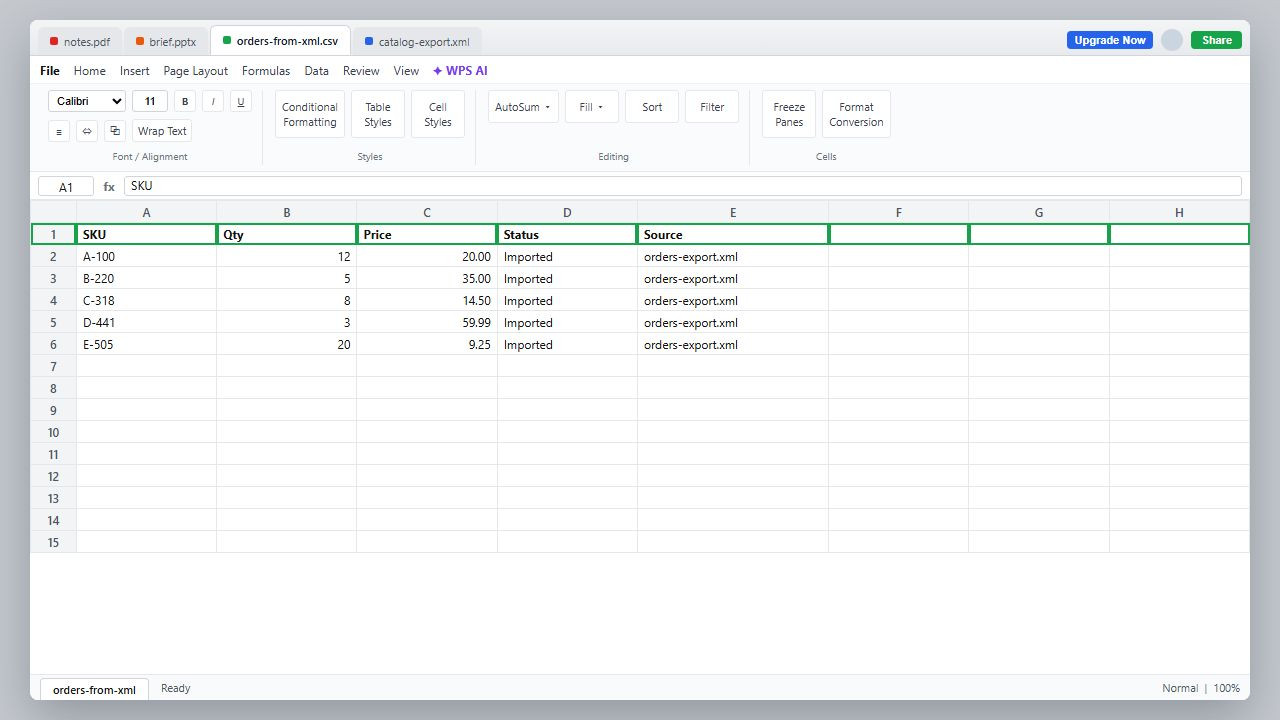
Another option: clean and export the table in WPS Spreadsheets
After you’ve imported XML into a grid—or when Microsoft Office associations are messy—open the workbook in WPS Office Spreadsheets. Filter and chart the fields in a familiar sheet layout, then Save As .xlsx or CSV for analysis, or print/PDF when stakeholders want a static copy.
That path helps mixed Windows/Mac teams keep moving without waiting on one Office build, and the free tier covers everyday spreadsheet cleanup when you don’t need a Microsoft 365 subscription just to turn tagged data into a usable table.
FAQ
Can I open an XML file in Microsoft Excel?
Yes for many tabular exports. Use File → Open and choose As an XML table, or Data → Get Data → From File → From XML, then Save As .xlsx.
Can Chrome or Edge open an XML file?
Yes. Drag the file into the browser or use Open. Well-formed indented XML often shows a collapsible tree; minified XML may appear as one line.
Is Notepad enough to open XML?
For tiny files, yes. For nested data, use Notepad++, Microsoft XML Notepad, or VS Code so you can fold nodes and search tags.
Why does my XML look like gibberish or mojibake?
Usually an encoding mismatch (UTF-8 vs ANSI). Reopen with the correct encoding in Notepad++ or VS Code and save as UTF-8.
How do I convert XML to CSV or Excel without coding?
Import as an XML table in Excel (or tidy in WPS Spreadsheets), then Save As .xlsx or CSV. Use Print to PDF only when you need a static printout.
What’s the difference between a .xml file and a .docx/.xlsx “Open XML” file?
A plain .xml is tagged text. Office Open XML (.docx/.xlsx) is a ZIP package of many XML parts plus media—open those with Word/Excel/WPS, not as a single text dump.
Summary
To open an XML file, match the app to the job: Excel for tables, Chrome/Edge for a quick tree, Notepad for a tiny peek, and Notepad++/XML Notepad/VS Code when you need fold and highlight. If the file won’t open, check syntax, encoding, and size before assuming it’s lost. Convert by importing to a sheet and saving .xlsx / CSV (or Print to PDF). When you need a lightweight spreadsheet follow-through, tidy and export the table in WPS Spreadsheets.



'%3e%3cpath%20d='M19.9911%204.11386V6.471H18.5894C18.0775%206.471%2017.7322%206.57814%2017.5536%206.79243C17.3751%207.00671%2017.2858%207.32814%2017.2858%207.75671V9.44421H19.9019L19.5536%2012.0871H17.2858V18.8639H14.5536V12.0871H12.2769V9.44421H14.5536V7.49779C14.5536%206.39064%2014.8632%205.53201%2015.4822%204.92189C16.1013%204.31177%2016.9257%204.00671%2017.9554%204.00671C18.8304%204.00671%2019.509%204.04243%2019.9911%204.11386Z'%20fill='%23333333'/%3e%3c/g%3e%3cdefs%3e%3cclipPath%20id='clip0_2938_8199'%3e%3crect%20width='16'%20height='16'%20fill='white'%20transform='translate(8%204.00671)'/%3e%3c/clipPath%3e%3c/defs%3e%3c/svg%3e)
'%3e%3cpath%20d='M17.5237%2010.7813L23.4811%204H22.0699L16.8949%209.88693L12.7648%204H8L14.2469%2012.9029L8%2020.0133H9.4112L14.8725%2013.7952L19.2352%2020.0133H24M9.92053%205.04213H12.0885L22.0688%2019.0224H19.9003'%20fill='%23333333'/%3e%3c/g%3e%3cdefs%3e%3cclipPath%20id='clip0_2938_8200'%3e%3crect%20width='16'%20height='16.0134'%20fill='white'%20transform='translate(8%204)'/%3e%3c/clipPath%3e%3c/defs%3e%3c/svg%3e)


