
10 Best Document Translators in 2026
I tested 20+ tools and ranked the 10 best document translators for whole files—Word, PDF, Excel, and PPT. DeepL leads on wording; WPS Office is my #2 pick when you need to translate and keep editing in one free suite.
Free Download WPSOfficial download · Windows, Mac, Linux, Android, iOS
How I test
Whole-file jobs
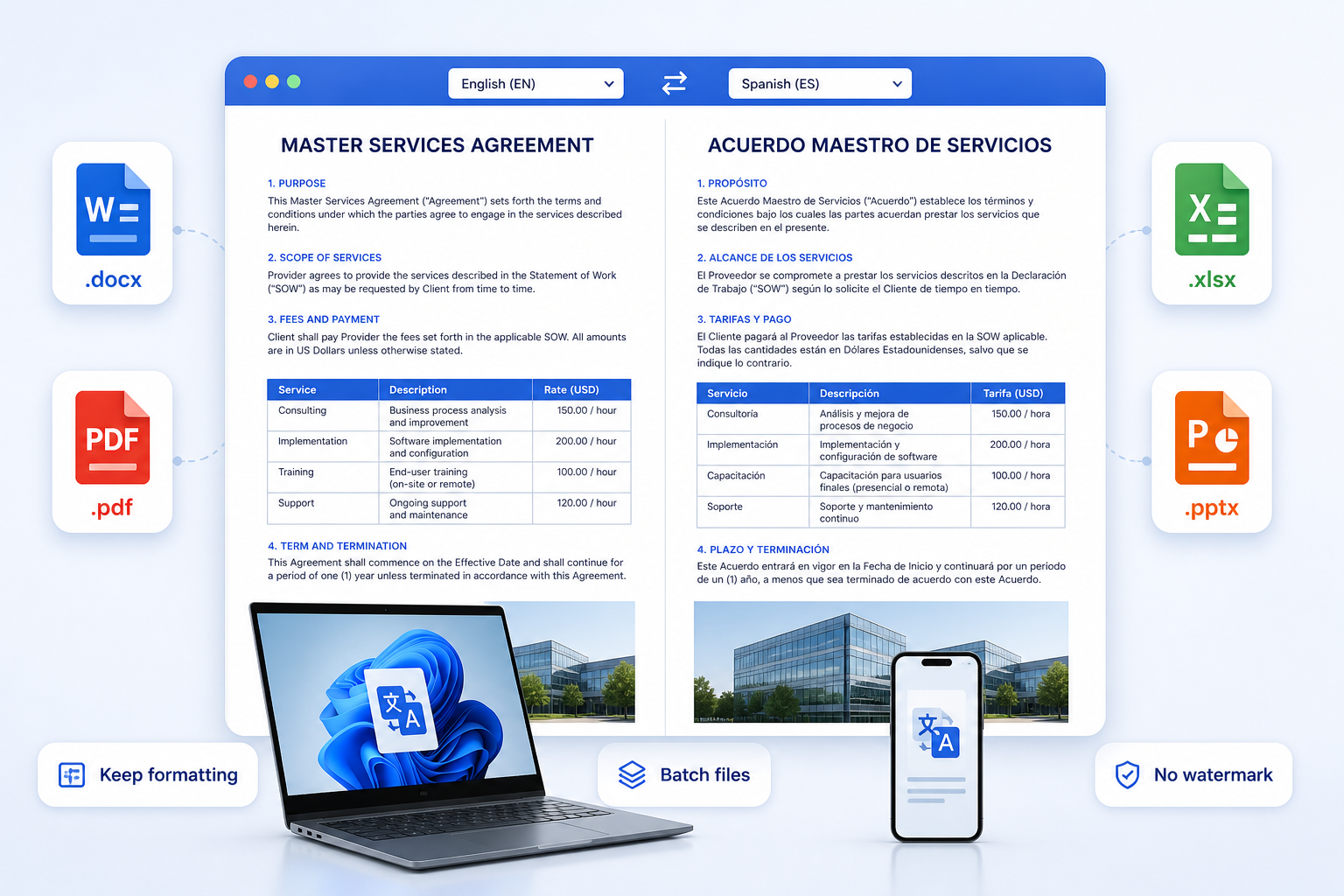
Every finalist had to translate the same Word letter, a table-heavy PDF, a short Excel sheet, and a five-slide deck. Paste-box tools that could not open the real file did not make this best document translator list.
Layout, OCR, batch
I scored keep-formatting (headers, tables, charts), scanned-PDF OCR, batch queues, watermark-free export, and whether I could edit the translation in the same app. A pretty paragraph dump with a broken table ranked down.
Privacy cross-checks
Before locking the order, I asked where the file goes: random website, Microsoft 365, desktop Office, or an enterprise MT queue. Contracts and student records should not live on watermark PDF sites.
The reviews below walk through each finalist in ranking order, from the document translator I would reach for first to the specialized or last-resort tools. Every section reflects hands-on file tests, not spec-sheet copy.
DeepL
DeepL is the document translator I reach for when the file is short enough to upload and the prose has to sound like a person wrote it. On a two-page client letter and a 12-page PDF briefing, its English–German and English–French drafts needed fewer rewrites than Google Translate or a generic chatbot dump.
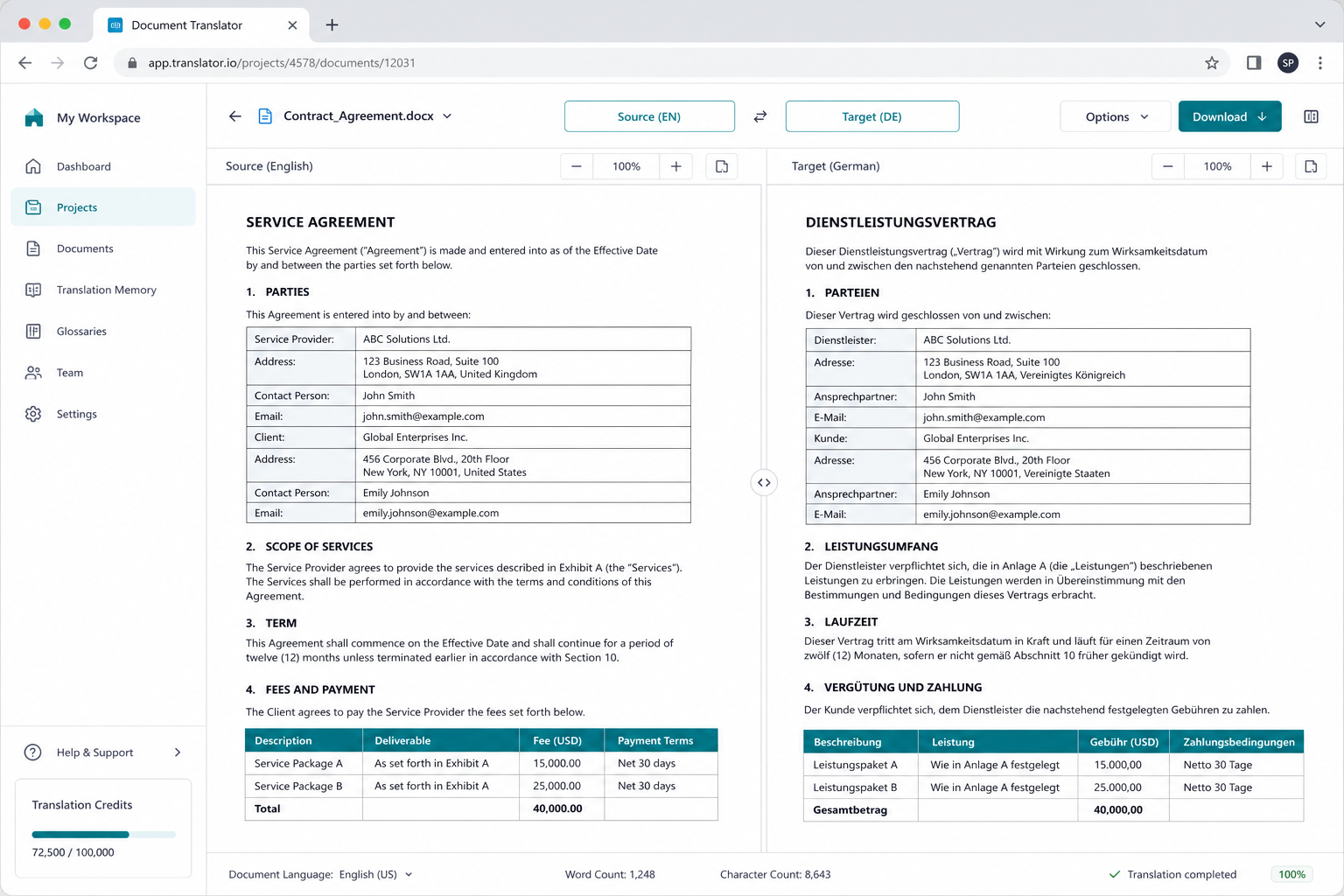
It is still a translator website, not an Office suite. I downloaded the result, opened it in Word or WPS, and fixed table row height. That extra hop is the trade-off for the wording quality that put it at #1.
Best for
Professionals who care most about how the translation reads, and who can live with upload limits on the free document slot.
What stands out
- Strongest phrasing on business letters and reports in my side-by-side tests
- Document upload for Word and PDF, not just a paste box
- Formality controls on paid plans helped tone on client emails
Limitations
- Free document volume fills up fast on longer files
- You still leave the translator to edit charts, headers, and Excel
- Language coverage is narrower than Google Translate
Pricing
Free web translator with document-size limits; paid Pro plans raise document volume and unlock extra writing controls.
Freemium. I finished short files on the free tier; longer contracts pushed me toward a paid document quota.
Pros
- Best raw translation quality in this document translator roundup
- Handles real Word and PDF uploads, not only pasted sentences
- Fewer “robot English” edits than most free websites
Cons
- Not an editor—layout cleanup happens in Word or WPS after download
- Free document caps make it a poor batch tool
WPS Office
WPS Office is the document translator I recommend when the job is a real Office file—not a pasted paragraph. I opened Word, PDF, Excel, and PowerPoint in the same desktop suite, ran WPS AI Translate, and kept editing tables in the same window. That all-in-one workflow is why it sits at #2 on this list.
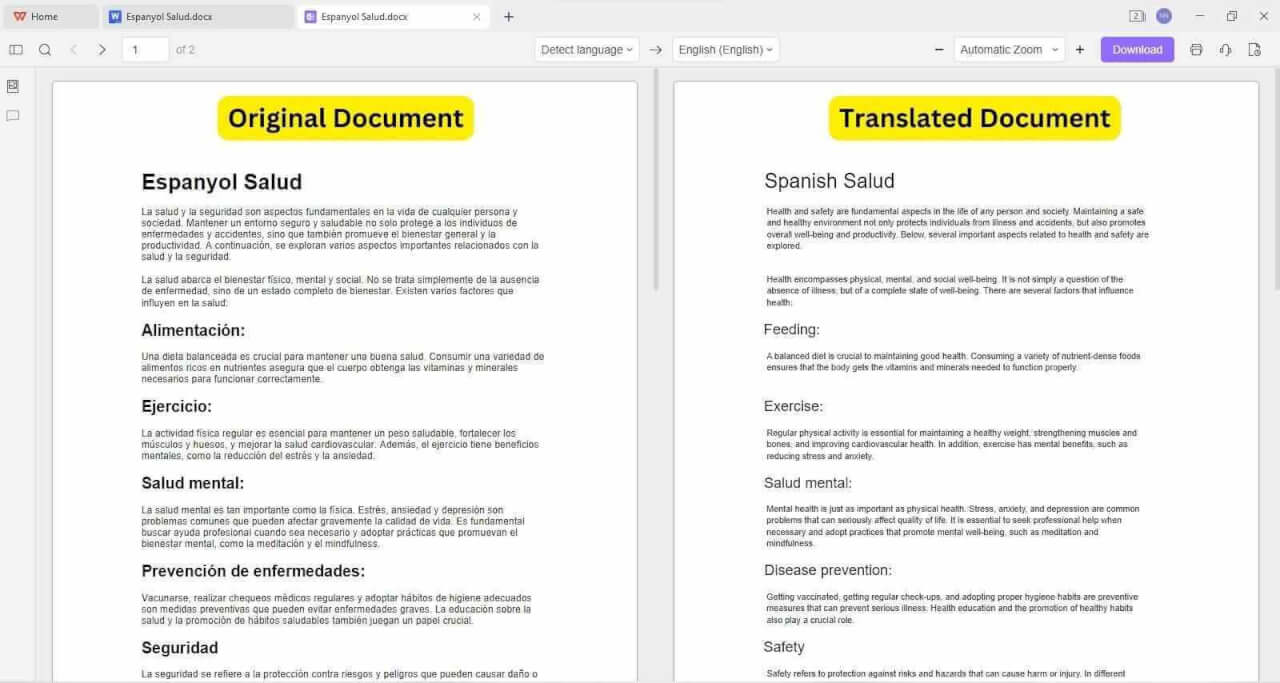
Parallel Translate let me compare the original and the draft side by side. A scanned handout needed OCR in WPS PDF first, then translate. Batch queue covered a folder of quotes without twenty separate website uploads. AI Translate still needs a network connection—this is not a fully offline translator—but you are not dumping a contract onto a random watermark site. Check the in-app quota for large batches; I am not inventing a page price here. Download WPS free if you want that path without buying Microsoft 365 first.
Best for
Students, freelancers, and small teams who need a free Office install that can translate Word, PDF, Excel, and PPT, then export without a watermark.
What stands out
- Translate inside Writer, Spreadsheets, Presentation, and PDF—one suite
- Layout stays in an editor, so headers and tables are fixable in place
- Batch queue for a folder of the same language pair
- OCR path for scanned PDFs before you translate
- Free download for core editing; AI Translate uses the in-app allowance
Limitations
- AI Translate needs the internet even on the desktop app
- Large batches depend on the in-app quota, not an unlimited website slot
- Wording quality on literary prose still trailed DeepL in my letter test
Pricing
Free download for core editing. WPS AI Translate uses an in-app allowance; premium plans add extra AI and cloud extras. Check the quota in the product rather than a third-party price list.
Free plus premium. This was the only ranked tool where I translated a Word file, fixed a table, and exported PDF without paying a translator website.
Pros
- Only all-in-one Office document translator in this list for Word, PDF, Excel, and PPT
- Edit in place after translate—no round trip through another Word install
- No watermark on the everyday export path I used
- Batch and OCR cover the jobs paste-box sites skip
Cons
- Not a fully offline translator; the AI step still goes over the network
- DeepL still won on raw sentence polish for the same two-page letter
Try WPS free — translate Word, PDF, Excel, and PPT in one install
Open the real file, run AI Translate, fix layout in place, then export. No watermark site hop.
Quick start
Download free WPS and translate the real file
Skip paste boxes and watermark sites. Open your Word, PDF, Excel, or PPT in WPS, run AI Translate, fix tables in place, then export.
Google Translate
Google Translate is the document translator I keep bookmarked for odd language pairs and one-off uploads. The Documents tab accepted DOCX and PDF in my tests, and the language list covered pairs DeepL simply does not offer.
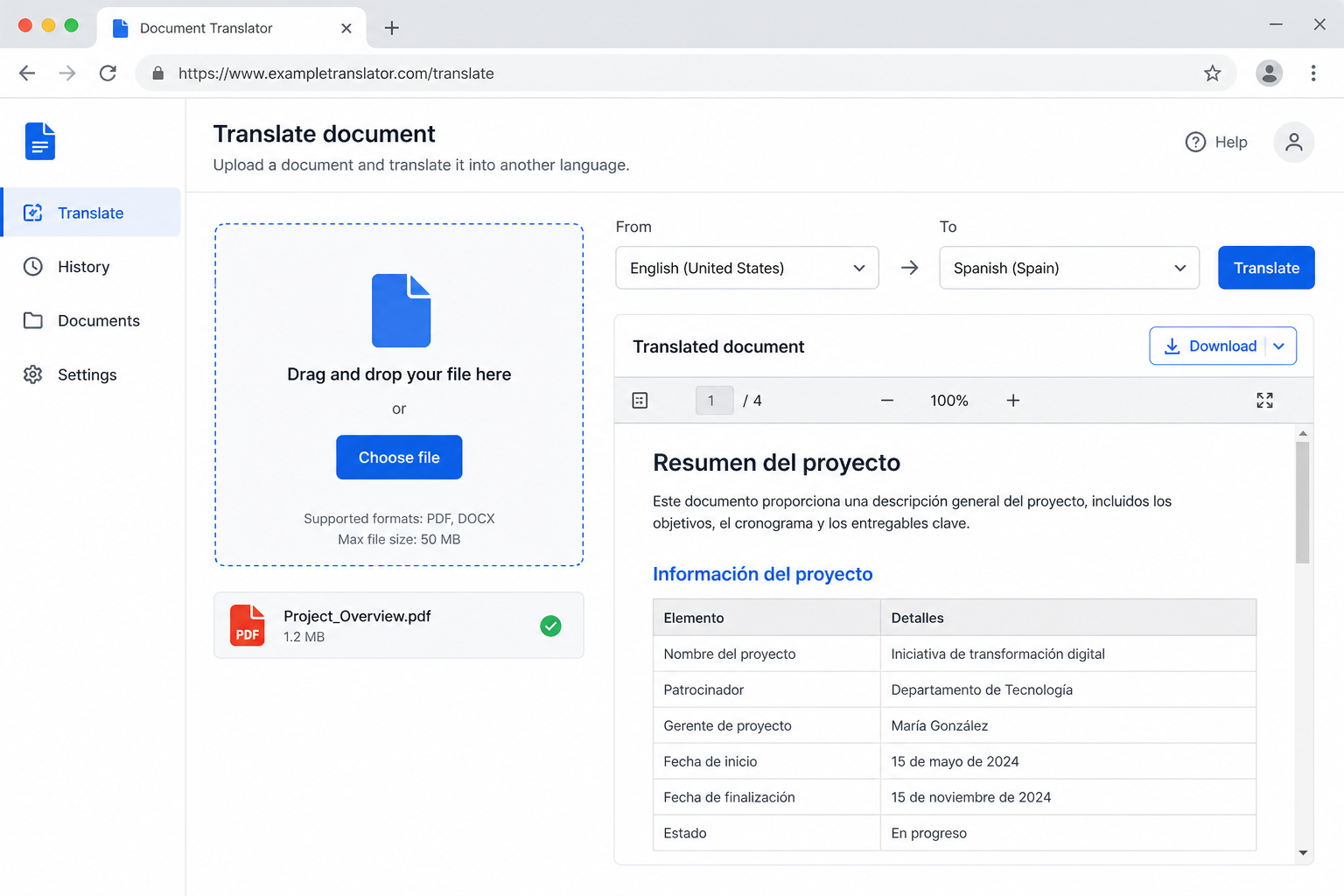
Quality was usable on straightforward product copy and weaker on legal tone. Formatting survived simple headings better than nested tables. It remains the fastest free answer to “can I translate this file at all?”
Best for
Students, travelers, and teams who need a free document translator across many languages and can accept a website upload.
What stands out
- Widest language map among the free document translators I tested
- No account required for a basic document upload
- Fast enough for a first-pass PDF when you only need the meaning
Limitations
- Tables and text boxes often need a rebuild
- File size and format caps show up on larger Office files
- You are sending the file to a public web service
Pricing
Free for personal document uploads, with size and format limits. Cloud Translation API pricing is separate for developers.
Free for everyday files. The limit that stopped me was file size and layout damage, not a paywall.
Pros
- Best free document translator when the language pair is uncommon
- Upload path is obvious: Documents, not a hidden paste box
- Good enough first pass for internal reading
Cons
- Not the tool I would ship a formatted contract from
- Privacy is a hard no for NDAs if you have a desktop alternative
Microsoft Word Translator
Microsoft Word’s built-in Translator is the document translator I use when the file is already a .docx and the team will stay in Microsoft 365. Review tab → Translate translated a selection or the whole document without an extra website.
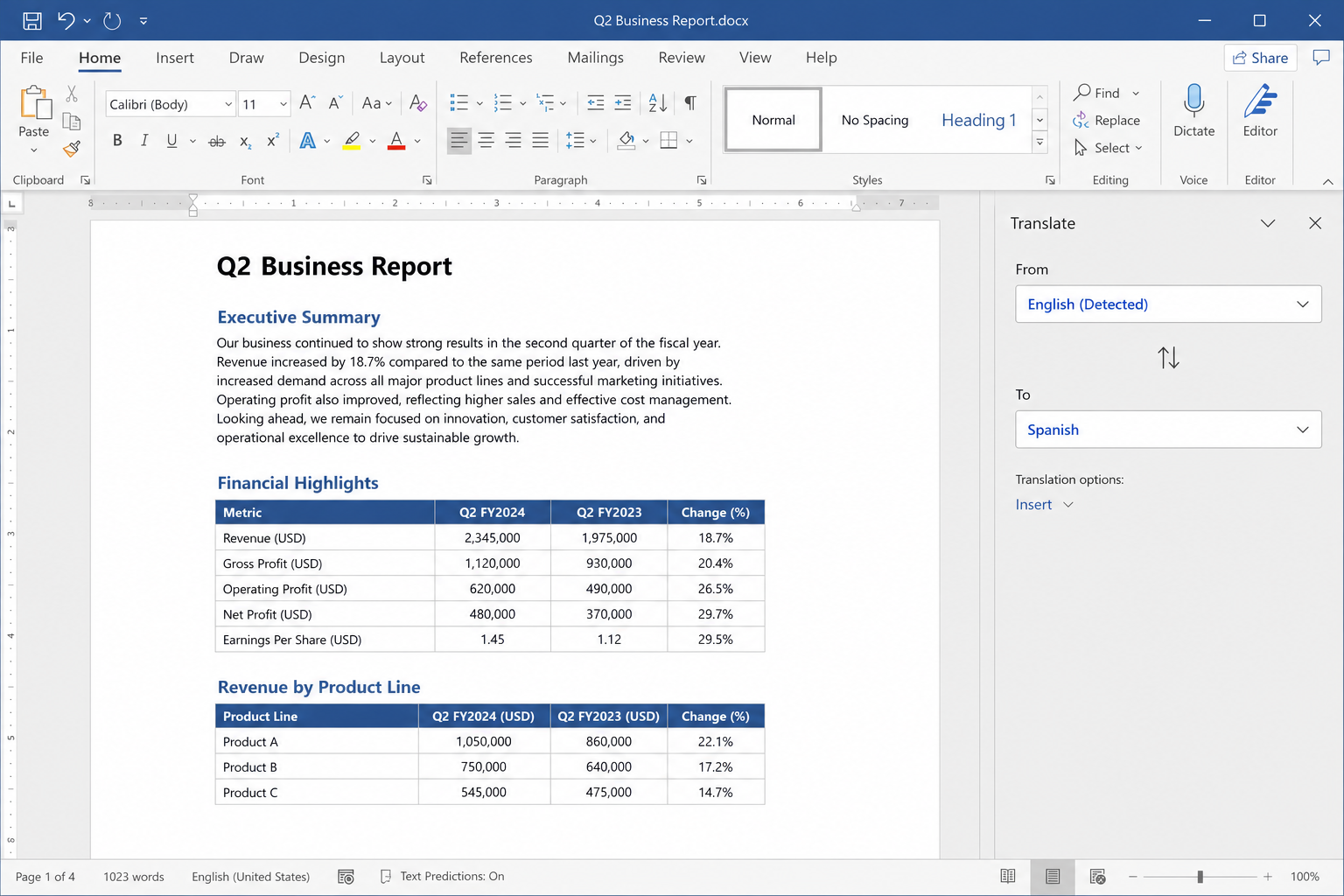
Excel and PowerPoint have related Translator entry points, but Word was the cleanest of the three in my tests. Scanned PDFs still belonged in Acrobat or WPS PDF first. If your company already pays for Microsoft 365, this is the lowest-friction “translate then keep editing” path besides WPS.
Best for
Offices standardized on Word who need to translate a document and keep typing in the same window.
What stands out
- Edit-in-place after translate—no copy-paste back from a website
- Familiar Ribbon for people who already know Word
- Selection translate is handy when only one clause changed
Limitations
- You need Word or Microsoft 365; this is not a free standalone translator site
- PDF and Excel jobs are split across other Microsoft apps
- Wording quality trailed DeepL on the same letter
Pricing
Included with Microsoft 365 personal and business plans. Standalone Word is a separate purchase.
If you already pay for Microsoft 365, the translator is bundled. Buying Word only to translate is rarely the cheapest path.
Pros
- Best Microsoft-native document translator for keep-editing workflows
- No third-party watermark on export
- Selection or full-document translate in one pane
Cons
- Not free if you do not already have Word
- PDF OCR and batch folders still need other tools
ChatGPT
ChatGPT is a document translator only in the loose sense: you upload a file or paste text and ask for a translation. On a messy email thread and a loosely formatted brief, the rewrite-plus-translate pass was useful. On a styled annual report, it flattened the layout.
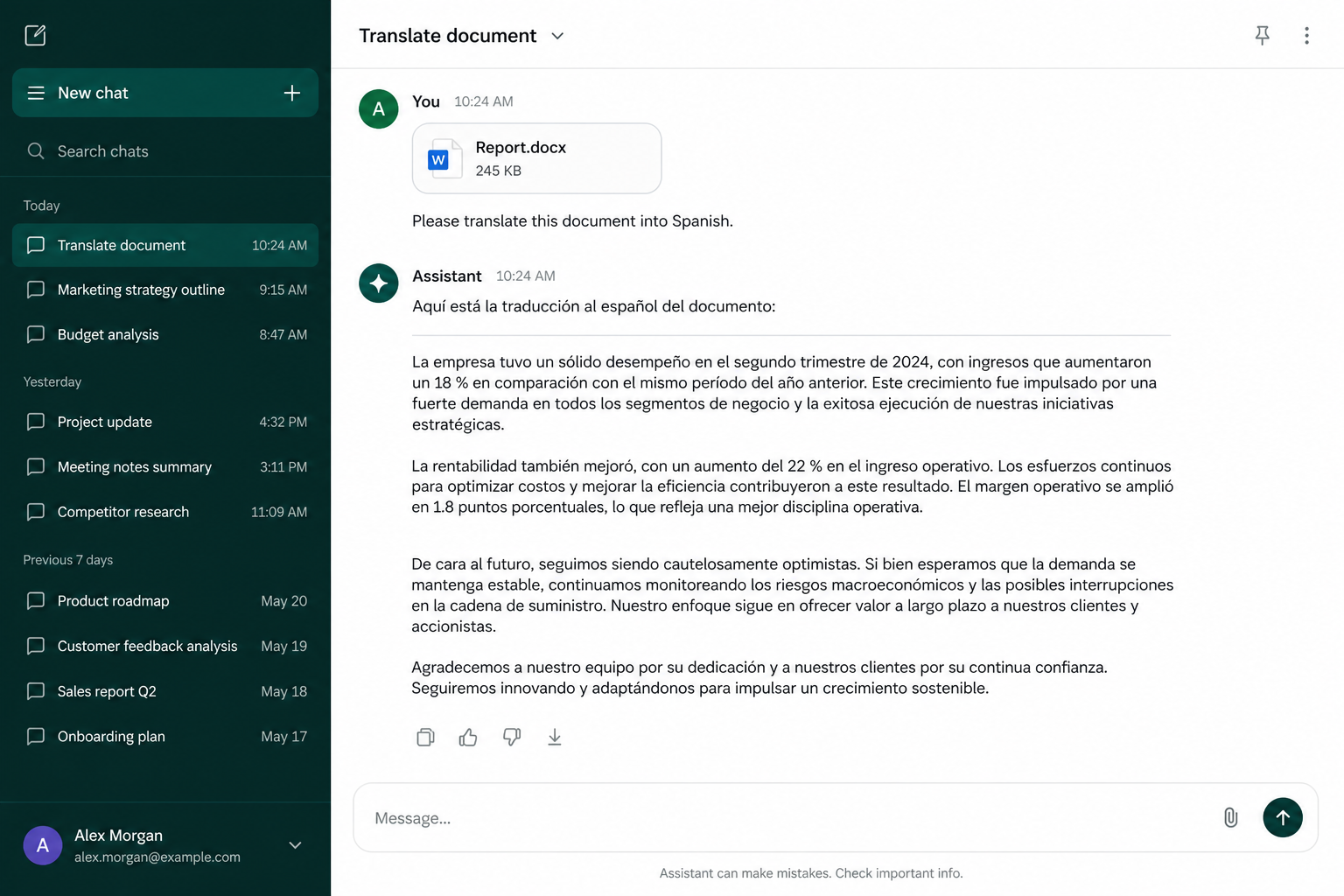
I would not call a chatbot the best document translator for contracts. It is strong when you need meaning, tone options, and a summary in the same chat—and weak when you need the original table grid untouched.
Best for
People who will rewrite the output anyway and care more about meaning than pixel-perfect layout.
What stands out
- Can explain a clause, then translate it, in one thread
- File upload on paid plans beats pasting 40 pages by hand
- Tone controls (“more formal”) are faster than most MT sites
Limitations
- Layout is not the product—expect a text draft, not a styled DOCX
- Free tier file limits are tighter than dedicated translator sites
- Privacy policies vary; I would not drop an unsigned NDA here by default
Pricing
Free tier with limits; ChatGPT Plus is commonly about $20/month. Team and enterprise plans are separate.
Freemium. I needed a paid plan for comfortable file uploads on longer documents.
Pros
- Best “explain then translate” workflow in the list
- Flexible when the source is messy notes, not a clean template
- Useful second pass after a dedicated document translator
Cons
- Not a keep-formatting document translator
- You still paste or export back into Word or WPS to ship the file
Adobe Acrobat
Adobe Acrobat is the document translator I open when the file is a PDF and nothing else. OCR on a scanned invoice made the text selectable; the translate tools then produced a readable English draft. Word and Excel files still belonged in Word or WPS.
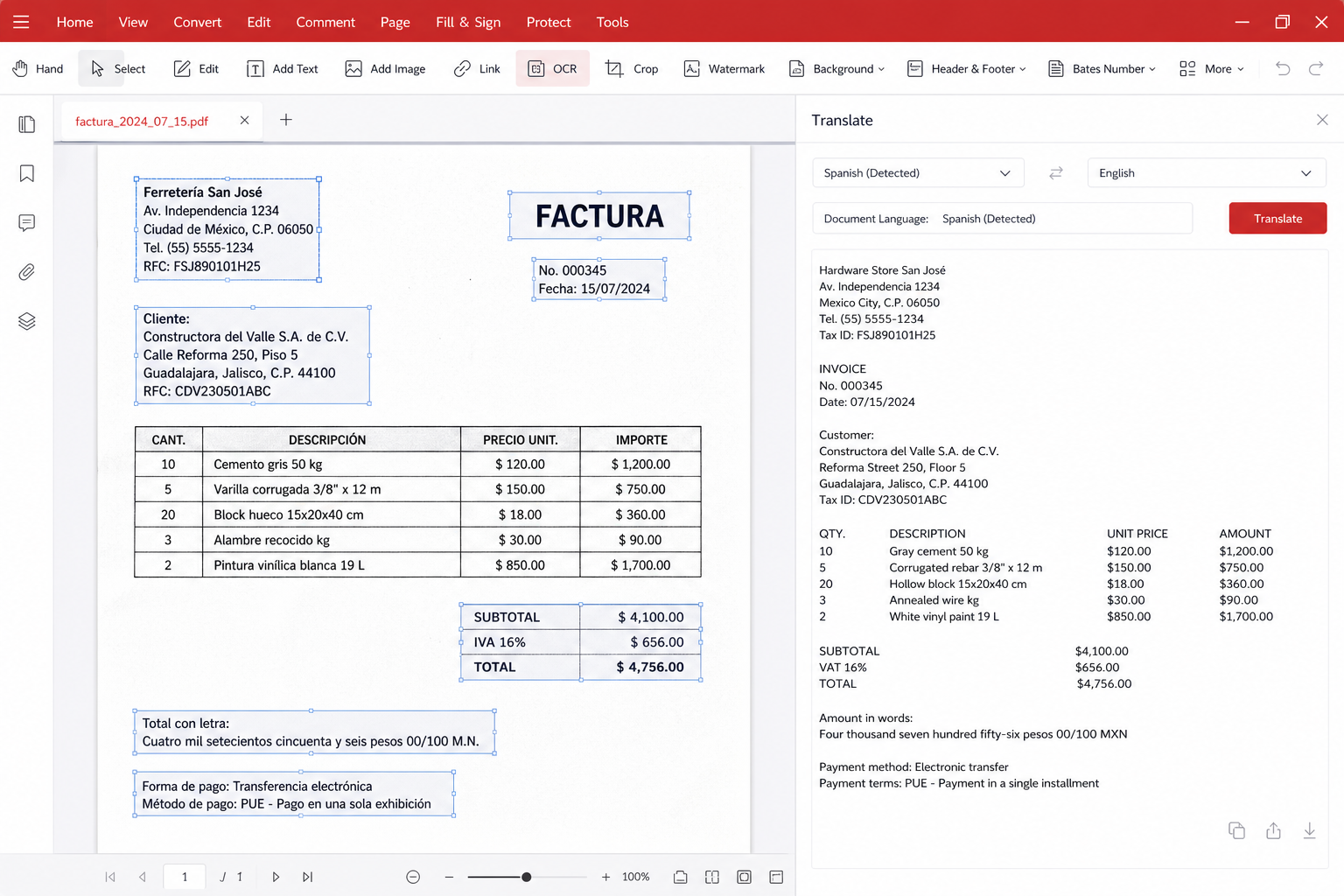
If your world is contracts that arrive as scans, Acrobat’s OCR is the reason it is on this list. If your world is .docx with a live table, skip to Word or WPS and save the Acrobat seat.
Best for
Legal, finance, and ops teams whose “document” almost always means PDF, including scans.
What stands out
- OCR plus translate is a real scanned-PDF path, not a paste box
- Stays inside a PDF editor you may already use for signatures and comments
- Better than generic PDF websites on long, image-heavy scans
Limitations
- Overkill and extra cost if you mainly translate Word
- Excel and PowerPoint are not the home for this tool
- AI features often sit on higher Acrobat plans
Pricing
Acrobat Standard and Pro are paid subscriptions; AI Assistant features are often an add-on. Check Adobe’s current plan page for your region.
Paid PDF suite. I would not buy Acrobat only to translate Word files.
Pros
- Best PDF-native document translator in this roundup
- OCR handles scans that website uploaders reject as “no text”
- Comments and redaction live in the same PDF tool
Cons
- Poor value if your files are mostly DOCX or XLSX
- Not a free document translator
SYSTRAN
SYSTRAN is the document translator I shortlist when a company asks for machine translation with glossaries, on-prem options, and a procurement conversation—not a free website. My test files were a product manual and a support article with locked terminology.
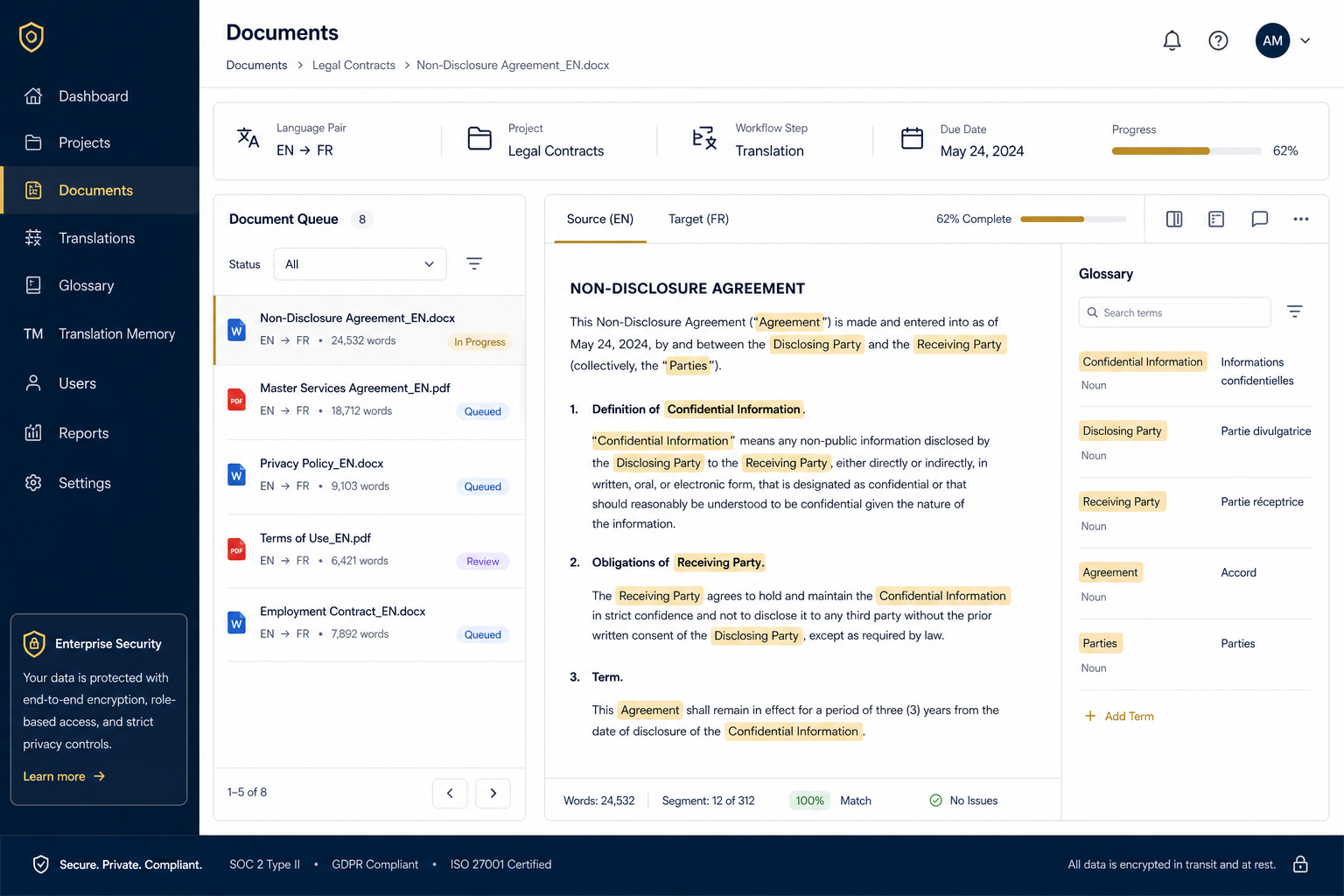
This is not the tool I install for a student essay. It is on the list because “best document translator” for a regulated team is a different product than DeepL’s consumer upload.
Best for
Enterprises that need controllable MT, custom dictionaries, and a vendor that will sign a data-processing agreement.
What stands out
- Glossary enforcement beat consumer translators on product names
- Document workflows feel like a queue, not a one-off upload
- Deployment options matter when legal blocks public websites
Limitations
- Setup and pricing are not “open a tab and go”
- Overkill for a single CV or a one-page letter
- UI is heavier than DeepL or Google Translate
Pricing
Free trials or limited demos may exist; production use is typically a quoted business plan. Confirm volume and hosting with sales.
Enterprise pricing. I treated sticker price as custom, not a public monthly number.
Pros
- Strongest fit when privacy and terminology are the actual requirements
- Built for documents at work, not tourist phrases
- Glossary support reduced brand-name mistakes in my manual test
Cons
- Slowest path to a first translated file for a solo user
- Not a free document translator for everyday students
Smartcat
Smartcat sits between a consumer document translator and a full translation agency workspace. I imported a DOCX, got bilingual segments, and left comments the way a localization team would—not the way a tourist uses Google Translate.
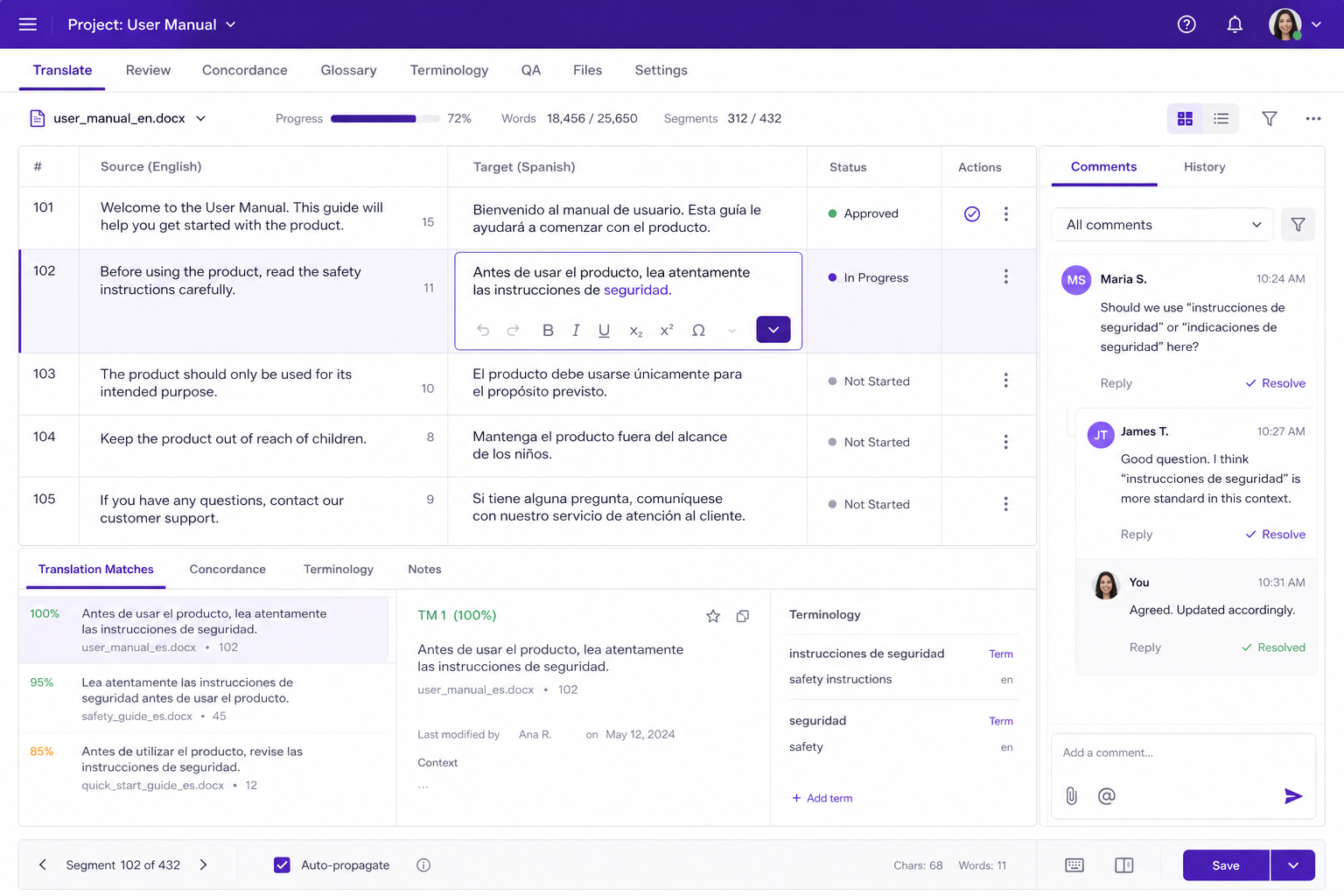
If you are one person translating a lease, this is too much UI. If you are handing files to linguists and MT in the same project, it earns the slot.
Best for
Localization teams, agencies, and companies that mix machine translation with human review on real documents.
What stands out
- Segment view makes review faster than hunting diffs in Word
- Team seats and vendor workflow are the product, not an afterthought
- Handles document formats localization teams actually ship
Limitations
- Learning curve if you only wanted “upload and download”
- Solo users will feel the CAT layout is extra
- MT quality still depends on the engine you plug in
Pricing
Free or freemium for individuals on limited projects; paid plans for teams, CAT features, and volume. Check Smartcat’s current tiers.
Freemium to team. I would not pay a CAT seat to translate one PDF.
Pros
- Best document translator workflow for human+MT review
- Comments live on segments instead of a parallel Slack thread
- Scales past a single upload box
Cons
- Not the fastest first-time document translator
- Overbuilt for a one-off school paper
Papago
Naver Papago is the document translator I switch to for Korean–English (and nearby East Asian pairs) when Google’s draft felt stiff. Image and document helpers covered a photographed worksheet better than a pure paste box.
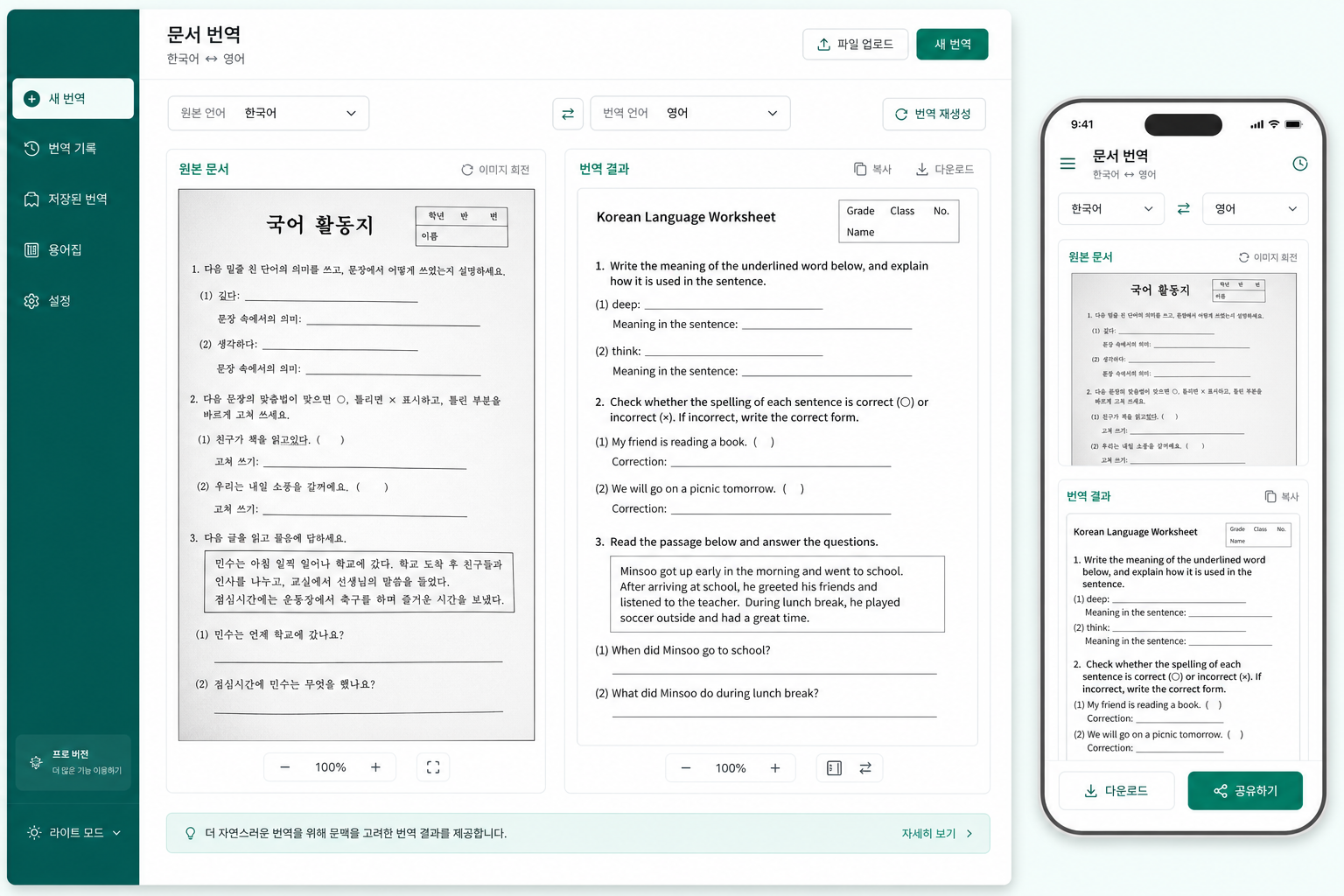
It is not my default for a 40-page English–Spanish contract. Language specialization is why it is #9 instead of off the list.
Best for
Users translating Korean, Japanese, or Chinese documents and images who want a free, region-tuned engine.
What stands out
- Stronger Korean–English feel than a generic global MT site in my sample
- Image/document helpers help when the “file” is a photo of a page
- Fast mobile-friendly path for short documents
Limitations
- Not a full Office editor; you still clean layout elsewhere
- Western European pairs are not the reason to pick it
- Free limits apply on longer files
Pricing
Free for typical personal use, with fair-use and size limits on document and image translation.
Free with limits. I used it as a specialist, not as an all-format Office translator.
Pros
- Best specialist document translator on this list for Korean-centric work
- Handles photos of pages better than a Word-only tool
- No extra Office license required
Cons
- Narrow reason to rank it in a global Word/PDF bake-off
- Edit-in-place still happens in WPS or Word after download
iLovePDF
iLovePDF and similar PDF websites are the document translators people actually try at 11 p.m. when they have one scan and no software. I uploaded a short PDF, got a translation, and immediately hit the usual traps: page caps, watermarks, and a file I still had to open in Word or WPS to fix.
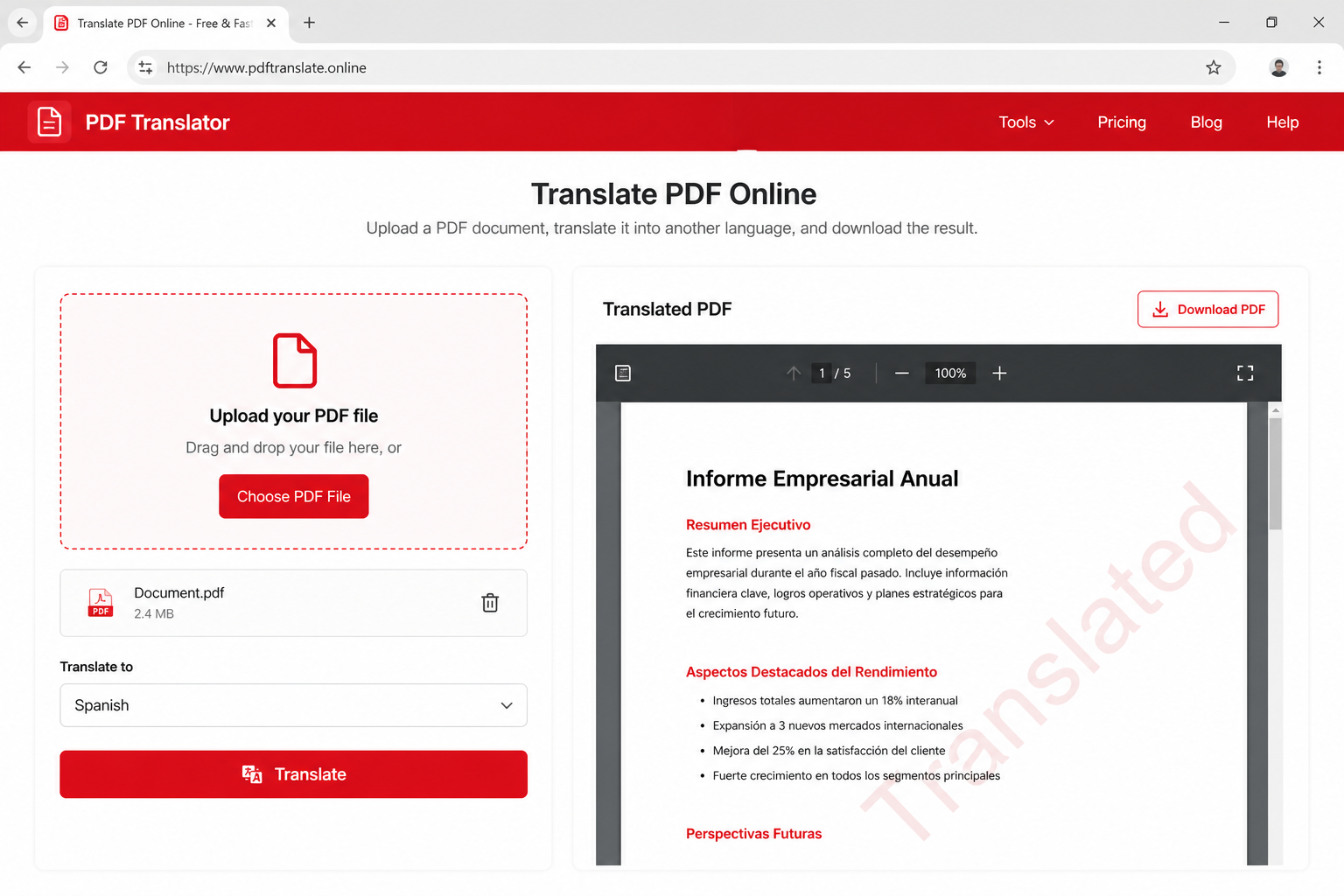
It stays on the list as a warning as much as a recommendation. For a public flyer it can be enough. For a contract, pick WPS, Word, or DeepL instead.
Best for
One-off, non-sensitive PDFs when you cannot install software and you will check the watermark and page limit first.
What stands out
- Lowest install friction—browser only
- Sits next to compress/merge tools people already use
- Fine for a short public PDF when quality is “good enough to read”
Limitations
- Watermarks and page caps on free exports are common
- Unknown site privacy is a poor fit for contracts
- Word, Excel, and PPT are not first-class here
Pricing
Free tier with watermarks or page limits; paid plans remove those caps. Exact prices change—check the site before you upload a long file.
Freemium with sharp free-tier edges. The watermark is why it ranks last.
Pros
- Fastest “I only have a browser” PDF translate
- Familiar if you already compress PDFs on the same site
- Acceptable for low-stakes reading
Cons
- Worst privacy and watermark story in this top 10
- Not a real Office document translator for Word or Excel
How I tested and evaluated these document translators
My goal was simple: identify the best document translator for real files, not demo sentences. I started with 20+ tools, ran each through the same Word/PDF/Excel/PPT set, and cut anything that only worked as a paste box.
Hands-on review
Every finalist got the same files: a two-page letter, a scanned PDF, a budget sheet, and a short deck. That is how I separate a document translator that survives page 8 from a website that looks fine on three pasted sentences.
Review cross-checks
Hands-on testing only tells part of the story. I cross-checked friction with public user complaints on watermarks, surprise page caps, and files that would not re-open in Word after download.
Practical focus
The ranking is deliberately practical: keep formatting, OCR, batch, in-place edit, and whether I would upload a contract. Feature count on a marketing page did not move a tool up.
My criteria for choosing the best document translator
These are the exact questions I used when someone asked me which document translator to use for a real file this year.
Whole file, not a paste box
If it cannot open Word, PDF, Excel, or PPT, it is a sentence translator. The best document translator on this list had to accept the real file.
Keep formatting
I checked headers, tables, text boxes, and charts after translate. Tools that returned a wall of text ranked below tools that left an editable layout.
OCR for scans
A photographed worksheet is not text until OCR runs. Acrobat and WPS PDF earned credit here; paste boxes scored zero.
Batch and languages
A folder of quotes should not be twenty uploads. I also noted which language pairs were actually available, not claimed in a slogan.
Privacy and watermarks
I asked whether I would upload an NDA, and whether the free export stamped a watermark. Last-place tools failed both.
Edit in the same app
After translate, can I fix a cell and export PDF without a second Office install? Word and WPS scored here; most websites did not.
Pricing at a glance
Sticker price rarely tells the full story. I logged free-tier limits, watermarks, and whether you already pay for Office—so the ranking reflects what you actually spend to translate a file.
| Software | Typical pricing | Plan signal |
|---|---|---|
| DeepL | Free with document limits; paid Pro for volume | Freemium |
| WPS Office | Free download; AI Translate uses in-app quota | Free plus premium |
| Google Translate | Free document upload with size limits | Free |
| Microsoft Word Translator | Included with Microsoft 365 | Bundled |
| ChatGPT | Free tier; Plus about $20/month | Freemium |
| Adobe Acrobat | Paid Acrobat plans; AI features often extra | Paid |
| SYSTRAN | Quoted enterprise plans | Enterprise |
| Smartcat | Free/limited for individuals; paid team plans | Freemium to team |
| Papago | Free with document and image limits | Free |
| iLovePDF | Free with watermark/page caps; paid to remove | Freemium |
How I would choose a document translator
When someone asks me to narrow this list to one recommendation, I start with the file type and the privacy bar, not the logo.
Match the tool to the file
- Need Word, Excel, PPT, and PDF in one free install, then edit in place? Start with WPS Office (#2).
- Need the best wording on a short Word or PDF upload? DeepL (#1).
- Need a free upload and an uncommon language pair? Google Translate.
- Need a scanned PDF? OCR in WPS PDF or Adobe Acrobat first.
Match the tool to your stack
- Already on Microsoft 365? Word Translator keeps you in the same doc.
- Need glossaries and a DPA? SYSTRAN or a CAT stack like Smartcat.
- Korean–English worksheet? Papago, then polish in WPS or Word.
- One public PDF at midnight? iLovePDF only if you accept watermarks and skip contracts.
Ready to try the #2 pick?
Free WPS download covers Writer, Spreadsheets, Presentation, and PDF—translate, edit, export in one place.
FAQ
Direct answers to the questions people actually search around the best document translator.
Summary
After side-by-side file tests, DeepL is #1 for wording quality on short Word and PDF uploads. WPS Office is my #2 pick—and the one I would download first—when you need to translate Word, PDF, Excel, or PPT, keep formatting, OCR a scan, batch a folder, and edit in the same free desktop suite. Google Translate covers uncommon languages; Microsoft Word fits teams already on 365. ChatGPT, Acrobat, SYSTRAN, Smartcat, Papago, and iLovePDF each cover a narrower job.
Translate the real file in a free Office suite
WPS Office is my #2 pick after testing all 10 tools—and the free install I would start with for everyday document translator needs: Word, PDF, Excel, PPT, layout checks, and in-place edits without a watermark site.